唉,因为没有数学常识,科研一点盼头都没有,天天干坐着看论文不知道该干什么,为了逃避现实,研究起了我们中年码农最爱的桌面DIY系列
工具
Conky 是一个很轻量级的监测程序,可以读系统信息,甚至可以调用Lua脚本来进行更复杂的信息监测,可以输出到控制台,桌面,甚至作为一个HTTP服务用来发布。右面弄了个panel之后感觉左面空荡荡的,正好之前Spotify放哪都觉得尴尬,就准备放个小窗直接在桌面看进度,也方便去切来切去
目标效果大概就是这样(左下角那一坨是封面的字符画,虽然根本看不出来是什么):
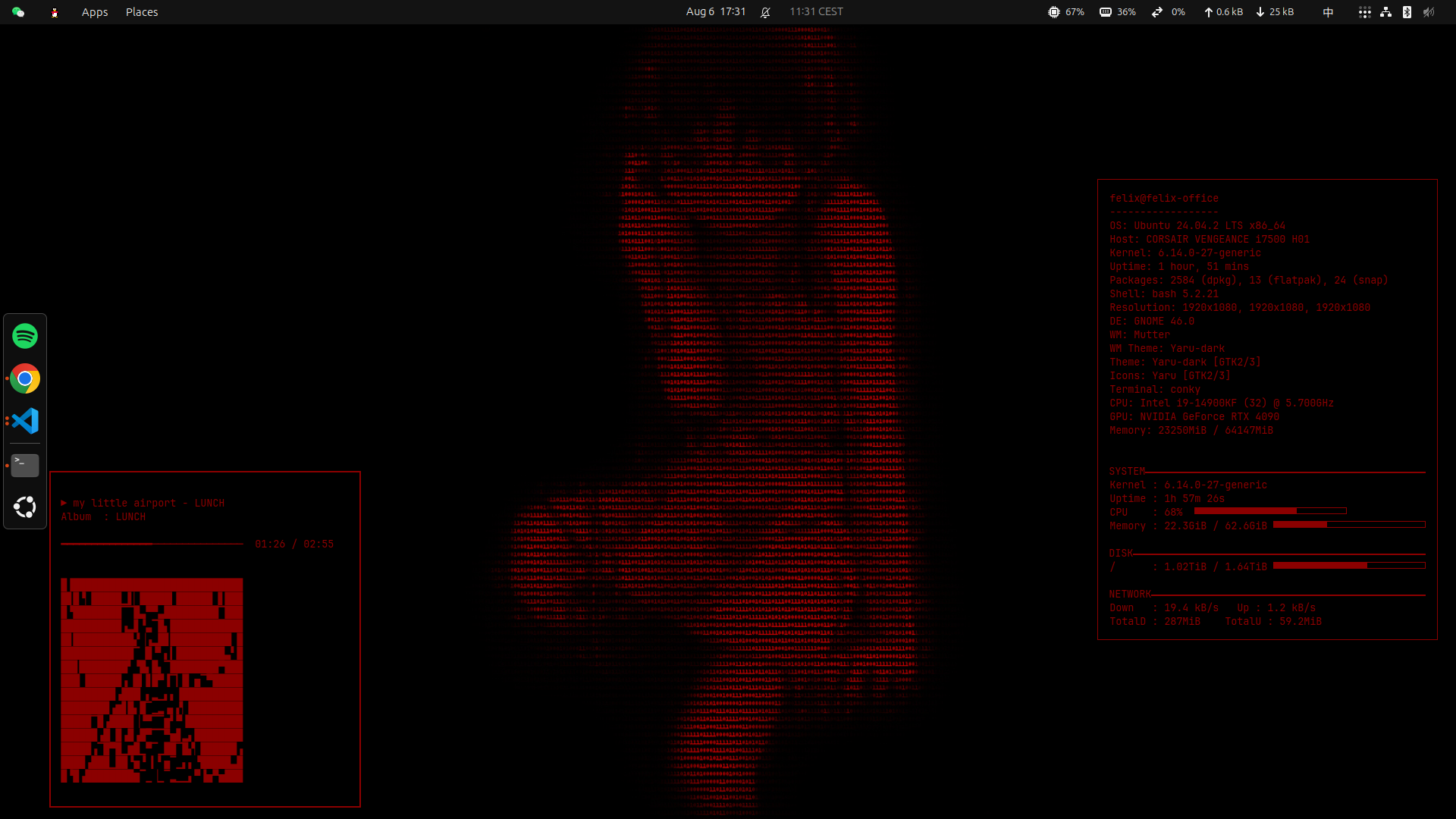
Conky本身不支持Spotify等媒体播放器的播放状态,所以需要用Lua脚本来调用 Playerctl来监测播放的信息。所以其实除了Spotify,Playerctl所支持的VLCPlayer,RhythmBox,甚至于是浏览器播放器,都是可以监测并显示的。
本文会介绍如何在Ubuntu系统下安装并进行配置,而用于其他的Linux发行版,或者MacOS,流程大致都是类似的,因此不会详细介绍。
具体流程
1. 安装Conky
bash
sudo apt update
sudo apt install conky-all
2. 配置Conky
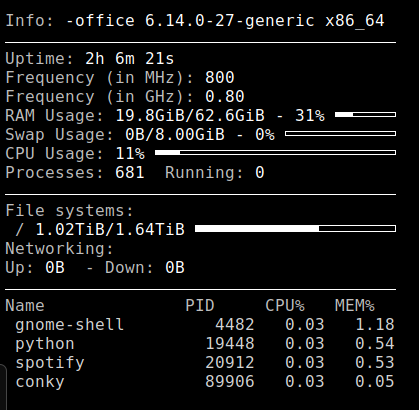
Conky会提供一个默认配置,在/etc/conky/conky.conf文件内,可以用 conky -c /etc/conky/conky.conf执行看一下,执行完毕后,桌面左上角会多出来个大概这么个东西,太丑了赶快stop。
嗯以下就是我的配置。首先创建配置文件夹,我是放在了~/.config/conky/
bash
mkdir -p ~/.config/conky/然后创建文件
bash
sudo nano ~/.config/conky/my-info.conf把以下这些复制进去:
lua
conky.config = {
    own_window              = true,
    own_window_type         = 'dock',
    own_window_argb_visual  = true,
    own_window_argb_value   = 180,
    own_window_colour       = '000000',
    double_buffer           = true,

    alignment               = 'middle_right',
    gap_x                   = 40,
    gap_y                   = 0,
    minimum_width           = 380,
    minimum_height          = 300,

    draw_borders            = true,
    border_width            = 2,
    border_inner_margin     = 14,
    border_outer_margin     = 0,

    use_xft                 = true, -- 这边可以改字体和颜色
    font                    = 'JetBrains Mono:size=10',
    default_color           = '8b0000',
    default_outline_color   = '8b0000',
    default_shade_color     = '000000',

    update_interval         = 1,
    own_window_hints        = 'undecorated,below,sticky,skip_taskbar,skip_pager',
};

conky.text = [[
${execpi 600 neofetch --ascii_distro ubuntu --color_blocks off --stdout}

${goto 15}${color 8b0000}SYSTEM${color}${hr 2}
Kernel : $kernel
Uptime : $uptime
CPU    : ${cpu cpu0}%  ${cpubar 8,200}
Memory : $mem / $memmax ${membar 8,200}

${goto 15}${color 8b0000}DISK${color}${hr 2}
/      : ${fs_used /} / ${fs_size /} ${fs_bar 8,200 /}

${goto 15}${color 8b0000}NETWORK${color}${hr 2}
Down   : ${downspeedf enp4s0} kB/s   Up : ${upspeedf enp4s0} kB/s
TotalD : ${totaldown enp4s0}    TotalU : ${totalup enp4s0}
]];Ctrl+O保存,Ctrl+X退出,就可以用同样的方式预览下conky结果了。执行
bash
conky -c ~/.config/conky/my-info.conf桌面上就会多出来实例里面右面的大框。里面文字的颜色其实是可以单独设的(代码里面{color 8b0000}的部分),但是为了一致性,就全弄成护眼暗红色了。
配置系统服务
在创建systemd创建系统服务,让这些可以在后台跑,并且可以开机启动、自动重新运行。
bash
sudo nano ~/.config/systemd/user/conky.service(如果之前没有这个文件夹的话要mkdir -p创建一下)
放进去:
bash
[Unit]
Description=Conky system monitor

[Service]
ExecStart=/usr/bin/conky -c %h/.config/conky/my-info.conf
ExecReload=/bin/kill -HUP $MAINPID
Restart=on-failure

[Install]
WantedBy=default.target然后终端运行systemctl --user enable --now my-info.service,以后这个配置文件就会自动运行,如果想要关掉就直接systemctl --user disable my-info.service,或者stop掉。
3. 安装Playerctl
然后就是安装Playerctl,让他帮我们去获得Spotify的播放信息。
bash
sudo apt install playerctl4. 新的Spotify配置文件
在刚才的地方创建同样的配置文件
bash
sudo nano ~/.config/conky/spotify.conf复制进这些
lua
conky.config = {
    own_window              = true,
    own_window_type         = 'dock',
    own_window_argb_visual  = true,
    own_window_argb_value   = 180,
    own_window_colour       = '000000',
    double_buffer           = true,

    alignment               = 'bottom_left',
    gap_x                   = 80,
    gap_y                   = 30,
    minimum_width           = 380,
    minimum_height          = 180,

    draw_borders            = true,
    border_width            = 2,
    border_inner_margin     = 12,

    use_xft                 = true,
    override_utf8_locale    = true,
    font                    = 'JetBrains Mono:size=10',
    default_color           = '8b0000',

    update_interval         = 1,
    own_window_hints        = 'undecorated,below,sticky,skip_taskbar,skip_pager',

    -- 这边把lua脚本放到外面来写,一会要在这里创建新的脚本文件
    lua_load                = '~/.config/conky/spotify.lua',
};

conky.text = [[
${if_running spotify}
${lua status_icon} ${execi 2 playerctl -p spotify metadata artist} - ${execi 2 playerctl -p spotify metadata title}
Album  : ${execi 5 playerctl -p spotify metadata album}

${lua progress_bar}

${else}
${goto 15}Spotify is not running...
${endif}
]];
然后创建Lua脚本,获取当前进度以及播放状态:
bash
sudo nano ~/.config/conky/spotify.lua放进去这些
Lua
local function cmd(cmdline)
   local h = io.popen(cmdline)
   if not h then return "" end
   local out = h:read("*all")
   h:close()
   return (out or ""):gsub("^%s+",""):gsub("%s+$","")
end

function conky_status_icon() -- 检测当前播放状态
    local st = cmd("playerctl -p spotify status 2>/dev/null")

    if     st == "Playing" then
        return "▶"
    elseif st == "Paused" then
        return "⏸"
    else
        return "■"
    end
end

function conky_progress_bar()
    -- 可自行修改的常量
    local BAR_LEN = 30         -- 字符宽度

    -- 当前播放位置
    local pos_str = cmd("playerctl -p spotify position 2>/dev/null")
    if pos_str == "" or pos_str == "No players found" then
        return "No track"
    end

    local pos = tonumber(pos_str)
    if not pos then
        return "No track"
    end
    pos = math.floor(pos + 0.5)

    -- 总时长
    local raw_len_str = cmd("playerctl -p spotify metadata mpris:length 2>/dev/null")
    if raw_len_str == "" or raw_len_str == "No players found" then
        return "No track"
    end

    local raw_len = tonumber(raw_len_str)
    if not raw_len or raw_len == 0 then
        return "No track"
    end

    local tot_s = math.floor(raw_len / 1000000 + 0.5)  -- 总时长 和 当前播放进度 单位不一样,差1e6,要手动转一下

    -- 百分比 & 进度条
    local pct = pos / tot_s
    if pct > 1 then pct = 1 end
    if pct < 0 then pct = 0 end

    local filled = math.floor(pct * BAR_LEN + 0.5)
    if filled > BAR_LEN then filled = BAR_LEN end
    if filled < 0 then filled = 0 end

    local bar_fg = string.rep("━", filled) -- 表示进度条已播放部分的符号,可自行更改
    local bar_bg = string.rep("─", BAR_LEN - filled) -- 未播放的部分

    local cM, cS = math.floor(pos / 60), pos % 60
    local tM, tS = math.floor(tot_s / 60), tot_s % 60

    -- 返回进度条和时间
    return string.format(
        "%s%s  %02d:%02d / %02d:%02d",
        bar_fg, bar_bg, cM, cS, tM, tS
    )
end用conky -c ~/.config/conky/spotify.conf检查一下,没问题的话在创建一个系统服务就ok了
bash
sudo nano ~/.config/systemd/user/spotify.service再使用systemctl --user enable --now spotify.service 激活服务
放进去:
bash
[Unit]
Description=Spotify

[Service]
ExecStart=/usr/bin/conky -c %h/.config/conky/spotify.conf
ExecReload=/bin/kill -HUP $MAINPID
Restart=on-failure

[Install]
WantedBy=default.target
5. 关于字符画封面
自己加了个字符画的封面,不过效果其实不怎么样。主要就是Playerctl把封面读下来之后再用Chafa转换一下。
首先就是安装chafa
bash
sudo apt install chafa然后再写个shell脚本来把Playerctl和chafa接在一起
bash
#!/usr/bin/env bash
set -euo pipefail

CACHE="$HOME/.cache/conky_spotify_cover.txt"
COVER="$HOME/.cache/conky_cover.jpg"

URL=$(playerctl -p spotify metadata mpris:artUrl 2>/dev/null | sed 's#^open.spotify.com#https://i.scdn.co#') # 拿封面的url

if [[ -z "$URL" ]]; then
    echo "" > "$CACHE"
    exit 0
fi

# 之后封面更换才处理
if ! grep -q "$URL" "$CACHE" 2>/dev/null ; then
    curl -sL "$URL" -o "$COVER"
{
  # echo "$URL"
  chafa -s 30x15 \
      --symbols solid,block \
      --fill solid \
      "$COVER" | \
      sed -r 's/\x1B\[[0-9;?]*[A-Za-z]//g'\
      > "$CACHE"
      #转成35*15字符画,因为chafa输出的带颜色,会有颜色的标签,用正则表达式把他们去一下
}
fi
然后还要改一下Lua脚本(spotify.conf)
最下面改成
lua
${lua progress_bar}
# 以下这两行是新加进来的,执行封面缓存脚本,每 20 秒刷新一次
${execi 20 ~/.config/conky/covercache.sh}
${exec cat ~/.cache/conky_spotify_cover.txt}
${else}
${goto 15}Spotify is not running...
${endif}
]];