在现代化桌面应用中,快速搜索功能是提升用户体验的关键因素之一。本文将详细介绍如何在 Electron 应用中实现一个优雅的全局搜索框,支持快捷键调起、实时搜索和高亮导航。
功能预览
实现效果:
- 使用
Ctrl+F(Windows/Linux)或Cmd+F(Mac)快捷键调起搜索框 - 搜索框悬浮在应用右上角,不占用主内容区域
- 实时搜索并高亮匹配结果
- 支持上下导航匹配项
- 显示当前匹配位置和总匹配数
- 支持键盘快捷键操作(Enter、Shift+Enter、Esc、方向键)
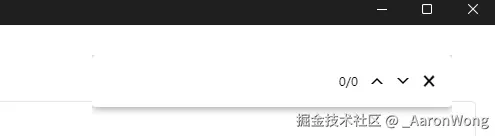
样式可以自行于search.html内修改,这里只是简单实现了一下
实现步骤
1. 搜索框页面 (search.html)
首先创建搜索框的 HTML 页面,包含输入框、导航按钮和关闭按钮:
html
<!doctype html>
<html lang="en">
<head>
<meta charset="UTF-8" />
<meta name="viewport" content="width=device-width, initial-scale=1.0" />
<title>搜索</title>
<style>
body {
margin: 0;
padding: 0;
overflow: hidden;
font-family: -apple-system, BlinkMacSystemFont, 'Segoe UI', Roboto, sans-serif;
}
.search-wrap {
padding: 10px;
background: #fff;
box-shadow: 0 0 10px rgba(0, 0, 0, 0.5);
border-radius: 4px;
display: flex;
align-items: center;
}
.input {
flex: 1;
width: 200px;
height: 30px;
padding-right: 10px;
border: 0;
outline: none;
border-radius: 5px;
}
.button {
display: inline-block;
background: transparent;
border: 0;
cursor: pointer;
}
.icon {
width: 26px;
height: 26px;
font-size: 26px;
margin: 0;
padding: 0;
border-radius: 50%;
position: relative;
display: inline-block;
vertical-align: middle;
line-height: 1;
flex-shrink: 0;
}
.icon:hover {
background-color: #e5e2e2;
}
.icon.next:hover::after {
border-color: #e5e2e2 transparent transparent transparent;
}
.icon.prev:hover::after {
border-color: transparent transparent #e5e2e2 transparent;
}
.prev::before,
.next::before,
.prev::after,
.next::after {
content: '';
position: absolute;
width: 0;
height: 0;
top: 50%;
left: 50%;
transform: translate(-50%, -50%);
border-style: solid;
}
.prev::before {
border-width: 0 6px 6px 6px;
border-color: transparent transparent #000 transparent;
}
.prev::after {
border-width: 0 6px 6px 6px;
border-color: transparent transparent #fff transparent;
transform: translate(-50%, calc(-50% + 2px));
}
.next::before {
border-width: 6px 6px 0 6px;
border-color: #000 transparent transparent transparent;
}
.next::after {
border-width: 6px 6px 0 6px;
border-color: #fff transparent transparent transparent;
transform: translate(-50%, calc(-50% - 2px));
}
.count {
display: inline-block;
font-size: 12px;
margin-right: 6px;
flex-shrink: 0;
max-width: 50px;
}
</style>
</head>
<body>
<div class="search-wrap">
<input id="search" class="input" placeholder="搜索..." />
<div class="count" id="count">0/0</div>
<button class="button icon prev" id="prev" title="上一个 (Shift+Enter)"></button>
<button class="button icon next" id="next" title="下一个 (Enter)"></button>
<button class="button icon" id="close" title="关闭 (Esc)">×</button>
</div>
<script>
window.onload = () => {
// 移除加载动画(如果有)
postMessage({ payload: 'removeLoading' }, '*')
// 自动聚焦到搜索框
document.getElementById('search').focus()
// 输入事件处理
document.getElementById('search').oninput = () => {
const value = document.getElementById('search').value
if (!value) {
// 清空搜索
electronAPI.sendSearchPage(JSON.stringify({ value: '', start: true }))
document.getElementById('count').innerText = '0/0'
return
}
electronAPI.sendSearchPage(JSON.stringify({ value, start: true }))
}
// 上一个匹配项
document.getElementById('prev').onclick = () => {
const value = document.getElementById('search').value
if (!value) return
electronAPI.sendSearchPage(JSON.stringify({ value, next: false }))
}
// 下一个匹配项
document.getElementById('next').onclick = () => {
const value = document.getElementById('search').value
if (!value) return
electronAPI.sendSearchPage(JSON.stringify({ value, next: true }))
}
// 关闭搜索框
document.getElementById('close').onclick = () => {
electronAPI.closeSearchPage()
}
// 键盘事件处理
window.addEventListener('keyup', (e) => {
if (e.key === 'Escape') {
electronAPI.closeSearchPage()
} else if (e.key === 'Enter') {
if(e.shiftKey) {
document.getElementById('prev').click()
} else {
document.getElementById('next').click()
}
} else if (e.key === 'ArrowRight') {
document.getElementById('next').click()
} else if (e.key === 'ArrowLeft') {
document.getElementById('prev').click()
}
})
// 监听搜索结果
setTimeout(() => {
electronAPI.foundInPage((arg) => {
document.getElementById('count').innerText = `${arg.activeMatchOrdinal}/${arg.matches}`
})
}, 0);
}
</script>
</body>
</html>2. 预加载脚本 (preload.js)
在预加载脚本中定义与主进程通信的 API:
javascript
const { contextBridge, ipcRenderer } = require('electron')

contextBridge.exposeInMainWorld('electronAPI', {
  openSearchPage: (info) => ipcRenderer.send('open-search-page', info),
  sendSearchPage: (info) => ipcRenderer.send('search-page', info),
  closeSearchPage: (info) => ipcRenderer.send('close-search-page', info),
  foundInPage: (callback) => {
    ipcRenderer.on('found-in-page', (event, progress) => {
      callback(progress)
    })
  }
})
3. 主进程搜索功能 (searchView.js)
创建搜索功能的主进程模块:
javascript
const { ipcMain, BrowserView } = require('electron')
const path = require('path')

let searchView = null
let searchUrl = path.join(__dirname, '../dist/search.html')

function initCodeWin(options) {
  const { win, NODE_ENV } = options

  // 注册打开搜索页面的IPC监听
  ipcMain.on('open-search-page', (event, arg) => {
    // 如果已经存在搜索视图,则销毁之前的
    if (searchView) {
      closeSearchView(win)
    }

    // 创建一个新的BrowserView
    searchView = new BrowserView({
      webPreferences: {
        webviewTag: true,
        devTools: NODE_ENV === 'development',
        contextIsolation: true,
        nodeIntegrationInWorker: false,
        nodeIntegration: false,
        preload: path.join(__dirname, '../preload.js')
      }
    })

    updateSearchViewBounds(win)

    // 将搜索视图添加到主窗口中
    win?.addBrowserView(searchView)

    // 加载搜索页面
    searchView.webContents.loadFile(searchUrl)
  })

  // 处理搜索请求
  ipcMain.on('search-page', (event, arg) => {
    const searchObj = JSON.parse(arg)

    // 如果搜索内容为空,清除搜索高亮
    if (!searchObj.value) {
      win?.webContents.stopFindInPage('clearSelection')
      return
    }

    // 执行搜索
    win?.webContents.findInPage(searchObj.value, {
      findNext: searchObj.start,
      forward: searchObj.next
    })
  })

  // 停止搜索
  ipcMain.on('stop-search', (event, arg) => {
    win?.webContents.stopFindInPage('clearSelection')
  })

  // 关闭搜索页面
  ipcMain.on('close-search-page', (event, arg) => {
    closeSearchView(win)
  })

  // 当主窗口失去焦点时关闭搜索框
  win.on('blur', () => {
    closeSearchView(win)
  })

  // 窗口大小变化时调整搜索框位置
  win.on('resize', () => {
    if (searchView) {
      updateSearchViewBounds(win)
    }
  })

  // 监听搜索结果
  win.webContents.on('found-in-page', (event, arg) => {
    // 向搜索视图发送找到的内容
    searchView?.webContents.send('found-in-page', arg)
  })

  // 关闭搜索视图的函数
  function closeSearchView(win) {
    try {
      win?.webContents.stopFindInPage('clearSelection')
      if (searchView) {
        win?.removeBrowserView(searchView)
        searchView = null
      }
    } catch (error) {
      console.log('关闭搜索视图时出错:', error)
    }
  }

  // 更新搜索视图位置和大小的函数
  function updateSearchViewBounds(win) {
    if (!win || !searchView) return

    try {
      const winBounds = win.getBounds()
      const x = winBounds.width - 360 - 60 // 计算新的x坐标
      const y = 30
      searchView.setBounds({ x, y, width: 360, height: 70 })
    } catch (error) {
      console.log('更新搜索视图位置时出错:', error)
    }
  }
}

module.exports = { initCodeWin }
4. 渲染进程调用
在 Vue 组件中注册快捷键:
javascript
import { useCombinationKey } from "@/hooks/useKeyboard"

// 注册 Ctrl+F / Cmd+F 快捷键
useCombinationKey("CommandOrControl+f", () => {
  window.electronAPI.openSearchPage()
})注意:useCombinationKey 是一个自定义的快捷键组合 Hook,可以参考之前的文章Electron/Vue 3快捷键方案:useCombinationKey Hook设计与实现详解了解实现细节。
5. 主窗口初始化
在主窗口创建后初始化搜索功能:
javascript
const { app, BrowserWindow } = require('electron')
const { initCodeWin } = require('./searchView')

app.whenReady().then(() => {
  const win = new BrowserWindow({
    width: 1200,
    height: 800,
    webPreferences: {
      preload: path.join(__dirname, 'preload.js'),
      contextIsolation: true,
      nodeIntegration: false
    }
  })

  // 加载应用内容
  win.loadFile('index.html')

  // 初始化搜索功能
  initCodeWin({ win, NODE_ENV: process.env.NODE_ENV })
})
多窗口支持
如果你的应用需要支持多个窗口,每个窗口都需要独立的搜索功能,可以使用以下修改版本:
javascript
const { globalShortcut, ipcMain, BrowserView } = require("electron")
const path = require("path")

// 为每个窗口保存搜索视图
const searchViews = new Map()

function initCodeWin(options) {
  const { win, NODE_ENV } = options

  // 当主窗口获得焦点时
  win.on("focus", () => {
    // 注册全局快捷键,打开搜索视图
    globalShortcut.register("CommandOrControl+F", function () {
      // 如果已经存在搜索视图,则销毁之前的
      if (searchViews.has(win)) {
        closeSearchView(win)
      }

      // 创建一个新的BrowserView
      const searchView = new BrowserView({
        webPreferences: {
          webviewTag: true,
          devTools: NODE_ENV === 'development',
          contextIsolation: true,
          nodeIntegrationInWorker: false,
          nodeIntegration: false,
          preload: path.join(__dirname, "../preload.js")
        }
      })

      // 保存搜索视图
      searchViews.set(win, searchView)
      updateSearchViewBounds(win)

      // 将搜索视图添加到主窗口中
      win?.addBrowserView(searchView)

      // 加载搜索页面
      searchView.webContents.loadFile(path.join(__dirname, "./search.html"))
    })

    // 处理搜索请求
    ipcMain.on("search-page", (event, arg) => {
      const searchObj = JSON.parse(arg)
      win?.webContents.findInPage(searchObj.value, {
        findNext: searchObj.start,
        forward: searchObj.next
      })
    })

    // 关闭搜索页面
    ipcMain.on("close-search-page", (event, arg) => {
      closeSearchView(win)
    })
  })

  // 当主窗口失去焦点时
  win.on("blur", () => {
    closeSearchView(win)
    // 取消注册全局快捷键
    globalShortcut.unregister("CommandOrControl+F")
  })

  // 窗口关闭时清理资源
  win.on("closed", () => {
    closeSearchView(win)
    searchViews.delete(win)
  })

  // 窗口大小变化时调整搜索框位置
  win.on("resize", () => {
    if (searchViews.has(win)) {
      updateSearchViewBounds(win)
    }
  })

  // 监听搜索结果
  win.webContents.on("found-in-page", (event, arg) => {
    // 向搜索视图发送找到的内容
    const searchView = searchViews.get(win)
    searchView?.webContents.send("found-in-page", arg)
  })

  // 关闭搜索视图的函数
  function closeSearchView(win) {
    try {
      win?.webContents.stopFindInPage("clearSelection")
      const searchView = searchViews.get(win)
      if (searchView) {
        win?.removeBrowserView(searchView)
        searchViews.delete(win)
      }
    } catch (error) {
      console.log("关闭搜索视图时出错:", error)
    }
  }

  // 更新搜索视图位置和大小的函数
  function updateSearchViewBounds(win) {
    const searchView = searchViews.get(win)
    if (!win || !searchView) return

    try {
      const winBounds = win.getBounds()
      const x = winBounds.width - 360 - 60
      const y = 30
      searchView.setBounds({ x, y, width: 360, height: 70 })
    } catch (error) {
      console.log("更新搜索视图位置时出错:", error)
    }
  }
}

module.exports = { initCodeWin }
使用说明
- 将上述代码文件放置到合适的位置
- 在主进程初始化时调用
initCodeWin - 确保预加载脚本正确配置
- 在前端代码中注册快捷键
结语
通过本文的介绍,我们实现了一个功能完整的 Electron 搜索框,支持快捷键调起、实时搜索、结果导航等特性。这个实现既美观又实用,可以大大提升用户的使用体验。