ArkUI 简易计算器键盘示例
功能:
使用 Grid + GridItem 构建一个计算器键盘,实现
数字输入、小数点、清空、正负号、百分比、四则运算和
=,并把 "0" 键做成横跨两列 的圆形按钮布局。
一、整体结构概览
本页面是一个 ArkUI 组件:
ts
@Entry
@Component
struct CalculatorPage {
  // ... 状态 + 逻辑 + build()
}
主要包含三部分:
- 状态数据:当前显示值、上一次运算值、当前运算符等;
- 布局:上方显示区域 + 下方 Grid 键盘;
- 事件与逻辑:处理按键、执行运算、格式化结果等。
- 效果图:可以复制代码到编译器里看效果
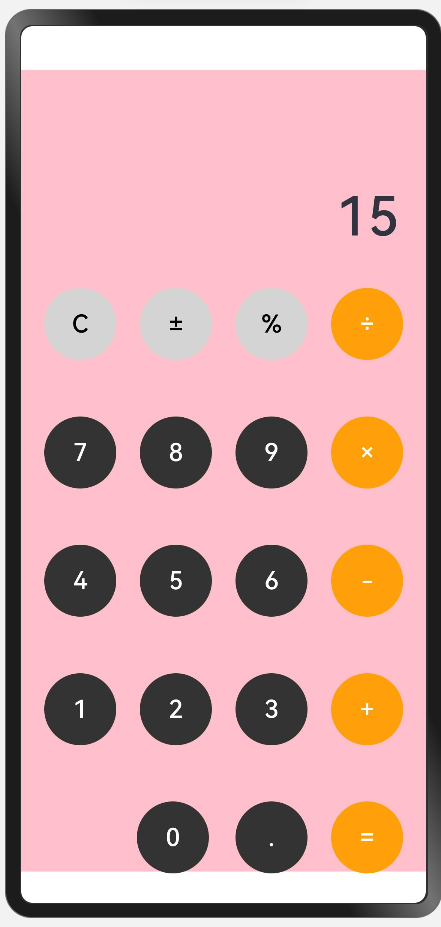
二、状态变量与键盘数据
ts
@State private displayValue: string = '0'   // 当前显示值
@State private previousValue: number = 0    // 上一次运算的值
@State private pendingOperator: string = '' // 当前等待执行的运算符
@State private isNewInput: boolean = true   // 是否开始新的输入
键盘按键顺序(从上到下、从左到右):
ts
private readonly keys: string[] = [
  'C', '±', '%', '÷',
  '7', '8', '9', '×',
  '4', '5', '6', '-',
  '1', '2', '3', '+',
  '0', '.', '='
]
三、Grid 布局与 "0" 跨两列
3.1 使用 GridLayoutOptions
通过 GridLayoutOptions.onGetRectByIndex 指定每个 GridItem 的所在行列和跨行跨列情况:
ts
private gridLayoutOptions: GridLayoutOptions = {
  regularSize: [1, 1],
  onGetRectByIndex: (index: number): [number, number, number, number] => {
    // 0~3   : 第 1 行  C  ±  %  ÷
    // 4~7   : 第 2 行  7  8  9  ×
    // 8~11  : 第 3 行  4  5  6  -
    // 12~15 : 第 4 行  1  2  3  +
    // 16~18 : 第 5 行  0  .  =

    if (index === 16) {          // "0"
      return [4, 0, 1, 2]        // 第 5 行、第 1 列起,占 1 行 2 列
    } else if (index === 17) {   // "."
      return [4, 2, 1, 1]        // 第 5 行、第 3 列
    } else if (index === 18) {   // "="
      return [4, 3, 1, 1]        // 第 5 行、第 4 列
    }

    // 其余按键:按照 4 列规则排布,每个格子都是 1×1
    const row = Math.floor(index / 4)
    const col = index % 4
    return [row, col, 1, 1]
  }
}
Grid 行列设置:
tsx
Grid(undefined, this.gridLayoutOptions) {
  ...
}
.rowsTemplate('1fr 1fr 1fr 1fr 1fr') // 5 行
.columnsTemplate('1fr 1fr 1fr 1fr') // 4 列
四、页面布局:显示区域 + 键盘区域
4.1 显示区域(上半部分)
ts
Column() {
  Text(this.buildExpression())   // 上面一行:小号表达式
    .fontSize(18)
    .opacity(0.6)
    .textAlign(TextAlign.End)
    .width('100%')
    .padding({ right: 24, left: 24, top: 24 })

  Text(this.displayValue)        // 下面一行:主显示数字
    .fontSize(48)
    .fontWeight(FontWeight.Medium)
    .textAlign(TextAlign.End)
    .width('100%')
    .padding({ right: 24, left: 24, top: 8, bottom: 16 })
}
.width('100%')
.height('30%')
.justifyContent(FlexAlign.End)
构造表达式字符串:
ts
private buildExpression(): string {
  if (this.pendingOperator === '') {
    return ''
  }
  if (this.isNewInput) {
    return `${this.previousValue} ${this.pendingOperator}`   // 只选好运算符,还没输第二个数
  }
  return `${this.previousValue} ${this.pendingOperator} ${this.displayValue}` // 正在输入第二个数
}
4.2 键盘区域(下半部分)
核心结构:
ts
Grid(undefined, this.gridLayoutOptions) {
  ForEach(this.keys, (key: string, index: number) => {
    GridItem() {
      Row() {
        Button(key)
          .width(64)
          .height(64)
          .borderRadius(32)                     // 圆形按钮
          .backgroundColor(this.getButtonBackground(key))
          .fontColor(this.getButtonTextColor(key))
          .fontSize(22)
          .onClick(() => this.onKeyPress(key))
      }
      // "0" 键靠左对齐,其它按键居中
      .justifyContent(index === 16 ? FlexAlign.Start : FlexAlign.Center)
      .alignItems(VerticalAlign.Center)
      .padding({
        left: index === 16 ? 80 : 0,           // 给 0 一定左边距,看起来更自然
      })
    }
  }, (key: string): string => key)
}
.rowsTemplate('1fr 1fr 1fr 1fr 1fr')
.columnsTemplate('1fr 1fr 1fr 1fr')
.rowsGap(12)
.columnsGap(12)
.padding({ left: 16, right: 16, bottom: 24 })
整个页面外层:
ts
Column() {
  // 显示区域 + Grid 键盘...
}
.padding({ bottom: 130 })
.width('100%')
.height('100%')
.backgroundColor(Color.Pink)
五、按键点击与计算逻辑
5.1 入口:onKeyPress
ts
private onKeyPress(key: string) {
  if (this.isDigit(key)) {
    this.handleDigit(key)
    return
  }

  switch (key) {
    case '.': this.handleDot(); break
    case 'C': this.clearAll(); break
    case '±': this.toggleSign(); break
    case '%': this.toPercent(); break
    case '÷':
    case '×':
    case '-':
    case '+':
      this.handleOperator(key)
      break
    case '=':
      this.handleEquals()
      break
    default:
      break
  }
}
5.2 数字与小数点输入
- 判断数字:
ts
private isDigit(key: string): boolean {
  return key >= '0' && key <= '9'
}- 数字输入逻辑:
ts
private handleDigit(digit: string) {
  if (this.isNewInput) {                  // 新一次输入:覆盖
    this.displayValue = digit === '0' ? '0' : digit
    this.isNewInput = false
  } else {                                // 拼接
    if (this.displayValue === '0') {
      this.displayValue = digit
    } else {
      this.displayValue += digit
    }
  }
}- 小数点:
ts
private handleDot() {
  if (this.isNewInput) {
    this.displayValue = '0.'
    this.isNewInput = false
    return
  }
  if (this.displayValue.indexOf('.') === -1) {
    this.displayValue += '.'
  }
}
5.3 特殊功能键
- 清空
C:
ts
private clearAll() {
  this.displayValue = '0'
  this.previousValue = 0
  this.pendingOperator = ''
  this.isNewInput = true
}- 正负号
±:
ts
private toggleSign() {
  if (this.displayValue === '0') {
    return
  }
  if (this.displayValue.startsWith('-')) {
    this.displayValue = this.displayValue.substring(1)
  } else {
    this.displayValue = '-' + this.displayValue
  }
}- 百分比
%:
ts
private toPercent() {
  const current = Number.parseFloat(this.displayValue)
  const result = current / 100
  this.displayValue = this.formatNumber(result)
}
5.4 运算符与等号
- 运算符(+ - × ÷):
ts
private handleOperator(op: string) {
  const current = Number.parseFloat(this.displayValue)

  if (!this.isNewInput) {
    if (this.pendingOperator !== '') {
      // 有上一个运算符:先结算
      this.previousValue = this.calculate(this.previousValue, current, this.pendingOperator)
      this.displayValue = this.formatNumber(this.previousValue)
    } else {
      // 第一次点运算符:把当前值记为 previousValue
      this.previousValue = current
    }
  }
  this.pendingOperator = op
  this.isNewInput = true
}- 等号
=:
ts
private handleEquals() {
  if (this.pendingOperator === '') {
    return
  }
  const current = Number.parseFloat(this.displayValue)
  const result = this.calculate(this.previousValue, current, this.pendingOperator)
  this.displayValue = this.formatNumber(result)
  this.previousValue = result
  this.pendingOperator = ''
  this.isNewInput = true
}- 实际运算
calculate:
ts
private calculate(a: number, b: number, op: string): number {
  switch (op) {
    case '+': return a + b
    case '-': return a - b
    case '×': return a * b
    case '÷':
      if (b === 0) {
        return 0           // 简单处理除零
      }
      return a / b
    default:
      return b
  }
}- 结果格式化(去掉多余的
.0等):
ts
private formatNumber(num: number): string {
  const text = num.toString()
  if (text.indexOf('.') >= 0) {
    return Number.parseFloat(text).toString()
  }
  return text
}
六、按钮样式(颜色辅助函数)
为了方便统一管理颜色,使用两个辅助函数:
ts
private getButtonBackground(key: string): string {
  // 功能键:C、±、%
  if (key === 'C' || key === '±' || key === '%') {
    return '#D4D4D4' // 浅灰
  }
  // 运算符键:÷ × - + =
  if (key === '÷' || key === '×' || key === '-' || key === '+' || key === '=') {
    return '#FF9F0A' // 橙色
  }
  // 数字键
  return '#333333'   // 深灰
}

private getButtonTextColor(key: string): string {
  if (key === 'C' || key === '±' || key === '%') {
    return '#000000' // 黑色
  }
  return '#FFFFFF'   // 白色
}
七、完整代码备份
方便你以后复制 / 对照学习 建议自己先对照敲一遍
ts
// CalculatorPage.ets
@Entry
@Component
struct CalculatorPage {
  @State private displayValue: string = '0'
  @State private previousValue: number = 0
  @State private pendingOperator: string = ''
  @State private isNewInput: boolean = true

  private readonly keys: string[] = [
    'C', '±', '%', '÷',
    '7', '8', '9', '×',
    '4', '5', '6', '-',
    '1', '2', '3', '+',
    '0', '.', '='
  ]

  private gridLayoutOptions: GridLayoutOptions = {
    regularSize: [1, 1],
    onGetRectByIndex: (index: number): [number, number, number, number] => {
      // 索引说明:
      // 0~3   : 第 1 行  C  ±  %  ÷
      // 4~7   : 第 2 行  7  8  9  ×
      // 8~11  : 第 3 行  4  5  6  -
      // 12~15 : 第 4 行  1  2  3  +
      // 16~18 : 第 5 行  0  .  =

      if (index === 16) {          // "0"
        return [4, 0, 1, 2]        // 第 5 行,第 1 列起,占 1 行 2 列
      } else if (index === 17) {   // "."
        return [4, 2, 1, 1]        // 第 5 行,第 3 列
      } else if (index === 18) {   // "="
        return [4, 3, 1, 1]        // 第 5 行,第 4 列
      }

      // 其他按键:按照 4 列标准网格排布,每个格子 1×1
      const row = Math.floor(index / 4)   // 4 列
      const col = index % 4
      return [row, col, 1, 1]
    }
  }


  build() {
    Column() {
      // 显示区域
      Column() {
        Text(this.buildExpression())
          .fontSize(18)
          .opacity(0.6)
          .textAlign(TextAlign.End)
          .width('100%')
          .padding({ right: 24, left: 24, top: 24 })

        Text(this.displayValue)
          .fontSize(48)
          .fontWeight(FontWeight.Medium)
          .textAlign(TextAlign.End)
          .width('100%')
          .padding({ right: 24, left: 24, top: 8, bottom: 16 })
      }
      .width('100%')
      .height('30%')
      .justifyContent(FlexAlign.End)


      // 按键区域
      Grid(undefined, this.gridLayoutOptions) {
        ForEach(this.keys, (key: string, index: number) => {
          GridItem() {
            Row() {
              Button(key)
                .width(64)
                .height(64)
                .borderRadius(32)
                .backgroundColor(this.getButtonBackground(key))
                .fontColor(this.getButtonTextColor(key))
                .fontSize(22)
                .onClick(() => {
                  this.onKeyPress(key)
                })
            }
            // "0"(索引 16)靠左,其它键居中
            .justifyContent(index === 16 ? FlexAlign.Start : FlexAlign.Center)
            .alignItems(VerticalAlign.Center)
            .padding({
              left: index === 16 ? 80 : 0,  // 给 0 稍微留一点左边距,看起来更自然
            })
          }
        }, (key: string): string => key)
      }

      .rowsTemplate('1fr 1fr 1fr 1fr 1fr')
      .columnsTemplate('1fr 1fr 1fr 1fr')
      .rowsGap(12)
      .columnsGap(12)
      .padding({ left: 16, right: 16, bottom: 24 })
    }
    .padding({
      bottom:130
    })
    .width('100%')
    .height('100%')
    .backgroundColor(Color.Pink)
  }

  // 构造上方小表达式
  private buildExpression(): string {
    if (this.pendingOperator === '') {
      return ''
    }
    if (this.isNewInput) {
      return `${this.previousValue} ${this.pendingOperator}`
    }
    return `${this.previousValue} ${this.pendingOperator} ${this.displayValue}`
  }

  // ===== 计算逻辑 =====
  private onKeyPress(key: string) {
    if (this.isDigit(key)) {
      this.handleDigit(key)
      return
    }

    switch (key) {
      case '.':
        this.handleDot()
        break
      case 'C':
        this.clearAll()
        break
      case '±':
        this.toggleSign()
        break
      case '%':
        this.toPercent()
        break
      case '÷':
      case '×':
      case '-':
      case '+':
        this.handleOperator(key)
        break
      case '=':
        this.handleEquals()
        break
      default:
        break
    }
  }

  private isDigit(key: string): boolean {
    return key >= '0' && key <= '9'
  }

  private handleDigit(digit: string) {
    if (this.isNewInput) {
      this.displayValue = digit === '0' ? '0' : digit
      this.isNewInput = false
    } else {
      if (this.displayValue === '0') {
        this.displayValue = digit
      } else {
        this.displayValue += digit
      }
    }
  }

  private handleDot() {
    if (this.isNewInput) {
      this.displayValue = '0.'
      this.isNewInput = false
      return
    }
    if (this.displayValue.indexOf('.') === -1) {
      this.displayValue += '.'
    }
  }

  private clearAll() {
    this.displayValue = '0'
    this.previousValue = 0
    this.pendingOperator = ''
    this.isNewInput = true
  }

  private toggleSign() {
    if (this.displayValue === '0') {
      return
    }
    if (this.displayValue.startsWith('-')) {
      this.displayValue = this.displayValue.substring(1)
    } else {
      this.displayValue = '-' + this.displayValue
    }
  }

  private toPercent() {
    const current = Number.parseFloat(this.displayValue)
    const result = current / 100
    this.displayValue = this.formatNumber(result)
  }

  private handleOperator(op: string) {
    const current = Number.parseFloat(this.displayValue)

    if (!this.isNewInput) {
      if (this.pendingOperator !== '') {
        this.previousValue = this.calculate(this.previousValue, current, this.pendingOperator)
        this.displayValue = this.formatNumber(this.previousValue)
      } else {
        this.previousValue = current
      }
    }
    this.pendingOperator = op
    this.isNewInput = true
  }

  private handleEquals() {
    if (this.pendingOperator === '') {
      return
    }
    const current = Number.parseFloat(this.displayValue)
    const result = this.calculate(this.previousValue, current, this.pendingOperator)
    this.displayValue = this.formatNumber(result)
    this.previousValue = result
    this.pendingOperator = ''
    this.isNewInput = true
  }

  private calculate(a: number, b: number, op: string): number {
    switch (op) {
      case '+':
        return a + b
      case '-':
        return a - b
      case '×':
        return a * b
      case '÷':
        if (b === 0) {
          return 0
        }
        return a / b
      default:
        return b
    }
  }

  private formatNumber(num: number): string {
    const text = num.toString()
    if (text.indexOf('.') >= 0) {
      return Number.parseFloat(text).toString()
    }
    return text
  }

  // ===== 按钮样式辅助函数 =====

  // 这里直接用字符串表示颜色,避免 Color.fromARGB
  private getButtonBackground(key: string): string {
    // 功能键:C、±、%
    if (key === 'C' || key === '±' || key === '%') {
      return '#D4D4D4' // 浅灰
    }
    // 运算符键:÷ × - + =
    if (key === '÷' || key === '×' || key === '-' || key === '+' || key === '=') {
      return '#FF9F0A' // 橙色
    }
    // 数字键
    return '#333333'   // 深灰
  }

  private getButtonTextColor(key: string): string {
    if (key === 'C' || key === '±' || key === '%') {
      return '#000000' // 黑色
    }
    return '#FFFFFF'   // 白色
  }
}