本文介绍了使用Java将PPT文件转换为图片的方法,支持.ppt和.pptx两种格式。通过Apache POI库处理PPT文件内容,利用Batik Rasterizer生成高质量图片。
核心实现包括:
- 1)设置字体映射和渲染参数;
- 2)按幻灯片页数循环转换;
- 3)自动裁剪图片空白边缘。
代码提供了对两种PPT格式的处理类(PptToImageUtils)和图片处理工具类(ImageUtils),建议使用JDK11及以上版本和POI5.2.3版本以确保兼容性。该方法可批量转换PPT为PNG图片,适用于文档自动化处理场景
1. Maven引入
<!-- For .pptx files (Office 2007+) -->
<dependency>
    <groupId>org.apache.poi</groupId>
    <artifactId>poi-ooxml</artifactId>
    <version>5.2.3</version>
</dependency>
<!-- For .ppt files (Office 97-2003) -->
<dependency>
    <groupId>org.apache.poi</groupId>
    <artifactId>poi-scratchpad</artifactId>
    <version>5.2.3</version>
</dependency>
<dependency>
    <groupId>org.apache.xmlgraphics</groupId>
    <artifactId>batik-rasterizer</artifactId>
    <version>1.14</version>
</dependency>
2. 代码
2.1 PptToImageUtils
java
import cn.iocoder.yudao.module.agent.util.ppt.ImageUtils;
import lombok.extern.slf4j.Slf4j;
import org.apache.commons.lang3.StringUtils;
import org.apache.poi.hslf.usermodel.*;
import org.apache.poi.openxml4j.util.ZipSecureFile;
import org.apache.poi.xslf.usermodel.*;
import org.springframework.stereotype.Component;

import javax.imageio.ImageIO;
import java.awt.*;
import java.awt.geom.Rectangle2D;
import java.awt.image.BufferedImage;
import java.io.File;
import java.io.FileInputStream;
import java.io.IOException;
import java.nio.file.Files;
import java.nio.file.Paths;
import java.util.List;
import java.util.*;
import java.util.stream.Collectors;

@Slf4j
@Component
public class PptToImageUtils {
    private static final Map<String, Font> FONT_MAP = new HashMap<>();
    private static final String DEFAULT_FONT = "宋体";

    static {
        GraphicsEnvironment environment = GraphicsEnvironment.getLocalGraphicsEnvironment();
        for (Font font : environment.getAllFonts()) {
            addFont(font);
        }
        log.info("Supporting Fonts: \n{}", StringUtils.join(FONT_MAP.keySet(), '\n'));
        // 降低压缩比阈值,防止误判正常 EMF 文件
        ZipSecureFile.setMinInflateRatio(0.001);
        // 设置最大条目大小(100MB)
        ZipSecureFile.setMaxEntrySize(100 * 1024 * 1024);
    }

    @SuppressWarnings("WeakerAccess")
    public static void addFont(Font font) {
        FONT_MAP.put(font.getFamily(), font);
    }

    /**
     * 将PPT文件转换为多张图像
     *
     * @param pptFile   PPT文件路径
     * @param outputDir 输出目录
     * @return 生成的图像文件路径列表
     */
    public static List<String> convertPptToImages(String pptFile, String outputDir) throws IOException {
        if (pptFile.endsWith("pptx")) {
            return doPptxToImages(pptFile, outputDir);
        } else if (pptFile.endsWith("ppt")) {
            return doPptToImages(pptFile, outputDir);
        } else
            return new ArrayList<>();
    }

    /**
     * 将PPT文件转换为多张图像
     *
     * @param pptFile   PPT文件路径
     * @param outputDir 输出目录
     * @return 生成的图像文件路径列表
     */
    public static List<String> doPptxToImages(String pptFile, String outputDir) throws IOException {
        List<String> imagePaths = new ArrayList<>();

        try (FileInputStream is = new FileInputStream(pptFile);
             XMLSlideShow ppt = new XMLSlideShow(is)) {

            // 创建输出目录
            Files.createDirectories(Paths.get(outputDir));

            // 获取PPT尺寸
            Dimension pageSize = ppt.getPageSize();

            // 计算带边距的尺寸
            int width = (int) pageSize.getWidth();
            int height = (int) pageSize.getHeight();
            // 设置缩放比例以提高图像质量
            double scale = 2;
            int scaledWidth = (int) (width * scale);
            int scaledHeight = (int) (width * scale);

            List<XSLFSlide> slides = ppt.getSlides();
            log.info(">>>>ppt转图片:{}页开始>>>>", slides.size());
            int index = 1;
            for (int i = 0; i < slides.size(); i++) {
                final int slideNum = index;
                System.out.println("Converting slide " + slideNum + "...");
                log.info(">>>>ppt转图片第{}页>>>>", i + 1);
                XSLFSlide slide = slides.get(i);
                fixFont(slide);
                    // 创建缓冲图像
                log.info(">>>>ppt转图片第{}页,{}>>>>", i + 1, "创建缓冲图像开始");
                BufferedImage img = new BufferedImage(scaledWidth, scaledHeight, BufferedImage.TYPE_INT_RGB);
                Graphics2D graphics = img.createGraphics();

                // 设置渲染提示以提高质量
                log.info(">>>>ppt转图片第{}页,{}>>>>", i + 1, "设置渲染提示以提高质量开始");
                graphics.setRenderingHint(RenderingHints.KEY_ANTIALIASING, RenderingHints.VALUE_ANTIALIAS_ON);
                graphics.setRenderingHint(RenderingHints.KEY_RENDERING, RenderingHints.VALUE_RENDER_QUALITY);
                graphics.setRenderingHint(RenderingHints.KEY_INTERPOLATION, RenderingHints.VALUE_INTERPOLATION_BICUBIC);
                graphics.setRenderingHint(RenderingHints.KEY_FRACTIONALMETRICS, RenderingHints.VALUE_FRACTIONALMETRICS_ON);

                // 设置背景为白色
                log.info(">>>>ppt转图片第{}页,{}>>>>", i + 1, "设置背景为白色开始");
//                        Color transparentColor = new Color(255, 0, 0, 0);
//                        graphics.setPaint(transparentColor);
                graphics.setColor(Color.WHITE);
                graphics.setPaint(Color.white);
                // 禁用所有透明相关功能
                graphics.setComposite(AlphaComposite.SrcOver);
                graphics.setBackground(Color.WHITE);
                graphics.fill(new Rectangle2D.Float(0, 0, scaledWidth, scaledHeight));

                // 缩放图形上下文
                log.info(">>>>ppt转图片第{}页,{}>>>>", i + 1, "缩放图形上下文开始");
                graphics.scale(scale, scale);

                // 绘制幻灯片
                log.info(">>>>ppt转图片第{}页,{}>>>>", i + 1, "绘制幻灯片开始");
                slide.draw(graphics);

                // 保存图像
                log.info(">>>>ppt转图片第{}页,{}>>>>", i + 1, "保存图像开始");
                String outputPath = String.format("%s/slide_%03d.png", outputDir, i + 1);
                ImageIO.write(img, "png", new File(outputPath));
                log.info(">>>>ppt转图片第{}页:{}>>>>", i + 1, outputPath);
                imagePaths.add(outputPath);
                graphics.dispose();
                //切掉白色空白区域
                ImageUtils.imageWhiteSpace(outputPath);
            }

            index++;
        } catch (Exception e) {
            e.printStackTrace();
            log.error(e.getMessage(), e);
        }

        return imagePaths;
    }


    /**
     * 将PPT文件转换为多张图像
     *
     * @param pptFile   PPT文件路径
     * @param outputDir 输出目录
     * @return 生成的图像文件路径列表
     */
    public static List<String> doPptToImages(String pptFile, String outputDir) throws IOException {
        List<String> imagePaths = new ArrayList<>();

        try (FileInputStream is = new FileInputStream(pptFile);
             HSLFSlideShow ppt = new HSLFSlideShow(is)) {

            // 创建输出目录
            Files.createDirectories(Paths.get(outputDir));

            // 获取PPT尺寸
            Dimension pageSize = ppt.getPageSize();

            // 计算带边距的尺寸
//            double marginWidth  = pageSize.width   * 20 / 100;
//            double marginHeight = pageSize.height * 20 / 100;
            int width = (int) pageSize.getWidth();
            int height = (int) pageSize.getHeight();
            // 设置缩放比例以提高图像质量
            double scale = 2.0;
            int scaledWidth = (int) (width * scale);
            int scaledHeight = (int) (width * scale);

            List<HSLFSlide> slides = ppt.getSlides();
            for (int i = 0; i < slides.size(); i++) {
                HSLFSlide slide = slides.get(i);
//                System.out.println("页码: " + (i+1));
                fixHFont(slide);
                // 创建缓冲图像
                BufferedImage img = new BufferedImage(scaledWidth, scaledHeight, BufferedImage.TYPE_BYTE_GRAY);
                Graphics2D graphics = img.createGraphics();

                // 设置渲染提示以提高质量
//                graphics.setRenderingHint(RenderingHints.KEY_ANTIALIASING, RenderingHints.VALUE_ANTIALIAS_ON);
//                graphics.setRenderingHint(RenderingHints.KEY_RENDERING, RenderingHints.VALUE_RENDER_QUALITY);
//                graphics.setRenderingHint(RenderingHints.KEY_INTERPOLATION, RenderingHints.VALUE_INTERPOLATION_BICUBIC);
//                graphics.setRenderingHint(RenderingHints.KEY_FRACTIONALMETRICS, RenderingHints.VALUE_FRACTIONALMETRICS_ON);

                // 设置背景为白色
                graphics.setPaint(Color.white);
                graphics.fill(new Rectangle2D.Float(0, 0, scaledWidth, scaledHeight));

                // 缩放图形上下文
                graphics.scale(scale, scale);

                // 绘制幻灯片
                slide.draw(graphics);

                // 保存图像
                String outputPath = String.format("%s/slide_%03d.png", outputDir, i + 1);
                ImageIO.write(img, "png", new File(outputPath));
                imagePaths.add(outputPath);
                graphics.dispose();
                //切掉白色空白区域
                ImageUtils.imageWhiteSpace(outputPath);
            }
        } catch (Exception e) {
            e.printStackTrace();
        }

        return imagePaths;
    }


    private static void fixFont(XSLFSlide slide) {
        for (XSLFShape shape : slide.getShapes()) {
            if (shape instanceof XSLFTextShape) {
                for (XSLFTextParagraph p : ((XSLFTextShape) shape).getTextParagraphs()) {
                    for (XSLFTextRun r : p.getTextRuns()) {
                        r.setFontFamily(DEFAULT_FONT);   // 或"WenQuanYi Zen Hei"
//                        if (r.getFontColor()==null)
                        r.setFontColor(Color.black);
                    }
                }
            }
        }
    }

    private static void fixHFont(HSLFSlide slide) {
        for (HSLFShape shape : slide.getShapes()) {
            if (shape instanceof HSLFTextShape) {
                for (HSLFTextParagraph p : ((HSLFTextShape) shape).getTextParagraphs()) {
                    for (HSLFTextRun r : p.getTextRuns()) {
                        r.setFontFamily(DEFAULT_FONT);   // 或"WenQuanYi Zen Hei"
//                        if (r.getFontColor()==null)
                        r.setFontColor(Color.black);
                    }
                }
            } else if (shape instanceof HSLFTable) {
                HSLFTable shape1 = (HSLFTable) shape;
                int r = shape1.getNumberOfRows();
                int c = shape1.getNumberOfColumns();
                for (int i = 0; i < r; i++) {
                    for (int j = 0; j < c; j++) {
                        HSLFTableCell cell = shape1.getCell(i, j);
                        for (HSLFTextParagraph p : cell) {
                            for (HSLFTextRun text : p.getTextRuns()) {
                                text.setFontFamily(DEFAULT_FONT);   // 或"WenQuanYi Zen Hei"
//                                if (r.getFontColor()==null)
                                text.setFontColor(Color.black);
                            }
                        }
                    }
                }
            }
        }
    }


    public static void main(String[] args) throws IOException {
        String pptFile = "E:/文档/项目.pptx";
        String outputDir = "E:/文档/temp";
        List<String> imagePaths = convertPptToImages(pptFile, outputDir);
    }
}
2.2 ImageUtils
java
import javax.imageio.ImageIO;
import java.awt.image.BufferedImage;
import java.io.File;

public class ImageUtils {
    public static boolean imageWhiteSpace(String filePath) {
        try {
            // 读取原始图像
            BufferedImage originalImage = ImageIO.read(new File(filePath));
            int width = originalImage.getWidth();
            int height = originalImage.getHeight();

            // 从底部向上扫描,检测白色区域
            int whiteThreshold = 0xFFFFFF - 10; // 接近白色的阈值(允许微小差异)
            int bottomBlankHeight = 0;
            boolean isBlank = true;

            for (int y = height - 1; y >= 0 && isBlank; y--) {
                for (int x = 0; x < width; x++) {
                    int pixel = originalImage.getRGB(x, y) & 0xFFFFFF;
                    if (pixel < whiteThreshold) {
                        isBlank = false;
                        break;
                    }
                }
                if (isBlank) {
                    bottomBlankHeight++;
                }
            }

            // 计算需要裁剪的空白高度(去掉90%)
            int cropHeight = (int) (bottomBlankHeight * 0.9);
            int newHeight = height - cropHeight ;
            // 裁剪图像(保留上方部分)
            BufferedImage croppedImage = originalImage.getSubimage(0, 0, width, newHeight < 1080 ? 1080 : newHeight);
            // 保存结果
            ImageIO.write(croppedImage, "png", new File(filePath));
//            System.out.println("下方空白区域已裁剪约90%,保存为 slide_010_cropped.png");
        } catch (Exception e) {
            e.printStackTrace();
            return false;
        }
        return true;
    }

    public static void main(String[] args) {
        String filePath = "E:/文档/temp/slide_005.png";
        imageWhiteSpace(filePath);
    }
}
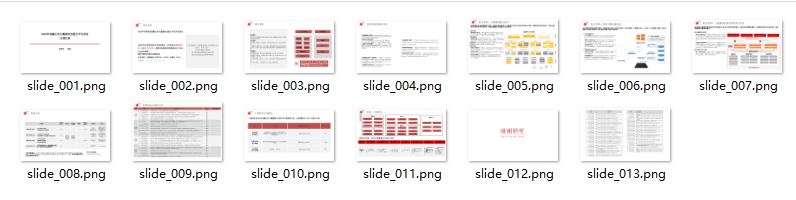
2.3 效果
3. 备注
Jdk 版本建议为11及以上,poi版本建议为5.2.3,其他版本有可能会造成文字缺失。