如何录制浏览器播放的音频?虚拟音频线与Python采集步骤
-
- 一、为什么要录制浏览器音频?
- 二、技术原理
-
- [1. 虚拟音频线 (Virtual Audio Cable)](#1. 虚拟音频线 (Virtual Audio Cable))
- [2. Python音频采集](#2. Python音频采集)
- 三、完整操作步骤
一、为什么要录制浏览器音频?
- 直接录音的问题:使用普通麦克风录制电脑播放的音频会引入环境噪音,音质差
- 版权保护限制:许多流媒体平台禁止直接下载内容
- 内容保存需求:你可能想要保存在线课程、会议录音或喜欢的音乐
- 音频处理需求:需要对网络音频进行编辑、转录或分析
二、技术原理
1. 虚拟音频线 (Virtual Audio Cable)
想象一下,你的电脑有真实的音频线连接扬声器和麦克风。虚拟音频线在软件层面创建了这样的"虚拟线路",允许将一个应用程序的音频输出直接"路由"到另一个应用程序的音频输入,就像用一根虚拟的线将它们连接起来。
2. Python音频采集
使用Python的PyAudio库直接从系统音频输入(现在变成了虚拟音频线的输出)捕获音频数据,并保存为文件。
三、完整操作步骤
1、安装虚拟音频线 (VAC)
1.1、为什么需要VAC?
Windows系统默认不会让应用程序直接捕获另一个应用程序的音频输出。VAC创建了一个虚拟的音频设备,可以将浏览器音频"重定向"到Python程序可以访问的地方。
1.2、如何安装
- 访问 Virtual Audio Cable 官网
- 下载适合你系统的版本(32位或64位)
- 运行安装程序,按照提示完成安装
- 安装后可能需要重启电脑
1.3、安装验证
- 安装完成后,在系统声音设置中会出现新的音频设备
- 这些设备通常命名为"Virtual Audio Cable"
2、在浏览器中打开你想要录制的音频内容

3、配置音频路由
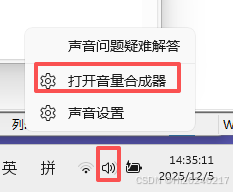
- 打开音量合成器 :
- 右键点击系统任务栏的音量图标
- 选择"打开音量合成器"
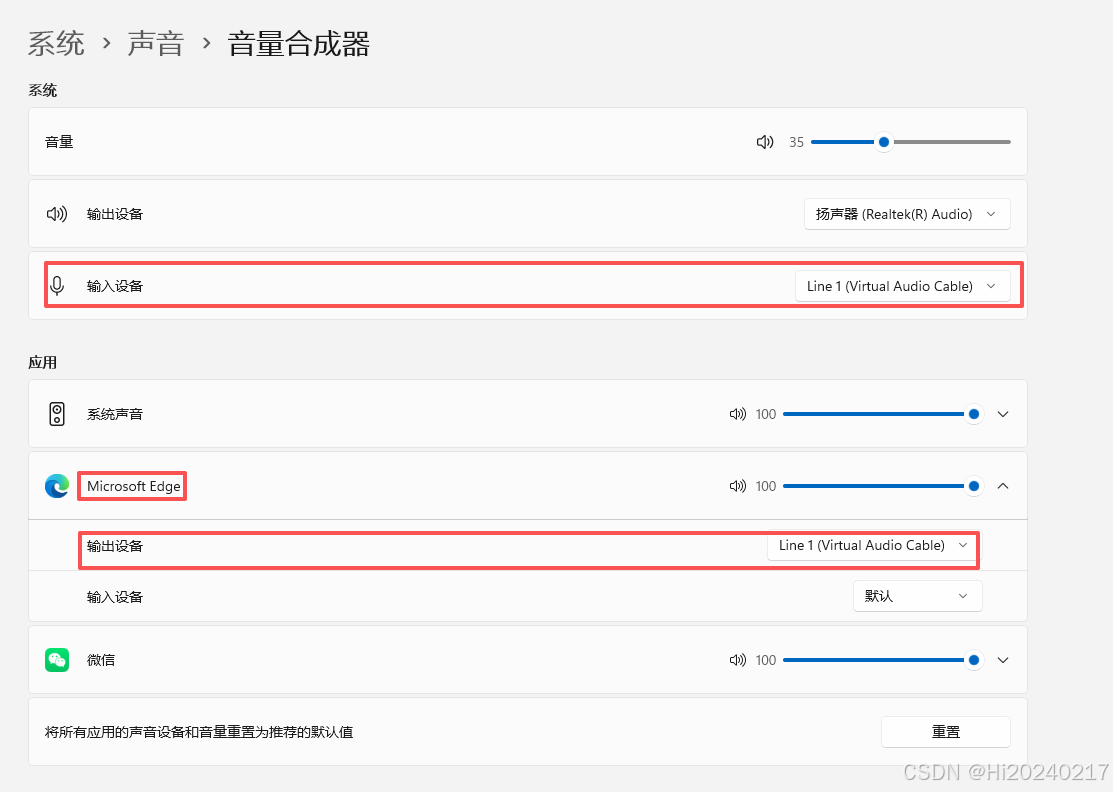
- 配置应用程序输出 :
- 在音量合成器中找到你的浏览器应用
- 点击下拉菜单,将输出设备从"扬声器"改为"Virtual Cable"
- 验证配置 :
- 播放音频时,声音应该不会从扬声器发出(因为被重定向了)
- 你可以在声音设置中看到虚拟音频线设备有音频活动
4、创建Python采集脚本
我们的Python脚本使用PyAudio库从默认音频输入设备(虚拟音频线)读取数据
python
import pyaudio
import numpy as np
import wave
from datetime import datetime
import time
import signal
import sys

class PCMRecorder:
    def __init__(self, sample_rate=44100, channels=2, chunk_size=1024):
        self.sample_rate = sample_rate
        self.channels = channels
        self.chunk_size = chunk_size
        self.audio_format = pyaudio.paInt16
        self.p = pyaudio.PyAudio()
        self.is_recording = False
        self.recording_start_time = None

    def record_until_interrupt(self, output_file=None, device_index=None):
        """
        持续录制音频直到用户按下 Ctrl+C

        参数:
            output_file: 输出文件路径(可选)
            device_index: 设备索引,None使用默认设备
        """
        self.is_recording = True
        self.recording_start_time = time.time()

        # 设置信号处理,捕获 Ctrl+C
        original_sigint = signal.getsignal(signal.SIGINT)
        signal.signal(signal.SIGINT, self._signal_handler)

        # 打开音频流
        stream = self.p.open(
            format=self.audio_format,
            channels=self.channels,
            rate=self.sample_rate,
            input=True,
            input_device_index=device_index,
            frames_per_buffer=self.chunk_size
        )

        print("开始录制... 按 Ctrl+C 结束录制")
        print("正在录制...")

        frames = []
        chunk_count = 0
        last_display_time = time.time()

        try:
            while self.is_recording:
                # 读取音频数据
                data = stream.read(self.chunk_size, exception_on_overflow=False)
                frames.append(data)
                chunk_count += 1

                # 每1秒显示一次录制时长
                current_time = time.time()
                if current_time - last_display_time >= 1:
                    elapsed_time = current_time - self.recording_start_time
                    print(f"\r已录制: {self._format_time(elapsed_time)}", end="", flush=True)
                    last_display_time = current_time

        except KeyboardInterrupt:
            print("\n检测到中断信号...")
        finally:
            # 恢复原来的信号处理
            signal.signal(signal.SIGINT, original_sigint)

            # 停止并关闭流
            stream.stop_stream()
            stream.close()

            # 合并所有音频数据
            if frames:
                audio_data = b''.join(frames)
                recording_duration = time.time() - self.recording_start_time

                print(f"\n录制结束!")
                print(f"总录制时长: {self._format_time(recording_duration)}")
                print(f"总采样点数: {len(audio_data) // 2}")  # 每个采样点2字节

                # 保存文件
                if output_file:
                    # 如果没有指定输出文件,生成带时间戳的文件名
                    if not output_file:
                        timestamp = datetime.now().strftime("%Y%m%d_%H%M%S")
                        output_file = f"recording_{timestamp}.pcm"

                    # 保存原始PCM
                    with open(output_file, 'wb') as f:
                        f.write(audio_data)
                    print(f"PCM数据已保存到: {output_file}")

                    # 同时保存WAV文件
                    wav_file = output_file.replace('.pcm', '.wav')
                    if wav_file == output_file:  # 如果没有.pcm扩展名
                        wav_file = output_file + '.wav'
                    self.save_wav(audio_data, wav_file)
                    print(f"WAV文件已保存到: {wav_file}")

                # 转换为numpy数组并返回
                np_audio = np.frombuffer(audio_data, dtype=np.int16)
                if self.channels > 1:
                    np_audio = np_audio.reshape(-1, self.channels)

                return np_audio, recording_duration
            else:
                print("未录制到任何音频数据")
                return None, 0

    def _signal_handler(self, sig, frame):
        """处理Ctrl+C信号"""
        print("\n正在停止录制...")
        self.is_recording = False

    def _format_time(self, seconds):
        """格式化时间显示"""
        hours = int(seconds // 3600)
        minutes = int((seconds % 3600) // 60)
        seconds = int(seconds % 60)

        if hours > 0:
            return f"{hours:02d}:{minutes:02d}:{seconds:02d}"
        else:
            return f"{minutes:02d}:{seconds:02d}"

    def record(self, duration=10, device_index=None, output_file=None):
        """
        录制指定时长的PCM音频

        参数:
            duration: 录制时长(秒)
            device_index: 设备索引,None使用默认设备
            output_file: 输出文件路径
        """

        # 打开音频流
        stream = self.p.open(
            format=self.audio_format,
            channels=self.channels,
            rate=self.sample_rate,
            input=True,
            input_device_index=device_index,
            frames_per_buffer=self.chunk_size
        )

        print(f"开始录制 {duration} 秒...")

        # 录制音频
        frames = []
        total_chunks = int(self.sample_rate / self.chunk_size * duration)

        for i in range(total_chunks):
            data = stream.read(self.chunk_size, exception_on_overflow=False)
            frames.append(data)
            # 显示进度
            if i % 50 == 0:
                progress = (i + 1) / total_chunks * 100
                print(f"\r进度: {progress:.1f}%", end="")

        print("\n录制完成!")

        # 停止并关闭流
        stream.stop_stream()
        stream.close()

        # 合并所有音频数据
        audio_data = b''.join(frames)

        # 转换为numpy数组
        np_audio = np.frombuffer(audio_data, dtype=np.int16)

        # 如果是立体声,重新整形
        if self.channels > 1:
            np_audio = np_audio.reshape(-1, self.channels)

        # 保存文件
        if output_file:
            # 保存原始PCM
            with open(output_file, 'wb') as f:
                f.write(audio_data)
            print(f"PCM数据已保存到: {output_file}")

            # 同时保存WAV文件
            wav_file = output_file.replace('.pcm', '.wav')
            if wav_file == output_file:  # 如果没有.pcm扩展名
                wav_file = output_file + '.wav'
            self.save_wav(audio_data, wav_file)
            print(f"WAV文件已保存到: {wav_file}")

        return np_audio

    def save_wav(self, audio_data, filename):
        """保存为WAV文件"""
        wf = wave.open(filename, 'wb')
        wf.setnchannels(self.channels)
        wf.setsampwidth(self.p.get_sample_size(self.audio_format))
        wf.setframerate(self.sample_rate)
        wf.writeframes(audio_data)
        wf.close()

    def __del__(self):
        """清理资源"""
        self.p.terminate()

if __name__ == "__main__":
    recorder = PCMRecorder()

    print("音频录制程序")
    print("=" * 50)
    print("1. 按 Ctrl+C 结束录制")
    print("2. 输出文件将自动保存为 PCM 和 WAV 格式")
    print("=" * 50)

    # 使用新的持续录制功能
    output_file = f"recording_{datetime.now().strftime('%Y%m%d_%H%M%S')}.pcm"

    try:
        audio_data, duration = recorder.record_until_interrupt(
            output_file=output_file,
            device_index=None
        )

        if audio_data is not None:
            # 显示信息
            print(f"\n录制信息:")
            print(f"  总采样点数: {len(audio_data)}")
            print(f"  声道数: {recorder.channels}")
            print(f"  采样率: {recorder.sample_rate} Hz")
            print(f"  时长: {duration:.2f} 秒")
            print(f"  文件大小: {len(audio_data) * 2} 字节")

    except Exception as e:
        print(f"录制过程中发生错误: {e}")
脚本使用说明:
-
安装依赖:首先需要安装PyAudio库
bashpip install pyaudio numpy wave -
运行脚本:
bashpython audio_recorder.py -
开始录制:
- 脚本启动后会自动开始录制
- 确保浏览器音频正在播放
- 控制台会显示录制时长
-
停止录制:
- 按
Ctrl+C停止录制 - 脚本会自动保存两个文件:
.pcm文件:原始音频数据,适合进一步处理.wav文件:标准音频格式,可以直接播放
- 按
-
文件命名 :
文件会自动以时间戳命名,如
recording_20251205_143000.wav