注:本文为 "在 Linux 上运行 Windows 应用程序" 相关合辑。
英文引文,机翻未校。
中文引文,略作重排。
未整理去重,如有内容异常,请看原文。
How to Run Windows Applications on Linux Beginners Guide
如何在 Linux 系统中运行 Windows 应用程序(新手入门指南)
Here's a detailed step-by-step guide with screenshots to show how you can run Windows software on Linux using Wine.
本文档提供一份附带截图的详细分步指南,阐述如何借助 Wine 工具在 Linux 系统中运行 Windows 软件。
As you're here, I'm going to assume that you're a Linux user. And every once in a while, you find yourself asking: can I run windows applications on Linux?
既然你浏览到本文档,本文假定你为 Linux 系统用户。你可能会时不时产生这样的疑问:我能否在 Linux 系统中运行 Windows 应用程序?
The answer to that question is yes. Yes, you can run Windows applications in Linux . Here are some of the ways for running Windows programs with Linux:
这个问题的答案是肯定的,你完全可以在 Linux 系统中运行 Windows 应用程序。以下为几种在 Linux 系统中运行 Windows 程序的方法:
- Installing Windows on a separate HDD partition .
在独立的硬盘分区中安装 Windows 系统 - Installing Windows as a virtual machine on Linux .
在 Linux 系统中以虚拟机形式安装 Windows 系统 - Using compatibility layer tools (e.g. Wine)
使用兼容层工具(例如 Wine)
Both dual-boot and virtual machine methods work just fine. But they are somewhat resource hungry. If you only need to use a small Windows application, installing Windows on a separate HDD partition or as a Virtual Machine is not efficient. Moreover, Virtual Machine can't utilize the total power of your machine.
双系统与虚拟机两种方法均可正常生效,但二者均存在一定程度的资源占用过高问题。若你仅需运行一款小型 Windows 应用程序,采用独立硬盘分区安装或虚拟机安装 Windows 系统的方式并不高效。此外,虚拟机无法完全调用主机的硬件性能。
No worries, there is another way to use Windows software on Linux. It's called Wine . If you aren't yet familiar with it or you are a beginner in the world of Linux, this article is for you.
无需担忧,存在另一种可在 Linux 系统中运行 Windows 软件的方式,即借助 Wine 工具。若你尚未了解该工具,或你是 Linux 领域的新手,本文档恰好适用于你。
In this beginner's guide, I'll show you what Wine is and how to use it to run Windows software on Linux. I have used Ubuntu here as Ubuntu is one of the best Linux distros for beginners, but any other Linux distribution will have more or less the same steps (except for the commands in Arch or Fedora-based distros).
在这份新手入门指南中,本文将介绍 Wine 工具的定义,以及如何使用该工具在 Linux 系统中运行 Windows 软件。本文选用 Ubuntu 系统作为演示环境,原因在于 Ubuntu 是适用于新手的优质 Linux 发行版之一;对于其他 Linux 发行版,操作步骤大体一致(基于 Arch 或 Fedora 的发行版对应的命令除外)。
1. What is Wine
1. Wine 工具的定义
Wine stands for W ine I s N ot an E mulator. And WINE is actually an acronym for that. And as previously stated, it's not even a virtual machine.
Wine 是英语短语 W ine I s N ot an Emulator 的缩写,含义为"Wine 并非一款模拟器"。正如前文所述,该工具甚至不属于虚拟机范畴。
Rather it is a compatibility layer for running Windows applications on UNIX-like, POSIX-compliant operating systems (e.g. Linux, Mac, BSD). While a virtual machine or emulator simulates internal Windows logic, Wine translates those Windows logic to native UNIX/POSIX-complaint logic.
该工具实际上是一个兼容层,作用是在类 UNIX、符合 POSIX 标准的操作系统(例如 Linux、Mac、BSD 系统)中运行 Windows 应用程序。虚拟机或模拟器的运行原理是模拟 Windows 系统的底层逻辑,而 Wine 工具的运行原理是将 Windows 系统逻辑转换为宿主系统的原生 UNIX/POSIX 标准逻辑。
In simple and non-technical words, Wine converts internal Windows commands to commands your Linux system can natively understand.
以通俗易懂的非专业表述来讲,Wine 工具的功能是将 Windows 系统的底层指令转换为 Linux 系统可原生识别的指令。
2. Installing Wine
2. Wine 工具的安装步骤
There are various ways to install Wine on your system. Almost all the Linux distros come with Wine in their package repository. Most of the time the latest stable version of Wine is available via the package repository. Advanced users can also compile Wine from source code.
在系统中安装 Wine 工具的方式多种多样。几乎所有 Linux 发行版的软件包仓库中均收录该工具,多数情况下可通过软件包仓库获取该工具的最新稳定版本。高级用户也可以选择从源代码编译安装 Wine。
2.1 Pre-installation Preparation
2.1 安装前准备工作
If you are using a 64-bit installation of Linux distro, you will need to add 32-bit architecture support on your distro which will benefit you in installing specific software.
若你使用的是 64 位 Linux 发行版,需要为系统添加 32 位架构支持,该操作有助于安装特定类型的软件。
Once confirmed, do this by executing the following command (take Ubuntu/Debian as an example):
确认系统架构后,可通过执行以下命令添加 32 位架构支持(以 Ubuntu/Debian 系统为例):
bash
sudo dpkg --add-architecture i3862.2 Installation Commands for Different Distros
2.2 不同发行版对应的安装命令
2.2.1 Install Wine on Ubuntu/Debian
2.2.1 在 Ubuntu/Debian 系统中安装 Wine 工具
Update the package list and install Wine with the following commands:
执行以下命令更新软件包列表并安装 Wine 工具:
bash
sudo apt update
sudo apt install wine64 wine32
Verify installation by:
执行以下命令验证安装是否成功:
bash
wine --version2.2.2 Install Wine on Fedora
2.2.2 在 Fedora 系统中安装 Wine 工具
Install Wine using DNF, by running the command:
执行以下 DNF 命令安装 Wine 工具:
bash
sudo dnf install wineIf you need 32-bit support:
若需启用 32 位架构支持,执行以下命令:
bash
sudo dnf install wine.i686Check if Wine is installed:
执行以下命令检查 Wine 工具是否安装成功:
bash
wine --version2.2.3 Install Wine on Arch Linux
2.2.3 在 Arch Linux 系统中安装 Wine 工具
Install Wine from the official repositories:
从 官方软件仓库 中安装 Wine 工具:
bash
sudo pacman -S wineInstall additional components for better compatibility:
安装以下额外组件以提升程序兼容性:
bash
sudo pacman -S wine-mono wine-geckoVerify the installation:
执行以下命令验证安装是否成功:
bash
wine --version2.2.4 Install Wine on openSUSE
2.2.4 在 openSUSE 系统中安装 Wine 工具
Use Zypper to install Wine:
执行以下 Zypper 命令安装 Wine 工具:
bash
sudo zypper install wineConfirm the installation:
执行以下命令确认安装是否成功:
bash
wine --version2.3 Install the Latest Stable Version of Wine (Optional)
2.3 获取最新版本的 Wine 工具(可选操作)
Taking Ubuntu 22.04 LTS as an example, the available package in the repo is Wine v6.0.3, while the latest stable release is v7.0.1. In the case of software like Wine, which receives significant updates frequently, always try to remain in the latest stable release.
以 Ubuntu 22.04 LTS 版本为例,软件包仓库中提供的 Wine 工具版本为 v6.0.3,而该工具的最新稳定版本为 v7.0.1。对于 Wine 这类更新迭代较为频繁的软件,建议始终使用最新稳定版本。
To do this in Ubuntu, follow the steps below:
在 Ubuntu 系统中安装最新稳定版本的步骤如下:
-
Add 32-bit architecture support with the command mentioned in 2.1.
通过 2.1 小节提到的命令添加 32 位架构支持。 -
Download and add the repository key:
下载并添加软件仓库密钥,对应命令如下:bashsudo mkdir -pm755 /etc/apt/keyrings sudo wget -O /etc/apt/keyrings/winehq-archive.key https://dl.winehq.org/wine-builds/winehq.key -
Install wget tool if it is not available on your system:
若系统未安装 wget 工具,执行以下命令完成安装:bashsudo apt install wget -
Check your Ubuntu version code name by running the command in terminal:
在终端中执行以下命令,查询系统的版本代号:bashlsb_release -cs -
Replace
jammyin the following command with your system version code name and execute it:
将下述命令中的jammy替换为你的系统版本代号,再执行该命令:bashsudo wget -NP /etc/apt/sources.list.d/ https://dl.winehq.org/wine-builds/ubuntu/dists/jammy/winehq-jammy.sources -
Update the package information:
执行以下命令更新软件包信息:bashsudo apt update -
Install the latest stable version of Wine with:
通过以下命令安装最新稳定版本的 Wine 工具:bashsudo apt install --install-recommends winehq-stable
You can use winehq-devel or winehq-staging for Development and Staging branch respectively.
若需安装开发版和测试版,可分别将上述命令中的软件包名称替换为 winehq-devel 和 winehq-staging。
2.4 Install Wine from Source (For Advanced Users)
2.4 从源代码编译安装 Wine 工具(适用于高级用户)
If you need the latest Wine version, you can compile it directly from the source:
若需安装最新版本的 Wine 工具,可直接从源代码进行编译:
-
Download the latest Wine source from WineHQ.
从 Wine 官方网站 下载最新的源代码包。 -
Extract and build it using the following commands:
解压后依次执行以下命令完成编译安装:bash./configure make sudo make install
3. Getting Started with Wine
3. Wine 工具的入门操作
Before we go on installing and running applications in Wine, we should have a clear idea about a few things and about how to configure Wine for usage.
在借助 Wine 工具安装和运行应用程序之前,需要明确几项前置知识,同时掌握该工具的基础配置方法。
3.1 Wine Prefix
3.1 Wine 前缀目录
Windows applications need a C: drive. Wine uses a virtual C: drive for this purpose. The directory of this virtual C: drive is called wineprefix .
Windows 应用程序运行依赖 C 盘,Wine 工具通过创建虚拟 C 盘满足该需求。该虚拟 C 盘对应的目录被称为 Wine 前缀目录。
First of all, you need to create a wineprefix. To do that, fire up a terminal and enter this command:
首先需要创建 Wine 前缀目录,操作方式为打开终端并执行以下命令:
bash
winecfgHere it prompts you to install the Wine Mono package needed for the .NET application to work properly. You can press the Install button to do this job.
执行该命令后,系统会弹出提示框,要求安装 Wine Mono 软件包,该软件包是 .NET 应用程序正常运行的必要组件。你可点击"安装"按钮完成该操作。
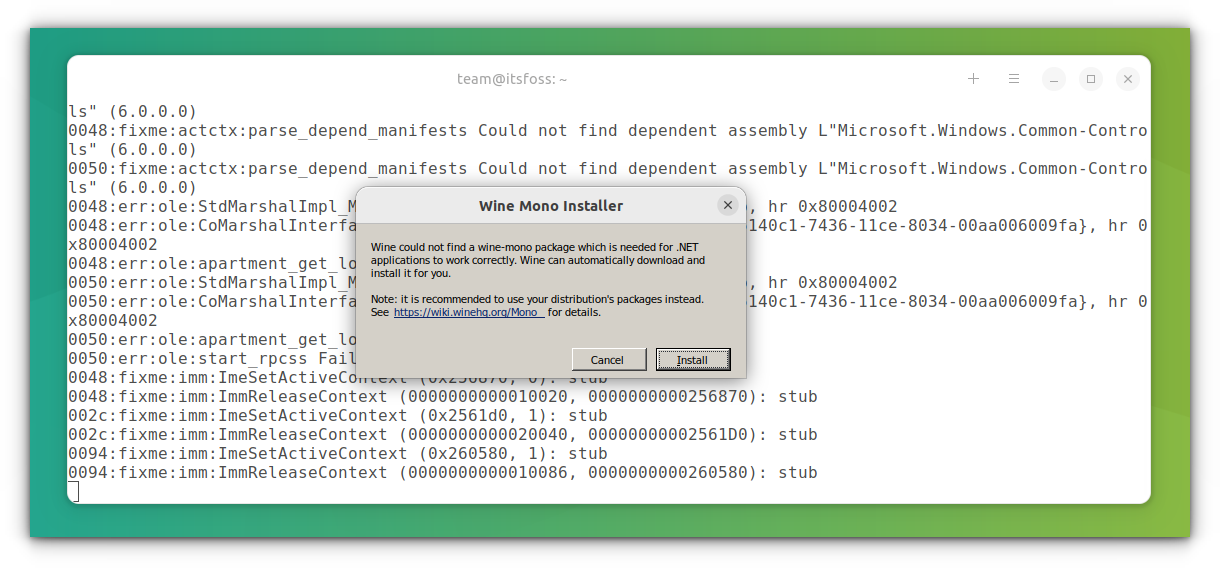
Install Wine Mono using the installer
通过安装程序安装 Wine Mono 软件包
This will create a wineprefix and open the configuration window for Wine. You can change the configuration options or let it be as it is and close it.
该操作会创建 Wine 前缀目录,并打开 Wine 工具的配置窗口。你可根据需求修改配置项,也可保留默认配置并关闭窗口。
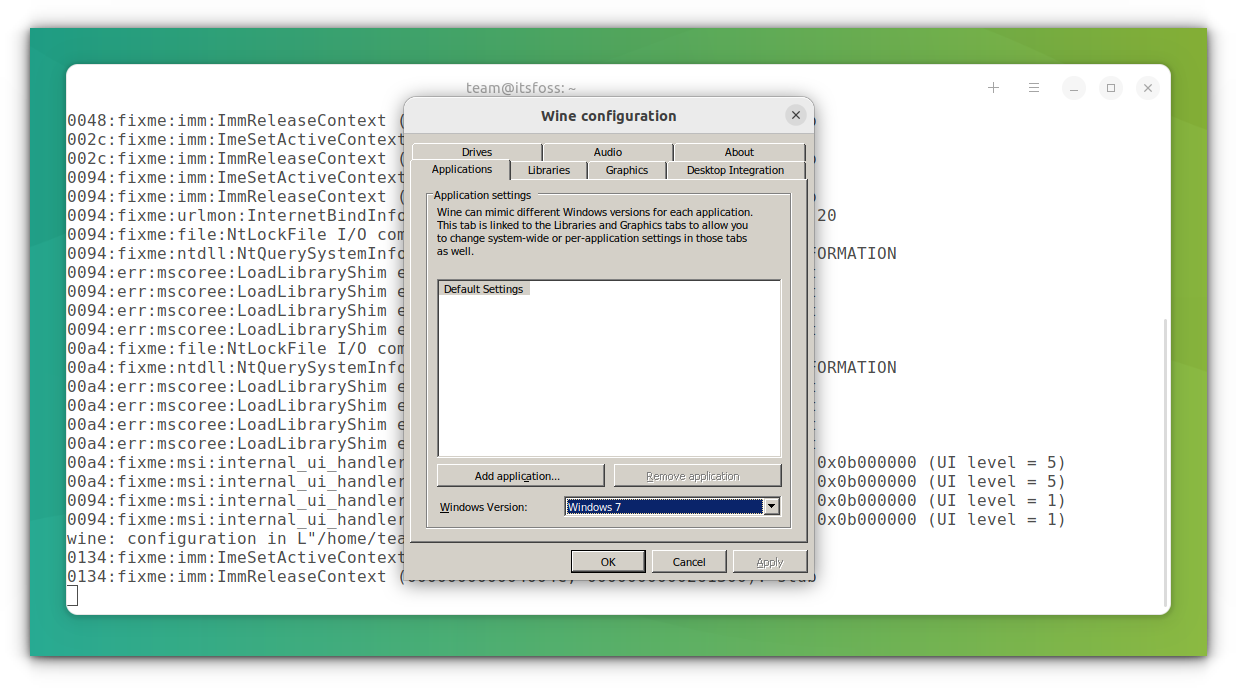
Wine Configuration Window
Wine 工具配置窗口
Now, you can locate the virtual C: drive at the following path:
此时,可通过以下路径访问虚拟 C 盘:
bash
$HOME/.wine/c_drive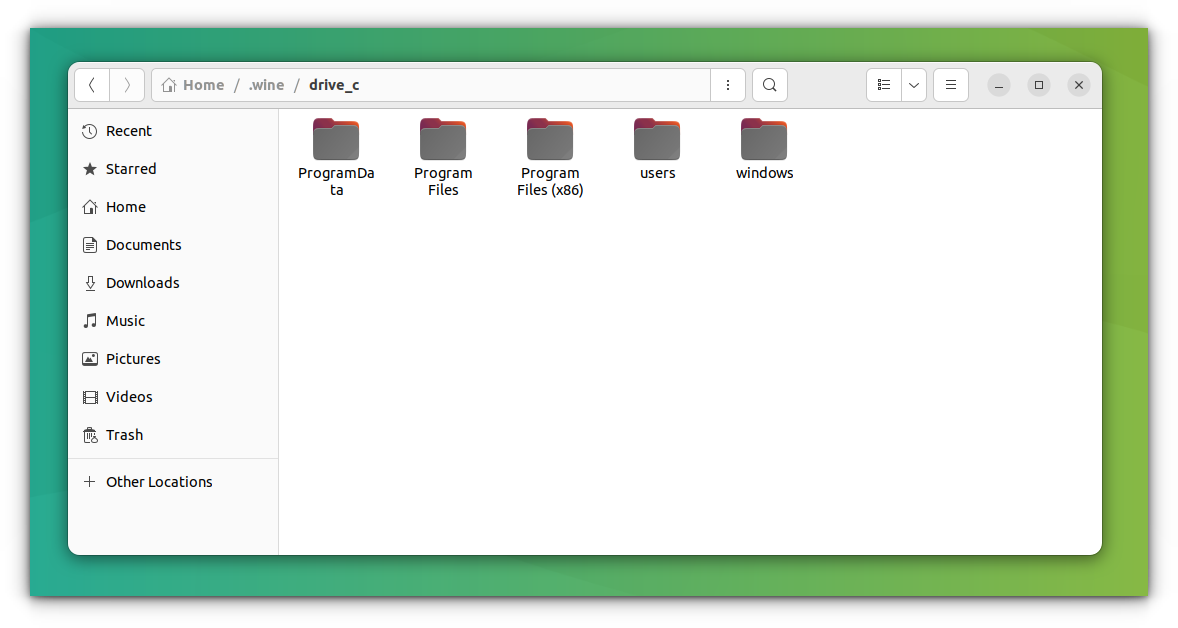
C: Drive inside the Wine directory on User's home directory
用户主目录下 Wine 文件夹中的虚拟 C 盘
The general rule is to install each new application into a fresh wineprefix. You can create and maintain multiple wineprefix manually. But that task would seem rather tedious for beginners. So, we will skip that part for now. But, later I will show how to do that part with ease.
通用操作规范为,为每个新安装的应用程序分配独立的 Wine 前缀目录。你可手动创建并管理多个 Wine 前缀目录,但该操作对于新手而言较为繁琐。因此本文暂时跳过该部分内容,后续会介绍一种更为简便的操作方法。
3.2 Post-installation Configuration
3.2 安装完成后的后续配置
Configure Wine using the command to complete basic settings such as Windows version emulation:
执行以下命令完成 Wine 工具的基础配置,例如 Windows 系统版本模拟等参数:
bash
winecfg4. Which Windows Applications are Supported by Wine
4. Wine 工具支持运行的 Windows 应用程序类型
A large number of Windows applications are currently fully supported by Wine. They will run without any hassle. However, new Windows applications are being developed every day. Many of them wouldn't function as we want on Wine. But the development pace of Wine is also rapid, and support for new applications is being added all the time.
目前 Wine 工具已实现对多款 Windows 应用程序的完全支持,这些程序可在该工具环境下无故障运行。但 Windows 应用程序的开发工作每日都在推进,其中有不少程序无法在 Wine 工具环境下按预期运行。不过 Wine 工具的迭代速度同样较快,对新应用程序的支持会持续更新。
And there is a dedicated database for keeping track of just that.
存在一个专用数据库用于记录 Wine 工具对各类应用程序的支持情况。
Wine Application Database has almost 28,000+ applications rated with different statuses depending upon how well those applications run in Wine. If you want to quickly check the rating of the application you want to use in Wine, you can take a look there. Here is the meaning of those ratings:
Wine 应用程序数据库收录了超过 28000 款应用程序,并根据这些程序在 Wine 工具中的运行表现进行分级。若你需快速查询某款应用程序在 Wine 工具中的兼容性等级,可查阅该数据库。各等级的含义说明如下:
- Platinum : These applications install and run flawlessly in out-of-the-box Wine.
铂金级:该等级应用程序可在未经配置的 Wine 工具环境下流畅完成安装与运行。 - Gold : These applications work flawlessly with some special configurations.
黄金级:该等级应用程序需经过特定配置,方可流畅运行。 - Silver : Applications with minor issues are tagged as Silver.
白银级:该等级应用程序运行过程中会出现轻微问题。 - Bronze : The Bronze ones have major issues that seriously affect usage.
青铜级:该等级应用程序运行过程中会出现严重影响使用体验的重大问题。 - Garbage : These simply won't run on Wine.
垃圾级:该等级应用程序完全无法在 Wine 工具环境下运行。
Reviews, Installation Procedure, which Wine version it was tested against and various useful data are also available for each application here.
该数据库中还提供每款应用程序的用户评价、安装步骤、测试所用的 Wine 版本,以及其他各类实用信息。
Of course, Wine Application Database is mostly user-generated content. So, if you find a way to make an application work, kindly share your result with the rest of the community.
显然,Wine 应用程序数据库的内容大多由用户贡献。因此,若你发现某款应用程序的适配方法,建议将相关经验分享至社区。
4.1 Finding an Application in Wine Application Database
4.1 在 Wine 应用程序数据库中检索应用程序
Let's see how we can find an application in Wine Application Database.
下文将介绍在 Wine 应用程序数据库中检索应用程序的具体方法。
-
Go to Wine Application Database. Click Browse Apps from the left sidebar.
访问网站 Wine 应用程序数据库,点击左侧导航栏中的浏览应用程序选项。
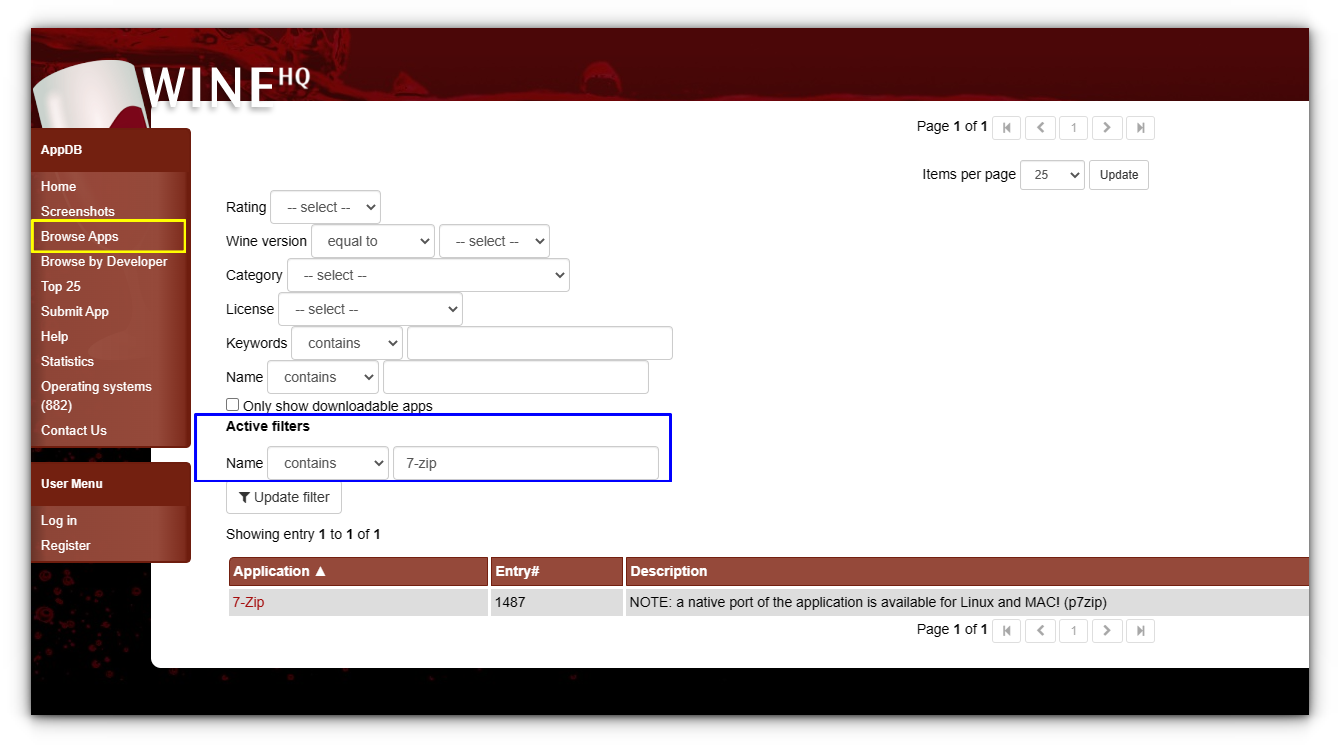
Browse applications in Wine Application Database using various filters like name, rating, etc.
借助名称、等级等筛选条件在 Wine 应用程序数据库中检索应用程序 -
Click on the link to the application from the search result. You'll see a description of the application. There will be a list of various versions with their compatibility rating with a specific Wine version.
点击搜索结果中对应的应用程序链接,即可查看该程序的详细介绍。页面中会列出该程序的不同版本,以及各版本在特定 Wine 版本下的兼容性等级。
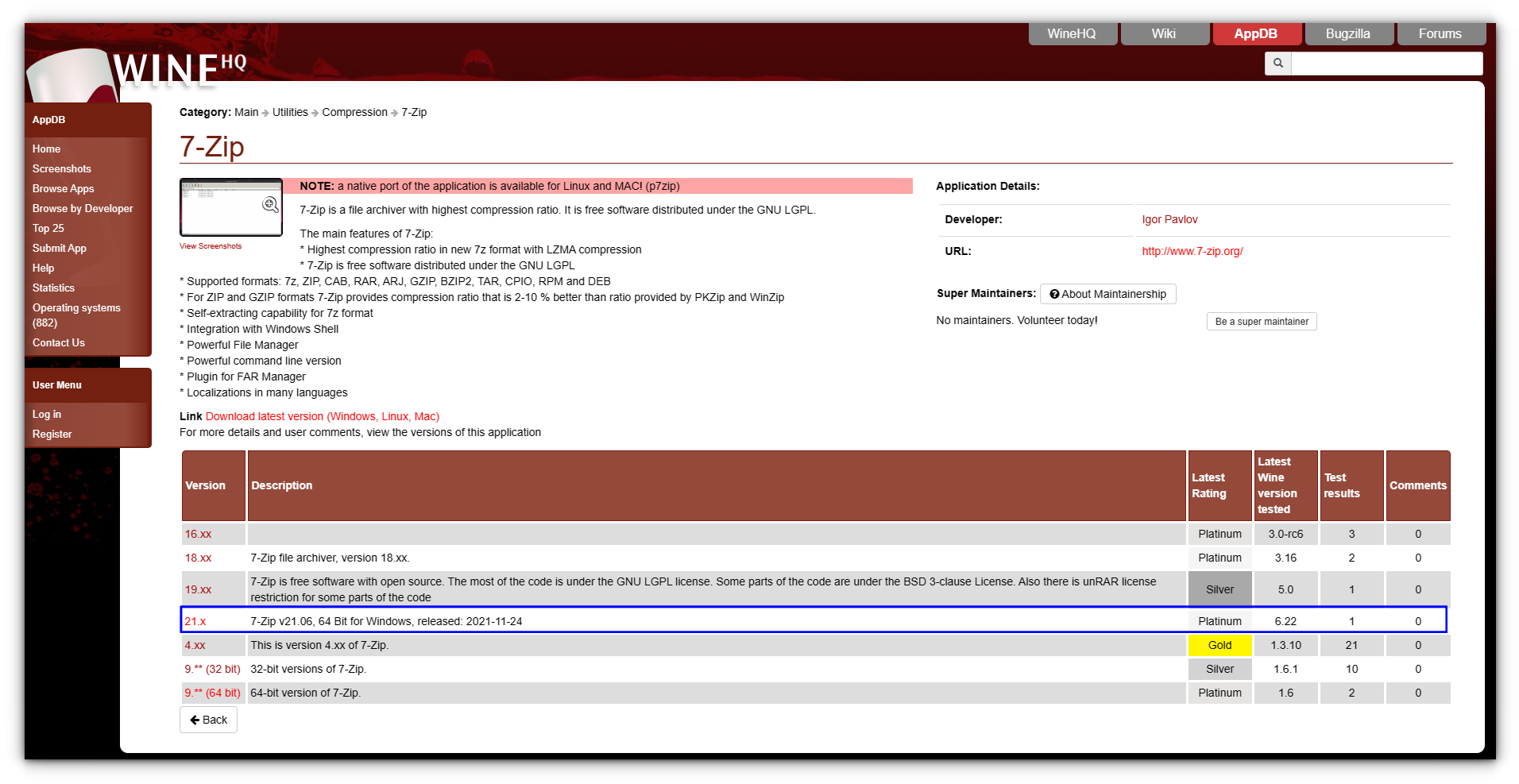
The details page for the selected application with the list of versions and their statistics
所选应用程序的详情页面,包含版本列表及对应运行数据 -
Click on the latest version link. This is the main page you need to check. There will be detailed information about that specific version.
点击最新版本对应的链接,该页面是你需要重点查阅的内容,其中包含该版本程序的详细适配信息。
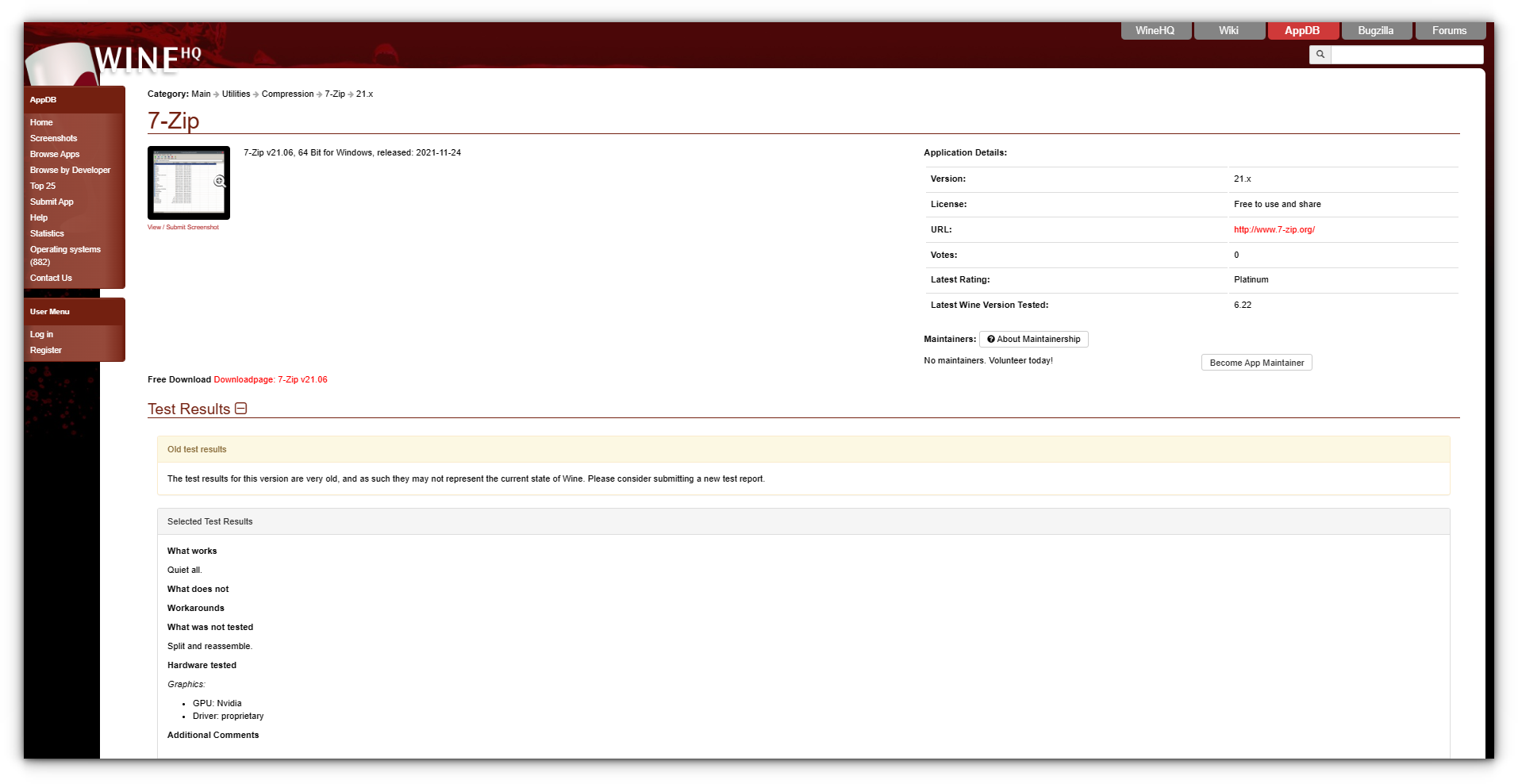
Detailed information about a particular version of the application in Wine Application Database
Wine 应用程序数据库中某款应用程序特定版本的详细信息
5. Installing and Running an Application with Wine
5. 借助 Wine 工具安装与运行应用程序
5.1 Installation Steps
5.1 安装步骤
Installing a supported application in Wine is generally as easy as double-clicking on the installation file. However, you will now see a step-by-step guide for installing 7-zip on Wine.
在 Wine 工具环境下安装受支持的应用程序,操作方式通常较为简便,仅需双击安装文件即可。下文将以 7-Zip 软件为例,提供一份分步安装指南。
-
Check for 7-zip rating on Wine Application Database. It has a Platinum rating, so we are good to go.
首先,在 Wine 应用程序数据库中查询 7-Zip 的兼容性等级。该软件的兼容性等级为铂金级,可直接进行安装。
-
Open Wine configuration ( winecfg ) and set the Windows Version to Windows 7 (Shown in the above screenshot).
打开 Wine 工具配置窗口(执行命令 winecfg ),将模拟的 Windows 系统版本设置为 Windows 7(设置界面如上述截图所示)。
-
Right-click on the 7-zip installation file and select the Open With Other Application option.
右键点击 7-Zip 安装文件,选择 使用其他应用程序打开 选项。
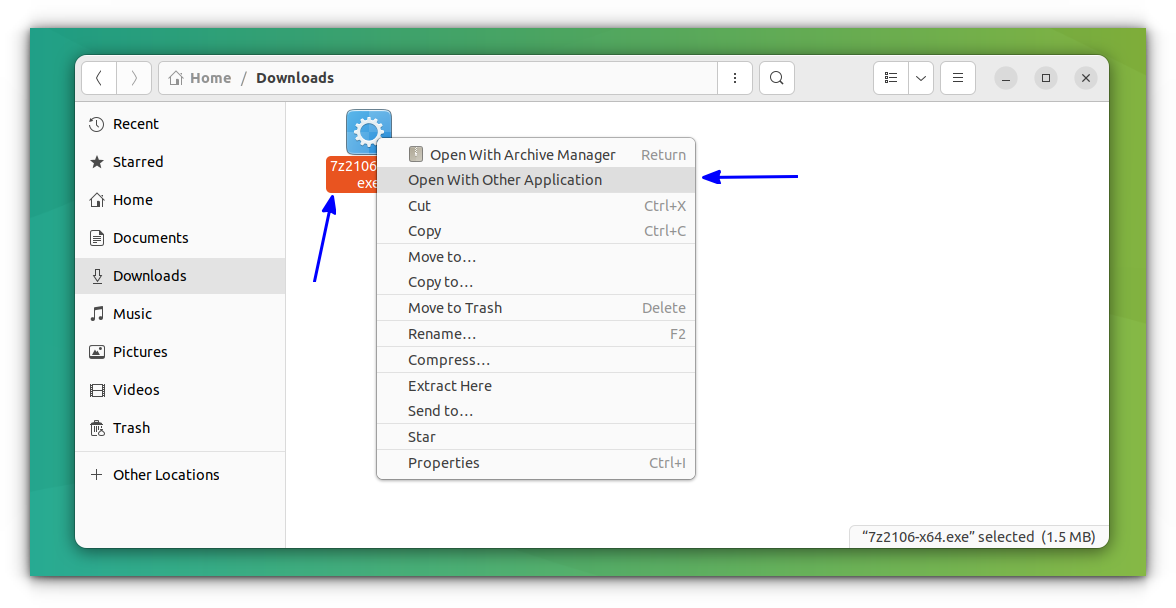
Select Open With Other Application option from right-click context menu
从右键菜单中选择 使用其他应用程序打开 选项 -
Select Wine Windows Program Loader .
在弹出的程序列表中选择 Wine Windows 程序加载器。
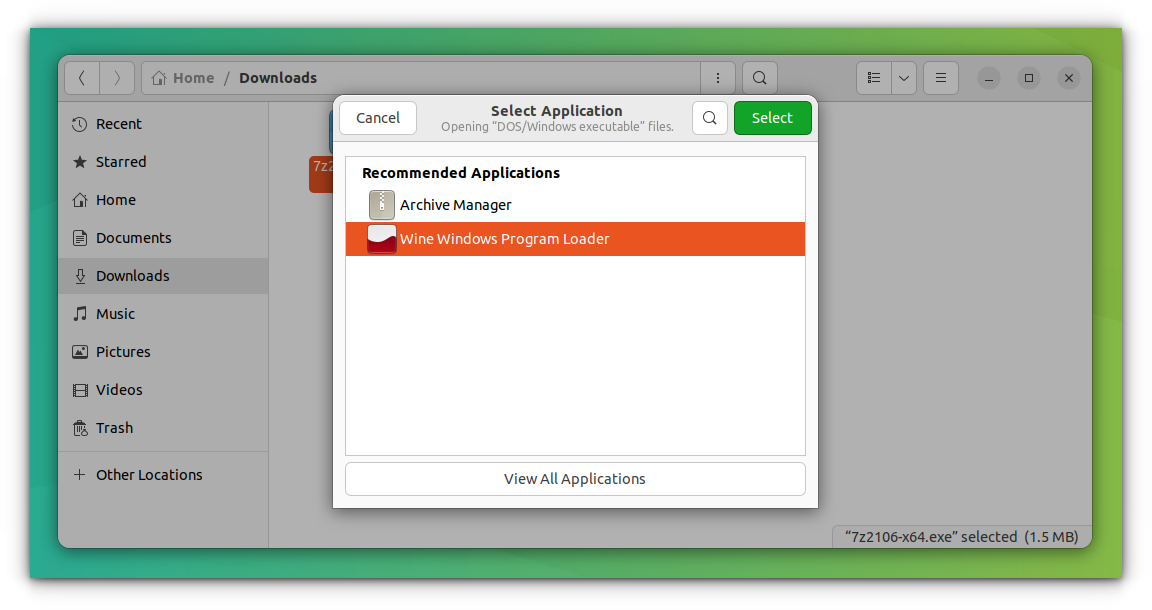
Select Wine Windows Program Loader as the application to open .exe type files
选择 Wine Windows 程序加载器 作为打开 .exe 格式文件的应用程序 -
Follow the prompts of the 7-zip installer to complete the installation. See that destination folder path? The 7-zip installation has recognized the virtual C: drive from wineprefix.
按照 7-Zip 安装向导的提示完成安装。观察安装路径配置项,此时 7-Zip 安装程序已识别出 Wine 前缀目录对应的虚拟 C 盘。
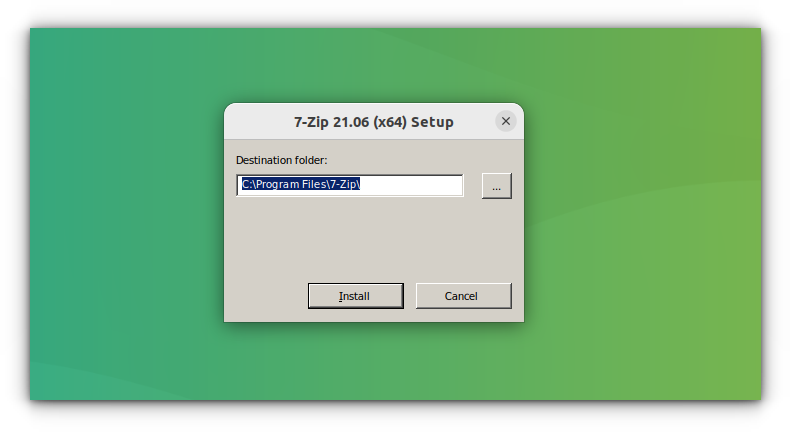
Select Install in the 7-zip installer to install the program
在 7-Zip 安装向导中点击 安装 按钮开始安装程序
5.2 Running the Application
5.2 运行应用程序
-
Finish the installation and you can now open the 7-zip application from the Ubuntu Activities overview.
完成安装后,即可在 Ubuntu 系统的活动概览界面中启动 7-Zip 应用程序。
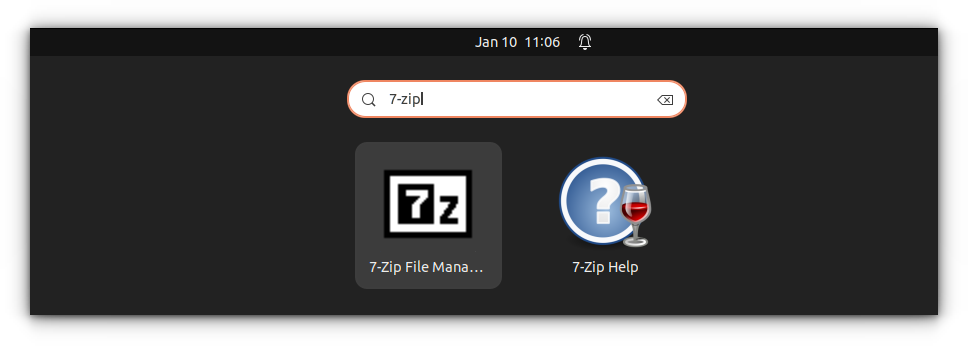
Open 7-zip from Ubuntu Activities Overview
从 Ubuntu 系统活动概览界面中启动 7-Zip 程序 -
All you have to do is click on the icon. If you want to access your files on Linux, they are generally located in Z: Drive .
你仅需点击程序图标即可启动 7-Zip。若需访问 Linux 系统中的文件,这些文件通常挂载在虚拟的 Z 盘 中。
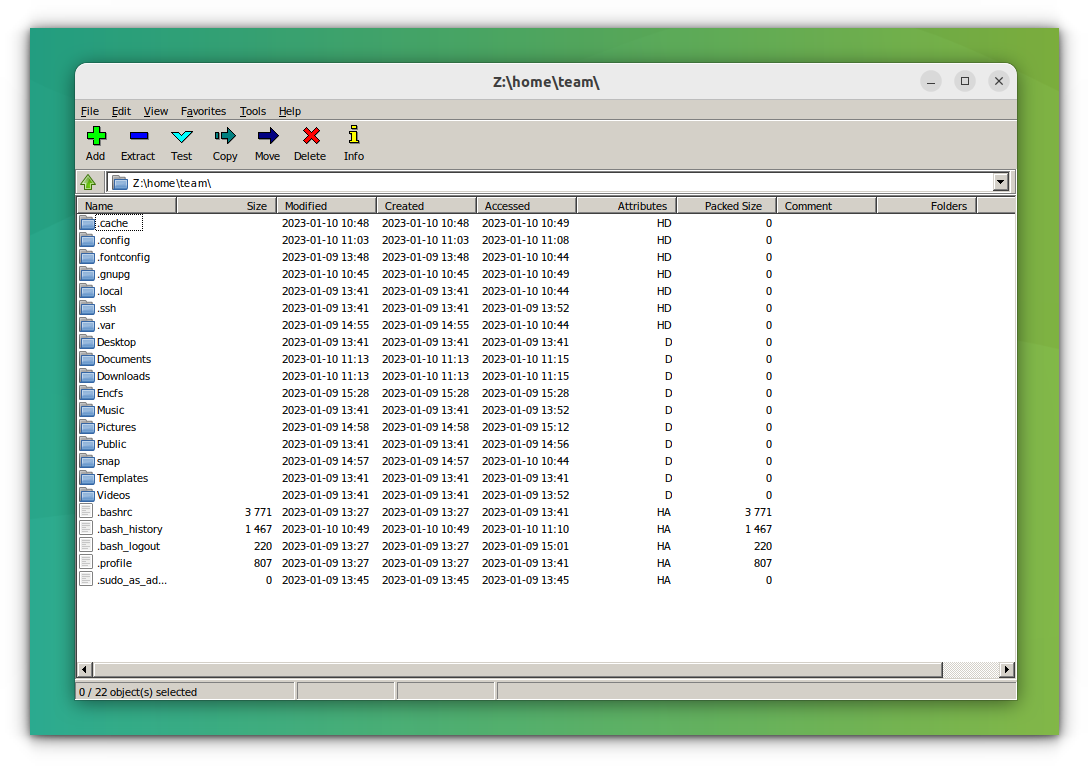
7-zip list the contents of users' home directory
7-Zip 程序中显示的用户主目录内容 -
You can use the 7-zip just as you would use it on Windows -- unzipping and zipping files and such.
你可像在 Windows 系统中一样使用 7-Zip 程序,包括解压缩文件、创建压缩包等操作。
5.3 Running Applications via Terminal
5.3 通过终端运行应用程序
Once you have installed Wine, Windows executable files (.exe) can be launched directly from the terminal using the following command:
完成 Wine 工具的安装后,你可以直接通过终端执行以下命令,启动 Windows 可执行文件(.exe 格式):
bash
wine application.exeWhen Wine runs for the first time, it may need you to create configuration directory prompts for additional installations like Wine Mono or Gecko.
首次运行 Wine 工具时,系统可能会弹出提示框,要求你创建配置目录,并安装 Wine Mono 或 Wine Gecko 等额外组件。
6. Uninstalling an Application with Wine
6. 借助 Wine 工具卸载应用程序
As said above, installing an application is easier with Wine. To uninstall an application, you have a Wine Uninstaller tool. You can access this tool by entering the terminal:
正如前文所述,借助 Wine 工具安装应用程序的操作较为简便。卸载应用程序可使用 Wine 自带的卸载工具,在终端中执行以下命令即可启动该工具:
bash
wine uninstallerThis will open the uninstaller window. Here, the list of installed applications will be present. You need to select the application, 7-zip in this case, and press Modify/Remove button as shown below:
执行该命令后会打开卸载工具窗口,窗口中会列出已安装的应用程序列表。你需要选中目标应用程序(本文以 7-Zip 为例),并点击如下截图所示的"修改/移除"按钮:
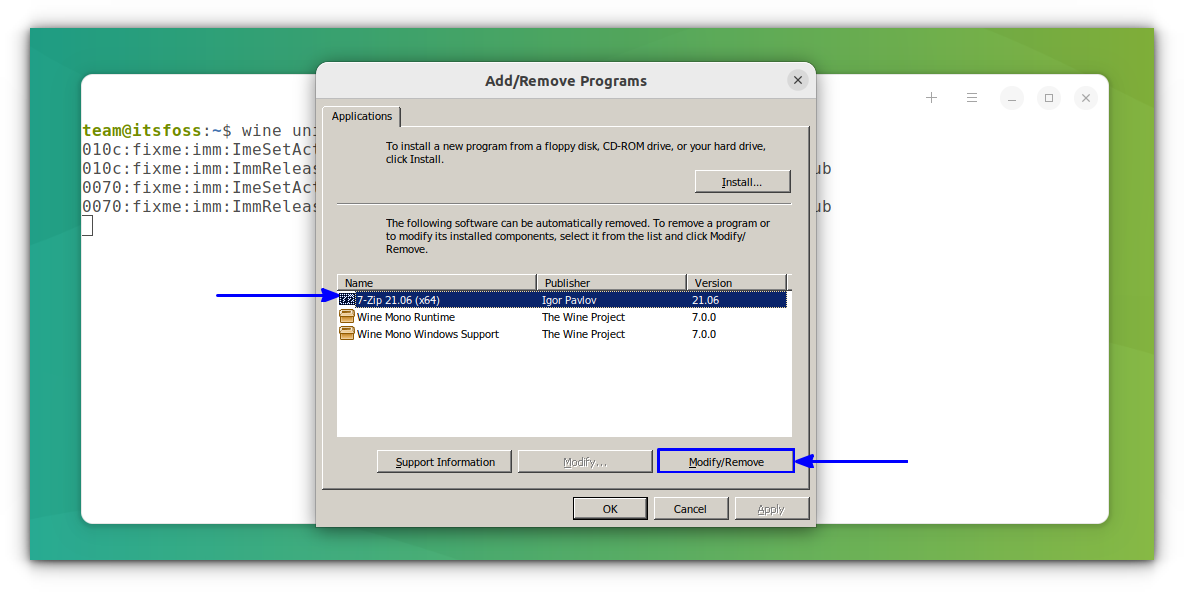
Modify/Remove an application installed using the Wine Uninstaller tool
借助 Wine 卸载工具 修改或移除已安装的应用程序
This will initiate the uninstall process and can be completed easily on an application basis.
该操作会启动卸载流程,你可根据提示轻松完成单款应用程序的卸载。
7. Simplifying Wine Operations with Auxiliary Tools
7. 借助辅助工具简化 Wine 操作流程
You might have noticed that, in Wine Application Database, a specific Wine version is mentioned with every version of the application reviews. It is because of the rapid development rate of Wine. Though an application runs with the current version of Wine, it might not run with a future version, because of the changes made.
你可能已经注意到,在 Wine 应用程序数据库中,每款应用程序的不同版本均对应特定的 Wine 工具版本。该现象的原因在于 Wine 工具的迭代速度较快。尽管某款应用程序可在当前版本的 Wine 工具中运行,但随着工具版本的更新,程序的兼容性可能会发生变化。
Also, I've mentioned installing each application in its own fresh wineprefix. So, an application has no chance of interfering with another. And doing all these manually, usually from the terminal, is time-consuming, tiresome, and sometimes confusing.
此外,前文提到需为每个应用程序分配独立的 Wine 前缀目录,以此避免应用程序之间的相互干扰。但通过终端手动完成这些操作,不仅耗时费力,有时还容易出现操作失误。
A variety of auxiliary tools have been developed to solve these problems, and the following are common ones.
针对上述问题,目前已有多款辅助工具被开发出来,以下为常见工具介绍。
7.1 PlayOnLinux
7.1 PlayOnLinux 工具
PlayOnLinux is here to rescue you. It provides a nice interface for doing all these things easily. For installing PlayOnLinux on Ubuntu, simply run this command:
PlayOnLinux 工具可解决上述问题。该工具提供图形化操作界面,能够简化各类操作流程。在 Ubuntu 系统中安装 PlayOnLinux 工具,仅需执行以下命令:
bash
sudo apt install playonlinux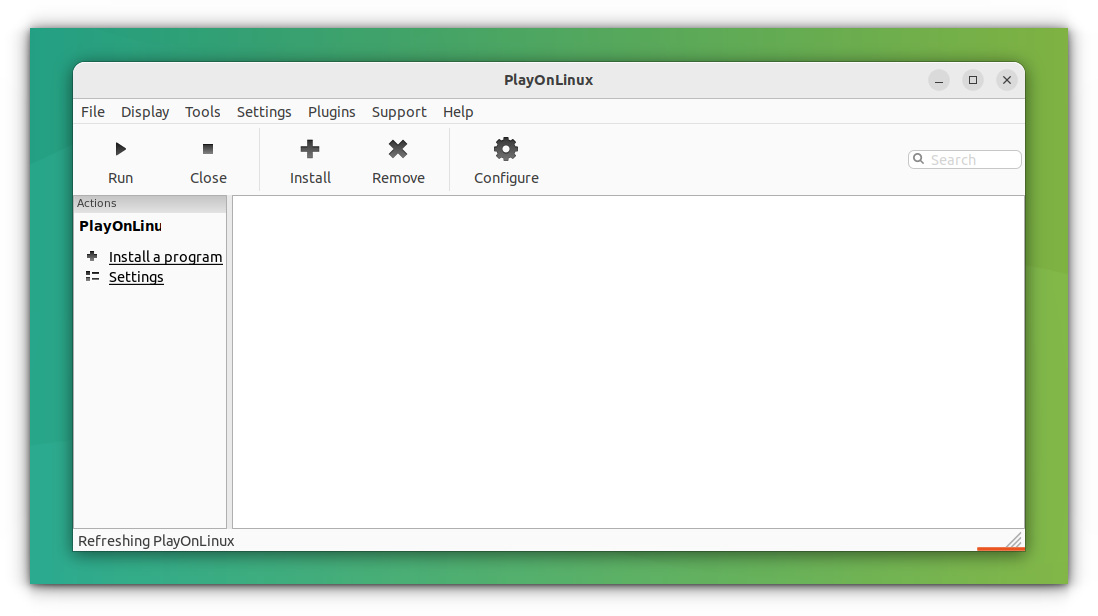
PlayOnLinux Interface
PlayOnLinux 工具操作界面
You can easily perform every task related to Wine with PlayOnLinux from a beautiful and intuitive graphical interface:
借助 PlayOnLinux 工具美观且易用的图形化界面,你可轻松完成所有与 Wine 相关的操作,包括:
- Installing & Uninstalling applications.
安装与卸载应用程序 - Creating, Updating & Removing wineprefixes.
创建、更新与删除 Wine 前缀目录 - Maintain Wine of different architecture and versions.
管理不同架构和版本的 Wine 工具 - Run & Create shortcuts for installed applications.
运行已安装的应用程序,并为其创建快捷方式 - And so on...
其他各类操作
But still, you will need to check Wine Application Database for reviews, installation procedures, and such.
但需要注意的是,你仍需在 Wine 应用程序数据库中查询应用程序的评价、安装步骤等相关信息。
7.2 Winetricks
7.2 Winetricks 工具
Winetricks is another important part of using Wine. Winetricks is a helper script to download and install various redistributable runtime libraries needed to run some applications in Wine. These may include replacements for components of Wine using closed-source libraries.
该工具是 Wine 工具的重要配套组件。Winetricks 是一款辅助脚本,功能是下载并安装部分应用程序在 Wine 环境中运行所需的各类可再发行运行时库。这些库文件可能包含使用闭源库对 Wine 组件的替代版本。
7.2.1 Installation of Winetricks
7.2.1 Winetricks 工具的安装
Winetricks comes with Wine installation on Ubuntu through the package manager. If you have installed Wine from Wine official repository, you may need to install winetricks separately.
通过软件包管理器安装 Wine 工具时,Winetricks 工具会自动随附安装。若你通过 Wine 官方软件仓库安装该工具,则需要单独安装 Winetricks 组件。
To do this, open a terminal and enter the following commands:
单独安装该组件的操作步骤为,打开终端并执行以下命令:
bash
cd "${HOME}/Downloads"
wget https://raw.githubusercontent.com/Winetricks/winetricks/master/src/winetricks
chmod +x winetricks
7.2.2 Usage of Winetricks
7.2.2 Winetricks 工具的使用方法
For starting winetricks, run this command:
启动 Winetricks 工具的命令如下:
bash
winetricksIf you install it separately, use the following command to start it:
若你采用单独安装的方式,执行以下命令启动 Winetricks 工具:
bash
./winetricks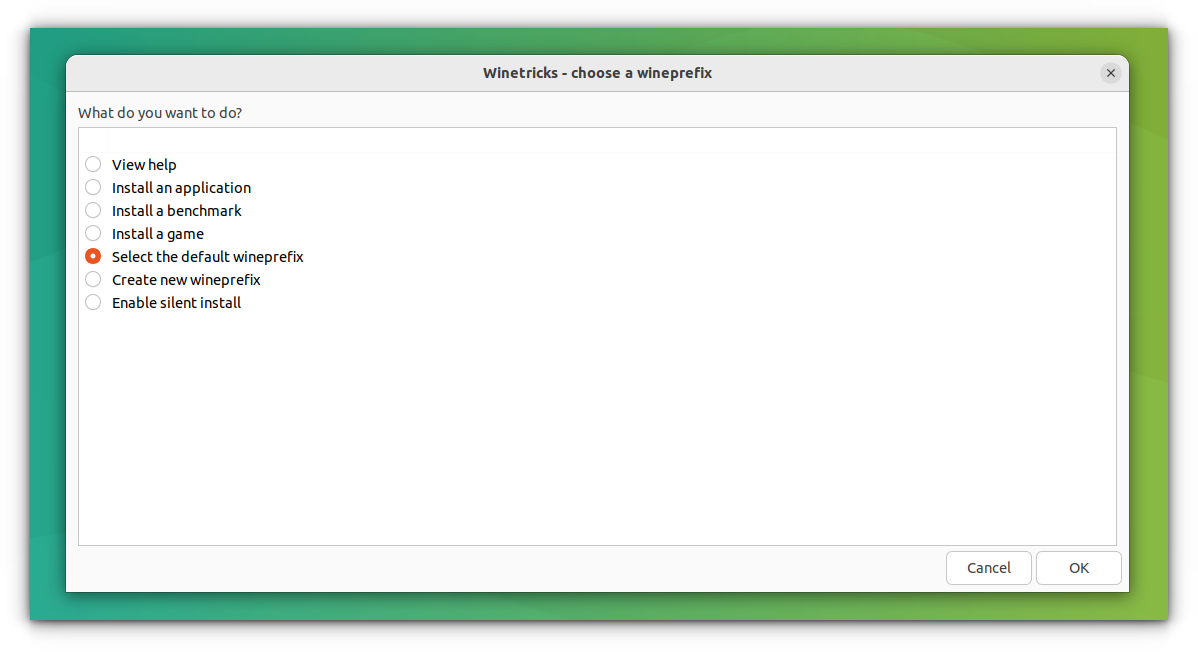
Winetricks interface
Winetricks 工具操作界面
There are many options for helping you with various tasks, and the following are common usage scenarios.
该工具提供多项功能选项,可辅助完成各类操作,以下为常见使用场景。
7.2.2.1 Installing an Application with Winetricks
7.2.2.1 借助 Winetricks 工具安装应用程序
If you Install an app from winetricks, it will be installed in a separate wineprefix. Let's install VLC:
若你通过 Winetricks 工具的 安装应用程序 功能安装软件,该软件会被部署在独立的 Wine 前缀目录中。下文以安装 VLC 播放器为例进行演示:
-
Select install an app from the options and click OK:
首先在功能选项中选择"安装应用程序",并点击"确定"按钮:
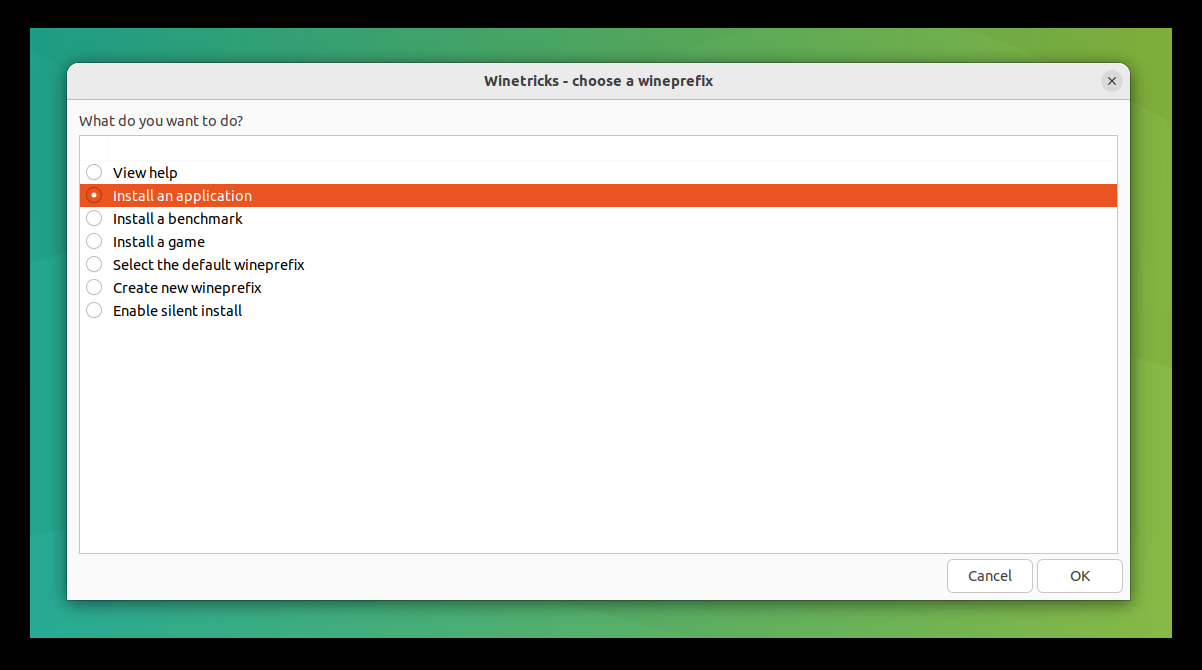
Select the Install an Application option and press OK to install a new application using Winetricks
在 Winetricks 工具中选择 安装应用程序 选项并点击确定,开始安装新应用程序 -
Select VLC from this list:
在应用程序列表中选中 VLC 播放器:
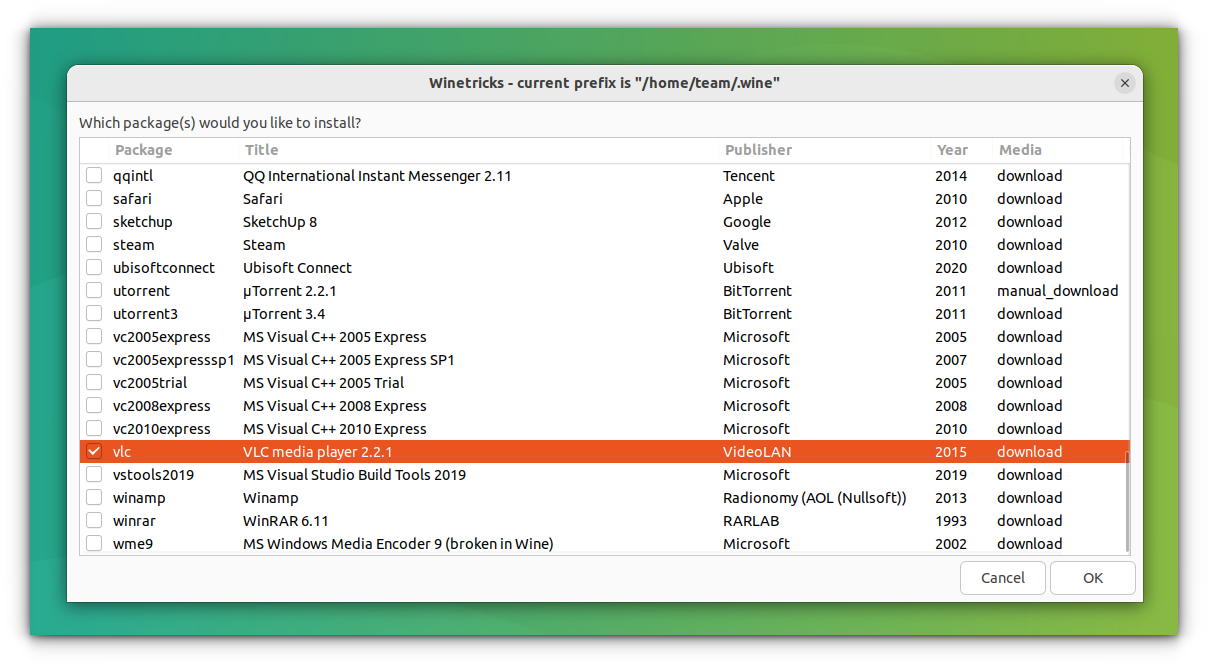
Select an application available from the list to install
从列表中选择待安装的应用程序 -
It will then begin to download the VLC installation files. And then guide you through the rest of the process. It's pretty simple.
工具会自动开始下载 VLC 播放器的安装文件,并引导你完成后续安装步骤,操作流程十分简便。
7.2.2.2 Install Windows DLL or Components
7.2.2.2 安装 Windows 动态链接库或其他组件
You can select a wineprefix from winetricks and install various libraries and components required by the application you want to run and also perform other operations.
你可通过 Winetricks 工具选中指定的 Wine 前缀目录,为该目录安装目标应用程序所需的各类库文件与组件,同时还可执行其他相关操作。
-
Select the Install a Windows DLL or Component option from Winetricks:
在 Winetricks 工具中选择 安装 Windows 动态链接库或组件 选项:
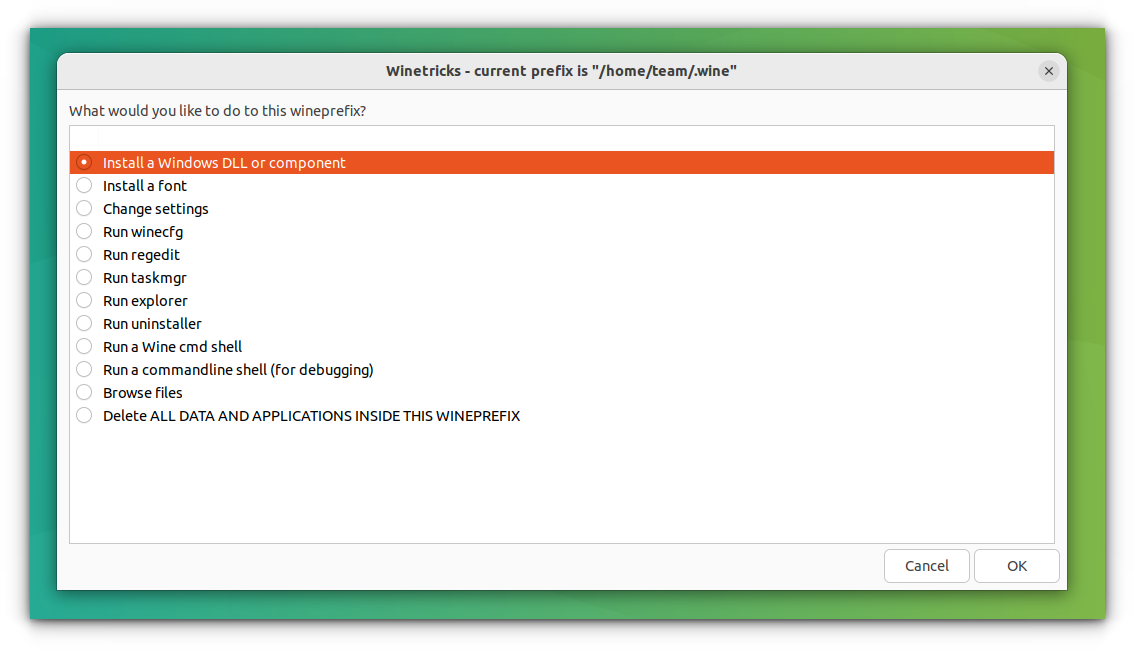
Select the Install a Windows DLL or Component option from Winetricks
在 Winetricks 工具中选择 安装 Windows 动态链接库或组件 选项 -
Select the required DLL or component to install:
在组件列表中选中需要安装的动态链接库或其他组件:
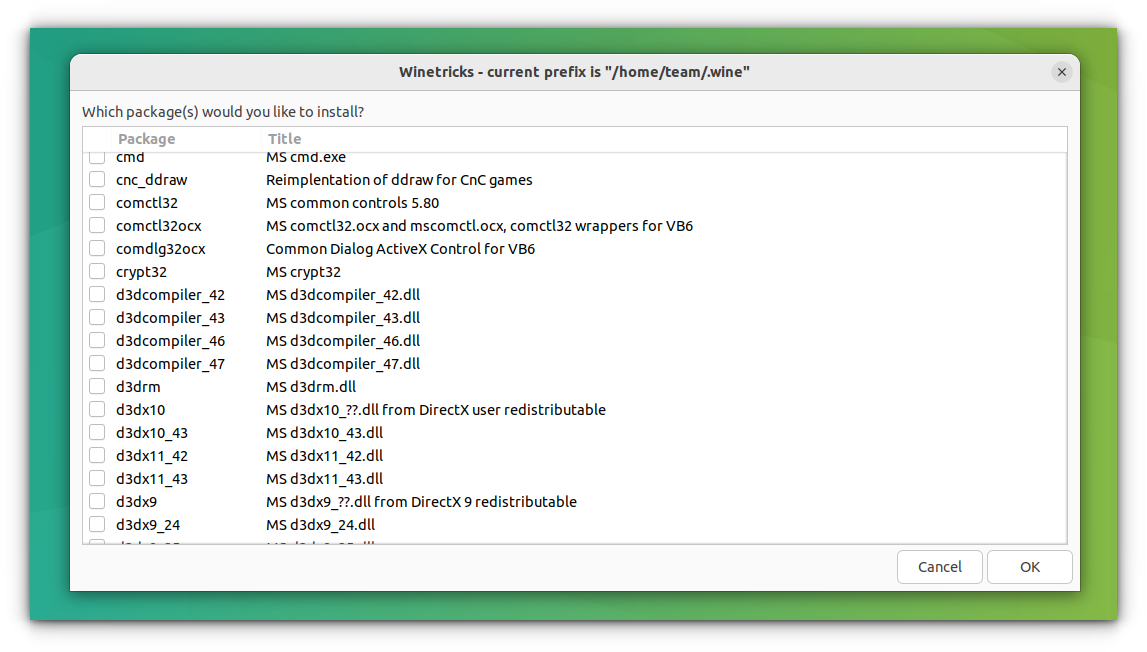
Select the required DLL from the list
从列表中选择需要安装的动态链接库文件
N.B.: If using winetricks seems complicated to you, it's perfectly okay. I feel the same way too. I always use PlayOnLinux for this reason. PlayOnLinux can do everything you might need to do from winetricks.
注:若你认为 Winetricks 工具的操作流程较为复杂,这是完全正常的情况,本文作者也有同感。正因如此,本文作者始终使用 PlayOnLinux 工具,该工具可实现 Winetricks 工具的全部功能。
7.3 Bottles
7.3 Bottles 工具
Bottles is one of the most user-friendly tools that helps simplify Wine configuration by providing pre-configured environments to run Windows apps on Linux. It offers to pre-tune settings for gaming and other productivity apps. Its super easy installations of dependencies like DirectX and a graphical interface for multiple environments sets it apart.
Bottles 是一款易用性较强的工具,该工具通过提供预配置的运行环境,简化 Wine 工具的配置流程,从而实现在 Linux 系统中运行 Windows 应用程序的功能。它针对游戏及其他办公类应用程序提供预优化设置,支持一键安装 DirectX 等依赖组件,并配备图形化界面用于管理多个独立运行环境,这些特性使其区别于其他同类工具。
It is available as a flatpak to install on all Linux distributions. You can run Applications and Games inside bottles.
该程序以 Flatpak 软件包的形式发布,可在所有 Linux 发行版中安装。你可在该程序环境中运行各类应用程序与游戏。
8. Wine Derivatives
8. 基于 Wine 工具的衍生项目
There are quite a number of projects for running Windows applications on other platforms, based on Wine:
目前存在多款基于 Wine 工具开发的衍生项目,这些项目均可实现在其他操作系统中运行 Windows 应用程序的功能,具体包括:
- CrossOver : CrossOver is developed by the company named CodeWeavers. It is directly based on Wine with a few tweaks and proprietary add-ons. In fact, CodeWeavers employs a large portion of Wine developers. Unlike the rapid releases of Wine, CrossOver releases are more stable. The one major downside is that Crossover is not free.
CrossOver:该工具由 CodeWeavers 公司开发,直接基于 Wine 工具进行二次开发,添加部分优化功能与专有插件。事实上,CodeWeavers 公司雇佣了大量 Wine 工具的开发人员。与 Wine 工具的快速迭代不同,CrossOver 工具的版本更新更为稳定。该工具的主要缺点为非免费软件。 - PlayOnLinux : PlayOnLinux is completely based on Wine. And provides an easier route for installing and managing applications with Wine. PlayOnLinux is free. It is also available for Mac as PlayOnMac.
PlayOnLinux:该工具完全基于 Wine 工具开发,提供更为简便的应用程序安装与管理方式。PlayOnLinux 工具为免费软件,同时存在适用于 Mac 系统的版本,即 PlayOnMac。 - Bottles : Bottles app got huge popularity recently, because of its ease of use and various other life-saving features. It is available as a flatpak to install on all Linux distributions. You can run Applications and Games inside bottles.
Bottles:该应用程序因易用性强及实用功能丰富,近期获得较高关注度。该程序以 Flatpak 软件包的形式发布,可在所有 Linux 发行版中安装。你可在该程序环境中运行各类应用程序与游戏。 - ReactOS : ReactOS is an entirely different open-source operating system for running Windows applications. It reuses a considerable amount of codes from Wine. However, this is a project under development for more than a decade and I won't recommend it.
ReactOS:该项目是一款独立的开源操作系统,定位为运行 Windows 应用程序的专用系统。该系统复用了大量 Wine 工具的代码。但该项目已开发超过十年仍未成熟,因此不推荐使用。
9. Advantages of Using Wine
9. 借助 Wine 工具运行程序的优势
When it comes to running Windows applications on Linux systems, Wine provides many advantages over using emulators or virtual machines.
与使用模拟器或虚拟机的方式相比,借助 Wine 工具在 Linux 系统中运行 Windows 应用程序具有多项优势。
9.1 Performance Advantages
9.1 性能优势
There is no need for hardware virtualization, so it won't cause serious performance loss like emulators.
该工具无需依赖硬件虚拟化技术,因此不会像模拟器一样产生严重的性能损耗。
9.2 Native Experience Advantages
9.2 原生体验优势
There is no need to open Wine before running a Windows application. Exactly how Wine works will be clear from this quote from the official site:
运行 Windows 应用程序前无需提前启动 Wine 工具。Wine 官方网站的下述表述可清晰说明该工具的运行原理:
Wine can be thought of as a Windows emulator in much the same way that Windows Vista can be thought of as a Windows XP emulator: both allow you to run the same applications by translating system calls in much the same way. Setting Wine to mimic Windows XP is not much different from setting Vista to launch an application in XP compatibility mode.
可以将 Wine 理解为一款 Windows 模拟器,其原理与将 Windows Vista 视为 Windows XP 模拟器类似:二者均通过转换系统调用的方式运行相同的应用程序。将 Wine 工具设置为模拟 Windows XP 系统的操作,与在 Windows Vista 系统中以 XP 兼容模式启动应用程序的操作基本一致。
10. Alternative Ways to Run Windows Applications on Linux
10. 在 Linux 系统中运行 Windows 应用程序的替代方法
If you are not comfortable with using Wine, you can try one of these alternative methods:
若你对 Wine 工具的使用操作感到不便,可以尝试以下几种替代方法:
10.1 Using Virtual Machines (VMs)
10.1 借助虚拟机(VM)运行 Windows 软件
A full virtual machine is also another way to run Windows apps on Linux using a software like:
通过在 Linux 系统中安装虚拟机软件并配置完整的 Windows 系统,同样可以实现运行 Windows 应用程序的目的,常见的虚拟机软件包括:
- VirtualBox -- Free and open-source, supports Windows guest OS.
VirtualBox --- 一款免费开源的虚拟机软件,支持将 Windows 系统作为客户机系统。 - VMware Workstation Player -- Offers better performance and integration.
VMware Workstation Player --- 性能表现与系统集成度更优的虚拟机软件。 - KVM/QEMU -- A powerful, Linux-native VM solution.
KVM/QEMU --- 一款功能强大的 Linux 原生虚拟机解决方案。
VMs provide better compatibility but require more system resources.
虚拟机方案的程序兼容性更强,但会占用更多的系统资源。
10.2 Using Remote Desktop to Access Windows Applications
10.2 借助远程桌面协议访问 Windows 应用程序
Instead of running Windows software locally, you can access Windows machine remotely via:
除了在本地运行 Windows 软件外,你还可以通过以下方式远程访问 Windows 设备:
- RDP (Remote Desktop Protocol) -- Access a remote Windows PC with full desktop control.
远程桌面协议(RDP) --- 可远程访问 Windows 计算机,并获得完整的桌面控制权限。 - VNC (Virtual Network Computing) -- Allows remote access across different platforms.
虚拟网络计算协议(VNC) --- 支持跨不同操作系统平台的远程访问操作。 - Cloud-based services like AnyDesk or TeamViewer for remote Windows access.
基于云端的远程控制服务,例如 AnyDesk 或 TeamViewer,均可用于实现对 Windows 设备的远程访问。
10.3 Using Cloud-Based Windows Applications
10.3 借助云端服务使用 Windows 应用程序
Many applications are now available to use in the cloud, so you don't need to install them locally. Common cloud application services include:
目前有许多应用程序推出云端服务版本,用户无需在本地安装程序即可通过浏览器使用其功能。常见的云端应用服务包括:
- Microsoft 365 Online (Web versions of Word, Excel, and PowerPoint)
Microsoft 365 Online(提供 Word、Excel、PowerPoint 的网页版) - Adobe Creative Cloud Web (Offers Photoshop and other tools in-browser)
Adobe Creative Cloud Web(支持在浏览器中使用 Photoshop 等设计工具) - Cloud gaming platforms (Services like NVIDIA GeForce Now run Windows games remotely on Linux)
云端游戏平台(例如 NVIDIA GeForce Now 等服务可实现在 Linux 系统中远程运行 Windows 游戏)
11. How to Know if You Have 32 Bit or 64 Bit Computer in Linux and Windows
11. 如何判断 Linux 与 Windows 系统的位数(32 位或 64 位)
This section shows you how to check whether your computer is 32-bit or 64-bit. You can also check if your system can support 64-bit or not.
本小节将向你介绍如何检查计算机系统的位数(32 位或 64 位),同时也会说明如何判断系统是否支持 64 位架构。
11.1 32-bit vs 64-bit Systems: What's the Difference?
11.1 32 位与 64 位系统的区别是什么?
Processors in the early 1990s used 32-bit architecture. This means that their data bus had the capacity to handle 32 bits at a time. As the technology grew, 64-bit processors came on the scene.
20 世纪 90 年代初期的处理器采用 32 位架构,这意味着其数据总线一次可处理 32 位数据。随着技术发展,64 位处理器逐渐问世。
These newer processors have a data bus width of 64 bits. This means they're at least twice as fast as their 32-bit counterparts. To use the capabilities of 64-bit processors, operating systems began to release 64-bit versions.
这类新型处理器的数据总线宽度为 64 位,理论上数据处理速度至少是 32 位处理器的两倍。为充分发挥 64 位处理器的性能,操作系统厂商随之推出 64 位版本的系统。
One thing to remember is that a 64-bit processor can support either a 32-bit or a 64-bit OS but a 32-bit processor can only run a 32-bit OS.
需要牢记的一点是:64 位处理器既可以支持 32 位操作系统,也可以支持 64 位操作系统;而 32 位处理器只能运行 32 位操作系统。
If you bought your computer in the last 7-8 years, you should have a 64-bit system. Don't worry, I won't force you to dig up and see when you bought your computer.
如果你的电脑是在近 7-8 年内购买的,那么它大概率是 64 位系统。无需特意去查证电脑的购买时间。
11.2 How to Know if Your Computer is 32-bit or 64-bit on Windows
11.2 如何在 Windows 系统中判断计算机位数
Getting this information is fairly easy on Windows. Here's how to do it in two easy steps:
在 Windows 系统中查询位数信息的操作十分简便,仅需以下两个步骤即可完成:
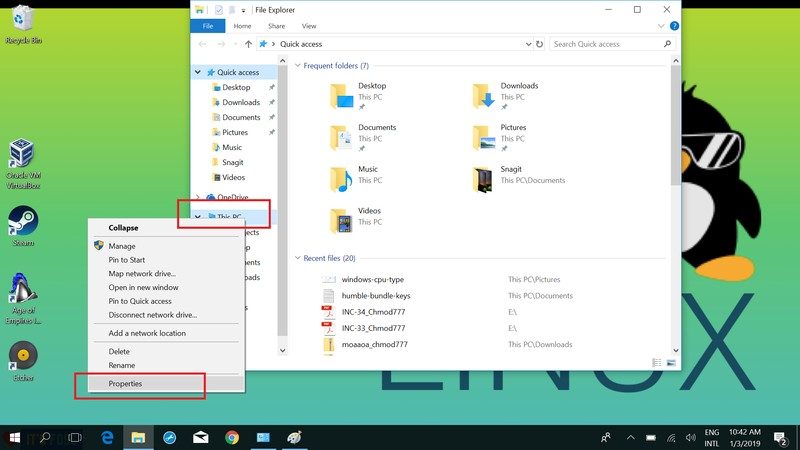
-
Go to Windows Explorer, right click on This PC and then select Properties.
打开文件资源管理器,右键点击"此电脑"图标,然后选择"属性"选项。
-
You'll see the system information on the next screen. In here, you should look for System Type.
在弹出的系统信息界面中,你需要找到"系统类型"这一项。
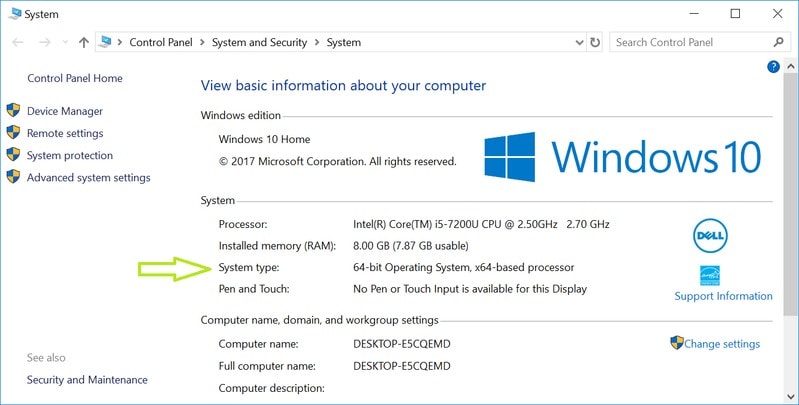
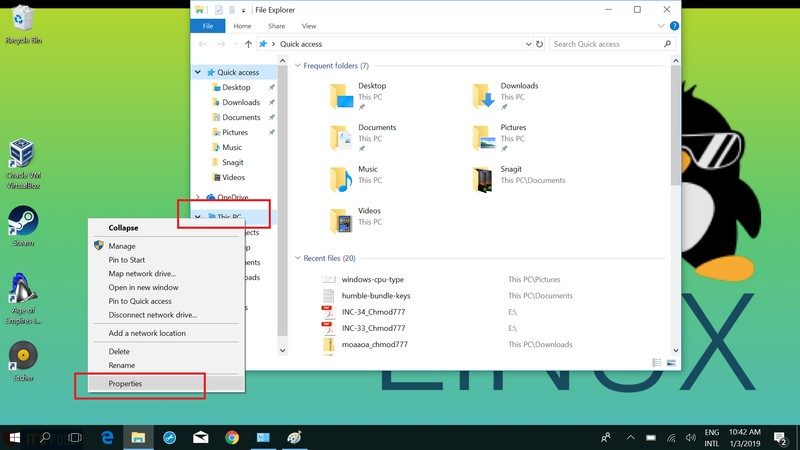
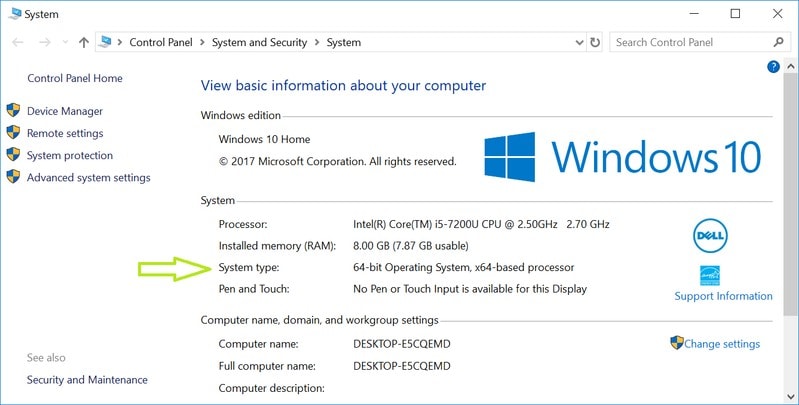
As you can see in the image above, it says "64-bit Operating System, x64-based processor". Which means that the computer has a 64-bit CPU with 64-bit Windows OS installed.
如上图所示,系统类型显示为"64 位操作系统,基于 x64 的处理器",这表示该计算机搭载 64 位处理器,且安装了 64 位 Windows 操作系统。
11.3 How to Know Whether Your CPU is 32-bit or 64-bit on Linux
11.3 如何在 Linux 系统中判断处理器位数
If you're using Ubuntu or any other form of Linux, it's still easy to find out whether your system is 32-bit or 64-bit. Mind that we're talking about the processor here, not the OS itself.
无论你使用的是 Ubuntu 还是其他发行版的 Linux 系统,判断处理器位数的操作都很简单。请注意,本小节介绍的方法针对的是处理器,而非操作系统本身。
-
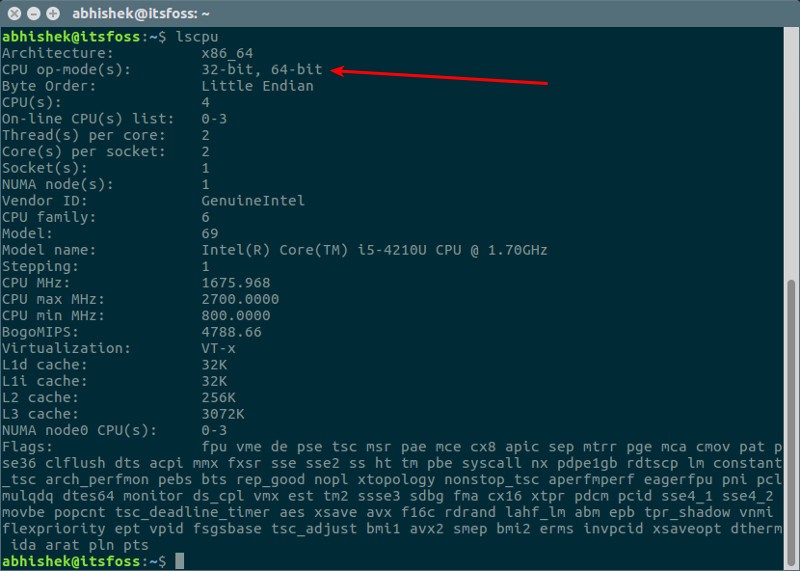
Open a terminal and run the following command:
打开终端,执行以下命令:
bashlscpu -
You should see a result like this:
你会看到类似如下的输出结果:
-
You need to look for the line that starts with CPU op-mode . As you can see in the above result, the CPU can support 32-bit and 64-bit. This means it is a 64-bit CPU. If you see only 32-bit under CPU op-mode, you have a 32-bit system.
你需要找到以 CPU 运行模式 开头的一行。如上述输出结果所示,若处理器同时支持 32 位和 64 位模式,说明它是一款 64 位处理器。如果 CPU 运行模式仅显示 32 位,则表示你的处理器为 32 位架构。
11.4 How to Tell if the Installed Linux System is 32- or 64-bit
11.4 如何判断已安装的 Linux 系统位数
So, you just saw how to find out whether our system is 32 bit or 64-bit. But how can you learn whether the Ubuntu you installed on your system is 32-bit or 64-bit?
前文已经介绍了判断处理器位数的方法,那么如何确认你安装的 Ubuntu 系统是 32 位还是 64 位呢?
I mean, a 64-bit system can support both 32-bit and 64-bit operating systems . So if you have a 64-bit system, it's better (and recommended) to install a 64-bit OS.
要知道,64 位处理器既可以支持 32 位操作系统,也可以支持 64 位操作系统。因此,如果你使用的是 64 位处理器,安装 64 位操作系统是更优的选择(也是推荐方案)。
You can use the following methods to check the OS architecture:
你可以通过以下几种方法判断操作系统的位数:
11.4.1 Method 1: Using lscpu Command
11.4.1 方法一:使用 lscpu 命令
-
Run the command in terminal:
在终端中执行以下命令:bashlscpu -
In the result, look for the line starting with Architecture . This will tell you the OS architecture:
在输出结果中,找到以 架构 开头的一行,该行信息即为操作系统的位数:- x86, i686 or i386 means 32-bit Linux
若显示 x86、i686 或 i386,表示系统为 32 位 Linux - x86_64, amd64 or x64 means 64-bit Linux
若显示 x86_64、amd64 或 x64,表示系统为 64 位 Linux
- x86, i686 or i386 means 32-bit Linux
In my case, I had x86_64 in the result, which means I have 64-bit Ubuntu installed.
在我的系统中,架构项显示为 x86_64,这表示我安装的是 64 位 Ubuntu 系统。
11.4.2 Method 2: Using uname Command
11.4.2 方法二:使用 uname 命令
Run the following command in terminal:
在终端中执行以下命令:
bash
uname -mThe result will be x86, i686, i386, x86_64, x64, etc. And you can easily work out the OS architecture from it.
该命令的输出结果可能为 x86、i686、i386、x86_64、x64 等,通过这些标识即可轻松判断系统位数。
11.4.3 Method 3: Using arch Command
11.4.3 方法三:使用 arch 命令
Run the following command in terminal:
在终端中执行以下命令:
bash
archThe output will indicate whether your installed Linux system is 32-bit or 64-bit.
该命令的输出结果同样可以表明已安装的 Linux 系统是 32 位还是 64 位。
11.5 Checking if You Have 32-bit or 64-bit ARM Processor
11.5 如何判断 ARM 架构处理器的位数
As suggested by It's FOSS reader, Hugh, the above suggestions may not work for ARM based devices like Raspberry Pi.
正如我们的读者休所指出的,上述方法并不适用于树莓派等基于 ARM 架构的设备。
Here, you can install the inxi tool and get the necessary information:
对于这类设备,你可以安装 inxi 工具来查询位数信息,操作步骤如下:
-
Install inxi tool (take Ubuntu as an example):
安装 inxi 工具(以 Ubuntu 系统为例):bashsudo apt install inxi -
Run the command to check system information:
执行以下命令查询系统信息:bashinxi -S
The output may show something like this:
该命令的输出结果可能如下所示:
System:
  Host: rpiB3
  Kernel: 5.10.63-v7+
  Architecture: armv7l
  Bits: 32
  Console: tty0
  Distro: Raspbian GNU/Linux 10 (buster)
As you can see, it says 32 bits, signifying it to be a 32-bit processor.
如你所见,输出结果中显示"32 bits",这表示该设备搭载的是 32 位处理器。
12. Troubleshooting Windows Applications on Linux
12. Linux 系统中运行 Windows 应用程序的常见问题及解决方法
| Issue | Possible Cause | Solution |
|---|---|---|
| Application does not launch 应用程序无法启动 | Missing dependencies or incorrect Wine settings 缺少运行依赖组件或 Wine 工具配置参数错误 | Use Winetricks to install required libraries, or adjust settings in winecfg 借助 Winetricks 工具安装所需的库文件,或在 winecfg 界面中调整配置参数 |
| Application crashes on startup 应用程序启动后立即崩溃 | Incompatible Wine version or missing DLL files Wine 工具版本不兼容或缺少必要的动态链接库文件 | Try a different Wine version, enable debug logs, or install missing DLLs using Winetricks 尝试更换 Wine 工具版本,启用调试日志功能,或借助 Winetricks 工具安装缺失的动态链接库文件 |
| Graphical glitches or UI issues 程序出现图形显示错误或界面异常 | Improper DirectX settings DirectX 相关配置参数不当 | Enable DXVK for better DirectX support, or adjust rendering options in Winecfg 启用 DXVK 功能以提升 DirectX 兼容性,或在 Winecfg 界面中调整渲染相关配置 |
| No audio in Windows applications Windows 应用程序无声音输出 | Audio driver conflicts 音频驱动程序冲突 | Check Wine's audio settings and verify that PulseAudio or ALSA is properly configured 检查 Wine 工具的音频配置参数,确认 PulseAudio 或 ALSA 音频服务已正确配置 |
| Slow performance in games or apps 游戏或应用程序运行速度缓慢 | Incorrect graphics settings or lack of 3D acceleration 图形配置参数错误或未启用 3D 硬件加速功能 | Enable esync/fsync, use Vulkan instead of OpenGL, or allocate more system resources 启用 esync/fsync 优化功能,将渲染接口从 OpenGL 切换为 Vulkan,或为程序分配更多系统资源 |
| Application asks for Windows updates 应用程序提示需要进行 Windows 系统更新 | The app expects a Windows environment 应用程序需要特定版本的 Windows 系统运行环境 | Set the appropriate Windows version in Winecfg (e.g., Windows 10) 在 Winecfg 界面中设置对应的 Windows 系统版本(例如 Windows 10) |
| Installer does not run 程序安装包无法运行 | 32-bit vs. 64-bit Wine prefix mismatch 32 位与 64 位 Wine 前缀目录不匹配 | Ensure the correct Wine architecture is used (WINEARCH=win32 or WINEARCH=win64) 确认使用正确的 Wine 架构版本(通过设置环境变量 WINEARCH=win32 或 WINEARCH=win64 实现) |
| Can't install a Windows app 无法安装 Windows 应用程序 | Permission issues or incorrect Wine prefix 权限不足或 Wine 前缀目录配置错误 | Run Wine with user permissions, or create a new, clean Wine prefix 使用普通用户权限运行 Wine 工具,或创建一个全新的纯净 Wine 前缀目录 |
| Application runs but has missing fonts 应用程序可运行但存在字体缺失问题 | Required Windows fonts are not installed 未安装应用程序所需的 Windows 字体文件 | Install Microsoft fonts using Winetricks 借助 Winetricks 工具安装微软字体库 |
| Mouse or keyboard input lag 鼠标或键盘输入存在延迟 | Compatibility issues with input handling 输入处理模块存在兼容性问题 | Enable raw input in Wine settings or adjust input settings in the game/application 在 Wine 工具设置中启用原始输入模式,或在游戏/应用程序内调整输入相关配置 |
13. Frequently Asked Questions
13. 常见问题解答
13.1 Can I run Windows games on Linux?
13.1 我能否在 Linux 系统中运行 Windows 游戏?
Yes, many Windows games work on Linux using Steam Proton, Lutris, or Wine + DXVK. Check ProtonDB for game compatibility.
可以,借助 Steam Proton、Lutris 或 Wine + DXVK 等工具,许多 Windows 游戏都能在 Linux 系统中正常运行。你可以在 ProtonDB 网站上查询具体游戏的兼容性情况。
13.2 What is the difference between Wine and a Virtual Machine (VM)?
13.2 Wine 工具与虚拟机(VM)之间的区别是什么?
Wine allows you to run Windows apps natively on Linux without installing Windows. A Virtual Machine (VM), such as VirtualBox or KVM, creates a full Windows environment inside Linux, offering better compatibility at the cost of performance.
Wine 工具无需安装 Windows 系统即可实现在 Linux 系统中直接运行 Windows 应用程序。而虚拟机(例如 VirtualBox 或 KVM)则是在 Linux 系统中创建一个完整的 Windows 运行环境,这种方式的程序兼容性更强,但会牺牲部分系统性能。
13.3 Can I run Microsoft Office on Linux?
13.3 我能否在 Linux 系统中运行微软 Office 软件?
Yes, you can run older versions of Microsoft Office using Wine or CrossOver. Alternatively, you can use the web-based Office 365 or install LibreOffice as a free alternative.
可以,借助 Wine 或 CrossOver 工具,你可以在 Linux 系统中运行旧版本的微软 Office 软件。此外,你也可以选择使用基于网页的 Office 365 服务,或安装免费开源的 LibreOffice 办公套件作为替代方案。
14. Wrapping Up
14. 总结
Transitioning to Linux can be made easy if you follow these methods to run Windows apps on Linux. Whether you need to fully transition to a Windows interface or use Linux as a subsystem, this guide will help you find solutions for all.
遵循本文介绍的方法在 Linux 系统中运行 Windows 应用程序,能够让你的系统迁移过程变得更加轻松。无论你需要在 Linux 系统中完全模拟 Windows 操作环境,还是将 Linux 作为子系统使用,本指南都能为你提供对应的解决方案。
For more information, you can check Wine FAQ and Documentation.
如需了解更多信息,可查阅文档 Wine 常见问题解答 与 Wine 官方文档。
I hope you find this complete beginner's guide to using Wine in Linux helpful. Now you can run Windows programs in Linux without installing a virtual machine or dual booting.
希望这份详尽的 Linux 系统 Wine 工具使用指南能为你提供帮助。现在你无需安装虚拟机或配置双系统,即可在 Linux 系统中运行 Windows 程序。
Linux 运行 Windows 程序的兼容方案
0 概述
在 Linux 系统中,存在多套完整的方案可实现 Windows 程序的运行与兼容性问题排查,功能覆盖程序运行支撑与故障诊断修复两大维度。方案类型包含兼容层、虚拟化、容器化、远程投射等,配套的排查工具涵盖官方数据库、图形化配置界面、命令行调试组件等,可满足不同场景下的使用需求。
1 Windows 程序运行方案
1.1 兼容层方案(无需 Windows 系统)
兼容层方案的原理为在 Linux 内核之上重新实现 Windows API(以 Win32 与部分 Win64 接口为主),将 Windows 系统调用实时转换为 POSIX 调用,使 Windows 程序直接在 Linux 环境中运行,无需依赖完整 Windows 系统镜像。
1.1.1 Wine(开源兼容层)
-
技术原理
Wine 并非虚拟机或模拟器,而是通过接口转换实现 Windows 程序与 Linux 系统的适配,程序运行时直接调用 Linux 内核资源,具备轻量化特性。 -
基础使用流程
bash# Debian/Ubuntu 发行版安装命令 sudo apt update && sudo apt install wine wine64 winetricks # 运行 Windows 程序 wine /path/to/program.exe # 安装 Windows 程序(如 Office 等) wine setup.exe -
特性
- 无需 Windows 许可证,资源占用低
- 支持大部分 Windows 桌面应用与工具软件,兼容性随版本迭代持续提升
- 提供
winecfg图形配置工具与winetricks脚本辅助库安装
1.1.2 Proton(游戏优化版 Wine)
- 技术原理
由 Valve 基于 Wine 开发的游戏专用兼容层,集成 DXVK(DirectX → Vulkan)、VKD3D(Direct3D 12 → Vulkan)与 FAudio(XAudio 重实现)组件,针对 Windows 游戏的图形渲染与音频输出进行专项优化。 - 特性
- 与 Steam 客户端深度集成,可一键运行 Windows 游戏
- 支持 83% 以上 Steam 游戏库(Proton 8.0 + 版本),反作弊系统支持逐步完善
- 图形性能优化显著,部分游戏在 Linux 上的运行帧率接近甚至超过 Windows
1.1.3 CrossOver(商业版 Wine)
- 技术原理
由 CodeWeavers 开发的商业兼容层,基于 Wine 代码并添加专有补丁,提供专业技术支持与应用兼容性测试。 - 特性
- 图形化安装向导,简化配置流程,无需命令行操作
- 预配置流行应用模板(如 Office、Adobe 系列、浏览器等)
- 支持 Linux ARM64 架构,适配树莓派等设备
- 提供技术支持与定期更新,商业软件兼容性更稳定
1.1.4 兼容层前端管理工具
| 工具名称 | 功能 | 特点 |
|---|---|---|
| PlayOnLinux | 图形化 Wine 版本管理与应用配置 | 支持多 Wine 版本共存,预设应用安装脚本 |
| Lutris | 游戏管理平台,集成 Wine/Proton | 自动配置游戏运行环境,支持多平台游戏导入 |
| Bottles | 容器化 Wine 环境管理 | 隔离不同应用环境,一键安装运行库,现代化界面 |
1.2 虚拟化方案(完整 Windows 环境)
虚拟化方案通过硬件虚拟化扩展(Intel VT-x/AMD-V)在 Linux 中创建完整虚拟机,安装独立 Windows 系统,程序在虚拟机内原生运行,具备 100% 兼容性。
1.2.1 全虚拟化工具
- 代表工具:VMware Workstation、VirtualBox、QEMU/KVM
- 特性
- 兼容性 100%,支持所有 Windows 程序(含驱动级软件)
- 提供快照、虚拟机克隆与资源动态分配功能
- 支持文件共享、剪贴板互通与拖放操作,提升使用体验
- 资源占用高(CPU/内存/存储),性能损失约 10%--30%
1.2.2 轻量级虚拟化(容器化 Windows)
- 代表工具:WinBoat、WSL2(适用于 Windows 子系统)
- 技术原理
使用 Docker 容器运行精简版 Windows 系统,通过 FreeRDP 协议将应用窗口投射到 Linux 桌面,实现资源隔离与轻量化运行。 - 特性
- 比传统虚拟机占用资源更少,启动速度更快
- 支持多 Windows 应用同时运行,环境隔离避免冲突
- 无需复杂配置,一键部署容器化 Windows 环境
1.3 远程投射方案
- 技术原理
在后台运行 Windows 虚拟机,通过远程桌面协议(RDP)将 Windows 应用窗口直接映射到 Linux 桌面,实现无缝集成体验。 - 特性
- 应用以原生窗口形式在 Linux 桌面显示,无明显边界
- 支持文件系统互通与打印机共享,操作体验接近原生应用
- 无需修改 Windows 程序,兼容性完全由底层虚拟机保证
- 依赖网络连接,图形密集型应用可能出现延迟
1.4 方案对比
| 方案类型 | 代表工具 | 性能 | 兼容性 | 资源占用 | 适用场景 |
|---|---|---|---|---|---|
| 兼容层 | Wine/Proton | 高(接近原生) | 部分(90%+ 常见应用) | 低 | 办公软件、开发工具、轻量游戏 |
| 商业兼容层 | CrossOver | 高 | 高(优先支持商业软件) | 低 | 专业软件、需要技术支持的场景 |
| 全虚拟化 | VMware/VirtualBox | 中(损失 10%--30%) | 100% | 高 | 驱动级软件、高兼容性需求、测试环境 |
| 容器化 | WinBoat | 中 | 高 | 中 | 多应用隔离、轻量化 Windows 环境 |
| 远程投射 | WinApps | 中(依赖网络) | 100% | 中 | 无缝集成体验、跨平台协作 |
2 兼容性排查工具与方法
2.1 官方兼容数据库
2.1.1 Wine AppDB
- 功能定位
Wine 项目官方维护的应用兼容性数据库,记录超过 28,000 个 Windows 程序的兼容性评级与解决方案。 - 使用方法
- 访问网址:https://appdb.winehq.org
- 搜索目标程序名称,查看评级(白金/黄金/白银/青铜/垃圾)与详细报告
- 直接应用社区验证的配置方案(如所需运行库、Wine 版本、特殊参数)
- 典型案例
- Adobe Photoshop CS6:白金评级,需安装
vcrun2015和directx9运行库 - Office 2010:黄金评级,通过
winetricks dotnet40解决兼容性问题
- Adobe Photoshop CS6:白金评级,需安装
2.1.2 ProtonDB(游戏专用)
- 功能定位
专注于游戏领域的兼容性数据库,提供 Steam 游戏在 Proton 下的兼容性评级与优化方案。 - 使用价值
- 查看超过 10,000 款游戏的社区测试结果(白金/黄金/白银/青铜)
- 获取详细的启动参数、运行库安装建议与已知问题解决方案
- 针对反作弊游戏(EAC/BattlEye)提供专门的兼容配置指南
2.2 图形化配置与排查工具
2.2.1 winecfg(Wine 配置工具)
-
功能定位
提供图形化配置界面,用于调整 Windows 版本模拟、显示设置、DLL 替换等参数,类似 Windows 程序属性中的"兼容性"选项卡。
-
配置项
配置类别 作用 常见设置 Windows 版本 模拟不同 Windows 系统(WinXP/7/10/11) 老程序选 WinXP,新程序选 Win10 图形设置 调整 DirectX/OpenGL 渲染、分辨率 勾选"允许 DirectX 使用桌面",解决字体模糊 DLL 覆盖 替换特定 Windows DLL 为 Wine 实现或原生 DLL 用内置 winegstreamer.dll替换quartz.dll解决视频播放问题音频设置 配置 ALSA/PulseAudio 输出,解决声音异常 选择"alsa"或"pulse"作为音频驱动 -
启动命令
bashwinecfg # 全局配置 WINEPREFIX=~/.wine-app winecfg # 针对特定应用环境的配置
2.2.2 图形化前端排查工具
| 工具名称 | 排查功能 | 优势 |
|---|---|---|
| PlayOnLinux | 多 Wine 版本管理、预设安装脚本、一键修复 | 自动处理常见兼容性问题,无需手动配置 |
| Bottles | 环境诊断、依赖安装、故障排除、快照功能 | 容器化隔离环境,方便回滚到正常配置 |
| Lutris | 自动检测游戏兼容性、推荐最佳 Proton 版本、优化启动参数 | 专为游戏设计,图形性能优化更到位 |
2.3 命令行排查工具
2.3.1 winetricks(运行库与组件安装器)
-
功能定位
可一键安装 Windows 常用运行库、字体和组件,解决 90% 以上的兼容性问题,类似 Windows 的"程序和功能"与"可选功能"。 -
常用命令
bash# 安装基础运行库 winetricks corefonts vcrun2019 dotnet48 dxvk # 解决常见问题 winetricks fontsmooth-rgb # 字体抗锯齿 winetricks sound=alsa # 音频设置 winetricks win7 # 切换到 Windows 7 模拟环境
2.3.2 WINEDEBUG(调试工具)
-
功能定位
通过环境变量控制 Wine 输出详细日志,定位兼容性问题根源,类似 Windows 的调试器。 -
使用方法
bash# 基本调试(显示错误信息) WINEDEBUG=err+all wine /path/to/program.exe # 高级调试(跟踪 API 调用) WINEDEBUG=trace+relay wine /path/to/program.exe 2> debug.log # 图形相关调试(解决 DirectX 问题) WINEDEBUG=trace+ddraw wine /path/to/game.exe -
日志分析
- 搜索"err:"或"fixme:"标记,定位未实现的 API 或配置问题
- 对照 Wine 官方文档(https://wiki.winehq.org/Debug_Channels)解读日志内容
2.4 Proton 专属排查方案
- Steam Play 兼容性设置
- 右键点击 Steam 库中的 Windows 游戏 → 属性 → 兼容性
- 勾选"强制使用特定 Steam Play 兼容工具"
- 选择合适的 Proton 版本(如 Proton Experimental 解决新游戏问题)
- 启用"启动参数":添加
PROTON_LOG=1生成调试日志,排查启动失败问题
3 标准兼容性排查流程
3.1 步骤 1:初步诊断(快速定位问题)
- 检查程序在 Wine AppDB/ProtonDB 中的评级与已知问题
- 尝试不同 Wine/Proton 版本(新版本解决兼容性问题,旧版本适配老程序)
- 用
winecfg切换 Windows 版本模拟(如 Win7 解决老程序问题)
3.2 步骤 2:运行库修复(解决 80% 依赖问题)
-
使用
winetricks安装必备运行库bashwinetricks corefonts vcrun2005 vcrun2008 vcrun2010 vcrun2013 vcrun2015 dotnet40 dxvk -
针对 .NET 程序:安装对应版本的 .NET Framework(如
dotnet48) -
针对 DirectX 游戏:启用 DXVK/VKD3D(
winetricks dxvk)提升兼容性与性能
3.3 步骤 3:高级调试(解决复杂问题)
-
生成调试日志
bashWINEDEBUG=err+all,warn+all wine /path/to/program.exe > debug.log 2>&1 -
分析日志中的"err:"标记,定位缺失的 API 或组件
-
尝试 DLL 替换:通过
winecfg→ "函数库"选项卡,替换有问题的 DLL -
调整图形设置:禁用/启用硬件加速,修改渲染器(OpenGL/Vulkan)
3.4 步骤 4:环境隔离(避免冲突)
-
创建独立 Wine 环境(前缀)
bashWINEPREFIX=~/.wine-myapp winecfg # 创建新环境 WINEPREFIX=~/.wine-myapp winetricks # 为新环境安装组件 -
使用 Bottles/PlayOnLinux 管理多个隔离环境,避免不同程序的配置冲突
4 常见兼容性问题与解决方案
| 问题现象 | 排查工具 | 解决方案 |
|---|---|---|
| 程序无法启动 | Wine AppDB + WINEDEBUG | 安装对应运行库,切换 Wine 版本,查看日志中的"err:module"错误 |
| 字体显示异常 | winetricks + winecfg | 安装 corefonts 字体包,启用字体平滑(winetricks fontsmooth-rgb) |
| 声音无输出 | winetricks + 音频设置 | 配置音频驱动(winetricks sound=alsa),安装 faudio 组件 |
| 图形渲染错误 | DXVK/VKD3D + winecfg | 启用 DXVK(winetricks dxvk),禁用 Direct3D 10/11 特性 |
| .NET 程序崩溃 | winetricks + AppDB | 安装对应版本的 .NET Framework(如 dotnet48),使用 Wine 8.0 + 版本 |
5 总结与实践建议
- Linux 提供的兼容方案与排查工具功能全面,可覆盖绝大多数 Windows 程序的运行与故障修复需求,且灵活性优于 Windows 自带的兼容解答工具。
- 方案选择建议
- 日常办公、轻量游戏:优先使用 Wine/Proton + 图形化前端工具(Bottles/Lutris)
- 专业软件、需要技术支持:选择 CrossOver
- 驱动级软件、高兼容性需求:使用全虚拟化工具(VMware/VirtualBox)
- 排查建议
- 优先查询 Wine AppDB/ProtonDB,应用社区验证的解决方案,减少手动操作
- 复杂问题通过"运行库安装 + 调试日志分析"组合解决
- 多程序共存时,使用容器化工具隔离环境,避免配置冲突
6 实践优化要点
6.1 兼容层优化
- 版本选择:优先使用 Wine 8.0 + 或 Proton 8.0 +,兼容性与性能更优
- 图形设置:游戏应用建议启用 DXVK/VKD3D,提升图形性能
- 权限问题:避免以 root 用户运行 Wine/Proton,防止系统安全风险
6.2 虚拟化优化
- 硬件加速:启用 VT-x/AMD-V 与嵌套虚拟化,提升虚拟机性能
- 资源分配:为 Windows 虚拟机分配至少 4 GB 内存与 2 核 CPU
- 存储优化:使用 SSD 存储虚拟机镜像,缩短启动与加载时间
- 显卡直通:高端应用可考虑 PCIe 显卡直通,实现接近原生的图形性能
via:
- Run Windows Applications on Linux Beginners Guide
https://itsfoss.com/use-windows-applications-linux/ - Run Windows Apps On Linux - Top 6 Methods for All in 2025
https://cyberpanel.net/blog/run-windows-apps-on-linux - How to Know if You Have 32 Bit or 64 Bit Computer in Linux and Windows
https://itsfoss.com/32-bit-64-bit-ubuntu/