https://wwamf.lanzouu.com/iqtds3fmgewd 密码:cxnh
https://www.bilibili.com/video/BV1xyidB4EBk
玩起来比原理那版相应快多了
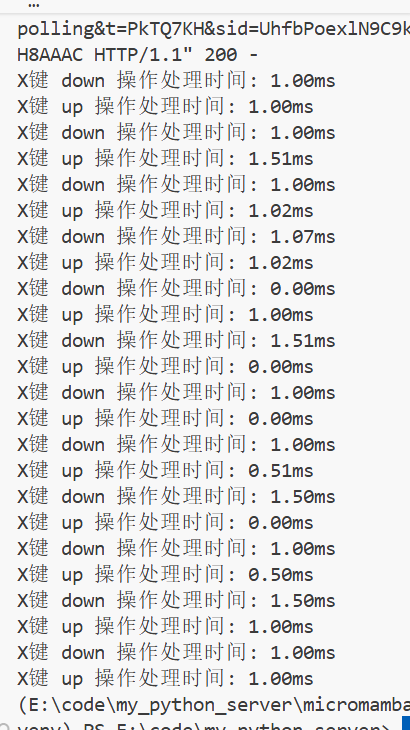
python
import sys
import os
import time
from datetime import datetime
import ctypes
from ctypes import wintypes
import threading

sys.path.append(os.path.dirname(os.path.dirname(os.path.abspath(__file__))))

from flask import Flask, render_template_string
from flask_socketio import SocketIO, emit
from flask_cors import CORS

app = Flask(__name__)
CORS(app)
app.config['SECRET_KEY'] = 'your-secret-key-for-socketio'
socketio = SocketIO(app, cors_allowed_origins="*", async_mode='threading')

# 用于跟踪按键状态
key_states = {
    'x': False,
    'z': False
}

# Windows API 键盘事件常量
INPUT_KEYBOARD = 1
KEYEVENTF_SCANCODE = 0x0008
KEYEVENTF_KEYUP = 0x0002

# 虚拟键码和扫描码映射
KEY_CODES = {
    'x': {'vk': 0x58, 'scan': 0x2D},  # X键的虚拟键码和扫描码
    'z': {'vk': 0x5A, 'scan': 0x2C}   # Z键的虚拟键码和扫描码
}

def send_win_key_event(key, is_keyup=False):
    """使用Windows API发送按键事件,兼容游戏"""
    try:
        # 加载user32.dll
        user32 = ctypes.WinDLL('user32', use_last_error=True)

        # 定义INPUT结构
        class KEYBDINPUT(ctypes.Structure):
            _fields_ = (("wVk", wintypes.WORD),
                        ("wScan", wintypes.WORD),
                        ("dwFlags", wintypes.DWORD),
                        ("time", wintypes.DWORD),
                        ("dwExtraInfo", ctypes.POINTER(wintypes.ULONG)))

        class HARDWAREINPUT(ctypes.Structure):
            _fields_ = (("uMsg", wintypes.DWORD),
                        ("wParamL", wintypes.WORD),
                        ("wParamH", wintypes.WORD))

        class MOUSEINPUT(ctypes.Structure):
            _fields_ = (("dx", wintypes.LONG),
                        ("dy", wintypes.LONG),
                        ("mouseData", wintypes.DWORD),
                        ("dwFlags", wintypes.DWORD),
                        ("time", wintypes.DWORD),
                        ("dwExtraInfo", ctypes.POINTER(wintypes.ULONG)))

        class INPUT_union(ctypes.Union):
            _fields_ = (("ki", KEYBDINPUT),
                        ("mi", MOUSEINPUT),
                        ("hi", HARDWAREINPUT))

        class INPUT(ctypes.Structure):
            _fields_ = (("type", wintypes.DWORD),
                        ("union", INPUT_union))

        # 获取键码信息
        key_info = KEY_CODES.get(key.lower())
        if not key_info:
            return {"status": "error", "message": f"不支持的键: {key}"}

        # 设置标志
        flags = KEYEVENTF_KEYUP
        if not is_keyup:
            flags = 0  # 按下键时不设置KEYEVENTF_KEYUP标志

        # 添加扫描码标志
        flags |= KEYEVENTF_SCANCODE

        # 创建输入事件
        inputs = INPUT(
            type=INPUT_KEYBOARD,
            union=INPUT_union(
                ki=KEYBDINPUT(
                    wVk=key_info['vk'],
                    wScan=key_info['scan'],
                    dwFlags=flags,
                    time=0,
                    dwExtraInfo=None
                )
            )
        )

        # 发送输入事件
        result = user32.SendInput(1, ctypes.byref(inputs), ctypes.sizeof(INPUT))

        action = "释放" if is_keyup else "按下"
        return {"status": "success", "message": f"成功{action}{key.upper()}键 (使用扫描码)"}

    except Exception as e:
        return {"status": "error", "message": str(e)}

def fast_key_down(key):
    """快速按下键"""
    return send_win_key_event(key, is_keyup=False)

def fast_key_up(key):
    """快速释放键"""
    return send_win_key_event(key, is_keyup=True)

# HTML模板
HTML_TEMPLATE = '''
<!DOCTYPE html>
<html lang="zh-CN">
<head>
    <meta charset="UTF-8">
    <meta name="viewport" content="width=device-width, initial-scale=1.0">
    <title>XZ键控制面板</title>
    <style>
        body {
            margin: 0;
            padding: 0;
            height: 100vh;
            display: flex;
            font-family: Arial, sans-serif;
            overflow: hidden;
            background-color: #f0f0f0;
        }

        .half {
            width: 50%;
            height: 100%;
            display: flex;
            flex-direction: column;
            justify-content: center;
            align-items: center;
            cursor: pointer;
            transition: background-color 0.1s;
            user-select: none;
        }

        .x-half {
            background-color: #ffcccc;
            border-right: 2px solid #ccc;
        }

        .z-half {
            background-color: #ccccff;
        }

        .half.active {
            opacity: 0.7;
        }

        .key-label {
            font-size: 8em;
            font-weight: bold;
            color: #333;
        }

        .instructions {
            margin-top: 20px;
            font-size: 1.2em;
            color: #666;
            text-align: center;
        }

        .status {
            margin-top: 20px;
            font-size: 1.2em;
            color: #333;
            text-align: center;
        }

        .response-time {
            margin-top: 10px;
            font-size: 0.9em;
            color: #888;
            text-align: center;
        }

        .pressed {
            background-color: #ff9999 !important;
        }

        .z-pressed {
            background-color: #9999ff !important;
        }
    </style>
</head>
<body>
    <div class="half x-half" id="xHalf">
        <div class="key-label">X</div>
        <div class="instructions">点击按住或松开X键</div>
        <div class="status" id="xStatus">状态: 未按下</div>
        <div class="response-time" id="xResponseTime">响应时间: -- ms</div>
    </div>

    <div class="half z-half" id="zHalf">
        <div class="key-label">Z</div>
        <div class="instructions">点击按住或松开Z键</div>
        <div class="status" id="zStatus">状态: 未按下</div>
        <div class="response-time" id="zResponseTime">响应时间: -- ms</div>
    </div>

    <script src="https://cdnjs.cloudflare.com/ajax/libs/socket.io/4.0.1/socket.io.js"></script>
    <script>
        // 按键状态
        let keyStates = {
            x: false,
            z: false
        };

        // 记录请求时间的对象
        let requestTimes = {};

        // 获取DOM元素
        const xHalf = document.getElementById('xHalf');
        const zHalf = document.getElementById('zHalf');
        const xStatus = document.getElementById('xStatus');
        const zStatus = document.getElementById('zStatus');
        const xResponseTime = document.getElementById('xResponseTime');
        const zResponseTime = document.getElementById('zResponseTime');

        // 连接到Socket.IO服务器
        const socket = io();

        // 更新按键状态显示(仅本地UI更新,立即响应)
        function updateStatus() {
            xStatus.textContent = `状态: ${keyStates.x ? '按下' : '未按下'}`;

            // 立即更新视觉效果,无需等待服务器响应
            if (keyStates.x) {
                xHalf.classList.add('pressed');
            } else {
                xHalf.classList.remove('pressed');
            }
        }

        function updateZStatus() {
            zStatus.textContent = `状态: ${keyStates.z ? '按下' : '未按下'}`;

            // 立即更新视觉效果,无需等待服务器响应
            if (keyStates.z) {
                zHalf.classList.add('z-pressed');
            } else {
                zHalf.classList.remove('z-pressed');
            }
        }

        // Socket.IO事件监听器
        socket.on('connect', function() {
            console.log('已连接到服务器');
        });

        socket.on('key_state_update', function(states) {
            console.log('收到按键状态更新:', states);
            // 从服务器同步状态(主要用于保持一致性)
            keyStates.x = states.x;
            keyStates.z = states.z;
            updateStatus();
            updateZStatus();
        });

        // 记录请求时间并发送按键操作到服务器
        function sendKeyAction(action, key) {
            const requestId = Date.now() + '_' + Math.random();
            requestTimes[requestId] = Date.now();

            // 发送数据到服务器,包含请求ID
            socket.emit('key_control', {
                action: action,
                key: key,
                requestId: requestId
            });
        }

        // 接收服务器响应并计算响应时间
        socket.on('key_response', function(data) {
            if (data.requestId && requestTimes[data.requestId]) {
                const responseTime = Date.now() - requestTimes[data.requestId];

                // 更新对应的响应时间显示
                if (data.key === 'x') {
                    xResponseTime.textContent = `响应时间: ${responseTime} ms`;
                } else if (data.key === 'z') {
                    zResponseTime.textContent = `响应时间: ${responseTime} ms`;
                }

                // 清理请求时间记录
                delete requestTimes[data.requestId];

                console.log(`${data.key.toUpperCase()}键操作响应时间: ${responseTime}ms`);
            }
        });

        // 为X区域添加事件监听器
        xHalf.addEventListener('mousedown', function(e) {
            e.preventDefault();
            if (!keyStates.x) {
                // 立即更新UI状态
                keyStates.x = true;
                updateStatus();

                // 然后发送请求到服务器
                sendKeyAction('down', 'x');
            }
        });

        xHalf.addEventListener('mouseup', function() {
            if (keyStates.x) {
                // 立即更新UI状态
                keyStates.x = false;
                updateStatus();

                // 然后发送请求到服务器
                sendKeyAction('up', 'x');
            }
        });

        xHalf.addEventListener('mouseleave', function() {
            // 鼠标离开区域,也应释放按键
            if (keyStates.x) {
                // 立即更新UI状态
                keyStates.x = false;
                updateStatus();

                // 然后发送请求到服务器
                sendKeyAction('up', 'x');
            }
        });

        // 为Z区域添加事件监听器
        zHalf.addEventListener('mousedown', function(e) {
            e.preventDefault();
            if (!keyStates.z) {
                // 立即更新UI状态
                keyStates.z = true;
                updateZStatus();

                // 然后发送请求到服务器
                sendKeyAction('down', 'z');
            }
        });

        zHalf.addEventListener('mouseup', function() {
            if (keyStates.z) {
                // 立即更新UI状态
                keyStates.z = false;
                updateZStatus();

                // 然后发送请求到服务器
                sendKeyAction('up', 'z');
            }
        });

        zHalf.addEventListener('mouseleave', function() {
            // 鼠标离开区域,也应释放按键
            if (keyStates.z) {
                // 立即更新UI状态
                keyStates.z = false;
                updateZStatus();

                // 然后发送请求到服务器
                sendKeyAction('up', 'z');
            }
        });

        // 触摸设备支持
        xHalf.addEventListener('touchstart', function(e) {
            e.preventDefault();
            if (!keyStates.x) {
                // 立即更新UI状态
                keyStates.x = true;
                updateStatus();

                // 然后发送请求到服务器
                sendKeyAction('down', 'x');
            }
        });

        xHalf.addEventListener('touchend', function(e) {
            e.preventDefault();
            if (keyStates.x) {
                // 立即更新UI状态
                keyStates.x = false;
                updateStatus();

                // 然后发送请求到服务器
                sendKeyAction('up', 'x');
            }
        });

        xHalf.addEventListener('touchcancel', function() {
            // 触摸取消,释放按键
            if (keyStates.x) {
                // 立即更新UI状态
                keyStates.x = false;
                updateStatus();

                // 然后发送请求到服务器
                sendKeyAction('up', 'x');
            }
        });

        zHalf.addEventListener('touchstart', function(e) {
            e.preventDefault();
            if (!keyStates.z) {
                // 立即更新UI状态
                keyStates.z = true;
                updateZStatus();

                // 然后发送请求到服务器
                sendKeyAction('down', 'z');
            }
        });

        zHalf.addEventListener('touchend', function(e) {
            e.preventDefault();
            if (keyStates.z) {
                // 立即更新UI状态
                keyStates.z = false;
                updateZStatus();

                // 然后发送请求到服务器
                sendKeyAction('up', 'z');
            }
        });

        zHalf.addEventListener('touchcancel', function() {
            // 触摸取消,释放按键
            if (keyStates.z) {
                // 立即更新UI状态
                keyStates.z = false;
                updateZStatus();

                // 然后发送请求到服务器
                sendKeyAction('up', 'z');
            }
        });

        // 页面加载时获取初始状态
        window.onload = function() {
            updateStatus();
            updateZStatus();
        };
    </script>
</body>
</html>
'''

@app.route('/')
def index():
    """主页,提供HTML界面"""
    return render_template_string(HTML_TEMPLATE)

@socketio.on('key_control')
def handle_key_control(data):
    """处理按键控制请求"""
    action = data.get('action')
    key = data.get('key', '').lower()
    request_id = data.get('requestId')

    if key in ['x', 'z']:
        start_time = time.time()

        if action == 'down':
            result = fast_key_down(key)
            key_states[key] = True
        elif action == 'up':
            result = fast_key_up(key)
            key_states[key] = False
        else:
            result = {"status": "error", "message": "不支持的操作"}

        # 记录处理时间
        processing_time = (time.time() - start_time) * 1000  # 转换为毫秒
        print(f"{key.upper()}键 {action} 操作处理时间: {processing_time:.2f}ms")

        # 包含请求ID和按键信息的响应
        result['requestId'] = request_id
        result['key'] = key

        # 广播更新后的状态给所有连接的客户端
        socketio.emit('key_state_update', key_states)

        # 发送操作结果给发送者
        emit('key_response', result)

@socketio.on('get_key_state')
def handle_get_key_state():
    """获取当前按键状态"""
    emit('key_state_update', key_states)

if __name__ == '__main__':
    socketio.run(app, host='0.0.0.0', port=5000, debug=False)