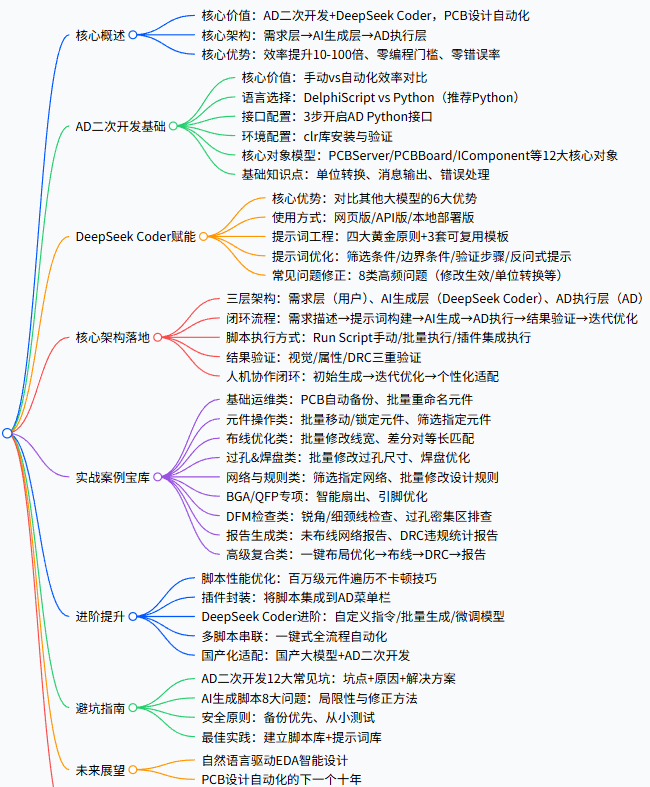
一、开篇:为什么「AD 二次开发 + DeepSeek Coder」是 PCB 设计的革命性突破
在传统的 PCB 设计流程中,工程师们花费大量时间在重复性操作上:手动标注数百个元件标号、逐层导出 Gerber 文件、反复检查设计规则......这些机械性工作占据了宝贵的设计时间,而真正的电路创新与优化却被挤压到角落。当 AD 的工业级 PCB 设计能力,遇上 DeepSeek Coder 的智能代码生成能力,我们正在见证一场设计范式的根本性变革。
1.1 传统 PCB 设计流程的痛点分析
| 痛点场景 | 传统手动操作 | 耗时估算 | 错误率 | 对设计创新的影响 |
|---|---|---|---|---|
| 原理图注释 | 逐个修改 R?、C? 为连续编号 | 30-60分钟/百元件 | 5-10% | 消耗初期设计精力 |
| 设计规则检查 | 逐项核对间距、线宽等规则 | 20-40分钟/次 | 3-8% | 打断设计连续性 |
| 生产文件输出 | 重复设置 Gerber、钻孔、BOM 等 | 45-90分钟/套 | 8-15% | 增加交付前压力 |
| 元件库管理 | 手动创建/修改封装库 | 数小时/复杂器件 | 10-20% | 延迟项目启动时间 |
这些痛点并非技术难题,而是工作流效率瓶颈。资深工程师都清楚,PCB 设计的核心价值在于电路拓扑优化、信号完整性分析和 EMI 控制,而非鼠标点击次数。
1.2 智能脚本助手的革命性价值
自然语言 → 可执行脚本 → 自动化设计,这个三级跳工作流将彻底改变 PCB 工程师的工作方式:
- 效率指数级提升:原本需要数小时的手动操作,通过脚本可在几分钟内完成
- 错误率趋近于零:脚本执行消除了人为疏忽,确保每次操作的一致性
- 知识沉淀与复用:将个人经验封装为脚本,形成团队知识资产
- 设计质量标准化:通过脚本强制执行最佳实践和设计规范
更重要的是,DeepSeek Coder 的加入让脚本开发不再是程序员的专利。即使没有编程背景的 PCB 工程师,也能用自然语言描述需求,由 AI 生成可运行的 AD 脚本。
二、基础夯实篇:AD二次开发全体系零基础认知
2.1 AD 二次开发的核心价值:告别重复劳动
AD作为一套完整的电子产品开发系统,其强大之处不仅在于丰富的设计功能,更在于开放的二次开发接口
。通过二次开发,我们可以:
| 开发目标 | 具体实现 | 效率提升倍数 | 应用场景 |
|---|---|---|---|
| 流程自动化 | 一键完成标注→检查→输出全流程 | 5-10倍 | 每个设计项目 |
| 质量标准化 | 自动执行设计规则检查与修复 | 3-5倍 | 团队协作项目 |
| 数据提取 | 自动计算铺铜面积、寄生参数等 | 10-20倍 | 设计分析与报告 |
| 定制功能 | 开发专用工具满足特殊需求 | 无法量化 | 特定行业应用 |
二次开发的本质是将设计经验转化为可重复执行的数字指令。正如搜索结果所示,AD 二次开发可以基于 SDK 的 C#、C++ 开发,也可以使用 Delphi Script 脚本开发。对于大多数 PCB 工程师,脚本开发是更实用、更快捷的入门选择。
2.2 AD 原生支持的脚本语言全维度对比
虽然 AD 使用 Delphi 开发,对 Delphi Script 支持最好,但随着技术发展,Python 已成为更主流的选择。以下是两种语言的详细对比:
| 对比维度 | Delphi Script(传统方案) | Python(现代方案) | 推荐选择 |
|---|---|---|---|
| 学习曲线 | 需要学习 Pascal 语法,资料较少 | 语法简洁,资源丰富,AI 支持好 | ✅ Python |
| 社区生态 | 局限于 AD 社区,更新缓慢 | 全球开发者社区,库丰富 | ✅ Python |
| AI 支持度 | DeepSeek Coder 训练数据较少 | 大量 Python 代码训练数据 | ✅ Python |
| 功能完整性 | 直接调用 AD 内部 API,功能全面 | 通过 COM 接口调用,功能足够 | 各有优势 |
| 开发效率 | 需要编译,调试较复杂 | 解释执行,实时调试 | ✅ Python |
| 未来趋势 | 维护性下降,新功能支持慢 | 持续更新,生态活跃 | ✅ Python |
关键结论:对于 AI 辅助开发场景,Python 是更优选择。DeepSeek Coder 在 Python 代码生成方面表现更出色,且 Python 的简洁语法更适合自然语言转代码。
2.3 永久开启 AD 的 Python 二次开发接口(3 步完成)
AD 默认不显示 Python 脚本支持,需要手动开启。以下是详细步骤:
步骤 1:启用 Python 脚本支持
1. 打开 AD → 点击右上角齿轮图标(设置)
2. 选择 System → General
3. 勾选 "Enable Python Scripting Support"
4. 重启 AD 使设置生效
步骤 2:配置 Python 环境
| 配置项 | 推荐值 | 说明 |
|---|---|---|
| Python 版本 | 3.7-3.9 | AD 对 3.10+ 支持可能不稳定 |
| 安装路径 | C:\Python37 | 避免中文和空格路径 |
| 环境变量 | 自动添加 | 安装时勾选 "Add to PATH" |
| 必要库 | win32com, pywin32 | 用于 COM 接口调用 |
步骤 3:验证安装
创建测试脚本 test_connection.py:
python
import win32com.client

# 连接 AD 应用程序
try:
    ad = win32com.client.Dispatch("Altium.Application")
    print("✓ AD 连接成功!版本:", ad.Version)

    # 获取当前文档
    doc = ad.GetCurrentDocument()
    if doc:
        print("✓ 当前文档:", doc.DocumentName)
    else:
        print("⚠ 未打开任何文档")

except Exception as e:
    print("✗ 连接失败:", str(e))
运行成功输出表示环境配置正确。
2.4 AD Python 二次开发的核心依赖与环境配置
为确保零报错开发,需要完整配置以下环境:
| 组件 | 版本要求 | 安装命令 | 功能说明 |
|---|---|---|---|
| Python | 3.7.9 | 官网下载安装包 | 脚本运行环境 |
| pywin32 | 300+ | pip install pywin32 |
Windows COM 接口支持 |
| AD 版本 | 20.0+ | 官方安装 | 提供 COM 接口 |
| 代码编辑器 | VS Code | 官网下载 | 脚本编写与调试 |
| DeepSeek Coder | 6.7B+ | 按指南部署 | AI 代码生成 |
环境验证脚本:
python
# environment_check.py
import sys
import pkg_resources

required_packages = {
    'pywin32': '300',
    'pythoncom': '300'
}

print("="*50)
print("AD Python 二次开发环境检查")
print("="*50)

# 检查 Python 版本
print(f"Python 版本: {sys.version}")
if sys.version_info < (3, 7):
    print("⚠ 警告: Python 版本低于 3.7,建议升级")

# 检查必要包
print("\n检查必要包安装:")
all_ok = True
for package, min_version in required_packages.items():
    try:
        dist = pkg_resources.get_distribution(package)
        print(f"  ✓ {package}: {dist.version}")
    except pkg_resources.DistributionNotFound:
        print(f"  ✗ {package}: 未安装")
        all_ok = False

# 检查 AD 连接
print("\n检查 AD 连接:")
try:
    import win32com.client
    ad = win32com.client.Dispatch("Altium.Application")
    print(f"  ✓ AD 连接成功: {ad.Version}")

    # 测试基本功能
    doc = ad.GetCurrentDocument()
    print(f"  ✓ 文档访问: {'成功' if doc else '无打开文档'}")

except Exception as e:
    print(f"  ✗ AD 连接失败: {e}")
    all_ok = False

print("\n" + "="*50)
if all_ok:
    print("✅ 环境检查通过!可以开始 AD 二次开发")
else:
    print("❌ 环境检查未通过,请根据提示修复")
2.5 AD 二次开发的「圣经」:官方 API 文档的查阅与使用技巧
AD 的 API 文档是二次开发的基石,但官方文档分散且不易查找。以下是高效使用指南:
文档来源与特点:
| 文档类型 | 位置 | 内容特点 | 适用场景 |
|---|---|---|---|
| COM 接口文档 | AD安装目录\System\Help\ | 最权威,但格式陈旧 | 查找精确接口定义 |
| 脚本示例库 | GitHub: Altium-API-Scripts | 实用案例,可直接运行 | 学习具体功能实现 |
| 社区脚本 | 各大电子论坛、博客 | 实战经验,有中文解释 | 解决具体问题 |
| 对象模型图 | 自行绘制(下文提供) | 直观展示对象关系 | 理解整体架构 |
高效查阅技巧:
-
按对象层次查找:AD 采用层次化对象模型,从 Application → Document → Object 逐层查找
-
使用接口探查工具 :Python 的
win32com.client支持动态探查pythonimport win32com.client ad = win32com.client.Dispatch("Altium.Application") # 查看所有方法 for attr in dir(ad): if not attr.startswith('_'): print(attr) # 查看具体方法的帮助 help(ad.GetCurrentDocument) -
从示例反推:找到类似功能的示例脚本,分析其 API 使用方式
2.6 AD 核心对象模型:操控 AD 的「积木块」
理解 AD 的对象模型是二次开发的关键。以下是简化的核心对象层级:
Application (顶层对象)
├── Documents (文档集合)
│   ├── SchematicDocument (原理图文档)
│   │   ├── Components (元件集合)
│   │   │   ├── Component (单个元件)
│   │   │   │   ├── Designator (标号)
│   │   │   │   ├── Parameters (参数)
│   │   │   │   └── Pins (引脚)
│   │   │   └── ...
│   │   ├── Nets (网络集合)
│   │   └── Sheets (图纸集合)
│   └── PCBDocument (PCB文档)
│       ├── Board (板对象)
│       │   ├── Layers (层集合)
│       │   ├── Components (PCB元件)
│       │   ├── Tracks (走线)
│       │   ├── Vias (过孔)
│       │   ├── Pads (焊盘)
│       │   └── Polygons (铺铜)
│       └── Rules (设计规则)
└── Preferences (系统设置)关键对象详解表:
| 对象名 | 访问方式 | 常用属性/方法 | 典型用途 |
|---|---|---|---|
| Application | win32com.client.Dispatch("Altium.Application") |
Version, GetCurrentDocument(), RunProcess() |
全局控制,运行内部命令 |
| SchematicDocument | ad.GetCurrentDocument() (当原理图激活时) |
Components, Nets, AddComponent() |
原理图操作,元件管理 |
| PCBDocument | ad.GetCurrentDocument() (当PCB激活时) |
Board, Rules, AddTrack() |
PCB布局布线操作 |
| Component | sch_doc.Components.Item(index) |
Designator, Footprint, Location |
元件属性读取与修改 |
| Board | pcb_doc.Board |
Layers, Width, Height |
板框与层管理 |
| Track | board.Tracks |
Width, Layer, Start, End |
走线创建与编辑 |
2.7 AD 脚本开发必备基础:坐标单位转换 / 消息输出 / 错误处理
2.7.1 坐标单位转换(核心难点)
AD 内部使用纳米(nm) 作为基本单位,而工程师习惯使用毫米(mm) 或密尔(mil)。单位转换是脚本开发的第一道坎。
转换关系表:
| 单位 | 与纳米关系 | 转换公式 | 精度说明 |
|---|---|---|---|
| 纳米 (nm) | 1 nm = 1 nm | 基准单位 | AD 内部存储单位 |
| 毫米 (mm) | 1 mm = 1,000,000 nm | mm = nm / 1e6 |
机械设计常用 |
| 密尔 (mil) | 1 mil = 25,400 nm | mil = nm / 25400 |
PCB 设计常用 |
| 英寸 (inch) | 1 inch = 25,400,000 nm | inch = nm / 2.54e7 |
英制单位 |
单位转换工具函数:
python
# unit_converter.py
class UnitConverter:
    """AD 单位转换工具类"""

    # 定义转换常数
    NM_PER_MM = 1000000      # 1毫米 = 1,000,000纳米
    NM_PER_MIL = 25400       # 1密尔 = 25,400纳米
    NM_PER_INCH = 25400000   # 1英寸 = 25,400,000纳米

    @staticmethod
    def nm_to_mm(nm_value):
        """纳米转毫米"""
        return nm_value / UnitConverter.NM_PER_MM

    @staticmethod
    def mm_to_nm(mm_value):
        """毫米转纳米"""
        return int(mm_value * UnitConverter.NM_PER_MM)

    @staticmethod
    def nm_to_mil(nm_value):
        """纳米转密尔"""
        return nm_value / UnitConverter.NM_PER_MIL

    @staticmethod
    def mil_to_nm(mil_value):
        """密尔转纳米"""
        return int(mil_value * UnitConverter.NM_PER_MIL)

    @staticmethod
    def auto_convert(value, from_unit='nm', to_unit='mm'):
        """自动单位转换"""
        units = {
            'nm': 1,
            'mm': UnitConverter.NM_PER_MM,
            'mil': UnitConverter.NM_PER_MIL,
            'inch': UnitConverter.NM_PER_INCH
        }

        if from_unit not in units or to_unit not in units:
            raise ValueError(f"不支持的单位: {from_unit} -> {to_unit}")

        # 先转到纳米,再转到目标单位
        nm_value = value * units[from_unit]
        return nm_value / units[to_unit]

# 使用示例
if __name__ == "__main__":
    converter = UnitConverter()

    # 测试转换
    print(f"1000 mil = {converter.mil_to_nm(1000)} nm")
    print(f"25.4 mm = {converter.mm_to_nm(25.4)} nm")
    print(f"自动转换: 100mil -> {converter.auto_convert(100, 'mil', 'mm'):.3f} mm")
2.7.2 消息输出与调试
脚本执行时需要反馈信息,AD 提供了多种消息输出方式:
| 输出方式 | 代码示例 | 适用场景 | 优缺点 |
|---|---|---|---|
| 控制台打印 | print("消息") |
简单调试 | 只能在脚本编辑器查看 |
| AD 状态栏 | ad.SetStatusBarText("处理中...") |
长时间任务进度 | 用户可见,但不持久 |
| 消息对话框 | ad.ShowMessage("完成", "信息") |
重要通知 | 会打断用户操作 |
| 日志文件 | 写入文本文件 | 长期记录 | 需要文件操作 |
| 即时窗口 | ad.DebugPrint("调试信息") |
开发调试 | 需要开启调试模式 |
推荐的调试输出类:
python
# debug_logger.py
import time
import os

class DebugLogger:
    """统一的调试输出类"""

    def __init__(self, log_file=None, enable_console=True):
        self.log_file = log_file
        self.enable_console = enable_console
        self.start_time = time.time()

        # 初始化日志文件
        if log_file and not os.path.exists(os.path.dirname(log_file)):
            os.makedirs(os.path.dirname(log_file), exist_ok=True)

    def log(self, message, level="INFO"):
        """记录日志"""
        timestamp = time.strftime("%Y-%m-%d %H:%M:%S")
        elapsed = time.time() - self.start_time
        log_entry = f"[{timestamp}] [{level}] [+{elapsed:.2f}s] {message}"

        # 控制台输出
        if self.enable_console:
            print(log_entry)

        # 文件输出
        if self.log_file:
            with open(self.log_file, 'a', encoding='utf-8') as f:
                f.write(log_entry + "\n")

        # AD 状态栏(简短消息)
        if len(message) < 50 and level == "INFO":
            try:
                import win32com.client
                ad = win32com.client.Dispatch("Altium.Application")
                ad.SetStatusBarText(message[:40])
            except:
                pass

    def info(self, message):
        self.log(message, "INFO")

    def warning(self, message):
        self.log(message, "WARNING")

    def error(self, message):
        self.log(message, "ERROR")

    def section(self, title):
        """开始一个新章节"""
        self.info("=" * 60)
        self.info(f" {title} ")
        self.info("=" * 60)

# 使用示例
logger = DebugLogger("ad_script.log")
logger.section("开始执行原理图标注")
logger.info("找到元件数量: 125")
logger.warning("发现3个未标注元件")
logger.error("连接AD失败")
2.7.3 错误处理与容错机制
健壮的脚本必须有完善的错误处理:
python
# error_handler.py
import traceback
import sys

class ScriptErrorHandler:
    """脚本错误处理器"""

    @staticmethod
    def safe_execute(func, *args, **kwargs):
        """安全执行函数,捕获所有异常"""
        try:
            return func(*args, **kwargs)
        except Exception as e:
            error_info = {
                'function': func.__name__,
                'error_type': type(e).__name__,
                'error_msg': str(e),
                'traceback': traceback.format_exc()
            }
            ScriptErrorHandler.log_error(error_info)
            return None

    @staticmethod
    def log_error(error_info):
        """记录错误信息"""
        error_msg = f"""
        ⚠️ 脚本执行错误
        函数: {error_info['function']}
        类型: {error_info['error_type']}
        信息: {error_info['error_msg']}
        追踪:
        {error_info['traceback']}
        """
        print(error_msg)

        # 写入错误日志
        with open("script_errors.log", "a", encoding="utf-8") as f:
            f.write("="*60 + "\n")
            f.write(error_msg + "\n")

    @staticmethod
    def retry_operation(operation, max_retries=3, delay=1):
        """重试机制"""
        for attempt in range(max_retries):
            try:
                return operation()
            except Exception as e:
                if attempt == max_retries - 1:
                    raise
                print(f"操作失败,{delay}秒后重试 ({attempt+1}/{max_retries})...")
                time.sleep(delay)

# 使用示例:安全的AD连接
def connect_to_ad():
    """安全连接AD"""
    try:
        import win32com.client
        ad = win32com.client.Dispatch("Altium.Application")

        # 验证连接
        if not ad:
            raise ConnectionError("无法创建AD应用对象")

        # 验证版本
        version = ad.Version
        if not version:
            raise ConnectionError("无法获取AD版本")

        print(f"✅ 成功连接 AD {version}")
        return ad

    except Exception as e:
        ScriptErrorHandler.log_error({
            'function': 'connect_to_ad',
            'error_type': type(e).__name__,
            'error_msg': str(e),
            'traceback': traceback.format_exc()
        })
        return None

# 在实际脚本中使用
ad = ScriptErrorHandler.safe_execute(connect_to_ad)
if ad:
    # 继续执行
    pass
else:
    print("无法继续执行,请检查AD是否运行")
2.8 第一个完整脚本:从原理图导出元件清单
让我们将以上所有知识整合,编写第一个实用脚本:
python
# schematic_bom_exporter.py
"""
功能:从当前原理图导出元件清单(BOM)
作者:通过 DeepSeek Coder 生成
日期:2026-01-13
"""

import win32com.client
import csv
import os
from datetime import datetime

# 导入自定义工具类
from unit_converter import UnitConverter
from debug_logger import DebugLogger
from error_handler import ScriptErrorHandler

class SchematicBOMExporter:
    """原理图BOM导出器"""

    def __init__(self):
        self.logger = DebugLogger("bom_export.log")
        self.ad = None
        self.sch_doc = None

    def initialize(self):
        """初始化连接"""
        self.logger.section("BOM导出脚本初始化")

        # 连接AD
        self.ad = ScriptErrorHandler.safe_execute(
            win32com.client.Dispatch, "Altium.Application"
        )
        if not self.ad:
            self.logger.error("无法连接Altium Designer")
            return False

        # 获取当前文档
        self.sch_doc = self.ad.GetCurrentDocument()
        if not self.sch_doc:
            self.logger.error("未打开原理图文档")
            return False

        self.logger.info(f"连接成功: AD {self.ad.Version}")
        self.logger.info(f"原理图: {self.sch_doc.DocumentName}")
        return True

    def extract_components(self):
        """提取原理图中的所有元件"""
        self.logger.info("开始提取元件信息...")

        components = []
        try:
            # 获取元件集合
            comp_count = self.sch_doc.Components.Count
            self.logger.info(f"找到 {comp_count} 个元件")

            # 遍历所有元件
            for i in range(comp_count):
                comp = self.sch_doc.Components.Item(i)

                # 提取元件信息
                comp_info = {
                    'index': i + 1,
                    'designator': comp.Designator if hasattr(comp, 'Designator') else 'Unknown',
                    'comment': comp.Comment if hasattr(comp, 'Comment') else '',
                    'footprint': comp.Footprint if hasattr(comp, 'Footprint') else '',
                    'library': comp.LibraryName if hasattr(comp, 'LibraryName') else '',
                    'quantity': 1,
                    'x': UnitConverter.nm_to_mm(comp.LocationX) if hasattr(comp, 'LocationX') else 0,
                    'y': UnitConverter.nm_to_mm(comp.LocationY) if hasattr(comp, 'LocationY') else 0,
                }

                # 提取参数
                if hasattr(comp, 'Parameters'):
                    params = {}
                    for j in range(comp.Parameters.Count):
                        param = comp.Parameters.Item(j)
                        params[param.Name] = param.Value
                    comp_info['parameters'] = params

                components.append(comp_info)

                # 进度提示
                if (i + 1) % 50 == 0:
                    self.logger.info(f"已处理 {i + 1}/{comp_count} 个元件")

            self.logger.info(f"元件提取完成,共 {len(components)} 个")

        except Exception as e:
            self.logger.error(f"提取元件时出错: {str(e)}")
            return []

        return components

    def generate_bom_csv(self, components, output_path):
        """生成CSV格式的BOM文件"""
        self.logger.info(f"生成BOM文件: {output_path}")

        # 定义CSV列
        fieldnames = [
            '序号', '标号', '型号', '封装', '库名称', '数量',
            'X坐标(mm)', 'Y坐标(mm)', '备注'
        ]

        # 写入CSV文件
        try:
            with open(output_path, 'w', newline='', encoding='utf-8-sig') as csvfile:
                writer = csv.DictWriter(csvfile, fieldnames=fieldnames)
                writer.writeheader()

                for comp in components:
                    # 准备行数据
                    row = {
                        '序号': comp['index'],
                        '标号': comp['designator'],
                        '型号': comp['comment'],
                        '封装': comp['footprint'],
                        '库名称': comp['library'],
                        '数量': comp['quantity'],
                        'X坐标(mm)': f"{comp['x']:.2f}",
                        'Y坐标(mm)': f"{comp['y']:.2f}",
                        '备注': ''
                    }

                    # 添加关键参数到备注
                    if 'parameters' in comp:
                        params = comp['parameters']
                        if 'Value' in params:
                            row['备注'] += f"值: {params['Value']}; "
                        if 'Tolerance' in params:
                            row['备注'] += f"容差: {params['Tolerance']}; "

                    writer.writerow(row)

            self.logger.info(f"BOM文件生成成功: {output_path}")
            return True

        except Exception as e:
            self.logger.error(f"生成BOM文件失败: {str(e)}")
            return False

    def run(self, output_dir=None):
        """主执行函数"""
        # 初始化
        if not self.initialize():
            return False

        # 设置输出目录
        if not output_dir:
            # 默认保存到桌面
            desktop = os.path.join(os.path.expanduser("~"), "Desktop")
            output_dir = os.path.join(desktop, "AD_BOM_Exports")

        os.makedirs(output_dir, exist_ok=True)

        # 生成输出文件名
        timestamp = datetime.now().strftime("%Y%m%d_%H%M%S")
        sch_name = os.path.splitext(self.sch_doc.DocumentName)
        output_file = os.path.join(output_dir, f"BOM_{sch_name}_{timestamp}.csv")

        # 提取元件
        components = self.extract_components()
        if not components:
            self.logger.warning("未找到元件,BOM为空")
            return False

        # 生成BOM文件
        success = self.generate_bom_csv(components, output_file)

        # 完成提示
        if success:
            self.logger.section("BOM导出完成")
            self.logger.info(f"文件位置: {output_file}")
            self.logger.info(f"元件数量: {len(components)}")

            # 在AD中显示完成消息
            self.ad.ShowMessage("BOM导出完成",
                              f"已导出 {len(components)} 个元件到:\n{output_file}")
        else:
            self.logger.error("BOM导出失败")

        return success

# 脚本入口
if __name__ == "__main__":
    exporter = SchematicBOMExporter()
    exporter.run()
这个脚本展示了AD二次开发的基本模式:
- 初始化连接:安全连接AD应用
- 获取文档对象:访问当前原理图
- 遍历对象集合:提取元件信息
- 数据处理:单位转换、信息整理
- 输出结果:生成CSV文件
- 用户反馈:显示完成消息