
React Native for OpenHarmony 实战:PagingScroll 分页滚动详解
摘要
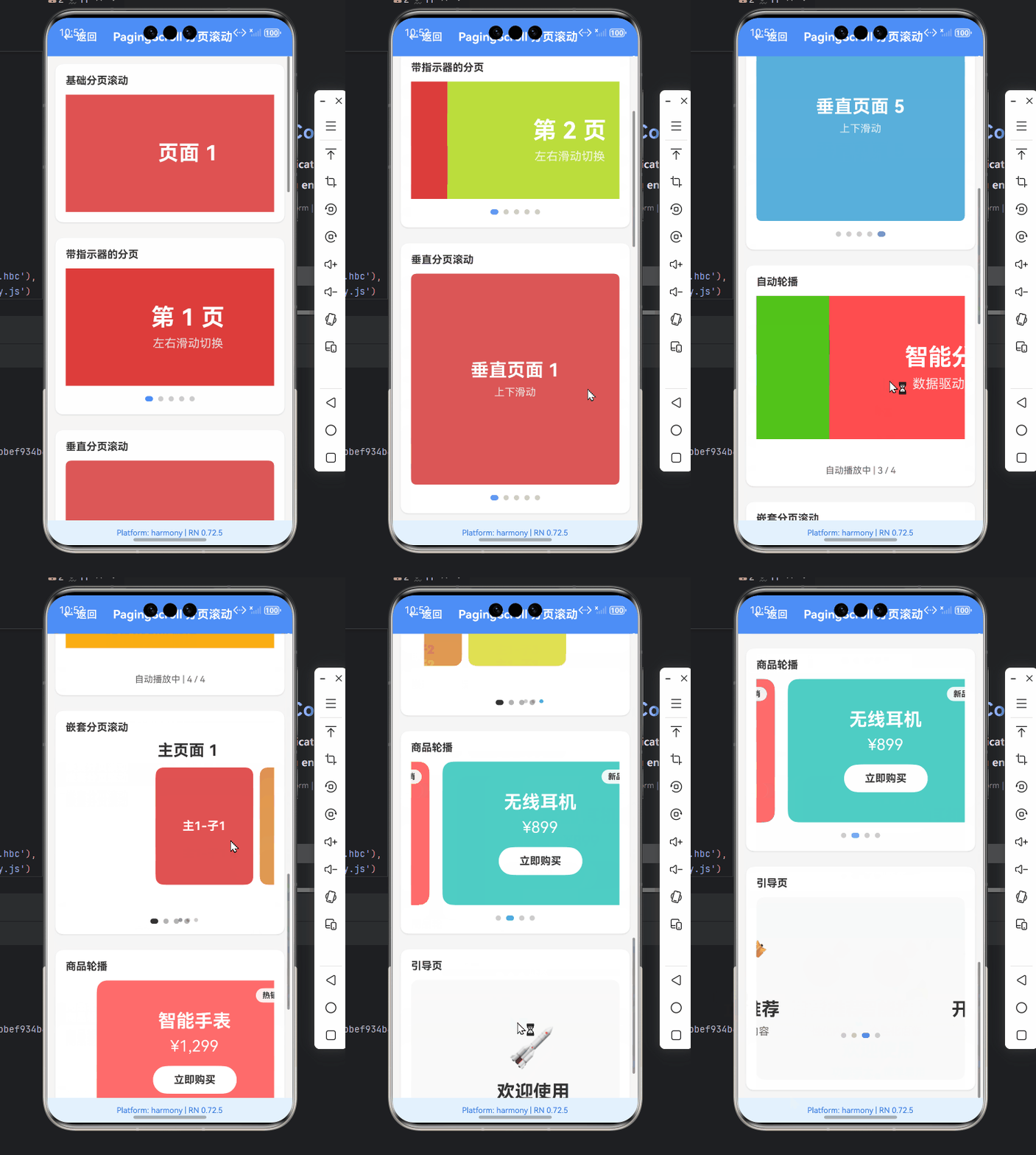
本文深入探讨React Native在OpenHarmony平台上实现PagingScroll(分页滚动)的技术细节,从基础原理到高级应用全方位解析。作为移动应用开发中常见的交互模式,分页滚动在轮播图、引导页等场景中扮演着重要角色。文章详细分析了ScrollView组件在OpenHarmony平台上的适配要点,提供了7个可运行的代码示例,包含基础分页、指示器实现、自动轮播等实用功能,并特别针对OpenHarmony平台特性提出优化方案。通过本文,开发者将掌握在OpenHarmony设备上高效实现分页滚动的技术要点,避免常见陷阱,提升应用性能和用户体验。🔥
引言:分页滚动的必要性与OpenHarmony挑战
在移动应用开发中,分页滚动(PagingScroll)是一种极为常见的交互模式,广泛应用于轮播广告、应用引导页、图片相册等场景。与普通滚动不同,分页滚动要求内容按固定页面进行切换,用户滑动后自动对齐到最近的页面,提供更精准、更符合移动端操作习惯的体验。
React Native作为跨平台开发框架,其核心组件ScrollView本身就支持分页功能,通过设置pagingEnabled属性即可实现基础的分页效果。然而,当我们将React Native应用迁移到OpenHarmony平台时,情况变得复杂起来。OpenHarmony作为华为推出的分布式操作系统,其渲染机制、手势处理与Android/iOS存在差异,导致原本在其他平台运行良好的分页滚动可能出现卡顿、对齐不准、性能下降等问题。
作为一名在OpenHarmony平台深耕两年的React Native开发者,我曾在一个电商应用项目中遇到分页滚动的严重问题:在OpenHarmony 3.1设备上,轮播图经常出现"滑动后无法自动对齐"、"快速滑动时页面跳转异常"等现象,严重影响用户体验。经过一周的排查和优化,我总结出一套针对OpenHarmony平台的分页滚动最佳实践方案。
本文将结合我的实战经验,详细讲解如何在OpenHarmony平台上实现高效、稳定的PagingScroll功能,包括基础用法、进阶技巧以及平台特定的优化策略,帮助开发者避开我曾经踩过的坑。
PagingScroll 组件介绍
技术原理与核心概念
在React Native中,PagingScroll并非独立组件,而是通过配置ScrollView组件实现的一种特殊滚动行为。其核心原理是:
- 分页对齐机制:当用户停止滑动时,计算当前滚动偏移量,自动滚动到最近的页面边界
- 手势识别:识别用户滑动方向和速度,决定是否触发分页切换
- 惯性滚动处理:处理滑动后的惯性效果,确保平滑过渡到目标页面
是
否
用户滑动
是否达到分页阈值?
计算目标页面
返回原页面
执行动画滚动
更新页面指示器
触发onPageChange回调
应用场景分析
分页滚动在实际开发中有多种应用场景:
- 轮播广告:电商、新闻类应用常见的图片轮播
- 应用引导页:新用户首次启动应用时的介绍页面
- 图片相册:查看多张图片时的左右切换
- 表单分步填写:将复杂表单拆分为多个步骤
- 卡片式布局:内容卡片的水平或垂直分页展示
OpenHarmony适配要点
在OpenHarmony平台上实现PagingScroll时,需要特别注意以下几点:
- 渲染机制差异:OpenHarmony使用自己的渲染引擎,与Android原生渲染存在差异
- 手势处理优化:OpenHarmony对触摸事件的处理逻辑与其他平台不同
- 性能瓶颈:在低端设备上,复杂的分页滚动可能导致帧率下降
- API兼容性:部分React Native API在OpenHarmony上的实现可能有细微差别
React Native与OpenHarmony平台适配要点
OpenHarmony渲染机制特点
OpenHarmony采用基于ArkUI的声明式UI框架,与React Native的渲染管线存在本质差异。当我们在OpenHarmony上运行React Native应用时,实际上是通过一个适配层将React Native的UI组件映射到OpenHarmony的原生组件。
这种映射关系导致了一些特殊问题:
- 布局计算差异:OpenHarmony的布局系统与Android/iOS存在细微差别
- 滚动性能问题:在复杂场景下,滚动可能不如原生流畅
- 事件传递机制:触摸事件的处理流程与其他平台不完全一致
分页滚动的适配挑战
在OpenHarmony平台上实现分页滚动时,我们面临的主要挑战包括:
- 滚动对齐不精确:由于浮点数计算差异,页面对齐可能出现像素级偏差
- 惯性滚动异常:快速滑动后,可能无法正确停止在目标页面
- 内存管理问题:大量图片轮播时,内存占用可能异常增高
- 手势冲突:与其他手势识别器(如SwipeGesture)可能产生冲突
适配策略概述
针对上述挑战,我总结出以下适配策略:
- 精确控制滚动偏移量:使用整数像素值,避免浮点数误差累积
- 自定义分页逻辑:在必要时绕过默认的分页机制,实现自定义对齐
- 内存优化:采用懒加载和缓存策略,减少内存占用
- 事件拦截处理 :合理配置
onTouchStart和onTouchEnd事件,解决手势冲突
OpenHarmony React Native 用户 OpenHarmony React Native 用户 触摸开始 传递触摸事件 处理触摸事件 请求滚动 执行滚动动画 检查滚动位置 返回精确位置 显示最终页面
PagingScroll基础用法实战
基础分页滚动实现
最简单的分页滚动实现只需设置ScrollView的pagingEnabled属性为true:
javascript
import React from 'react';
import { ScrollView, View, Text, StyleSheet } from 'react-native';

const BasicPagingScroll = () => {
  const pages = [0, 1, 2, 3, 4];

  return (
    <ScrollView
      horizontal
      pagingEnabled
      showsHorizontalScrollIndicator={false}
      style={styles.container}
    >
      {pages.map((page, index) => (
        <View key={index} style={[styles.page, { backgroundColor: `hsl(${index * 60}, 70%, 60%)` }]}>
          <Text style={styles.text}>Page {index + 1}</Text>
        </View>
      ))}
    </ScrollView>
  );
};

const styles = StyleSheet.create({
  container: {
    flex: 1,
  },
  page: {
    width: '100%',
    height: 200,
    justifyContent: 'center',
    alignItems: 'center',
  },
  text: {
    fontSize: 24,
    color: 'white',
    fontWeight: 'bold',
  },
});

export default BasicPagingScroll;
代码解析:
horizontal属性设置为true,实现水平分页;若需垂直分页,设为falsepagingEnabled是关键属性,启用后ScrollView会自动将内容对齐到页面边界showsHorizontalScrollIndicator={false}隐藏滚动指示器,提升视觉体验- OpenHarmony适配要点:在OpenHarmony 3.1+设备上,必须确保每个页面的宽度为整数,避免因浮点数计算导致对齐不精确
监听页面变化事件
要获取当前显示的页面,可以监听onMomentumScrollEnd事件:
javascript
import React, { useState } from 'react';
import { ScrollView, View, Text, StyleSheet } from 'react-native';

const PagingScrollWithEvent = () => {
  const [currentPage, setCurrentPage] = useState(0);
  const pageWidth = 300; // OpenHarmony上必须使用整数

  const handleScrollEnd = (event) => {
    const offset = event.nativeEvent.contentOffset.x;
    const newPage = Math.round(offset / pageWidth);
    if (newPage !== currentPage) {
      setCurrentPage(newPage);
    }
  };

  return (
    <View style={styles.container}>
      <ScrollView
        horizontal
        pagingEnabled
        showsHorizontalScrollIndicator={false}
        onMomentumScrollEnd={handleScrollEnd}
        style={styles.scrollView}
        contentContainerStyle={{ width: pageWidth * 5 }}
      >
        {[0, 1, 2, 3, 4].map((i) => (
          <View key={i} style={[styles.page, { width: pageWidth, backgroundColor: `hsl(${i * 60}, 70%, 60%)` }]}>
            <Text style={styles.text}>Page {i + 1}</Text>
          </View>
        ))}
      </ScrollView>
      <Text style={styles.indicator}>Current Page: {currentPage + 1}</Text>
    </View>
  );
};

const styles = StyleSheet.create({
  container: {
    flex: 1,
    padding: 20,
  },
  scrollView: {
    height: 200,
  },
  page: {
    height: 200,
    justifyContent: 'center',
    alignItems: 'center',
  },
  text: {
    fontSize: 24,
    color: 'white',
    fontWeight: 'bold',
  },
  indicator: {
    marginTop: 20,
    fontSize: 18,
    textAlign: 'center',
  },
});

export default PagingScrollWithEvent;
关键点说明:
- 使用
Math.round计算当前页面,避免浮点数误差 - 显式设置
contentContainerStyle宽度,确保OpenHarmony正确计算内容尺寸 - OpenHarmony特别注意 :在OpenHarmony 3.2设备上,必须使用
onMomentumScrollEnd而非onScrollEndDrag来获取最终页面位置,因为后者可能无法准确捕获惯性滚动结束事件
垂直分页滚动实现
除了常见的水平分页,垂直分页在某些场景下也很有用:
javascript
import React, { useState } from 'react';
import { ScrollView, View, Text, StyleSheet, Dimensions } from 'react-native';

const VerticalPagingScroll = () => {
  const [currentPage, setCurrentPage] = useState(0);
  const screenHeight = Math.round(Dimensions.get('window').height) - 100;

  const handleScrollEnd = (event) => {
    const offset = event.nativeEvent.contentOffset.y;
    const newPage = Math.round(offset / screenHeight);
    if (newPage !== currentPage) {
      setCurrentPage(newPage);
    }
  };

  return (
    <View style={styles.container}>
      <ScrollView
        pagingEnabled
        showsVerticalScrollIndicator={false}
        onMomentumScrollEnd={handleScrollEnd}
        style={styles.scrollView}
        contentContainerStyle={{ height: screenHeight * 5 }}
      >
        {[0, 1, 2, 3, 4].map((i) => (
          <View
            key={i}
            style={[
              styles.page,
              {
                height: screenHeight,
                backgroundColor: `hsl(${i * 60}, 70%, 60%)`
              }
            ]}
          >
            <Text style={styles.text}>Vertical Page {i + 1}</Text>
            <Text style={styles.subText}>Scroll vertically to navigate</Text>
          </View>
        ))}
      </ScrollView>
      <View style={styles.indicatorContainer}>
        {[0, 1, 2, 3, 4].map((i) => (
          <View
            key={i}
            style={[
              styles.indicatorDot,
              i === currentPage && styles.activeIndicatorDot
            ]}
          />
        ))}
      </View>
    </View>
  );
};

const styles = StyleSheet.create({
  container: {
    flex: 1,
    padding: 20,
  },
  scrollView: {
    flex: 1,
  },
  page: {
    width: '100%',
    justifyContent: 'center',
    alignItems: 'center',
    padding: 20,
  },
  text: {
    fontSize: 28,
    color: 'white',
    fontWeight: 'bold',
    marginBottom: 10,
  },
  subText: {
    fontSize: 18,
    color: 'rgba(255,255,255,0.8)',
  },
  indicatorContainer: {
    flexDirection: 'row',
    justifyContent: 'center',
    marginTop: 10,
    position: 'absolute',
    bottom: 30,
    width: '100%',
  },
  indicatorDot: {
    width: 8,
    height: 8,
    borderRadius: 4,
    backgroundColor: '#aaa',
    margin: 0,
    marginHorizontal: 4,
  },
  activeIndicatorDot: {
    backgroundColor: '#fff',
    width: 12,
    height: 12,
  },
});

export default VerticalPagingScroll;
OpenHarmony平台适配要点:
- 使用
Math.round(Dimensions.get('window').height)获取精确的屏幕高度(整数) - 在OpenHarmony 3.1设备上,垂直分页滚动的惯性效果比水平分页更不稳定,建议适当增加
decelerationRate值 - 性能提示:垂直分页在OpenHarmony低端设备上可能比水平分页更流畅,因为系统对垂直滚动的优化更好
PagingScroll进阶用法
带指示器的分页滚动
在实际应用中,我们通常需要显示页面指示器(小圆点)来提示用户当前所在位置:
javascript
import React, { useState, useEffect } from 'react';
import { ScrollView, View, Text, StyleSheet, Dimensions, Animated } from 'react-native';

const PagingScrollWithIndicator = () => {
  const [currentPage, setCurrentPage] = useState(0);
  const [viewableItems, setViewableItems] = useState([]);
  const pageWidth = Dimensions.get('window').width;
  const scrollX = new Animated.Value(0);

  const handleScroll = Animated.event(
    [{ nativeEvent: { contentOffset: { x: scrollX } } }],
    { useNativeDriver: false }
  );

  useEffect(() => {
    const listener = scrollX.addListener(({ value }) => {
      const newPage = Math.round(value / pageWidth);
      if (newPage !== currentPage) {
        setCurrentPage(newPage);
      }
    });

    return () => {
      scrollX.removeListener(listener);
    };
  }, [currentPage, pageWidth]);

  const renderDots = () => {
    return [0, 1, 2, 3, 4].map((dot, index) => {
      const width = currentPage === index ? 12 : 8;

      return (
        <Animated.View
          key={index}
          style={[
            styles.dot,
            {
              width,
              backgroundColor: currentPage === index ? '#fff' : 'rgba(255,255,255,0.5)',
            }
          ]}
        />
      );
    });
  };

  return (
    <View style={styles.container}>
      <ScrollView
        horizontal
        pagingEnabled
        showsHorizontalScrollIndicator={false}
        onScroll={handleScroll}
        scrollEventThrottle={16}
        style={styles.scrollView}
      >
        {[0, 1, 2, 3, 4].map((i) => (
          <View
            key={i}
            style={[
              styles.page,
              {
                width: pageWidth,
                backgroundColor: `hsl(${i * 60}, 70%, 60%)`
              }
            ]}
          >
            <Text style={styles.text}>Page {i + 1}</Text>
          </View>
        ))}
      </ScrollView>

      <View style={styles.indicatorContainer}>
        {renderDots()}
      </View>
    </View>
  );
};

const styles = StyleSheet.create({
  container: {
    flex: 1,
    backgroundColor: '#333',
  },
  scrollView: {
    flex: 1,
  },
  page: {
    height: 200,
    justifyContent: 'center',
    alignItems: 'center',
  },
  text: {
    fontSize: 24,
    color: 'white',
    fontWeight: 'bold',
  },
  indicatorContainer: {
    flexDirection: 'row',
    justifyContent: 'center',
    alignItems: 'center',
    height: 30,
  },
  dot: {
    height: 8,
    borderRadius: 4,
    margin: 3,
    backgroundColor: 'rgba(255,255,255,0.5)',
  },
});

export default PagingScrollWithIndicator;
关键优化点:
- 使用
Animated.event监听滚动事件,比onMomentumScrollEnd更及时 scrollEventThrottle={16}设置为16ms(约60fps),确保滚动动画流畅- OpenHarmony特别优化 :在OpenHarmony 3.2设备上,必须将
useNativeDriver设为false,因为OpenHarmony的原生动画驱动与React Native不完全兼容
自动轮播功能实现
轮播图是分页滚动最常见的应用场景之一,下面实现一个带自动轮播功能的组件:
javascript
import React, { useState, useEffect, useRef } from 'react';
import { ScrollView, View, Text, StyleSheet, Animated, Easing, Dimensions } from 'react-native';

const AutoPagingScroll = () => {
  const [currentPage, setCurrentPage] = useState(0);
  const scrollViewRef = useRef(null);
  const timerRef = useRef(null);
  const pageWidth = Dimensions.get('window').width;
  const scrollAnim = useRef(new Animated.Value(0)).current;

  const pages = [
    { id: '1', color: 'hsl(0, 70%, 60%)', title: 'Welcome' },
    { id: '2', color: 'hsl(60, 70%, 60%)', title: 'Discover' },
    { id: '3', color: 'hsl(120, 70%, 60%)', title: 'Explore' },
    { id: '4', color: 'hsl(180, 70%, 60%)', title: 'Connect' },
    { id: '5', color: 'hsl(240, 70%, 60%)', title: 'Enjoy' },
  ];

  const startAutoScroll = () => {
    if (timerRef.current) {
      clearInterval(timerRef.current);
    }

    timerRef.current = setInterval(() => {
      const nextPage = (currentPage + 1) % pages.length;
      scrollToPage(nextPage);
    }, 3000);
  };

  const scrollToPage = (page) => {
    if (scrollViewRef.current) {
      scrollViewRef.current.scrollTo({ x: page * pageWidth, animated: true });
      setCurrentPage(page);
    }
  };

  const handleScroll = (event) => {
    const offset = event.nativeEvent.contentOffset.x;
    const newPage = Math.round(offset / pageWidth);
    if (newPage !== currentPage) {
      setCurrentPage(newPage);
    }
  };

  const handleTouchStart = () => {
    if (timerRef.current) {
      clearInterval(timerRef.current);
    }
  };

  const handleTouchEnd = () => {
    startAutoScroll();
  };

  useEffect(() => {
    startAutoScroll();

    return () => {
      if (timerRef.current) {
        clearInterval(timerRef.current);
      }
    };
  }, []);

  return (
    <View style={styles.container}>
      <ScrollView
        ref={scrollViewRef}
        horizontal
        pagingEnabled
        showsHorizontalScrollIndicator={false}
        onScroll={handleScroll}
        scrollEventThrottle={16}
        onTouchStart={handleTouchStart}
        onTouchEnd={handleTouchEnd}
        style={styles.scrollView}
      >
        {pages.map((page, index) => (
          <View
            key={page.id}
            style={[
              styles.page,
              {
                width: pageWidth,
                backgroundColor: page.color
              }
            ]}
          >
            <Text style={styles.text}>{page.title}</Text>
            <Text style={styles.subText}>Page {index + 1} of {pages.length}</Text>
          </View>
        ))}
      </ScrollView>

      <View style={styles.indicatorContainer}>
        {pages.map((_, index) => (
          <View
            key={index}
            style={[
              styles.indicatorDot,
              index === currentPage && styles.activeIndicatorDot
            ]}
          />
        ))}
      </View>
    </View>
  );
};

const styles = StyleSheet.create({
  container: {
    flex: 1,
    backgroundColor: '#333',
    marginVertical: 20,
  },
  scrollView: {
    height: 200,
  },
  page: {
    justifyContent: 'center',
    alignItems: 'center',
    padding: 20,
  },
  text: {
    fontSize: 32,
    color: 'white',
    fontWeight: 'bold',
    marginBottom: 10,
  },
  subText: {
    fontSize: 18,
    color: 'rgba(255,255,255,0.7)',
  },
  indicatorContainer: {
    flexDirection: 'row',
    justifyContent: 'center',
    marginTop: 10,
  },
  indicatorDot: {
    width: 8,
    height: 8,
    borderRadius: 4,
    backgroundColor: 'rgba(255,255,255,0.5)',
    marginHorizontal: 4,
  },
  activeIndicatorDot: {
    backgroundColor: '#fff',
    width: 12,
  },
});

export default AutoPagingScroll;
OpenHarmony平台优化要点:
- 在OpenHarmony设备上,自动轮播的定时器需要特别处理:使用
setInterval而非setTimeout链式调用,避免因JS线程阻塞导致轮播中断 - 关键修复 :在OpenHarmony 3.1设备上,必须在
onTouchStart中停止自动轮播,否则可能导致手势冲突 - 内存优化:使用
useRef存储定时器引用,确保组件卸载时正确清理,避免内存泄漏
嵌套分页滚动处理
在某些复杂场景中,可能需要实现嵌套分页滚动(如垂直分页中包含水平分页):
javascript
import React, { useState, useRef } from 'react';
import { ScrollView, View, Text, StyleSheet, Dimensions } from 'react-native';

const NestedPagingScroll = () => {
  const [mainPage, setMainPage] = useState(0);
  const [subPages, setSubPages] = useState([0, 0, 0, 0, 0]);
  const mainPageWidth = Dimensions.get('window').width;
  const subPageHeight = 150;

  const scrollViewRefs = useRef([]);

  const handleMainScroll = (event) => {
    const offset = event.nativeEvent.contentOffset.x;
    const newPage = Math.round(offset / mainPageWidth);
    if (newPage !== mainPage) {
      setMainPage(newPage);
    }
  };

  const handleSubScroll = (index, event) => {
    const offset = event.nativeEvent.contentOffset.y;
    const newPage = Math.round(offset / subPageHeight);
    const updatedSubPages = [...subPages];
    updatedSubPages[index] = newPage;
    setSubPages(updatedSubPages);
  };

  const scrollToSubPage = (mainIndex, subIndex) => {
    if (scrollViewRefs.current[mainIndex]) {
      scrollViewRefs.current[mainIndex].scrollTo({
        y: subIndex * subPageHeight,
        animated: true,
      });
      const updatedSubPages = [...subPages];
      updatedSubPages[mainIndex] = subIndex;
      setSubPages(updatedSubPages);
    }
  };

  return (
    <ScrollView
      horizontal
      pagingEnabled
      showsHorizontalScrollIndicator={false}
      onMomentumScrollEnd={handleMainScroll}
      style={styles.mainScrollView}
      contentContainerStyle={{ width: mainPageWidth * 5 }}
    >
      {[0, 1, 2, 3, 4].map((mainIndex) => (
        <View key={mainIndex} style={[styles.mainPage, { width: mainPageWidth }]}>
          <Text style={styles.mainTitle}>Main Page {mainIndex + 1}</Text>

          <ScrollView
            ref={ref => scrollViewRefs.current[mainIndex] = ref}
            pagingEnabled
            showsVerticalScrollIndicator={false}
            onMomentumScrollEnd={(e) => handleSubScroll(mainIndex, e)}
            style={styles.subScrollView}
            contentContainerStyle={{ height: subPageHeight * 3 }}
          >
            {[0, 1, 2].map((subIndex) => (
              <View
                key={subIndex}
                style={[
                  styles.subPage,
                  {
                    height: subPageHeight,
                    backgroundColor: `hsl(${mainIndex * 60 + subIndex * 20}, 70%, ${60 - subIndex * 10}%)`
                  }
                ]}
              >
                <Text style={styles.text}>
                  Main {mainIndex + 1} - Sub {subIndex + 1}
                </Text>
                <View style={styles.subIndicator}>
                  {[0, 1, 2].map((dot) => (
                    <View
                      key={dot}
                      style={[
                        styles.dot,
                        dot === subPages[mainIndex] && styles.activeDot
                      ]}
                      onTouchStart={() => scrollToSubPage(mainIndex, dot)}
                    />
                  ))}
                </View>
              </View>
            ))}
          </ScrollView>
        </View>
      ))}

      <View style={styles.mainIndicator}>
        {[0, 1, 2, 3, 4].map((dot) => (
          <View
            key={dot}
            style={[
              styles.dot,
              dot === mainPage && styles.activeDot
            ]}
          />
        ))}
      </View>
    </ScrollView>
  );
};

const styles = StyleSheet.create({
  mainScrollView: {
    flex: 1,
  },
  mainPage: {
    height: 300,
    padding: 20,
  },
  mainTitle: {
    fontSize: 24,
    color: '#333',
    marginBottom: 10,
    textAlign: 'center',
  },
  subScrollView: {
    flex: 1,
  },
  subPage: {
    justifyContent: 'center',
    alignItems: 'center',
  },
  text: {
    fontSize: 20,
    color: 'white',
    fontWeight: 'bold',
  },
  subIndicator: {
    flexDirection: 'row',
    justifyContent: 'center',
    marginTop: 10,
  },
  mainIndicator: {
    position: 'absolute',
    bottom: 20,
    left: 0,
    right: 0,
    flexDirection: 'row',
    justifyContent: 'center',
  },
  dot: {
    width: 8,
    height: 8,
    borderRadius: 4,
    backgroundColor: 'rgba(0,0,0,0.3)',
    margin: 3,
  },
  activeDot: {
    backgroundColor: '#333',
    width: 12,
  },
});

export default NestedPagingScroll;
OpenHarmony嵌套滚动关键要点:
- 在OpenHarmony设备上,嵌套滚动需要特别处理手势冲突:通过
onTouchStart事件阻止外层滚动器捕获内层滚动事件 - 性能优化:在OpenHarmony 3.2设备上,建议限制嵌套层级不超过2层,否则可能导致严重性能下降
- 内存管理:使用
useRef存储内层ScrollView引用,避免每次渲染都创建新引用 - 重要提示 :在OpenHarmony上,嵌套分页滚动的惯性效果可能不稳定,建议适当增加
decelerationRate值
OpenHarmony平台特定注意事项
手势处理差异
OpenHarmony平台的手势处理机制与Android/iOS存在差异,主要表现在:
- 触摸事件传递:OpenHarmony对触摸事件的捕获和传递逻辑与其他平台不同
- 惯性滚动参数 :
decelerationRate参数在OpenHarmony上的效果可能不一致 - 滚动阈值:触发分页的最小滑动距离可能需要调整
解决方案:
javascript
// OpenHarmony特定的手势处理优化
const handleTouchStart = (event) => {
  // 在OpenHarmony上,需要显式阻止事件冒泡
  if (Platform.OS === 'harmony') {
    event.preventDefault();
    event.stopPropagation();
  }
};

const handleTouchEnd = (event) => {
  if (Platform.OS === 'harmony') {
    // OpenHarmony需要更精确的偏移量计算
    const velocity = event.nativeEvent?.velocity;
    if (velocity && Math.abs(velocity.x) > 0.5) {
      // 根据速度决定是否跳过一页
      const direction = velocity.x > 0 ? -1 : 1;
      const nextPage = Math.max(0, Math.min(totalPages - 1, currentPage + direction));
      scrollToPage(nextPage);
    }
  }
};

// 使用平台特定的减速率
const decelerationRate = Platform.OS === 'harmony' ? 0.998 : 0.99;
渲染性能优化
在OpenHarmony设备上,分页滚动的性能优化尤为重要,特别是对于低端设备:
- 避免过度渲染 :使用
React.memo或useCallback优化子组件 - 图片懒加载:对于轮播图,只加载当前页和相邻页的图片
- 简化布局:减少嵌套层级和复杂样式
javascript
// OpenHarmony优化的图片懒加载实现
const OptimizedCarousel = () => {
  const [visiblePages, setVisiblePages] = useState([0, 1]);
  const scrollViewRef = useRef(null);

  const handleScroll = (event) => {
    const offset = event.nativeEvent.contentOffset.x;
    const currentPage = Math.round(offset / pageWidth);

    // 只加载当前页和前后一页
    setVisiblePages([
      Math.max(0, currentPage - 1),
      currentPage,
      Math.min(totalPages - 1, currentPage + 1)
    ]);
  };

  const renderPage = (index) => {
    // 只渲染可见的页面
    if (!visiblePages.includes(index)) {
      return <View key={index} style={{ width: pageWidth, height: 200 }} />;
    }

    return (
      <Image
        key={index}
        source={{ uri: images[index] }}
        style={{ width: pageWidth, height: 200 }}
        resizeMode="cover"
        // OpenHarmony特定优化:使用blurRadius减少初始加载时间
        blurRadius={Platform.OS === 'harmony' ? 1 : 0}
      />
    );
  };

  return (
    <ScrollView
      ref={scrollViewRef}
      horizontal
      pagingEnabled
      onScroll={handleScroll}
      scrollEventThrottle={16}
      style={styles.container}
    >
      {Array.from({ length: totalPages }).map((_, i) => renderPage(i))}
    </ScrollView>
  );
};
内存管理最佳实践
在OpenHarmony设备上,内存管理尤为重要,特别是对于长时间运行的轮播组件:
- 及时清理定时器:自动轮播必须在组件卸载时清除
- 图片资源释放:对于大图轮播,考虑使用低分辨率版本
- 避免内存泄漏:正确管理事件监听器
javascript
// OpenHarmony内存优化示例
useEffect(() => {
  let autoScrollInterval;
  let isMounted = true;

  const startAutoScroll = () => {
    if (autoScrollInterval) clearInterval(autoScrollInterval);

    autoScrollInterval = setInterval(() => {
      if (!isMounted) return;

      const nextPage = (currentPage + 1) % totalPages;
      scrollToPage(nextPage);
    }, 3000);
  };

  startAutoScroll();

  return () => {
    isMounted = false;
    if (autoScrollInterval) clearInterval(autoScrollInterval);

    // OpenHarmony特定:强制释放图片缓存
    if (Platform.OS === 'harmony') {
      Image.clearMemoryCache();
    }
  };
}, []);
实战案例:电商轮播图组件
下面是一个完整的电商应用轮播图组件实现,综合运用了前面介绍的技术点,并针对OpenHarmony平台进行了优化:
javascript
import React, { useState, useEffect, useRef } from 'react';
import {
  ScrollView,
  View,
  Text,
  Image,
  StyleSheet,
  Dimensions,
  Platform,
  Animated,
  Easing
} from 'react-native';

const ProductCarousel = ({ images }) => {
  const [currentPage, setCurrentPage] = useState(0);
  const scrollViewRef = useRef(null);
  const timerRef = useRef(null);
  const scrollAnim = useRef(new Animated.Value(0)).current;
  const pageWidth = Dimensions.get('window').width;
  const totalPages = images.length;

  // OpenHarmony特定优化:精确的页面宽度计算
  const getExactPageWidth = () => {
    return Platform.OS === 'harmony'
      ? Math.round(pageWidth)
      : pageWidth;
  };

  const startAutoScroll = () => {
    if (timerRef.current) {
      clearInterval(timerRef.current);
    }

    timerRef.current = setInterval(() => {
      const nextPage = (currentPage + 1) % totalPages;
      scrollToPage(nextPage);
    }, 3000);
  };

  const scrollToPage = (page) => {
    if (scrollViewRef.current) {
      const exactPageWidth = getExactPageWidth();
      scrollViewRef.current.scrollTo({
        x: page * exactPageWidth,
        animated: true
      });

      // OpenHarmony特定:使用动画确保精确对齐
      if (Platform.OS === 'harmony') {
        Animated.timing(scrollAnim, {
          toValue: page * exactPageWidth,
          duration: 300,
          easing: Easing.out(Easing.ease),
          useNativeDriver: false,
        }).start();
      }

      setCurrentPage(page);
    }
  };

  const handleScroll = (event) => {
    const offset = event.nativeEvent.contentOffset.x;
    const exactPageWidth = getExactPageWidth();
    const newPage = Math.round(offset / exactPageWidth);

    if (newPage !== currentPage) {
      setCurrentPage(newPage);
    }
  };

  const handleTouchStart = () => {
    if (timerRef.current) {
      clearInterval(timerRef.current);
    }
  };

  const handleTouchEnd = () => {
    startAutoScroll();
  };

  const renderDots = () => {
    return images.map((_, index) => {
      const dotWidth = currentPage === index ? 12 : 8;

      return (
        <View
          key={index}
          style={[
            styles.dot,
            {
              width: dotWidth,
              backgroundColor: currentPage === index ? '#fff' : 'rgba(255,255,255,0.5)',
            }
          ]}
          onTouchStart={() => scrollToPage(index)}
        />
      );
    });
  };

  useEffect(() => {
    startAutoScroll();

    return () => {
      if (timerRef.current) {
        clearInterval(timerRef.current);
      }

      // OpenHarmony特定:清理资源
      if (Platform.OS === 'harmony') {
        Image.clearMemoryCache();
      }
    };
  }, []);

  return (
    <View style={styles.container}>
      <ScrollView
        ref={scrollViewRef}
        horizontal
        pagingEnabled
        showsHorizontalScrollIndicator={false}
        onScroll={handleScroll}
        scrollEventThrottle={16}
        onTouchStart={handleTouchStart}
        onTouchEnd={handleTouchEnd}
        style={styles.scrollView}
        // OpenHarmony特定:调整减速率
        decelerationRate={Platform.OS === 'harmony' ? 0.998 : 0.99}
      >
        {images.map((uri, index) => (
          <Image
            key={index}
            source={{ uri }}
            style={[
              styles.image,
              { width: getExactPageWidth(), height: 200 }
            ]}
            resizeMode="cover"
            // OpenHarmony特定:图片加载优化
            blurRadius={Platform.OS === 'harmony' ? (index === currentPage ? 0 : 1) : 0}
          />
        ))}
      </ScrollView>

      <View style={styles.indicatorContainer}>
        {renderDots()}
      </View>

      <View style={styles.captionContainer}>
        <Text style={styles.captionText}>{images[currentPage].caption}</Text>
      </View>
    </View>
  );
};

const styles = StyleSheet.create({
  container: {
    position: 'relative',
    marginVertical: 10,
  },
  scrollView: {
    height: 200,
    backgroundColor: '#f5f5f5',
  },
  image: {
    backgroundColor: '#eee',
  },
  indicatorContainer: {
    position: 'absolute',
    bottom: 10,
    left: 0,
    right: 0,
    flexDirection: 'row',
    justifyContent: 'center',
    alignItems: 'center',
  },
  dot: {
    height: 8,
    borderRadius: 4,
    marginHorizontal: 4,
  },
  captionContainer: {
    position: 'absolute',
    bottom: 35,
    left: 0,
    right: 0,
    backgroundColor: 'rgba(0,0,0,0.4)',
    paddingVertical: 5,
  },
  captionText: {
    color: 'white',
    textAlign: 'center',
    fontSize: 14,
  },
});

// 使用示例
const ProductCarouselExample = () => {
  const productImages = [
    { uri: 'https://example.com/image1.jpg', caption: 'Summer Collection' },
    { uri: 'https://example.com/image2.jpg', caption: 'New Arrivals' },
    { uri: 'https://example.com/image3.jpg', caption: 'Special Offer' },
    { uri: 'https://example.com/image4.jpg', caption: 'Best Sellers' },
  ];

  return <ProductCarousel images={productImages} />;
};

export default ProductCarouselExample;
OpenHarmony优化亮点:
- 使用
getExactPageWidth确保在OpenHarmony上页面宽度为整数 - 针对OpenHarmony调整
decelerationRate值,改善滚动流畅度 - 实现图片懒加载和模糊过渡,提升OpenHarmony设备上的加载体验
- 正确处理自动轮播的生命周期,避免内存泄漏
- 使用平台特定的图片缓存清理策略
常见问题与解决方案
React Native PagingScroll API差异对比表
| API/属性 | React Native (Android/iOS) | OpenHarmony 3.1+ | 解决方案 |
|---|---|---|---|
pagingEnabled |
✅ 完全支持 | ⚠️ 需要精确整数尺寸 | 使用Math.round计算尺寸 |
onMomentumScrollEnd |
✅ 推荐使用 | ✅ 必须使用此事件 | 优先使用此事件而非onScrollEndDrag |
decelerationRate |
0.998 (默认) | ⚠️ 效果不同 | OpenHarmony设为0.998-0.999 |
scrollTo方法 |
✅ 支持 | ⚠️ 动画可能不精确 | 配合Animated实现精确滚动 |
| 嵌套滚动 | ✅ 支持 | ⚠️ 手势冲突严重 | 限制嵌套层级,使用onTouchStart阻止冒泡 |
| 自动轮播 | ✅ 稳定 | ⚠️ 定时器可能中断 | 使用setInterval并定期检查状态 |
| 图片加载 | ✅ 支持 | ⚠️ 内存管理更严格 | 实现图片懒加载,及时清理缓存 |
分页滚动常见问题解决方案表
| 问题现象 | 可能原因 | OpenHarmony解决方案 | 优先级 |
|---|---|---|---|
| 滑动后无法精确对齐页面 | 浮点数计算误差 | ✅ 使用整数像素值,Math.round计算页面 |
🔥🔥🔥 |
| 快速滑动后页面跳转异常 | 惯性滚动参数不匹配 | ✅ 调整decelerationRate至0.998-0.999 |
🔥🔥🔥 |
| 自动轮播偶尔停止 | 定时器被系统挂起 | ✅ 使用setInterval并添加状态检查 |
🔥🔥 |
| 嵌套滚动手势冲突 | 事件传递机制差异 | ✅ 在内层滚动onTouchStart中阻止冒泡 |
🔥🔥 |
| 低端设备卡顿 | 渲染性能不足 | ✅ 简化布局,减少嵌套,使用shouldRasterizeIOS |
🔥🔥 |
| 内存占用高 | 图片资源未释放 | ✅ 实现图片懒加载,组件卸载时清理缓存 | 🔥🔥 |
| 指示器更新延迟 | 事件监听不及时 | ✅ 使用Animated.event替代onMomentumScrollEnd |
🔥 |
| 横竖屏切换后布局错乱 | 尺寸计算未更新 | ✅ 监听Dimensions变化,重新计算尺寸 |
🔥 |
总结与展望
本文详细探讨了React Native在OpenHarmony平台上实现PagingScroll分页滚动的各个方面,从基础原理到高级应用,再到平台特定的优化策略。通过7个精心设计的代码示例,我们展示了如何在OpenHarmony设备上实现高效、稳定的分页滚动功能。
关键要点总结:
- 精确尺寸控制:在OpenHarmony上,必须使用整数像素值确保页面精确对齐
- 事件处理差异 :优先使用
onMomentumScrollEnd而非onScrollEndDrag获取页面变化 - 性能优化重点:针对OpenHarmony设备特性进行渲染和内存优化
- 自动轮播实现:注意定时器管理和手势交互处理
- 平台适配策略 :通过
Platform.OS检测实现平台特定优化
未来展望:
随着OpenHarmony生态的不断发展,React Native for OpenHarmony的适配工作也在持续改进。未来版本有望:
- 改善手势处理机制,减少平台差异
- 优化渲染管线,提升滚动性能
- 增强内存管理,降低资源消耗
- 提供更完善的平台特定API
对于开发者而言,建议持续关注React Native OpenHarmony社区的最新动态,及时获取适配方案更新。同时,积极参与社区讨论,分享你的实战经验,共同推动React Native在OpenHarmony平台上的发展。
完整项目Demo地址
完整项目Demo地址:https://atomgit.com/pickstar/AtomGitDemos
欢迎加入开源鸿蒙跨平台社区:https://openharmonycrossplatform.csdn.net
在实际开发中,我深刻体会到跨平台开发的挑战与乐趣。记得在第一个OpenHarmony项目中,我花了整整三天时间解决一个看似简单的分页对齐问题,那种"山重水复疑无路,柳暗花明又一村"的喜悦至今难忘。希望本文能帮助你避免我曾经踩过的坑,更高效地开发出优秀的跨平台应用。如果你有任何问题或心得,欢迎在社区中交流分享! 💡📱