Flutter实时蔬菜价格查询:智能掌握菜价动态
项目简介
实时蔬菜价格查询是一款专为居民日常买菜打造的Flutter应用,提供多城市蔬菜价格实时查询、分类统计和价格趋势分析功能。通过智能搜索和数据可视化,让用户轻松掌握菜价动态,合理安排采购计划。
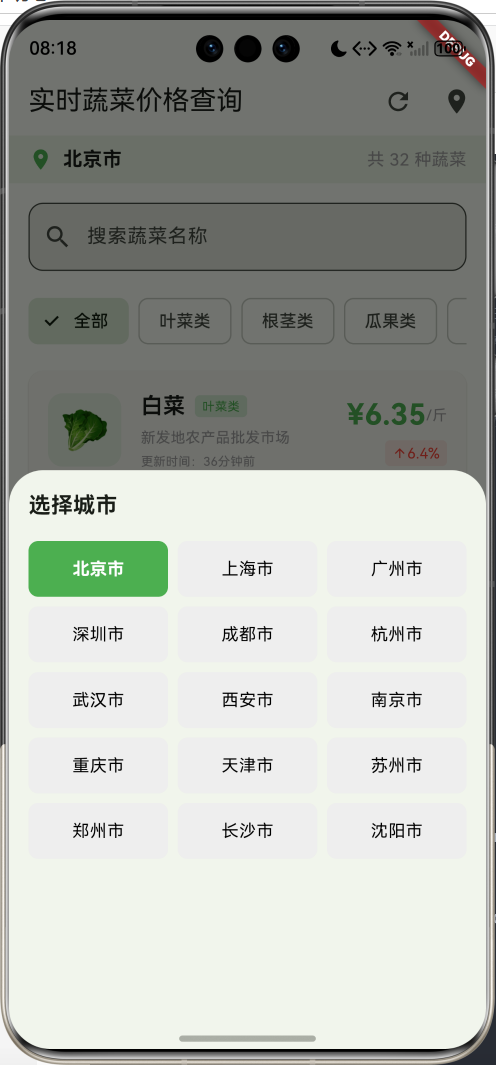
运行效果图
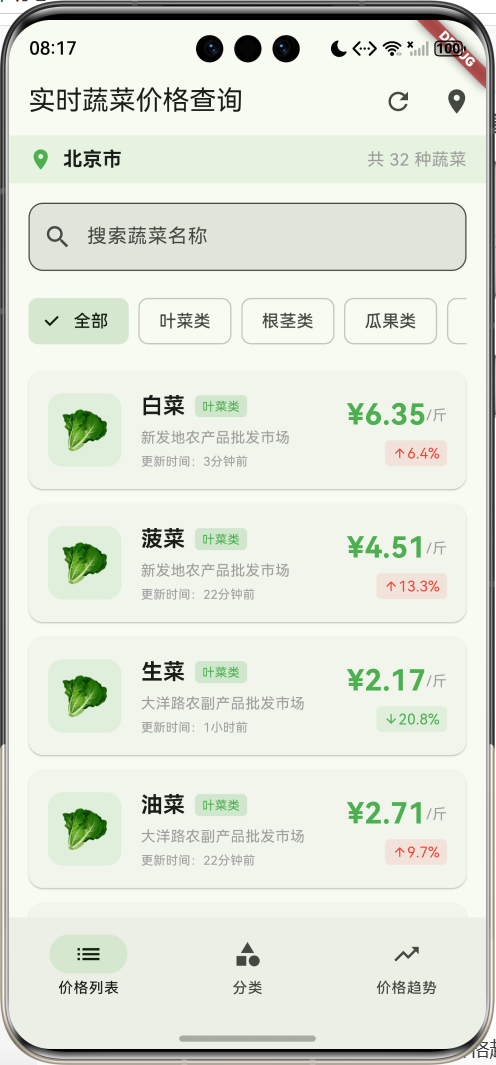
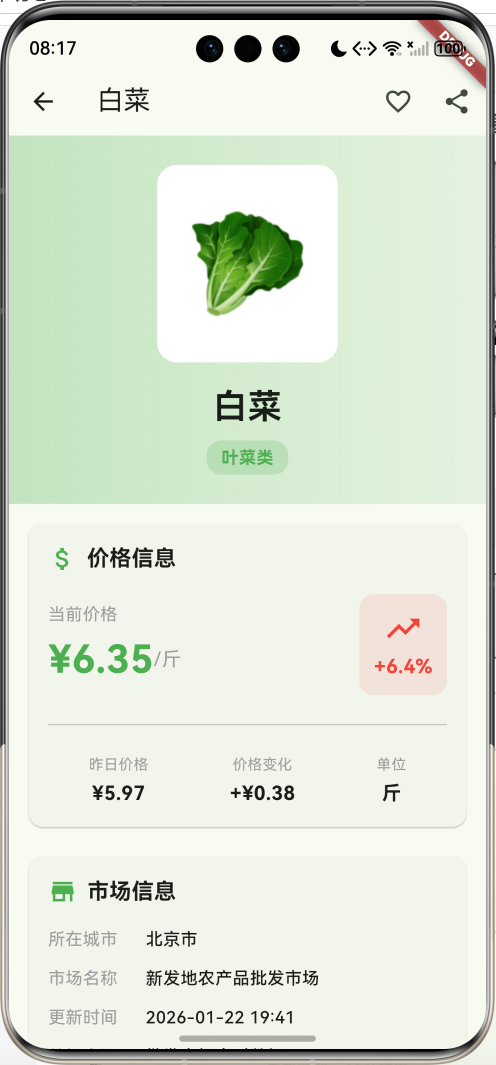
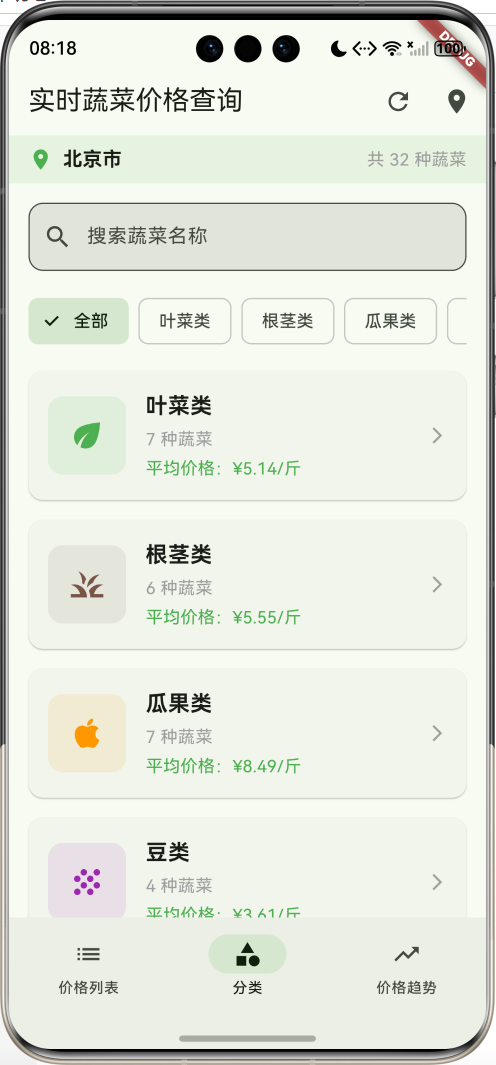
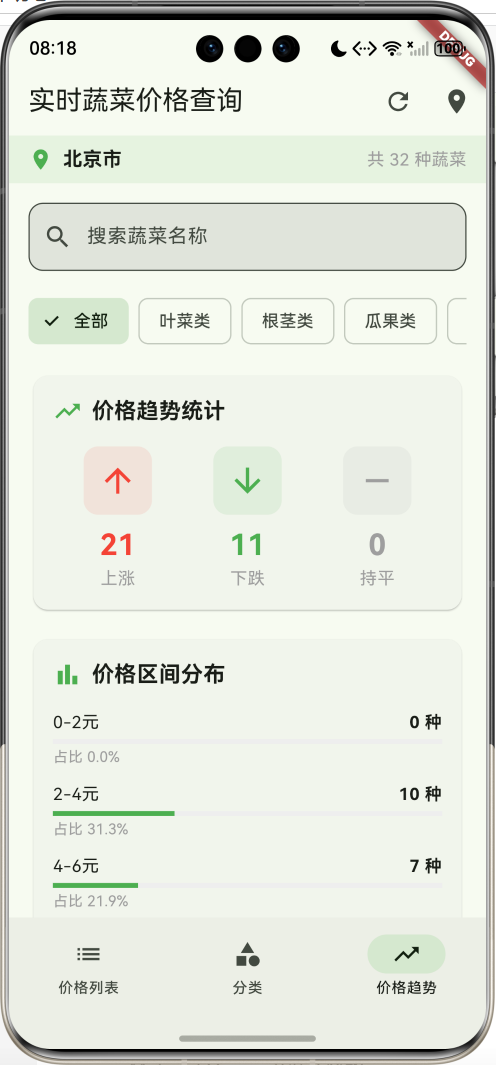
核心功能
- 多城市查询:支持15个主要城市价格查询
- 蔬菜品种:32种常见蔬菜,涵盖6大分类
- 实时价格:显示当前价格和昨日对比
- 价格变化:自动计算涨跌幅度和百分比
- 市场信息:显示批发市场来源
- 智能搜索:支持蔬菜名称快速搜索
- 分类筛选:按叶菜类、根茎类等分类查看
- 价格趋势:统计上涨、下跌、持平数量
- 区间分布:可视化展示价格区间分布
- 详情页面:7日价格走势图表和营养信息
- 数据刷新:一键更新最新价格数据
技术特点
- Material Design 3设计风格
- NavigationBar底部导航
- 三页面架构(价格列表、分类统计、价格趋势)
- CustomPainter自定义图表绘制
- 计算属性实现动态数据
- 响应式卡片布局
- 模拟数据生成
- 无需额外依赖包
核心代码实现
1. 蔬菜数据模型
dart
class Vegetable {
  final String id;              // 蔬菜ID
  final String name;            // 蔬菜名称
  final String category;        // 分类
  final String unit;            // 单位
  final String image;           // 图标(Emoji)
  double price;                 // 当前价格
  double yesterdayPrice;        // 昨日价格
  String market;                // 市场名称
  DateTime updateTime;          // 更新时间

  Vegetable({
    required this.id,
    required this.name,
    required this.category,
    required this.unit,
    required this.image,
    required this.price,
    required this.yesterdayPrice,
    required this.market,
    required this.updateTime,
  });

  // 价格变化量
  double get priceChange => price - yesterdayPrice;

  // 价格变化百分比
  double get priceChangePercent => (priceChange / yesterdayPrice) * 100;

  // 是否涨价
  bool get isPriceUp => priceChange > 0;

  // 是否降价
  bool get isPriceDown => priceChange < 0;

  // 分类颜色
  Color get categoryColor {
    switch (category) {
      case '叶菜类': return Colors.green;
      case '根茎类': return Colors.brown;
      case '瓜果类': return Colors.orange;
      case '豆类': return Colors.purple;
      case '菌菇类': return Colors.grey;
      case '其他': return Colors.blue;
      default: return Colors.grey;
    }
  }

  // 分类图标
  IconData get categoryIcon {
    switch (category) {
      case '叶菜类': return Icons.eco;
      case '根茎类': return Icons.grass;
      case '瓜果类': return Icons.apple;
      case '豆类': return Icons.grain;
      case '菌菇类': return Icons.park;
      case '其他': return Icons.restaurant;
      default: return Icons.shopping_basket;
    }
  }
}模型字段说明:
| 字段 | 类型 | 说明 |
|---|---|---|
| id | String | 唯一标识符 |
| name | String | 蔬菜名称 |
| category | String | 分类(6大类) |
| unit | String | 计量单位 |
| image | String | Emoji图标 |
| price | double | 当前价格(元) |
| yesterdayPrice | double | 昨日价格(元) |
| market | String | 批发市场名称 |
| updateTime | DateTime | 数据更新时间 |
计算属性:
priceChange:价格变化量(当前价格 - 昨日价格)priceChangePercent:价格变化百分比isPriceUp:是否涨价(价格变化量 > 0)isPriceDown:是否降价(价格变化量 < 0)categoryColor:根据分类返回对应颜色categoryIcon:根据分类返回对应图标
蔬菜分类与颜色映射:
| 分类 | 颜色 | 图标 | 说明 |
|---|---|---|---|
| 叶菜类 | 绿色 | eco | 白菜、菠菜、生菜等 |
| 根茎类 | 棕色 | grass | 土豆、萝卜、山药等 |
| 瓜果类 | 橙色 | apple | 番茄、黄瓜、茄子等 |
| 豆类 | 紫色 | grain | 豆角、豌豆、毛豆等 |
| 菌菇类 | 灰色 | park | 香菇、平菇、金针菇等 |
| 其他 | 蓝色 | restaurant | 大葱、洋葱、大蒜等 |
2. 数据生成逻辑
dart
void _generateVegetableData() {
  final random = Random();

  // 32种蔬菜数据
  final vegetableList = [
    {'name': '白菜', 'category': '叶菜类', 'unit': '斤', 'image': '🥬'},
    {'name': '菠菜', 'category': '叶菜类', 'unit': '斤', 'image': '🥬'},
    {'name': '生菜', 'category': '叶菜类', 'unit': '斤', 'image': '🥬'},
    {'name': '油菜', 'category': '叶菜类', 'unit': '斤', 'image': '🥬'},
    {'name': '芹菜', 'category': '叶菜类', 'unit': '斤', 'image': '🥬'},
    {'name': '韭菜', 'category': '叶菜类', 'unit': '斤', 'image': '🥬'},
    {'name': '香菜', 'category': '叶菜类', 'unit': '斤', 'image': '🥬'},
    {'name': '土豆', 'category': '根茎类', 'unit': '斤', 'image': '🥔'},
    {'name': '红薯', 'category': '根茎类', 'unit': '斤', 'image': '🍠'},
    {'name': '萝卜', 'category': '根茎类', 'unit': '斤', 'image': '🥕'},
    {'name': '胡萝卜', 'category': '根茎类', 'unit': '斤', 'image': '🥕'},
    {'name': '山药', 'category': '根茎类', 'unit': '斤', 'image': '🥔'},
    {'name': '莲藕', 'category': '根茎类', 'unit': '斤', 'image': '🥔'},
    {'name': '番茄', 'category': '瓜果类', 'unit': '斤', 'image': '🍅'},
    {'name': '黄瓜', 'category': '瓜果类', 'unit': '斤', 'image': '🥒'},
    {'name': '茄子', 'category': '瓜果类', 'unit': '斤', 'image': '🍆'},
    {'name': '辣椒', 'category': '瓜果类', 'unit': '斤', 'image': '🌶️'},
    {'name': '青椒', 'category': '瓜果类', 'unit': '斤', 'image': '🫑'},
    {'name': '南瓜', 'category': '瓜果类', 'unit': '斤', 'image': '🎃'},
    {'name': '冬瓜', 'category': '瓜果类', 'unit': '斤', 'image': '🥒'},
    {'name': '豆角', 'category': '豆类', 'unit': '斤', 'image': '🫘'},
    {'name': '豌豆', 'category': '豆类', 'unit': '斤', 'image': '🫘'},
    {'name': '毛豆', 'category': '豆类', 'unit': '斤', 'image': '🫘'},
    {'name': '蚕豆', 'category': '豆类', 'unit': '斤', 'image': '🫘'},
    {'name': '香菇', 'category': '菌菇类', 'unit': '斤', 'image': '🍄'},
    {'name': '平菇', 'category': '菌菇类', 'unit': '斤', 'image': '🍄'},
    {'name': '金针菇', 'category': '菌菇类', 'unit': '斤', 'image': '🍄'},
    {'name': '木耳', 'category': '菌菇类', 'unit': '斤', 'image': '🍄'},
    {'name': '大葱', 'category': '其他', 'unit': '斤', 'image': '🧅'},
    {'name': '洋葱', 'category': '其他', 'unit': '斤', 'image': '🧅'},
    {'name': '大蒜', 'category': '其他', 'unit': '斤', 'image': '🧄'},
    {'name': '生姜', 'category': '其他', 'unit': '斤', 'image': '🫚'},
  ];

  // 生成蔬菜数据
  _allVegetables = vegetableList.map((veg) {
    final basePrice = 2.0 + random.nextDouble() * 8.0;  // 2-10元
    final yesterdayPrice = basePrice + (random.nextDouble() - 0.5) * 2.0;

    return Vegetable(
      id: 'veg_${vegetableList.indexOf(veg)}',
      name: veg['name'] as String,
      category: veg['category'] as String,
      unit: veg['unit'] as String,
      image: veg['image'] as String,
      price: double.parse(basePrice.toStringAsFixed(2)),
      yesterdayPrice: double.parse(yesterdayPrice.toStringAsFixed(2)),
      market: _markets[random.nextInt(_markets.length)],
      updateTime: DateTime.now().subtract(
        Duration(minutes: random.nextInt(120))  // 0-120分钟前
      ),
    );
  }).toList();

  _applyFilters();
}数据生成特点:
- 32种常见蔬菜,涵盖6大分类
- 价格范围:2-10元/斤
- 昨日价格:当前价格±1元随机波动
- 随机分配5个批发市场
- 更新时间:0-120分钟前随机
- 价格保留2位小数
批发市场列表:
- 新发地农产品批发市场
- 岳各庄批发市场
- 八里桥批发市场
- 大洋路农副产品批发市场
- 锦绣大地批发市场
3. 搜索和筛选功能
dart
void _applyFilters() {
  setState(() {
    _filteredVegetables = _allVegetables.where((veg) {
      // 搜索关键词筛选
      if (_searchQuery.isNotEmpty) {
        if (!veg.name.toLowerCase().contains(_searchQuery.toLowerCase())) {
          return false;
        }
      }

      // 分类筛选
      if (_selectedCategory != '全部' && veg.category != _selectedCategory) {
        return false;
      }

      return true;
    }).toList();
  });
}筛选条件:
| 筛选项 | 说明 | 实现方式 |
|---|---|---|
| 搜索关键词 | 匹配蔬菜名称 | 不区分大小写的contains匹配 |
| 分类筛选 | 按6大分类筛选 | 精确匹配category字段 |
筛选流程:
- 检查搜索关键词是否匹配蔬菜名称
- 检查分类是否匹配("全部"跳过此检查)
- 更新筛选结果列表
- 触发UI重新渲染
4. 价格刷新功能
dart
void _refreshPrices() {
  final random = Random();
  setState(() {
    for (var veg in _allVegetables) {
      veg.yesterdayPrice = veg.price;  // 当前价格变为昨日价格
      veg.price = double.parse(
        (veg.price + (random.nextDouble() - 0.5) * 1.0).toStringAsFixed(2)
      );
      if (veg.price < 0.5) veg.price = 0.5;  // 最低价格0.5元
      veg.updateTime = DateTime.now();  // 更新时间
    }
    _applyFilters();
  });
  ScaffoldMessenger.of(context).showSnackBar(
    const SnackBar(content: Text('价格已更新')),
  );
}刷新逻辑:
- 将当前价格保存为昨日价格
- 在当前价格基础上±0.5元随机波动
- 确保价格不低于0.5元
- 更新时间戳为当前时间
- 重新应用筛选条件
- 显示刷新成功提示
5. NavigationBar底部导航
dart
bottomNavigationBar: NavigationBar(
  selectedIndex: _selectedIndex,
  onDestinationSelected: (index) {
    setState(() => _selectedIndex = index);
  },
  destinations: const [
    NavigationDestination(icon: Icon(Icons.list), label: '价格列表'),
    NavigationDestination(icon: Icon(Icons.category), label: '分类'),
    NavigationDestination(icon: Icon(Icons.trending_up), label: '价格趋势'),
  ],
),三个页面:
| 页面 | 图标 | 功能 |
|---|---|---|
| 价格列表 | list | 显示所有蔬菜价格卡片 |
| 分类 | category | 按分类统计蔬菜数量和平均价格 |
| 价格趋势 | trending_up | 显示价格涨跌统计和区间分布 |
IndexedStack使用:
dart
Expanded(
  child: IndexedStack(
    index: _selectedIndex,
    children: [
      _buildPriceListPage(),
      _buildCategoryPage(),
      _buildTrendPage(),
    ],
  ),
),
IndexedStack的优势:
- 保持所有页面状态
- 切换时不重新构建
- 提升用户体验
6. 城市选择器
dart
Widget _buildCitySelector() {
  return Container(
    padding: const EdgeInsets.all(16),
    child: Column(
      mainAxisSize: MainAxisSize.min,
      crossAxisAlignment: CrossAxisAlignment.start,
      children: [
        const Text('选择城市',
            style: TextStyle(fontSize: 18, fontWeight: FontWeight.bold)),
        const SizedBox(height: 16),
        Expanded(
          child: GridView.builder(
            gridDelegate: const SliverGridDelegateWithFixedCrossAxisCount(
              crossAxisCount: 3,        // 3列
              childAspectRatio: 2.5,    // 宽高比
              crossAxisSpacing: 8,      // 横向间距
              mainAxisSpacing: 8,       // 纵向间距
            ),
            itemCount: _cities.length,
            itemBuilder: (context, index) {
              final city = _cities[index];
              final isSelected = city == _selectedCity;
              return InkWell(
                onTap: () {
                  setState(() {
                    _selectedCity = city;
                    _generateVegetableData();
                  });
                  Navigator.pop(context);
                },
                child: Container(
                  decoration: BoxDecoration(
                    color: isSelected ? Colors.green : Colors.grey[200],
                    borderRadius: BorderRadius.circular(8),
                  ),
                  child: Center(
                    child: Text(
                      city,
                      style: TextStyle(
                        color: isSelected ? Colors.white : Colors.black,
                        fontWeight: isSelected ? FontWeight.bold : FontWeight.normal,
                      ),
                    ),
                  ),
                ),
              );
            },
          ),
        ),
      ],
    ),
  );
}支持城市(15个):
- 北京市、上海市、广州市、深圳市
- 成都市、杭州市、武汉市、西安市
- 南京市、重庆市、天津市、苏州市
- 郑州市、长沙市、沈阳市
设计特点:
- 使用ModalBottomSheet展示
- GridView网格布局,3列显示
- 选中城市高亮显示(绿色背景)
- 点击后自动关闭并刷新数据
7. ChoiceChip分类筛选
dart
Widget _buildCategoryTabs() {
  return Container(
    height: 50,
    padding: const EdgeInsets.symmetric(horizontal: 16),
    child: ListView.builder(
      scrollDirection: Axis.horizontal,
      itemCount: _categories.length,
      itemBuilder: (context, index) {
        final category = _categories[index];
        final isSelected = category == _selectedCategory;
        return Padding(
          padding: const EdgeInsets.only(right: 8),
          child: ChoiceChip(
            label: Text(category),
            selected: isSelected,
            onSelected: (selected) {
              setState(() {
                _selectedCategory = category;
                _applyFilters();
              });
            },
          ),
        );
      },
    ),
  );
}ChoiceChip特点:
- Material Design 3组件
- 自动处理选中状态样式
- 支持单选和多选模式
- 适合标签筛选场景
分类列表:
- 全部、叶菜类、根茎类、瓜果类、豆类、菌菇类、其他
8. 蔬菜价格卡片
dart
Widget _buildVegetableCard(Vegetable veg) {
  return Card(
    margin: const EdgeInsets.only(bottom: 12),
    child: InkWell(
      onTap: () {
        Navigator.push(
          context,
          MaterialPageRoute(
            builder: (_) => VegetableDetailPage(
              vegetable: veg,
              city: _selectedCity
            ),
          ),
        );
      },
      child: Padding(
        padding: const EdgeInsets.all(16),
        child: Row(
          children: [
            // 左侧:蔬菜图标
            Container(
              width: 60,
              height: 60,
              decoration: BoxDecoration(
                color: veg.categoryColor.withValues(alpha: 0.1),
                borderRadius: BorderRadius.circular(12),
              ),
              child: Center(
                child: Text(veg.image, style: const TextStyle(fontSize: 32)),
              ),
            ),
            const SizedBox(width: 16),
            // 中间:蔬菜信息
            Expanded(
              child: Column(
                crossAxisAlignment: CrossAxisAlignment.start,
                children: [
                  Row(
                    children: [
                      Text(veg.name, style: const TextStyle(
                        fontSize: 18, fontWeight: FontWeight.bold)),
                      const SizedBox(width: 8),
                      Container(
                        padding: const EdgeInsets.symmetric(
                          horizontal: 6, vertical: 2),
                        decoration: BoxDecoration(
                          color: veg.categoryColor.withValues(alpha: 0.2),
                          borderRadius: BorderRadius.circular(4),
                        ),
                        child: Text(veg.category,
                          style: TextStyle(fontSize: 10, color: veg.categoryColor)),
                      ),
                    ],
                  ),
                  const SizedBox(height: 4),
                  Text(veg.market,
                    style: const TextStyle(fontSize: 12, color: Colors.grey),
                    maxLines: 1, overflow: TextOverflow.ellipsis),
                  const SizedBox(height: 4),
                  Text('更新时间:${_formatTime(veg.updateTime)}',
                    style: const TextStyle(fontSize: 10, color: Colors.grey)),
                ],
              ),
            ),
            // 右侧:价格信息
            Column(
              crossAxisAlignment: CrossAxisAlignment.end,
              children: [
                Row(
                  children: [
                    Text('¥${veg.price.toStringAsFixed(2)}',
                      style: const TextStyle(fontSize: 24,
                        fontWeight: FontWeight.bold, color: Colors.green)),
                    Text('/${veg.unit}',
                      style: const TextStyle(fontSize: 12, color: Colors.grey)),
                  ],
                ),
                const SizedBox(height: 4),
                if (veg.priceChange != 0)
                  Container(
                    padding: const EdgeInsets.symmetric(
                      horizontal: 6, vertical: 2),
                    decoration: BoxDecoration(
                      color: veg.isPriceUp
                        ? Colors.red.withValues(alpha: 0.1)
                        : Colors.green.withValues(alpha: 0.1),
                      borderRadius: BorderRadius.circular(4),
                    ),
                    child: Row(
                      mainAxisSize: MainAxisSize.min,
                      children: [
                        Icon(veg.isPriceUp ? Icons.arrow_upward : Icons.arrow_downward,
                          size: 12, color: veg.isPriceUp ? Colors.red : Colors.green),
                        Text('${veg.priceChangePercent.abs().toStringAsFixed(1)}%',
                          style: TextStyle(fontSize: 12,
                            color: veg.isPriceUp ? Colors.red : Colors.green)),
                      ],
                    ),
                  ),
              ],
            ),
          ],
        ),
      ),
    ),
  );
}卡片布局结构:
- 左侧:蔬菜Emoji图标(60x60,带分类颜色背景)
- 中间:蔬菜名称、分类标签、市场名称、更新时间
- 右侧:当前价格、涨跌幅度标签
价格变化显示:
- 涨价:红色背景,向上箭头,红色文字
- 降价:绿色背景,向下箭头,绿色文字
- 持平:不显示变化标签
9. 分类统计页面
dart
Widget _buildCategoryPage() {
  final categoryStats = <String, Map<String, dynamic>>{};

  // 统计各分类数据
  for (var category in _categories.skip(1)) {  // 跳过"全部"
    final vegs = _allVegetables.where((v) => v.category == category).toList();
    if (vegs.isNotEmpty) {
      final avgPrice = vegs.map((v) => v.price).reduce((a, b) => a + b) / vegs.length;
      categoryStats[category] = {
        'count': vegs.length,
        'avgPrice': avgPrice,
        'vegs': vegs,
      };
    }
  }

  return ListView(
    padding: const EdgeInsets.all(16),
    children: categoryStats.entries.map((entry) {
      final category = entry.key;
      final stats = entry.value;
      final veg = (stats['vegs'] as List<Vegetable>).first;

      return Card(
        margin: const EdgeInsets.only(bottom: 16),
        child: InkWell(
          onTap: () {
            setState(() {
              _selectedIndex = 0;  // 切换到价格列表页
              _selectedCategory = category;
              _applyFilters();
            });
          },
          child: Padding(
            padding: const EdgeInsets.all(16),
            child: Row(
              children: [
                Container(
                  padding: const EdgeInsets.all(16),
                  decoration: BoxDecoration(
                    color: veg.categoryColor.withValues(alpha: 0.1),
                    borderRadius: BorderRadius.circular(12),
                  ),
                  child: Icon(veg.categoryIcon,
                    color: veg.categoryColor, size: 32),
                ),
                const SizedBox(width: 16),
                Expanded(
                  child: Column(
                    crossAxisAlignment: CrossAxisAlignment.start,
                    children: [
                      Text(category, style: const TextStyle(
                        fontSize: 18, fontWeight: FontWeight.bold)),
                      const SizedBox(height: 4),
                      Text('${stats['count']} 种蔬菜',
                        style: const TextStyle(fontSize: 14, color: Colors.grey)),
                      const SizedBox(height: 4),
                      Text('平均价格:¥${(stats['avgPrice'] as double).toStringAsFixed(2)}/斤',
                        style: const TextStyle(fontSize: 14, color: Colors.green)),
                    ],
                  ),
                ),
                const Icon(Icons.arrow_forward_ios, size: 16, color: Colors.grey),
              ],
            ),
          ),
        ),
      );
    }).toList(),
  );
}统计逻辑:
- 遍历所有分类(跳过"全部")
- 筛选出每个分类的蔬菜列表
- 计算蔬菜数量
- 计算平均价格(总价格/数量)
- 存储统计数据
点击交互:
- 点击分类卡片
- 切换到价格列表页
- 自动应用该分类筛选
- 显示该分类的所有蔬菜
10. 价格趋势页面
dart
Widget _buildTrendPage() {
  // 价格区间统计
  final priceRanges = {
    '0-2元': _allVegetables.where((v) => v.price < 2).length,
    '2-4元': _allVegetables.where((v) => v.price >= 2 && v.price < 4).length,
    '4-6元': _allVegetables.where((v) => v.price >= 4 && v.price < 6).length,
    '6-8元': _allVegetables.where((v) => v.price >= 6 && v.price < 8).length,
    '8元以上': _allVegetables.where((v) => v.price >= 8).length,
  };

  // 涨跌统计
  final priceUpCount = _allVegetables.where((v) => v.isPriceUp).length;
  final priceDownCount = _allVegetables.where((v) => v.isPriceDown).length;
  final priceStableCount = _allVegetables.length - priceUpCount - priceDownCount;

  return ListView(
    padding: const EdgeInsets.all(16),
    children: [
      // 价格趋势统计卡片
      Card(
        child: Padding(
          padding: const EdgeInsets.all(16),
          child: Column(
            crossAxisAlignment: CrossAxisAlignment.start,
            children: [
              const Row(
                children: [
                  Icon(Icons.trending_up, color: Colors.green),
                  SizedBox(width: 8),
                  Text('价格趋势统计',
                    style: TextStyle(fontSize: 18, fontWeight: FontWeight.bold)),
                ],
              ),
              const SizedBox(height: 16),
              Row(
                mainAxisAlignment: MainAxisAlignment.spaceAround,
                children: [
                  _buildTrendItem('上涨', priceUpCount, Colors.red, Icons.arrow_upward),
                  _buildTrendItem('下跌', priceDownCount, Colors.green, Icons.arrow_downward),
                  _buildTrendItem('持平', priceStableCount, Colors.grey, Icons.remove),
                ],
              ),
            ],
          ),
        ),
      ),
      const SizedBox(height: 16),
      // 价格区间分布卡片
      Card(
        child: Padding(
          padding: const EdgeInsets.all(16),
          child: Column(
            crossAxisAlignment: CrossAxisAlignment.start,
            children: [
              const Row(
                children: [
                  Icon(Icons.bar_chart, color: Colors.green),
                  SizedBox(width: 8),
                  Text('价格区间分布',
                    style: TextStyle(fontSize: 18, fontWeight: FontWeight.bold)),
                ],
              ),
              const SizedBox(height: 16),
              ...priceRanges.entries.map((entry) {
                final percentage = (entry.value / _allVegetables.length * 100);
                return Padding(
                  padding: const EdgeInsets.only(bottom: 12),
                  child: Column(
                    crossAxisAlignment: CrossAxisAlignment.start,
                    children: [
                      Row(
                        mainAxisAlignment: MainAxisAlignment.spaceBetween,
                        children: [
                          Text(entry.key, style: const TextStyle(fontSize: 14)),
                          Text('${entry.value} 种',
                            style: const TextStyle(fontSize: 14, fontWeight: FontWeight.bold)),
                        ],
                      ),
                      const SizedBox(height: 4),
                      LinearProgressIndicator(
                        value: percentage / 100,
                        backgroundColor: Colors.grey[200],
                        color: Colors.green,
                      ),
                      const SizedBox(height: 2),
                      Text('占比 ${percentage.toStringAsFixed(1)}%',
                        style: const TextStyle(fontSize: 12, color: Colors.grey)),
                    ],
                  ),
                );
              }),
            ],
          ),
        ),
      ),
    ],
  );
}

Widget _buildTrendItem(String label, int count, Color color, IconData icon) {
  return Column(
    children: [
      Container(
        padding: const EdgeInsets.all(12),
        decoration: BoxDecoration(
          color: color.withValues(alpha: 0.1),
          borderRadius: BorderRadius.circular(12),
        ),
        child: Icon(icon, color: color, size: 32),
      ),
      const SizedBox(height: 8),
      Text(count.toString(),
        style: TextStyle(fontSize: 24, fontWeight: FontWeight.bold, color: color)),
      Text(label, style: const TextStyle(fontSize: 14, color: Colors.grey)),
    ],
  );
}趋势统计:
- 上涨:价格变化量 > 0,红色显示
- 下跌:价格变化量 < 0,绿色显示
- 持平:价格变化量 = 0,灰色显示
区间分布:
- 0-2元、2-4元、4-6元、6-8元、8元以上
- 使用LinearProgressIndicator可视化占比
- 显示具体数量和百分比
11. 蔬菜详情页
dart
class VegetableDetailPage extends StatelessWidget {
  final Vegetable vegetable;
  final String city;

  const VegetableDetailPage({
    super.key,
    required this.vegetable,
    required this.city,
  });

  @override
  Widget build(BuildContext context) {
    return Scaffold(
      appBar: AppBar(
        title: Text(vegetable.name),
        actions: [
          IconButton(
            onPressed: () {
              ScaffoldMessenger.of(context).showSnackBar(
                const SnackBar(content: Text('已添加到收藏')),
              );
            },
            icon: const Icon(Icons.favorite_border),
          ),
          IconButton(
            onPressed: () {
              ScaffoldMessenger.of(context).showSnackBar(
                const SnackBar(content: Text('分享功能')),
              );
            },
            icon: const Icon(Icons.share),
          ),
        ],
      ),
      body: SingleChildScrollView(
        child: Column(
          crossAxisAlignment: CrossAxisAlignment.start,
          children: [
            _buildHeader(),          // 头部展示
            _buildPriceInfo(),       // 价格信息
            _buildMarketInfo(),      // 市场信息
            _buildPriceHistory(),    // 价格走势
            _buildNutritionInfo(),   // 营养价值
          ],
        ),
      ),
    );
  }
}详情页结构:
- 头部:蔬菜图标、名称、分类标签
- 价格信息:当前价格、昨日价格、价格变化、涨跌幅度
- 市场信息:城市、市场名称、更新时间、数据来源
- 价格走势:近7日价格曲线图和数据列表
- 营养价值:蔬菜营养成分和健康功效
12. CustomPainter价格曲线
dart
class PriceChartPainter extends CustomPainter {
  final List<Map<String, dynamic>> history;

  PriceChartPainter(this.history);

  @override
  void paint(Canvas canvas, Size size) {
    final paint = Paint()
      ..style = PaintingStyle.stroke
      ..strokeWidth = 2
      ..color = Colors.green;

    // 获取价格范围
    final prices = history.map((h) => h['price'] as double).toList();
    final maxPrice = prices.reduce((a, b) => a > b ? a : b);
    final minPrice = prices.reduce((a, b) => a < b ? a : b);
    final priceRange = maxPrice - minPrice;

    // 绘制价格曲线
    final path = Path();
    for (int i = 0; i < history.length; i++) {
      final x = (size.width / (history.length - 1)) * i;
      final price = prices[i];
      final y = size.height - ((price - minPrice) / priceRange) * size.height;

      if (i == 0) {
        path.moveTo(x, y);
      } else {
        path.lineTo(x, y);
      }

      // 绘制数据点
      canvas.drawCircle(Offset(x, y), 4, paint..style = PaintingStyle.fill);
      paint.style = PaintingStyle.stroke;
    }

    canvas.drawPath(path, paint);

    // 绘制网格线
    final gridPaint = Paint()
      ..color = Colors.grey.withValues(alpha: 0.2)
      ..strokeWidth = 1;

    for (int i = 0; i <= 4; i++) {
      final y = (size.height / 4) * i;
      canvas.drawLine(Offset(0, y), Offset(size.width, y), gridPaint);
    }
  }

  @override
  bool shouldRepaint(covariant CustomPainter oldDelegate) => true;
}绘制逻辑:
- 计算价格最大值和最小值
- 计算价格范围(maxPrice - minPrice)
- 将价格映射到画布坐标
- 使用Path连接各个数据点
- 绘制圆点标记数据点
- 绘制网格线辅助阅读
坐标转换公式:
x = (画布宽度 / (数据点数 - 1)) * 索引
y = 画布高度 - ((价格 - 最小价格) / 价格范围) * 画布高度
注意:Canvas的Y轴向下为正,需要用画布高度减去计算值实现翻转。
13. 时间格式化
dart
String _formatTime(DateTime time) {
  final now = DateTime.now();
  final diff = now.difference(time);

  if (diff.inMinutes < 1) return '刚刚';
  if (diff.inMinutes < 60) return '${diff.inMinutes}分钟前';
  if (diff.inHours < 24) return '${diff.inHours}小时前';
  return '${diff.inDays}天前';
}

String _formatDateTime(DateTime time) {
  return '${time.year}-${time.month.toString().padLeft(2, '0')}-${time.day.toString().padLeft(2, '0')} '
      '${time.hour.toString().padLeft(2, '0')}:${time.minute.toString().padLeft(2, '0')}';
}两种格式化方式:
| 方法 | 用途 | 示例 |
|---|---|---|
| _formatTime | 相对时间 | "刚刚"、"5分钟前"、"2小时前" |
| _formatDateTime | 绝对时间 | "2024-01-22 14:30" |
相对时间规则:
- 1分钟内:显示"刚刚"
- 1-60分钟:显示"X分钟前"
- 1-24小时:显示"X小时前"
- 超过24小时:显示"X天前"
技术要点详解
1. 计算属性的高级应用
计算属性(Getter)可以根据对象状态动态返回值,避免数据冗余。
示例:
dart
class Vegetable {
  double price;
  double yesterdayPrice;

  // 计算属性:价格变化量
  double get priceChange => price - yesterdayPrice;

  // 计算属性:价格变化百分比
  double get priceChangePercent => (priceChange / yesterdayPrice) * 100;

  // 计算属性:是否涨价
  bool get isPriceUp => priceChange > 0;

  // 计算属性:是否降价
  bool get isPriceDown => priceChange < 0;
}优势:
- 减少存储空间(不需要存储计算结果)
- 保持数据一致性(总是基于最新数据计算)
- 简化代码逻辑(使用时像访问属性一样)
- 便于维护和扩展
使用场景:
- 价格涨跌判断
- 颜色和图标映射
- 格式化显示
- 状态判断
2. NavigationBar与IndexedStack配合
NavigationBar是Material Design 3的底部导航组件,配合IndexedStack实现页面切换。
NavigationBar特点:
- Material Design 3风格
- 自动处理选中状态
- 支持图标和文字标签
- 流畅的切换动画
IndexedStack特点:
- 保持所有子组件状态
- 只显示指定索引的子组件
- 切换时不重新构建
- 提升用户体验
配合使用:
dart
int _selectedIndex = 0;

// 底部导航
NavigationBar(
  selectedIndex: _selectedIndex,
  onDestinationSelected: (index) {
    setState(() => _selectedIndex = index);
  },
  destinations: [...],
)

// 页面内容
IndexedStack(
  index: _selectedIndex,
  children: [
    Page1(),
    Page2(),
    Page3(),
  ],
)
3. ChoiceChip筛选组件
ChoiceChip是Material Design中用于单选或多选的芯片组件。
基本用法:
dart
ChoiceChip(
  label: Text('叶菜类'),
  selected: isSelected,
  onSelected: (selected) {
    setState(() {
      _selectedCategory = '叶菜类';
    });
  },
)属性说明:
label:显示的文本或组件selected:是否选中onSelected:选中状态改变回调selectedColor:选中时的颜色backgroundColor:未选中时的背景色labelStyle:文本样式
使用场景:
- 分类筛选
- 标签选择
- 选项切换
- 过滤条件
与FilterChip的区别:
- ChoiceChip:单选模式,适合互斥选项
- FilterChip:多选模式,适合组合筛选
4. CustomPainter自定义绘制
CustomPainter是Flutter中用于自定义绘制的强大工具。
基本结构:
dart
class MyPainter extends CustomPainter {
  @override
  void paint(Canvas canvas, Size size) {
    // 绘制逻辑
  }

  @override
  bool shouldRepaint(covariant CustomPainter oldDelegate) {
    return true;  // 是否需要重绘
  }
}

// 使用
CustomPaint(
  painter: MyPainter(),
  size: Size(width, height),
  child: Container(),
)Canvas常用方法:
| 方法 | 说明 | 示例 |
|---|---|---|
| drawLine | 绘制直线 | canvas.drawLine(p1, p2, paint) |
| drawCircle | 绘制圆形 | canvas.drawCircle(center, radius, paint) |
| drawPath | 绘制路径 | canvas.drawPath(path, paint) |
| drawRect | 绘制矩形 | canvas.drawRect(rect, paint) |
| drawText | 绘制文本 | 需要TextPainter |
Paint属性:
| 属性 | 说明 | 值 |
|---|---|---|
| color | 颜色 | Colors.green |
| strokeWidth | 线宽 | 2.0 |
| style | 样式 | PaintingStyle.stroke / fill |
| strokeCap | 线帽 | StrokeCap.round / square / butt |
使用场景:
- 图表绘制(折线图、柱状图、饼图)
- 自定义形状
- 动画效果
- 数据可视化
5. Path路径绘制
Path用于创建复杂的绘制路径。
基本用法:
dart
final path = Path();
path.moveTo(x1, y1);  // 移动到起点
path.lineTo(x2, y2);  // 画线到终点
path.lineTo(x3, y3);  // 继续画线
path.close();         // 闭合路径

canvas.drawPath(path, paint);常用方法:
| 方法 | 说明 | 参数 |
|---|---|---|
| moveTo | 移动画笔 | (x, y) |
| lineTo | 画直线 | (x, y) |
| quadraticBezierTo | 二次贝塞尔曲线 | (cx, cy, x, y) |
| cubicTo | 三次贝塞尔曲线 | (cx1, cy1, cx2, cy2, x, y) |
| arcTo | 画圆弧 | (rect, startAngle, sweepAngle, forceMoveTo) |
| addRect | 添加矩形 | (rect) |
| addOval | 添加椭圆 | (rect) |
| close | 闭合路径 | 无 |
使用场景:
- 折线图
- 曲线图
- 自定义形状
- 路径动画
6. 坐标系统转换
在绘制图表时,需要将数据坐标转换为画布坐标。
Y轴翻转 :
Canvas的Y轴向下为正,而数据的Y轴通常向上为正,需要翻转。
dart
// 数据范围:minValue ~ maxValue
// 画布范围:0 ~ size.height

double dataToCanvasY(double value) {
  final range = maxValue - minValue;
  final ratio = (value - minValue) / range;
  return size.height - (ratio * size.height);
}
X轴均分 :
将数据点均匀分布在画布宽度上。
dart
double dataToCanvasX(int index, int total) {
  return (size.width / (total - 1)) * index;
}完整示例:
dart
for (int i = 0; i < dataPoints.length; i++) {
  final x = (size.width / (dataPoints.length - 1)) * i;
  final value = dataPoints[i];
  final y = size.height - ((value - minValue) / (maxValue - minValue)) * size.height;

  if (i == 0) {
    path.moveTo(x, y);
  } else {
    path.lineTo(x, y);
  }
}
7. List集合高级操作
Dart的List提供了丰富的函数式编程方法。
常用方法:
| 方法 | 说明 | 示例 |
|---|---|---|
| map | 映射转换 | list.map((e) => e * 2) |
| where | 条件筛选 | list.where((e) => e > 5) |
| reduce | 归约计算 | list.reduce((a, b) => a + b) |
| fold | 带初始值归约 | list.fold(0, (a, b) => a + b) |
| sort | 排序 | list.sort((a, b) => a.compareTo(b)) |
| skip | 跳过元素 | list.skip(2) |
| take | 取前N个 | list.take(5) |
| any | 是否存在 | list.any((e) => e > 10) |
| every | 是否全部满足 | list.every((e) => e > 0) |
链式操作:
dart
final result = vegetables
    .where((v) => v.category == '叶菜类')  // 筛选叶菜类
    .map((v) => v.price)                   // 提取价格
.reduce((a, b) => a + b); // 求和统计示例:
dart
// 计算平均价格
final avgPrice = vegetables
    .map((v) => v.price)
    .reduce((a, b) => a + b) / vegetables.length;

// 查找最高价格
final maxPrice = vegetables
    .map((v) => v.price)
    .reduce((a, b) => a > b ? a : b);

// 查找最低价格
final minPrice = vegetables
    .map((v) => v.price)
    .reduce((a, b) => a < b ? a : b);

// 统计涨价数量
final upCount = vegetables
    .where((v) => v.isPriceUp)
    .length;
8. DateTime时间处理
Flutter中的DateTime类提供了丰富的时间处理功能。
创建时间:
dart
// 当前时间
final now = DateTime.now();

// 指定时间
final date = DateTime(2024, 1, 22, 14, 30);

// UTC时间
final utc = DateTime.utc(2024, 1, 22);

// 解析字符串
final parsed = DateTime.parse('2024-01-22 14:30:00');时间计算:
dart
// 加时间
final tomorrow = now.add(Duration(days: 1));
final nextHour = now.add(Duration(hours: 1));

// 减时间
final yesterday = now.subtract(Duration(days: 1));

// 时间差
final diff = date1.difference(date2);
print(diff.inDays);     // 天数
print(diff.inHours);    // 小时数
print(diff.inMinutes); // 分钟数时间比较:
dart
if (date1.isAfter(date2)) {
  print('date1在date2之后');
}

if (date1.isBefore(date2)) {
  print('date1在date2之前');
}

if (date1.isAtSameMomentAs(date2)) {
  print('date1和date2相同');
}时间格式化:
dart
// 补零格式化
final hour = date.hour.toString().padLeft(2, '0');
final minute = date.minute.toString().padLeft(2, '0');
final timeString = '$hour:$minute';

// 日期格式化
final dateString = '${date.year}-${date.month.toString().padLeft(2, '0')}-${date.day.toString().padLeft(2, '0')}';
9. ModalBottomSheet对话框
ModalBottomSheet是从底部弹出的对话框,适合选择和筛选场景。
基本用法:
dart
showModalBottomSheet(
  context: context,
  builder: (context) => Container(
    padding: EdgeInsets.all(16),
    child: Column(
      mainAxisSize: MainAxisSize.min,
      children: [
        Text('选择城市'),
        // 内容
      ],
    ),
  ),
);属性说明:
context:上下文builder:构建器函数isScrollControlled:是否可滚动控制高度backgroundColor:背景颜色shape:形状(圆角等)isDismissible:点击外部是否关闭enableDrag:是否可拖动关闭
使用场景:
- 城市选择
- 筛选条件
- 选项列表
- 操作菜单
关闭对话框:
dart
Navigator.pop(context);  // 关闭当前对话框
Navigator.pop(context, result);  // 关闭并返回结果
10. GridView网格布局
GridView用于创建网格布局,适合展示多列内容。
基本用法:
dart
GridView.builder(
  gridDelegate: SliverGridDelegateWithFixedCrossAxisCount(
    crossAxisCount: 3,        // 列数
    childAspectRatio: 2.5,    // 宽高比
    crossAxisSpacing: 8,      // 横向间距
    mainAxisSpacing: 8,       // 纵向间距
  ),
  itemCount: items.length,
  itemBuilder: (context, index) {
    return Container(
      child: Text(items[index]),
    );
  },
)两种Delegate:
| Delegate | 说明 | 适用场景 |
|---|---|---|
| FixedCrossAxisCount | 固定列数 | 城市选择、标签展示 |
| MaxCrossAxisExtent | 最大宽度 | 图片网格、商品列表 |
FixedCrossAxisCount参数:
crossAxisCount:列数childAspectRatio:子项宽高比crossAxisSpacing:横向间距mainAxisSpacing:纵向间距
MaxCrossAxisExtent参数:
maxCrossAxisExtent:最大宽度childAspectRatio:子项宽高比crossAxisSpacing:横向间距mainAxisSpacing:纵向间距
功能扩展方向
1. 接入真实API
当前应用使用模拟数据,可以接入真实的蔬菜价格API。
实现步骤:
- 选择数据源(农业部、批发市场API)
- 使用http包发起网络请求
- 解析JSON数据
- 更新数据模型
- 处理加载状态和错误
示例代码:
dart
import 'package:http/http.dart' as http;
import 'dart:convert';

Future<List<Vegetable>> fetchVegetables(String city) async {
  final response = await http.get(
    Uri.parse('https://api.example.com/vegetables?city=$city')
  );

  if (response.statusCode == 200) {
    final List<dynamic> data = json.decode(response.body);
    return data.map((json) => Vegetable.fromJson(json)).toList();
  } else {
    throw Exception('加载失败');
  }
}
2. 价格预警功能
当蔬菜价格超过设定阈值时,发送通知提醒用户。
功能设计:
- 设置价格上限和下限
- 选择关注的蔬菜
- 价格突破阈值时推送通知
- 查看历史预警记录
实现要点:
- 使用SharedPreferences存储预警设置
- 使用flutter_local_notifications发送通知
- 定时检查价格变化
- 记录预警历史
3. 收藏和对比功能
允许用户收藏常买的蔬菜,并对比不同市场的价格。
功能设计:
- 收藏蔬菜列表
- 快速查看收藏蔬菜价格
- 对比不同城市价格
- 对比不同市场价格
- 价格走势对比
实现要点:
- 使用SharedPreferences存储收藏列表
- 创建收藏页面
- 实现多城市数据查询
- 使用图表对比展示
4. 购物清单功能
根据蔬菜价格生成购物清单,计算总价。
功能设计:
- 添加蔬菜到购物清单
- 设置购买数量
- 自动计算总价
- 按价格排序
- 导出购物清单
实现要点:
- 创建购物清单数据模型
- 实现增删改查功能
- 计算总价逻辑
- 使用ListView展示清单
5. 价格走势分析
提供更详细的价格走势分析和预测。
功能设计:
- 30天价格走势图
- 季节性价格分析
- 价格波动统计
- 价格预测(简单算法)
- 最佳购买时机提示
实现要点:
- 存储历史价格数据
- 使用CustomPainter绘制复杂图表
- 实现简单的价格预测算法
- 统计分析功能
6. 市场价格对比
对比不同批发市场的价格,找到最优惠的市场。
功能设计:
- 显示同一蔬菜在不同市场的价格
- 标注最低价市场
- 市场距离和导航
- 市场营业时间
- 市场评价和推荐
实现要点:
- 多市场数据查询
- 价格排序和对比
- 集成地图导航
- 市场信息管理
7. 营养搭配建议
根据蔬菜营养成分,提供健康搭配建议。
功能设计:
- 蔬菜营养成分数据库
- 营养搭配推荐
- 每日营养目标
- 食谱推荐
- 健康饮食知识
实现要点:
- 建立营养数据库
- 实现搭配算法
- 创建食谱页面
- 营养计算功能
8. 数据导出功能
将价格数据导出为Excel或PDF文件。
功能设计:
- 导出价格列表
- 导出价格走势图
- 导出购物清单
- 选择导出格式(Excel/PDF/CSV)
- 分享导出文件
实现要点:
- 使用excel包生成Excel文件
- 使用pdf包生成PDF文件
- 实现文件保存和分享
- 格式化数据输出
常见问题解答
1. 如何获取真实的蔬菜价格数据?
问题:应用使用的是模拟数据,如何接入真实数据源?
解答 :
可以通过以下途径获取真实数据:
-
政府开放数据平台:
- 农业农村部数据平台
- 各地农产品批发市场官网
- 商务部市场监测系统
-
第三方API服务:
- 聚合数据API
- 天行数据API
- 自建爬虫采集数据
-
实现步骤:
dart
// 添加http依赖
dependencies:
  http: ^1.1.0

// 发起网络请求
Future<List<Vegetable>> fetchData() async {
  final response = await http.get(Uri.parse(apiUrl));
  if (response.statusCode == 200) {
    return parseData(response.body);
  }
  throw Exception('请求失败');
}
2. 价格数据多久更新一次?
问题:蔬菜价格应该多久更新一次比较合适?
解答 :
更新频率取决于数据源和应用场景:
-
批发市场价格:
- 每日更新1-2次
- 早市和午市价格可能不同
- 建议每6-12小时更新
-
零售价格:
- 每日更新1次即可
- 价格相对稳定
- 建议每天早上更新
-
实现方式:
dart
// 定时刷新
Timer.periodic(Duration(hours: 6), (timer) {
  _refreshPrices();
});

// 手动刷新
IconButton(
  onPressed: _refreshPrices,
  icon: Icon(Icons.refresh),
)
3. 如何实现离线查看功能?
问题:没有网络时如何查看蔬菜价格?
解答 :
可以使用本地缓存实现离线功能:
- 使用SharedPreferences:
dart
// 保存数据
final prefs = await SharedPreferences.getInstance();
await prefs.setString('vegetables', jsonEncode(vegetables));

// 读取数据
final data = prefs.getString('vegetables');
if (data != null) {
  vegetables = jsonDecode(data);
}- 使用sqflite数据库:
dart
// 创建数据库
final database = await openDatabase('vegetables.db');

// 插入数据
await database.insert('vegetables', vegetable.toMap());

// 查询数据
final List<Map> maps = await database.query('vegetables');- 缓存策略 :
- 优先使用缓存数据
- 后台更新最新数据
- 显示数据更新时间
- 提示用户数据可能过期
4. 如何实现多城市价格对比?
问题:想同时查看多个城市的蔬菜价格进行对比。
解答 :
可以创建价格对比页面:
- 数据结构设计:
dart
class CityPriceComparison {
  String vegetableName;
  Map<String, double> cityPrices;  // 城市 -> 价格

  String get cheapestCity {
    return cityPrices.entries
        .reduce((a, b) => a.value < b.value ? a : b)
        .key;
  }
}- UI实现:
dart
Widget _buildComparisonTable() {
  return DataTable(
    columns: [
      DataColumn(label: Text('蔬菜')),
      DataColumn(label: Text('北京')),
      DataColumn(label: Text('上海')),
      DataColumn(label: Text('广州')),
    ],
    rows: vegetables.map((veg) {
      return DataRow(cells: [
        DataCell(Text(veg.name)),
        DataCell(Text('¥${veg.beijingPrice}')),
        DataCell(Text('¥${veg.shanghaiPrice}')),
        DataCell(Text('¥${veg.guangzhouPrice}')),
      ]);
    }).toList(),
  );
}- 功能特点 :
- 横向对比多个城市
- 标注最低价城市
- 计算价格差异
- 排序和筛选
5. 如何导出价格数据?
问题:想把价格数据导出为Excel或PDF文件。
解答 :
可以使用相关包实现数据导出:
- 导出Excel:
dart
// 添加依赖
dependencies:
  excel: ^4.0.0

// 导出代码
import 'package:excel/excel.dart';

Future<void> exportToExcel() async {
  var excel = Excel.createExcel();
  Sheet sheet = excel['价格表'];

  // 添加表头
  sheet.appendRow(['蔬菜名称', '价格', '单位', '市场']);

  // 添加数据
  for (var veg in vegetables) {
    sheet.appendRow([veg.name, veg.price, veg.unit, veg.market]);
  }

  // 保存文件
  var bytes = excel.encode();
  File('vegetables.xlsx').writeAsBytesSync(bytes!);
}- 导出PDF:
dart
// 添加依赖
dependencies:
  pdf: ^3.10.0

// 导出代码
import 'package:pdf/pdf.dart';
import 'package:pdf/widgets.dart' as pw;

Future<void> exportToPdf() async {
  final pdf = pw.Document();

  pdf.addPage(
    pw.Page(
      build: (context) => pw.Table(
        children: [
          pw.TableRow(
            children: [
              pw.Text('蔬菜名称'),
              pw.Text('价格'),
              pw.Text('单位'),
            ],
          ),
          ...vegetables.map((veg) => pw.TableRow(
            children: [
              pw.Text(veg.name),
              pw.Text('¥${veg.price}'),
              pw.Text(veg.unit),
            ],
          )),
        ],
      ),
    ),
  );

  final file = File('vegetables.pdf');
  await file.writeAsBytes(await pdf.save());
}- 分享功能:
dart
// 添加依赖
dependencies:
  share_plus: ^7.0.0

// 分享文件
import 'package:share_plus/share_plus.dart';

await Share.shareXFiles([XFile('vegetables.xlsx')]);
项目总结
核心功能流程图
启动应用
生成蔬菜数据
显示价格列表
用户操作
搜索蔬菜
分类筛选
切换城市
刷新价格
查看详情
显示详情页
价格走势图
营养信息
市场信息
数据流程图
原始数据
数据生成
全部蔬菜列表
应用筛选条件
筛选后列表
UI展示
用户交互
操作类型
搜索
筛选
刷新
切换城市
技术架构图
Flutter应用
UI层
数据层
工具层
主页面
详情页面
自定义组件
价格列表
分类统计
价格趋势
蔬菜卡片
城市选择器
价格图表
数据模型
数据生成
数据筛选
时间格式化
价格计算
统计分析
项目特色总结
-
完整的功能体系
- 多城市查询
- 智能搜索筛选
- 价格趋势分析
- 详细信息展示
-
优秀的用户体验
- Material Design 3设计
- 流畅的页面切换
- 直观的数据可视化
- 友好的交互反馈
-
清晰的代码结构
- 数据模型分离
- 计算属性封装
- 组件化开发
- 易于维护扩展
-
实用的技术方案
- 无需额外依赖
- 模拟数据生成
- 自定义图表绘制
- 响应式布局
学习收获
通过本项目,你将掌握:
-
Flutter核心组件
- NavigationBar底部导航
- IndexedStack页面管理
- ChoiceChip筛选组件
- GridView网格布局
- ModalBottomSheet对话框
-
自定义绘制技术
- CustomPainter基础
- Canvas绘制方法
- Path路径操作
- 坐标系统转换
-
数据处理技巧
- 计算属性应用
- List集合操作
- 数据筛选排序
- 统计分析方法
-
状态管理实践
- setState状态更新
- 数据流管理
- 页面状态保持
- 交互响应处理
-
时间处理技能
- DateTime操作
- 时间格式化
- 相对时间显示
- 时间差计算
性能优化建议
-
列表优化
- 使用ListView.builder懒加载
- 避免在build中创建大量对象
- 合理使用const构造函数
-
图表优化
- 限制数据点数量
- 使用RepaintBoundary隔离重绘
- shouldRepaint返回精确判断
-
数据优化
- 缓存计算结果
- 避免重复计算
- 使用计算属性
-
内存优化
- 及时释放资源
- 避免内存泄漏
- 合理使用缓存
未来优化方向
-
功能增强
- 接入真实API
- 添加价格预警
- 实现收藏功能
- 支持数据导出
-
体验提升
- 添加加载动画
- 优化错误处理
- 支持主题切换
- 添加引导页面
-
性能优化
- 实现数据缓存
- 优化图表渲染
- 减少重建次数
- 提升响应速度
-
平台适配
- 适配鸿蒙系统
- 优化平板布局
- 支持横屏模式
- 适配不同分辨率
欢迎加入开源鸿蒙跨平台社区:https://openharmonycrossplatform.csdn.net