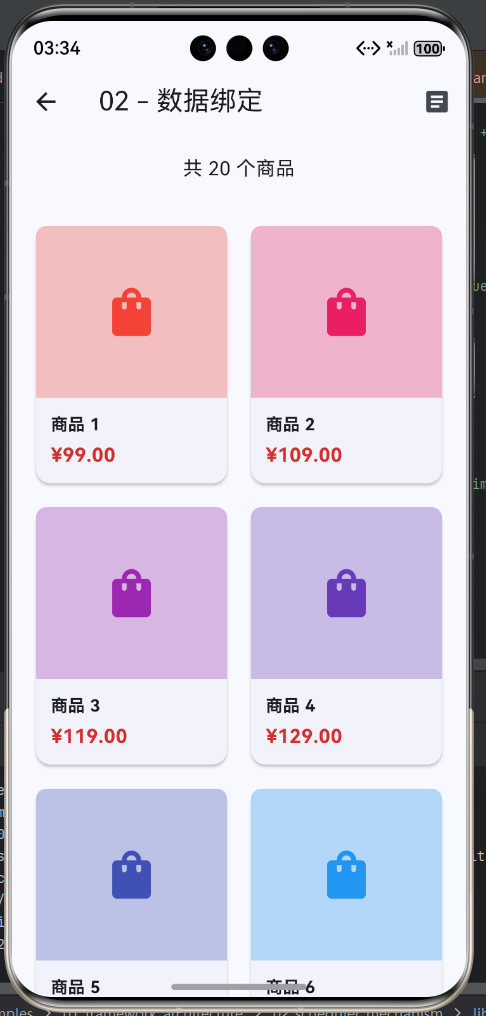
GridView数据绑定实战
知识点概述
数据绑定是Flutter开发中GridView组件的核心功能之一,它涉及到如何将数据源(如网络API、本地数据库、内存数据等)与GridView的子组件进行有效的关联和同步。数据绑定不仅仅是简单的数据展示,更包含了数据模型的设计、状态的更新机制、数据的变化监听、异常情况的处理等多个层面的内容。本章将从最基础的数据模型设计开始,逐步深入探讨各种数据绑定场景。
1. 数据模型设计
数据模型是GridView数据绑定的基础,它定义了数据的结构和行为。一个良好的数据模型设计不仅能够清晰表达业务逻辑,还能提高代码的可维护性和可扩展性。
1.1 基础数据模型
dart
class Product {
  final String id;
  final String name;
  final double price;
  final String imageUrl;
  final String description;
  final double rating;
  final int stock;
  final DateTime createdAt;

  Product({
    required this.id,
    required this.name,
    required this.price,
    required this.imageUrl,
    required this.description,
    this.rating = 0.0,
    this.stock = 0,
    required this.createdAt,
  });

  factory Product.fromJson(Map<String, dynamic> json) {
    return Product(
      id: json['id'] ?? '',
      name: json['name'] ?? '',
      price: (json['price'] ?? 0.0).toDouble(),
      imageUrl: json['imageUrl'] ?? '',
      description: json['description'] ?? '',
      rating: (json['rating'] ?? 0.0).toDouble(),
      stock: json['stock'] ?? 0,
      createdAt: json['createdAt'] != null
          ? DateTime.parse(json['createdAt'])
          : DateTime.now(),
    );
  }

  Map<String, dynamic> toJson() {
    return {
      'id': id,
      'name': name,
      'price': price,
      'imageUrl': imageUrl,
      'description': description,
      'rating': rating,
      'stock': stock,
      'createdAt': createdAt.toIso8601String(),
    };
  }

  bool get isOutOfStock => stock <= 0;
  bool get isOnSale => price < 100;

  Product copyWith({
    String? id,
    String? name,
    double? price,
    String? imageUrl,
    String? description,
    double? rating,
    int? stock,
    DateTime? createdAt,
  }) {
    return Product(
      id: id ?? this.id,
      name: name ?? this.name,
      price: price ?? this.price,
      imageUrl: imageUrl ?? this.imageUrl,
      description: description ?? this.description,
      rating: rating ?? this.rating,
      stock: stock ?? this.stock,
      createdAt: createdAt ?? this.createdAt,
    );
  }
}模型设计要点:
- ✅ 使用
final关键字保证不可变性 - ✅ 提供fromJson/toJson方法支持序列化
- ✅ 使用命名参数提高代码可读性
- ✅ 为非必须字段提供默认值
- ✅ 添加计算属性提供便捷访问方式
- ✅ 实现copyWith方法支持对象拷贝
1.2 数据模型对比表
|| 模型类型 | 适用场景 | 复杂度 | 性能 |
||---------|---------|--------|------|
|| 简单POJO | 基础列表展示 | 低 | 高 |
|| 嵌套模型 | 复杂数据结构 | 中 | 中 |
|| 可变模型 | 需要编辑功能 | 高 | 低 |
|| 不可变模型 | 纯展示场景 | 低 | 高 |
1.3 数据模型使用流程图
数据模型在应用中的完整生命周期包括从网络响应到数据展示,再到用户交互后的数据更新。整个流程确保了数据的一致性和可追溯性,同时也方便进行调试和错误追踪。
查看
编辑
删除
成功
失败
后端API响应
JSON数据
fromJson解析
数据模型对象
在GridView中展示
用户交互
操作类型
显示详情
copyWith创建新对象
移除对象
toJson序列化
发送到后端
API响应
更新本地数据
显示错误提示
2. 静态数据列表绑定
2.1 硬编码数据
dart
class StaticDataGrid extends StatelessWidget {
  final List<Map<String, dynamic>> _items = [
    {
      'title': 'Apple',
      'icon': Icons.apple,
      'color': Colors.red,
      'description': 'Fresh and delicious apples'
    },
    {
      'title': 'Banana',
      'icon': Icons.music_note,
      'color': Colors.yellow,
      'description': 'Sweet bananas from Ecuador'
    },
    {
      'title': 'Cherry',
      'icon': Icons.favorite,
      'color': Colors.pink,
      'description': 'Premium quality cherries'
    },
    {
      'title': 'Grape',
      'icon': Icons.circle,
      'color': Colors.purple,
      'description': 'Juicy grapes from vineyards'
    },
    {
      'title': 'Orange',
      'icon': Icons.brightness_5,
      'color': Colors.orange,
      'description': 'Vitamin C rich oranges'
    },
    {
      'title': 'Lemon',
      'icon': Icons.star,
      'color': Colors.lime,
      'description': 'Fresh lemons for your drinks'
    },
  ];

  @override
  Widget build(BuildContext context) {
    return Scaffold(
      appBar: AppBar(title: Text('静态数据网格')),
      body: GridView.count(
        crossAxisCount: 2,
        padding: EdgeInsets.all(12),
        mainAxisSpacing: 12,
        crossAxisSpacing: 12,
        children: _items.map((item) {
          return Card(
            elevation: 4,
            child: Column(
              mainAxisAlignment: MainAxisAlignment.center,
              children: [
                Icon(item['icon'], size: 48, color: item['color']),
                SizedBox(height: 12),
                Text(item['title'], style: TextStyle(fontSize: 18, fontWeight: FontWeight.bold)),
                SizedBox(height: 8),
                Padding(
                  padding: EdgeInsets.symmetric(horizontal: 8),
                  child: Text(item['description'], style: TextStyle(fontSize: 12, color: Colors.grey[600]), textAlign: TextAlign.center, maxLines: 2, overflow: TextOverflow.ellipsis),
                ),
              ],
            ),
          );
        }).toList(),
      ),
    );
  }
}优点:
- ✅ 实现简单快速
- ✅ 无需依赖外部服务
- ✅ 数据稳定可靠
缺点:
- ❌ 修改需要重新发布
- ❌ 不适合大量数据
- ❌ 灵活性较差
2.2 使用常量列表
dart
class ConstantDataGrid extends StatelessWidget {
  static const List<Product> _products = [
    Product(
      id: 'p1',
      name: '智能手机',
      price: 2999.0,
      imageUrl: 'https://example.com/phone.jpg',
      description: '高性能智能手机,配备最新的处理器和摄像头',
      rating: 4.8,
      stock: 100,
      createdAt: null,
    ),
    Product(
      id: 'p2',
      name: '笔记本电脑',
      price: 5999.0,
      imageUrl: 'https://example.com/laptop.jpg',
      description: '轻薄便携笔记本,适合办公和学习',
      rating: 4.6,
      stock: 50,
      createdAt: null,
    ),
  ];

  @override
  Widget build(BuildContext context) {
    return Scaffold(
      appBar: AppBar(title: Text('常量数据网格'), actions: [Center(child: Padding(padding: EdgeInsets.symmetric(horizontal: 16), child: Text('共${_products.length}件商品')))]),
      body: GridView.builder(
        gridDelegate: SliverGridDelegateWithFixedCrossAxisCount(crossAxisCount: 2, mainAxisSpacing: 12, crossAxisSpacing: 12, childAspectRatio: 0.8),
        padding: EdgeInsets.all(12),
        itemCount: _products.length,
        itemBuilder: (context, index) => _buildProductCard(_products[index]),
      ),
    );
  }

  Widget _buildProductCard(Product product) {
    return Card(
      elevation: 4,
      clipBehavior: Clip.antiAlias,
      child: Column(
        crossAxisAlignment: CrossAxisAlignment.start,
        children: [
          Expanded(
            child: Container(
              decoration: BoxDecoration(gradient: LinearGradient(colors: [Colors.grey[200]!, Colors.grey[300]!]), borderRadius: BorderRadius.vertical(top: Radius.circular(4))),
              child: Center(child: Icon(Icons.image, size: 48, color: Colors.grey[400])),
            ),
          ),
          Padding(
            padding: EdgeInsets.all(12),
            child: Column(
              crossAxisAlignment: CrossAxisAlignment.start,
              children: [
                Text(product.name, style: TextStyle(fontSize: 16, fontWeight: FontWeight.bold), maxLines: 1, overflow: TextOverflow.ellipsis),
                SizedBox(height: 4),
                Text(product.description, style: TextStyle(fontSize: 12, color: Colors.grey[600]), maxLines: 2, overflow: TextOverflow.ellipsis),
                SizedBox(height: 8),
                Row(children: [Icon(Icons.star, size: 14, color: Colors.orange), SizedBox(width: 4), Text(product.rating.toStringAsFixed(1), style: TextStyle(fontSize: 12)), Spacer(), Text('库存${product.stock}', style: TextStyle(fontSize: 12, color: product.stock > 0 ? Colors.green : Colors.red))]),
                SizedBox(height: 8),
                Text('¥${product.price.toStringAsFixed(2)}', style: TextStyle(fontSize: 18, color: Colors.red, fontWeight: FontWeight.w600)),
              ],
            ),
          ),
        ],
      ),
    );
  }
}
3. 动态数据列表绑定
3.1 使用StatefulWidget管理数据
dart
class DynamicDataGrid extends StatefulWidget {
  @override
  _DynamicDataGridState createState() => _DynamicDataGridState();
}

class _DynamicDataGridState extends State<DynamicDataGrid> {
  List<Map<String, dynamic>> _items = [];
  bool _isLoading = true;
  String? _error;

  @override
  void initState() {
    super.initState();
    _loadData();
  }

  Future<void> _loadData() async {
    setState(() {
      _isLoading = true;
      _error = null;
    });

    try {
      await Future.delayed(Duration(seconds: 1));

      setState(() {
        _items = List.generate(20, (index) => {
          'id': 'item_$index',
          'title': '动态项目 ${index + 1}',
          'subtitle': '这是第${index + 1}个动态项目的详细描述',
          'color': Colors.primaries[index % Colors.primaries.length],
          'timestamp': DateTime.now().subtract(Duration(days: index)),
          'views': 100 + index * 10,
          'likes': 50 + index * 5,
        });
        _isLoading = false;
      });
    } catch (e) {
      setState(() {
        _error = '加载数据失败: $e';
        _isLoading = false;
      });
    }
  }

  @override
  Widget build(BuildContext context) {
    return Scaffold(
      appBar: AppBar(title: Text('动态数据网格')),
      body: _buildBody(),
    );
  }

  Widget _buildBody() {
    if (_isLoading) {
      return Center(child: Column(mainAxisAlignment: MainAxisAlignment.center, children: [CircularProgressIndicator(), SizedBox(height: 16), Text('正在加载数据...')]));
    }

    if (_error != null) {
      return Center(child: Column(mainAxisAlignment: MainAxisAlignment.center, children: [Icon(Icons.error_outline, size: 64, color: Colors.red), SizedBox(height: 16), Text(_error!), SizedBox(height: 16), ElevatedButton(onPressed: _loadData, child: Text('重试'))]));
    }

    return GridView.builder(
      gridDelegate: SliverGridDelegateWithFixedCrossAxisCount(crossAxisCount: 3, mainAxisSpacing: 10, crossAxisSpacing: 10),
      padding: EdgeInsets.all(10),
      itemCount: _items.length,
      itemBuilder: (context, index) {
        final item = _items[index];
        return Card(
          elevation: 2,
          child: Column(
            crossAxisAlignment: CrossAxisAlignment.start,
            children: [
              Expanded(
                child: Container(
                  decoration: BoxDecoration(color: item['color'], borderRadius: BorderRadius.vertical(top: Radius.circular(4))),
                  child: Center(child: Text('${index + 1}', style: TextStyle(color: Colors.white, fontSize: 32, fontWeight: FontWeight.bold))),
                ),
              ),
              Padding(
                padding: EdgeInsets.all(8),
                child: Column(
                  crossAxisAlignment: CrossAxisAlignment.start,
                  children: [
                    Text(item['title'], style: TextStyle(fontSize: 14, fontWeight: FontWeight.bold), maxLines: 1, overflow: TextOverflow.ellipsis),
                    SizedBox(height: 4),
                    Text(item['subtitle'], style: TextStyle(fontSize: 10, color: Colors.grey[600]), maxLines: 2, overflow: TextOverflow.ellipsis),
                    SizedBox(height: 8),
                    Row(children: [Icon(Icons.visibility, size: 12, color: Colors.grey), SizedBox(width: 4), Text('${item['views']}', style: TextStyle(fontSize: 10)), SizedBox(width: 8), Icon(Icons.favorite, size: 12, color: Colors.red), SizedBox(width: 4), Text('${item['likes']}', style: TextStyle(fontSize: 10))]),
                  ],
                ),
              ),
            ],
          ),
        );
      },
    );
  }
}
3.2 动态数据状态转换图
动态数据加载过程中涉及多种状态的管理,包括初始状态、加载中、加载成功、加载失败等。合理管理这些状态可以提供良好的用户体验,避免用户在等待时感到困惑或不安。
初始化
开始加载数据
加载成功
加载失败
取消加载
显示数据
数据为空
刷新数据
离开页面
显示错误
重试
取消重试
重试
放弃重试
Initial
Loading
LoadingSuccess
LoadingFailed
DisplayData
DisplayError
3.3 状态管理最佳实践表
|| 状态 | 处理方式 | 用户反馈 |
||------|---------|---------|
|| 加载中 | 显示Loading指示器 | 进度条、骨架屏 |
|| 加载成功 | 展示数据内容 | 成功提示、动画 |
|| 加载失败 | 显示错误信息 | 错误提示、重试按钮 |
|| 空数据 | 显示空状态图 | 引导文案、操作提示 |
4. 网络请求数据绑定
4.1 使用http包
dart
import 'package:http/http.dart' as http;
import 'dart:convert';

class NetworkDataGrid extends StatefulWidget {
  @override
  _NetworkDataGridState createState() => _NetworkDataGridState();
}

class _NetworkDataGridState extends State<NetworkDataGrid> {
  List<Photo> _photos = [];
  bool _isLoading = true;
  String? _error;

  @override
  void initState() {
    super.initState();
    _fetchPhotos();
  }

  Future<void> _fetchPhotos() async {
    setState(() {
      _isLoading = true;
      _error = null;
    });

    try {
      final response = await http.get(Uri.parse('https://jsonplaceholder.typicode.com/photos'), headers: {'Content-Type': 'application/json'}).timeout(Duration(seconds: 10), onTimeout: () => throw Exception('请求超时'));

      if (response.statusCode == 200) {
        final List<dynamic> jsonData = json.decode(response.body);
        setState(() {
          _photos = jsonData.take(50).map((json) => Photo(id: json['id']?.toString() ?? '', url: json['url'] ?? '', width: json['width'] ?? 600, height: json['height'] ?? 600, title: json['title'] ?? '', description: '', author: User(id: '1', name: 'Unknown', avatarUrl: ''), tags: [], likes: 0, views: 0, createdAt: DateTime.now())).toList();
          _isLoading = false;
        });
      } else {
        setState(() {
          _error = '请求失败: ${response.statusCode}';
          _isLoading = false;
        });
      }
    } catch (e) {
      setState(() {
        _error = '网络错误: $e';
        _isLoading = false;
      });
    }
  }

  @override
  Widget build(BuildContext context) {
    return Scaffold(
      appBar: AppBar(title: Text('网络数据网格'), actions: [if (_photos.isNotEmpty) Center(child: Padding(padding: EdgeInsets.symmetric(horizontal: 16), child: Text('${_photos.length}张照片'))), IconButton(icon: Icon(Icons.refresh), onPressed: _isLoading ? null : _fetchPhotos)]),
      body: _buildBody(),
    );
  }

  Widget _buildBody() {
    if (_isLoading) {
      return Center(child: CircularProgressIndicator());
    }

    if (_error != null) {
      return Center(child: Column(mainAxisAlignment: MainAxisAlignment.center, children: [Icon(Icons.error_outline, size: 64, color: Colors.red), SizedBox(height: 16), Text(_error!), SizedBox(height: 16), ElevatedButton.icon(onPressed: _fetchPhotos, icon: Icon(Icons.refresh), label: Text('重试'))]));
    }

    return GridView.builder(
      gridDelegate: SliverGridDelegateWithFixedCrossAxisCount(crossAxisCount: 2, mainAxisSpacing: 8, crossAxisSpacing: 8, childAspectRatio: 1.0),
      itemCount: _photos.length,
      itemBuilder: (context, index) {
        final photo = _photos[index];
        return Card(
          clipBehavior: Clip.antiAlias,
          child: Column(
            crossAxisAlignment: CrossAxisAlignment.start,
            children: [
              Expanded(
                child: Image.network(photo.url, fit: BoxFit.cover, width: double.infinity, errorBuilder: (context, error, stackTrace) => Container(color: Colors.grey[200], child: Center(child: Column(mainAxisAlignment: MainAxisAlignment.center, children: [Icon(Icons.error_outline, size: 32), SizedBox(height: 8), Text('加载失败')]))), loadingBuilder: (context, child, loadingProgress) {
                  if (loadingProgress == null) return child;
                  return Container(color: Colors.grey[200], child: Center(child: CircularProgressIndicator(value: loadingProgress.expectedTotalBytes != null ? loadingProgress.cumulativeBytesLoaded / loadingProgress.expectedTotalBytes! : null)));
                }),
              ),
              Padding(padding: EdgeInsets.all(8), child: Column(crossAxisAlignment: CrossAxisAlignment.start, children: [Text('${index + 1}', style: TextStyle(fontSize: 10, color: Colors.grey[600])), SizedBox(height: 4), Text(photo.title, style: TextStyle(fontSize: 12, fontWeight: FontWeight.w500), maxLines: 2, overflow: TextOverflow.ellipsis), SizedBox(height: 4), Row(children: [Icon(Icons.image, size: 12, color: Colors.grey), SizedBox(width: 4), Text('${photo.width}x${photo.height}', style: TextStyle(fontSize: 10, color: Colors.grey[600]))])])),
            ],
          ),
        );
      },
    );
  }
}
4.2 HTTP状态码对照表
|| 状态码 | 说明 | 处理建议 |
||-------|------|---------|
|| 200 | 成功 | 正常处理数据 |
|| 201 | 已创建 | 处理新创建的资源 |
|| 401 | 未授权 | 跳转登录页 |
|| 404 | 未找到 | 显示资源不存在 |
|| 500 | 服务器错误 | 显示错误+重试 |
4.3 网络请求流程图
网络请求是数据绑定的核心环节,涉及请求发起、响应处理、错误处理等多个步骤。一个完善的网络请求流程应该包含超时处理、错误重试、状态管理等机制,确保在网络不稳定的情况下也能提供良好的用户体验。
200 OK
401 403
404
500+
其他
是
否
开始
初始化UI加载状态
发起网络请求
等待响应
超时:10秒
检查状态码
解析JSON数据
跳转登录页
显示资源不存在
显示服务器错误
显示未知错误
转换为数据模型
更新UI状态
显示GridView
结束
显示错误信息
提供重试按钮
用户是否重试
等待刷新操作
5. 数据分页加载
5.1 基础分页实现
dart
class PaginationGrid extends StatefulWidget {
  @override
  _PaginationGridState createState() => _PaginationGridState();
}

class _PaginationGridState extends State<PaginationGrid> {
  final ScrollController _scrollController = ScrollController();
  final List<Map<String, dynamic>> _items = [];
  int _currentPage = 1;
  bool _isLoading = false;
  bool _hasMore = true;
  final int _pageSize = 20;
  final int _totalItems = 100;

  @override
  void initState() {
    super.initState();
    _loadData();
    _scrollController.addListener(_scrollListener);
  }

  void _scrollListener() {
    if (_isLoading || !_hasMore) return;

    final maxScroll = _scrollController.position.maxScrollExtent;
    final currentScroll = _scrollController.position.pixels;

    if (maxScroll - currentScroll < 200) {
      _loadData();
    }
  }

  Future<void> _loadData() async {
    if (_isLoading || !_hasMore) return;

    setState(() => _isLoading = true);

    await Future.delayed(Duration(milliseconds: 500));

    if (!mounted) return;

    final startIndex = _items.length;
    final newItems = List.generate(_pageSize, (index) => {'id': 'item_${startIndex + index}', 'title': '项目 ${startIndex + index + 1}', 'description': '这是项目${startIndex + index + 1}的详细描述信息', 'color': Colors.primaries[(startIndex + index) % Colors.primaries.length], 'page': _currentPage, 'index': index + 1});

    setState(() {
      _items.addAll(newItems);
      _currentPage++;
      _isLoading = false;
      _hasMore = _items.length < _totalItems;
    });
  }

  @override
  void dispose() {
    _scrollController.dispose();
    super.dispose();
  }

  @override
  Widget build(BuildContext context) {
    return Scaffold(
      appBar: AppBar(title: Text('分页加载网格'), actions: [Center(child: Padding(padding: EdgeInsets.symmetric(horizontal: 16), child: Text('${_items.length}/$_totalItems'))), IconButton(icon: Icon(Icons.refresh), onPressed: () {_items.clear(); _currentPage = 1; _hasMore = true; _loadData();})]),
      body: GridView.builder(
        controller: _scrollController,
        gridDelegate: SliverGridDelegateWithFixedCrossAxisCount(crossAxisCount: 3, mainAxisSpacing: 8, crossAxisSpacing: 8),
        itemCount: _items.length + (_hasMore ? 1 : 0),
        itemBuilder: (context, index) {
          if (index >= _items.length) {
            return Center(child: CircularProgressIndicator());
          }

          final item = _items[index];
          return Card(color: item['color'], elevation: 2, child: Column(crossAxisAlignment: CrossAxisAlignment.start, children: [Expanded(child: Center(child: Text('${index + 1}', style: TextStyle(color: Colors.white, fontSize: 32, fontWeight: FontWeight.bold)))), Padding(padding: EdgeInsets.all(8), child: Column(crossAxisAlignment: CrossAxisAlignment.start, children: [Text(item['title'], style: TextStyle(color: Colors.white, fontSize: 12, fontWeight: FontWeight.bold), maxLines: 1, overflow: TextOverflow.ellipsis), SizedBox(height: 4), Text('第${item['page']}页', style: TextStyle(color: Colors.white70, fontSize: 10))]))]));
        },
      ),
    );
  }
}
5.2 分页加载流程图
分页加载是处理大量数据时的关键技术,通过按需加载数据可以提高应用性能,减少内存占用,同时提供流畅的用户体验。关键是要合理判断加载时机,避免重复加载,并正确处理加载完成或加载失败的情况。
否
是
是
否
否
是
否
是
是
否
用户滚动
是否接近底部?
结束
正在加载?
还有更多数据?
显示加载指示器
发起分页请求
等待响应
请求成功?
处理错误
隐藏加载指示器
解析新数据
追加到现有列表
更新当前页码
是否加载完成?
设置hasMore=false
设置hasMore=true
更新UI
隐藏加载指示器
5.3 分页参数对比表
|| 参数 | 说明 | 推荐值 | 影响 |
||------|------|--------|------|
|| 每页数量 | 单次加载的条数 | 10-20 | 数量大则加载慢 |
|| 预加载阈值 | 距离底部多少开始加载 | 200-300px | 提前加载避免卡顿 |
|| 超时时间 | 单次请求超时时间 | 5-10秒 | 太短可能失败 |
| 并发请求数 | 同时进行的分页请求数 | 1-3 | 数据简单可增加 | 过多会增加服务器压力 |
| 缓存策略 | 数据缓存机制 | 内存+磁盘 | 频繁访问则缓存 | 提升响应速度,占用存储空间 |
5.4 分页加载性能对比
不同的分页策略对性能的影响差异很大。传统的翻页模式用户体验较差但实现简单,而无限滚动模式提供了更好的用户体验但需要处理更多的边缘情况。
| 分页模式 | 首屏加载 | 用户体验 | 实现复杂度 | 内存占用 | 适用场景 |
|---|---|---|---|---|---|
| 传统翻页 | 1页 | 较差,需要手动翻页 | 低 | 低 | 搜索结果、报表展示 |
| 无限滚动 | 1-2页 | 流畅,自动加载 | 中 | 中 | 社交动态、商品列表 |
| 虚拟滚动 | 仅可见项 | 最流畅,无感加载 | 高 | 最低 | 大数据量列表 |
| 预加载 | 2-3页 | 流畅,提前加载 | 中 | 较高 | 图片密集型应用 |
5.5 分页加载优化技巧
为了提供最佳的分页加载体验,可以采用以下优化策略:
- 智能预加载: 根据用户滚动速度动态调整预加载阈值,滚动快时提前更多,滚动慢时减少提前量
- 取消机制: 当用户快速滚动时,取消未完成的请求,避免过时数据干扰
- 优先级加载: 对可视区域内的item优先加载,提升首屏体验
- 错误重试: 实现智能重试机制,网络恢复时自动重试失败的请求
- 本地缓存: 将已加载的数据缓存到本地,避免重复请求
6. 数据筛选和搜索
6.1 搜索过滤功能
dart
class SearchableGrid extends StatefulWidget {
  @override
  _SearchableGridState createState() => _SearchableGridState();
}

class _SearchableGridState extends State<SearchableGrid> {
  final TextEditingController _searchController = TextEditingController();
  final List<Map<String, dynamic>> _allItems = List.generate(50, (index) => {'id': 'item_$index', 'name': '商品 ${String.fromCharCode(65 + (index % 26))}${index + 1}', 'category': ['水果', '蔬菜', '肉类', '饮料', '零食'][index % 5], 'price': (index + 1) * 10.0 + Random().nextDouble() * 50, 'color': Colors.primaries[index % Colors.primaries.length], 'description': '这是商品${index + 1}的详细描述', 'stock': Random().nextInt(100)});

  List<Map<String, dynamic>> _filteredItems = [];
  String _searchQuery = '';
  bool _isSearching = false;
  Timer? _debounce;

  @override
  void initState() {
    super.initState();
    _filteredItems = List.from(_allItems);
  }

  void _filterItems(String query) {
    setState(() {
      _searchQuery = query.toLowerCase();
      _isSearching = query.isNotEmpty;
    });

    if (_debounce?.isActive ?? false) _debounce!.cancel();

    _debounce = Timer(Duration(milliseconds: 300), () {
      setState(() {
        if (_searchQuery.isEmpty) {
          _filteredItems = List.from(_allItems);
        } else {
          _filteredItems = _allItems.where((item) {
            final name = item['name'].toLowerCase();
            final category = item['category'].toLowerCase();
            final description = item['description'].toLowerCase();
            final price = item['price'].toString();

            return name.contains(_searchQuery) || category.contains(_searchQuery) || description.contains(_searchQuery) || price.contains(_searchQuery);
          }).toList();
        }
      });
    });
  }

  void _clearSearch() {
    _searchController.clear();
    _filterItems('');
  }

  @override
  void dispose() {
    _searchController.dispose();
    _debounce?.cancel();
    super.dispose();
  }

  @override
  Widget build(BuildContext context) {
    return Scaffold(
      appBar: AppBar(title: Text('搜索网格'), actions: [if (_isSearching) IconButton(icon: Icon(Icons.clear), onPressed: _clearSearch)]),
      body: Column(
        children: [
          Padding(
            padding: EdgeInsets.all(16),
            child: TextField(
              controller: _searchController,
              decoration: InputDecoration(hintText: '搜索商品名称、分类、价格...', prefixIcon: Icon(Icons.search), suffixIcon: _isSearching ? IconButton(icon: Icon(Icons.clear), onPressed: _clearSearch) : null, border: OutlineInputBorder(borderRadius: BorderRadius.circular(8)), filled: true, fillColor: Colors.grey[100]),
              onChanged: _filterItems,
              textInputAction: TextInputAction.search,
            ),
          ),
          if (_isSearching) Padding(padding: EdgeInsets.symmetric(horizontal: 16), child: Row(mainAxisAlignment: MainAxisAlignment.spaceBetween, children: [Text('找到${_filteredItems.length}个结果', style: TextStyle(color: Colors.grey[600])), if (_filteredItems.length == 0) Text('没有匹配的商品', style: TextStyle(color: Colors.red))])),
          SizedBox(height: 8),
          Expanded(
            child: _filteredItems.isEmpty ? Center(child: Column(mainAxisAlignment: MainAxisAlignment.center, children: [Icon(Icons.search_off, size: 64, color: Colors.grey[400]), SizedBox(height: 16), Text(_isSearching ? '没有找到匹配的商品' : '输入关键词搜索商品', style: TextStyle(color: Colors.grey[600]))])) : GridView.builder(
              gridDelegate: SliverGridDelegateWithFixedCrossAxisCount(crossAxisCount: 2, mainAxisSpacing: 12, crossAxisSpacing: 12),
              itemCount: _filteredItems.length,
              itemBuilder: (context, index) {
                final item = _filteredItems[index];
                return _buildProductCard(item, index);
              },
            ),
          ),
        ],
      ),
    );
  }

  Widget _buildProductCard(Map<String, dynamic> item, int index) {
    final name = item['name'] as String;

    return Card(
      elevation: 3,
      color: item['color'],
      child: Column(
        mainAxisAlignment: MainAxisAlignment.center,
        children: [
          Icon(Icons.shopping_cart, size: 32, color: Colors.white70),
          SizedBox(height: 8),
          Padding(padding: EdgeInsets.symmetric(horizontal: 8), child: Text(name, style: TextStyle(fontWeight: FontWeight.bold), textAlign: TextAlign.center, maxLines: 2, overflow: TextOverflow.ellipsis)),
          SizedBox(height: 4),
          Text(item['category'], style: TextStyle(color: Colors.white70, fontSize: 12)),
          SizedBox(height: 8),
          Container(padding: EdgeInsets.symmetric(horizontal: 12, vertical: 4), decoration: BoxDecoration(color: Colors.white, borderRadius: BorderRadius.circular(12)), child: Text('¥${item['price'].toStringAsFixed(2)}', style: TextStyle(color: item['color'], fontWeight: FontWeight.bold))),
          SizedBox(height: 4),
          Text('库存${item['stock']}', style: TextStyle(color: Colors.white70, fontSize: 10)),
        ],
      ),
    );
  }
}
6.2 分类筛选
dart
class CategoryFilterGrid extends StatefulWidget {
  @override
  _CategoryFilterGridState createState() => _CategoryFilterGridState();
}

class _CategoryFilterGridState extends State<CategoryFilterGrid> {
  final List<String> _categories = ['全部', '水果', '蔬菜', '肉类', '饮料', '零食'];
  String _selectedCategory = '全部';

  final List<Map<String, dynamic>> _items = List.generate(30, (index) => {'name': '商品 $index', 'category': ['水果', '蔬菜', '肉类', '饮料', '零食'][index % 5], 'price': (index + 1) * 10.0, 'color': Colors.primaries[index % Colors.primaries.length]});

  List<Map<String, dynamic>> get _filteredItems {
    if (_selectedCategory == '全部') {
      return _items;
    }
    return _items.where((item) => item['category'] == _selectedCategory).toList();
  }

  @override
  Widget build(BuildContext context) {
    return Scaffold(
      appBar: AppBar(title: Text('分类筛选'), actions: [Center(child: Padding(padding: EdgeInsets.symmetric(horizontal: 16), child: Text('共${_filteredItems.length}件')))]),
      body: Column(
        children: [
          Container(
            height: 60,
            decoration: BoxDecoration(color: Colors.white, boxShadow: [BoxShadow(color: Colors.black.withOpacity(0.05), blurRadius: 4, offset: Offset(0, 2))]),
            child: ListView.builder(
              scrollDirection: Axis.horizontal,
              padding: EdgeInsets.symmetric(horizontal: 8, vertical: 8),
              itemCount: _categories.length,
              itemBuilder: (context, index) {
                final category = _categories[index];
                final isSelected = category == _selectedCategory;
                final count = category == '全部' ? _items.length : _items.where((item) => item['category'] == category).length;

                return Padding(
                  padding: EdgeInsets.symmetric(horizontal: 4),
                  child: FilterChip(label: Column(mainAxisAlignment: MainAxisAlignment.center, children: [Text(category), Text('$count', style: TextStyle(fontSize: 10))]), selected: isSelected, onSelected: (selected) => setState(() => _selectedCategory = category), selectedColor: Colors.blue, checkmarkColor: Colors.white, backgroundColor: Colors.grey[200]),
                );
              },
            ),
          ),
          Divider(height: 1),
          Expanded(
            child: _filteredItems.isEmpty ? Center(child: Column(mainAxisAlignment: MainAxisAlignment.center, children: [Icon(Icons.category_outlined, size: 64, color: Colors.grey[400]), SizedBox(height: 16), Text('该分类下暂无商品', style: TextStyle(color: Colors.grey[600]))])) : GridView.builder(
              gridDelegate: SliverGridDelegateWithFixedCrossAxisCount(crossAxisCount: 3, mainAxisSpacing: 8, crossAxisSpacing: 8),
              itemCount: _filteredItems.length,
              itemBuilder: (context, index) {
                final item = _filteredItems[index];
                return Card(elevation: 2, color: item['color'], child: Column(mainAxisAlignment: MainAxisAlignment.center, children: [Icon(Icons.shopping_bag, size: 32, color: Colors.white70), SizedBox(height: 8), Text(item['name'], style: TextStyle(color: Colors.white), textAlign: TextAlign.center, maxLines: 1, overflow: TextOverflow.ellipsis), SizedBox(height: 4), Text(item['category'], style: TextStyle(color: Colors.white70, fontSize: 12))]));
              },
            ),
          ),
        ],
      ),
    );
  }
}
6.3 筛选功能对比表
|| 筛选类型 | 优点 | 缺点 | 适用场景 |
||---------|------|------|---------|
|| 文本搜索 | 灵活,精确 | 需要用户输入 | 已知具体内容 |
|| 分类筛选 | 简单,直观 | 不够灵活 | 有明显分类 |
|| 价格区间 | 精确控制 | 操作复杂 | 商品筛选 |
7. 数据排序功能
7.1 基础排序实现
dart
class SortableGrid extends StatefulWidget {
  @override
  _SortableGridState createState() => _SortableGridState();
}

class _SortableGridState extends State<SortableGrid> {
  List<Map<String, dynamic>> _items = [];
  String _sortBy = 'name';
  bool _ascending = true;

  @override
  void initState() {
    super.initState();
    _loadData();
  }

  void _loadData() {
    setState(() {
      _items = List.generate(20, (index) => {'name': '商品 ${String.fromCharCode(65 + (index % 26))}${index + 1}', 'price': (Random().nextDouble() * 1000 + 10).toDouble(), 'rating': (Random().nextDouble() * 2 + 3).toDouble(), 'stock': Random().nextInt(100), 'sales': Random().nextInt(1000), 'color': Colors.primaries[index % Colors.primaries.length], 'category': ['电子', '服装', '食品', '家居'][index % 4]});
    });
    _sortItems();
  }

  void _sortItems() {
    setState(() {
      _items.sort((a, b) {
        final aValue = a[_sortBy];
        final bValue = b[_sortBy];

        int result;
        if (aValue is String && bValue is String) {
          result = aValue.compareTo(bValue);
        } else if (aValue is double && bValue is double) {
          result = aValue.compareTo(bValue);
        } else if (aValue is int && bValue is int) {
          result = aValue.compareTo(bValue);
        } else {
          result = 0;
        }

        return _ascending ? result : -result;
      });
    });
  }

  @override
  Widget build(BuildContext context) {
    return Scaffold(
      appBar: AppBar(
        title: Text('可排序网格'),
        actions: [
          PopupMenuButton<String>(
            icon: Icon(Icons.sort),
            onSelected: (value) {
              setState(() => _sortBy = value);
              _sortItems();
            },
            itemBuilder: (context) => [
              PopupMenuItem(value: 'name', child: Row(children: [Text('名称'), if (_sortBy == 'name') Icon(Icons.check, size: 16)])),
              PopupMenuItem(value: 'price', child: Row(children: [Text('价格'), if (_sortBy == 'price') Icon(Icons.check, size: 16)])),
              PopupMenuItem(value: 'rating', child: Row(children: [Text('评分'), if (_sortBy == 'rating') Icon(Icons.check, size: 16)])),
              PopupMenuItem(value: 'stock', child: Row(children: [Text('库存'), if (_sortBy == 'stock') Icon(Icons.check, size: 16)])),
              PopupMenuItem(value: 'sales', child: Row(children: [Text('销量'), if (_sortBy == 'sales') Icon(Icons.check, size: 16)])),
            ],
          ),
          IconButton(icon: Icon(_ascending ? Icons.arrow_upward : Icons.arrow_downward), onPressed: () {setState(() => _ascending = !_ascending); _sortItems();}),
        ],
      ),
      body: GridView.builder(
        gridDelegate: SliverGridDelegateWithFixedCrossAxisCount(crossAxisCount: 2, mainAxisSpacing: 12, crossAxisSpacing: 12),
        itemCount: _items.length,
        itemBuilder: (context, index) {
          final item = _items[index];
          return Card(color: item['color'], elevation: 3, child: Column(mainAxisAlignment: MainAxisAlignment.center, children: [Icon(Icons.shopping_cart, size: 32, color: Colors.white70), SizedBox(height: 8), Text(item['name'], style: TextStyle(color: Colors.white, fontSize: 14, fontWeight: FontWeight.bold), textAlign: TextAlign.center, maxLines: 1, overflow: TextOverflow.ellipsis), SizedBox(height: 8), Row(mainAxisAlignment: MainAxisAlignment.center, children: [Icon(Icons.star, size: 16, color: Colors.yellow), SizedBox(width: 4), Text(item['rating'].toStringAsFixed(1), style: TextStyle(color: Colors.white))]), SizedBox(height: 8), Text('¥${item['price'].toStringAsFixed(2)}', style: TextStyle(color: Colors.white, fontSize: 18, fontWeight: FontWeight.bold)), SizedBox(height: 4), Text('库存:${item['stock']} 销量:${item['sales']}', style: TextStyle(color: Colors.white70, fontSize: 10))]));
        },
      ),
    );
  }
}
7.2 排序维度对比表
|| 排序维度 | 数据类型 | 升序含义 | 降序含义 | 适用场景 |
||---------|---------|---------|---------|---------|
|| 名称 | String | A-Z | Z-A | 名称列表 |
|| 价格 | double | 低到高 | 高到低 | 商品排序 |
|| 评分 | double | 低到高 | 高到低 | 推荐排序 |
|| 时间 | DateTime | 旧到新 | 新到旧 | 内容排序 |
|| 销量 | int | 少到多 | 多到少 | 热门排序 |
8. 综合示例:商品展示网格
dart
class ProductGridExample extends StatefulWidget {
  @override
  _ProductGridExampleState createState() => _ProductGridExampleState();
}

class _ProductGridExampleState extends State<ProductGridExample> {
  final ScrollController _scrollController = ScrollController();
  final TextEditingController _searchController = TextEditingController();

  final List<Product> _products = [];
  List<Product> _filteredProducts = [];

  bool _isLoading = true;
  String _searchQuery = '';
  String _selectedCategory = '全部';
  String _sortBy = 'price';
  bool _ascending = false;

  final int _pageSize = 20;
  bool _hasMore = true;

  @override
  void initState() {
    super.initState();
    _loadProducts();
    _scrollController.addListener(_scrollListener);
  }

  Future<void> _loadProducts({bool refresh = false}) async {
    if (_isLoading && !refresh) return;

    setState(() => _isLoading = true);

    await Future.delayed(Duration(milliseconds: 500));

    if (!mounted) return;

    final newProducts = List.generate(_pageSize, (index) {
      final categories = ['电子产品', '服装', '食品', '家居', '运动'];
      return Product(
        id: 'p${_products.length + index}',
        name: '商品 ${_products.length + index + 1}',
        price: (Random().nextDouble() * 1000 + 50),
        imageUrl: '',
        description: '这是商品${_products.length + index + 1}的详细描述',
        rating: 3.0 + Random().nextDouble() * 2,
        stock: Random().nextInt(100),
        createdAt: DateTime.now(),
      );
    });

    setState(() {
      if (refresh) {
        _products.clear();
      }
      _products.addAll(newProducts);
      _filteredProducts = List.from(_products);
      _hasMore = _products.length < 100;
      _isLoading = false;
      _applyFilters();
    });
  }

  void _scrollListener() {
    if (_scrollController.position.pixels >= _scrollController.position.maxScrollExtent - 200) {
      _loadProducts();
    }
  }

  void _applyFilters() {
    setState(() {
      _filteredProducts = _products.where((product) {
        final matchesSearch = _searchQuery.isEmpty || product.name.toLowerCase().contains(_searchQuery.toLowerCase()) || product.description.toLowerCase().contains(_searchQuery.toLowerCase());
        final matchesCategory = _selectedCategory == '全部';
        return matchesSearch && matchesCategory;
      }).toList();

      _filteredProducts.sort((a, b) {
        final aValue = _sortBy == 'name' ? a.name.toLowerCase() : _sortBy == 'price' ? a.price : _sortBy == 'rating' ? a.rating : a.stock.toDouble();
        final bValue = _sortBy == 'name' ? b.name.toLowerCase() : _sortBy == 'price' ? b.price : _sortBy == 'rating' ? b.rating : b.stock.toDouble();
        final result = aValue.compareTo(bValue);
        return _ascending ? result : -result;
      });
    });
  }

  @override
  void dispose() {
    _scrollController.dispose();
    _searchController.dispose();
    super.dispose();
  }

  @override
  Widget build(BuildContext context) {
    return Scaffold(
      appBar: AppBar(
        title: Text('商品展示'),
        actions: [IconButton(icon: Icon(Icons.refresh), onPressed: () => _loadProducts(refresh: true))],
      ),
      body: Column(
        children: [
          Padding(
            padding: EdgeInsets.all(12),
            child: TextField(
              controller: _searchController,
              decoration: InputDecoration(hintText: '搜索商品名称或描述...', prefixIcon: Icon(Icons.search), suffixIcon: _searchQuery.isNotEmpty ? IconButton(icon: Icon(Icons.clear), onPressed: () {_searchController.clear(); _searchQuery = ''; _applyFilters();}) : null, border: OutlineInputBorder(borderRadius: BorderRadius.circular(8)), filled: true, fillColor: Colors.grey[100]),
              onChanged: (value) {
                _searchQuery = value;
                _applyFilters();
              },
            ),
          ),
          Padding(
            padding: EdgeInsets.symmetric(horizontal: 12),
            child: Row(
              children: [
                Expanded(child: DropdownButton<String>(value: _selectedCategory, isExpanded: true, items: ['全部', '电子产品', '服装', '食品', '家居', '运动'].map((category) => DropdownMenuItem(value: category, child: Text(category))).toList(), onChanged: (value) => setState(() => _selectedCategory = value!))),
                SizedBox(width: 8),
                Expanded(child: DropdownButton<String>(value: _sortBy, isExpanded: true, items: {'name': '名称', 'price': '价格', 'rating': '评分', 'stock': '库存'}.entries.map((entry) => DropdownMenuItem(value: entry.key, child: Text(entry.value))).toList(), onChanged: (value) => setState(() => _sortBy = value!))),
                SizedBox(width: 8),
                IconButton(icon: Icon(_ascending ? Icons.arrow_upward : Icons.arrow_downward), onPressed: () => setState(() => _ascending = !_ascending)),
              ],
            ),
          ),
          Padding(
            padding: EdgeInsets.symmetric(horizontal: 16, vertical: 8),
            child: Row(mainAxisAlignment: MainAxisAlignment.spaceBetween, children: [Text('共 ${_filteredProducts.length} 个商品'), Text('已加载 ${_products.length} / 100')]),
          ),
          Divider(height: 1),
          Expanded(
            child: _isLoading && _products.isEmpty ? Center(child: CircularProgressIndicator()) : _filteredProducts.isEmpty ? Center(child: Text('没有找到商品')) : GridView.builder(
              controller: _scrollController,
              gridDelegate: SliverGridDelegateWithFixedCrossAxisCount(crossAxisCount: 2, mainAxisSpacing: 12, crossAxisSpacing: 12, childAspectRatio: 0.75),
              itemCount: _filteredProducts.length + (_hasMore ? 1 : 0),
              itemBuilder: (context, index) {
                if (index >= _filteredProducts.length) {
                  return Center(child: CircularProgressIndicator());
                }
                return _buildProductCard(_filteredProducts[index]);
              },
            ),
          ),
        ],
      ),
    );
  }

  Widget _buildProductCard(Product product) {
    return Card(
      elevation: 4,
      clipBehavior: Clip.antiAlias,
      child: InkWell(
        onTap: () {},
        child: Column(
          crossAxisAlignment: CrossAxisAlignment.start,
          children: [
            AspectRatio(
              aspectRatio: 1.0,
              child: Container(
                decoration: BoxDecoration(gradient: LinearGradient(colors: [Colors.grey[200]!, Colors.grey[300]!]), borderRadius: BorderRadius.vertical(top: Radius.circular(4))),
                child: Center(child: Icon(Icons.image, size: 48, color: Colors.grey[400])),
              ),
            ),
            Padding(
              padding: EdgeInsets.all(12),
              child: Column(
                crossAxisAlignment: CrossAxisAlignment.start,
                children: [
                  Text(product.name, style: TextStyle(fontSize: 16, fontWeight: FontWeight.bold), maxLines: 1, overflow: TextOverflow.ellipsis),
                  SizedBox(height: 4),
                  Text(product.description, style: TextStyle(fontSize: 12, color: Colors.grey[600]), maxLines: 2, overflow: TextOverflow.ellipsis),
                  SizedBox(height: 8),
                  Row(children: [Icon(Icons.star, size: 14, color: Colors.orange), SizedBox(width: 4), Text(product.rating.toStringAsFixed(1), style: TextStyle(fontSize: 12)), SizedBox(width: 8), Text('库存${product.stock}', style: TextStyle(fontSize: 12, color: product.stock > 0 ? Colors.green : Colors.red))]),
                  SizedBox(height: 8),
                  Text('¥${product.price.toStringAsFixed(2)}', style: TextStyle(fontSize: 18, color: Colors.red, fontWeight: FontWeight.bold)),
                ],
              ),
            ),
          ],
        ),
      ),
    );
  }
}
8.1 综合功能架构图
商品展示应用架构
搜索框
数据筛选
分类选择
数据排序
分页加载器
GridView展示
8.2 数据流向图
是
否
用户输入
搜索/筛选
分类选择
排序选择
是否缓存?
读取缓存
网络请求
数据聚合
分页处理
GridView渲染
用户交互
8.3 数据绑定最佳实践总结
| 实践要点 | 说明 | 推荐做法 | 避免事项 |
|---|---|---|---|
| 数据模型 | 清晰的数据结构 | 使用final、fromJson/toJson | 频繁修改模型 |
| 状态管理 | 合理管理应用状态 | 使用setState、Provider | 滥用setState |
| 错误处理 | 完善的错误处理 | try-catch、用户友好提示 | 隐藏错误信息 |
| 加载状态 | 明确的加载反馈 | 加载指示器、骨架屏 | 无加载提示 |
| 性能优化 | 提升应用性能 | 防抖节流、虚拟列表 | 不必要的重建 |
| 用户体验 | 关注用户体验 | 即时反馈、流畅动画 | 卡顿、延迟 |
| 缓存策略 | 合理使用缓存 | 内存缓存+磁盘缓存 | 无缓存或过度缓存 |
8.4 常见问题与解决方案
| 问题 | 原因 | 解决方案 | 预防措施 |
|---|---|---|---|
| 列表闪烁 | 重建Widget过频繁 | 使用const、拆分Widget | 减少setState调用 |
| 内存泄漏 | Controller未释放 | dispose中释放 | 检查生命周期 |
| 加载卡顿 | 数据量过大 | 分页加载、虚拟列表 | 控制单页数量 |
| 滚动不流畅 | 布局过于复杂 | 简化布局、使用缓存 | 避免嵌套过深 |
| 搜索慢 | 搜索算法低效 | 使用防抖、优化算法 | 合理设置延迟 |
| 图片加载慢 | 图片未优化 | 压缩图片、占位符 | 使用CDN、懒加载 |
数据绑定性能优化
性能优化核心原则
GridView数据绑定的性能优化是开发过程中的重要环节。一个性能良好的GridView不仅能提供流畅的用户体验,还能有效降低设备资源消耗,延长电池续航。
性能优化
渲染优化
内存优化
网络优化
算法优化
使用const构造函数
避免不必要重建
使用AutomaticKeepAlive
及时释放资源
控制数据量
使用对象池
启用缓存
图片懒加载
数据压缩
优化排序算法
使用防抖节流
避免重复计算
性能优化实施建议
-
渲染层面优化
- 使用
const构造函数创建不变的widget - 合理使用
AutomaticKeepAliveClientMixin保持状态 - 避免在
build方法中进行复杂计算 - 使用
RepaintBoundary隔离重绘区域
- 使用
-
内存管理优化
- 及时释放ScrollController、TextEditingController等资源
- 控制单页加载数据量,避免一次性加载过多
- 对于大型数据,考虑使用对象池复用对象
- 使用WeakReference处理缓存数据
-
网络请求优化
- 启用HTTP缓存,减少重复请求
- 图片使用懒加载和渐进式加载
- 对JSON数据进行压缩传输
- 合理设置超时和重试策略
-
算法和数据优化
- 使用高效的排序算法(内置的sort已足够)
- 对搜索进行防抖处理,避免频繁计算
- 使用Memoization缓存计算结果
- 对过滤结果使用Set去重
总结
本章深入探讨了GridView的数据绑定技术:
- ✅ 数据模型设计最佳实践
- ✅ 静态数据绑定
- ✅ 动态数据管理
- ✅ 网络请求处理
- ✅ 数据分页加载
- ✅ 数据筛选搜索
- ✅ 数据排序功能
- ✅ 综合商品展示示例
通过学习本章内容,您已经掌握了GridView数据绑定的核心技术,包括从简单的基础模型设计到复杂的综合应用实现。这些技术不仅适用于GridView,也可以应用到其他列表型组件中。
关键要点回顾:
- 数据模型设计是基础,要保证其不可变性和可序列化
- 合理管理加载状态,提供良好的用户体验
- 实现完善的错误处理机制,避免应用崩溃
- 分页加载是处理大数据的有效手段
- 搜索和筛选功能要考虑性能优化
- 排序功能要支持多维度和升降序切换
- 综合应用时要协调各种功能,避免冲突
下一步建议:
- 在实际项目中应用这些技术
- 根据具体需求调整参数和策略
- 持续监控性能指标,优化用户体验
- 学习更高级的状态管理方案(如Provider、Riverpod等)
掌握这些技术后,您可以构建功能完善、用户体验良好的数据展示应用!
欢迎加入开源鸿蒙跨平台社区:https://openharmonycrossplatform.csdn.net