项目创建传送门:
 https://blog.csdn.net/qq_39731011/article/details/157513416?spm=1001.2014.3001.5501
0、可选项:如需加载网络图片需要增加权限(sec/main/module.json5)
TypeScript
{
  "module": {
    "requestPermissions": [
      {
        "name": "ohos.permission.INTERNET"
      }
    ],

    ...

  }
}
1、代码示例:pages目录下的Index.ets
TypeScript
@Entry
@Component
struct Index {
  @State message: string = '默认文案';
  @State input: string = '默认输入框内容';

  setText(value: string) { //将输入框的内容赋值到第一个TextView
    this.message = value;
    if (value == "") {
      this.message = '默认文案'
    }
  }

  build() {
    Row() { //水平居中
      Column() { //垂直居中
//----------------------------------文本与输入框------------------------------------
        Text(this.message)
          .fontSize($r('app.float.page_text_font_size'))
          .fontWeight(FontWeight.Bold)
          .onClick(() => {
            this.message = 'Welcome';
          })
        Text('(点击恢复默认文案)')
          .fontSize('28fp')
          .fontWeight(FontWeight.Bold)
          .background($r('app.color.textBack'))
          .onClick(() => {
            this.message = '默认文案';
          })
          .id("Two")
        //多行输入框
        TextArea({
          text: this.input,
          placeholder: "请输入文本"
        })
          .fontSize(34)
          .onChange((value: string) => {
            //将输入框的内容赋值到第一个TextView
            this.setText(value)
          })
//-------------------------------------图片相关---------------------------------
        //图片
        Image($rawfile('test_img.jpg'))
          .height('140fp')
        //图片(网络)
        Image("https://i-blog.csdnimg.cn/direct/cd011875ce49498eb901a67ec64a4626.jpeg")
          .height('140fp')
          .margin({
            top: 10
          })

      }
      .width('100%')
    }
    .height('100%')
  }
}
2、运行结果:
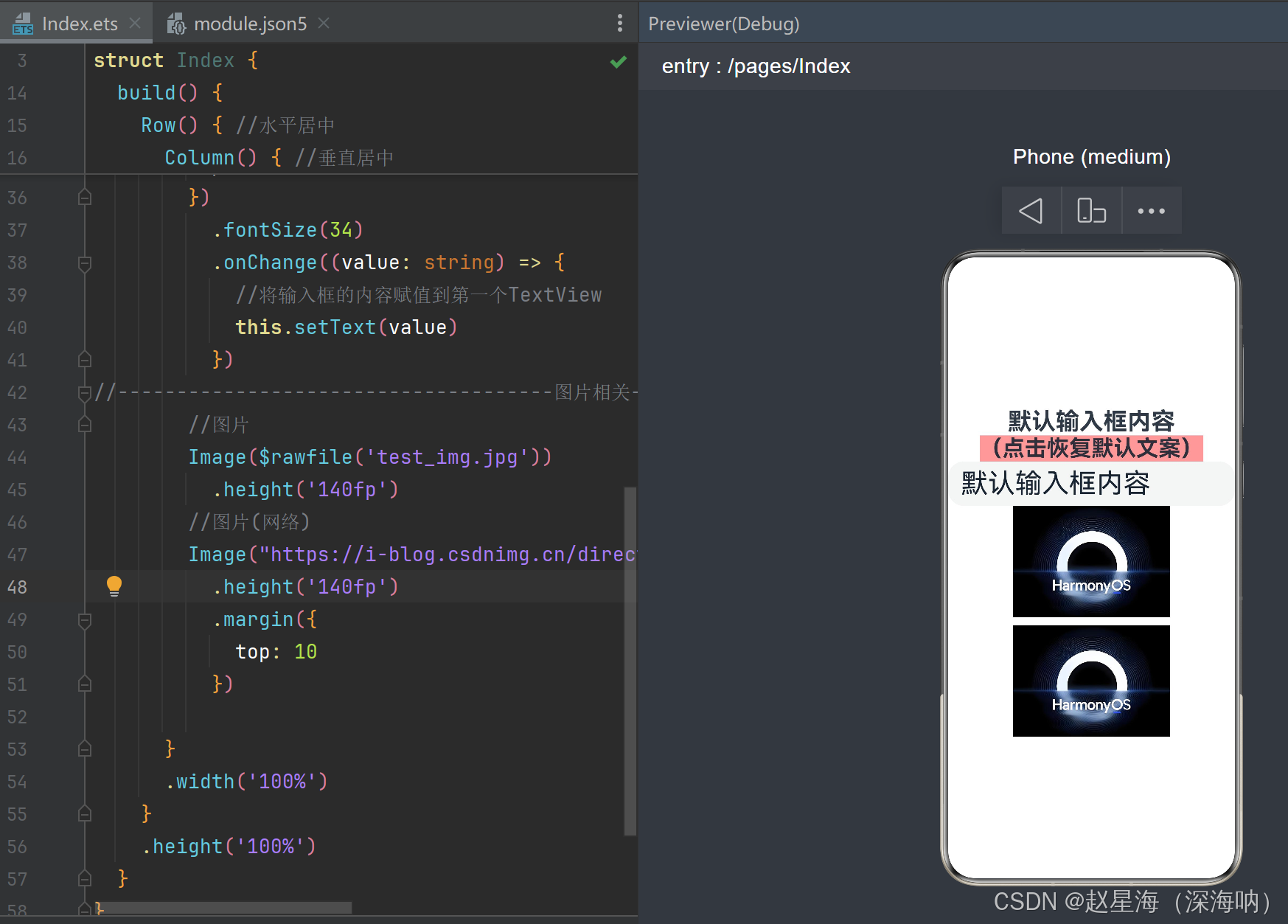
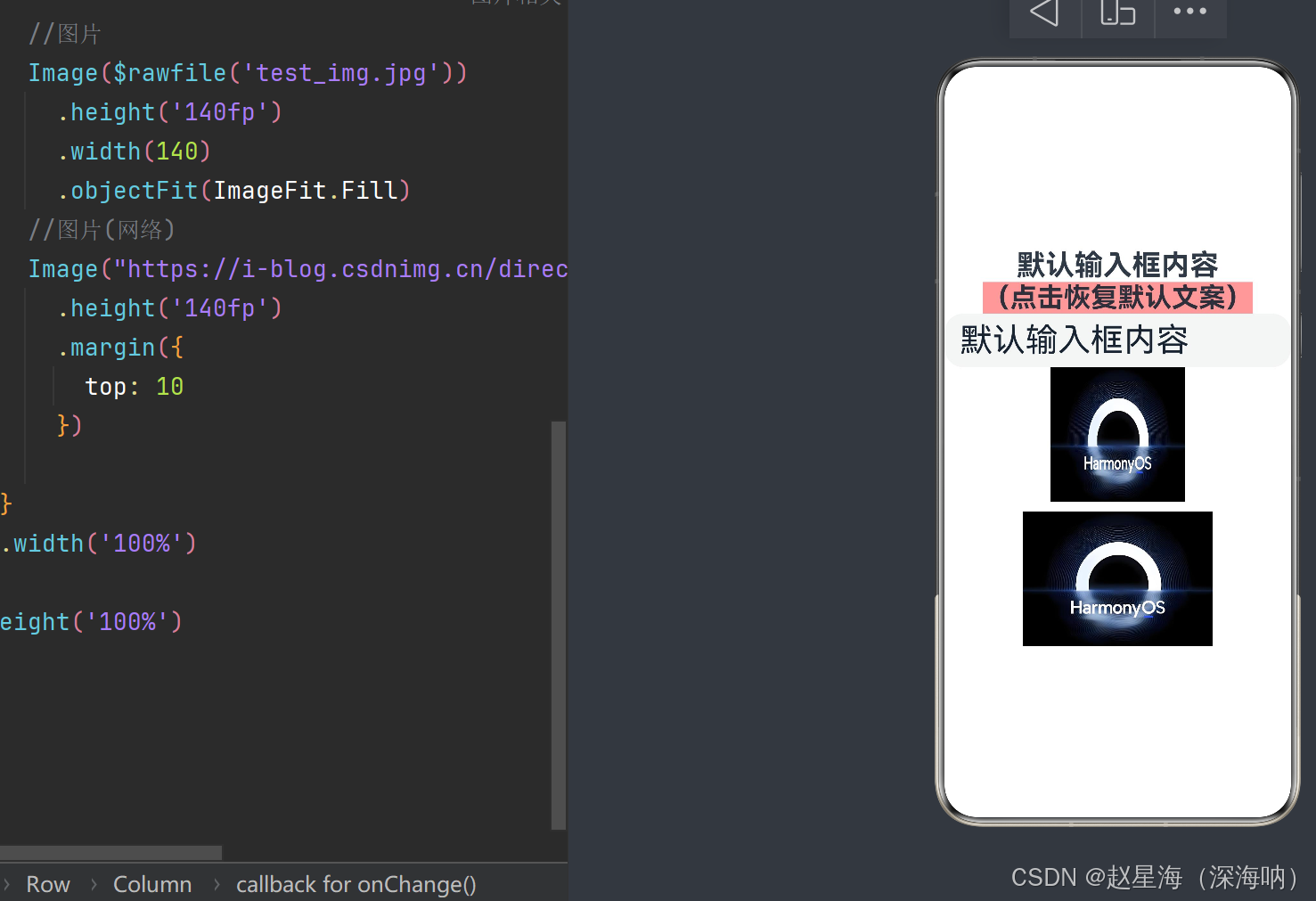
3、图片加载的模式举例:
- Contain:保持宽高比例进行缩小或者放大,使得图片完全显示在显示边界内
- Cover(默认):保持宽高比进行缩小或者方法,使得图片两边都大于或等于显示边界
- Auto:适应显示
- Fill:不保持宽高比进行放大或缩小,使图片充满显示边界
- ScaleDown:保持宽高比显示,图片保持或者保持不变
TypeScript
        Image($rawfile('test_img.jpg'))
          .height('140fp')
          .width(140)
          .objectFit(ImageFit.Fill)