鸿蒙跨平台实战:React Native 在 OpenHarmony 上的 PixelFormat 图片格式处理
一、背景:为什么关注 PixelFormat?
在传统的 React Native(iOS/Android)开发中,图片加载与渲染往往被封装在黑盒中,开发者只需关心 source 属性。然而,在 OpenHarmony 平台上,由于其独特的图形子系统(Graphic2D)和内存管理机制,图片数据从 JavaScript 层传递到原生 ArkTS/C++ 层时,必须经过严格的格式转换。
PixelFormat 定义了图像在内存中的存储方式,包括:
- 颜色通道顺序(RGBA, ARGB, RGB_565 等)
- 每个通道的位深(8bit, 10bit)
- 是否包含 Alpha 透明通道
若 RN 桥接层与 OpenHarmony 原生侧对 PixelFormat 的理解不一致,将导致:
- 图片发紫/发绿:通道顺序错乱(如 RGBA 被误读为 BGRA)。
- 透明背景变黑:Alpha 通道被忽略或错误填充。
- 内存溢出:使用了高位深格式(如 ARGB_8888)却未做内存优化。
二、RN-OH 架构中的图片流转机制
基于 React Native 新架构(Fabric),RN-OH 的图片处理流程如下:
Graphic2D (PixelMap) OpenHarmony Native (ArkTS/C++) React Common (C++) RN Bridge (JSI) JavaScript (React) Graphic2D (PixelMap) OpenHarmony Native (ArkTS/C++) React Common (C++) RN Bridge (JSI) JavaScript (React) 关键点:确定 PixelFormat 发送图片数据 (Base64/URI) 解析图片元数据 请求创建 ImageSource 解码图片 (ImageSource ->> PixelMap) 渲染 PixelMap 绘制完成 回调加载状态
在 OpenHarmony 侧,核心对象是 PixelMap 。它持有原始的像素数据缓冲区,并携带 ImageInfo 描述符,其中 pixelFormat 字段至关重要。
关键代码片段(OpenHarmony 侧伪代码)
typescript
// @ohos.multimedia.image
import image from '@ohos.multimedia.image';

async function createPixelMapFromData(data: ArrayBuffer): Promise<image.PixelMap> {
  const source = await image.createImageSource(data);

  // 获取图片信息,查看原始格式
  const info = await source.getImageInfo();
  console.info(`Original Format: ${info.pixelFormat}`);

  // 【关键步骤】指定解码格式
  // 若 RN 侧期望 RGBA_8888,但原图是 RGB_565,需在此强制转换
  const decodingOptions = {
    desiredSize: { width: info.size.width, height: info.size.height },
    pixelFormat: image.PixelFormat.RGBA_8888, // 强制统一格式
    alphaType: image.AlphaType.ALPHA_TYPE_PREMUL // 预乘 Alpha,避免黑边
  };

  const pixelMap = await source.createPixelMap(decodingOptions);
  return pixelMap;
}
三、常见痛点与解决方案
痛点 1:透明 PNG 图片背景变黑
现象 :在 iOS/Android 上正常的透明 PNG,在鸿蒙真机上背景变为黑色。
原因 :OpenHarmony 默认可能使用 BGRA_8888 且未开启预乘 Alpha(Premultiplied Alpha),而 RN 的 <Image> 组件期望的是带正确混合模式的 RGBA。
解决方案 :
在原生模块创建 PixelMap 时,显式指定 AlphaType。
typescript
// 修正后的解码选项
const options = {
  pixelFormat: image.PixelFormat.RGBA_8888,
  alphaType: image.AlphaType.ALPHA_TYPE_PREMUL, // 关键!
  editable: true
};
同时,在 RN 侧确保样式中没有意外覆盖背景色:
javascript
<Image
  source={{ uri: '...' }}
  style={{ backgroundColor: 'transparent' }} // 显式声明
/>
痛点 2:图片色彩异常(偏色)
现象 :图片整体偏蓝或偏黄。
原因:色彩空间(ColorSpace)或通道顺序不匹配。OpenHarmony 某些版本默认使用 sRGB,而部分素材可能是 Adobe RGB;或者底层 C++ 层将 RGBA 数据按 BGRA 读取。
解决方案:
-
统一色彩空间 :在解码时强制转换为 sRGB。
typescriptconst options = { pixelFormat: image.PixelFormat.RGBA_8888, colorSpace: image.ColorSpace.SRGB, // 强制 sRGB }; -
检查原生桥接层 :若是通过 Base64 或 ArrayBuffer 传递二进制数据,需确认 C++ 层
memcpy时是否发生了字节序交换。
痛点 3:内存占用过高
现象 :列表页快速滑动时 OOM(Out Of Memory)。
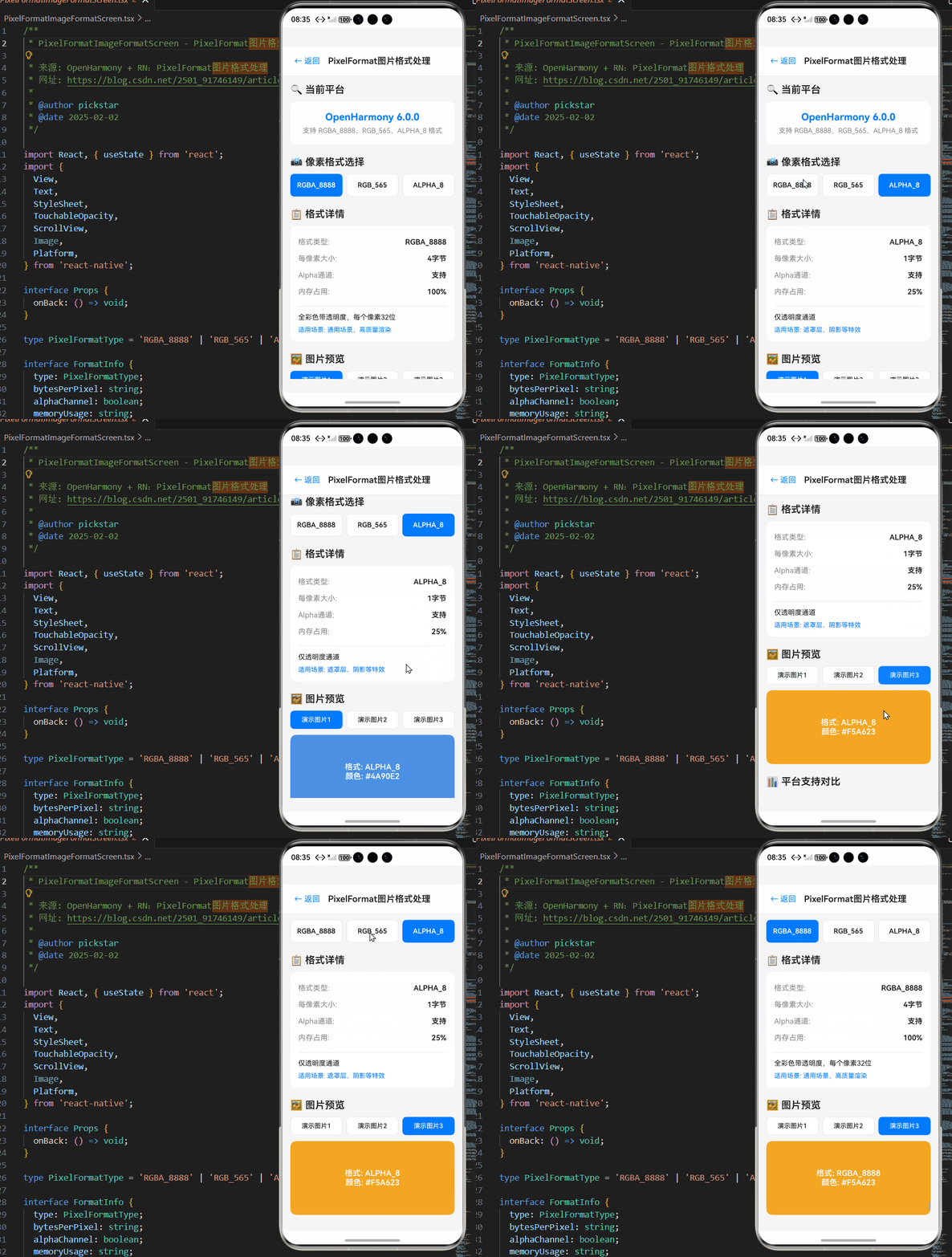
原因 :所有图片无论显示大小,均被解码为 RGBA_8888(每个像素 4 字节)。对于缩略图,这是巨大的浪费。
解决方案 :动态选择 PixelFormat。
- 大图/详情图 :使用
RGBA_8888保证质量。 - 列表缩略图 :使用
RGB_565(无透明通道,2 字节/像素)或ALPHA_8(纯蒙版)。
typescript
function getOptimalFormat(needsAlpha: boolean, isThumbnail: boolean): number {
  if (isThumbnail && !needsAlpha) {
    return image.PixelFormat.RGB_565; // 节省 50% 内存
  }
  return image.PixelFormat.RGBA_8888;
}
四、实战:自定义原生图片模块
为了更精细地控制 PixelFormat,我们可以编写一个自定义的 Native Module,暴露给 JS 调用。
1. 定义 TS 接口 (ImageUtils.ts)
typescript
// 供 JS 调用的方法
export interface ImageDecodeOptions {
  uri: string;
  format?: 'RGBA_8888' | 'RGB_565' | 'ARGB_8888';
  alphaType?: 'PREMUL' | 'UNPREMUL' | 'OPAQUE';
}

export interface DecodeResult {
  success: boolean;
  pixelMapId?: string; // 原生侧管理的 ID
  width: number;
  height: number;
  errorMsg?: string;
}

// 调用原生模块
import { nativeModule } from '@react-native-oh/base';

export async function decodeImageWithOptions(options: ImageDecodeOptions): Promise<DecodeResult> {
  return nativeModule.call('ImageModule', 'decodeWithFormat', [options]);
}
2. 原生实现思路 (ArkTS/C++)
在 ImageModule.cpp 或 .ets 中:
cpp
// 伪代码逻辑
void ImageModule::decodeWithFormat(const std::string& uri, const std::string& formatStr) {
  // 1. 解析 URI 获取数据流
  auto dataSource = GetDataFromUri(uri);

  // 2. 映射 JS 传来的格式字符串到 OH 枚举
  OH::Image::PixelFormat targetFormat = OH::Image::PixelFormat::RGBA_8888;
  if (formatStr == "RGB_565") {
    targetFormat = OH::Image::PixelFormat::RGB_565;
  }

  // 3. 创建解码选项
  OH::Image::DecodingOptions opts;
  opts.pixelFormat = targetFormat;
  opts.alphaType = OH::Image::AlphaType::ALPHA_TYPE_PREMUL;

  // 4. 执行解码
  auto pixelMap = OH::Image::ImageSource::CreatePixelMap(dataSource, opts);

  // 5. 注册到纹理管理器并返回 ID
  std::string id = TextureManager::Register(pixelMap);
  ReturnResult({ "success": true, "pixelMapId": id });
}
五、性能优化建议
- 异步解码 :图片解码是 CPU 密集型操作,务必在独立线程(TaskPool)中进行,避免阻塞 UI 线程(Main Thread)。OpenHarmony 的
image模块 API 天然是异步的,请善用Promise。 - 缓存策略 :对解码后的
PixelMap进行内存缓存。由于PixelMap占用原生内存,JS 层的 GC 无法直接回收,需在原生侧实现 LRU 缓存,并在页面卸载时主动调用release()释放内存。 - 格式降级 :在低端设备(内存 < 4GB)上,全局策略倾向于使用
RGB_565,除非明确需要透明通道。
六、总结
在 React Native 与 OpenHarmony 的融合过程中,PixelFormat 虽是一个底层细节,却是决定用户体验的"最后一公里"。通过理解 OpenHarmony 的 PixelMap 机制,合理配置解码选项(PixelFormat, AlphaType, ColorSpace),并结合业务场景动态调整策略,我们可以有效解决偏色、黑底、OOM 等顽疾。
未来,随着 RN-OH 社区的完善,期待官方能提供更透明的图片配置 API,让开发者无需深入原生即可掌控像素级的渲染效果。但在当下,掌握这些实战技巧,将是每一位鸿蒙跨平台开发者的必备技能。
参考资料:
- OpenHarmony 官方文档:multimedia.image 模块
- React Native for OpenHarmony 源码仓库
- 《移动图形学基础:像素格式与内存布局》
(本文基于 OpenHarmony 4.1+ 及 React Native 0.72+ 环境验证)
欢迎加入开源鸿蒙跨平台社区:https://openharmonycrossplatform.csdn.net