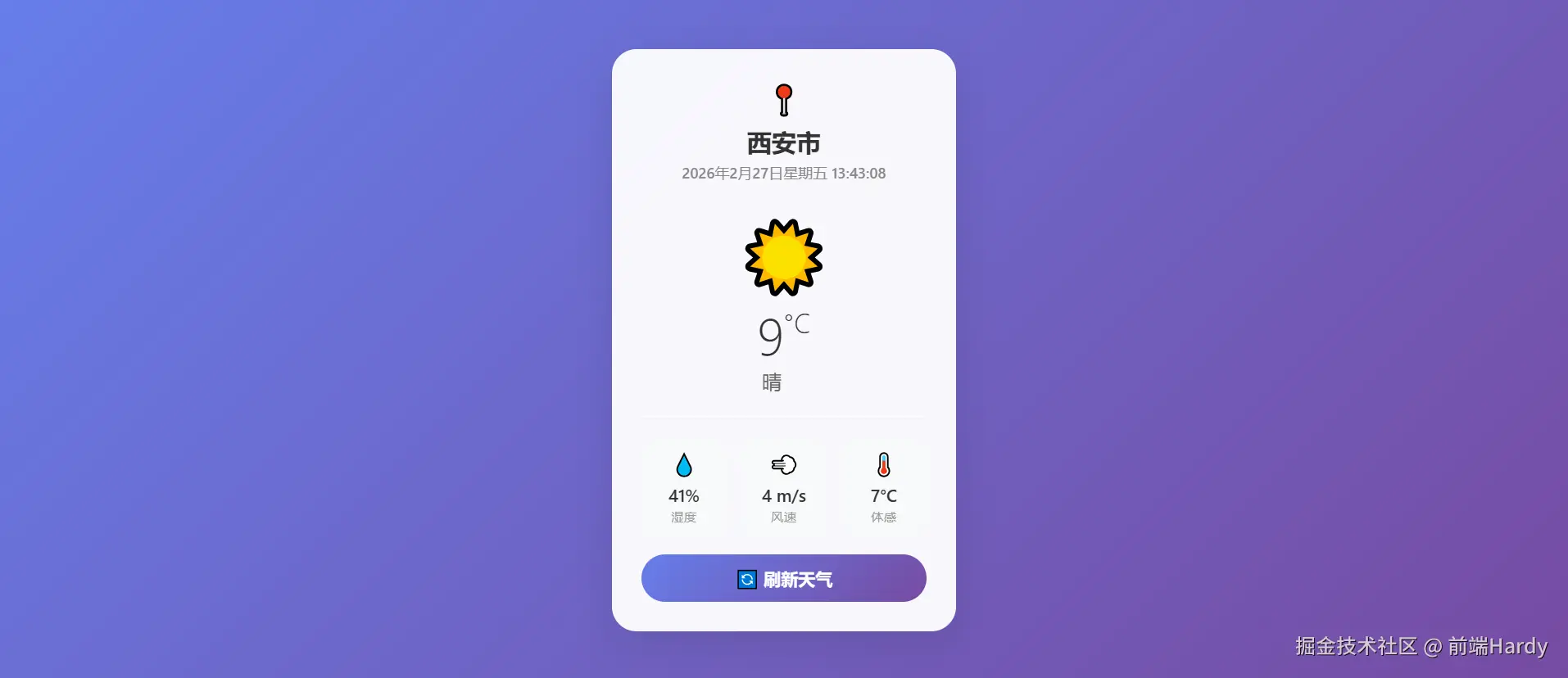
这个 HTML 页面实现了一个基于用户地理位置的实时天气信息卡片 ,界面美观、交互流畅。页面加载自动定位→请求天气数据→渲染卡片,支持手动刷新,全流程有加载 / 错误状态提示,动效过渡自然。赶快收藏学习吧。
大家复制代码时,可能会因格式转换出现错乱,导致样式失效。建议先少量复制代码进行测试,若未能解决问题,私信回复源码两字,我会发送完整的压缩包给你。
演示效果
HTML&CSS
html
<!DOCTYPE html>
<html lang="zh-CN">
<head>
    <meta charset="UTF-8">
    <meta name="viewport" content="width=device-width, initial-scale=1.0">
    <title>实时天气卡片</title>
    <style>
        * {
            margin: 0;
            padding: 0;
            box-sizing: border-box;
        }

        body {
            min-height: 100vh;
            display: flex;
            justify-content: center;
            align-items: center;
            background: linear-gradient(135deg, #667eea 0%, #764ba2 100%);
            font-family: 'Segoe UI', Tahoma, Geneva, Verdana, sans-serif;
            padding: 20px;
        }

        .weather-card {
            background: rgba(255, 255, 255, 0.95);
            border-radius: 20px;
            box-shadow: 0 8px 32px rgba(0, 0, 0, 0.1);
            padding: 24px;
            max-width: 280px;
            width: 100%;
            backdrop-filter: blur(10px);
            transition: transform 0.3s ease, box-shadow 0.3s ease;
        }

        .weather-card:hover {
            transform: translateY(-3px);
            box-shadow: 0 12px 40px rgba(0, 0, 0, 0.15);
        }

        .location {
            text-align: center;
            margin-bottom: 16px;
        }

        .location-icon {
            font-size: 24px;
            margin-bottom: 6px;
        }

        .city-name {
            font-size: 20px;
            font-weight: 700;
            color: #333;
            margin-bottom: 4px;
        }

        .current-time {
            font-size: 12px;
            color: #888;
            font-weight: 500;
        }

        .weather-main {
            text-align: center;
            margin: 20px 0;
        }

        .weather-icon {
            font-size: 56px;
            margin-bottom: 8px;
        }

        .temperature {
            font-size: 42px;
            font-weight: 300;
            color: #333;
            line-height: 1;
        }

        .temperature span {
            font-size: 22px;
            vertical-align: top;
        }

        .weather-description {
            font-size: 16px;
            color: #666;
            margin-top: 6px;
            text-transform: capitalize;
            margin-right: 20px;
        }

        .weather-details {
            display: grid;
            grid-template-columns: repeat(3, 1fr);
            gap: 12px;
            margin-top: 20px;
            padding-top: 16px;
            border-top: 1px solid #f0f0f0;
        }

        .detail-item {
            text-align: center;
            padding: 8px 6px;
            background: #f8f9fa;
            border-radius: 10px;
            transition: background 0.3s ease;
        }

        .detail-item:hover {
            background: #e9ecef;
        }

        .detail-icon {
            font-size: 18px;
            margin-bottom: 4px;
        }

        .detail-value {
            font-size: 14px;
            font-weight: 600;
            color: #333;
            margin-bottom: 2px;
        }

        .detail-label {
            font-size: 10px;
            color: #999;
            text-transform: uppercase;
            letter-spacing: 0.5px;
        }

        .loading {
            text-align: center;
            color: #666;
            font-size: 14px;
        }

        .error {
            background: #fee;
            color: #c33;
            padding: 12px;
            border-radius: 10px;
            text-align: center;
            margin-top: 16px;
            font-size: 14px;
        }

        .refresh-btn {
            background: linear-gradient(135deg, #667eea 0%, #764ba2 100%);
            color: white;
            border: none;
            padding: 10px 24px;
            border-radius: 20px;
            font-size: 14px;
            font-weight: 600;
            cursor: pointer;
            margin-top: 16px;
            width: 100%;
            transition: transform 0.2s ease, box-shadow 0.2s ease;
        }

        .refresh-btn:hover {
            transform: scale(1.02);
            box-shadow: 0 5px 20px rgba(102, 126, 234, 0.4);
        }

        .refresh-btn:active {
            transform: scale(0.98);
        }
    </style>
</head>
<body>
    <div class="weather-card" id="weatherCard">
        <div class="location">
            <div class="location-icon">📍</div>
            <div class="city-name" id="cityName">获取位置中...</div>
            <div class="current-time" id="currentTime">--:--:--</div>
        </div>

        <div id="weatherContent">
            <div class="loading">正在获取天气信息...</div>
        </div>
    </div>

    <script>
        // 天气图标映射
        const weatherIcons = {
            '01d': '☀️', '01n': '🌙',
            '02d': '⛅', '02n': '☁️',
            '03d': '☁️', '03n': '☁️',
            '04d': '☁️', '04n': '☁️',
            '09d': '🌧️', '09n': '🌧️',
            '10d': '🌦️', '10n': '🌧️',
            '11d': '⛈️', '11n': '⛈️',
            '13d': '❄️', '13n': '❄️',
            '50d': '🌫️', '50n': '🌫️'
        };

        // 更新时间
        function updateTime() {
            const now = new Date();
            const options = {
                year: 'numeric',
                month: 'long',
                day: 'numeric',
                weekday: 'long',
                hour: '2-digit',
                minute: '2-digit',
                second: '2-digit',
                hour12: false
            };
            document.getElementById('currentTime').textContent = now.toLocaleDateString('zh-CN', options);
        }

        // 通过经纬度获取中文城市名称
        async function getChineseCityName(latitude, longitude) {
            try {
                // 使用免费的反向地理编码 API
                const response = await fetch(
                    `https://api.bigdatacloud.net/data/reverse-geocode-client?latitude=${latitude}&longitude=${longitude}&localityLanguage=zh`
                );
                const data = await response.json();

                // 优先使用市级名称,如果没有则使用区级名称
                if (data.city) {
                    return data.city;
                } else if (data.locality) {
                    return data.locality;
                } else if (data.principalSubdivision) {
                    return data.principalSubdivision;
                }
                return null;
            } catch (error) {
                console.error('获取中文城市名称失败:', error);
                return null;
            }
        }

        // 获取位置和天气
        async function getWeather() {
            const weatherContent = document.getElementById('weatherContent');
            const cityName = document.getElementById('cityName');

            if (!navigator.geolocation) {
                weatherContent.innerHTML = '<div class="error">您的浏览器不支持地理位置定位</div>';
                return;
            }

            try {
                // 获取地理位置
                const position = await new Promise((resolve, reject) => {
                    navigator.geolocation.getCurrentPosition(resolve, reject, {
                        enableHighAccuracy: true,
                        timeout: 10000,
                        maximumAge: 0
                    });
                });

                const { latitude, longitude } = position.coords;

                // 获取中文城市名称
                const chineseCity = await getChineseCityName(latitude, longitude);
                if (chineseCity) {
                    cityName.textContent = chineseCity;
                } else {
                    cityName.textContent = '获取位置中...';
                }

                // 调用 OpenWeatherMap API(使用免费的 API key,实际使用时需要替换)
                const apiKey = '4d8fb5b93d4af21d66a2948710284366'; // 这是一个公开的 demo key
                const response = await fetch(
                    `https://api.openweathermap.org/data/2.5/weather?lat=${latitude}&lon=${longitude}&appid=${apiKey}&units=metric&lang=zh_cn`
                );

                if (!response.ok) {
                    throw new Error('获取天气信息失败');
                }

                const data = await response.json();

                // 显示天气信息(传入中文城市名称)
                displayWeather(data, chineseCity);

            } catch (error) {
                console.error('Error:', error);
                weatherContent.innerHTML = `
                    <div class="error">
                        ${error.message || '无法获取天气信息,请检查网络连接'}
                    </div>
                    <button class="refresh-btn" onclick="getWeather()">重试</button>
                `;
            }
        }

        // 显示天气信息
        function displayWeather(data, chineseCityName) {
            const weatherContent = document.getElementById('weatherContent');
            const cityName = document.getElementById('cityName');

            // 更新城市名称(优先使用中文城市名称)
            if (chineseCityName) {
                cityName.textContent = chineseCityName;
            } else if (data.name) {
                cityName.textContent = data.name;
            } else {
                cityName.textContent = '当前位置';
            }

            const iconCode = data.weather[0].icon;
            const icon = weatherIcons[iconCode] || '🌤️';

            weatherContent.innerHTML = `
                <div class="weather-main">
                    <div class="weather-icon">${icon}</div>
                    <div class="temperature">
                        ${Math.round(data.main.temp)}<span>°C</span>
                    </div>
                    <div class="weather-description">
                        ${data.weather[0].description || '未知天气'}
                    </div>
                </div>

                <div class="weather-details">
                    <div class="detail-item">
                        <div class="detail-icon">💧</div>
                        <div class="detail-value">${data.main.humidity}%</div>
                        <div class="detail-label">湿度</div>
                    </div>
                    <div class="detail-item">
                        <div class="detail-icon">💨</div>
                        <div class="detail-value">${Math.round(data.wind.speed)} m/s</div>
                        <div class="detail-label">风速</div>
                    </div>
                    <div class="detail-item">
                        <div class="detail-icon">🌡️</div>
                        <div class="detail-value">${Math.round(data.main.feels_like)}°C</div>
                        <div class="detail-label">体感</div>
                    </div>
                </div>

                <button class="refresh-btn" onclick="getWeather()">🔄 刷新天气</button>
            `;
        }

        // 初始化
        document.addEventListener('DOMContentLoaded', () => {
            updateTime();
            setInterval(updateTime, 1000); // 每秒更新时间
            getWeather(); // 获取天气
        });
    </script>
</body>
</html>
HTML
- div weather-card weatherCard:容器标签。天气卡片核心容器。毛玻璃效果 + 圆角 + 阴影,hover 时有上浮动效
- div location:容器标签。位置 / 时间展示区。包含定位图标、城市名称、当前时间
- div weatherContent:容器标签。天气内容动态展示区 初始显示「加载中」,后续通过 JS 替换为天气数据
- div loading:容器标签。加载状态提示 初始显示「正在获取天气信息...」
- div error:容器标签。错误提示容器 定位 / 接口失败时显示错误信息
- button refresh-btn:按钮标签。刷新天气按钮。点击触发重新获取天气数据,有 hover/active 动效
- script:脚本标签。内嵌 JavaScript。实现定位、接口请求、数据渲染、时间更新等动态逻辑
CSS
1. 全局重置与基础布局
css
* {
  margin: 0;
  padding: 0;
  box-sizing: border-box; /* 统一盒模型,避免 padding 撑大元素 */
}
body {
  min-height: 100vh; /* 占满屏幕高度 */
  display: flex;
  justify-content: center;
  align-items: center; /* 卡片垂直水平居中 */
  background: linear-gradient(135deg, #667eea 0%, #764ba2 100%); /* 渐变背景 */
  font-family: 'Segoe UI', sans-serif; /* 现代无衬线字体 */
  padding: 20px; /* 移动端留白,避免卡片贴边 */
}核心:全局重置默认边距,弹性布局实现卡片居中,渐变背景提升视觉质感。
2. 天气卡片核心样式
css
.weather-card {
  background: rgba(255, 255, 255, 0.95); /* 半透明白色 */
  border-radius: 20px; /* 大圆角提升现代感 */
  box-shadow: 0 8px 32px rgba(0, 0, 0, 0.1); /* 柔和阴影 */
  padding: 24px;
  max-width: 280px; /* 固定最大宽度,适配移动端 */
  width: 100%;
  backdrop-filter: blur(10px); /* 毛玻璃核心效果 */
  transition: transform 0.3s ease, box-shadow 0.3s ease; /* 过渡动效 */
}
.weather-card:hover {
  transform: translateY(-3px); /* 鼠标悬浮上浮 */
  box-shadow: 0 12px 40px rgba(0, 0, 0, 0.15); /* 阴影放大 */
}核心:backdrop-filter: blur(10px) 实现毛玻璃效果,hover 上浮 + 阴影增强交互反馈,固定最大宽度适配移动端。
3. 天气数据布局样式
css
/* 天气主信息区(温度/图标/描述) */
.weather-main {
  text-align: center;
  margin: 20px 0;
}
.temperature {
  font-size: 42px;
  font-weight: 300; /* 轻量级字体,更现代 */
  line-height: 1; /* 消除行高冗余 */
}
.temperature span {
  font-size: 22px;
  vertical-align: top; /* 摄氏度符号上对齐 */
}

/* 天气详情网格(湿度/风速/体感) */
.weather-details {
  display: grid;
  grid-template-columns: repeat(3, 1fr); /* 三等分网格 */
  gap: 12px;
  border-top: 1px solid #f0f0f0; /* 分隔线 */
  padding-top: 16px;
}
.detail-item {
  text-align: center;
  background: #f8f9fa; /* 浅灰背景 */
  border-radius: 10px;
  padding: 8px 6px;
  transition: background 0.3s ease;
}
.detail-item:hover {
  background: #e9ecef; /* hover 加深背景 */
}核心:网格布局实现「湿度 / 风速 / 体感」三等分展示,轻量级字体 + 对齐优化提升温度显示的视觉层次,细节项 hover 背景变化增强交互。
4. 按钮与状态样式
css
/* 刷新按钮 */
.refresh-btn {
  background: linear-gradient(135deg, #667eea 0%, #764ba2 100%); /* 与页面背景呼应 */
  color: white;
  border: none;
  padding: 10px 24px;
  border-radius: 20px; /* 胶囊按钮 */
  width: 100%; /* 全屏宽按钮,适配移动端点击 */
  transition: transform 0.2s ease, box-shadow 0.2s ease;
}
.refresh-btn:hover {
  transform: scale(1.02); /* 轻微放大 */
  box-shadow: 0 5px 20px rgba(102, 126, 234, 0.4); /* 发光阴影 */
}
.refresh-btn:active {
  transform: scale(0.98); /* 点击下压 */
}

/* 加载/错误状态 */
.loading {
  text-align: center;
  color: #666;
}
.error {
  background: #fee; /* 浅红背景 */
  color: #c33; /* 深红文字 */
  padding: 12px;
  border-radius: 10px;
  text-align: center;
}核心:按钮渐变背景与页面呼应,hover 放大 + 发光阴影,active 下压模拟物理按钮反馈;错误状态用红系配色提示,加载状态居中显示,视觉层级清晰。
各位互联网搭子,要是这篇文章成功引起了你的注意,别犹豫,关注、点赞、评论、分享走一波,让我们把这份默契延续下去,一起在知识的海洋里乘风破浪!