文章目录
-
- [一、onSizeChange 核心概念](#一、onSizeChange 核心概念)
-
- [1.1 onSizeChange 与 onAreaChange 的关系](#1.1 onSizeChange 与 onAreaChange 的关系)
- [1.2 SizeOptions 接口字段](#1.2 SizeOptions 接口字段)
- [1.3 接口签名](#1.3 接口签名)
- 二、触发时机与使用限制
-
- [2.1 触发时机](#2.1 触发时机)
- 三、基础用法示例
-
- [3.1 最简监听写法(官方示例同款)](#3.1 最简监听写法(官方示例同款))
- [3.2 安全读取 SizeOptions 字段](#3.2 安全读取 SizeOptions 字段)
- [3.3 onSizeChange 与 onAreaChange 同时挂载](#3.3 onSizeChange 与 onAreaChange 同时挂载)
- 四、可运行完整示例:双事件并列对比面板
- 五、代码结构详解
-
- [5.1 State 状态分区设计](#5.1 State 状态分区设计)
- [5.2 onSizeChange 回调逻辑要点](#5.2 onSizeChange 回调逻辑要点)
- [5.3 双 Builder 复用](#5.3 双 Builder 复用)
- 总结
一、onSizeChange 核心概念
1.1 onSizeChange 与 onAreaChange 的关系
onSizeChange 是 onAreaChange 的轻量子集,两者均可监听组件宽高变化,但侧重不同:
onAreaChange 监听范围:
┌──────────────────────────────────────────┐
│  宽高变化(width / height)               │
│  相对父容器坐标变化(position.x / .y)     │
│  相对屏幕坐标变化(globalPosition.x / .y) │
└──────────────────────────────────────────┘

onSizeChange 监听范围:
┌──────────────────────────────────────────┐
│  宽高变化(width / height)  ← 仅此两项   │
└──────────────────────────────────────────┘| 对比项 | onAreaChange |
onSizeChange |
|---|---|---|
| API 版本 | 8+ | 12+ |
| 回调参数 | Area(宽高 + position + globalPosition) |
SizeOptions(仅 width / height) |
| 触发条件 | 尺寸或位置任意变化 | 仅尺寸(宽高)变化时触发 |
| 参数类型 | Length(`string |
number` 联合类型) |
| 典型用途 | 浮层定位、坐标计算、全量感知 | 纯尺寸响应式布局、轻量监听 |
1.2 SizeOptions 接口字段
typescript
// SizeOptions 接口定义
interface SizeOptions {
  width?: number | string   // 组件当前布局宽度(vp)
  height?: number | string  // 组件当前布局高度(vp)
}| 字段 | 类型 | 单位 | 说明 |
|---|---|---|---|
width |
`number | string` | vp |
height |
`number | string` | vp |
1.3 接口签名
typescript
// API 12+,适用于所有通用组件
onSizeChange(event: SizeChangeCallback): T

// SizeChangeCallback 类型定义
type SizeChangeCallback = (oldValue: SizeOptions, newValue: SizeOptions) => void| 参数 | 类型 | 说明 |
|---|---|---|
oldValue |
SizeOptions |
尺寸变化前的宽高信息 |
newValue |
SizeOptions |
尺寸变化后的宽高信息(当前最新值) |
| 返回值 | 组件实例 T |
支持链式调用 |
二、触发时机与使用限制
2.1 触发时机
组件首次挂载渲染完成
        ↓
onSizeChange 首次触发(oldValue 通常为 { width: 0, height: 0 })

        ......用户交互 / 布局变化......

组件 width 或 height 发生实际变化
        ↓
onSizeChange 再次触发(oldValue = 上次 newValue)

(注意:仅位置变化、不涉及宽高时不触发)
会触发 onSizeChange 的场景:
- 组件首次渲染完成 (初始化触发一次,
oldValue为{ width: 0, height: 0 }) Text/Image等组件内容变化导致宽高改变- 父容器尺寸变化,引起子组件宽高联动变化
- 屏幕旋转 或窗口大小调整
- 条件渲染切换后组件重新挂载
不会触发 onSizeChange 的场景(与 onAreaChange 的关键区别):
- 组件仅发生位置移动 (
position.x/y变化),宽高不变时不触发
三、基础用法示例
3.1 最简监听写法(官方示例同款)
与官方示例保持一致的最简写法,点击 Text 追加内容触发宽高变化:
typescript
@Entry
@Component
struct AreaExample {
  @State value: string = 'Text'
  @State sizeValue: string = ''

  build() {
    Column() {
      Text(this.value)
        .backgroundColor(Color.Green)
        .margin(30)
        .fontSize(20)
        .onClick(() => {
          this.value += 'Text'
        })
        .onSizeChange((oldValue: SizeOptions, newValue: SizeOptions) => {
          console.info(
            `on size change, old=${JSON.stringify(oldValue)}, new=${JSON.stringify(newValue)}`
          )
          this.sizeValue = JSON.stringify(newValue)
        })
      Text('new area is:\n' + this.sizeValue).margin({ left: 30, right: 30 })
    }
    .width('100%').height('100%').margin({ top: 30 })
  }
}
控制台输出示例:
on size change,
  old={"width":0,"height":0}
  new={"width":56.7,"height":27.3}
首次触发时 oldValue 为
{width:0, height:0},与onAreaChange一致,表示从无尺寸到首次布局完成的变化,属于正常现象。
3.2 安全读取 SizeOptions 字段
SizeOptions 的字段为可选类型(number | string | undefined),读取时应做防护:
typescript
.onSizeChange((oldValue: SizeOptions, newValue: SizeOptions) => {
  // ✅ 正确:对 oldValue 做 undefined 防护,newValue 正常触发时一定有值
  const oldW = oldValue.width  !== undefined ? Number(oldValue.width).toFixed(1)  : '-'
  const oldH = oldValue.height !== undefined ? Number(oldValue.height).toFixed(1) : '-'
  const newW = Number(newValue.width).toFixed(1)
  const newH = Number(newValue.height).toFixed(1)

  console.info(`尺寸变化:${oldW}×${oldH} → ${newW}×${newH} vp`)
})
3.3 onSizeChange 与 onAreaChange 同时挂载
两个事件可链式叠加到同一组件,互不干扰:
typescript
Text(this.value)
  .fontSize(20)
  .padding(12)
  // onAreaChange:感知宽高 + 坐标变化(API 8+)
  .onAreaChange((oldValue: Area, newValue: Area) => {
    console.info(`[onAreaChange] 宽高或位置变化`)
    console.info(`  old: w=${Number(oldValue.width).toFixed(1)} pos=(${Number(oldValue.position?.x ?? 0).toFixed(1)}, ${Number(oldValue.position?.y ?? 0).toFixed(1)})`)
    console.info(`  new: w=${Number(newValue.width).toFixed(1)} pos=(${Number(newValue.position?.x ?? 0).toFixed(1)}, ${Number(newValue.position?.y ?? 0).toFixed(1)})`)
  })
  // onSizeChange:仅感知宽高变化(API 12+)
  .onSizeChange((oldValue: SizeOptions, newValue: SizeOptions) => {
    console.info(`[onSizeChange] 仅宽高变化`)
    console.info(`  old: ${JSON.stringify(oldValue)}`)
    console.info(`  new: ${JSON.stringify(newValue)}`)
  })
观察规律 :两者同时挂载时,每次尺寸变化会先触发
onAreaChange,后触发onSizeChange;若仅位置移动(宽高不变),则只触发onAreaChange,onSizeChange不触发。
四、可运行完整示例:双事件并列对比面板
- 点击追加内容同时触发
onAreaChange和onSizeChange的被监听 Text 组件 - 蓝色面板 :
onAreaChange左右双栏展示变化前后的 6 个字段(宽高 + position + globalPosition) - 紫色面板 :
onSizeChange左右双栏展示变化前后的 2 个字段(仅宽高) - 三格计数统计:点击次数 /
onAreaChange触发次数 /onSizeChange触发次数 - 完整 JSON 日志同步输出到控制台
typescript
@Entry
@Component
struct AreaExample {
  @State value: string = 'Text'
  @State clickCount: number = 0
  @State changeCount: number = 0
  @State sizeChangeCount: number = 0

  // onAreaChange 旧区域信息
  @State oldWidth: string = '-'
  @State oldHeight: string = '-'
  @State oldPosX: string = '-'
  @State oldPosY: string = '-'
  @State oldGlobalX: string = '-'
  @State oldGlobalY: string = '-'

  // onAreaChange 新区域信息
  @State newWidth: string = '-'
  @State newHeight: string = '-'
  @State newPosX: string = '-'
  @State newPosY: string = '-'
  @State newGlobalX: string = '-'
  @State newGlobalY: string = '-'

  // onSizeChange 尺寸信息
  @State sizeOldW: string = '-'
  @State sizeOldH: string = '-'
  @State sizeNewW: string = '-'
  @State sizeNewH: string = '-'

  build() {
    Column({ space: 16 }) {

      // ── 标题 ──────────────────────────────────────────
      Text('onAreaChange & onSizeChange')
        .fontSize(20)
        .fontWeight(FontWeight.Bold)
        .margin({ top: 24, bottom: 4 })

      Text('点击绿色文字可追加内容,同时触发两个事件')
        .fontSize(12)
        .fontColor('#888888')

      // ── 被监听的文本组件 ──────────────────────────────
      Text(this.value)
        .backgroundColor(Color.Green)
        .fontColor(Color.White)
        .borderRadius(8)
        .padding(12)
        .fontSize(20)
        .margin(30)
        .onClick(() => {
          this.clickCount++
          this.value = this.value + 'Text'
        })
        // ── onAreaChange:同时感知尺寸 + 位置变化(API 8+)──
        .onAreaChange((oldValue: Area, newValue: Area) => {
          this.changeCount++

          // Area.width/height 类型为 Length(string|number),需先转 number
          this.oldWidth   = Number(oldValue.width).toFixed(1)
          this.oldHeight  = Number(oldValue.height).toFixed(1)
          this.oldPosX    = Number(oldValue.position?.x ?? 0).toFixed(1)
          this.oldPosY    = Number(oldValue.position?.y ?? 0).toFixed(1)
          this.oldGlobalX = Number(oldValue.globalPosition?.x ?? 0).toFixed(1)
          this.oldGlobalY = Number(oldValue.globalPosition?.y ?? 0).toFixed(1)

          this.newWidth   = Number(newValue.width).toFixed(1)
          this.newHeight  = Number(newValue.height).toFixed(1)
          this.newPosX    = Number(newValue.position?.x ?? 0).toFixed(1)
          this.newPosY    = Number(newValue.position?.y ?? 0).toFixed(1)
          this.newGlobalX = Number(newValue.globalPosition?.x ?? 0).toFixed(1)
          this.newGlobalY = Number(newValue.globalPosition?.y ?? 0).toFixed(1)

          console.info(
            `[onAreaChange #${this.changeCount}] ` +
            `old=${JSON.stringify(oldValue)} new=${JSON.stringify(newValue)}`
          )
        })
        // ── onSizeChange:仅感知宽高变化(API 12+)──────
        .onSizeChange((oldValue: SizeOptions, newValue: SizeOptions) => {
          this.sizeChangeCount++

          // SizeOptions.width/height 类型为 number,可直接调用 toFixed
          this.sizeOldW = oldValue.width !== undefined ? Number(oldValue.width).toFixed(1) : '-'
          this.sizeOldH = oldValue.height !== undefined ? Number(oldValue.height).toFixed(1) : '-'
          this.sizeNewW = Number(newValue.width).toFixed(1)
          this.sizeNewH = Number(newValue.height).toFixed(1)

          console.info(
            `[onSizeChange #${this.sizeChangeCount}] ` +
            `old=${JSON.stringify(oldValue)} new=${JSON.stringify(newValue)}`
          )
        })

      // ── 计数统计行 ─────────────────────────────────────
      Row({ space: 24 }) {
        this.CountItem('点击', this.clickCount, '#555555')
        this.CountItem('onAreaChange', this.changeCount, '#2980b9')
        this.CountItem('onSizeChange', this.sizeChangeCount, '#8e44ad')
      }
      .justifyContent(FlexAlign.Center)

      // ── onAreaChange 对比面板 ──────────────────────────
      Column({ space: 6 }) {
        Text('onAreaChange  (宽高 + position + globalPosition)')
          .fontSize(13).fontWeight(FontWeight.Bold).fontColor('#2980b9')
        Row({ space: 10 }) {
          // 旧区域
          Column({ space: 5 }) {
            Text('变化前 oldValue').fontSize(12).fontWeight(FontWeight.Bold).fontColor('#e74c3c')
            this.AreaInfoItem('width',         this.oldWidth,   'vp')
            this.AreaInfoItem('height',        this.oldHeight,  'vp')
            this.AreaInfoItem('position.x',    this.oldPosX,    'vp')
            this.AreaInfoItem('position.y',    this.oldPosY,    'vp')
            this.AreaInfoItem('globalPos.x',   this.oldGlobalX, 'vp')
            this.AreaInfoItem('globalPos.y',   this.oldGlobalY, 'vp')
          }
          .layoutWeight(1).padding(10).backgroundColor('#fff5f5').borderRadius(8)

          // 新区域
          Column({ space: 5 }) {
            Text('变化后 newValue').fontSize(12).fontWeight(FontWeight.Bold).fontColor('#27ae60')
            this.AreaInfoItem('width',         this.newWidth,   'vp')
            this.AreaInfoItem('height',        this.newHeight,  'vp')
            this.AreaInfoItem('position.x',    this.newPosX,    'vp')
            this.AreaInfoItem('position.y',    this.newPosY,    'vp')
            this.AreaInfoItem('globalPos.x',   this.newGlobalX, 'vp')
            this.AreaInfoItem('globalPos.y',   this.newGlobalY, 'vp')
          }
          .layoutWeight(1).padding(10).backgroundColor('#f0fff4').borderRadius(8)
        }
      }
      .width('100%').padding({ left: 16, right: 16 })

      // ── onSizeChange 对比面板 ──────────────────────────
      Column({ space: 6 }) {
        Text('onSizeChange  (仅宽高,API 12+)')
          .fontSize(13).fontWeight(FontWeight.Bold).fontColor('#8e44ad')
        Row({ space: 10 }) {
          Column({ space: 5 }) {
            Text('变化前 oldValue').fontSize(12).fontWeight(FontWeight.Bold).fontColor('#e74c3c')
            this.AreaInfoItem('width',  this.sizeOldW, 'vp')
            this.AreaInfoItem('height', this.sizeOldH, 'vp')
          }
          .layoutWeight(1).padding(10).backgroundColor('#fdf2f8').borderRadius(8)

          Column({ space: 5 }) {
            Text('变化后 newValue').fontSize(12).fontWeight(FontWeight.Bold).fontColor('#27ae60')
            this.AreaInfoItem('width',  this.sizeNewW, 'vp')
            this.AreaInfoItem('height', this.sizeNewH, 'vp')
          }
          .layoutWeight(1).padding(10).backgroundColor('#f5eef8').borderRadius(8)
        }
      }
      .width('100%').padding({ left: 16, right: 16 })

      // ── 使用说明 ───────────────────────────────────────
      Column({ space: 5 }) {
        Text('使用说明').fontSize(13).fontWeight(FontWeight.Bold)
        Text('• onAreaChange:宽高 + 位置同时变化时触发(API 8+)')
          .fontSize(12).fontColor('#555555')
        Text('• onSizeChange:仅宽高变化时触发,不含坐标(API 12+)')
          .fontSize(12).fontColor('#555555')
        Text('• position 为相对父容器坐标,globalPosition 为相对屏幕坐标')
          .fontSize(12).fontColor('#555555')
        Text('• 控制台可查看完整 JSON 日志')
          .fontSize(12).fontColor('#555555')
      }
      .alignItems(HorizontalAlign.Start)
      .width('100%')
      .padding({ left: 16, right: 16, top: 8, bottom: 8 })
      .backgroundColor('#f8f8f8')
      .borderRadius(8)
      .margin({ left: 16, right: 16, bottom: 16 })

    }
    .width('100%')
    .height('100%')
    .margin({ top: 8 })
  }

  // ── 计数卡片构建器 ─────────────────────────────────────
  @Builder
  CountItem(label: string, count: number, color: string) {
    Column({ space: 2 }) {
      Text(`${count}`).fontSize(20).fontWeight(FontWeight.Bold).fontColor(color)
      Text(label).fontSize(10).fontColor('#999999')
    }
  }

  // ── 信息行构建器 ───────────────────────────────────────
  @Builder
  AreaInfoItem(label: string, value: string, unit: string) {
    Row() {
      Text(label).fontSize(11).fontColor('#666666').layoutWeight(1)
      Text(`${value} ${unit}`).fontSize(11).fontWeight(FontWeight.Medium)
    }
  }
}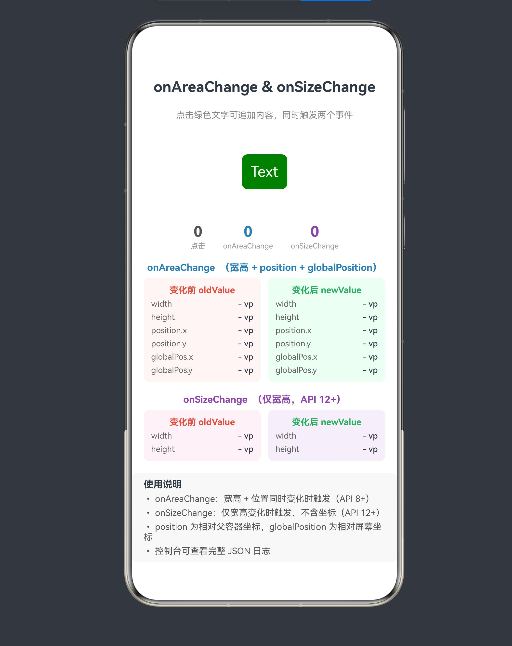
图:运行效果示意------点击绿色文字追加内容,蓝色面板显示 onAreaChange 的 6 个字段,紫色面板显示 onSizeChange 的 2 个字段,顶部三格计数器实时对比两个事件的触发次数
五、代码结构详解
5.1 State 状态分区设计
示例将 onAreaChange 与 onSizeChange 的状态完全分区,互不干扰:
typescript
// onAreaChange 专用状态(12 个字段:oldValue/newValue 各 6 个)
@State oldWidth: string = '-'    // 变化前宽度
@State oldGlobalX: string = '-'  // 变化前全局 X 坐标
// ...共 12 个

// onSizeChange 专用状态(4 个字段:oldValue/newValue 各 2 个)
@State sizeOldW: string = '-'    // 变化前宽度
@State sizeOldH: string = '-'    // 变化前高度
@State sizeNewW: string = '-'    // 变化后宽度
@State sizeNewH: string = '-'    // 变化后高度
5.2 onSizeChange 回调逻辑要点
typescript
.onSizeChange((oldValue: SizeOptions, newValue: SizeOptions) => {
  this.sizeChangeCount++

  // 关键 1:oldValue 字段为可选类型(undefined 防护)
  // 首次触发时 oldValue = { width: 0, height: 0 },通常有值但需防御
  this.sizeOldW = oldValue.width !== undefined
    ? Number(oldValue.width).toFixed(1)
    : '-'

  // 关键 2:newValue 在正常触发时一定有值,可直接转换
  this.sizeNewW = Number(newValue.width).toFixed(1)
  this.sizeNewH = Number(newValue.height).toFixed(1)

  // 关键 3:完整 JSON 日志,便于与 onAreaChange 日志对照
  console.info(
    `[onSizeChange #${this.sizeChangeCount}] ` +
    `old=${JSON.stringify(oldValue)} new=${JSON.stringify(newValue)}`
  )
})
5.3 双 Builder 复用
typescript
// CountItem:三格计数统计,接收 label/count/color 参数,统一渲染
@Builder
CountItem(label: string, count: number, color: string) {
  Column({ space: 2 }) {
    Text(`${count}`).fontSize(20).fontWeight(FontWeight.Bold).fontColor(color)
    Text(label).fontSize(10).fontColor('#999999')
  }
}

// AreaInfoItem:单行信息项,复用于 onAreaChange(6行×2列)和 onSizeChange(2行×2列)
@Builder
AreaInfoItem(label: string, value: string, unit: string) {
  Row() {
    Text(label).fontSize(11).fontColor('#666666').layoutWeight(1)
    Text(`${value} ${unit}`).fontSize(11).fontWeight(FontWeight.Medium)
  }
}
总结
本文系统讲解了 HarmonyOS ArkUI 组件尺寸变化事件 的完整知识体系,核心要点回顾:
onSizeChange是onAreaChange的轻量子集 :只关注宽高变化,不含坐标信息,API 12+ 支持;选型原则是"只需宽高用onSizeChange,还需坐标用onAreaChange"- 双快照回调 :
oldValue(变化前)和newValue(变化后)同时提供,无需手动缓存上次宽高值,可直接计算变化增量 oldValue字段为可选类型 :处理oldValue.width/height时需做undefined防护(?? 0或!== undefined判断),newValue在正常触发时一定有值- 同步触发,注意动画闭包 :
onSizeChange在布局流程中同步调用,动画场景下建议用setTimeout(..., 0)延迟处理,避免状态被动画闭包捕获 - 触发次数永远 ≤ onAreaChange :仅位置移动(宽高不变)时只触发
onAreaChange,onSizeChange不触发------这是两者的核心区别
如果这篇文章对你有帮助,欢迎点赞👍、收藏⭐、关注🔔,你的支持是我持续创作的动力!