文章目录
- [一、运行 iOS 程序到真机](#一、运行 iOS 程序到真机)
- [二、配置 WebDriverAgent](#二、配置 WebDriverAgent)
- 三、运行自动化脚本
一、运行 iOS 程序到真机
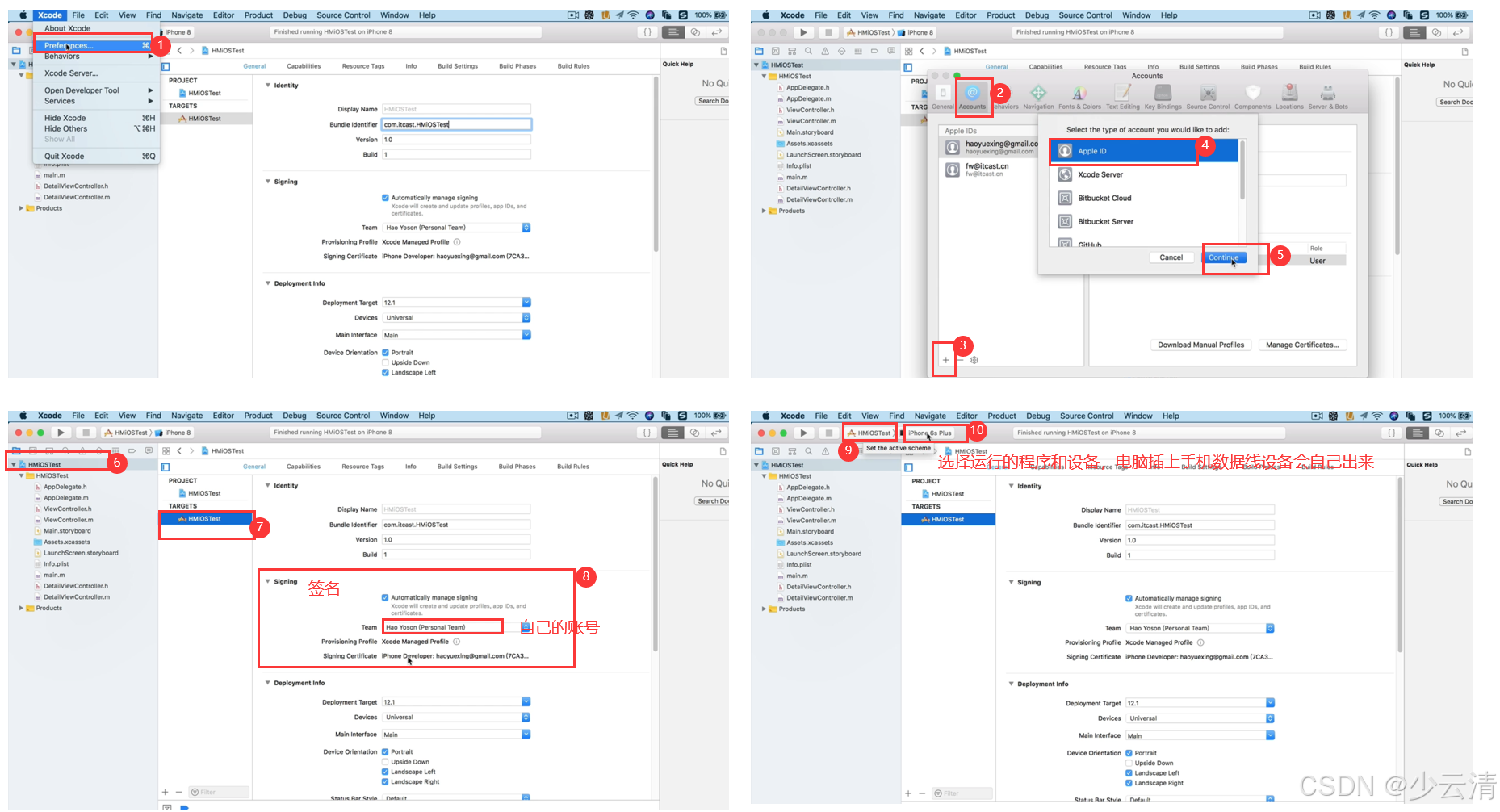
1、在 Xcode 中登录自己的 Apple ID。
2、配置开发者信息。
3、选择将要运行的 程序 和 设备。
4、快捷键 command + r 运行。(在Xcode界面运行)
5、在手机中进入 设置 - 通用 - 设备管理 - 自己Apple ID - 信任程序。
6、重新 command + r 运行。
二、配置 WebDriverAgent
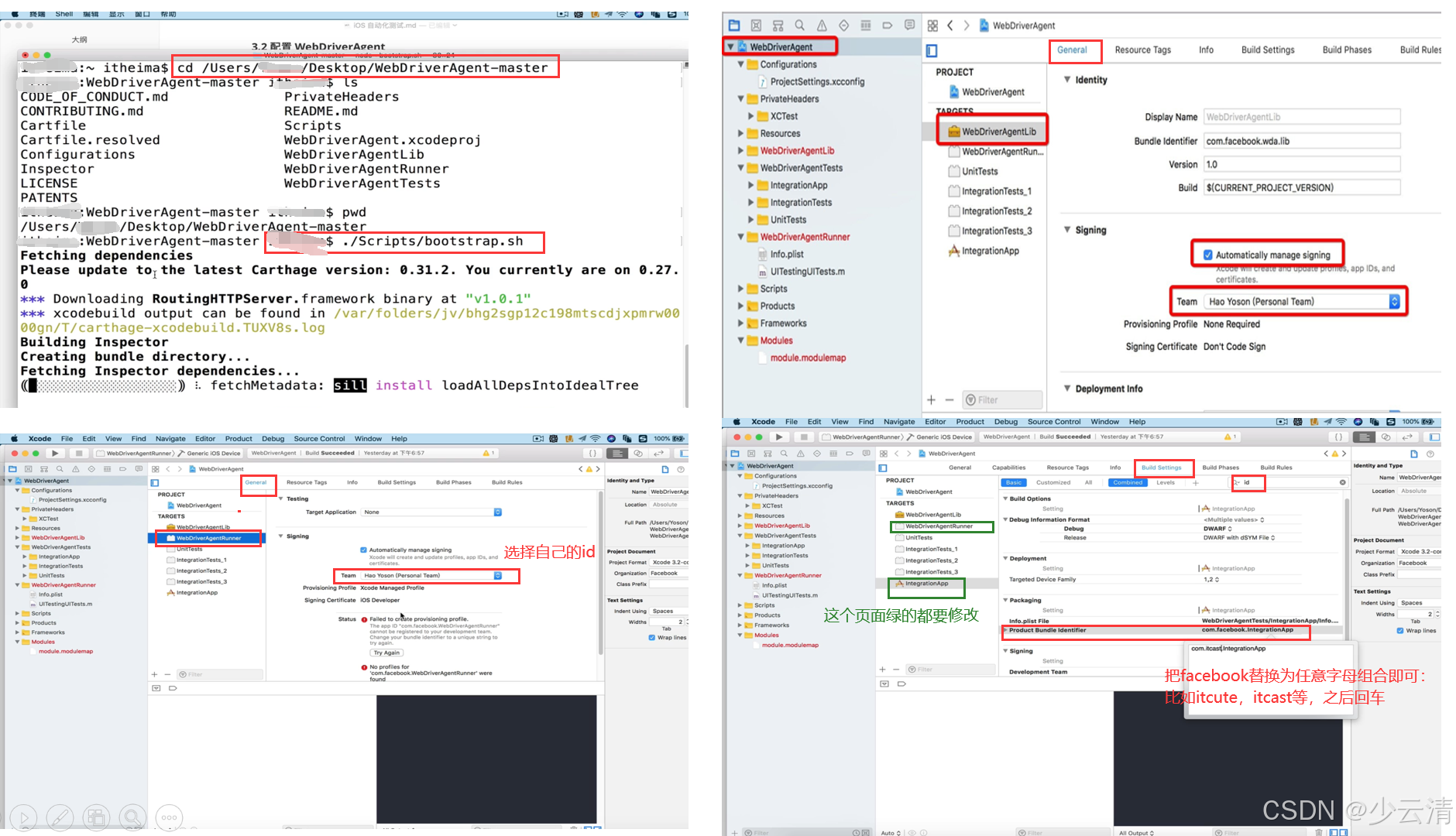
1、进入到下载的 WebDriverAgent 项目下。(cd 进入项目中)
2、输入命令 ./Scripts/bootstrap.sh
3、启动 WebDriverAgent.xcodeproj
4、配置 WebDriverAgentLib 的开发者信息
5、配置 WebDriverAgentRunner 的开发者信息
6、 配置 IntegrationApp 的开发者信息
7、修改 WebDriverAgentRunner 的 Product Bundle Identifier
8、修改 IntegrationApp 的 Product Bundle Identifier
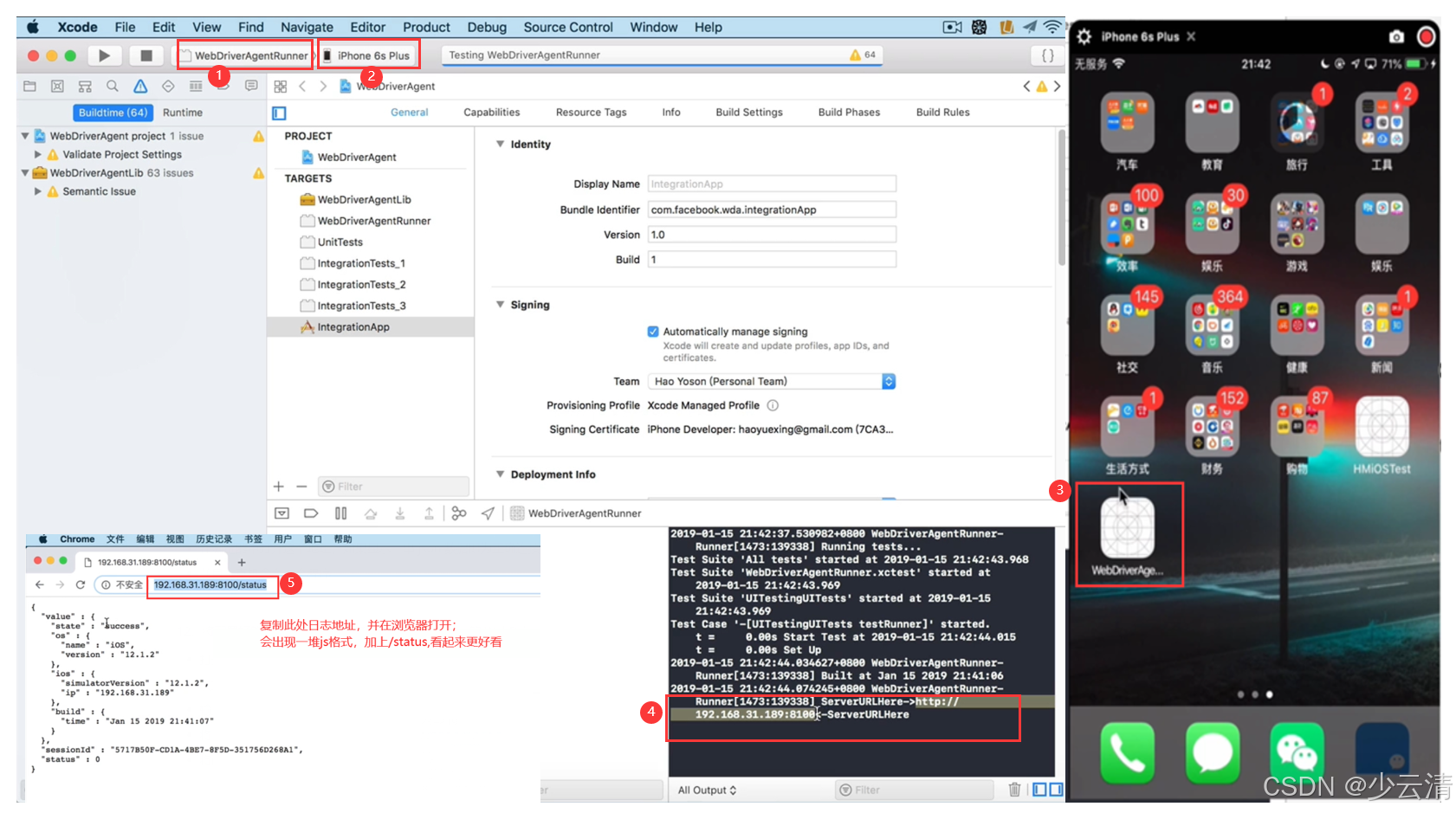
9、数据线连接真机
10、选择将要运行的 WebDriverAgentRunner 和 真机设备。(将WebDriverAgentRunner程序装到手机当中)
11、使用 command + u 运行
- 稍等之后会在log中出来一个 url 地址
- 在浏览器中打开这个地址,如果显示一串 json 数据即为正确连接手机
- 并且,真机会多一个程序
12、将配置好的 WebDriverAgent 项目替换到 appium 的 WebDriverAgent 项目。步骤如下:
- 打开mac电脑的finder
- 快捷键 command + shift + g
- 输入路径 /Applications/Appium.app/Contents/Resources/app/node_modules/appiumxcuitest-driver
- 回车
- 将旧项目换个名字,当做备份
- 将配置好的项目放在这个目录下
三、运行自动化脚本
-
修改对应的 platformVersion、deviceName
-
查看 udid 并增加为启动参数。 Xcode--->菜单Windows--->Devices and Simulators--->选择Devices--->Identifier,复制即可。
-
运行即可
python
import time

from appium import webdriver

desired_caps = dict()
desired_caps['platformName'] = 'iOS'
desired_caps['platformVersion'] = '12.1.2'
desired_caps['deviceName'] = 'iPhone 6s Plus'
desired_caps['app'] = 'com.itcast.HMiOSTest'

# 真机需要使用的参数
desired_caps['udid'] = 'cda2396af94373603f21f071c322b957246cbd7f'

driver = webdriver.Remote('http://localhost:4723/wd/hub', desired_caps)

# 1、点击 进入列表
driver.find_element_by_id("进入列表").click()

# 2、在控制台输出所有的文字内容
"""
# 在 android 中只会查找到屏幕上所显示的控件
# 在 iOS 中都会找到控件,但是如果进行操作的时候,也同样需要展示在屏幕上:比如 4、点击20这个元素
"""
text_views = driver.find_elements_by_class_name("XCUIElementTypeStaticText")
for text_view in text_views:
    print(text_view.text)

# 3、滑动一次
# driver.swipe(100, 2000, 100, 1000)  # 这个方法有的情况不好用,时灵时不灵,用下面的方法
driver.execute_script("mobile: swipe", {"direction": "up"})

# 4、点击 20
driver.find_element_by_xpath("//*[@name='20']").click()

# 5、清空文本框
text_field = driver.find_element_by_class_name("XCUIElementTypeTextField")
text_field.clear()

# 6、输入 hello
text_field.send_keys("hello!!!")

# 7、点击 返回back
driver.find_element_by_xpath("//*[@name='Back']").click()


time.sleep(5)

driver.quit()