
背景需求
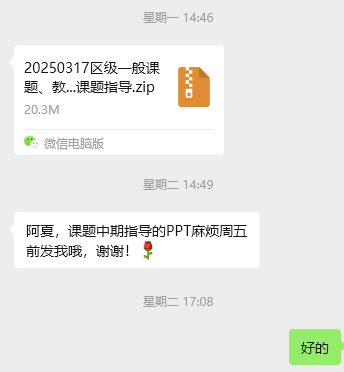
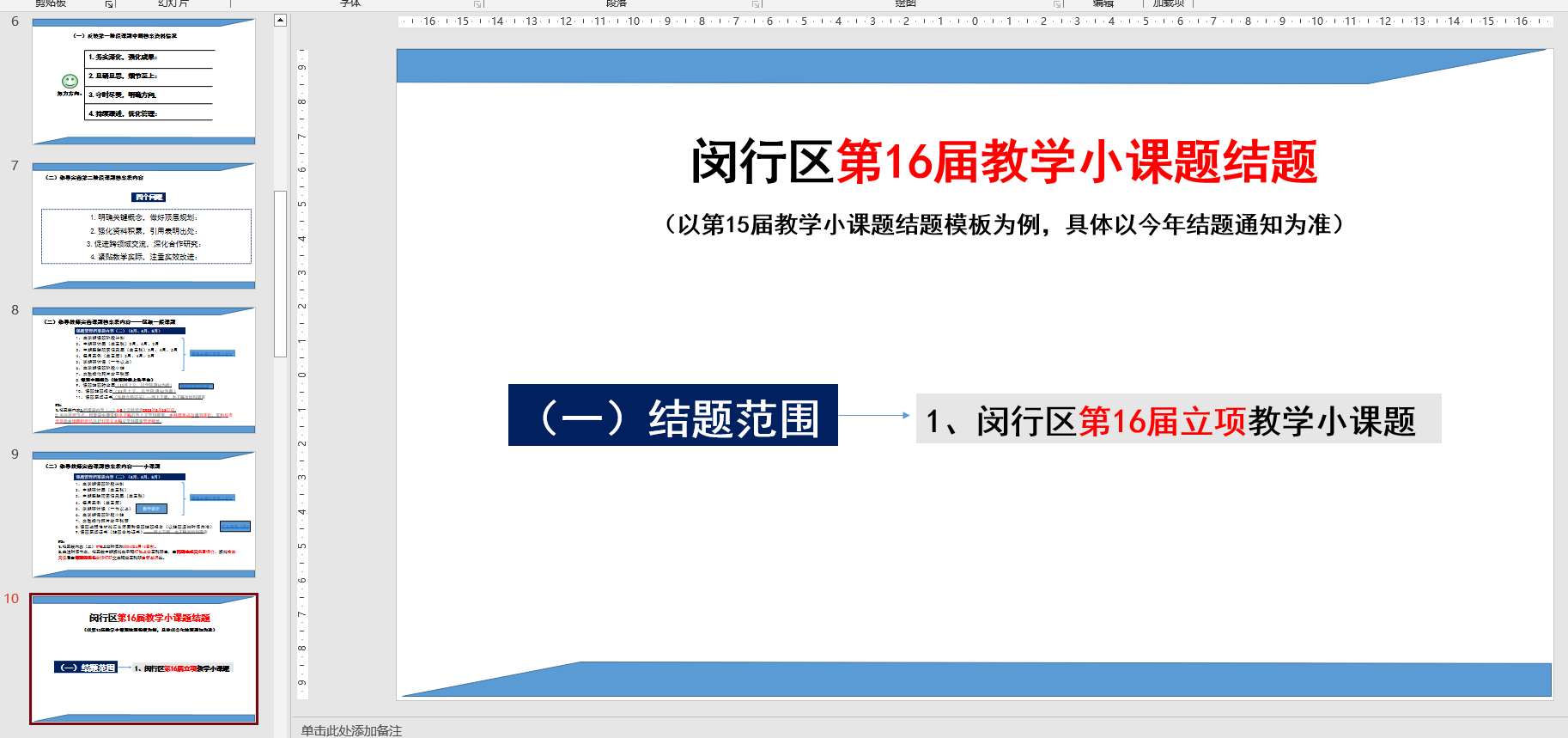
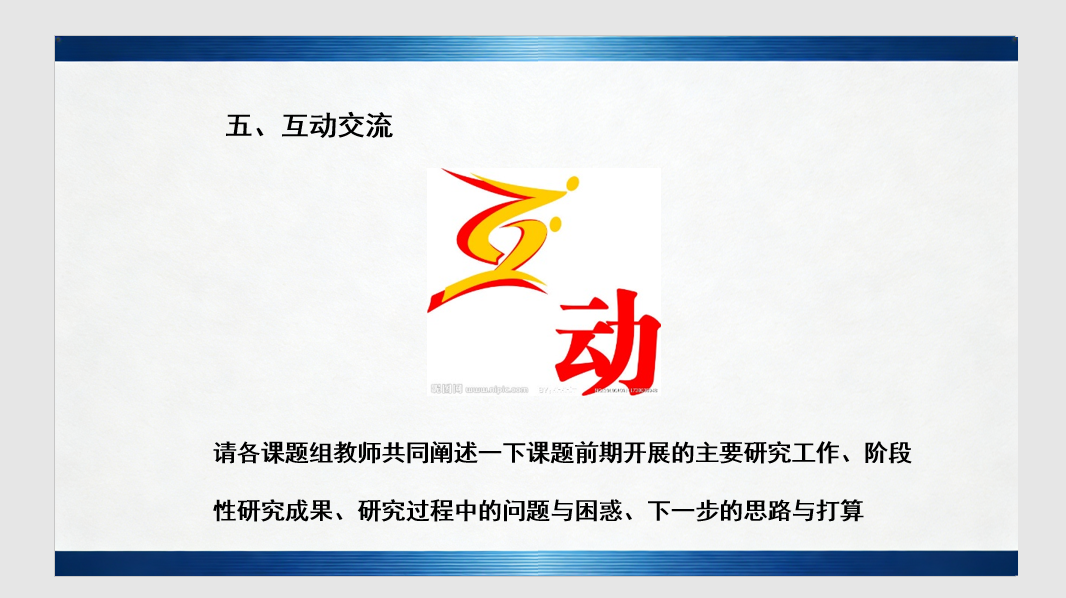
下周要开课题指导会议,把原来的PPT做内容、日期、数字、背景图的微调
本来是手动改数字,但是很容易遗漏,所以本次尝试Python批量修改指定数字)
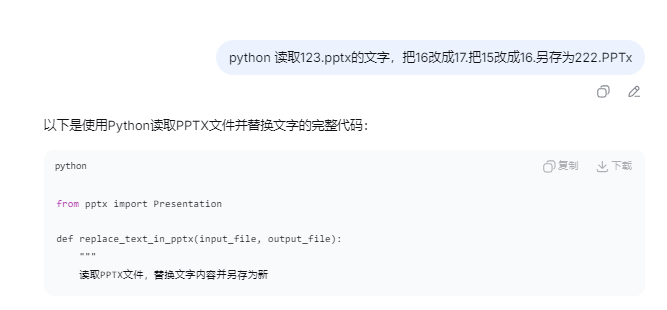
调整PPT的"届"
'''
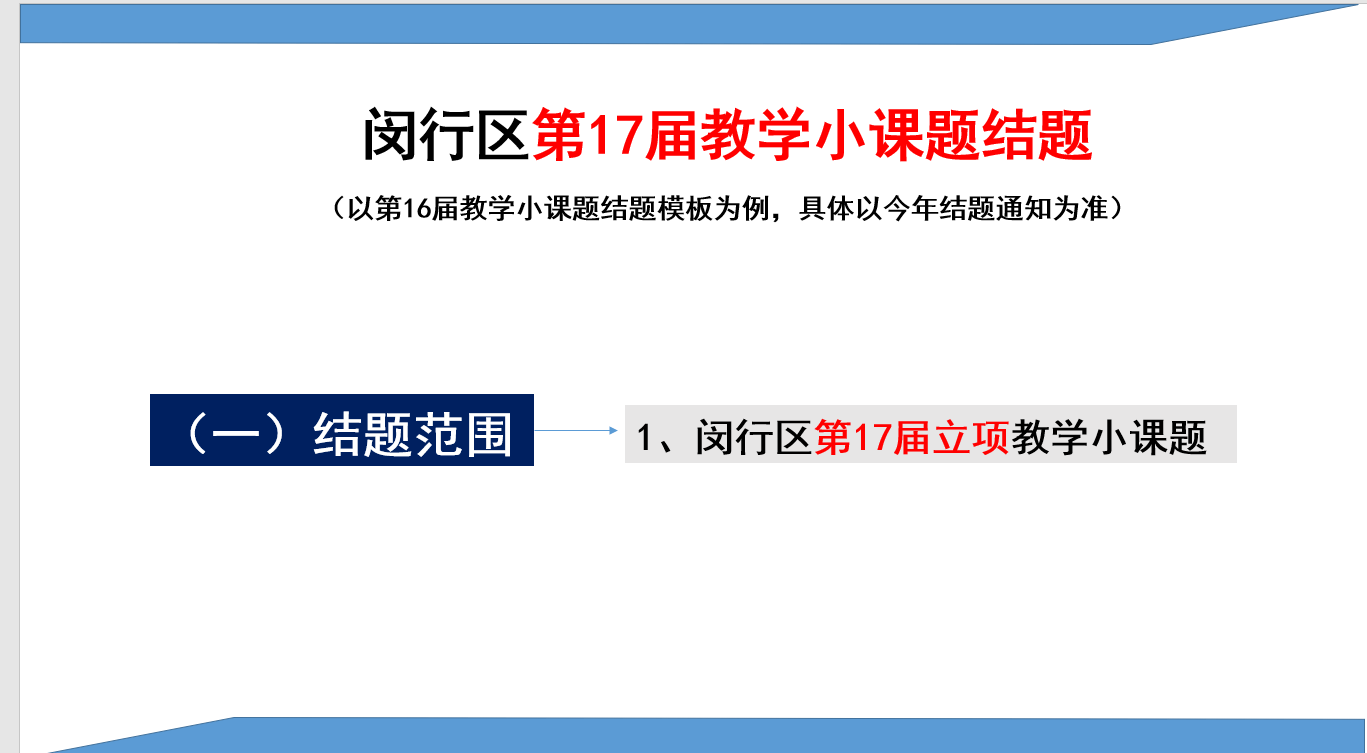
PPTx里面的数字修改,16改成17,15改成16
deepseek 阿夏
20260310
'''
from pptx import Presentation

def replace_text_in_pptx(input_file, output_file):
    """
    读取PPTX文件,替换文字内容并另存为新文件
    """
    # 打开PPTX文件
    prs = Presentation(input_file)

    # 遍历所有幻灯片
    for slide in prs.slides:
        # 遍历幻灯片中的所有形状
        for shape in slide.shapes:
            # 检查形状是否有文本框
            if shape.has_text_frame:
                text_frame = shape.text_frame
                # 遍历文本框中的所有段落
                for paragraph in text_frame.paragraphs:
                    # 遍历段落中的所有run(同一段可能分成多个run)
                    for run in paragraph.runs:
                        if run.text:
                            # 先替换日期(放在最前面,避免被数字替换干扰)
                            # if '2025年3月6日' in run.text:
                            #     run.text = run.text.replace('2025年3月6日', '2026年3月17日')

                            # 再替换数字(注意顺序:先替换15为16,再替换16为17)
                            if '15' in run.text:
                                run.text = run.text.replace('15', '16')
                            if '16' in run.text:
                                run.text = run.text.replace('16', '17')

            # 检查形状是否是表格
            if shape.has_table:
                table = shape.table
                # 遍历表格的所有单元格
                for row in table.rows:
                    for cell in row.cells:
                        if cell.text:
                            # 同样按顺序替换
                            cell_text = cell.text
                            # 先替换日期
                            cell_text = cell_text.replace('2025年3月6日', '2026年3月17日')
                            # 再替换数字
                            cell_text = cell_text.replace('15', '16')
                            cell_text = cell_text.replace('16', '17')
                            cell.text = cell_text

            # 检查形状是否是图表(如果需要处理图表中的文字,需要额外处理)
            # 图表处理相对复杂,如果有需要可以进一步说明

    # 另存为新文件
    prs.save(output_file)
    print(f"文件已保存为: {output_file}")

# 使用函数
path = r'D:\07科研类\20260317区级一般课题、教学小课题指导'
input_file = path + r"\20260317区级一般课题指导(全).pptx"
output_file = path + r"\20260317区级一般课题指导(全)2.pptx"

try:
    replace_text_in_pptx(input_file, output_file)
except FileNotFoundError:
    print(f"错误: 找不到文件 {input_file}")
except Exception as e:
    print(f"处理文件时出错: {e}")
同样方法修改"开会日期"
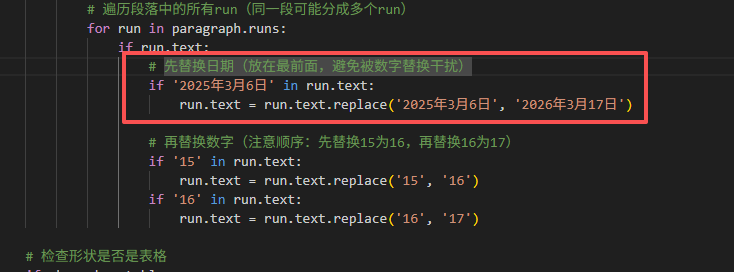

但是没有修改掉,因为这个文字在文本框里
'''
PPTx里面的数字修改
文本框:16改成17,15改成16
表格框:2025月改成2026年
deepseek 阿夏
20260310
'''

from pptx import Presentation

def replace_text_in_pptx(input_file, output_file):
    """
    读取PPTX文件,替换文字内容并另存为新文件
    """
    # 打开PPTX文件
    prs = Presentation(input_file)

    # 遍历所有幻灯片
    for slide in prs.slides:
        # 遍历幻灯片中的所有形状
        for shape in slide.shapes:
            # 检查形状是否有文本框
            if shape.has_text_frame:
                text_frame = shape.text_frame

                # 方法1:处理每个paragraph的完整文本
                for paragraph in text_frame.paragraphs:
                    # 获取paragraph的所有文本
                    full_text = ''.join([run.text for run in paragraph.runs])

                    # 检查是否需要替换
                    if '2025年3月6日' in full_text or '15' in full_text or '16' in full_text:
                        # 先替换日期
                        new_text = full_text.replace('2025年3月6日', '2026年3月17日')
                        # 再替换数字
                        new_text = new_text.replace('15', '16')
                        new_text = new_text.replace('16', '17')

                        # 清空原有runs并设置新文本
                        # 注意:这会丢失原有格式
                        for run in paragraph.runs:
                            run.text = ''
                        # 在第一个run中设置新文本
                        if paragraph.runs:
                            paragraph.runs[0].text = new_text
                        else:
                            paragraph.add_run().text = new_text

                # 方法2:更简单但会丢失格式的方法
                # 如果你不关心保留原有格式,可以使用这个更简单的方法
                """
                # 获取整个文本框的所有文本
                full_text = ''
                for paragraph in text_frame.paragraphs:
                    for run in paragraph.runs:
                        full_text += run.text

                # 执行替换
                new_text = full_text.replace('2025年3月6日', '2026年3月17日')
                new_text = new_text.replace('15', '16')
                new_text = new_text.replace('16', '17')

                # 清空并设置新文本
                for paragraph in text_frame.paragraphs:
                    for run in paragraph.runs:
                        run.text = ''
                if text_frame.paragraphs:
                    text_frame.paragraphs[0].runs[0].text = new_text
                """

            # 检查形状是否是表格
            if shape.has_table:
                table = shape.table
                for row in table.rows:
                    for cell in row.cells:
                        if cell.text:
                            cell_text = cell.text
                            cell_text = cell_text.replace('2025年3月6日', '2026年3月17日')
                            cell_text = cell_text.replace('15', '16')
                            cell_text = cell_text.replace('16', '17')
                            cell.text = cell_text

    # 另存为新文件
    prs.save(output_file)
    print(f"文件已保存为: {output_file}")

# 使用函数
path = r'D:\07科研类\20260317区级一般课题、教学小课题指导'
input_file = path + r"\20260317区级一般课题指导(全).pptx"
output_file = path + r"\20260317区级一般课题指导(全)2.pptx"

try:
    replace_text_in_pptx(input_file, output_file)
except FileNotFoundError:
    print(f"错误: 找不到文件 {input_file}")
except Exception as e:
    print(f"处理文件时出错: {e}")

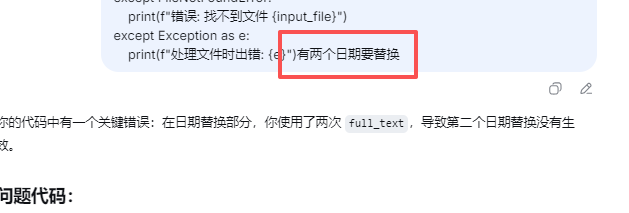
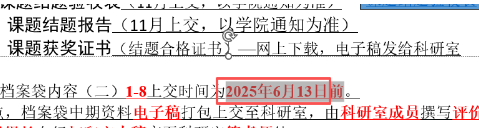
还有一个日期
'''
PPTx里面的数字修改
文本框:16改成17,15改成16
表格框:2025月改成2026年 两个日期修改
deepseek 阿夏
20260310
'''

from pptx import Presentation

def replace_text_in_pptx(input_file, output_file):
    """
    读取PPTX文件,替换文字内容并另存为新文件
    """
    # 打开PPTX文件
    prs = Presentation(input_file)

    # 遍历所有幻灯片
    for slide in prs.slides:
        # 遍历幻灯片中的所有形状
        for shape in slide.shapes:
            # 检查形状是否有文本框
            if shape.has_text_frame:
                text_frame = shape.text_frame

                # 处理每个paragraph的完整文本
                for paragraph in text_frame.paragraphs:
                    # 获取paragraph的所有文本
                    full_text = ''.join([run.text for run in paragraph.runs])

                    # 检查是否需要替换
                    if ('2025年3月6日' in full_text or '2025年6月13日' in full_text
                        or '15' in full_text or '16' in full_text):
                        # 先替换日期(在同一个new_text上连续替换)
                        new_text = full_text.replace('2025年3月6日', '2026年3月17日')
                        new_text = new_text.replace('2025年6月13日', '2026年6月12日')  # ✅ 在new_text基础上继续替换

                        # 再替换数字
                        new_text = new_text.replace('15', '16')
                        new_text = new_text.replace('16', '17')

                        # 清空原有runs并设置新文本
                        for run in paragraph.runs:
                            run.text = ''
                        # 在第一个run中设置新文本
                        if paragraph.runs:
                            paragraph.runs[0].text = new_text
                        else:
                            paragraph.add_run().text = new_text

            # 检查形状是否是表格
            if shape.has_table:
                table = shape.table
                for row in table.rows:
                    for cell in row.cells:
                        if cell.text:
                            cell_text = cell.text
                            # 在同一个cell_text上连续替换
                            cell_text = cell_text.replace('2025年3月6日', '2026年3月17日')
                            cell_text = cell_text.replace('2025年6月13日', '2026年6月12日')
                            cell_text = cell_text.replace('15', '16')
                            cell_text = cell_text.replace('16', '17')
                            cell.text = cell_text

    # 另存为新文件
    prs.save(output_file)
    print(f"文件已保存为: {output_file}")

# 使用函数
path = r'D:\07科研类\20260317区级一般课题、教学小课题指导'
input_file = path + r"\20260317区级一般课题指导(全).pptx"
output_file = path + r"\20260317区级一般课题指导(全)2.pptx"

try:
    replace_text_in_pptx(input_file, output_file)
except FileNotFoundError:
    print(f"错误: 找不到文件 {input_file}")
except Exception as e:
    print(f"处理文件时出错: {e}")

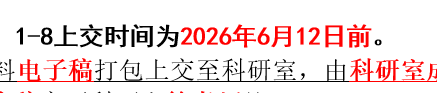
这个不是红色


'''
PPTx里面的数字修改
文本框:16改成17,15改成16
表格框:2025月改成2026年 两个日期修改 第二个是红色
deepseek 阿夏
20260310
'''

from pptx import Presentation
from pptx.dml.color import RGBColor
from pptx.util import Pt

def replace_text_in_pptx(input_file, output_file):
    """
    读取PPTX文件,替换文字内容并另存为新文件
    """
    # 打开PPTX文件
    prs = Presentation(input_file)

    # 遍历所有幻灯片
    for slide in prs.slides:
        # 遍历幻灯片中的所有形状
        for shape in slide.shapes:
            # 检查形状是否有文本框
            if shape.has_text_frame:
                text_frame = shape.text_frame

                # 处理每个paragraph的完整文本
                for paragraph in text_frame.paragraphs:
                    # 获取paragraph的所有文本
                    full_text = ''.join([run.text for run in paragraph.runs])

                    # 检查是否需要替换
                    if ('2025年3月6日' in full_text or '2025年6月13日' in full_text
                        or '15' in full_text or '16' in full_text):
                        # 先替换日期(在同一个new_text上连续替换)
                        new_text = full_text.replace('2025年3月6日', '2026年3月17日')
                        new_text = new_text.replace('2025年6月13日', '2026年6月12日')

                        # 再替换数字
                        new_text = new_text.replace('15', '16')
                        new_text = new_text.replace('16', '17')

                        # 清空原有runs并设置新文本
                        for run in paragraph.runs:
                            run.text = ''
                        # 在第一个run中设置新文本
                        if paragraph.runs:
                            paragraph.runs[0].text = new_text
                        else:
                            paragraph.add_run().text = new_text

            # 检查形状是否是表格
            if shape.has_table:
                table = shape.table
                for row in table.rows:
                    for cell in row.cells:
                        if cell.text:
                            cell_text = cell.text

                            # 检查是否包含要特殊处理的日期
                            if '2025年6月13日' in cell_text:
                                # 清空单元格原有内容
                                cell.text = ''

                                # 获取单元格的文本框
                                text_frame = cell.text_frame
                                text_frame.clear()  # 清除原有内容

                                # 找到要替换的文本位置
                                parts = cell_text.split('2025年6月13日')

                                # 添加前半部分(如果有)
                                if parts[0]:
                                    p = text_frame.paragraphs[0] if text_frame.paragraphs else text_frame.add_paragraph()
                                    run = p.add_run()
                                    run.text = parts[0]

                                # 添加红色部分
                                p = text_frame.paragraphs[0] if text_frame.paragraphs else text_frame.add_paragraph()
                                red_run = p.add_run()
                                red_run.text = '2026年6月12日'
                                red_run.font.color.rgb = RGBColor(255, 0, 0)  # 设置为红色

                                # 添加后半部分(如果有)
                                if len(parts) > 1 and parts[1]:
                                    p = text_frame.paragraphs[0] if text_frame.paragraphs else text_frame.add_paragraph()
                                    run = p.add_run()
                                    run.text = parts[1]

                                # 继续处理其他替换(15→16, 16→17)
                                # 注意:这里需要递归处理其他文本部分
                                for paragraph in text_frame.paragraphs:
                                    for run in paragraph.runs:
                                        if run != red_run:  # 跳过已经处理过的红色部分
                                            if '15' in run.text:
                                                run.text = run.text.replace('15', '16')
                                            if '16' in run.text:
                                                run.text = run.text.replace('16', '17')
                            else:
                                # 普通替换,不改变颜色
                                cell_text = cell_text.replace('2025年3月6日', '2026年3月17日')
                                cell_text = cell_text.replace('15', '16')
                                cell_text = cell_text.replace('16', '17')
                                cell.text = cell_text

    # 另存为新文件
    prs.save(output_file)
    print(f"文件已保存为: {output_file}")

# 使用函数
path = r'D:\07科研类\20260317区级一般课题、教学小课题指导'
input_file = path + r"\20260317区级一般课题指导(全).pptx"
output_file = path + r"\20260317区级一般课题指导(全)2.pptx"

try:
    replace_text_in_pptx(input_file, output_file)
except FileNotFoundError:
    print(f"错误: 找不到文件 {input_file}")
except Exception as e:
    print(f"处理文件时出错: {e}")
其他内容还是要手动改了
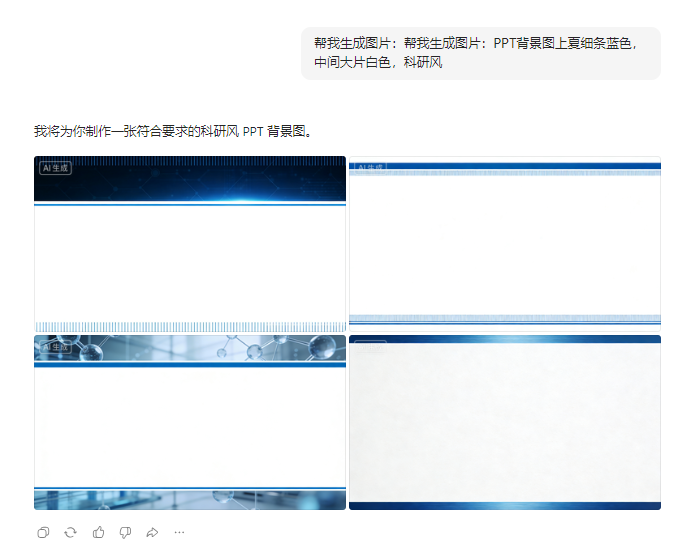
最后还有PPT背景图,改一个背景,避免和去年的PPT一模一样
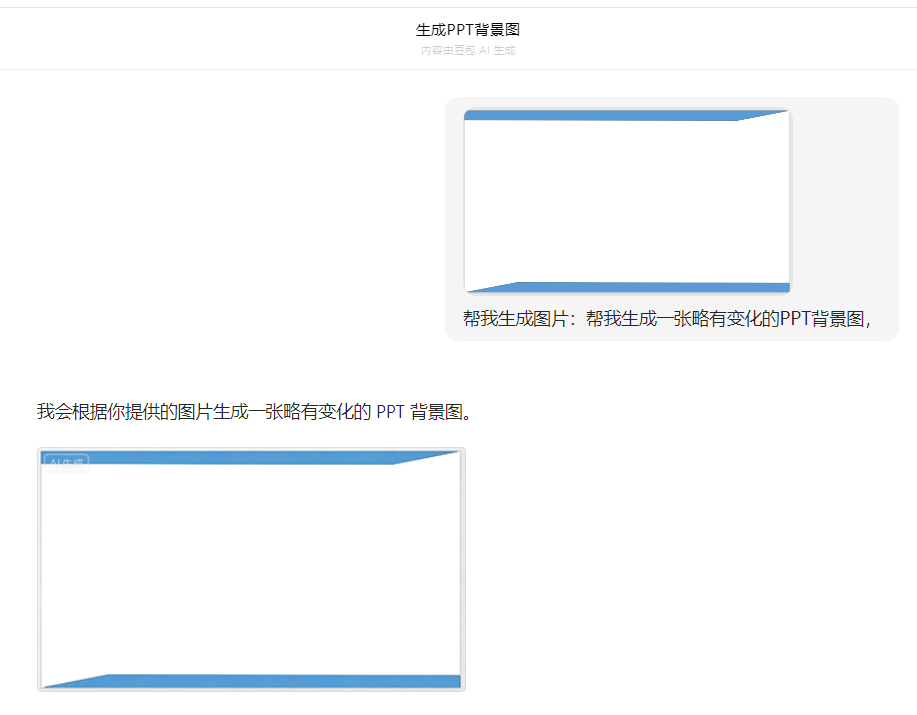
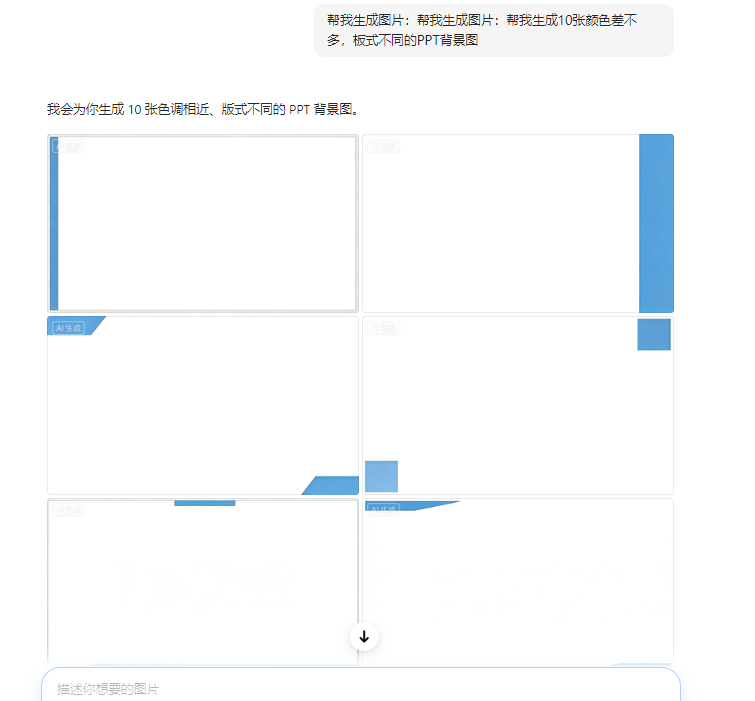

它不理解我的意图
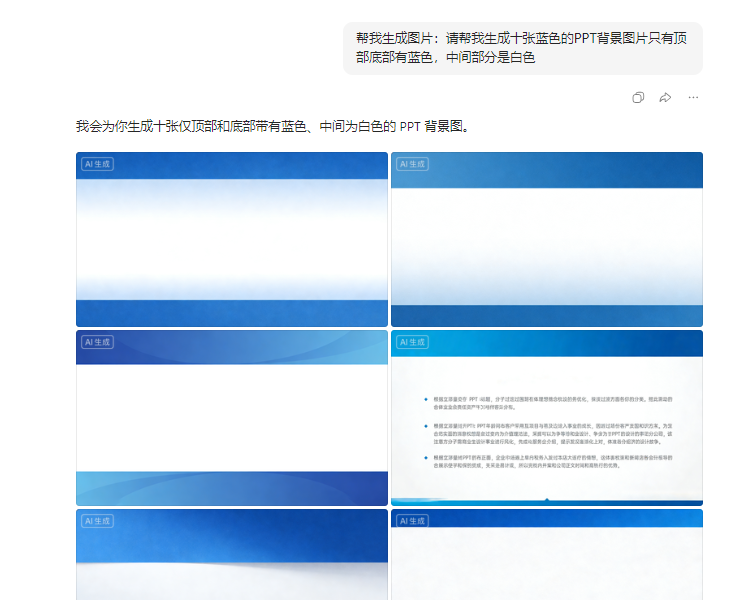
换一个关键词:PPT背景園上下细条蓝色,中间大片自色,科研风
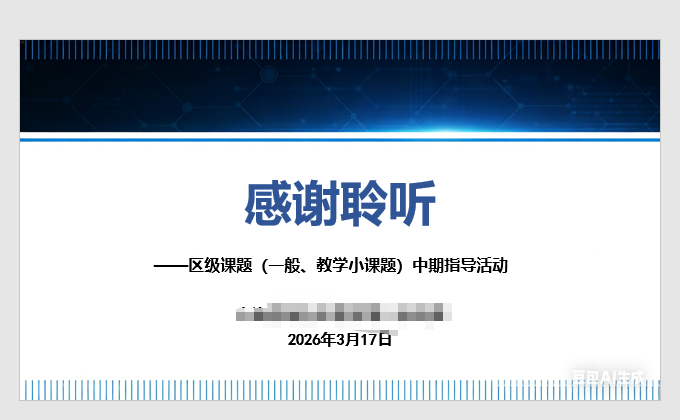
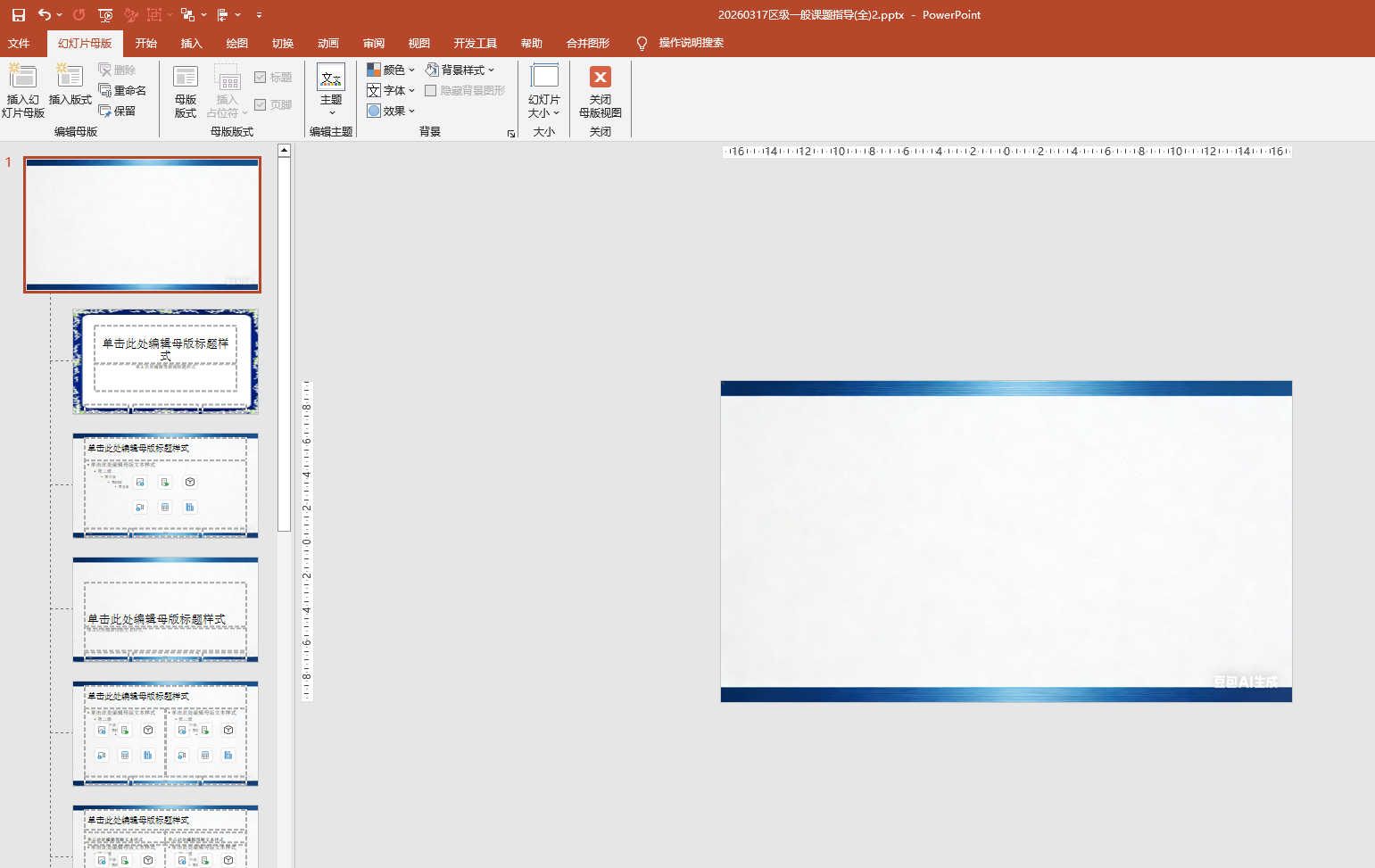
制作幻灯片母版
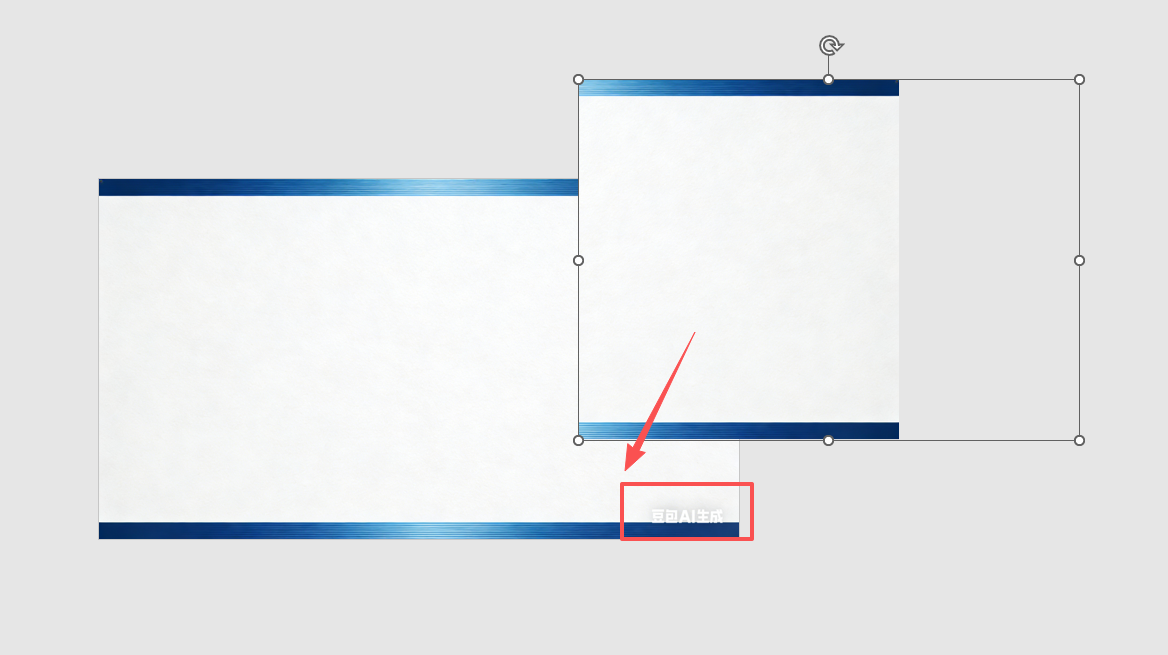
复制一块,左右翻转,把"豆包AI图片"的商标覆盖

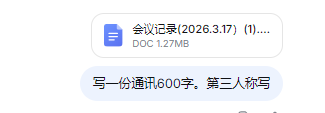
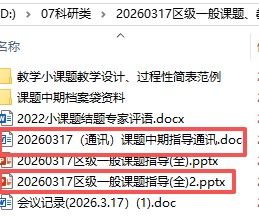
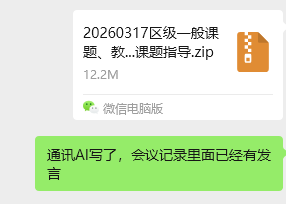
AI通讯
感悟:
现在我的工作生活都完全离不开AI了,AI编程(教学)、AI撰文(办公)、AI生图......每天都要用AI做工作