欢迎加入开源鸿蒙跨平台社区 :https://openharmonycrossplatform.csdn.net
📋 前言
在移动应用开发中,图片加载是最常见也是最核心的功能之一。无论是电商应用的商品展示、社交应用的用户头像,还是新闻资讯的图文混排,都离不开高效的图片加载组件。React Native 原生的 Image 组件虽然能满足基本需求,但在性能优化、缓存管理、加载状态监听等方面存在不足。@react-native-oh-tpl/react-native-fast-image 是一个高性能的图片加载组件,专为 React Native 跨平台应用设计,支持 Android、iOS 和 HarmonyOS 三端,提供了优先级加载、智能缓存、加载状态监听等高级功能。
🎯 库简介
基本信息
- 库名称 :
@react-native-oh-tpl/react-native-fast-image - 版本信息 :
8.6.3-0.4.17: 支持 RN 0.72 版本
- 官方仓库: https://github.com/react-native-oh-library/react-native-fast-image
- 主要功能 :
- 📷 高性能图片加载,支持 GIF 和 WebP 格式
- 💾 智能内存缓存和磁盘缓存管理
- 📊 图片加载进度监听
- 🎨 多种缩放模式支持
- 🔄 图片预加载功能
- 🎯 支持自定义请求头
为什么选择 FastImage?
| 特性 | React Native Image | FastImage |
|---|---|---|
| 图片缓存 | ⚠️ 基础支持 | ✅ 智能缓存 |
| 加载优先级 | ❌ 不支持 | ✅ 支持 |
| 加载进度 | ❌ 不支持 | ✅ 支持 |
| GIF/WebP | ⚠️ 部分支持 | ✅ 完整支持 |
| 内存管理 | ⚠️ 手动管理 | ✅ 自动优化 |
| 预加载 | ❌ 不支持 | ✅ 支持 |
| HarmonyOS | ❌ 不支持 | ✅ 完整支持 |
兼容性验证
在以下环境验证通过:
- RNOH : 0.72.96; SDK : HarmonyOS 6.0.0 Release SDK; IDE : DevEco Studio 6.0.0.858; ROM: 6.0.0.112
📦 安装步骤
1. 使用 npm 安装
在项目根目录执行以下命令,本文基于 RN 0.72.90 版本开发:
未使用ohos版本的fast-image,尝试过程中遇到了c++版本编译的问题,正在排查问题中。
bash
# RN 0.72 版本推荐使用
npm install @react-native-oh-tpl/react-native-fast-image@8.6.3-0.4.17-rc.1

# 或者使用 yarn
yarn add @react-native-oh-tpl/react-native-fast-image@8.6.3-0.4.17-rc.1
2. 验证安装
安装完成后,检查 package.json 文件,应该能看到新增的依赖:
json
{
  "dependencies": {
    "@react-native-oh-tpl/react-native-fast-image": "8.6.3-0.4.17-rc.1",
    // ... 其他依赖
  }
}
🔧 HarmonyOS 平台配置 ⭐
由于 HarmonyOS 暂不支持 AutoLink,需要手动配置原生端代码。本文采用直接链接源码的方式。
1. 在工程根目录的 oh-package.json5 添加 overrides 字段
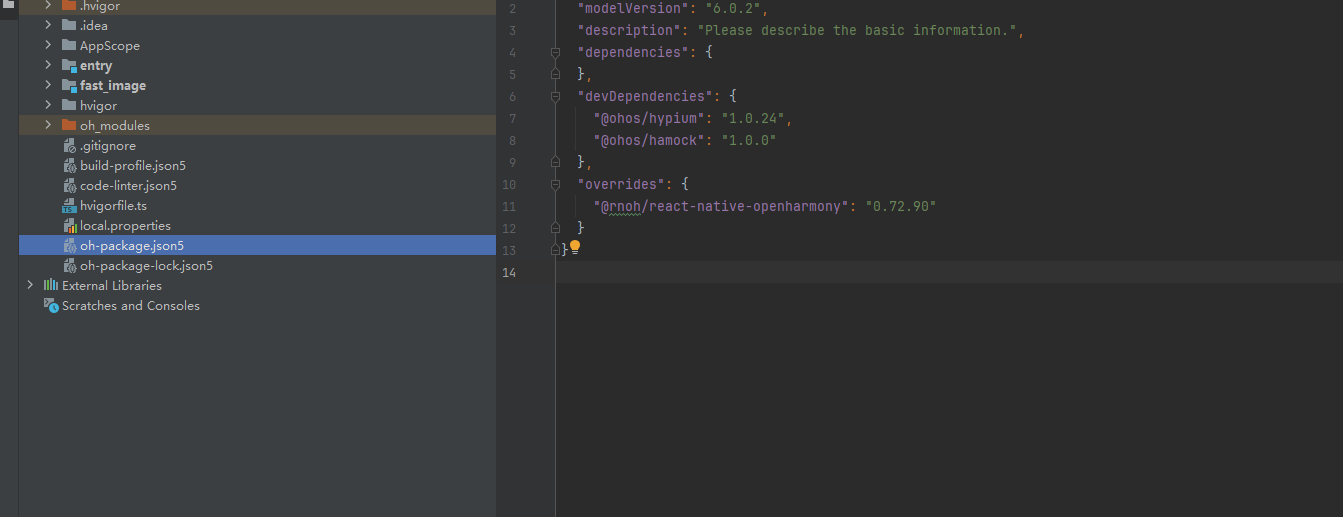
打开 harmony/oh-package.json5,添加以下配置:
json5
{
  // ... 其他配置
  "overrides": {
    "@rnoh/react-native-openharmony": "0.72.90"
  }
}
2. 引入原生端代码
目前 DevEco Studio 不支持通过源码引入外部 module,我们推荐使用直接链接源码的方式,将源码通过操作改成 harmony 工程的内部模块。
步骤 1:复制源码到 harmony 工程根目录
把 <RN工程>/node_modules/@react-native-oh-tpl/react-native-fast-image/harmony 目录下的源码 fast_image 复制到 harmony(鸿蒙壳工程)工程根目录下。
步骤 2:在 build-profile.json5 添加模块
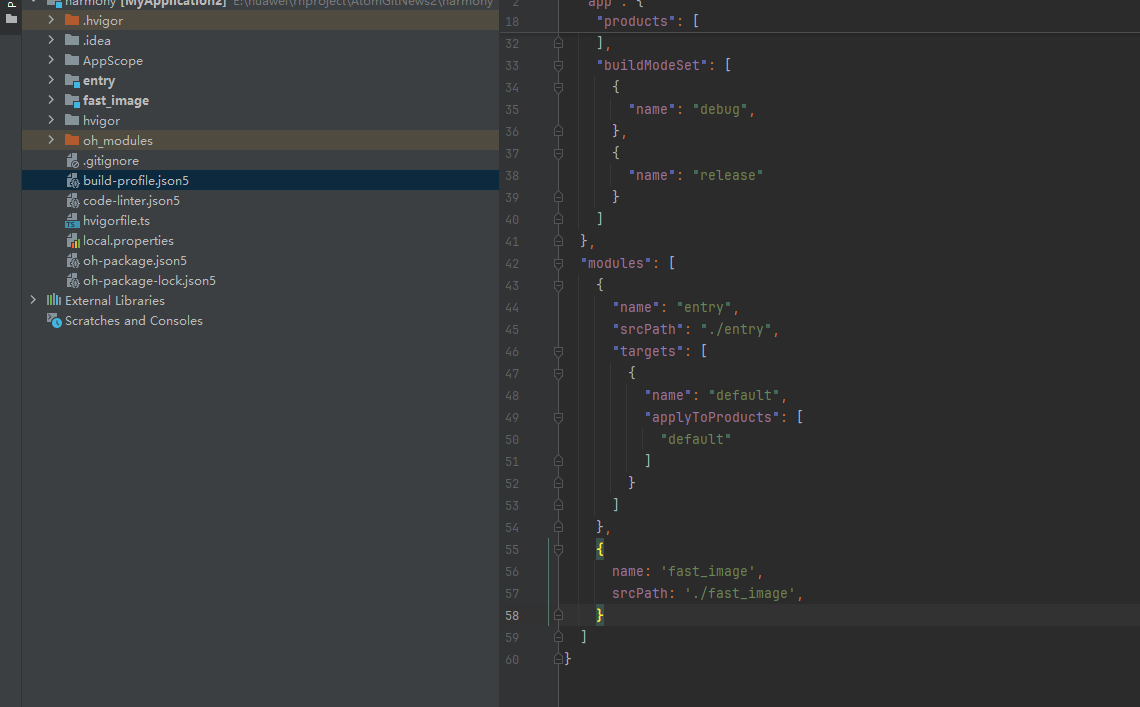
打开 harmony/build-profile.json5,添加以下模块:
json5
modules: [
  // ... 其他模块
  {
    name: 'fast_image',
    srcPath: './fast_image',
  }
]
💡 提示 :如果存在
build-profile.template.json5文件,也需要同步添加上述模块配置。
步骤 3:修改 fast_image/oh-package.json5
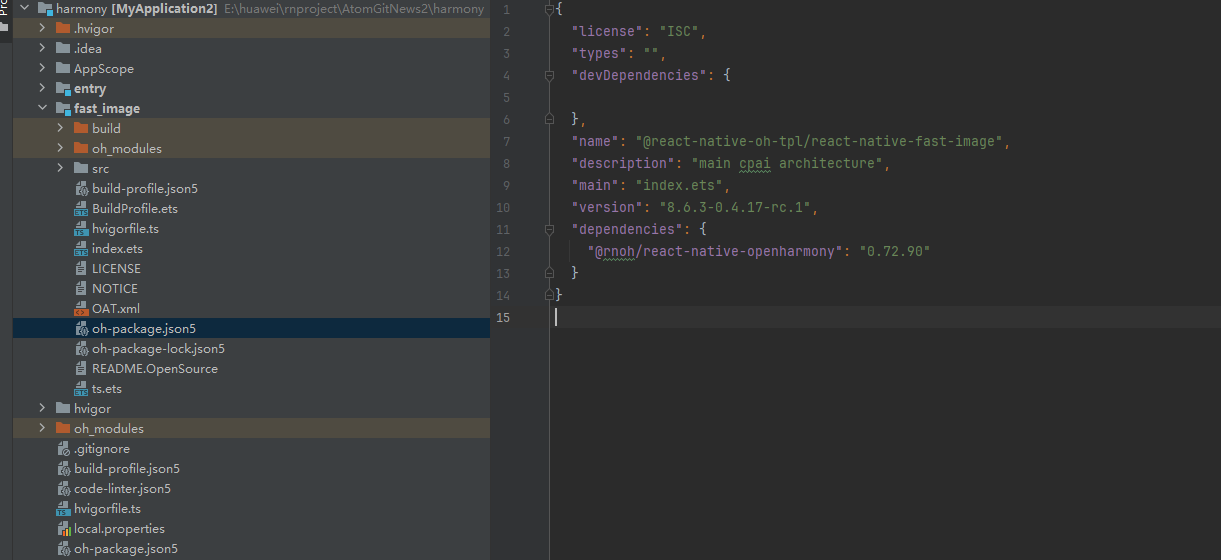
打开 harmony/fast_image/oh-package.json5,修改 react-native-openharmony 版本与项目版本一致:
json5
{
  "dependencies": {
    "@rnoh/react-native-openharmony": "0.72.90"
  }
}
步骤 4:修改fast_image目录下ts.ts名称
将ts.ts调整为ts.ets
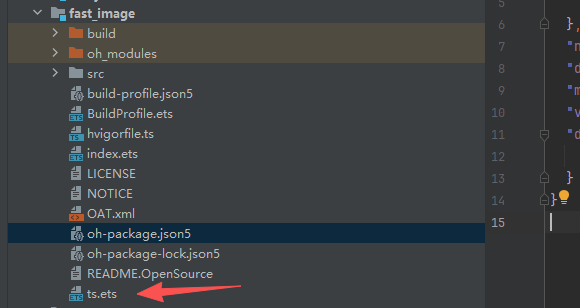
步骤 5:在 entry/oh-package.json5 添加依赖
打开 harmony/entry/oh-package.json5,添加以下依赖:
json5
"dependencies": {
  "@rnoh/react-native-openharmony": "0.72.90",
  "@react-native-oh-tpl/react-native-fast-image": "file:../fast_image"
}
步骤 6:同步依赖
点击 DevEco Studio 右上角的 sync 按钮,或者在终端执行:
bash
cd harmony/entry
ohpm install
3. 配置 CMakeLists 和引入 FastImagePackage
修改 entry/src/main/cpp/CMakeLists.txt
cmake
project(rnapp)
cmake_minimum_required(VERSION 3.4.1)
set(CMAKE_SKIP_BUILD_RPATH TRUE)
set(RNOH_APP_DIR "${CMAKE_CURRENT_SOURCE_DIR}")
set(NODE_MODULES "${CMAKE_CURRENT_SOURCE_DIR}/../../../../../node_modules")
set(RNOH_CPP_DIR "${CMAKE_CURRENT_SOURCE_DIR}/../../../../../../react-native-harmony/harmony/cpp")
set(LOG_VERBOSITY_LEVEL 1)
set(CMAKE_ASM_FLAGS "-Wno-error=unused-command-line-argument -Qunused-arguments")
set(CMAKE_CXX_FLAGS "-fstack-protector-strong -Wl,-z,relro,-z,now,-z,noexecstack -s -fPIE -pie")
set(WITH_HITRACE_SYSTRACE 1)
+ set(OH_MODULES "${CMAKE_CURRENT_SOURCE_DIR}/../../../oh_modules")
add_compile_definitions(WITH_HITRACE_SYSTRACE)

add_subdirectory("${RNOH_CPP_DIR}" ./rn)

# 添加 FastImage 模块(源码方式)
+ add_subdirectory("${OH_MODULES}/@react-native-oh-tpl/react-native-fast-image/src/main/cpp" ./fast-image)

file(GLOB GENERATED_CPP_FILES "./generated/*.cpp")

add_library(rnoh_app SHARED
    ${GENERATED_CPP_FILES}
    "./PackageProvider.cpp"
    "${RNOH_CPP_DIR}/RNOHAppNapiBridge.cpp"
)
target_link_libraries(rnoh_app PUBLIC rnoh)

# 链接 FastImage 库
+ target_link_libraries(rnoh_app PUBLIC rnoh_fast_image)
修改 entry/src/main/cpp/PackageProvider.cpp
cpp
#include "RNOH/PackageProvider.h"
#include "generated/RNOHGeneratedPackage.h"
+ #include "FastImagePackage.h"

using namespace rnoh;

std::vector<std::shared_ptr<Package>> PackageProvider::getPackages(Package::Context ctx) {
    return {
        std::make_shared<RNOHGeneratedPackage>(ctx),
        + std::make_shared<FastImagePackage>(ctx),
    };
}
4. 在 ArkTs 侧引入 FastImagePackage
打开 harmony/entry/src/main/ets/RNPackagesFactory.ts,添加:
typescript
import type { RNPackageContext, RNPackage } from 'rnoh/ts';
+ import { FastImagePackage } from '@react-native-oh-tpl/react-native-fast-image/ts';

export function createRNPackages(ctx: RNPackageContext): RNPackage[] {
  return [
    // ... 其他包
    + new FastImagePackage(ctx),
  ];
}
5. 同步并运行
点击 DevEco Studio 右上角的 sync 按钮,然后编译运行即可。
📖 API 详解
🔷 核心属性(Props)
FastImage 组件提供了丰富的属性配置,以下是详细的 API 说明:
1. source - 图片源配置 ⭐
source 是 FastImage 最核心的属性,用于配置图片的加载源。
typescript
source: {
  uri: string;           // 图片 URL(必填)
  headers?: object;      // 自定义请求头(可选)
  priority?: 'low' | 'normal' | 'high';  // 加载优先级(可选)
  cache?: 'immutable' | 'web' | 'cacheOnly';  // 缓存策略(可选)
}| 参数 | 类型 | 必填 | 说明 | HarmonyOS 支持 |
|---|---|---|---|---|
uri |
string | ✅ | 远程图片的 URL 地址 | ✅ |
headers |
object | ❌ | 自定义 HTTP 请求头,如 { Authorization: 'token' } |
✅ |
priority |
enum | ❌ | 加载优先级:low、normal、high |
❌ |
cache |
enum | ❌ | 缓存策略:immutable、web、cacheOnly |
❌ |
使用示例:
typescript
// 基础用法
<FastImage
  source={{ uri: 'https://example.com/image.jpg' }}
  style={{ width: 200, height: 200 }}
/>

// 带请求头
<FastImage
  source={{
    uri: 'https://example.com/protected-image.jpg',
    headers: { Authorization: 'Bearer token123' }
  }}
  style={{ width: 200, height: 200 }}
/>
2. defaultSource - 默认占位图
当图片加载中或加载失败时显示的默认图片。
typescript
defaultSource: number;| 类型 | 说明 | HarmonyOS 支持 |
|---|---|---|
number |
通过 require() 引入的本地图片 |
✅ |
使用示例:
typescript
<FastImage
  source={{ uri: 'https://example.com/image.jpg' }}
  defaultSource={require('./placeholder.png')}
  style={{ width: 200, height: 200 }}
/>
⚠️ 注意 :
defaultSource只支持本地图片,不支持网络图片 URL。
3. resizeMode - 缩放模式 🎨
控制图片如何适应容器尺寸,提供多种缩放模式。
typescript
resizeMode: 'contain' | 'cover' | 'stretch' | 'center';| 模式 | 说明 | 效果描述 |
|---|---|---|
contain |
等比缩放,完整显示 | 图片完整显示在容器内,可能有留白 |
cover |
等比缩放,填满容器 | 图片填满容器,可能被裁剪 |
stretch |
拉伸填满 | 图片拉伸以填满容器,可能变形 |
center |
居中显示 | 图片原尺寸居中显示,超出部分裁剪 |
使用示例:
typescript
import FastImage from 'react-native-fast-image';

<FastImage
  source={{ uri: 'https://example.com/image.jpg' }}
  resizeMode={FastImage.resizeMode.cover}
  style={{ width: 200, height: 200 }}
/>
4. tintColor - 颜色着色 🎨
将图片中所有非透明像素替换为指定颜色,常用于图标着色。
typescript
tintColor: string | number;| 类型 | 说明 | 示例 |
|---|---|---|
string |
颜色字符串 | '#FF0000'、'red'、'rgb(255,0,0)' |
number |
十六进制颜色值 | 0xFFFF0000 |
使用示例:
typescript
<FastImage
  source={{ uri: 'https://example.com/icon.png' }}
  tintColor="#007AFF"
  style={{ width: 24, height: 24 }}
/>
🔷 加载状态回调(Events)
FastImage 提供了完整的图片加载生命周期回调,方便开发者监控加载状态。
1. onLoadStart - 加载开始
图片开始加载时触发。
typescript
onLoadStart: () => void;使用示例:
typescript
<FastImage
  source={{ uri: imageUrl }}
  onLoadStart={() => {
    console.log('图片开始加载');
    setLoading(true);
  }}
/>
2. onProgress - 加载进度 📊
图片加载过程中持续触发,可用于显示加载进度条。
typescript
onProgress: (event: OnProgressEvent) => void;

interface OnProgressEvent {
  nativeEvent: {
    loaded: number;   // 已加载字节数
    total: number;    // 总字节数
  };
}使用示例:
typescript
<FastImage
  source={{ uri: imageUrl }}
  onProgress={(e) => {
    const progress = Math.round((e.nativeEvent.loaded / e.nativeEvent.total) * 100);
    console.log(`加载进度: ${progress}%`);
    setProgress(progress);
  }}
/>
3. onLoad - 加载成功 ✅
图片加载成功时触发,返回图片的尺寸信息。
typescript
onLoad: (event: OnLoadEvent) => void;

interface OnLoadEvent {
  nativeEvent: {
    width: number;   // 图片原始宽度
    height: number;  // 图片原始高度
  };
}使用示例:
typescript
<FastImage
  source={{ uri: imageUrl }}
  onLoad={(e) => {
    console.log(`图片加载成功,尺寸: ${e.nativeEvent.width}x${e.nativeEvent.height}`);
    setLoading(false);
    setImageSize({ width: e.nativeEvent.width, height: e.nativeEvent.height });
  }}
/>
4. onError - 加载失败 ❌
图片加载失败时触发。
typescript
onError: () => void;使用示例:
typescript
<FastImage
  source={{ uri: imageUrl }}
  onError={() => {
    console.log('图片加载失败');
    setLoading(false);
    setError(true);
  }}
/>
5. onLoadEnd - 加载结束
图片加载结束时触发(无论成功或失败)。
typescript
onLoadEnd: () => void;使用示例:
typescript
<FastImage
  source={{ uri: imageUrl }}
  onLoadEnd={() => {
    console.log('图片加载结束');
    setLoading(false);
  }}
/>
🔷 静态方法(Static Methods)
FastImage 提供了实用的静态方法,用于缓存管理。
1. FastImage.preload - 图片预加载 🔄 ⚠️
⚠️ HarmonyOS 不支持 : 此方法在 HarmonyOS 上未实现,调用会报错
Failed to download the task. Code: 8
提前加载图片到缓存中,后续显示时可直接从缓存读取。
typescript
FastImage.preload(sources: Source[]): void;

interface Source {
  uri: string;
  headers?: object;
}
iOS/Android 使用示例:
typescript
import FastImage from 'react-native-fast-image';

// 预加载多张图片(仅 iOS/Android 支持)
FastImage.preload([
  { uri: 'https://example.com/image1.jpg' },
  { uri: 'https://example.com/image2.jpg' },
]);
HarmonyOS 替代方案:
typescript
// HarmonyOS 上直接加载图片,不使用预加载
<FastImage
  source={{ uri: 'https://example.com/image.jpg' }}
  style={{ width: 200, height: 200 }}
/>
2. FastImage.clearMemoryCache - 清除内存缓存 🧹
清除所有图片的内存缓存,释放内存空间。
typescript
FastImage.clearMemoryCache(): Promise<void>;使用示例:
typescript
import FastImage from 'react-native-fast-image';

// 清除内存缓存
const clearCache = async () => {
  try {
    await FastImage.clearMemoryCache();
    console.log('内存缓存已清除');
  } catch (error) {
    console.error('清除内存缓存失败:', error);
  }
};
3. FastImage.clearDiskCache - 清除磁盘缓存 🧹
清除所有图片的磁盘缓存,释放存储空间。
typescript
FastImage.clearDiskCache(): Promise<void>;使用示例:
typescript
import FastImage from 'react-native-fast-image';

// 清除磁盘缓存
const clearDiskCache = async () => {
  try {
    await FastImage.clearDiskCache();
    console.log('磁盘缓存已清除');
  } catch (error) {
    console.error('清除磁盘缓存失败:', error);
  }
};

// 清除所有缓存
const clearAllCache = async () => {
  await Promise.all([
    FastImage.clearMemoryCache(),
    FastImage.clearDiskCache(),
  ]);
  console.log('所有缓存已清除');
};
💻 完整代码示例
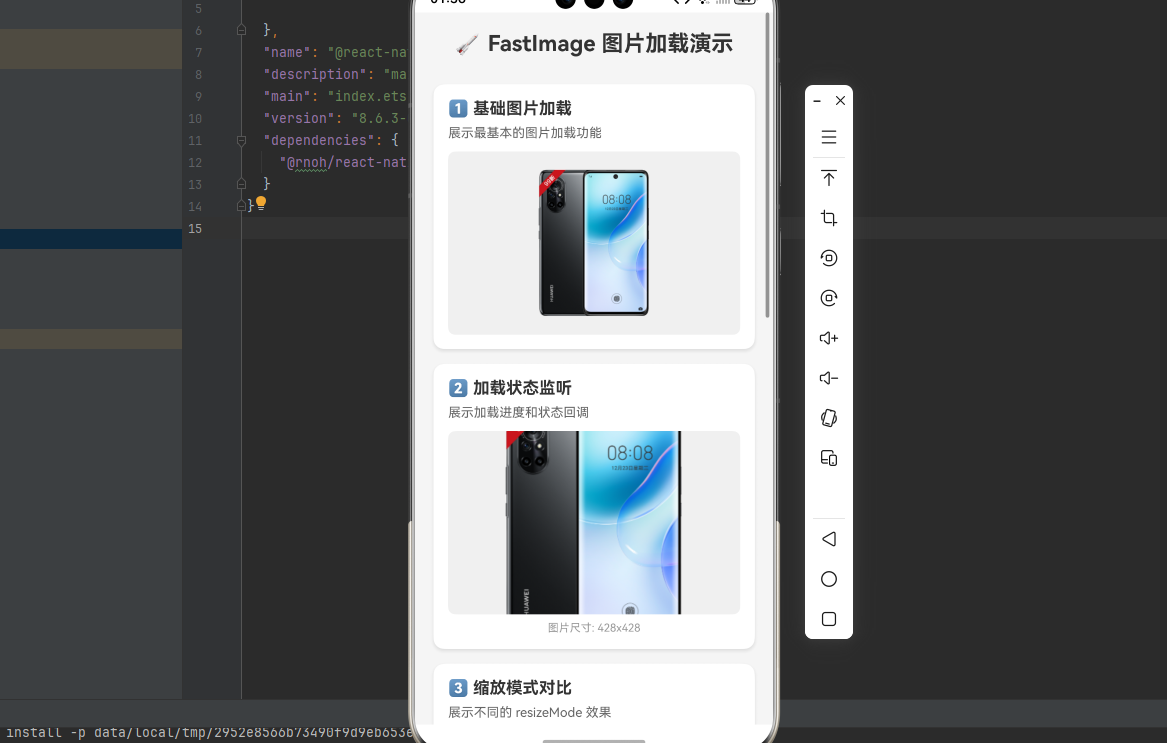
下面是一个完整的示例,展示了 FastImage 的所有 API 应用场景:
typescript
import React, { useState, useEffect } from 'react';
import {
  View,
  Text,
  StyleSheet,
  ScrollView,
  TouchableOpacity,
  SafeAreaView,
  ActivityIndicator,
} from 'react-native';
import FastImage, { OnLoadEvent, OnProgressEvent } from 'react-native-fast-image';

function FastImageDemo() {
  const [loading, setLoading] = useState(false);
  const [progress, setProgress] = useState(0);
  const [error, setError] = useState(false);
  const [imageSize, setImageSize] = useState({ width: 0, height: 0 });

  const imageUrl = 'https://res8.vmallres.com/pimages/uomcdn/CN/pms/202205/gbom/6941487259298/428_428_D7BFF22D4678EB68440F914B352214C4mp_tds.png';

  // 注意:FastImage.preload() 在 HarmonyOS 上不支持
  // 如需预加载功能,请在 iOS/Android 平台使用

  // 清除内存缓存
  const handleClearMemoryCache = async () => {
    await FastImage.clearMemoryCache();
    console.log('内存缓存已清除');
  };

  // 清除磁盘缓存
  const handleClearDiskCache = async () => {
    await FastImage.clearDiskCache();
    console.log('磁盘缓存已清除');
  };

  return (
    <SafeAreaView style={styles.container}>
      <ScrollView style={styles.scrollView} contentContainerStyle={styles.scrollContent}>
        <Text style={styles.title}>🚀 FastImage 图片加载演示</Text>

        {/* 1. 基础图片加载 */}
        <View style={styles.section}>
          <Text style={styles.sectionTitle}>1️⃣ 基础图片加载</Text>
          <Text style={styles.description}>展示最基本的图片加载功能</Text>
          <FastImage
            style={styles.image}
            source={{ uri: imageUrl }}
            resizeMode={FastImage.resizeMode.contain}
          />
        </View>

        {/* 2. 带加载状态的图片 */}
        <View style={styles.section}>
          <Text style={styles.sectionTitle}>2️⃣ 加载状态监听</Text>
          <Text style={styles.description}>展示加载进度和状态回调</Text>
          <View style={styles.imageContainer}>
            <FastImage
              style={styles.image}
              source={{ uri: imageUrl }}
              resizeMode={FastImage.resizeMode.cover}
              defaultSource={require('./assets/placeholder.png')}
              onLoadStart={() => {
                setLoading(true);
                setError(false);
                setProgress(0);
                console.log('onLoadStart: 图片开始加载');
              }}
              onProgress={(e: OnProgressEvent) => {
                const loaded = e.nativeEvent.loaded;
                const total = e.nativeEvent.total;
                const percent = Math.round((loaded / total) * 100);
                setProgress(percent);
                console.log(`onProgress: 已加载 ${loaded}/${total} (${percent}%)`);
              }}
              onLoad={(e: OnLoadEvent) => {
                setLoading(false);
                setImageSize({
                  width: e.nativeEvent.width,
                  height: e.nativeEvent.height,
                });
                console.log(`onLoad: 加载成功,尺寸 ${e.nativeEvent.width}x${e.nativeEvent.height}`);
              }}
              onError={() => {
                setLoading(false);
                setError(true);
                console.log('onError: 加载失败');
              }}
              onLoadEnd={() => {
                console.log('onLoadEnd: 加载结束');
              }}
            />
            {loading && (
              <View style={styles.loadingOverlay}>
                <ActivityIndicator size="large" color="#007AFF" />
                <Text style={styles.progressText}>{progress}%</Text>
              </View>
            )}
            {error && (
              <View style={styles.errorOverlay}>
                <Text style={styles.errorText}>❌ 加载失败</Text>
              </View>
            )}
          </View>
          <Text style={styles.infoText}>图片尺寸: {imageSize.width}x{imageSize.height}</Text>
        </View>

        {/* 3. 不同缩放模式 */}
        <View style={styles.section}>
          <Text style={styles.sectionTitle}>3️⃣ 缩放模式对比</Text>
          <Text style={styles.description}>展示不同的 resizeMode 效果</Text>
          <View style={styles.resizeModeContainer}>
            <View style={styles.resizeModeItem}>
              <FastImage
                style={styles.smallImage}
                source={{ uri: imageUrl }}
                resizeMode={FastImage.resizeMode.contain}
              />
              <Text style={styles.resizeModeLabel}>contain</Text>
            </View>
            <View style={styles.resizeModeItem}>
              <FastImage
                style={styles.smallImage}
                source={{ uri: imageUrl }}
                resizeMode={FastImage.resizeMode.cover}
              />
              <Text style={styles.resizeModeLabel}>cover</Text>
            </View>
            <View style={styles.resizeModeItem}>
              <FastImage
                style={styles.smallImage}
                source={{ uri: imageUrl }}
                resizeMode={FastImage.resizeMode.stretch}
              />
              <Text style={styles.resizeModeLabel}>stretch</Text>
            </View>
            <View style={styles.resizeModeItem}>
              <FastImage
                style={styles.smallImage}
                source={{ uri: imageUrl }}
                resizeMode={FastImage.resizeMode.center}
              />
              <Text style={styles.resizeModeLabel}>center</Text>
            </View>
          </View>
        </View>

        {/* 4. 图片着色 */}
        <View style={styles.section}>
          <Text style={styles.sectionTitle}>4️⃣ 图片着色效果</Text>
          <Text style={styles.description}>使用 tintColor 为图片着色</Text>
          <View style={styles.tintColorContainer}>
            <View style={styles.tintColorItem}>
              <FastImage
                style={styles.iconImage}
                source={{ uri: imageUrl }}
                tintColor="#FF0000"
              />
              <Text style={styles.tintColorLabel}>红色</Text>
            </View>
            <View style={styles.tintColorItem}>
              <FastImage
                style={styles.iconImage}
                source={{ uri: imageUrl }}
                tintColor="#00FF00"
              />
              <Text style={styles.tintColorLabel}>绿色</Text>
            </View>
            <View style={styles.tintColorItem}>
              <FastImage
                style={styles.iconImage}
                source={{ uri: imageUrl }}
                tintColor="#0000FF"
              />
              <Text style={styles.tintColorLabel}>蓝色</Text>
            </View>
            <View style={styles.tintColorItem}>
              <FastImage
                style={styles.iconImage}
                source={{ uri: imageUrl }}
                tintColor="#007AFF"
              />
              <Text style={styles.tintColorLabel}>主题色</Text>
            </View>
          </View>
        </View>

        {/* 5. 静态方法 */}
        <View style={styles.section}>
          <Text style={styles.sectionTitle}>5️⃣ 缓存管理</Text>
          <Text style={styles.description}>使用静态方法管理缓存(注意:预加载在 HarmonyOS 上不支持)</Text>
          <View style={styles.buttonContainer}>
            <TouchableOpacity style={styles.button} onPress={handleClearMemoryCache}>
              <Text style={styles.buttonText}>清除内存缓存</Text>
            </TouchableOpacity>
            <TouchableOpacity style={styles.button} onPress={handleClearDiskCache}>
              <Text style={styles.buttonText}>清除磁盘缓存</Text>
            </TouchableOpacity>
          </View>
        </View>

        {/* 6. 带请求头的图片 */}
        <View style={styles.section}>
          <Text style={styles.sectionTitle}>6️⃣ 自定义请求头</Text>
          <Text style={styles.description}>支持携带自定义 HTTP 请求头</Text>
          <FastImage
            style={styles.image}
            source={{
              uri: imageUrl,
              headers: {
                'User-Agent': 'FastImageDemo/1.0',
              },
            }}
            resizeMode={FastImage.resizeMode.cover}
          />
          <Text style={styles.infoText}>已添加自定义 User-Agent 请求头</Text>
        </View>
      </ScrollView>
    </SafeAreaView>
  );
}

const styles = StyleSheet.create({
  container: {
    flex: 1,
    backgroundColor: '#f5f5f5',
  },
  scrollView: {
    flex: 1,
  },
  scrollContent: {
    padding: 20,
  },
  title: {
    fontSize: 24,
    fontWeight: 'bold',
    color: '#333',
    textAlign: 'center',
    marginBottom: 30,
  },
  section: {
    backgroundColor: '#fff',
    borderRadius: 12,
    padding: 16,
    marginBottom: 16,
    shadowColor: '#000',
    shadowOffset: { width: 0, height: 2 },
    shadowOpacity: 0.1,
    shadowRadius: 4,
    elevation: 3,
  },
  sectionTitle: {
    fontSize: 18,
    fontWeight: 'bold',
    color: '#333',
    marginBottom: 8,
  },
  description: {
    fontSize: 14,
    color: '#666',
    marginBottom: 12,
  },
  image: {
    width: '100%',
    height: 200,
    borderRadius: 8,
    backgroundColor: '#f0f0f0',
  },
  imageContainer: {
    position: 'relative',
  },
  loadingOverlay: {
    position: 'absolute',
    top: 0,
    left: 0,
    right: 0,
    bottom: 0,
    justifyContent: 'center',
    alignItems: 'center',
    backgroundColor: 'rgba(255, 255, 255, 0.8)',
    borderRadius: 8,
  },
  progressText: {
    marginTop: 8,
    fontSize: 16,
    fontWeight: 'bold',
    color: '#007AFF',
  },
  errorOverlay: {
    position: 'absolute',
    top: 0,
    left: 0,
    right: 0,
    bottom: 0,
    justifyContent: 'center',
    alignItems: 'center',
    backgroundColor: 'rgba(255, 255, 255, 0.8)',
    borderRadius: 8,
  },
  errorText: {
    fontSize: 16,
    color: '#FF3B30',
  },
  infoText: {
    fontSize: 12,
    color: '#999',
    marginTop: 8,
    textAlign: 'center',
  },
  resizeModeContainer: {
    flexDirection: 'row',
    flexWrap: 'wrap',
    justifyContent: 'space-between',
  },
  resizeModeItem: {
    width: '48%',
    alignItems: 'center',
    marginBottom: 12,
  },
  smallImage: {
    width: '100%',
    height: 100,
    borderRadius: 8,
    backgroundColor: '#f0f0f0',
  },
  resizeModeLabel: {
    marginTop: 4,
    fontSize: 12,
    color: '#666',
  },
  tintColorContainer: {
    flexDirection: 'row',
    justifyContent: 'space-around',
  },
  tintColorItem: {
    alignItems: 'center',
  },
  iconImage: {
    width: 50,
    height: 50,
    borderRadius: 8,
    backgroundColor: '#f0f0f0',
  },
  tintColorLabel: {
    marginTop: 4,
    fontSize: 12,
    color: '#666',
  },
  buttonContainer: {
    gap: 10,
  },
  button: {
    backgroundColor: '#007AFF',
    paddingVertical: 12,
    paddingHorizontal: 24,
    borderRadius: 8,
    alignItems: 'center',
  },
  buttonText: {
    color: '#fff',
    fontSize: 16,
    fontWeight: '600',
  },
});

export default FastImageDemo;
⚠️ 注意事项与最佳实践
1. 性能优化建议
- 使用预加载 : 对于即将展示的图片,使用
FastImage.preload()提前加载到缓存 - 合理使用缓存: 根据业务场景选择合适的缓存策略
- 及时清理缓存 : 在适当时机调用
clearMemoryCache()和clearDiskCache()释放资源 - 使用占位图 : 设置
defaultSource提升用户体验
2. 图片加载最佳实践
typescript
// ✅ 推荐:完整的加载状态处理
<FastImage
  source={{ uri: imageUrl }}
  defaultSource={require('./placeholder.png')}
  onLoadStart={() => setLoading(true)}
  onLoad={() => setLoading(false)}
  onError={() => setError(true)}
  onLoadEnd={() => setLoading(false)}
/>

// ❌ 不推荐:缺少状态处理
<FastImage source={{ uri: imageUrl }} />
3. HarmonyOS 特殊处理
- 确保原生代码正确链接
- 注意
source.priority和source.cache属性暂不支持 - 在 HarmonyOS 设备上测试图片加载效果
- 注意不同设备的屏幕适配
4. 遗留问题
| 问题 | 状态 | Issue |
|---|---|---|
source.cache 属性不支持 |
⚠️ 待修复 | issue#57 |
source.priority 属性不支持 |
⚠️ 待修复 | issue#56 |
🧪 测试验证
1. 执行构建命令
package.json中新增启动命令
  "scripts": {
    "harmony": "react-native bundle-harmony --dev",
  },
bash
npm run harmony2. 测试要点
- 基础加载: 确认图片能正常加载显示
- 加载状态 : 验证
onLoadStart、onProgress、onLoad、onError、onLoadEnd回调 - 缩放模式 : 测试不同
resizeMode的显示效果 - 图片着色 : 验证
tintColor效果 - 缓存管理: 测试预加载和缓存清除功能
- 占位图 : 验证
defaultSource显示效果
3. 常见问题排查
问题 1: 图片不显示
- 检查
source.uri是否正确 - 确认原生代码是否正确链接
- 查看控制台是否有错误信息
问题 2: 加载进度不更新
- 确认服务器是否支持返回
Content-Length头 - 检查
onProgress回调是否正确绑定
问题 3: 缓存清除无效
- 确认
clearMemoryCache和clearDiskCache是否正确调用 - 检查是否有其他地方重新加载了图片
问题 4: 预加载报错 Failed to download the task. Code: 8
- ⚠️ 原因 :
FastImage.preload()方法在 HarmonyOS 上未实现 - ✅ 解决: 避免使用预加载功能,直接加载图片即可
问题 5: 占位图不显示
- ⚠️ 原因 :
defaultSource在 HarmonyOS 上需要使用特殊格式 - ✅ 解决 : 使用
asset://协议,详见下方说明
4. HarmonyOS 特殊限制说明 ⚠️
4.1 预加载功能不支持
FastImage.preload() 在 HarmonyOS 上未实现,调用会报错:
typescript
// ❌ 错误用法(HarmonyOS 不支持)
FastImage.preload([
  { uri: 'https://example.com/image1.jpg' },
  { uri: 'https://example.com/image2.jpg' },
]);

// ✅ 正确做法:直接加载图片
<FastImage
  source={{ uri: 'https://example.com/image.jpg' }}
  style={{ width: 200, height: 200 }}
/>
4.2 占位图使用特殊格式
defaultSource 在 HarmonyOS 上不支持 require() 方式,需要使用 asset:// 协议:
步骤 1: 将占位图放到 HarmonyOS 资源目录
harmony/entry/src/main/resources/rawfile/placeholder.png步骤 2 : 使用 asset:// 协议引用
typescript
// ❌ 错误用法(require 返回 number,HarmonyOS 不支持)
<FastImage
  source={{ uri: imageUrl }}
  defaultSource={require('./placeholder.png')}
/>

// ✅ 正确用法(使用 asset:// 协议)
<FastImage
  source={{ uri: imageUrl }}
  defaultSource="asset://placeholder.png"
  style={{ width: 200, height: 200 }}
/>
💡 提示 :
asset://协议会自动映射到rawfile目录下的文件。
📊 API 支持情况总览
属性支持
| 属性 | 说明 | HarmonyOS 支持 |
|---|---|---|
source.uri |
图片 URL | ✅ |
source.headers |
自定义请求头 | ✅ |
source.priority |
加载优先级 | ❌ |
source.cache |
缓存策略 | ❌ |
defaultSource |
默认占位图 | ✅ (特殊格式) |
resizeMode |
缩放模式 | ✅ |
tintColor |
颜色着色 | ✅ |
onLoadStart |
加载开始回调 | ✅ |
onProgress |
加载进度回调 | ✅ |
onLoad |
加载成功回调 | ✅ |
onError |
加载失败回调 | ✅ |
onLoadEnd |
加载结束回调 | ✅ |
静态方法支持
| 方法 | 说明 | HarmonyOS 支持 |
|---|---|---|
FastImage.preload |
预加载图片 | ❌ |
FastImage.clearMemoryCache |
清除内存缓存 | ✅ |
FastImage.clearDiskCache |
清除磁盘缓存 | ✅ |