欢迎加入开源鸿蒙跨平台社区 :https://openharmonycrossplatform.csdn.net
📋 前言
地理位置服务(Geolocation)是一项核心功能。无论是地图导航、外卖配送、社交签到,还是运动健身类应用,都需要获取用户的地理位置信息。@react-native-community/geolocation 是 React Native 官方社区维护的定位库,提供了统一的 API 接口,支持获取当前位置、持续监听位置变化等功能,是开发位置相关应用的基础组件。
🎯 库简介
基本信息
- 库名称 :
@react-native-community/geolocation - 版本信息 :
3.1.1+@react-native-ohos/geolocation: 支持 RN 0.72 版本3.4.1+@react-native-ohos/geolocation: 支持 RN 0.77 版本
- 官方仓库: https://github.com/react-native-oh-library/react-native-geolocation/tree/sig
- 主要功能 :
- 📍 获取当前设备位置
- 🔄 持续监听位置变化
- ⚙️ 配置定位参数
- 🎯 支持精度控制
- 📱 跨平台一致性表现
为什么选择 Geolocation?
| 特性 | 原生定位实现 | @react-native-community/geolocation |
|---|---|---|
| 跨平台统一API | ❌ 需分别开发 | ✅ 统一接口 |
| 权限管理 | ⚠️ 需手动处理 | ✅ 自动请求权限 |
| 位置监听 | ⚠️ 需自行实现 | ✅ 内置支持 |
| 配置灵活 | ✅ | ✅ |
| HarmonyOS支持 | ❌ | ✅ |
支持的 API
| API | 说明 | HarmonyOS 支持 |
|---|---|---|
setRNConfiguration |
设置全局配置选项 | ⚠️ 部分支持 |
requestAuthorization |
请求位置权限 | ⚠️ 部分支持 |
getCurrentPosition |
获取当前位置 | ⚠️ 部分支持 |
watchPosition |
持续监听位置变化 | ⚠️ 部分支持 |
clearWatch |
清除位置监听 | ✅ |
stopObserving |
停止所有监听 | ❌ |
兼容性验证
在以下环境验证通过:
- RNOH : 0.72.90; SDK : HarmonyOS 6.0.0 Release SDK; IDE : DevEco Studio 6.0.2; ROM: 6.0.0
📦 安装步骤
1. 安装依赖

在项目根目录执行以下命令,本文基于 RN 0.72.90 版本开发:
bash
# RN 0.72 版本
npm install @react-native-ohos/geolocation@3.1.1-rc.1

# 或者使用 yarn
yarn add @react-native-ohos/geolocation@3.1.1-rc.1
2. 验证安装
安装完成后,检查 package.json 文件,应该能看到新增的依赖:
json
{
  "dependencies": {
    "@react-native-ohos/geolocation": "3.1.1-rc.1",
    // ... 其他依赖
  }
}
🔧 HarmonyOS 平台配置 ⭐
由于 HarmonyOS 暂不支持 AutoLink(3.1.1 版本支持),需要手动配置原生端代码。本文采用HAR 包引入的方式。
1. 在工程根目录的 oh-package.json5 添加 overrides 字段
打开 harmony/oh-package.json5,添加以下配置:
json5
{
  // ... 其他配置
  "overrides": {
    "@rnoh/react-native-openharmony": "0.72.90"
  }
}
2. 在 entry/oh-package.json5 添加依赖
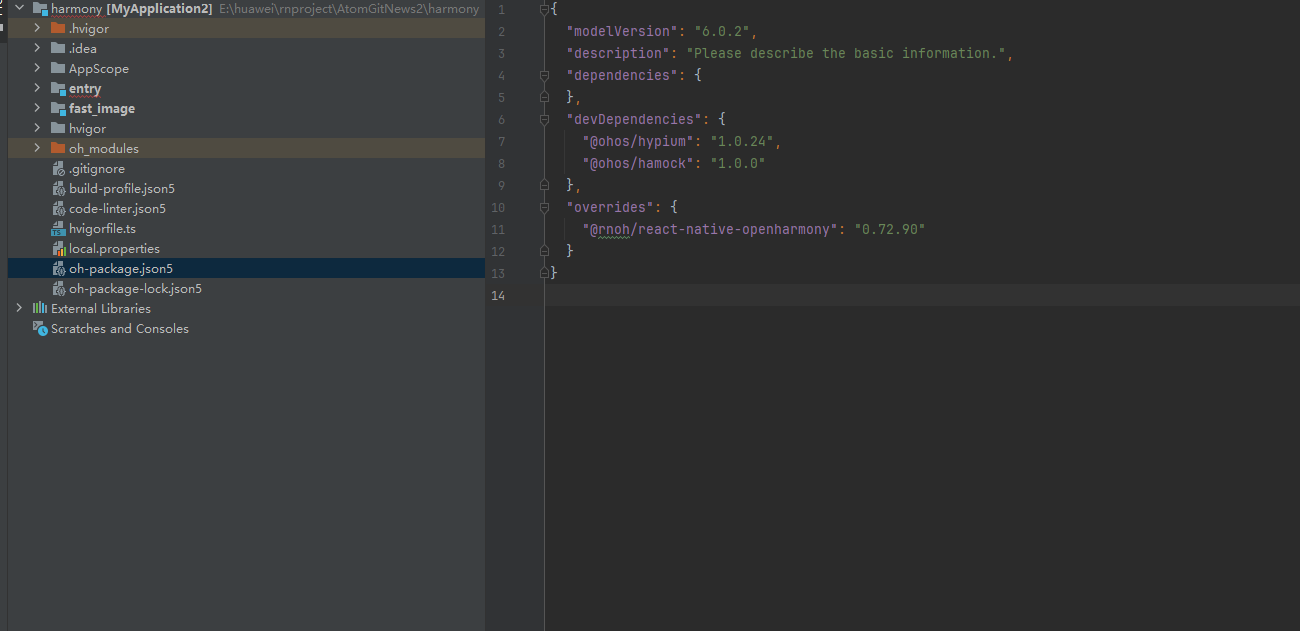
打开 harmony/entry/oh-package.json5,添加以下依赖:
json5
"dependencies": {
  "@rnoh/react-native-openharmony": "0.72.90",
  "@react-native-ohos/geolocation": "file:../../node_modules/@react-native-ohos/geolocation/harmony/geolocation.har"
}
3. 同步依赖
点击 DevEco Studio 右上角的 sync 按钮,或者在终端执行:
bash
cd harmony/entry
ohpm install
4. 配置 CMakeLists.txt
打开 harmony/entry/src/main/cpp/CMakeLists.txt,添加以下配置:
cmake
project(rnapp)
cmake_minimum_required(VERSION 3.4.1)
set(CMAKE_SKIP_BUILD_RPATH TRUE)
set(RNOH_APP_DIR "${CMAKE_CURRENT_SOURCE_DIR}")
set(NODE_MODULES "${CMAKE_CURRENT_SOURCE_DIR}/../../../../../node_modules")
set(RNOH_CPP_DIR "${CMAKE_CURRENT_SOURCE_DIR}/../../../../../../react-native-harmony/harmony/cpp")
set(LOG_VERBOSITY_LEVEL 1)
set(CMAKE_ASM_FLAGS "-Wno-error=unused-command-line-argument -Qunused-arguments")
set(CMAKE_CXX_FLAGS "-fstack-protector-strong -Wl,-z,relro,-z,now,-z,noexecstack -s -fPIE -pie")
set(WITH_HITRACE_SYSTRACE 1)
add_compile_definitions(WITH_HITRACE_SYSTRACE)

add_subdirectory("${RNOH_CPP_DIR}" ./rn)

# 添加 Geolocation 模块
+ set(OH_MODULES "${CMAKE_CURRENT_SOURCE_DIR}/../../../oh_modules")
+ add_subdirectory("${OH_MODULES}/@react-native-ohos/geolocation/src/main/cpp" ./geolocation)

file(GLOB GENERATED_CPP_FILES "./generated/*.cpp")

add_library(rnoh_app SHARED
    ${GENERATED_CPP_FILES}
    "./PackageProvider.cpp"
    "${RNOH_CPP_DIR}/RNOHAppNapiBridge.cpp"
)
target_link_libraries(rnoh_app PUBLIC rnoh)

# 链接 Geolocation 库
+ target_link_libraries(rnoh_app PUBLIC rnoh_geolocation)
5. 修改 PackageProvider.cpp
打开 harmony/entry/src/main/cpp/PackageProvider.cpp,添加:
cpp
#include "RNOH/PackageProvider.h"
#include "generated/RNOHGeneratedPackage.h"
+ #include "GeoLocationPackage.h"

using namespace rnoh;

std::vector<std::shared_ptr<Package>> PackageProvider::getPackages(Package::Context ctx) {
    return {
        std::make_shared<RNOHGeneratedPackage>(ctx),
        + std::make_shared<GeoLocationPackage>(ctx),
    };
}
6. 在 ArkTs 侧引入 GeolocationPackage
打开 harmony/entry/src/main/ets/RNPackagesFactory.ts,添加:
typescript
import type { RNPackageContext, RNPackage } from 'rnoh/ts';
+ import { GeoLocationPackage } from '@react-native-ohos/geolocation/ts';

export function createRNPackages(ctx: RNPackageContext): RNPackage[] {
  return [
    // ... 其他包
    + new GeoLocationPackage(ctx),
  ];
}
7. 同步并运行
点击 DevEco Studio 右上角的 sync 按钮,然后编译运行即可。
🔐 权限配置 ⭐
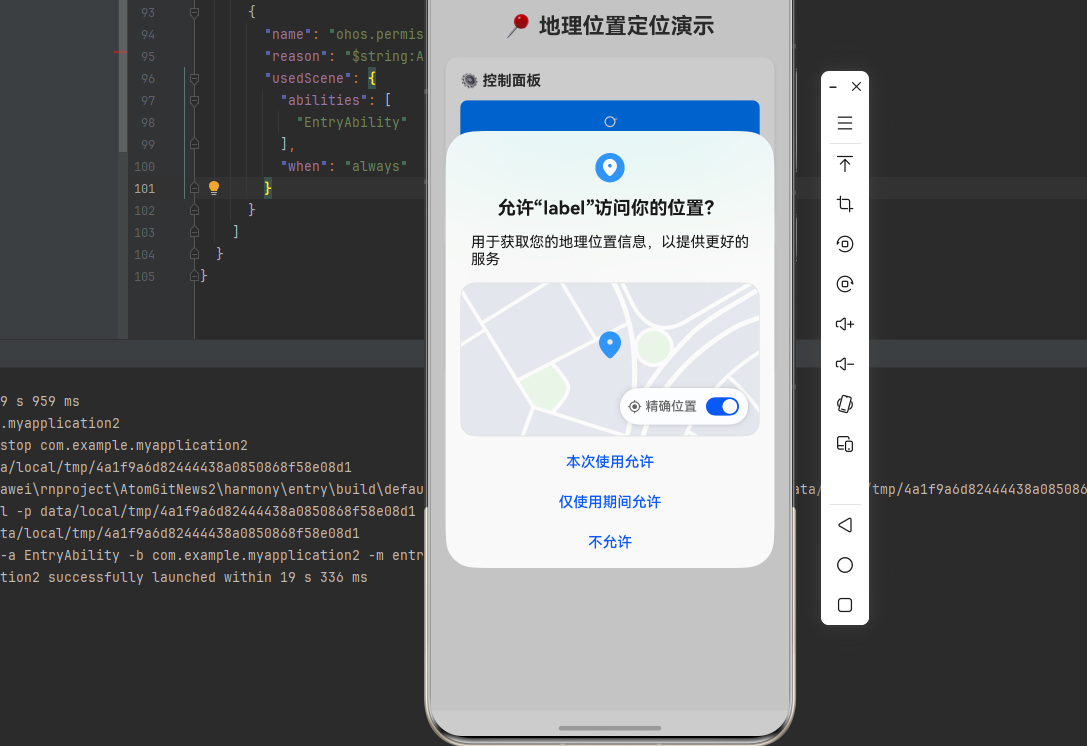
定位功能需要在 HarmonyOS 端配置相应的权限。
1. 配置 module.json5
打开 harmony/entry/src/main/module.json5,在 module 节点下添加权限配置:
json5
{
  "module": {
    "requestPermissions": [
      {
        "name": "ohos.permission.APPROXIMATELY_LOCATION",
        "reason": "$string:Access_location",
        "usedScene": {
          "abilities": [
            "EntryAbility"
          ],
          "when": "always"
        }
      },
      {
        "name": "ohos.permission.LOCATION",
        "reason": "$string:Access_location",
        "usedScene": {
          "abilities": [
            "EntryAbility"
          ],
          "when": "always"
        }
      }
    ]
  }
}
2. 添加权限描述字符串
打开 harmony/entry/src/main/resources/base/element/string.json,添加:
json
{
  "string": [
    {
      "name": "Access_location",
      "value": "用于获取您的地理位置信息,以提供更好的服务"
    }
  ]
}
权限说明
| 权限名称 | 说明 | 级别 |
|---|---|---|
ohos.permission.APPROXIMATELY_LOCATION |
大致位置权限 | normal |
ohos.permission.LOCATION |
精确位置权限 | normal |
ohos.permission.INTERNET |
网络访问权限 | normal |
⚠️ 注意 : 如果需要后台定位功能,还需要添加
ohos.permission.LOCATION_IN_BACKGROUND权限,该权限为system_core级别,需要系统签名。
📖 API 详解
🔷 setRNConfiguration - 设置全局配置 ⚙️
设置将在所有位置请求中使用的配置选项。
typescript
Geolocation.setRNConfiguration(config: GeolocationConfiguration): void;参数说明:
| 参数 | 类型 | 必填 | 说明 | HarmonyOS 支持 |
|---|---|---|---|---|
skipPermissionRequests |
boolean |
❌ | 是否跳过权限请求 | ✅ |
authorizationLevel |
string |
❌ | 授权级别:auto、always、whenInUse |
❌ |
enableBackgroundLocationUpdates |
boolean |
❌ | 是否启用后台位置更新 | ❌ |
locationProvider |
string |
❌ | 位置提供者:auto、android、playServices |
❌ |
⚠️ HarmonyOS 限制 : 仅支持
skipPermissionRequests参数。
应用场景:
typescript
import Geolocation from '@react-native-community/geolocation';

// 配置跳过权限请求(适用于已自行处理权限的场景)
Geolocation.setRNConfiguration({
  skipPermissionRequests: true,
});
🔷 requestAuthorization - 请求权限 🔐
请求合适的位置权限。
typescript
Geolocation.requestAuthorization(
  success?: () => void,
  error?: (error: GeolocationError) => void
): void;参数说明:
| 参数 | 类型 | 必填 | 说明 |
|---|---|---|---|
success |
function |
❌ | 权限授予回调 |
error |
function |
❌ | 权限拒绝回调 |
错误对象说明:
| 属性 | 类型 | 说明 | HarmonyOS 支持 |
|---|---|---|---|
code |
number |
错误代码 | ✅ |
message |
string |
错误信息 | ✅ |
应用场景:
typescript
import Geolocation from '@react-native-community/geolocation';
import { Alert } from 'react-native';

// 请求位置权限
const requestLocationPermission = () => {
  Geolocation.requestAuthorization(
    () => {
      console.log('位置权限已授予');
      // 权限授予后获取位置
      getCurrentLocation();
    },
    (error) => {
      console.log('位置权限被拒绝:', error.message);
      Alert.alert('提示', '需要位置权限才能使用定位功能');
    }
  );
};
🔷 getCurrentPosition - 获取当前位置 ⭐
使用最新位置信息调用成功回调一次。
typescript
Geolocation.getCurrentPosition(
  success: (position: GeolocationPosition) => void,
  error?: (error: GeolocationError) => void,
  options?: GeolocationOptions
): void;成功回调参数(position):
| 属性 | 类型 | 说明 | HarmonyOS 支持 |
|---|---|---|---|
coords |
object |
坐标信息 | ✅ |
coords.latitude |
number |
纬度 | ✅ |
coords.longitude |
number |
经度 | ✅ |
coords.altitude |
number |
海拔高度 | ✅ |
coords.accuracy |
number |
精度(米) | ✅ |
coords.altitudeAccuracy |
number |
海拔精度 | ❌ |
coords.heading |
number |
方向(度) | ✅ |
coords.speed |
number |
速度(米/秒) | ✅ |
timestamp |
number |
时间戳 | ✅ |
配置选项(options):
| 属性 | 类型 | 默认值 | 说明 | HarmonyOS 支持 |
|---|---|---|---|---|
timeout |
number |
- | 超时时间(毫秒) | ✅ |
maximumAge |
number |
- | 可接受的缓存位置最大年龄(毫秒) | ⚠️ 有延时问题 |
enableHighAccuracy |
boolean |
false | 是否使用高精度定位 | ❌ |
⚠️ HarmonyOS 限制 :
altitudeAccuracy不支持,maximumAge存在延时问题。
应用场景:
typescript
import Geolocation from '@react-native-community/geolocation';
import { Alert } from 'react-native';

// 场景1:基础获取位置
const getCurrentLocation = () => {
  Geolocation.getCurrentPosition(
    (position) => {
      console.log('当前位置:', position);
      const { latitude, longitude } = position.coords;
      console.log(`纬度: ${latitude}, 经度: ${longitude}`);
    },
    (error) => {
      console.error('获取位置失败:', error.message);
      Alert.alert('错误', `获取位置失败: ${error.message}`);
    },
    {
      timeout: 15000,  // 15秒超时
      maximumAge: 10000,  // 接受10秒内的缓存位置
    }
  );
};

// 格式化时间戳的辅助函数
const formatTimestamp = (timestamp: number): string => {
  try {
    const ts = timestamp > 9999999999 ? timestamp : timestamp * 1000;
    const date = new Date(ts);
    if (isNaN(date.getTime())) {
      return '时间未知';
    }
    return `${date.getFullYear()}-${String(date.getMonth() + 1).padStart(2, '0')}-${String(date.getDate()).padStart(2, '0')} ${String(date.getHours()).padStart(2, '0')}:${String(date.getMinutes()).padStart(2, '0')}:${String(date.getSeconds()).padStart(2, '0')}`;
  } catch (e) {
    return '时间未知';
  }
};

// 场景2:获取位置并显示详细信息
const getLocationDetails = () => {
  Geolocation.getCurrentPosition(
    (position) => {
      const { coords, timestamp } = position;
      const locationInfo = {
        latitude: coords.latitude,
        longitude: coords.longitude,
        altitude: coords.altitude,
        accuracy: coords.accuracy,
        heading: coords.heading,
        speed: coords.speed,
        time: formatTimestamp(timestamp),
      };
      console.log('详细位置信息:', locationInfo);
    },
    (error) => {
      console.error('错误代码:', error.code);
      console.error('错误信息:', error.message);
    },
    {
      timeout: 20000,
    }
  );
};

// 场景3:检查位置服务是否可用
const checkAndGetLocation = async () => {
  try {
    const position = await new Promise((resolve, reject) => {
      Geolocation.getCurrentPosition(resolve, reject, {
        timeout: 10000,
      });
    });
    return position;
  } catch (error) {
    if (error.code === 1) {
      console.log('位置权限被拒绝');
    } else if (error.code === 2) {
      console.log('位置服务不可用');
    } else if (error.code === 3) {
      console.log('获取位置超时');
    }
    throw error;
  }
};错误代码说明:
| 错误代码 | 说明 |
|---|---|
| 1 | 权限被拒绝(PERMISSION_DENIED) |
| 2 | 位置服务不可用(POSITION_UNAVAILABLE) |
| 3 | 获取位置超时(TIMEOUT) |
🔷 watchPosition - 持续监听位置 🔄
每当位置发生变化时调用成功回调,返回一个 watchId。
typescript
Geolocation.watchPosition(
  success: (position: GeolocationPosition) => void,
  error?: (error: GeolocationError) => void,
  options?: GeolocationOptions
): number;
返回值 :number - watchId,用于后续清除监听
配置选项(options):
| 属性 | 类型 | 默认值 | 说明 | HarmonyOS 支持 |
|---|---|---|---|---|
interval |
number |
- | 位置更新的时间间隔(毫秒) | ✅ |
distanceFilter |
number |
0 | 最小距离变化触发更新(米) | ✅ |
timeout |
number |
- | 超时时间(毫秒) | ✅ |
enableHighAccuracy |
boolean |
false | 是否使用高精度定位 | ❌ |
⚠️ HarmonyOS 限制 :
altitudeAccuracy不支持。
应用场景:
typescript
import Geolocation from '@react-native-community/geolocation';
import { useState, useEffect, useCallback } from 'react';

// 定义位置信息类型(如果使用 TypeScript)
interface Position {
  coords: {
    latitude: number;
    longitude: number;
    altitude: number | null;
    accuracy: number;
    heading: number | null;
    speed: number | null;
  };
  timestamp: number;
}

// 场景1:基础位置监听
let watchId: number | null = null;

const startWatchingPosition = () => {
  watchId = Geolocation.watchPosition(
    (position: Position) => {
      console.log('位置更新:', position.coords);
    },
    (error: { code: number; message: string }) => {
      console.error('监听位置失败:', error.message);
    },
    {
      interval: 5000,  // 每5秒更新一次
      distanceFilter: 10,  // 移动超过10米才更新
    }
  );
  console.log('监听已启动,watchId:', watchId);
};

const stopWatchingPosition = () => {
  if (watchId !== null) {
    Geolocation.clearWatch(watchId);
    watchId = null;
    console.log('监听已停止');
  }
};

// 场景2:React Hook 封装
interface Position {
  coords: {
    latitude: number;
    longitude: number;
    altitude: number | null;
    accuracy: number;
    heading: number | null;
    speed: number | null;
  };
  timestamp: number;
}

interface PositionError {
  code: number;
  message: string;
}

interface WatchOptions {
  interval?: number;
  distanceFilter?: number;
  timeout?: number;
}

function useGeolocation(options?: WatchOptions) {
  const [position, setPosition] = useState<Position | null>(null);
  const [error, setError] = useState<PositionError | null>(null);
  const [loading, setLoading] = useState(false);

  const startWatch = useCallback(() => {
    setLoading(true);
    const id = Geolocation.watchPosition(
      (pos) => {
        setPosition(pos);
        setLoading(false);
      },
      (err) => {
        setError(err);
        setLoading(false);
      },
      options
    );
    return id;
  }, [options]);

  const stopWatch = useCallback((id: number) => {
    Geolocation.clearWatch(id);
  }, []);

  return { position, error, loading, startWatch, stopWatch };
}

// 使用示例
function LocationTracker() {
  const { position, error, loading, startWatch, stopWatch } = useGeolocation({
    interval: 3000,
    distanceFilter: 5,
  });
  const [watchId, setWatchId] = useState<number | null>(null);

  useEffect(() => {
    const id = startWatch();
    setWatchId(id);
    return () => {
      if (id !== null) {
        stopWatch(id);
      }
    };
  }, []);

  return (
    <View>
      {loading && <Text>获取位置中...</Text>}
      {error && <Text>错误: {error.message}</Text>}
      {position && (
        <Text>
          纬度: {position.coords.latitude.toFixed(6)}
          {'\n'}
          经度: {position.coords.longitude.toFixed(6)}
        </Text>
      )}
    </View>
  );
}

// 场景3:实时位置追踪与轨迹记录
function LocationTracker() {
  const [positions, setPositions] = useState<Position[]>([]);
  const [watchId, setWatchId] = useState<number | null>(null);
  const [isTracking, setIsTracking] = useState(false);

  const startTracking = () => {
    const id = Geolocation.watchPosition(
      (position) => {
        setPositions((prev) => [...prev, position]);
      },
      (error) => {
        console.error('追踪错误:', error);
        setIsTracking(false);
      },
      {
        interval: 2000,
        distanceFilter: 5,
      }
    );
    setWatchId(id);
    setIsTracking(true);
  };

  const stopTracking = () => {
    if (watchId !== null) {
      Geolocation.clearWatch(watchId);
      setWatchId(null);
    }
    setIsTracking(false);
  };

  return (
    <View>
      <Button
        title={isTracking ? '停止追踪' : '开始追踪'}
        onPress={isTracking ? stopTracking : startTracking}
      />
      <Text>已记录 {positions.length} 个位置点</Text>
    </View>
  );
}
🔷 clearWatch - 清除位置监听 🛑
通过 watchPosition() 返回的 ID 清除观察者。
typescript
Geolocation.clearWatch(watchId: number): void;参数说明:
| 参数 | 类型 | 必填 | 说明 |
|---|---|---|---|
watchId |
number |
✅ | watchPosition 返回的监听ID |
⚠️ HarmonyOS 限制: watchId 仅支持默认值 0。
应用场景:
typescript
import Geolocation from '@react-native-community/geolocation';
import { useEffect, useRef } from 'react';

// 场景:组件卸载时自动清除监听
function useLocationWatcher() {
  const watchIdRef = useRef<number | null>(null);

  useEffect(() => {
    return () => {
      // 组件卸载时清除监听
      if (watchIdRef.current !== null) {
        Geolocation.clearWatch(watchIdRef.current);
      }
    };
  }, []);

  const startWatching = () => {
    watchIdRef.current = Geolocation.watchPosition(
      (position) => console.log(position),
      (error) => console.error(error)
    );
  };

  const stopWatching = () => {
    if (watchIdRef.current !== null) {
      Geolocation.clearWatch(watchIdRef.current);
      watchIdRef.current = null;
    }
  };

  return { startWatching, stopWatching };
}
🔷 stopObserving - 停止所有监听 ⚠️
停止所有位置监听观察者。
typescript
Geolocation.stopObserving(): void;⚠️ HarmonyOS 限制: 此方法不支持。
iOS/Android 使用示例:
typescript
// 停止所有监听(HarmonyOS 不支持)
Geolocation.stopObserving();
💻 完整代码示例
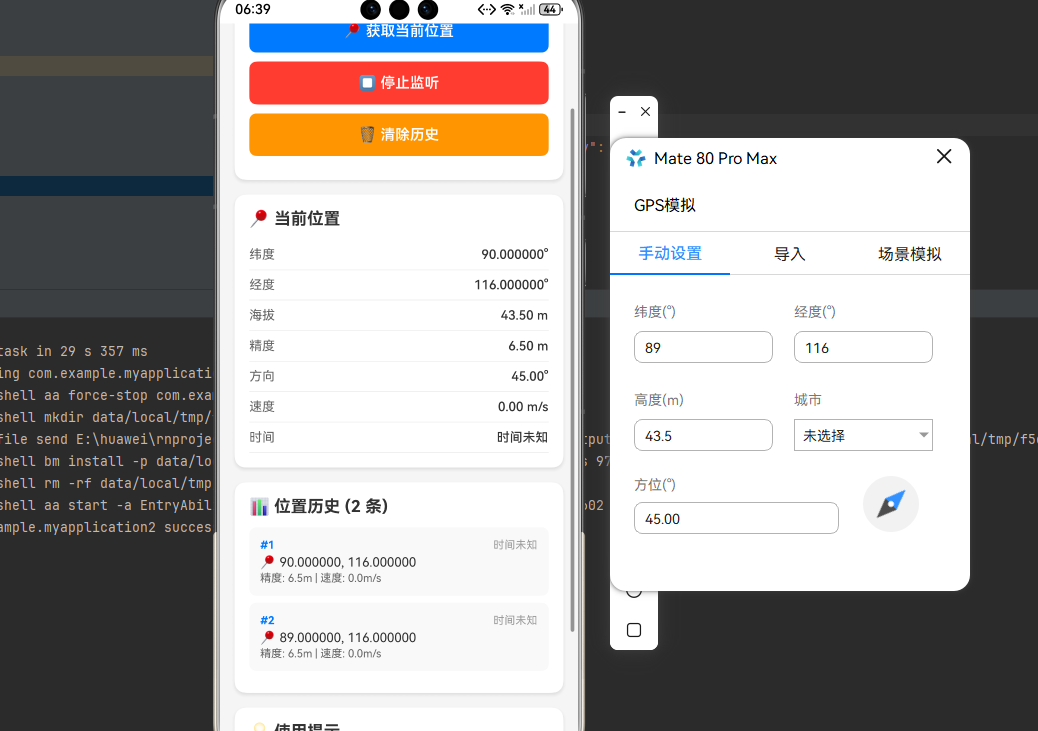
下面是一个完整的示例,展示了 Geolocation 的各种功能应用:
typescript
import React, { useState, useEffect, useCallback, useRef } from 'react';
import {
  View,
  Text,
  StyleSheet,
  ScrollView,
  SafeAreaView,
  TouchableOpacity,
  Alert,
  ActivityIndicator,
  Platform,
} from 'react-native';
import Geolocation from '@react-native-community/geolocation';

// 定义类型接口
interface Position {
  coords: {
    latitude: number;
    longitude: number;
    altitude: number | null;
    accuracy: number;
    heading: number | null;
    speed: number | null;
  };
  timestamp: number;
}

interface PositionError {
  code: number;
  message: string;
}

interface WatchOptions {
  timeout?: number;
  maximumAge?: number;
  interval?: number;
  distanceFilter?: number;
}

interface LocationInfo {
  latitude: number;
  longitude: number;
  altitude: number | null;
  accuracy: number;
  heading: number | null;
  speed: number | null;
  timestamp: string;
}

function GeolocationDemo() {
  const [currentPosition, setCurrentPosition] = useState<LocationInfo | null>(null);
  const [watchPositions, setWatchPositions] = useState<LocationInfo[]>([]);
  const [isWatching, setIsWatching] = useState(false);
  const [loading, setLoading] = useState(false);
  const [error, setError] = useState<string | null>(null);
  const watchIdRef = useRef<number | null>(null);

  // 格式化日期时间
  const formatDateTime = (timestamp: number): string => {
    try {
      // timestamp 可能是毫秒或秒,需要判断
      const ts = timestamp > 9999999999 ? timestamp : timestamp * 1000;
      const date = new Date(ts);

      // 检查日期是否有效
      if (isNaN(date.getTime())) {
        return '时间未知';
      }

      const year = date.getFullYear();
      const month = String(date.getMonth() + 1).padStart(2, '0');
      const day = String(date.getDate()).padStart(2, '0');
      const hours = String(date.getHours()).padStart(2, '0');
      const minutes = String(date.getMinutes()).padStart(2, '0');
      const seconds = String(date.getSeconds()).padStart(2, '0');

      return `${year}-${month}-${day} ${hours}:${minutes}:${seconds}`;
    } catch (e) {
      return '时间未知';
    }
  };

  // 格式化位置信息
  const formatPosition = (position: Position): LocationInfo => {
    return {
      latitude: position.coords.latitude,
      longitude: position.coords.longitude,
      altitude: position.coords.altitude,
      accuracy: position.coords.accuracy,
      heading: position.coords.heading,
      speed: position.coords.speed,
      timestamp: formatDateTime(position.timestamp),
    };
  };

  // 设置配置
  useEffect(() => {
    Geolocation.setRNConfiguration({
      skipPermissionRequests: false,
    });
  }, []);

  // 请求权限
  const requestPermission = useCallback(() => {
    return new Promise<void>((resolve, reject) => {
      Geolocation.requestAuthorization(
        () => {
          console.log('权限已授予');
          resolve();
        },
        (err: PositionError) => {
          console.log('权限被拒绝:', err.message);
          reject(err);
        }
      );
    });
  }, []);

  // 获取当前位置
  const getCurrentPosition = useCallback(async () => {
    setLoading(true);
    setError(null);

    try {
      await requestPermission();

      Geolocation.getCurrentPosition(
        (position) => {
          setCurrentPosition(formatPosition(position));
          setLoading(false);
        },
        (err: PositionError) => {
          setError(`错误 ${err.code}: ${err.message}`);
          setLoading(false);
        },
        {
          timeout: 15000,
          maximumAge: 10000,
        } as WatchOptions
      );
    } catch (err) {
      setError('无法获取位置权限');
      setLoading(false);
    }
  }, [requestPermission]);

  // 开始持续定位
  const startWatching = useCallback(async () => {
    try {
      await requestPermission();

      watchIdRef.current = Geolocation.watchPosition(
        (position) => {
          const locationInfo = formatPosition(position);
          setWatchPositions((prev) => {
            // 保留最近 20 条记录
            const newPositions = [...prev, locationInfo];
            return newPositions.slice(-20);
          });
        },
        (err: PositionError) => {
          Alert.alert('定位错误', err.message);
          setIsWatching(false);
        },
        {
          interval: 3000,
          distanceFilter: 10,
        } as WatchOptions
      );

      setIsWatching(true);
    } catch (err) {
      Alert.alert('权限错误', '无法获取位置权限');
    }
  }, [requestPermission]);

  // 停止持续定位
  const stopWatching = useCallback(() => {
    if (watchIdRef.current !== null) {
      Geolocation.clearWatch(watchIdRef.current);
      watchIdRef.current = null;
    }
    setIsWatching(false);
  }, []);

  // 清除历史记录
  const clearHistory = useCallback(() => {
    setWatchPositions([]);
  }, []);

  // 组件卸载时清理
  useEffect(() => {
    return () => {
      if (watchIdRef.current !== null) {
        Geolocation.clearWatch(watchIdRef.current);
      }
    };
  }, []);

  return (
    <SafeAreaView style={styles.container}>
      <ScrollView style={styles.scrollView} contentContainerStyle={styles.scrollContent}>
        <Text style={styles.title}>📍 地理位置定位演示</Text>

        {/* 控制面板 */}
        <View style={styles.controlPanel}>
          <Text style={styles.panelTitle}>⚙️ 控制面板</Text>

          <TouchableOpacity
            style={[styles.button, styles.primaryButton]}
            onPress={getCurrentPosition}
            disabled={loading}
          >
            {loading ? (
              <ActivityIndicator color="#fff" />
            ) : (
              <Text style={styles.buttonText}>📍 获取当前位置</Text>
            )}
          </TouchableOpacity>

          <TouchableOpacity
            style={[
              styles.button,
              isWatching ? styles.dangerButton : styles.successButton,
            ]}
            onPress={isWatching ? stopWatching : startWatching}
          >
            <Text style={styles.buttonText}>
              {isWatching ? '⏹️ 停止监听' : '▶️ 开始监听'}
            </Text>
          </TouchableOpacity>

          {watchPositions.length > 0 && (
            <TouchableOpacity
              style={[styles.button, styles.warningButton]}
              onPress={clearHistory}
            >
              <Text style={styles.buttonText}>🗑️ 清除历史</Text>
            </TouchableOpacity>
          )}
        </View>

        {/* 错误提示 */}
        {error && (
          <View style={styles.errorContainer}>
            <Text style={styles.errorText}>❌ {error}</Text>
          </View>
        )}

        {/* 当前位置 */}
        {currentPosition && (
          <View style={styles.section}>
            <Text style={styles.sectionTitle}>📍 当前位置</Text>
            <View style={styles.infoRow}>
              <Text style={styles.infoLabel}>纬度</Text>
              <Text style={styles.infoValue}>
                {currentPosition.latitude.toFixed(6)}°
              </Text>
            </View>
            <View style={styles.infoRow}>
              <Text style={styles.infoLabel}>经度</Text>
              <Text style={styles.infoValue}>
                {currentPosition.longitude.toFixed(6)}°
              </Text>
            </View>
            <View style={styles.infoRow}>
              <Text style={styles.infoLabel}>海拔</Text>
              <Text style={styles.infoValue}>
                {currentPosition.altitude?.toFixed(2) || 'N/A'} m
              </Text>
            </View>
            <View style={styles.infoRow}>
              <Text style={styles.infoLabel}>精度</Text>
              <Text style={styles.infoValue}>
                {currentPosition.accuracy.toFixed(2)} m
              </Text>
            </View>
            <View style={styles.infoRow}>
              <Text style={styles.infoLabel}>方向</Text>
              <Text style={styles.infoValue}>
                {currentPosition.heading?.toFixed(2) || 'N/A'}°
              </Text>
            </View>
            <View style={styles.infoRow}>
              <Text style={styles.infoLabel}>速度</Text>
              <Text style={styles.infoValue}>
                {currentPosition.speed?.toFixed(2) || 'N/A'} m/s
              </Text>
            </View>
            <View style={styles.infoRow}>
              <Text style={styles.infoLabel}>时间</Text>
              <Text style={styles.infoValue}>{currentPosition.timestamp}</Text>
            </View>
          </View>
        )}

        {/* 位置历史 */}
        {watchPositions.length > 0 && (
          <View style={styles.section}>
            <Text style={styles.sectionTitle}>
              📊 位置历史 ({watchPositions.length} 条)
            </Text>
            {watchPositions.map((pos, index) => (
              <View key={index} style={styles.historyItem}>
                <View style={styles.historyHeader}>
                  <Text style={styles.historyIndex}>#{index + 1}</Text>
                  <Text style={styles.historyTime}>{pos.timestamp}</Text>
                </View>
                <Text style={styles.historyCoords}>
                  📍 {pos.latitude.toFixed(6)}, {pos.longitude.toFixed(6)}
                </Text>
                <Text style={styles.historyDetails}>
                  精度: {pos.accuracy.toFixed(1)}m |
                  速度: {pos.speed?.toFixed(1) || 'N/A'}m/s
                </Text>
              </View>
            ))}
          </View>
        )}

        {/* 使用提示 */}
        <View style={styles.section}>
          <Text style={styles.sectionTitle}>💡 使用提示</Text>
          <Text style={styles.tipText}>• 首次使用需要授予位置权限</Text>
          <Text style={styles.tipText}>• 室内定位精度可能较低</Text>
          <Text style={styles.tipText}>• 持续定位会增加电量消耗</Text>
          <Text style={styles.tipText}>• 部分功能在 HarmonyOS 上有限制</Text>
        </View>
      </ScrollView>
    </SafeAreaView>
  );
}

const styles = StyleSheet.create({
  container: {
    flex: 1,
    backgroundColor: '#f5f5f5',
  },
  scrollView: {
    flex: 1,
  },
  scrollContent: {
    padding: 16,
  },
  title: {
    fontSize: 24,
    fontWeight: 'bold',
    color: '#333',
    textAlign: 'center',
    marginBottom: 20,
  },
  controlPanel: {
    backgroundColor: '#fff',
    borderRadius: 12,
    padding: 16,
    marginBottom: 16,
    shadowColor: '#000',
    shadowOffset: { width: 0, height: 2 },
    shadowOpacity: 0.1,
    shadowRadius: 4,
    elevation: 3,
  },
  panelTitle: {
    fontSize: 16,
    fontWeight: 'bold',
    color: '#333',
    marginBottom: 12,
  },
  button: {
    paddingVertical: 14,
    paddingHorizontal: 20,
    borderRadius: 8,
    alignItems: 'center',
    marginBottom: 10,
  },
  primaryButton: {
    backgroundColor: '#007AFF',
  },
  successButton: {
    backgroundColor: '#34C759',
  },
  dangerButton: {
    backgroundColor: '#FF3B30',
  },
  warningButton: {
    backgroundColor: '#FF9500',
  },
  buttonText: {
    color: '#fff',
    fontSize: 16,
    fontWeight: '600',
  },
  errorContainer: {
    backgroundColor: '#FFE5E5',
    borderRadius: 8,
    padding: 12,
    marginBottom: 16,
  },
  errorText: {
    color: '#FF3B30',
    fontSize: 14,
  },
  section: {
    backgroundColor: '#fff',
    borderRadius: 12,
    padding: 16,
    marginBottom: 16,
    shadowColor: '#000',
    shadowOffset: { width: 0, height: 2 },
    shadowOpacity: 0.1,
    shadowRadius: 4,
    elevation: 3,
  },
  sectionTitle: {
    fontSize: 18,
    fontWeight: 'bold',
    color: '#333',
    marginBottom: 12,
  },
  infoRow: {
    flexDirection: 'row',
    justifyContent: 'space-between',
    paddingVertical: 8,
    borderBottomWidth: 1,
    borderBottomColor: '#f0f0f0',
  },
  infoLabel: {
    fontSize: 14,
    color: '#666',
  },
  infoValue: {
    fontSize: 14,
    color: '#333',
    fontWeight: '500',
  },
  historyItem: {
    backgroundColor: '#f9f9f9',
    borderRadius: 8,
    padding: 12,
    marginBottom: 8,
  },
  historyHeader: {
    flexDirection: 'row',
    justifyContent: 'space-between',
    marginBottom: 4,
  },
  historyIndex: {
    fontSize: 12,
    fontWeight: 'bold',
    color: '#007AFF',
  },
  historyTime: {
    fontSize: 12,
    color: '#999',
  },
  historyCoords: {
    fontSize: 14,
    color: '#333',
    marginBottom: 2,
  },
  historyDetails: {
    fontSize: 12,
    color: '#666',
  },
  tipText: {
    fontSize: 14,
    color: '#666',
    lineHeight: 22,
  },
});

export default GeolocationDemo;
⚠️ 注意事项与最佳实践
1. 权限处理
typescript
// ✅ 推荐:先检查权限再获取位置
const getLocationWithPermission = async () => {
  try {
    // 请求权限
    await new Promise((resolve, reject) => {
      Geolocation.requestAuthorization(resolve, reject);
    });

    // 获取位置
    const position = await new Promise((resolve, reject) => {
      Geolocation.getCurrentPosition(resolve, reject, { timeout: 10000 });
    });

    return position;
  } catch (error) {
    console.error('权限或定位失败:', error);
    throw error;
  }
};
2. 错误处理
typescript
// ✅ 推荐:完善的错误处理
const handleLocationError = (error: GeolocationError) => {
  switch (error.code) {
    case 1: // PERMISSION_DENIED
      Alert.alert('权限被拒绝', '请在设置中开启位置权限');
      break;
    case 2: // POSITION_UNAVAILABLE
      Alert.alert('位置不可用', '请检查是否开启定位服务');
      break;
    case 3: // TIMEOUT
      Alert.alert('定位超时', '请检查网络连接后重试');
      break;
    default:
      Alert.alert('定位错误', error.message);
  }
};
3. 性能优化
typescript
// ✅ 推荐:合理设置监听参数
Geolocation.watchPosition(
  successCallback,
  errorCallback,
  {
    interval: 5000,      // 5秒更新一次,避免频繁请求
    distanceFilter: 10,  // 移动超过10米才更新,减少无效更新
  }
);

// ✅ 推荐:及时清除监听
useEffect(() => {
  const watchId = Geolocation.watchPosition(...);
  return () => Geolocation.clearWatch(watchId);
}, []);
4. 常见问题排查
问题 1: 权限被拒绝
- 检查
module.json5是否正确配置了权限 - 确认用户在系统设置中授予了位置权限
- 检查权限描述字符串是否配置
问题 2: 获取位置超时
- 检查设备是否开启了定位服务
- 尝试在开阔地带测试(室内GPS信号弱)
- 增加超时时间设置
问题 3: 位置精度差
- 室内环境精度较低是正常现象
- 可以尝试使用
enableHighAccuracy: true(HarmonyOS 不支持) - 检查设备的定位模式设置
问题 4: watchPosition 不更新
- 检查
distanceFilter设置是否过大 - 确认设备位置确实发生了变化
- 检查是否有其他应用占用了定位服务
⚠️ 已知问题
1. maximumAge 延时问题
maximumAge 属性在 HarmonyOS 上存在延时问题。
Issue : issue#6
替代方案:自行实现缓存逻辑
typescript
let lastPosition: GeolocationPosition | null = null;
let lastPositionTime = 0;

const getCachedPosition = (maxAge: number) => {
  const now = Date.now();
  if (lastPosition && (now - lastPositionTime) < maxAge) {
    return lastPosition;
  }
  return null;
};

const getPositionWithCache = async (maxAge: number = 10000) => {
  const cached = getCachedPosition(maxAge);
  if (cached) {
    return cached;
  }

  return new Promise((resolve, reject) => {
    Geolocation.getCurrentPosition(
      (position) => {
        lastPosition = position;
        lastPositionTime = Date.now();
        resolve(position);
      },
      reject,
      { timeout: 15000 }
    );
  });
};
2. 部分属性不支持
| 属性 | 说明 | 状态 |
|---|---|---|
altitudeAccuracy |
海拔精度 | ❌ 不支持 |
enableHighAccuracy |
高精度定位 | ❌ 不支持 |
stopObserving |
停止所有监听 | ❌ 不支持 |
authorizationLevel |
授权级别 | ❌ 不支持 |
enableBackgroundLocationUpdates |
后台定位 | ❌ 不支持 |
🧪 测试验证
1. 测试要点
- 权限请求: 确认首次使用时正确请求权限
- 获取位置 : 验证
getCurrentPosition返回正确的位置信息 - 持续监听 : 测试
watchPosition能正确接收位置更新 - 清除监听 : 验证
clearWatch能正确停止监听 - 错误处理: 测试各种错误场景的处理
2. 常见问题排查
问题 1: 编译报错找不到模块
- 检查
oh-package.json5是否正确配置依赖 - 执行
ohpm install同步依赖 - 检查 CMakeLists.txt 配置
问题 2: 运行时报错
- 检查
RNPackagesFactory.ts是否正确引入 Package - 确认
PackageProvider.cpp是否正确引入头文件
问题 3: 定位不工作
- 检查设备是否开启定位服务
- 确认应用是否获得位置权限
- 检查权限配置是否完整
📊 API 支持情况总览
方法支持
| 方法 | 说明 | HarmonyOS 支持 |
|---|---|---|
setRNConfiguration |
设置全局配置 | ⚠️ 部分支持 |
requestAuthorization |
请求位置权限 | ⚠️ 部分支持 |
getCurrentPosition |
获取当前位置 | ⚠️ 部分支持 |
watchPosition |
持续监听位置 | ⚠️ 部分支持 |
clearWatch |
清除位置监听 | ✅ |
stopObserving |
停止所有监听 | ❌ |
配置选项支持
| 属性 | 方法 | HarmonyOS 支持 |
|---|---|---|
skipPermissionRequests |
setRNConfiguration | ✅ |
authorizationLevel |
setRNConfiguration | ❌ |
enableBackgroundLocationUpdates |
setRNConfiguration | ❌ |
timeout |
getCurrentPosition | ✅ |
maximumAge |
getCurrentPosition | ⚠️ 有延时问题 |
enableHighAccuracy |
getCurrentPosition | ❌ |
interval |
watchPosition | ✅ |
distanceFilter |
watchPosition | ✅ |
位置信息支持
| 属性 | 说明 | HarmonyOS 支持 |
|---|---|---|
latitude |
纬度 | ✅ |
longitude |
经度 | ✅ |
altitude |
海拔 | ✅ |
accuracy |
精度 | ✅ |
altitudeAccuracy |
海拔精度 | ❌ |
heading |
方向 | ✅ |
speed |
速度 | ✅ |
timestamp |
时间戳 | ✅ |
📝 总结
通过集成 @react-native-community/geolocation,我们为项目添加了完整的地理位置定位能力。该库提供了获取当前位置和持续监听位置变化的 API,是开发地图导航、位置追踪、签到打卡等位置相关应用的基础组件。