欢迎加入开源鸿蒙跨平台社区:https://openharmonycrossplatform.csdn.net
📌 开发环境声明:本文基于 React Native 0.72.90 版本进行开发适配
🚀 一、开篇引言
WebView 是移动应用中展示网页内容的核心组件,广泛应用于内嵌 H5 页面、富文本展示、在线文档阅读等场景。react-native-webview 是 React Native 社区最流行的 WebView 组件,提供跨平台一致的网页渲染能力。本文将带你深入了解如何在 HarmonyOS 平台上集成和使用这个强大的网页组件。
1.1 你将学到什么?
- ✅ react-native-webview 的核心概念与工作原理
- ✅ HarmonyOS 平台的完整集成流程
- ✅ 网页加载与 JavaScript 交互
- ✅ WebView API 的深度解析
- ✅ 实际应用场景的最佳实践
1.2 适用人群
- 正在进行 React Native 鸿蒙化迁移的开发者
- 需要嵌入 H5 页面的应用开发者
- 对跨平台 Web 组件开发感兴趣的技术爱好者
1.3 为什么选择 react-native-webview?
| 特点 | 说明 |
|---|---|
| 社区维护 | React Native 社区最活跃的 WebView 解决方案 |
| 跨平台一致 | iOS、Android、HarmonyOS 表现一致 |
| 功能丰富 | 支持 JS 注入、导航控制、缓存管理等 |
| 高度可定制 | 支持自定义 UserAgent、缓存策略等 |
| 类型安全 | 完整的 TypeScript 类型支持 |
📦 二、库概览
2.1 基本信息
| 项目 | 内容 |
|---|---|
| 库名称 | @react-native-ohos/react-native-webview |
| 原库名称 | react-native-webview |
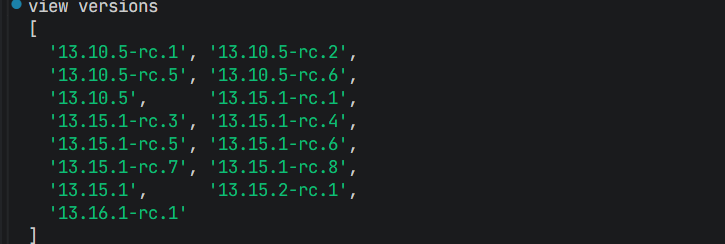
| 版本信息 | 13.10.5 (RN 0.72) / 13.15.1 (RN 0.77) / 13.16.1 (RN 0.82) |
| 官方仓库 | https://github.com/react-native-webview/react-native-webview |
| 鸿蒙仓库 | https://gitcode.com/openharmony-sig/rntpc_react-native-webview |
| 开源协议 | MIT |
2.2 版本兼容性
| 三方库版本 | 支持RN版本 | 是否支持Autolink |
|---|---|---|
| ~13.16.1 | 0.82 | No |
| ~13.15.1 | 0.77 | No |
| ~13.10.5 | 0.72 | Yes |
| <=13.10.4@deprecated | 0.72 | No |
2.3 核心能力矩阵
| 能力项 | 描述 | HarmonyOS 支持 |
|---|---|---|
| 加载 URL | source.uri 属性 | ✅ 完全支持 |
| 加载 HTML | source.html 属性 | ✅ 完全支持 |
| JS 注入 | injectedJavaScript 属性 | ✅ 完全支持 |
| JavaScript 启用 | javaScriptEnabled 属性 | ✅ 完全支持 |
| 缓存控制 | cacheEnabled 属性 | ✅ 完全支持 |
| DOM 存储 | domStorageEnabled 属性 | ✅ 完全支持 |
| 滚动条控制 | showsVerticalScrollIndicator | ✅ 完全支持 |
| UserAgent 设置 | userAgent 属性 | ✅ 完全支持 |
| 无痕模式 | incognito 属性 | ✅ 完全支持 |
| 地理位置权限 | geolocationEnabled 属性 | ✅ 完全支持 |
| 媒体播放控制 | mediaPlaybackRequiresUserAction | ✅ 完全支持 |
| 深色模式 | forceDarkOn 属性 | ✅ 完全支持 |
| 静音开关忽略 | ignoreSilentHardwareSwitch | ✅ 完全支持 |
| 第三方 Cookie | thirdPartyCookiesEnabled | ✅ 完全支持 |
| 欺诈网站警告 | fraudulentWebsiteWarningEnabled | ✅ 完全支持 |
| originWhitelist | 来源白名单 | ❌ 不支持 |
| startInLoadingState | 加载状态显示 | ❌ 不支持 |
2.4 技术架构图
原生平台层
Bridge Layer
React Native 应用层
WebView Component
source
injectedJavaScript
Native Module
WebViewPackage
WebViewManager
Android
WebView
iOS
WKWebView
HarmonyOS
Web组件
2.5 典型应用场景
| 场景 | 描述 | 示例 |
|---|---|---|
| H5 页面嵌入 | 内嵌网页内容 | 📱 活动页、营销页 |
| 富文本展示 | 渲染 HTML 格式内容 | 📝 文章详情、公告 |
| 在线文档 | 展示 PDF、文档等 | 📄 协议、帮助文档 |
| 支付页面 | 第三方支付流程 | 💳 微信支付、支付宝 |
| 直播间 | 嵌入直播 H5 页面 | 🎬 直播、互动活动 |
⚡ 三、快速开始
3.1 环境要求
| 依赖项 | 版本要求 |
|---|---|
| React Native | 0.72.x / 0.77.x |
| RNOH (鸿蒙框架) | 0.72.90 / 0.77.18 |
| HarmonyOS SDK | 6.0.0.47+ (API 20) |
| DevEco Studio | 5.0.3+ / 6.0+ |
| Node.js | 16.18.0+ / 18.x |
3.2 一键安装
创建鸿蒙项目的过程不再进行描述,不懂得看这篇:https://blog.csdn.net/u011178696/article/details/151932277
bash
npm install @react-native-ohos/react-native-webview@13.10.5-rc.1或使用 yarn:
bash
yarn add @react-native-ohos/react-native-webview@13.10.5-rc.13.3 验证安装
安装完成后,检查 package.json 文件:
json
{
  "dependencies": {
    "@react-native-ohos/react-native-webview": "^13.10.5-rc.1s"
  }
}
🔧 四、HarmonyOS 平台配置
4.1ManualLink 配置(手动配置)
⚠️ 如果你使用的是 13.15.1 或更高版本,需要手动配置原生端代码。
步骤 1:配置 oh-package.json5
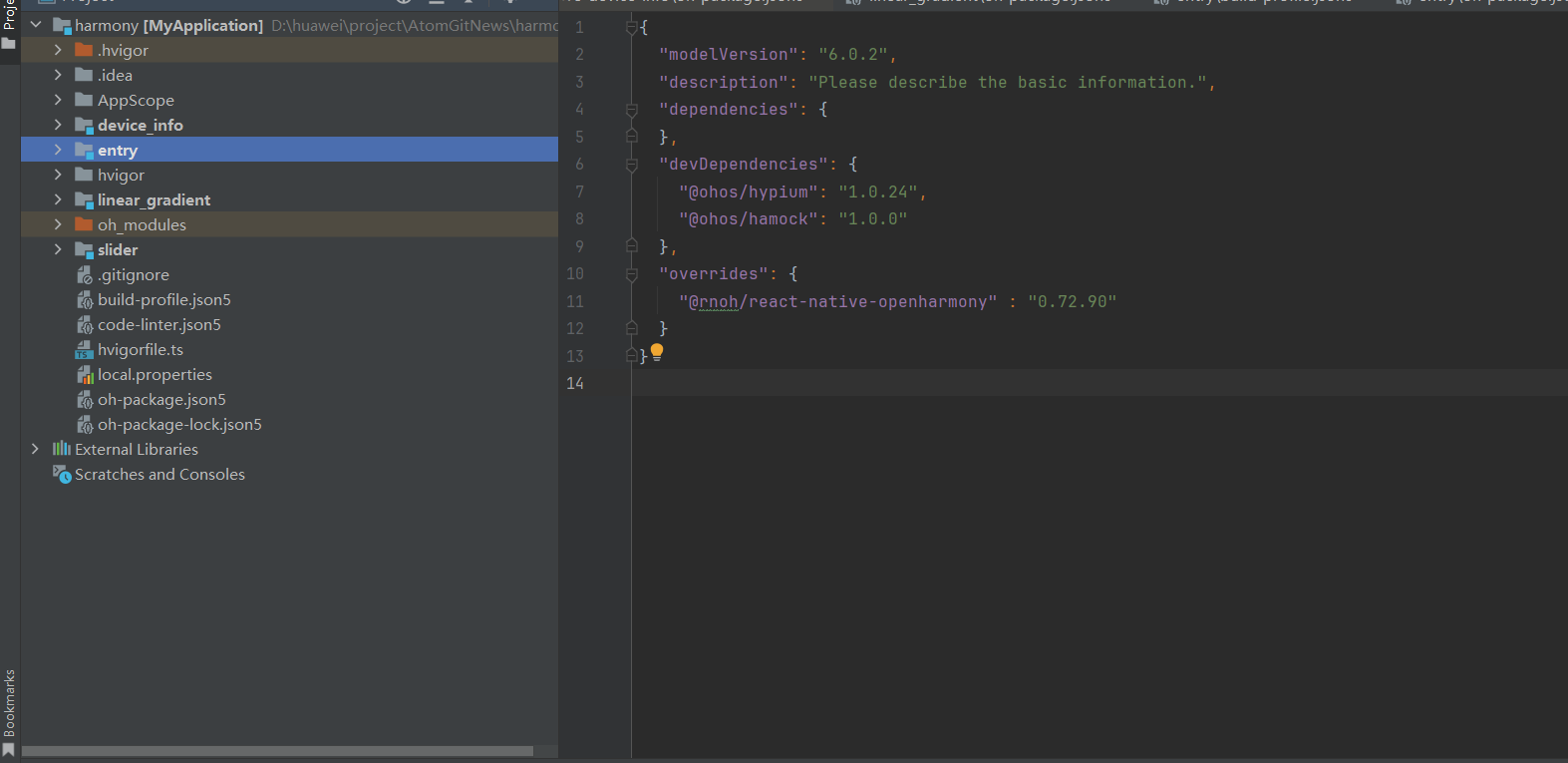
json
{
  "overrides": {
    "@rnoh/react-native-openharmony": "0.72.90"
  }
}
步骤 2:引入 HAR 包
json
"dependencies": {
  "@rnoh/react-native-openharmony": "0.72.90",
  "@react-native-ohos/react-native-webview": "file:../../node_modules/@react-native-ohos/react-native-webview/harmony/rn_webview.har"
}
步骤 3:配置 CMakeLists.txt
diff
+ set(OH_MODULE_DIR "${CMAKE_CURRENT_SOURCE_DIR}/../../../oh_modules")

+ add_subdirectory("${OH_MODULE_DIR}/@react-native-ohos/react-native-webview/src/main/cpp" ./webview)

+ target_link_libraries(rnoh_app PUBLIC rnoh_webview)
步骤 4:配置 PackageProvider.cpp
diff
+ #include "WebViewPackage.h"

std::vector<std::shared_ptr<Package>> PackageProvider::getPackages(Package::Context ctx) {
    return {
+     std::make_shared<WebViewPackage>(ctx)
    };
}
步骤 5:在 ArkTS 侧引入组件
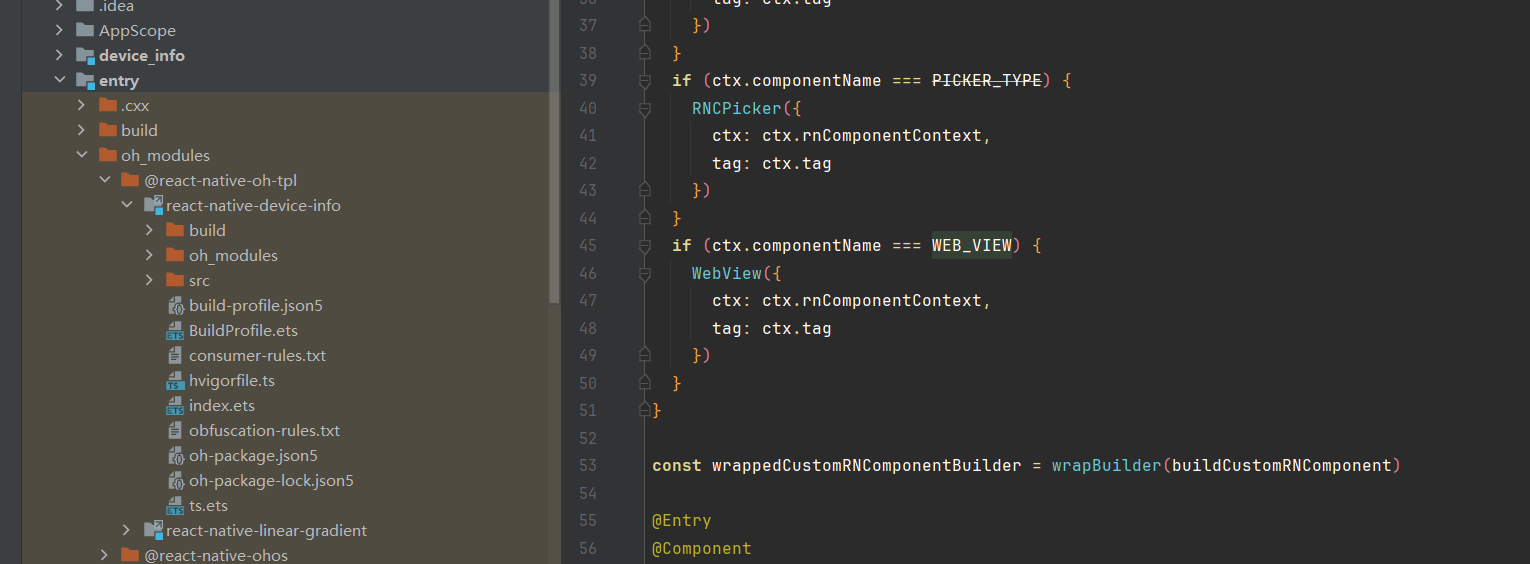
diff
+ import { WebView, WEB_VIEW } from "@react-native-ohos/react-native-webview"

@Builder
export function buildCustomRNComponent(ctx: ComponentBuilderContext) {
+ if (ctx.componentName === WEB_VIEW) {
+   WebView({
+     ctx: ctx.rnComponentContext,
+     tag: ctx.tag
+   })
+ }
}

const arkTsComponentNames: Array<string> = [
+ WEB_VIEW
];
步骤 6:引入 WebViewPackage
diff
+ import { WebViewPackage } from '@react-native-ohos/react-native-webview/ts';

export function createRNPackages(ctx: RNPackageContext): RNPackage[] {
  return [
+   new WebViewPackage(ctx)
  ];
}
📱 五、基础使用
5.1 加载网页 URL
最基础的 WebView 使用方式:
ts
import { WebView } from 'react-native-webview';

<WebView source={{ uri: 'https://reactnative.dev/' }} />
5.2 加载静态 HTML
直接加载 HTML 字符串:
ts
<WebView
  source={{
    html: '<h1>Hello WebView</h1><p>这是 HTML 内容</p>',
    baseUrl: '',
  }}
/>
5.3 带请求头的网页加载
ts
<WebView
  source={{
    uri: 'https://api.example.com/page',
    headers: {
      'Authorization': 'Bearer token123',
      'Content-Type': 'application/json',
    },
  }}
/>
🎨 六、进阶用法
6.1 JavaScript 注入
在页面加载完成后注入 JavaScript 代码:
ts
<WebView
  source={{ uri: 'https://reactnative.dev/' }}
  injectedJavaScript={`
    document.body.style.backgroundColor = '#f5f5f5';
    document.querySelector('h1').style.color = 'blue';
    true;
  `}
/>
6.2 页面加载前注入 JS
在页面内容加载前注入 JavaScript:
ts
<WebView
  source={{ uri: 'https://reactnative.dev/' }}
  injectedJavaScriptBeforeContentLoaded={`
    window.customConfig = { theme: 'dark' };
    true;
  `}
/>
6.3 禁用 JavaScript
ts
<WebView
  source={{ uri: 'https://example.com/' }}
  javaScriptEnabled={false}
/>
6.4 缓存控制
ts
<WebView
  source={{ uri: 'https://example.com/' }}
  cacheEnabled={true}
  cacheMode="LOAD_DEFAULT"
/>
6.5 自定义 UserAgent
ts
<WebView
  source={{ uri: 'https://example.com/' }}
  userAgent="Mozilla/5.0 (Custom Agent) AppleWebKit/537.36"
/>
6.6 无痕模式
ts
<WebView
  source={{ uri: 'https://example.com/' }}
  incognito={true}
/>
6.7 深色模式强制开启
ts
<WebView
  source={{ uri: 'https://example.com/' }}
  forceDarkOn={true}
/>
📚 七、API 详解
7.1 WebView Props
source
加载网页内容,支持 URI 或 HTML。
ts
<WebView source={{ uri: 'https://reactnative.dev/' }} />

<WebView source={{ html: '<h1>Hello</h1>' }} />
injectedJavaScript
页面加载完成后注入的 JavaScript 代码。
ts
<WebView
  source={{ uri: 'https://example.com/' }}
  injectedJavaScript="document.body.style.backgroundColor = 'red';"
/>
javaScriptEnabled
是否启用 JavaScript,默认为 true。
ts
<WebView
  source={{ uri: 'https://example.com/' }}
  javaScriptEnabled={false}
/>
domStorageEnabled
是否启用 DOM 存储,默认为 true。
ts
<WebView
  source={{ uri: 'https://example.com/' }}
  domStorageEnabled={true}
/>
cacheEnabled
是否启用缓存,默认为 true。
ts
<WebView
  source={{ uri: 'https://example.com/' }}
  cacheEnabled={false}
/>
cacheMode
缓存模式,支持 LOAD_DEFAULT、LOAD_CACHE_ELSE_NETWORK 等。
ts
<WebView
  source={{ uri: 'https://example.com/' }}
  cacheMode="LOAD_NO_CACHE"
/>
userAgent
自定义 UserAgent 字符串。
ts
<WebView
  source={{ uri: 'https://example.com/' }}
  userAgent="MyApp/1.0"
/>
incognito
无痕模式,不存储任何数据。
ts
<WebView
  source={{ uri: 'https://example.com/' }}
  incognito={true}
/>
showsVerticalScrollIndicator
是否显示垂直滚动条。
ts
<WebView
  source={{ uri: 'https://example.com/' }}
  showsVerticalScrollIndicator={false}
/>
showsHorizontalScrollIndicator
是否显示水平滚动条。
ts
<WebView
  source={{ uri: 'https://example.com/' }}
  showsHorizontalScrollIndicator={false}
/>
mediaPlaybackRequiresUserAction
是否需要用户操作才能播放媒体,默认为 true。
ts
<WebView
  source={{ uri: 'https://example.com/' }}
  mediaPlaybackRequiresUserAction={false}
/>
geolocationEnabled
是否启用地理位置权限。
ts
<WebView
  source={{ uri: 'https://example.com/' }}
  geolocationEnabled={true}
/>
ignoreSilentHardwareSwitch
忽略静音硬件开关,设置为 true 时网页播放才有声音。
ts
<WebView
  source={{ uri: 'https://example.com/' }}
  ignoreSilentHardwareSwitch={true}
/>
forceDarkOn
强制开启深色模式。
ts
<WebView
  source={{ uri: 'https://example.com/' }}
  forceDarkOn={true}
/>
textZoom
文本缩放比例,用于解决系统字体大小影响网页显示的问题。
ts
<WebView
  source={{ uri: 'https://example.com/' }}
  textZoom={100}
/>
minimumFontSize
最小字体大小,Android 默认为 8。
ts
<WebView
  source={{ uri: 'https://example.com/' }}
  minimumFontSize={12}
/>
thirdPartyCookiesEnabled
是否启用第三方 Cookie。
ts
<WebView
  source={{ uri: 'https://example.com/' }}
  thirdPartyCookiesEnabled={true}
/>
fraudulentWebsiteWarningEnabled
是否显示欺诈网站警告。
ts
<WebView
  source={{ uri: 'https://example.com/' }}
  fraudulentWebsiteWarningEnabled={true}
/>
style
自定义 WebView 样式。
ts
<WebView
  source={{ uri: 'https://example.com/' }}
  style={{ flex: 1, backgroundColor: '#fff' }}
/>
⚠️ 八、注意事项与常见问题
8.1 遗留问题
| 问题 | 说明 |
|---|---|
| originWhitelist 属性不支持 | 来源白名单功能暂未适配 |
| startInLoadingState 属性不支持 | 加载状态显示功能暂未适配 |
| automaticallyAdjustContentInsets 不支持 | iOS 专属属性 |
| allowsInlineMediaPlayback 不支持 | iOS 专属属性 |
| allowsFullscreenVideo 不支持 | 全屏视频功能暂未适配 |
8.2 常见问题
Q1: 网页播放没有声音?
A: 设置 ignoreSilentHardwareSwitch={true} 可以忽略静音开关。
Q2: 如何清除 WebView 缓存?
A: 设置 cacheEnabled={false} 或 incognito={true} 使用无痕模式。
Q3: 网页字体大小异常?
A: 使用 textZoom={100} 或 minimumFontSize 属性调整字体大小。
Q4: 如何实现 WebView 与 RN 通信?
A: 使用 injectedJavaScript 注入代码,配合 postMessage 和 onMessage 实现双向通信。
💻 九、完整示例代码
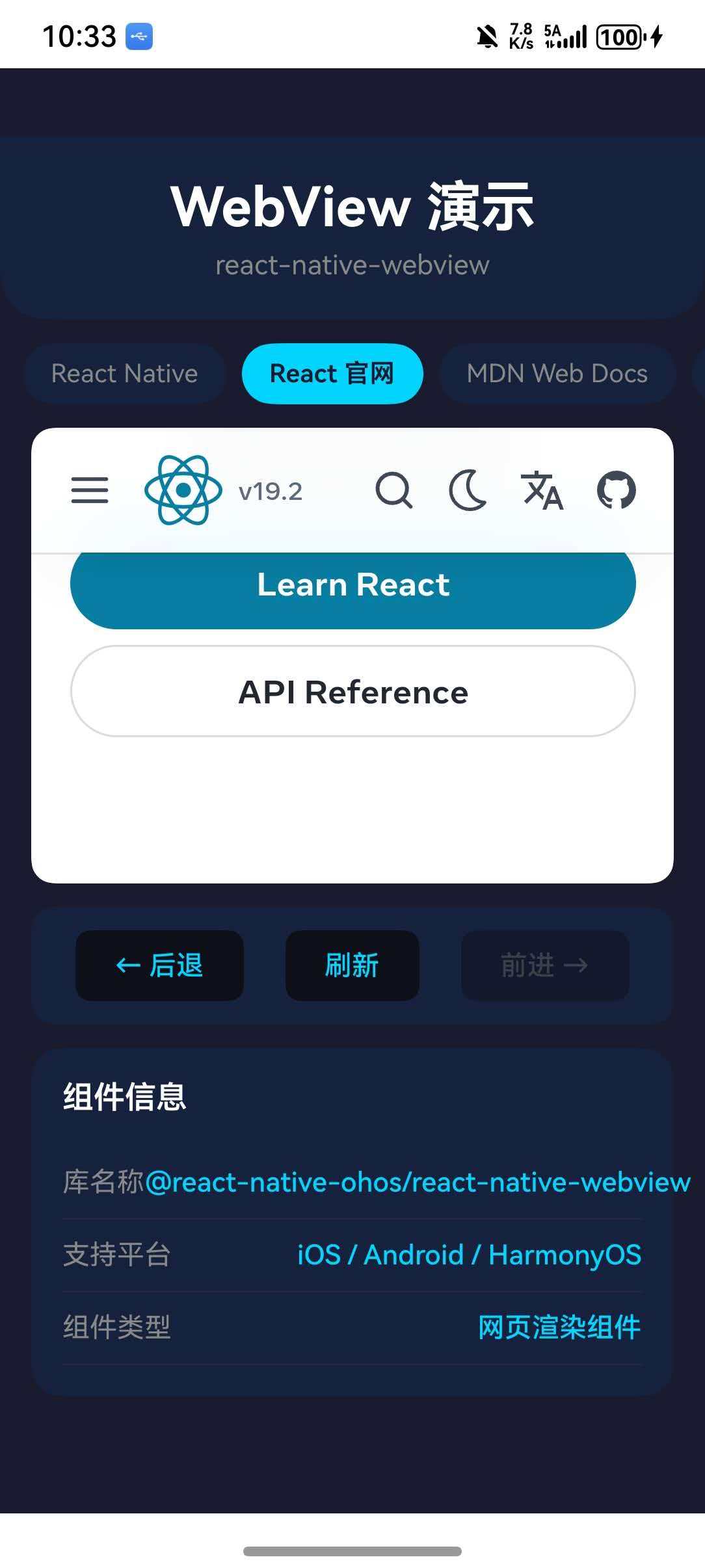
精美 WebView 示例
ts
import React, { useState, useRef } from 'react';
import {
  View,
  Text,
  StyleSheet,
  SafeAreaView,
  TouchableOpacity,
  ActivityIndicator,
} from 'react-native';
import { WebView } from 'react-native-webview';
import type { WebView as WebViewType, WebViewNavigation } from 'react-native-webview';

const websites = [
  { label: 'React Native', url: 'https://reactnative.dev/' },
  { label: 'React 官网', url: 'https://react.dev/' },
  { label: 'MDN Web Docs', url: 'https://developer.mozilla.org/' },
  { label: 'GitHub', url: 'https://github.com/' },
];

export default function App() {
  const [currentUrl, setCurrentUrl] = useState('https://reactnative.dev/');
  const [isLoading, setIsLoading] = useState(true);
  const [canGoBack, setCanGoBack] = useState(false);
  const [canGoForward, setCanGoForward] = useState(false);
  const webViewRef = useRef<WebViewType>(null);

  const handleNavigationStateChange = (navState: WebViewNavigation) => {
    setCanGoBack(navState.canGoBack);
    setCanGoForward(navState.canGoForward);
  };

  const goBack = () => {
    webViewRef.current?.goBack();
  };

  const goForward = () => {
    webViewRef.current?.goForward();
  };

  const reload = () => {
    webViewRef.current?.reload();
  };

  return (
    <SafeAreaView style={styles.container}>
      <View style={styles.header}>
        <Text style={styles.headerTitle}>WebView 演示</Text>
        <Text style={styles.headerSubtitle}>react-native-webview</Text>
      </View>

      <View style={styles.tabs}>
        {websites.map((site) => (
          <TouchableOpacity
            key={site.url}
            style={[
              styles.tab,
              currentUrl === site.url && styles.activeTab,
            ]}
            onPress={() => setCurrentUrl(site.url)}
          >
            <Text
              style={[
                styles.tabText,
                currentUrl === site.url && styles.activeTabText,
              ]}
            >
              {site.label}
            </Text>
          </TouchableOpacity>
        ))}
      </View>

      <View style={styles.webViewContainer}>
        <WebView
          ref={webViewRef}
          source={{ uri: currentUrl }}
          style={styles.webView}
          onLoadStart={() => setIsLoading(true)}
          onLoadEnd={() => setIsLoading(false)}
          onNavigationStateChange={handleNavigationStateChange}
          javaScriptEnabled={true}
          domStorageEnabled={true}
          cacheEnabled={true}
          showsVerticalScrollIndicator={true}
          showsHorizontalScrollIndicator={false}
        />
        {isLoading && (
          <View style={styles.loadingOverlay}>
            <ActivityIndicator size="large" color="#00d4ff" />
          </View>
        )}
      </View>

      <View style={styles.navigationBar}>
        <TouchableOpacity
          style={[styles.navButton, !canGoBack && styles.disabledButton]}
          onPress={goBack}
          disabled={!canGoBack}
        >
          <Text style={[styles.navButtonText, !canGoBack && styles.disabledText]}>
            ← 后退
          </Text>
        </TouchableOpacity>

        <TouchableOpacity style={styles.navButton} onPress={reload}>
          <Text style={styles.navButtonText}>刷新</Text>
        </TouchableOpacity>

        <TouchableOpacity
          style={[styles.navButton, !canGoForward && styles.disabledButton]}
          onPress={goForward}
          disabled={!canGoForward}
        >
          <Text style={[styles.navButtonText, !canGoForward && styles.disabledText]}>
            前进 →
          </Text>
        </TouchableOpacity>
      </View>

      <View style={styles.infoCard}>
        <Text style={styles.infoTitle}>组件信息</Text>
        <View style={styles.infoRow}>
          <Text style={styles.infoLabel}>库名称</Text>
          <Text style={styles.infoValue}>@react-native-ohos/react-native-webview</Text>
        </View>
        <View style={styles.infoRow}>
          <Text style={styles.infoLabel}>支持平台</Text>
          <Text style={styles.infoValue}>iOS / Android / HarmonyOS</Text>
        </View>
        <View style={styles.infoRow}>
          <Text style={styles.infoLabel}>组件类型</Text>
          <Text style={styles.infoValue}>网页渲染组件</Text>
        </View>
      </View>
    </SafeAreaView>
  );
}

const styles = StyleSheet.create({
  container: {
    flex: 1,
    backgroundColor: '#1a1a2e',
  },
  header: {
    padding: 20,
    backgroundColor: '#16213e',
    borderBottomLeftRadius: 24,
    borderBottomRightRadius: 24,
  },
  headerTitle: {
    fontSize: 28,
    fontWeight: 'bold',
    color: '#fff',
    textAlign: 'center',
  },
  headerSubtitle: {
    fontSize: 14,
    color: '#888',
    textAlign: 'center',
    marginTop: 5,
  },
  tabs: {
    flexDirection: 'row',
    padding: 12,
    gap: 8,
  },
  tab: {
    paddingHorizontal: 14,
    paddingVertical: 8,
    backgroundColor: '#16213e',
    borderRadius: 20,
  },
  activeTab: {
    backgroundColor: '#00d4ff',
  },
  tabText: {
    fontSize: 13,
    color: '#888',
  },
  activeTabText: {
    color: '#1a1a2e',
    fontWeight: '600',
  },
  webViewContainer: {
    flex: 1,
    marginHorizontal: 16,
    backgroundColor: '#fff',
    borderRadius: 12,
    overflow: 'hidden',
  },
  webView: {
    flex: 1,
  },
  loadingOverlay: {
    position: 'absolute',
    top: 0,
    left: 0,
    right: 0,
    bottom: 0,
    justifyContent: 'center',
    alignItems: 'center',
    backgroundColor: 'rgba(26, 26, 46, 0.8)',
  },
  navigationBar: {
    flexDirection: 'row',
    justifyContent: 'space-around',
    padding: 12,
    backgroundColor: '#16213e',
    marginHorizontal: 16,
    marginVertical: 12,
    borderRadius: 12,
  },
  navButton: {
    paddingHorizontal: 20,
    paddingVertical: 10,
    backgroundColor: '#0f0f1a',
    borderRadius: 8,
  },
  disabledButton: {
    opacity: 0.5,
  },
  navButtonText: {
    fontSize: 14,
    color: '#00d4ff',
    fontWeight: '500',
  },
  disabledText: {
    color: '#666',
  },
  infoCard: {
    margin: 16,
    marginTop: 0,
    backgroundColor: '#16213e',
    borderRadius: 16,
    padding: 16,
    marginBottom: 32,
  },
  infoTitle: {
    fontSize: 16,
    fontWeight: '600',
    color: '#fff',
    marginBottom: 16,
  },
  infoRow: {
    flexDirection: 'row',
    justifyContent: 'space-between',
    paddingVertical: 10,
    borderBottomWidth: 1,
    borderBottomColor: '#252540',
  },
  infoLabel: {
    fontSize: 14,
    color: '#888',
  },
  infoValue: {
    fontSize: 14,
    color: '#00d4ff',
    fontWeight: '500',
  },
});
🔗 十、相关资源
📝 十一、总结
本文详细介绍了 react-native-webview 在 HarmonyOS 平台的使用方法。通过 WebView 组件,你可以轻松实现网页内容展示、JavaScript 交互、导航控制等功能。
核心要点:
- ✅ 支持加载 URL 和 HTML 内容
- ✅ 支持 JavaScript 注入和交互
- ✅ 支持缓存控制和自定义 UserAgent
- ✅ 支持无痕模式和深色模式
- ✅ 跨平台一致的 API 设计
适用场景:
- H5 页面嵌入
- 富文本展示
- 在线文档阅读
- 支付页面集成
希望本文能帮助你在 HarmonyOS 项目中顺利集成 WebView 组件!