欢迎加入开源鸿蒙跨平台社区 :https://openharmonycrossplatform.csdn.net
📋 前言
地图功能是移动应用中最常见且重要的功能之一,无论是出行导航、位置分享、周边搜索还是物流配送,都离不开地图组件的支持。react-native-amap3d 是一个基于高德地图最新 3D SDK 的 React Native 组件库,提供了丰富的地图功能和覆盖物组件,支持地图显示、标记点、折线、多边形、圆形、热力图、点聚合等功能,是开发位置服务应用的利器。
但是我并不推荐这个库的使用,这个地图库遗留了很多问题没有处理,而且地图拖动较卡,我更推荐harmony自带的Map-Kit,可以看我的另一篇文章:https://blog.csdn.net/qq_61024956/article/details/159465668
🎯 库简介
基本信息
- 库名称 :
react-native-amap3d - 版本信息 :
3.2.4+@react-native-oh-tpl/react-native-amap3d: 支持 RN 0.72 版本3.2.5+@react-native-ohos/react-native-amap3d: 支持 RN 0.77 版本
- 官方仓库: https://github.com/qiuxiang/react-native-amap3d
- 鸿蒙仓库: https://github.com/react-native-oh-library/react-native-amap3d
- 主要功能 :
- 🗺️ 地图模式切换(常规、卫星、导航、夜间)
- 🏢 3D 建筑、路况、室内地图
- 📍 地图标记(Marker)
- 📏 折线绘制(Polyline)
- 🔷 多边形绘制(Polygon)
- ⭕ 圆形绘制(Circle)
- 🔥 热力图(HeatMap)
- 📌 点聚合(Cluster)
为什么需要高德地图组件?
| 特性 | 原生开发 | react-native-amap3d |
|---|---|---|
| 跨平台一致性 | ⚠️ 需分别适配 | ✅ 统一接口 |
| 3D地图渲染 | ⚠️ 需原生SDK | ✅ 内置3D支持 |
| 覆盖物组件 | ❌ 需自行实现 | ✅ 丰富的组件库 |
| 点聚合功能 | ❌ 需额外开发 | ✅ 内置Cluster组件 |
| 手势交互 | ⚠️ 需自行处理 | ✅ 自动支持 |
| HarmonyOS 支持 | ❌ 无 | ✅ 完善适配 |
核心功能
| 功能 | 说明 | HarmonyOS 支持 |
|---|---|---|
| MapView | 地图视图组件 | ✅ |
| Marker | 地图标记点 | ✅ |
| Polyline | 折线绘制 | ✅ |
| Polygon | 多边形绘制 | ✅ |
| Circle | 圆形覆盖物 | ✅ |
| Cluster | 点聚合 | ⚠️ 类型问题 |
| HeatMap | 热力图 | ⚠️ 部分支持 |
| MultiPoint | 海量点 | ⚠️ 部分支持 |
兼容性验证
在以下环境验证通过:
- RNOH : 0.72.90; SDK : HarmonyOS6.0.0 (API Version 20 Release); IDE : DevEco Studio 6.0.2; ROM: HarmonyOS 6.0.0
📦 安装步骤
1. 安装依赖
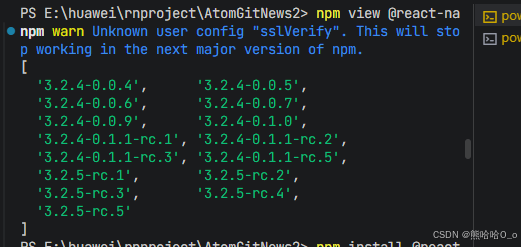
请到三方库的 Releases 发布地址查看配套的版本信息:
| 三方库版本 | 发布信息 | 支持 RN 版本 |
|---|---|---|
| 3.2.4 | @react-native-oh-tpl/react-native-amap3d | 0.72 |
| 3.2.5 | @react-native-ohos/react-native-amap3d | 0.77 |
bash
# RN 0.72 版本
npm install @react-native-oh-tpl/react-native-amap3d@3.2.4-0.1.1-rc.1

# 或者使用 yarn
yarn add @react-native-oh-tpl/react-native-amap3d
2. 验证安装
安装完成后,检查 package.json 文件:
json
{
  "dependencies": {
    "@react-native-oh-tpl/react-native-amap3d": "^3.2.4-0.1.1-rc.1"
  }
}
🔧 HarmonyOS 平台配置 ⭐
1. 在工程根目录的 oh-package.json5 添加 overrides 字段
打开 harmony/oh-package.json5,添加以下配置:
json5
{
  // ... 其他配置
  "overrides": {
    "@rnoh/react-native-openharmony": "0.72.90"
  }
}
2. 引入原生端代码
打开 harmony/entry/oh-package.json5,添加以下依赖:
json5
"dependencies": {
  "@react-native-oh-tpl/react-native-amap3d": "file:../../node_modules/@react-native-oh-tpl/react-native-amap3d/harmony/rn_amap3d.har"
}
3. 同步依赖
点击 DevEco Studio 右上角的 sync 按钮,或者在终端执行:
bash
cd entry
ohpm install
4. 配置 CMakeLists
打开 entry/src/main/cpp/CMakeLists.txt,添加:
c
project(rnapp)
cmake_minimum_required(VERSION 3.4.1)
set(RNOH_APP_DIR "${CMAKE_CURRENT_SOURCE_DIR}")
+ set(OH_MODULES "${CMAKE_CURRENT_SOURCE_DIR}/../../../oh_modules")
set(RNOH_CPP_DIR "${CMAKE_CURRENT_SOURCE_DIR}/../../../../../../react-native-harmony/harmony/cpp")

add_subdirectory("${RNOH_CPP_DIR}" ./rn)

# RNOH_BEGIN: manual_package_linking_1
add_subdirectory("../../../../sample_package/src/main/cpp" ./sample-package)
+ add_subdirectory("${OH_MODULES}/@react-native-oh-tpl/react-native-amap3d/src/main/cpp" ./amap3d)
# RNOH_END: manual_package_linking_1

add_library(rnoh_app SHARED
    "./PackageProvider.cpp"
    "${RNOH_CPP_DIR}/RNOHAppNapiBridge.cpp"
)

target_link_libraries(rnoh_app PUBLIC rnoh)

# RNOH_BEGIN: manual_package_linking_2
target_link_libraries(rnoh_app PUBLIC rnoh_sample_package)
+ target_link_libraries(rnoh_app PUBLIC rnoh_amap3d)
# RNOH_END: manual_package_linking_2
5. 引入 MapViewPackage
打开 entry/src/main/cpp/PackageProvider.cpp,添加:
cpp
#include "RNOH/PackageProvider.h"
#include "SamplePackage.h"
+ #include "MapViewPackage.h"

using namespace rnoh;

std::vector<std::shared_ptr<Package>> PackageProvider::getPackages(Package::Context ctx) {
    return {
      std::make_shared<SamplePackage>(ctx),
      + std::make_shared<MapViewPackage>(ctx)
    };
}
6. 在 ArkTS 侧引入 MapViewPackage
打开 entry/src/main/ets/RNPackagesFactory.ts,添加:
typescript
import { AMap3DPackage } from '@react-native-ohos/react-native-amap3d/ts';

export function createRNPackages(ctx: RNPackageContext) {
  return [
    new AMap3DPackage(ctx),
  ];
}
7. 在 index.ets 中配置组件
找到 function buildCustomRNComponent(),一般位于 entry/src/main/ets/pages/index.ets 或 entry/src/main/ets/rn/LoadBundle.ets,添加:
typescript
import {
  A_MAP_CIRCLE_VIEW_TYPE,
  A_MAP_MARKER_TYPE,
  A_MAP_POLYGON_TYPE,
  A_MAP_POLYLINE_TYPE,
  AMapCircle,
  AMapMarker,
  AMapPolygon,
  AMapPolyline,
  AMapView,
  GOADE_MAP_VIEW_TYPE
} from '@react-native-ohos/react-native-amap3d';

@Builder
export function buildCustomRNComponent(ctx: ComponentBuilderContext) {
  // ... 其他组件
  if (ctx.componentName === GOADE_MAP_VIEW_TYPE) {
    AMapView({
      ctx: ctx.rnComponentContext,
      tag: ctx.tag,
    })
  }
  if (ctx.componentName === A_MAP_CIRCLE_VIEW_TYPE) {
    AMapCircle({
      ctx: ctx.rnComponentContext,
      tag: ctx.tag,
    })
  }
  if (ctx.componentName === A_MAP_MARKER_TYPE) {
    AMapMarker({
      ctx: ctx.rnComponentContext,
      tag: ctx.tag,
    })
  }
  if (ctx.componentName === A_MAP_POLYGON_TYPE) {
    AMapPolygon({
      ctx: ctx.rnComponentContext,
      tag: ctx.tag,
    })
  }
  if (ctx.componentName === A_MAP_POLYLINE_TYPE) {
    AMapPolyline({
      ctx: ctx.rnComponentContext,
      tag: ctx.tag,
    })
  }
}
💡 提示:本库使用了混合方案,需要添加组件名。
在 entry/src/main/ets/pages/index.ets 或 entry/src/main/ets/rn/LoadBundle.ets 找到常量 arkTsComponentNames,在其数组里添加组件名:
typescript
const arkTsComponentNames: Array<string> = [
  // ... 其他组件名
  A_MAP_CIRCLE_VIEW_TYPE,
  A_MAP_MARKER_TYPE,
  A_MAP_POLYGON_TYPE,
  A_MAP_POLYLINE_TYPE,
  GOADE_MAP_VIEW_TYPE,
];
然后编译、运行即可。
📖 API 详解
MapView - 地图视图组件
地图视图是所有地图功能的基础容器,用于显示地图和处理用户交互。
mapType - 地图类型
设置地图的显示类型,支持多种地图模式。
类型 :number
可选值:
| 值 | 说明 |
|---|---|
| 1 | 标准地图 |
| 2 | 卫星地图 |
| 3 | 夜间地图 |
| 4 | 导航地图 |
使用场景:
- 标准地图:日常浏览、位置展示
- 卫星地图:地理分析、户外导航
- 夜间地图:夜间模式、降低亮度
- 导航地图:路线导航、实时路况
tsx
import { MapView } from 'react-native-amap3d';

// 标准地图
<MapView mapType={1} style={{ flex: 1 }} />

// 卫星地图
<MapView mapType={2} style={{ flex: 1 }} />

// 夜间地图
<MapView mapType={3} style={{ flex: 1 }} />
initialCameraPosition - 初始相机位置
设置地图初始化时的视角位置,包括中心点和缩放级别。
类型 :CameraPosition
CameraPosition 结构:
| 属性 | 类型 | 说明 |
|---|---|---|
| target | LatLng | 地图中心点坐标 |
| zoom | number | 缩放级别 (3-20) |
| tilt | number | 倾斜角度 (0-60) |
| bearing | number | 旋转角度 (0-360) |
使用场景:
- 定位到特定城市
- 显示用户当前位置
- 展示特定区域地图
tsx
<MapView
  style={{ flex: 1 }}
  initialCameraPosition={{
    target: {
      latitude: 39.91095,
      longitude: 116.37296,
    },
    zoom: 12,
    tilt: 30,
    bearing: 0,
  }}
/>

// 定位到上海
<MapView
  style={{ flex: 1 }}
  initialCameraPosition={{
    target: {
      latitude: 31.2304,
      longitude: 121.4737,
    },
    zoom: 10,
  }}
/>
myLocationEnabled - 显示定位点
是否显示用户当前位置的蓝色定位点。
类型 :boolean
默认值 :false
使用场景:
- 显示用户当前位置
- 导航应用
- 周边搜索
tsx
// 启用定位
<MapView
  myLocationEnabled={true}
  style={{ flex: 1 }}
/>

// 结合定位按钮
<MapView
  myLocationEnabled={true}
  myLocationButtonEnabled={true}
  style={{ flex: 1 }}
/>
⚠️ 注意:使用定位功能需要申请定位权限。
onPress - 点击事件
用户点击地图时触发的回调函数。
类型 :(event: NativeSyntheticEvent<LatLng>) => void
参数:
event.nativeEvent.latitude: 点击位置的纬度event.nativeEvent.longitude: 点击位置的经度
使用场景:
- 选择位置
- 添加标记点
- 获取点击位置信息
tsx
const [markerPosition, setMarkerPosition] = useState<LatLng | null>(null);

<MapView
  style={{ flex: 1 }}
  onPress={(event) => {
    const { latitude, longitude } = event.nativeEvent;
    console.log('点击位置:', latitude, longitude);
    setMarkerPosition({ latitude, longitude });
  }}
>
  {markerPosition && (
    <Marker position={markerPosition} />
  )}
</MapView>
onLongPress - 长按事件
用户长按地图时触发的回调函数。
类型 :(event: NativeSyntheticEvent<LatLng>) => void
使用场景:
- 长按选择位置
- 显示位置详情
- 添加收藏点
tsx
<MapView
  style={{ flex: 1 }}
  onLongPress={(event) => {
    const { latitude, longitude } = event.nativeEvent;
    Alert.alert('长按位置', `${latitude}, ${longitude}`);
  }}
/>
onLoad - 地图加载完成
地图加载完成后触发的回调函数。
类型 :(event: NativeSyntheticEvent<voidEvent>) => void
使用场景:
- 地图加载完成后执行操作
- 初始化地图状态
- 请求数据
tsx
<MapView
  style={{ flex: 1 }}
  onLoad={() => {
    console.log('地图加载完成');
    // 可以在这里执行初始化操作
  }}
/>
onCameraMove / onCameraIdle - 相机移动事件
监听地图视角的变化。
类型 :(event: NativeSyntheticEvent<CameraPosition>) => void
使用场景:
- 实时获取地图中心点
- 动态加载数据
- 点聚合更新
tsx
<MapView
  style={{ flex: 1 }}
  onCameraMove={(event) => {
    console.log('相机移动中:', event.nativeEvent);
  }}
  onCameraIdle={(event) => {
    console.log('相机停止:', event.nativeEvent);
    // 可以在这里更新点聚合
  }}
/>
Marker - 地图标记
在地图上显示位置标记,支持自定义图标和拖拽功能。
position - 标记位置
设置标记点的经纬度坐标。
类型 :LatLng
使用场景:
- 显示地点位置
- 标记兴趣点
- 显示搜索结果
tsx
import { MapView, Marker } from 'react-native-amap3d';

<MapView style={{ flex: 1 }}>
  <Marker
    position={{
      latitude: 39.906901,
      longitude: 116.397972,
    }}
  />
</MapView>

// 多个标记点
<MapView style={{ flex: 1 }}>
  <Marker position={{ latitude: 39.906901, longitude: 116.397972 }} />
  <Marker position={{ latitude: 39.916901, longitude: 116.407972 }} />
  <Marker position={{ latitude: 39.926901, longitude: 116.417972 }} />
</MapView>
icon - 自定义图标
设置标记点的自定义图标,支持本地图片和网络图片。
类型 :ImageSource
使用场景:
- 不同类型的标记使用不同图标
- 品牌定制图标
- 状态区分图标
tsx
// 本地图片
<Marker
  position={{ latitude: 39.906901, longitude: 116.397972 }}
  icon={require('./images/marker.png')}
/>

// 网络图片
<Marker
  position={{ latitude: 39.906901, longitude: 116.397972 }}
  icon={{
    uri: 'https://example.com/marker.png',
    width: 40,
    height: 40,
  }}
/>

// 不同状态图标
const getMarkerIcon = (status: string) => {
  switch (status) {
    case 'active': return require('./images/active.png');
    case 'inactive': return require('./images/inactive.png');
    default: return require('./images/default.png');
  }
};

<Marker
  position={position}
  icon={getMarkerIcon(status)}
/>
draggable - 可拖拽
设置标记点是否可以拖拽移动。
类型 :boolean
默认值 :false
使用场景:
- 位置选择器
- 编辑位置
- 路线规划
tsx
const [position, setPosition] = useState({
  latitude: 39.906901,
  longitude: 116.397972,
});

<MapView style={{ flex: 1 }}>
  <Marker
    position={position}
    draggable={true}
    onDragEnd={({ nativeEvent }) => {
      setPosition({
        latitude: nativeEvent.latitude,
        longitude: nativeEvent.longitude,
      });
      console.log('新位置:', nativeEvent);
    }}
  />
</MapView>
onPress - 点击标记
点击标记点时触发的回调函数。
类型 :() => void
使用场景:
- 显示地点详情
- 导航到该位置
- 编辑标记信息
tsx
<Marker
  position={{ latitude: 39.906901, longitude: 116.397972 }}
  onPress={() => {
    Alert.alert('标记被点击', '显示详情弹窗');
  }}
/>
Polyline - 折线绘制
在地图上绘制折线,常用于路线展示。
points - 折线点集合
设置折线的坐标点数组。
类型 :LatLng[]
使用场景:
- 路线展示
- 轨迹回放
- 边界绘制
tsx
import { MapView, Polyline } from 'react-native-amap3d';

const routePoints = [
  { latitude: 39.906901, longitude: 116.397972 },
  { latitude: 39.916901, longitude: 116.407972 },
  { latitude: 39.926901, longitude: 116.417972 },
];

<MapView style={{ flex: 1 }}>
  <Polyline
    points={routePoints}
    width={5}
    color="rgba(0, 122, 255, 0.8)"
  />
</MapView>
width / color - 线条样式
设置折线的宽度和颜色。
类型 :width: number, color: string
使用场景:
- 不同路线类型区分
- 高亮显示特定路线
- 美化地图展示
tsx
// 粗线蓝色
<Polyline
  points={points}
  width={10}
  color="#007AFF"
/>

// 细线红色虚线效果
<Polyline
  points={points}
  width={3}
  color="rgba(255, 0, 0, 0.6)"
/>
Polygon - 多边形绘制
在地图上绘制多边形区域。
points - 多边形顶点
设置多边形的顶点坐标数组。
类型 :LatLng[]
使用场景:
- 区域标注
- 电子围栏
- 行政区划展示
tsx
import { MapView, Polygon } from 'react-native-amap3d';

const areaPoints = [
  { latitude: 39.906901, longitude: 116.397972 },
  { latitude: 39.916901, longitude: 116.397972 },
  { latitude: 39.916901, longitude: 116.407972 },
  { latitude: 39.906901, longitude: 116.407972 },
];

<MapView style={{ flex: 1 }}>
  <Polygon
    points={areaPoints}
    strokeWidth={2}
    strokeColor="rgba(0, 122, 255, 0.8)"
    fillColor="rgba(0, 122, 255, 0.3)"
  />
</MapView>
fillColor / strokeColor - 填充和边框颜色
设置多边形的填充颜色和边框颜色。
类型 :string
tsx
<Polygon
  points={points}
  strokeWidth={3}
  strokeColor="#FF0000"
  fillColor="rgba(255, 0, 0, 0.2)"
/>
Circle - 圆形覆盖物
在地图上绘制圆形区域。
center / radius - 圆心和半径
设置圆形的中心点和半径(单位:米)。
类型 :center: LatLng, radius: number
使用场景:
- 周边搜索范围
- 定位精度展示
- 覆盖范围标注
tsx
import { MapView, Circle } from 'react-native-amap3d';

<MapView style={{ flex: 1 }}>
  <Circle
    center={{ latitude: 39.906901, longitude: 116.397972 }}
    radius={500}
    strokeWidth={2}
    strokeColor="rgba(0, 122, 255, 0.8)"
    fillColor="rgba(0, 122, 255, 0.3)"
  />
</MapView>

// 显示定位精度
<Circle
  center={userLocation}
  radius={accuracy}
  fillColor="rgba(0, 122, 255, 0.2)"
  strokeColor="rgba(0, 122, 255, 0.5)"
  strokeWidth={1}
/>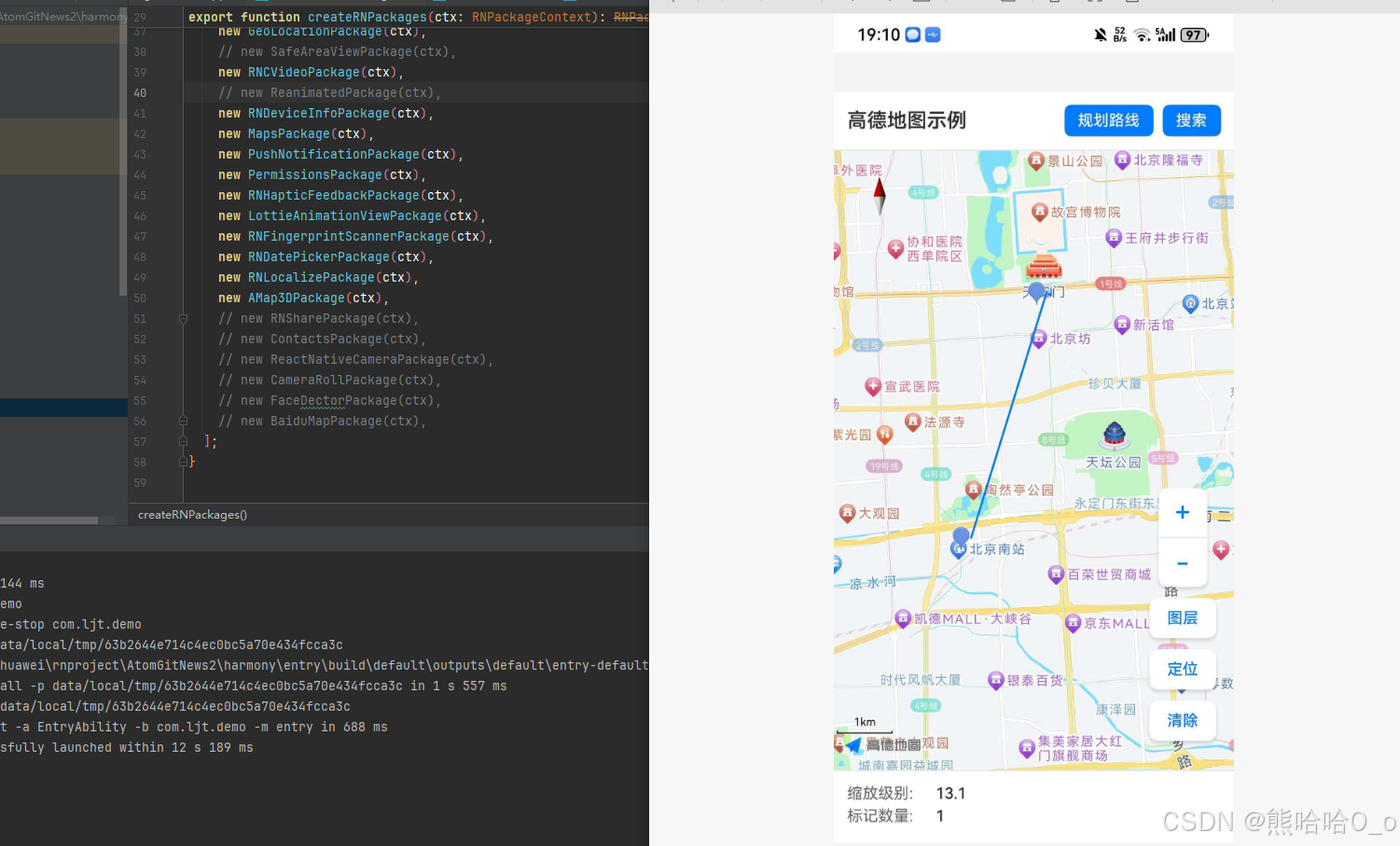
📋 完整示例
ts
import React, { useRef, useState, useCallback } from "react";
import {
  SafeAreaView,
  StyleSheet,
  Text,
  View,
  Alert,
  TouchableOpacity,
  TextInput,
  FlatList,
} from "react-native";
import {
  MapView,
  Marker,
  Polyline,
  Circle,
} from "react-native-amap3d";

const mockPOIs = [
  { id: "1", name: "天安门广场", latitude: 39.9087, longitude: 116.3975, category: "景点" },
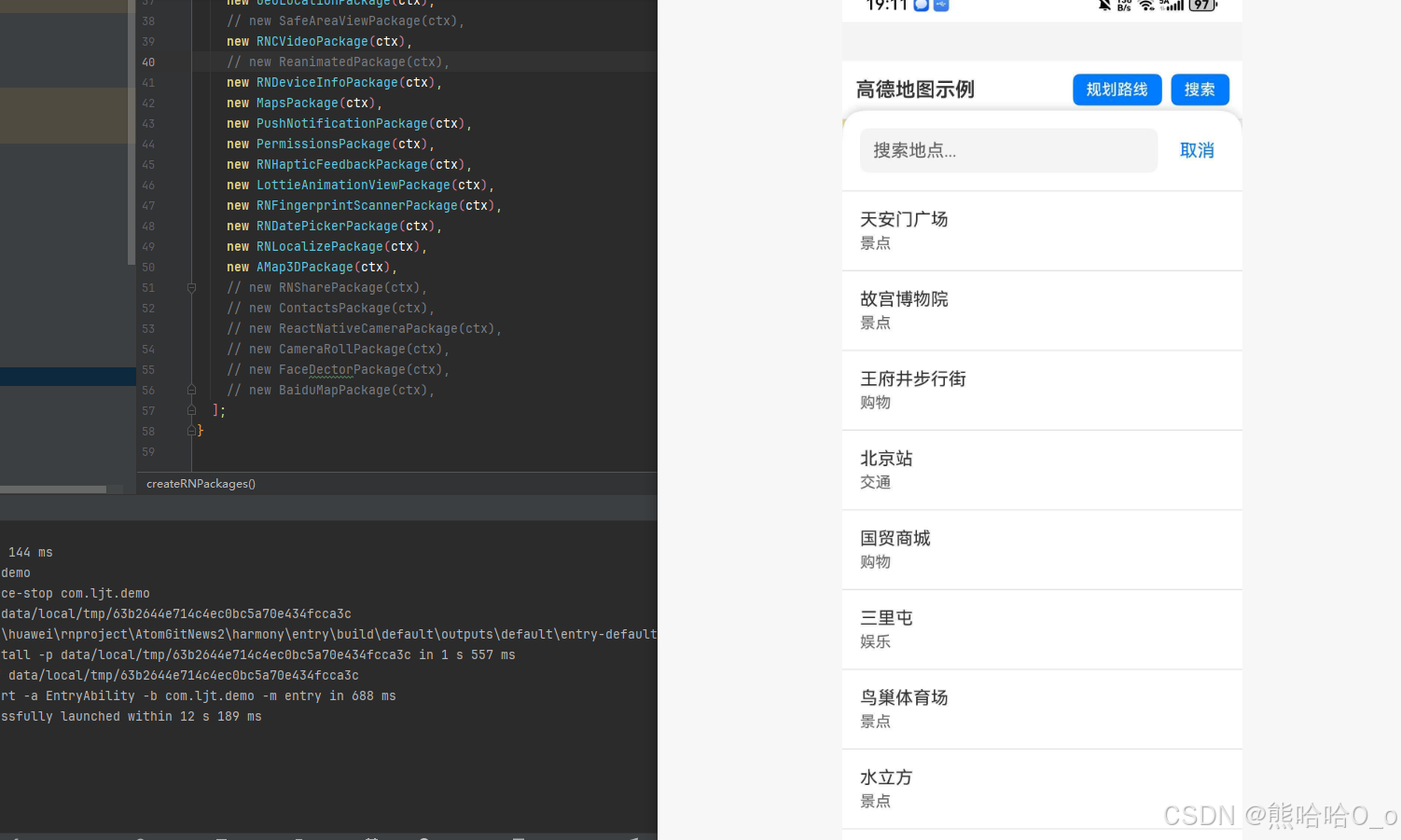
  { id: "2", name: "故宫博物院", latitude: 39.9163, longitude: 116.3972, category: "景点" },
  { id: "3", name: "王府井步行街", latitude: 39.9139, longitude: 116.4103, category: "购物" },
  { id: "4", name: "北京站", latitude: 39.9029, longitude: 116.4271, category: "交通" },
  { id: "5", name: "国贸商城", latitude: 39.9086, longitude: 116.4595, category: "购物" },
  { id: "6", name: "三里屯", latitude: 39.9324, longitude: 116.4535, category: "娱乐" },
  { id: "7", name: "鸟巢体育场", latitude: 39.9928, longitude: 116.3967, category: "景点" },
  { id: "8", name: "水立方", latitude: 39.9931, longitude: 116.3872, category: "景点" },
];

const mapTypes = [
  { label: "标准", value: 1 },
  { label: "卫星", value: 2 },
  { label: "夜间", value: 3 },
];

const App: React.FC = () => {
  const mapRef = useRef<any>(null);

  const [currentMapType, setCurrentMapType] = useState(1);
  const [zoomLevel, setZoomLevel] = useState(12);
  const [markers, setMarkers] = useState<Array<{ latitude: number; longitude: number; title?: string }>>([]);
  const [selectedPOI, setSelectedPOI] = useState<any>(null);
  const [showSearchPanel, setShowSearchPanel] = useState(false);
  const [searchText, setSearchText] = useState("");
  const [showMapTypeSelector, setShowMapTypeSelector] = useState(false);
  const [userLocation, setUserLocation] = useState<{ latitude: number; longitude: number } | null>(null);
  const [routePoints, setRoutePoints] = useState<Array<{ latitude: number; longitude: number }>>([]);
  const [isRouteMode, setIsRouteMode] = useState(false);

  const handleMapPress = useCallback((event: any) => {
    const { latitude, longitude } = event.nativeEvent;
    if (isRouteMode) {
      setRoutePoints((prev) => [...prev, { latitude, longitude }]);
    } else {
      setMarkers((prev) => [
        ...prev,
        { latitude, longitude, title: `标记 ${prev.length + 1}` },
      ]);
    }
  }, [isRouteMode]);

  const handleMarkerPress = useCallback((index: number) => {
    const marker = markers[index];
    Alert.alert("标记信息", `${marker.title || "未命名"}\n纬度: ${marker.latitude.toFixed(6)}\n经度: ${marker.longitude.toFixed(6)}`, [
      { text: "删除", onPress: () => removeMarker(index), style: "destructive" },
      { text: "导航到这里", onPress: () => startNavigation(marker) },
      { text: "取消", style: "cancel" },
    ]);
  }, [markers]);

  const removeMarker = useCallback((index: number) => {
    setMarkers((prev) => prev.filter((_, i) => i !== index));
  }, []);

  const startNavigation = useCallback((destination: any) => {
    const startLocation = userLocation || { latitude: 39.906901, longitude: 116.397972 };
    setRoutePoints([
      startLocation,
      { latitude: destination.latitude, longitude: destination.longitude },
    ]);
    mapRef.current?.moveCamera(
      {
        target: { latitude: destination.latitude, longitude: destination.longitude },
        zoom: 14,
      },
      500
    );
    Alert.alert("导航", `已规划从当前位置到 ${destination.title || "目的地"} 的路线`);
  }, [userLocation]);

  const clearAllMarkers = useCallback(() => {
    setMarkers([]);
    setRoutePoints([]);
    setSelectedPOI(null);
  }, []);

  const toggleMapType = useCallback((type: number) => {
    setCurrentMapType(type);
    setShowMapTypeSelector(false);
  }, []);

  const handleZoom = useCallback((delta: number) => {
    const newZoom = Math.max(3, Math.min(20, zoomLevel + delta));
    setZoomLevel(newZoom);
    mapRef.current?.moveCamera({ zoom: newZoom }, 300);
  }, [zoomLevel]);

  const locateUser = useCallback(() => {
    const location = { latitude: 39.906901, longitude: 116.397972 };
    setUserLocation(location);
    mapRef.current?.moveCamera(
      {
        target: location,
        zoom: 15,
      },
      500
    );
  }, []);

  const searchPOI = useCallback((text: string) => {
    setSearchText(text);
  }, []);

  const selectSearchResult = useCallback((poi: any) => {
    setSelectedPOI(poi);
    setShowSearchPanel(false);
    setSearchText("");
    mapRef.current?.moveCamera(
      {
        target: { latitude: poi.latitude, longitude: poi.longitude },
        zoom: 16,
      },
      500
    );
  }, []);

  const filteredPOIs = mockPOIs.filter((poi) =>
    poi.name.toLowerCase().includes(searchText.toLowerCase())
  );

  const toggleRouteMode = useCallback(() => {
    setIsRouteMode((prev) => !prev);
    setRoutePoints([]);
  }, []);

  const clearRoute = useCallback(() => {
    setRoutePoints([]);
  }, []);

  return (
    <SafeAreaView style={styles.container}>
      <View style={styles.header}>
        <Text style={styles.title}>高德地图示例</Text>
        <View style={styles.headerButtons}>
          <TouchableOpacity
            style={[styles.headerButton, isRouteMode && styles.headerButtonActive]}
            onPress={toggleRouteMode}
          >
            <Text style={styles.headerButtonText}>{isRouteMode ? "退出路线" : "规划路线"}</Text>
          </TouchableOpacity>
          <TouchableOpacity style={styles.headerButton} onPress={() => setShowSearchPanel(true)}>
            <Text style={styles.headerButtonText}>搜索</Text>
          </TouchableOpacity>
        </View>
      </View>

      <MapView
        ref={mapRef}
        style={styles.map}
        mapType={currentMapType}
        initialCameraPosition={{
          target: { latitude: 39.906901, longitude: 116.397972 },
          zoom: zoomLevel,
        }}
        myLocationEnabled={true}
        labelsEnabled={true}
        compassEnabled={true}
        scaleControlsEnabled={true}
        trafficEnabled={false}
        onPress={handleMapPress}
        onLongPress={(event: any) => {
          const { latitude, longitude } = event.nativeEvent;
          Alert.alert("位置信息", `纬度: ${latitude.toFixed(6)}\n经度: ${longitude.toFixed(6)}`);
        }}
        onLoad={() => console.log("地图加载完成")}
        onCameraMove={(event: any) => {
          setZoomLevel(event.nativeEvent.zoom);
        }}
      >
        {userLocation && (
          <Circle
            center={userLocation}
            radius={100}
            strokeWidth={2}
            strokeColor="rgba(0, 122, 255, 0.8)"
            fillColor="rgba(0, 122, 255, 0.2)"
          />
        )}

        {markers.map((marker, index) => (
          <Marker
            key={`marker-${index}`}
            position={{ latitude: marker.latitude, longitude: marker.longitude }}
            onPress={() => handleMarkerPress(index)}
          />
        ))}

        {selectedPOI && (
          <Marker
            position={{ latitude: selectedPOI.latitude, longitude: selectedPOI.longitude }}
            onPress={() => {
              Alert.alert(selectedPOI.name, `分类: ${selectedPOI.category}`);
            }}
          />
        )}

        {routePoints.length > 1 && (
          <Polyline
            points={routePoints}
            width={6}
            color="rgba(0, 122, 255, 0.9)"
          />
        )}

        {routePoints.length > 0 && (
          <Marker position={routePoints[0]} />
        )}
        {routePoints.length > 1 && (
          <Marker position={routePoints[routePoints.length - 1]} />
        )}
      </MapView>

      <View style={styles.mapControls}>
        <View style={styles.zoomControls}>
          <TouchableOpacity
            style={styles.zoomButton}
            onPress={() => handleZoom(1)}
          >
            <Text style={styles.zoomButtonText}>+</Text>
          </TouchableOpacity>
          <View style={styles.zoomDivider} />
          <TouchableOpacity
            style={styles.zoomButton}
            onPress={() => handleZoom(-1)}
          >
            <Text style={styles.zoomButtonText}>-</Text>
          </TouchableOpacity>
        </View>

        <TouchableOpacity
          style={styles.controlButton}
          onPress={() => setShowMapTypeSelector(true)}
        >
          <Text style={styles.controlButtonText}>图层</Text>
        </TouchableOpacity>

        <TouchableOpacity style={styles.controlButton} onPress={locateUser}>
          <Text style={styles.controlButtonText}>定位</Text>
        </TouchableOpacity>

        <TouchableOpacity style={styles.controlButton} onPress={clearAllMarkers}>
          <Text style={styles.controlButtonText}>清除</Text>
        </TouchableOpacity>
      </View>

      <View style={styles.infoPanel}>
        <View style={styles.infoRow}>
          <Text style={styles.infoLabel}>缩放级别:</Text>
          <Text style={styles.infoValue}>{zoomLevel.toFixed(1)}</Text>
        </View>
        <View style={styles.infoRow}>
          <Text style={styles.infoLabel}>标记数量:</Text>
          <Text style={styles.infoValue}>{markers.length}</Text>
        </View>
        {isRouteMode && (
          <View style={styles.infoRow}>
            <Text style={styles.infoLabel}>路线点数:</Text>
            <Text style={styles.infoValue}>{routePoints.length}</Text>
            {routePoints.length > 1 && (
              <TouchableOpacity onPress={clearRoute} style={styles.clearRouteButton}>
                <Text style={styles.clearRouteText}>清除路线</Text>
              </TouchableOpacity>
            )}
          </View>
        )}
      </View>

      {showMapTypeSelector && (
        <TouchableOpacity
          style={styles.modalOverlay}
          onPress={() => setShowMapTypeSelector(false)}
          activeOpacity={1}
        >
          <View style={styles.mapTypeSelector} onStartShouldSetResponder={() => true}>
            <Text style={styles.mapTypeTitle}>选择地图类型</Text>
            {mapTypes.map((type) => (
              <TouchableOpacity
                key={type.value}
                style={[
                  styles.mapTypeOption,
                  currentMapType === type.value && styles.mapTypeOptionActive,
                ]}
                onPress={() => toggleMapType(type.value)}
              >
                <Text
                  style={[
                    styles.mapTypeOptionText,
                    currentMapType === type.value && styles.mapTypeOptionTextActive,
                  ]}
                >
                  {type.label}
                </Text>
              </TouchableOpacity>
            ))}
          </View>
        </TouchableOpacity>
      )}

      {showSearchPanel && (
        <View style={styles.searchPanel}>
          <View style={styles.searchHeader}>
            <TextInput
              style={styles.searchInput}
              placeholder="搜索地点..."
              value={searchText}
              onChangeText={searchPOI}
              autoFocus
            />
            <TouchableOpacity
              style={styles.searchCloseButton}
              onPress={() => {
                setShowSearchPanel(false);
                setSearchText("");
              }}
            >
              <Text style={styles.searchCloseText}>取消</Text>
            </TouchableOpacity>
          </View>
          <FlatList
            data={filteredPOIs}
            keyExtractor={(item) => item.id}
            renderItem={({ item }) => (
              <TouchableOpacity
                style={styles.searchResultItem}
                onPress={() => {
                  selectSearchResult(item);
                  setShowSearchPanel(false);
                }}
              >
                <Text style={styles.searchResultName}>{item.name}</Text>
                <Text style={styles.searchResultCategory}>{item.category}</Text>
              </TouchableOpacity>
            )}
            ListEmptyComponent={
              <Text style={styles.searchEmpty}>未找到相关地点</Text>
            }
          />
        </View>
      )}
    </SafeAreaView>
  );
};

const styles = StyleSheet.create({
  container: { flex: 1, backgroundColor: "#F5F5F5" },
  header: {
    flexDirection: "row",
    justifyContent: "space-between",
    alignItems: "center",
    padding: 12,
    backgroundColor: "#FFF",
    borderBottomWidth: 1,
    borderBottomColor: "#E5E5EA",
  },
  title: { fontSize: 18, fontWeight: "600", color: "#333" },
  headerButtons: { flexDirection: "row", gap: 8 },
  headerButton: {
    backgroundColor: "#007AFF",
    paddingHorizontal: 12,
    paddingVertical: 6,
    borderRadius: 6,
  },
  headerButtonActive: { backgroundColor: "#FF9500" },
  headerButtonText: { color: "#FFF", fontSize: 14, fontWeight: "500" },
  map: { flex: 1 },
  mapControls: {
    position: "absolute",
    right: 16,
    bottom: 120,
    alignItems: "center",
    gap: 10,
  },
  zoomControls: {
    backgroundColor: "#FFF",
    borderRadius: 8,
    overflow: "hidden",
    shadowColor: "#000",
    shadowOffset: { width: 0, height: 2 },
    shadowOpacity: 0.15,
    shadowRadius: 4,
    elevation: 4,
  },
  zoomButton: { width: 44, height: 44, justifyContent: "center", alignItems: "center" },
  zoomButtonText: { fontSize: 24, color: "#007AFF", fontWeight: "500" },
  zoomDivider: { height: 1, backgroundColor: "#E5E5EA" },
  controlButton: {
    backgroundColor: "#FFF",
    paddingHorizontal: 16,
    paddingVertical: 10,
    borderRadius: 8,
    shadowColor: "#000",
    shadowOffset: { width: 0, height: 2 },
    shadowOpacity: 0.15,
    shadowRadius: 4,
    elevation: 4,
  },
  controlButtonText: { color: "#007AFF", fontSize: 14, fontWeight: "500" },
  infoPanel: {
    backgroundColor: "#FFF",
    padding: 12,
    borderTopWidth: 1,
    borderTopColor: "#E5E5EA",
  },
  infoRow: { flexDirection: "row", alignItems: "center", marginBottom: 4 },
  infoLabel: { fontSize: 14, color: "#666", width: 80 },
  infoValue: { fontSize: 14, color: "#333", fontWeight: "500" },
  clearRouteButton: { marginLeft: 16, backgroundColor: "#FF3B30", paddingHorizontal: 10, paddingVertical: 4, borderRadius: 4 },
  clearRouteText: { color: "#FFF", fontSize: 12 },
  modalOverlay: { flex: 1, backgroundColor: "rgba(0,0,0,0.4)", justifyContent: "center", alignItems: "center" },
  mapTypeSelector: {
    backgroundColor: "#FFF",
    borderRadius: 12,
    padding: 20,
    width: 280,
  },
  mapTypeTitle: { fontSize: 16, fontWeight: "600", marginBottom: 16, textAlign: "center" },
  mapTypeOption: {
    paddingVertical: 12,
    paddingHorizontal: 16,
    borderRadius: 8,
    marginBottom: 8,
    backgroundColor: "#F5F5F5",
  },
  mapTypeOptionActive: { backgroundColor: "#007AFF" },
  mapTypeOptionText: { fontSize: 16, color: "#333", textAlign: "center" },
  mapTypeOptionTextActive: { color: "#FFF" },
  searchPanel: {
    position: "absolute",
    top: 80,
    left: 0,
    right: 0,
    bottom: 0,
    backgroundColor: "#FFF",
    borderTopLeftRadius: 20,
    borderTopRightRadius: 20,
    shadowColor: "#000",
    shadowOffset: { width: 0, height: -2 },
    shadowOpacity: 0.15,
    shadowRadius: 8,
    elevation: 8,
  },
  searchHeader: {
    flexDirection: "row",
    alignItems: "center",
    padding: 16,
    borderBottomWidth: 1,
    borderBottomColor: "#E5E5EA",
  },
  searchInput: {
    flex: 1,
    height: 40,
    backgroundColor: "#F5F5F5",
    borderRadius: 8,
    paddingHorizontal: 12,
    fontSize: 16,
  },
  searchCloseButton: { marginLeft: 12, padding: 8 },
  searchCloseText: { color: "#007AFF", fontSize: 16 },
  searchResultItem: {
    padding: 16,
    borderBottomWidth: 1,
    borderBottomColor: "#E5E5EA",
  },
  searchResultName: { fontSize: 16, color: "#333", marginBottom: 4 },
  searchResultCategory: { fontSize: 14, color: "#666" },
  searchEmpty: { textAlign: "center", padding: 40, color: "#999", fontSize: 16 },
});

export default App;
⚠️ 遗留问题
-
AMapSdk.init()HarmonyOS 暂不支持,API Key 需在原生端配置 - 热力图(HeatMap)部分功能未完全适配
- 海量点(MultiPoint)性能优化中
- 室内地图功能暂不支持
- Cluster 组件存在类型定义问题