📋 目录
概述
手写签名组件是一个基于 HTML5 Canvas 的电子签名工具,支持鼠标和触摸屏设备,提供完整的签名绘制、撤销、清除和保存功能。
主要功能
- ✏️ 支持手写绘制(鼠标/触摸屏)
- 🎨 8种预设颜色可选
- 📏 可调节线条粗细(1-10px)
- ↩️ 支持多步撤销操作
- 🗑️ 一键清除画布
- 💾 保存为 PNG 图片
- 📱 响应式设计,适配各种屏幕
📸 效果图
初始状态
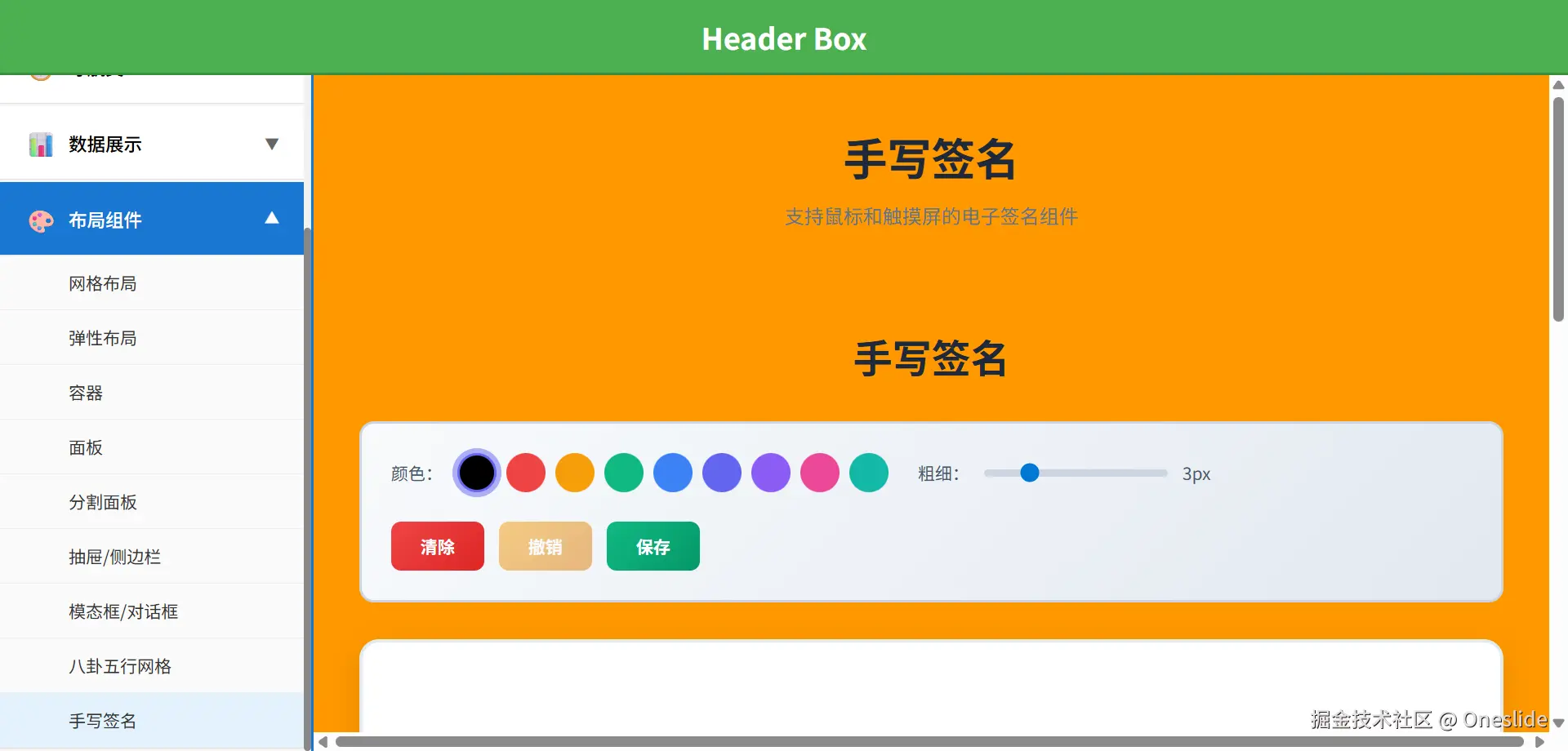 组件初始加载时的界面展示,包括:
- 顶部标题
- 工具栏(颜色选择、粗细调节、操作按钮)
- 空白画布
- 功能特性说明
- 使用说明
签名效果
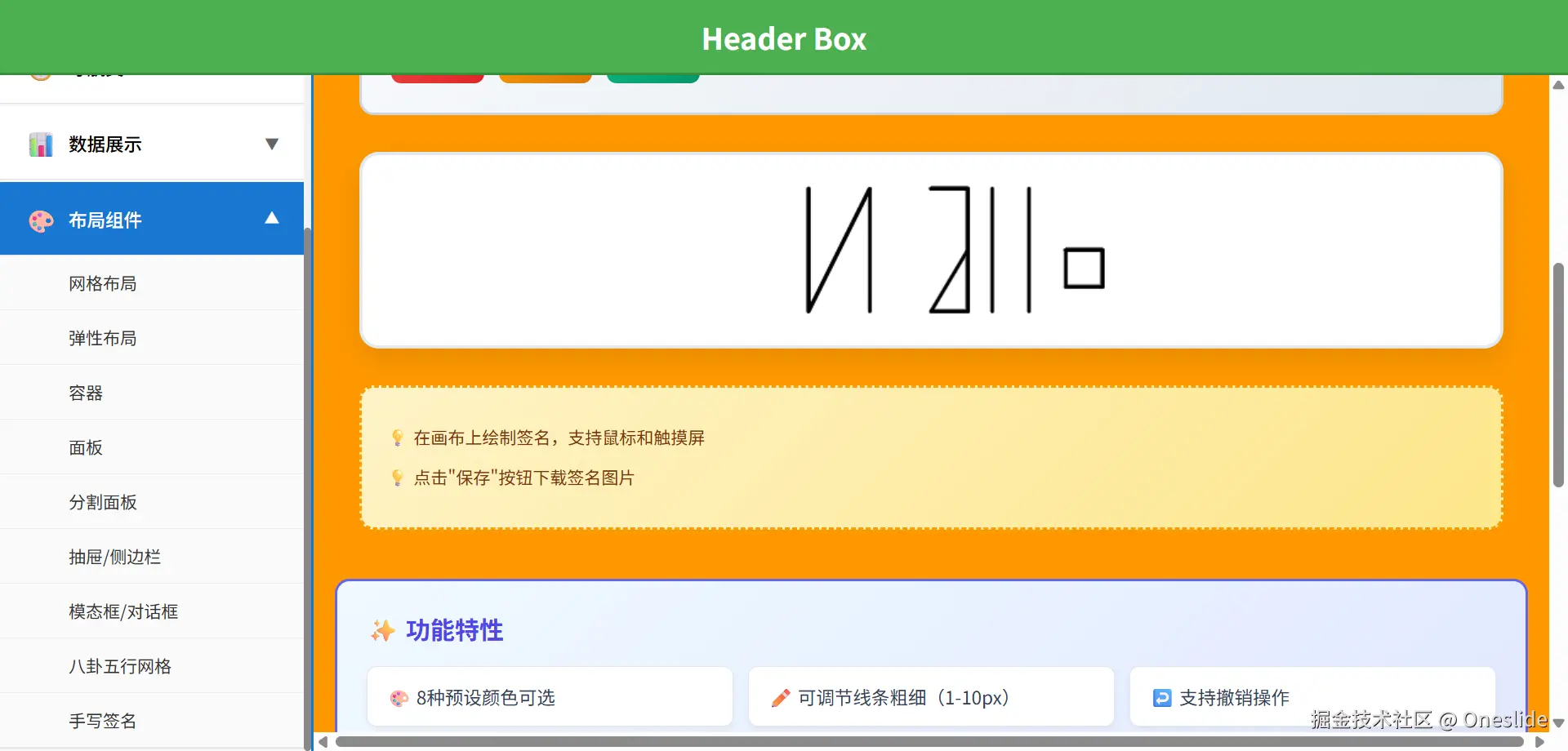
在画布上绘制签名 "Hello" 后的效果展示,可以看到:
- 平滑的线条
- 清晰的签名
- 完整的工具栏功能
核心技术
1. HTML5 Canvas API
Canvas 是 HTML5 提供的一个用于图形绘制的元素,通过 JavaScript 可以在 Canvas 上绘制 2D 图形。
关键 API:
getContext('2d')- 获取 2D 绘图上下文beginPath()- 开始一条新路径moveTo(x, y)- 移动画笔到指定位置lineTo(x, y)- 从当前位置画线到指定位置stroke()- 执行绘制,将路径渲染到画布clearRect(x, y, width, height)- 清除指定矩形区域toDataURL()- 将画布内容导出为图片数据
2. 响应式数据
使用 Vue 3 的 ref 和 reactive 管理组件状态:
javascript
const ctx = ref(null)              // Canvas 绘图上下文
const isDrawing = ref(false)         // 是否正在绘制
const selectedColor = ref('#000000')  // 选中的颜色
const lineWidth = ref(3)             // 线条粗细
const history = ref([])              // 历史记录(撤销用)
const currentPath = ref([])          // 当前绘制的路径
3. 事件监听
组件监听多种事件以支持不同设备:
| 事件类型 | 事件名称 | 用途 |
|---|---|---|
| 鼠标按下 | mousedown |
开始绘制 |
| 鼠标移动 | mousemove |
绘制线条 |
| 鼠标抬起 | mouseup |
停止绘制 |
| 鼠标离开 | mouseleave |
停止绘制 |
| 触摸开始 | touchstart |
开始绘制(移动端) |
| 触摸移动 | touchmove |
绘制线条(移动端) |
| 触摸结束 | touchend |
停止绘制(移动端) |
实现流程
1. 组件生命周期
css
组件挂载
    ↓
初始化 Canvas
    ↓
获取 2D 上下文
    ↓
调整画布大小
    ↓
监听窗口大小变化代码实现:
javascript
onMounted(() => {
  initCanvas()  // 初始化画布
  window.addEventListener('resize', resizeCanvas)  // 监听窗口大小变化
})

onUnmounted(() => {
  window.removeEventListener('resize', resizeCanvas)  // 清理事件监听
})
2. 画布初始化
javascript
const initCanvas = () => {
  const canvas = canvasRef.value
  if (!canvas) return

  // ⭐ 关键:获取 Canvas 2D 绘图上下文
  ctx.value = canvas.getContext('2d')
  resizeCanvas()
}说明:
canvasRef.value- 通过 Vue 的 ref 获取 Canvas DOM 元素getContext('2d')- 获取 2D 绘图上下文,这是所有绘图操作的基础resizeCanvas()- 调整画布大小以适应容器
3. 绘制流程
鼠标绘制流程
arduino
用户按下鼠标
    ↓
记录起始点坐标
    ↓
设置绘制状态为 true
    ↓
用户移动鼠标
    ↓
添加新的坐标点到路径
    ↓
绘制从上一个点到当前点的线条
    ↓
用户抬起鼠标
    ↓
停止绘制
    ↓
将当前路径保存到历史记录
触摸屏绘制流程
markdown
用户触摸屏幕
    ↓
阻止默认滚动行为
    ↓
获取第一个触摸点
    ↓
转换为模拟鼠标事件
    ↓
执行开始绘制逻辑
    ↓
用户移动手指
    ↓
阻止默认滚动行为
    ↓
获取触摸点
    ↓
转换为模拟鼠标事件
    ↓
执行绘制逻辑
    ↓
用户抬起手指
    ↓
停止绘制触摸事件处理:
javascript
const handleTouchStart = (e) => {
  e.preventDefault()  // 阻止默认滚动行为
  const touch = e.touches[0]
  const mouseEvent = {
    clientX: touch.clientX,
    clientY: touch.clientY
  }
  startDrawing(mouseEvent)  // 转换为鼠标事件处理
}
关键技术点
1. 坐标计算
将鼠标/触摸事件的屏幕坐标转换为 Canvas 内部坐标:
javascript
const addPoint = (e) => {
  const canvas = canvasRef.value
  const rect = canvas.getBoundingClientRect()  // 获取 Canvas 在视口中的位置
  const x = e.clientX - rect.left           // 计算 Canvas 内部的 x 坐标
  const y = e.clientY - rect.top            // 计算 Canvas 内部的 y 坐标

  currentPath.value.push({ x, y })  // 保存坐标点
}原理:
e.clientX/Y- 鼠标/触摸点相对于视口的坐标rect.left/top- Canvas 元素相对于视口的位置- 相减得到相对于 Canvas 左上角的坐标
2. 路径绘制
绘制平滑的线条需要设置正确的 Canvas 属性:
javascript
const drawPath = () => {
  if (currentPath.value.length < 2) return  // 至少需要2个点才能画线

  const context = ctx.value
  const path = currentPath.value

  context.beginPath()                    // 开始新路径
  context.strokeStyle = selectedColor.value  // 设置颜色
  context.lineWidth = lineWidth.value        // 设置粗细
  context.lineCap = 'round'             // 圆形端点(平滑)
  context.lineJoin = 'round'            // 圆形连接(平滑)

  context.moveTo(path[0].x, path[0].y)  // 移动到起点

  for (let i = 1; i < path.length; i++) {
    context.lineTo(path[i].x, path[i].y)  // 连续画线
  }

  context.stroke()  // 执行绘制
}平滑处理:
lineCap: 'round'- 线条末端为圆形,避免锯齿lineJoin: 'round'- 线条连接处为圆形,避免尖角
3. 历史记录与撤销
每次完成一次绘制(鼠标抬起)时,将路径保存到历史记录:
javascript
const stopDrawing = () => {
  if (!isDrawing.value) return

  isDrawing.value = false
  if (currentPath.value.length > 0) {
    history.value.push([...currentPath.value])  // 保存路径副本
  }
  currentPath.value = []  // 清空当前路径
}撤销实现:
javascript
const undo = () => {
  if (history.value.length === 0) return

  history.value.pop()  // 移除最后一条路径
  redrawHistory()  // 重绘所有历史路径
}重绘历史记录:
javascript
const redrawHistory = () => {
  const canvas = canvasRef.value
  const context = ctx.value

  context.clearRect(0, 0, canvas.width, canvas.height)  // 清空画布

  history.value.forEach(path => {
    // 重绘每条路径
    context.beginPath()
    context.strokeStyle = path.color || selectedColor.value
    context.lineWidth = path.width || lineWidth.value
    context.lineCap = 'round'
    context.lineJoin = 'round'

    context.moveTo(path[0].x, path[0].y)
    for (let i = 1; i < path.length; i++) {
      context.lineTo(path[i].x, path[i].y)
    }
    context.stroke()
  })
}
4. 保存为图片
将 Canvas 内容导出为 PNG 图片:
javascript
const saveSignature = () => {
  const canvas = canvasRef.value

  if (history.value.length === 0) {
    alert('请先绘制签名!')
    return
  }

  // 创建临时 Canvas 添加白色背景
  const tempCanvas = document.createElement('canvas')
  const tempCtx = tempCanvas.getContext('2d')
  tempCanvas.width = canvas.width
  tempCanvas.height = canvas.height

  // 填充白色背景
  tempCtx.fillStyle = '#ffffff'
  tempCtx.fillRect(0, 0, tempCanvas.width, tempCanvas.height)

  // 绘制签名到临时 Canvas
  tempCtx.drawImage(canvas, 0, 0)

  // 导出为 PNG
  const dataURL = tempCanvas.toDataURL('image/png')

  // 创建下载链接
  const link = document.createElement('a')
  link.download = `signature_${Date.now()}.png`
  link.href = dataURL
  link.click()  // 触发下载
}
为什么需要临时 Canvas?
- 原始 Canvas 背景是透明的
- PNG 透明背景在某些场景下显示效果不好
- 临时 Canvas 先填充白色背景,再绘制签名
代码结构
组件结构
scss
SignaturePad.vue
├── template (模板)
│   ├── 标题
│   ├── 工具栏
│   │   ├── 颜色选择器
│   │   ├── 粗细调节滑块
│   │   └── 操作按钮(清除/撤销/保存)
│   ├── 画布容器
│   │   └── Canvas 元素
│   └── 提示信息
├── script (脚本)
│   ├── 响应式变量定义
│   ├── 生命周期钩子
│   ├── 初始化函数
│   ├── 绘制相关函数
│   ├── 事件处理函数
│   └── 工具函数
└── style (样式)
    ├── 容器样式
    ├── 工具栏样式
    ├── 画布样式
    └── 按钮样式
数据流
bash
用户操作
    ↓
触发事件(mousedown/touchstart)
    ↓
更新状态(isDrawing = true)
    ↓
记录坐标点(currentPath)
    ↓
绘制线条(drawPath)
    ↓
停止绘制(mouseup/touchend)
    ↓
保存历史(history.push)
    ↓
更新 UI(撤销按钮状态)
详细实现
1. 颜色选择
javascript
const colors = [
  '#000000',  // 黑色
  '#ef4444',  // 红色
  '#f59e0b',  // 橙色
  '#10b981',  // 绿色
  '#3b82f6',  // 蓝色
  '#6366f1',  // 靛色
  '#8b5cf6',  // 紫色
  '#14b8a6'   // 青色
]

// 用户点击颜色选项
const selectedColor = ref('#000000')
2. 线条粗细
javascript
const lineWidth = ref(3)  // 默认 3px

// 滑块范围:1-10px
<input
  type="range"
  v-model="lineWidth"
  min="1"
  max="10"
/>
3. 响应式画布
javascript
const resizeCanvas = () => {
  const canvas = canvasRef.value
  if (!canvas) return

  const wrapper = canvas.parentElement
  canvas.width = wrapper.offsetWidth   // 设置画布宽度
  canvas.height = wrapper.offsetHeight // 设置画布高度

  redrawHistory()  // 调整大小后重绘历史
}窗口大小变化时:
- 获取父容器尺寸
- 更新 Canvas 尺寸
- 重绘所有历史路径(因为调整 Canvas 大小会清空内容)
功能特性
1. 多设备支持
| 设备类型 | 支持方式 |
|---|---|
| PC 端 | 鼠标事件(mousedown/move/up) |
| 移动端 | 触摸事件(touchstart/move/end) |
| 平板 | 同时支持鼠标和触摸 |
2. 撤销功能
- 多步撤销:可以连续撤销多次操作
- 状态管理:使用数组存储所有路径
- 实时更新:撤销按钮根据历史记录启用/禁用
3. 保存功能
- 自动命名 :
signature_时间戳.png - 白色背景:确保签名在所有背景下清晰可见
- PNG 格式:支持透明度和高质量
4. 性能优化
- 按需绘制:只在鼠标移动时绘制,避免不必要的渲染
- 路径缓存:使用数组存储路径,减少 Canvas 操作
- 事件节流:浏览器自动优化高频事件
总结
手写签名组件的核心实现原理:
- Canvas 2D 绘图:利用 HTML5 Canvas API 实现流畅的线条绘制
- 事件监听:同时支持鼠标和触摸事件,适配多种设备
- 坐标转换:将屏幕坐标转换为 Canvas 内部坐标
- 路径管理:使用数组存储路径点,实现撤销功能
- 平滑处理 :通过
lineCap和lineJoin实现平滑线条 - 图片导出:使用临时 Canvas 添加背景并导出 PNG
这种实现方式简单高效,兼容性好,适合各种应用场景。
完整源码
SignaturePad.vue
vue
<template>
  <!-- 签名容器 -->
  <div class="signature-container">
    <!-- 标题 -->
    <h2 class="signature-title">手写签名</h2>

    <!-- 工具栏 -->
    <div class="toolbar">
      <!-- 颜色选择 -->
      <div class="tool-group">
        <label>颜色:</label>
        <div class="color-picker">
          <div
            v-for="color in colors"
            :key="color"
            class="color-option"
            :class="{ active: selectedColor === color }"
            :style="{ backgroundColor: color }"
            @click="selectedColor = color"
          ></div>
        </div>
      </div>

      <!-- 粗细调节 -->
      <div class="tool-group">
        <label>粗细:</label>
        <input
          type="range"
          v-model="lineWidth"
          min="1"
          max="10"
          class="width-slider"
        />
        <span>{{ lineWidth }}px</span>
      </div>

      <!-- 操作按钮 -->
      <div class="tool-group buttons">
        <button class="btn btn-clear" @click="clearCanvas">清除</button>
        <button class="btn btn-undo" @click="undo" :disabled="history.length === 0">撤销</button>
        <button class="btn btn-save" @click="saveSignature">保存</button>
      </div>
    </div>

    <!-- 画布区域 -->
    <div class="canvas-wrapper">
      <canvas
        ref="canvasRef"
        class="signature-canvas"
        @mousedown="startDrawing"
        @mousemove="draw"
        @mouseup="stopDrawing"
        @mouseleave="stopDrawing"
        @touchstart="handleTouchStart"
        @touchmove="handleTouchMove"
        @touchend="handleTouchEnd"
      ></canvas>
    </div>

    <!-- 提示信息 -->
    <div class="tips">
      <p>💡 在画布上绘制签名,支持鼠标和触摸屏</p>
      <p>💡 点击"保存"按钮下载签名图片</p>
    </div>
  </div>
</template>

<script setup>
import { ref, onMounted, onUnmounted } from 'vue'

/* 画布引用 */
const canvasRef = ref(null)

/* 绘图上下文 */
const ctx = ref(null)

/* 是否正在绘制 */
const isDrawing = ref(false)

/* 选中的颜色 */
const selectedColor = ref('#000000')

/* 线条粗细 */
const lineWidth = ref(3)

/* 历史记录(用于撤销) */
const history = ref([])

/* 当前路径 */
const currentPath = ref([])

/* 颜色选项 */
const colors = [
  '#000000',
  '#ef4444',
  '#f59e0b',
  '#10b981',
  '#3b82f6',
  '#6366f1',
  '#8b5cf6',
  '#ec4899',
  '#14b8a6'
]

/* 组件挂载 */
onMounted(() => {
  initCanvas()
  window.addEventListener('resize', resizeCanvas)
})

/* 组件卸载 */
onUnmounted(() => {
  window.removeEventListener('resize', resizeCanvas)
})

/* 初始化画布 */
const initCanvas = () => {
  const canvas = canvasRef.value
  if (!canvas) return

  ctx.value = canvas.getContext('2d')
  resizeCanvas()
}

/* 调整画布大小 */
const resizeCanvas = () => {
  const canvas = canvasRef.value
  if (!canvas) return

  const wrapper = canvas.parentElement
  canvas.width = wrapper.offsetWidth
  canvas.height = wrapper.offsetHeight

  /* 重绘历史记录 */
  redrawHistory()
}

/* 开始绘制 */
const startDrawing = (e) => {
  isDrawing.value = true
  currentPath.value = []
  addPoint(e)
}

/* 绘制 */
const draw = (e) => {
  if (!isDrawing.value) return

  addPoint(e)
  drawPath()
}

/* 停止绘制 */
const stopDrawing = () => {
  if (!isDrawing.value) return

  isDrawing.value = false
  if (currentPath.value.length > 0) {
    history.value.push([...currentPath.value])
  }
  currentPath.value = []
}

/* 添加点 */
const addPoint = (e) => {
  const canvas = canvasRef.value
  const rect = canvas.getBoundingClientRect()
  const x = e.clientX - rect.left
  const y = e.clientY - rect.top

  currentPath.value.push({ x, y })
}

/* 绘制路径 */
const drawPath = () => {
  /* 如果当前路径的点数少于2个,无法绘制线条,直接返回 */
  if (currentPath.value.length < 2) return

  /* 获取Canvas 2D绘图上下文 */
  const context = ctx.value
  /* 获取当前正在绘制的路径点数组 */
  const path = currentPath.value

  /* 开始一条新的路径 */
  context.beginPath()
  /* 设置线条颜色为当前选中的颜色 */
  context.strokeStyle = selectedColor.value
  /* 设置线条宽度为当前选中的粗细 */
  context.lineWidth = lineWidth.value
  /* 设置线条端点样式为圆形,使线条末端平滑 */
  context.lineCap = 'round'
  /* 设置线条连接处样式为圆形,使线条转折处平滑 */
  context.lineJoin = 'round'

  /* 将画笔移动到路径的第一个点(起点) */
  context.moveTo(path[0].x, path[0].y)

  /* 遍历路径中的所有点(从第二个点开始) */
  for (let i = 1; i < path.length; i++) {
    /* 从上一个点画线到当前点 */
    context.lineTo(path[i].x, path[i].y)
  }

  /* 执行绘制,将路径绘制到画布上 */
  context.stroke()
}

/* 触摸开始 */
const handleTouchStart = (e) => {
  e.preventDefault()
  const touch = e.touches[0]
  const mouseEvent = {
    clientX: touch.clientX,
    clientY: touch.clientY
  }
  startDrawing(mouseEvent)
}

/* 触摸移动 */
const handleTouchMove = (e) => {
  e.preventDefault()
  const touch = e.touches[0]
  const mouseEvent = {
    clientX: touch.clientX,
    clientY: touch.clientY
  }
  draw(mouseEvent)
}

/* 触摸结束 */
const handleTouchEnd = (e) => {
  e.preventDefault()
  stopDrawing()
}

/* 清除画布 */
const clearCanvas = () => {
  const canvas = canvasRef.value
  const context = ctx.value

  context.clearRect(0, 0, canvas.width, canvas.height)
  history.value = []
  currentPath.value = []
}

/* 撤销 */
const undo = () => {
  if (history.value.length === 0) return

  history.value.pop()
  redrawHistory()
}

/* 重绘历史记录 */
const redrawHistory = () => {
  const canvas = canvasRef.value
  const context = ctx.value

  context.clearRect(0, 0, canvas.width, canvas.height)

  history.value.forEach(path => {
    if (path.length < 2) return

    context.beginPath()
    context.strokeStyle = path.color || selectedColor.value
    context.lineWidth = path.width || lineWidth.value
    context.lineCap = 'round'
    context.lineJoin = 'round'

    context.moveTo(path[0].x, path[0].y)

    for (let i = 1; i < path.length; i++) {
      context.lineTo(path[i].x, path[i].y)
    }

    context.stroke()
  })
}

/* 保存签名 */
const saveSignature = () => {
  const canvas = canvasRef.value

  if (history.value.length === 0) {
    alert('请先绘制签名!')
    return
  }

  /* 创建白色背景 */
  const tempCanvas = document.createElement('canvas')
  const tempCtx = tempCanvas.getContext('2d')
  tempCanvas.width = canvas.width
  tempCanvas.height = canvas.height

  /* 填充白色背景 */
  tempCtx.fillStyle = '#ffffff'
  tempCtx.fillRect(0, 0, tempCanvas.width, tempCanvas.height)

  /* 绘制签名 */
  tempCtx.drawImage(canvas, 0, 0)

  /* 导出图片 */
  const dataURL = tempCanvas.toDataURL('image/png')

  /* 创建下载链接 */
  const link = document.createElement('a')
  link.download = `signature_${Date.now()}.png`
  link.href = dataURL
  link.click()
}
</script>

<style scoped>
/* 签名容器 */
.signature-container {
  /* 内边距 */
  padding: 40px 20px;
  /* 最大宽度 */
  max-width: 1000px;
  /* 水平居中 */
  margin: 0 auto;
}

/* 签名标题 */
.signature-title {
  /* 字体大小 */
  font-size: 32px;
  /* 字重 */
  font-weight: bold;
  /* 文字颜色 */
  color: #1e293b;
  /* 边距 */
  margin-bottom: 30px;
  /* 文字对齐 */
  text-align: center;
}

/* 工具栏 */
.toolbar {
  /* 背景 */
  background: linear-gradient(135deg, #f8fafc 0%, #e2e8f0 100%);
  /* 边框 */
  border: 2px solid #cbd5e1;
  /* 边框半径 */
  border-radius: 12px;
  /* 内边距 */
  padding: 24px;
  /* 边距 */
  margin-bottom: 30px;
  /* 弹性布局 */
  display: flex;
  /* 间距 */
  gap: 24px;
  /* 换行 */
  flex-wrap: wrap;
  /* 对齐 */
  align-items: center;
}

/* 工具组 */
.tool-group {
  /* 弹性布局 */
  display: flex;
  /* 垂直居中 */
  align-items: center;
  /* 间距 */
  gap: 12px;
  /* 字体大小 */
  font-size: 14px;
  /* 文字颜色 */
  color: #475569;
}

/* 颜色选择器 */
.color-picker {
  /* 弹性布局 */
  display: flex;
  /* 间距 */
  gap: 8px;
}

/* 颜色选项 */
.color-option {
  /* 宽度 */
  width: 32px;
  /* 高度 */
  height: 32px;
  /* 边框半径 */
  border-radius: 50%;
  /* 边框 */
  border: 2px solid transparent;
  /* 光标 */
  cursor: pointer;
  /* 过渡 */
  transition: all 0.2s ease;
  /* 之后 */
  &:hover {
    /* 变换 */
    transform: scale(1.1);
  }
  /* 选中 */
  &.active {
    /* 边框 */
    border-color: #6366f1;
    /* 盒阴影 */
    box-shadow: 0 0 0 4px rgba(99, 102, 241, 0.5);
  }
}

/* 粗细滑块 */
.width-slider {
  /* 宽度 */
  width: 150px;
  /* 高度 */
  height: 6px;
  /* 背景 */
  background: #cbd5e1;
  /* 边框半径 */
  border-radius: 3px;
  /* 外观 */
  appearance: none;
  /* 之后 */
  &::-webkit-slider-thumb {
    /* 外观 */
    appearance: none;
    /* 宽度 */
    width: 18px;
    /* 高度 */
    height: 18px;
    /* 背景 */
    background: #6366f1;
    /* 边框半径 */
    border-radius: 50%;
    /* 光标 */
    cursor: pointer;
    /* 之后 */
    &:hover {
      /* 背景 */
      background: #4f46e5;
    }
  }
}

/* 按钮组 */
.buttons {
  /* 弹性布局 */
  display: flex;
  /* 间距 */
  gap: 12px;
}

/* 按钮 */
.btn {
  /* 内边距 */
  padding: 10px 24px;
  /* 字体大小 */
  font-size: 14px;
  /* 字重 */
  font-weight: bold;
  /* 文字颜色 */
  color: white;
  /* 边框 */
  border: none;
  /* 边框半径 */
  border-radius: 8px;
  /* 光标 */
  cursor: pointer;
  /* 过渡 */
  transition: all 0.3s ease;
  /* 之后 */
  &:hover {
    /* 变换 */
    transform: translateY(-2px);
    /* 盒阴影 */
    box-shadow: 0 4px 12px rgba(0, 0, 0, 0.2);
  }
  /* 禁用 */
  &:disabled {
    /* 不透明度 */
    opacity: 0.5;
    /* 光标 */
    cursor: not-allowed;
    /* 之后 */
    &:hover {
      /* 变换 */
      transform: none;
      /* 盒阴影 */
      box-shadow: none;
    }
  }
}

/* 清除按钮 */
.btn-clear {
  /* 背景 */
  background: linear-gradient(135deg, #ef4444 0%, #dc2626 100%);
}

/* 撤销按钮 */
.btn-undo {
  /* 背景 */
  background: linear-gradient(135deg, #f59e0b 0%, #d97706 100%);
}

/* 保存按钮 */
.btn-save {
  /* 背景 */
  background: linear-gradient(135deg, #10b981 0%, #059669 100%);
}

/* 画布包装器 */
.canvas-wrapper {
  /* 背景 */
  background: #ffffff;
  /* 边框 */
  border: 3px solid #e2e8f0;
  /* 边框半径 */
  border-radius: 16px;
  /* 盒阴影 */
  box-shadow: 0 8px 24px rgba(0, 0, 0, 0.1);
  /* 溢出隐藏 */
  overflow: hidden;
}

/* 签名画布 */
.signature-canvas {
  /* 显示 */
  display: block;
  /* 光标 */
  cursor: crosshair;
  /* 触摸操作 */
  touch-action: none;
}

/* 提示信息 */
.tips {
  /* 背景 */
  background: linear-gradient(135deg, #fef3c7 0%, #fde68a 100%);
  /* 边框 */
  border: 2px dashed #f59e0b;
  /* 边框半径 */
  border-radius: 12px;
  /* 内边距 */
  padding: 20px;
  /* 边距 */
  margin-top: 30px;
}

/* 提示段落 */
.tips p {
  /* 字体大小 */
  font-size: 14px;
  /* 行高 */
  line-height: 1.8;
  /* 文字颜色 */
  color: #78350f;
  /* 边距 */
  margin: 8px 0;
}
</style>
SignatureDemo.vue
vue
<template>
  <!-- 签名演示容器 -->
  <div class="signature-demo-container">
    <!-- 标题 -->
    <h1 class="demo-title">手写签名</h1>
    <p class="demo-subtitle">支持鼠标和触摸屏的电子签名组件</p>

    <!-- 签名组件 -->
    <SignaturePad />

    <!-- 功能说明 -->
    <div class="features">
      <h3>✨ 功能特性</h3>
      <ul class="feature-list">
        <li>🎨 8种预设颜色可选</li>
        <li>✏️ 可调节线条粗细(1-10px)</li>
        <li>↩️ 支持撤销操作</li>
        <li>🗑️ 一键清除画布</li>
        <li>💾 保存为PNG图片</li>
        <li>📱 支持触摸屏设备</li>
        <li>🖱️ 支持鼠标操作</li>
      </ul>
    </div>

    <!-- 使用说明 -->
    <div class="usage">
      <h3>📖 使用说明</h3>
      <ol class="usage-list">
        <li>选择喜欢的颜色</li>
        <li>调整线条粗细</li>
        <li>在画布上绘制签名</li>
        <li>不满意可以点击"撤销"</li>
        <li>需要重新开始点击"清除"</li>
        <li>完成后点击"保存"下载图片</li>
      </ol>
    </div>
  </div>
</template>

<script setup>
import SignaturePad from './SignaturePad.vue'
</script>

<style scoped>
/* 演示容器 */
.signature-demo-container {
  /* 内边距 */
  padding: 40px 20px;
  /* 最大宽度 */
  max-width: 1200px;
  /* 水平居中 */
  margin: 0 auto;
}

/* 演示标题 */
.demo-title {
  /* 字体大小 */
  font-size: 36px;
  /* 字重 */
  font-weight: bold;
  /* 文字颜色 */
  color: #1e293b;
  /* 边距 */
  margin-bottom: 10px;
  /* 文字对齐 */
  text-align: center;
}

/* 副标题 */
.demo-subtitle {
  /* 字体大小 */
  font-size: 16px;
  /* 文字颜色 */
  color: #64748b;
  /* 边距 */
  margin-bottom: 40px;
  /* 文字对齐 */
  text-align: center;
}

/* 功能区域 */
.features {
  /* 背景 */
  background: linear-gradient(135deg, #f0f9ff 0%, #e0e7ff 100%);
  /* 边框 */
  border: 2px solid #6366f1;
  /* 边框半径 */
  border-radius: 12px;
  /* 内边距 */
  padding: 24px;
  /* 边距 */
  margin-bottom: 30px;
}

/* 功能标题 */
.features h3 {
  /* 字体大小 */
  font-size: 20px;
  /* 字重 */
  font-weight: bold;
  /* 文字颜色 */
  color: #4f46e5;
  /* 边距 */
  margin-bottom: 16px;
}

/* 功能列表 */
.feature-list {
  /* 列表样式 */
  list-style: none;
  /* 内边距 */
  padding: 0;
  /* 边距 */
  margin: 0;
  /* 网格布局 */
  display: grid;
  /* 列数 */
  grid-template-columns: repeat(auto-fit, minmax(250px, 1fr));
  /* 间距 */
  gap: 12px;
}

/* 功能项 */
.feature-list li {
  /* 背景 */
  background: white;
  /* 边框 */
  border: 1px solid #e2e8f0;
  /* 边框半径 */
  border-radius: 8px;
  /* 内边距 */
  padding: 12px 16px;
  /* 字体大小 */
  font-size: 15px;
  /* 行高 */
  line-height: 1.6;
  /* 文字颜色 */
  color: #334155;
  /* 盒阴影 */
  box-shadow: 0 2px 4px rgba(0, 0, 0, 0.05);
  /* 过渡 */
  transition: all 0.3s ease;
  /* 之后 */
  &:hover {
    /* 变换 */
    transform: translateY(-2px);
    /* 盒阴影 */
    box-shadow: 0 4px 8px rgba(99, 102, 241, 0.15);
  }
}

/* 使用说明区域 */
.usage {
  /* 背景 */
  background: linear-gradient(135deg, #fef3c7 0%, #fde68a 100%);
  /* 边框 */
  border: 2px dashed #f59e0b;
  /* 边框半径 */
  border-radius: 12px;
  /* 内边距 */
  padding: 24px;
}

/* 使用说明标题 */
.usage h3 {
  /* 字体大小 */
  font-size: 20px;
  /* 字重 */
  font-weight: bold;
  /* 文字颜色 */
  color: #92400e;
  /* 边距 */
  margin-bottom: 16px;
}

/* 使用说明列表 */
.usage-list {
  /* 列表样式 */
  list-style: none;
  /* 计数器 */
  counter-reset: usage-counter;
  /* 内边距 */
  padding: 0;
  /* 边距 */
  margin: 0;
}

/* 使用说明项 */
.usage-list li {
  /* 字体大小 */
  font-size: 15px;
  /* 行高 */
  line-height: 1.8;
  /* 文字颜色 */
  color: #78350f;
  /* 边距 */
  margin-bottom: 10px;
  /* 相对定位 */
  position: relative;
  /* 左边距 */
  padding-left: 36px;
  /* 之后 */
  &::before {
    /* 内容 */
    content: counter(usage-counter);
    /* 计数器 */
    counter-increment: usage-counter;
    /* 绝对定位 */
    position: absolute;
    /* 左边距 */
    left: 0;
    /* 顶部 */
    top: 0;
    /* 宽度 */
    width: 28px;
    /* 高度 */
    height: 28px;
    /* 弹性布局 */
    display: flex;
    /* 水平居中 */
    justify-content: center;
    /* 垂直居中 */
    align-items: center;
    /* 字体大小 */
    font-size: 14px;
    /* 字重 */
    font-weight: bold;
    /* 文字颜色 */
    color: white;
    /* 背景 */
    background: linear-gradient(135deg, #6366f1 0%, #8b5cf6 100%);
    /* 边框半径 */
    border-radius: 50%;
  }
}
</style>