小程序文件上传怎么做?一套可复用的 UniApp 上传+预览 Demo

在 UniApp 里做文件上传并不难,难的是把"用户体验"做完整:上传是否成功、失败了为什么、上传后能不能预览刚才那份文件。本文用一个企业签约页面 demo,完整实现 pdf/doc/docx 上传、状态机提示与 openDocument 真实预览,并补齐多端返回结构差异和失败兜底逻辑,代码可以直接复用到业务项目里。

UniApp 上传文件最佳实践:上传结果提示、失败兜底与文档预览

上传文件后要"看得见状态、点得开文件"

最终效果
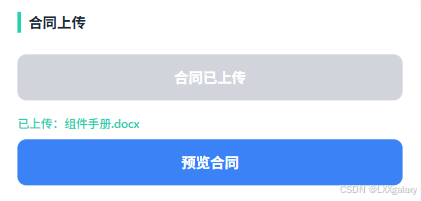
  • 支持格式:pdf / doc / docx
  • 上传过程有状态:未上传、上传中、上传成功、上传失败
  • 上传成功后,点击"预览"可打开刚上传文件
  • 不同端返回结构不一致时也能兼容

状态模型设计(核心)

  • 推荐状态机:idle -> uploading -> success/fail
  • 为什么不用多个布尔值硬拼:可读性差、容易出现矛盾状态
  • 实际落地:
    • uploadState:业务状态
    • uploading:按钮禁用控制
    • uploadedFilePath:预览依赖字段

上传实现细节(handleUpload)

  • 上传前提示:uni.showToast + 延迟 1500ms 再打开选择器
  • 选择文件:chooseMessageFile(微信端能力)
  • 关键兼容:
    • 优先从 tempFiles[0]name/path/tempFilePath
    • 兜底用 tempFilePaths[0]
  • 成功策略:
    • 拿到路径才算可预览成功
    • 只拿到文件名但无路径时给明确提示

预览实现细节(handlePreview)

  • 入口判断:未上传或无路径直接提示
  • 真实预览:uni.openDocument({ filePath, showMenu: true })
  • 失败兜底:预览失败时更新状态并 toast 告知

总结

  • 上传功能的关键不只是"能传",而是"状态清晰 + 可预览 + 有兜底"

  • 这套 demo 可直接迁移到签约、资料提交、附件审核等场景

    <template> <view class="page-wrap"> <view class="broker-page sign-enterprise-page"> <navbar title="上传与预览 Demo" :isBack="true" /> <card> <view class="demo-title">文件上传与预览(参考版)</view> <view class="demo-subtitle"> 用于后续业务接入:上传后展示状态,成功后支持真实文件预览 </view>
    复制代码
          <view class="demo-actions">
            <button class="demo-btn demo-btn--primary" :disabled="uploading" @click="handleUpload">
              {{ uploading ? '上传中...' : uploaded ? '重新上传文件' : '选择并上上传文件' }}
            </button>
            <button class="demo-btn demo-btn--ghost" :disabled="!uploaded" @click="handlePreview">
              预览已上传文件
            </button>
          </view>
    
          <view class="demo-status" :class="statusClass">
            <text>{{ statusText }}</text>
          </view>
    
          <view class="demo-file-info">
            <view class="demo-file-row">
              <text class="demo-file-label">文件名:</text>
              <text class="demo-file-value">{{ fileName || '-' }}</text>
            </view>
            <view class="demo-file-row">
              <text class="demo-file-label">文件路径:</text>
              <text class="demo-file-value">{{ uploadedFilePath || '-' }}</text>
            </view>
            <view class="demo-file-row">
              <text class="demo-file-label">允许格式:</text>
              <text class="demo-file-value">pdf / doc / docx</text>
            </view>
          </view>
        </card>
      </view>
    </view>
    </template> <script setup lang="ts"> import { computed, ref } from 'vue'

    /**

    • 1:上传状态机
      • idle: 未上传
      • uploading: 正在选择/上传
      • success: 上传成功
      • fail: 上传失败
        */
        type UploadState = 'idle' | 'uploading' | 'success' | 'fail'

    const uploadState = ref<UploadState>('idle')
    const uploaded = ref(false)
    const uploading = ref(false)
    const fileName = ref('')
    const uploadedFilePath = ref('')

    const waitTime = 1500

    async function handleUpload() {
    if (uploading.value) return
    uploading.value = true
    uploadState.value = 'uploading'

    复制代码
    try {
      const chooseMessageFile = (uni as any).chooseMessageFile
      if (typeof chooseMessageFile !== 'function') {
        uploadState.value = 'fail'
        uploaded.value = false
        uni.showToast({ title: '当前环境不支持 chooseMessageFile', icon: 'none' })
        return
      }
    
      uni.showToast({
        title: '当前仅可上传pdf、doc、docx格式的文档',
        icon: 'none',
        duration: waitTime,
      })
      await new Promise((resolve) => setTimeout(resolve, waitTime))
    
      const res: any = await new Promise((resolve, reject) => {
        chooseMessageFile({
          type: 'file',
          count: 1,
          extension: ['pdf', 'doc', 'docx'],
          success: resolve,
          fail: reject,
        })
      })
    
      /**
       * 2:兼容不同返回结构
       * 部分端返回 tempFiles,部分端可能只有 tempFilePaths
       */
      const file = res?.tempFiles?.[0] || {}
      const rawPath = file?.path || file?.tempFilePath || res?.tempFilePaths?.[0] || ''
    
      uploaded.value = true
      fileName.value = file?.name || file?.fileName || '已上传文件'
      uploadedFilePath.value = typeof rawPath === 'string' ? rawPath : ''
      uploadState.value = uploadedFilePath.value ? 'success' : 'fail'
    
      if (uploadState.value === 'success') {
        uni.showToast({ title: '上传成功', icon: 'success' })
      } else {
        uni.showToast({ title: '上传成功但未拿到文件路径', icon: 'none' })
      }
    } catch (e) {
      uploadState.value = 'fail'
      uploaded.value = false
      fileName.value = ''
      uploadedFilePath.value = ''
      uni.showToast({ title: '上传失败,请重试', icon: 'none' })
    } finally {
      uploading.value = false
    }

    }

    /**

    • 3:成功后预览真实文件
    • 使用 uni.openDocument 打开刚上传的本地临时文件
      */
      function handlePreview() {
      if (!uploaded.value || !uploadedFilePath.value) {
      uni.showToast({ title: '暂无可预览文件,请先上传', icon: 'none' })
      return
      }
    复制代码
    uni.openDocument({
      filePath: uploadedFilePath.value,
      showMenu: true,
      success: () => {
        uni.showToast({ title: '已打开文件', icon: 'none' })
      },
      fail: () => {
        uploadState.value = 'fail'
        uni.showToast({ title: '文件预览失败', icon: 'none' })
      },
    })

    }

    const statusText = computed(() => {
    if (uploadState.value === 'uploading') return '状态:上传中'
    if (uploadState.value === 'success') return '状态:上传成功,可预览'
    if (uploadState.value === 'fail') return '状态:上传/预览失败,请重试'
    return '状态:未上传'
    })

    const statusClass = computed(() => {
    if (uploadState.value === 'success') return 'is-success'
    if (uploadState.value === 'fail') return 'is-fail'
    if (uploadState.value === 'uploading') return 'is-uploading'
    return 'is-idle'
    })
    </script>

    <style lang="scss" scoped> @import '../style/detailIndex';

    .sign-enterprise-page {
    padding-bottom: 40rpx;
    }

    .demo-title {
    font-size: 30rpx;
    font-weight: 700;
    color: #111827;
    }

    .demo-subtitle {
    margin-top: 12rpx;
    color: #6b7280;
    font-size: 24rpx;
    line-height: 1.6;
    }

    .demo-actions {
    margin-top: 24rpx;
    display: flex;
    flex-direction: column;
    gap: 16rpx;
    }

    .demo-btn {
    border-radius: 12rpx;
    font-size: 28rpx;
    }

    .demo-btn--primary {
    background: #10b981;
    color: #ffffff;
    }

    .demo-btn--ghost {
    background: #ffffff;
    color: #065f46;
    border: 1px solid #10b981;
    }

    .demo-status {
    margin-top: 20rpx;
    padding: 14rpx 16rpx;
    border-radius: 10rpx;
    font-size: 24rpx;
    }

    .demo-status.is-idle {
    background: #f3f4f6;
    color: #4b5563;
    }

    .demo-status.is-uploading {
    background: #eff6ff;
    color: #1d4ed8;
    }

    .demo-status.is-success {
    background: #ecfdf5;
    color: #047857;
    }

    .demo-status.is-fail {
    background: #fef2f2;
    color: #b91c1c;
    }

    .demo-file-info {
    margin-top: 18rpx;
    display: flex;
    flex-direction: column;
    gap: 10rpx;
    }

    .demo-file-row {
    display: flex;
    align-items: baseline;
    gap: 8rpx;
    }

    .demo-file-label {
    font-size: 24rpx;
    color: #6b7280;
    }

    .demo-file-value {
    font-size: 24rpx;
    color: #111827;
    word-break: break-all;
    }
    </style>

相关推荐
wangjinsheng5932 小时前
Vue3 + Element Plus 前端 AI 编码模板
前端·vue.js·ai·elementui·ai编程
xiaohe072 小时前
SpringBoot + vue 管理系统
vue.js·spring boot·后端
Cobyte2 小时前
2.响应式系统基础:依赖追踪的基础 —— 发布订阅模式(前端应用最广的设计模式)
前端·javascript·vue.js
qq_381338502 小时前
Vue3 响应式系统深度解析:从原理到性能优化实战
vue.js·性能优化
xuankuxiaoyao2 小时前
VUE.JS实践--事件对象和计算属性
javascript·vue.js·ecmascript
朝阳5813 小时前
M3U8 下载助手油猴脚本 - 完全使用指南
前端·javascript·windows
早點睡3903 小时前
ReactNative项目OpenHarmony三方库集成实战:react-native-sensors(设备传感器)
javascript·react native·react.js
kadog3 小时前
GraphX:基于 WebGL 区间算术的 GPU 加速隐函数绘图器
前端·javascript·数学建模·webgl
上单带刀不带妹3 小时前
UniApp 页面跳转完全指南:5 种路由方式详解与实战对比
前端·javascript·vue.js·uni-app·跨端开发