1. 配置 Docker 启动 Label Studio 时的环境变量
如果已经启动了容器,先停止并删除。
bash
sudo docker stop label-studio
sudo docker rm label-studio
启动容器并配置环境变量。注意,挂载目录一定要设置成 images 文件夹的上一级目录,即命令中的 generate_json。
bash
sudo docker run -d \
  --name label-studio \
  --restart always \
  -p 8080:8080 \
  -v /opt/data:/label-studio/data \
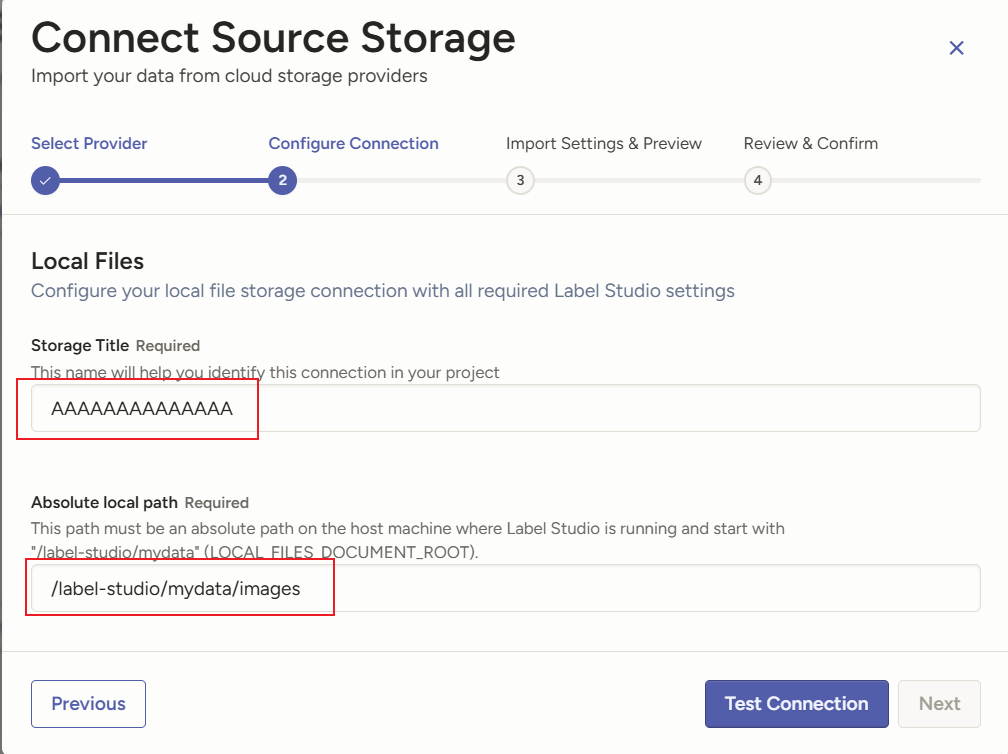
  -v /opt/generate_json:/label-studio/mydata \
  -e DATA_UPLOAD_MAX_NUMBER_FILES=10000 \
  heartexlabs/label-studio:latest
2. 配置 Local Storage
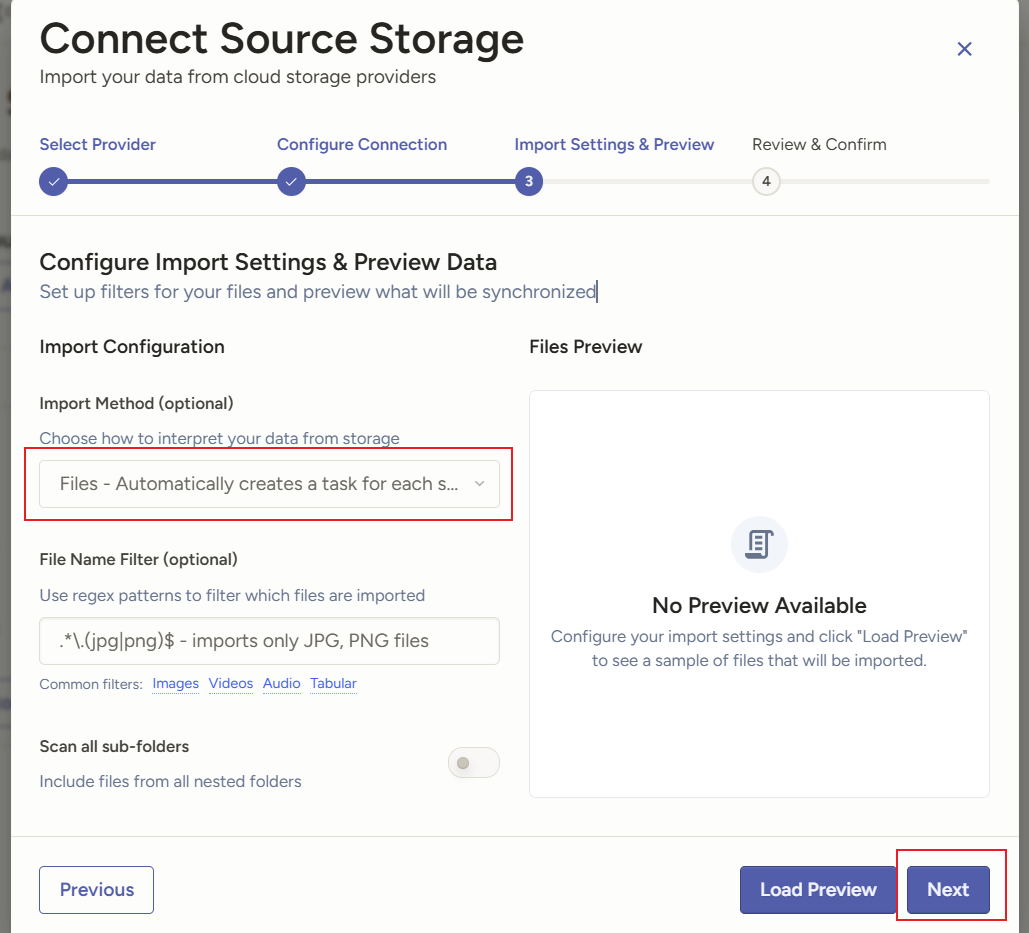
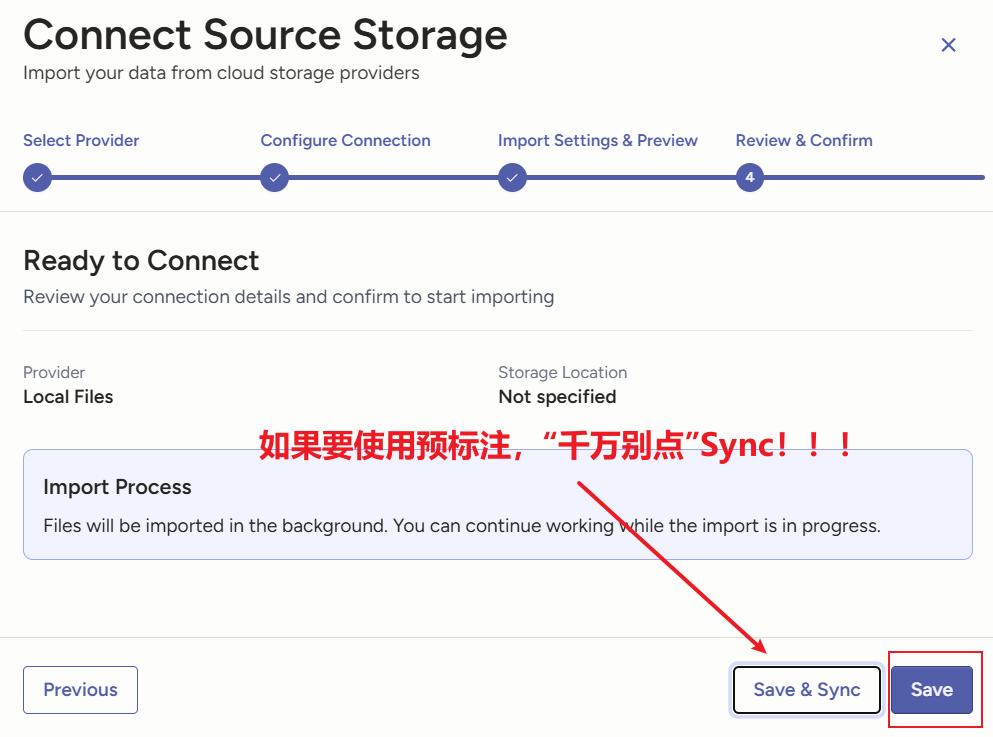
在 Label Studio 的新建一个项目,进入 Settings,选择 Cloud Storage,然后选择 Add Source Storage,然后选择 Local Files,点击 Next。依次按照下图所示操作:
3. 将 YOLO 格式的预标注信息转为 JSON
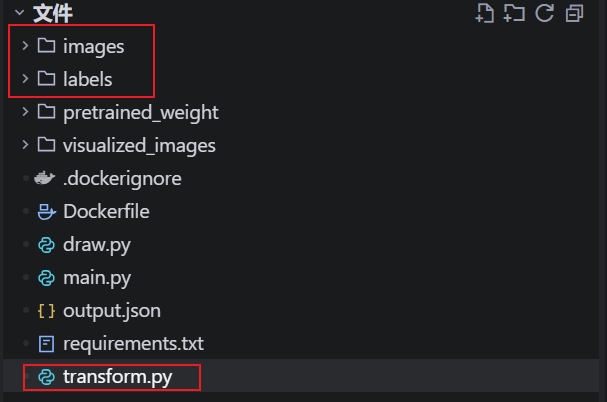
首先,你已经使用 YOLO 模型对数据进行了预标注,并将图片和预标注的标签信息在挂载目录 generate_json 内按照下图所示结构放好。然后运行 transform.py 代码。
python
import os
import json

images_dir = './images'
labels_dir = './labels'

# 获取所有图片和标签文件
image_files = os.listdir(images_dir)
label_files = os.listdir(labels_dir)

# 创建一个字典来存储标签数据
label_data = {}

# 类别映射(假设类别索引到类别名称的映射)
class_map = {
    0: "Falling",
    1: "Person"  # 根据你的实际类别名称修改
}

# 解析 YOLO 格式的标签文件
for image_file in image_files:
    # 提取文件名(不带扩展名)
    base_name = os.path.splitext(image_file)[0]
    label_file = f"{base_name}.txt"

    if label_file in label_files:
        # 读取标签文件内容
        annotations = []
        with open(os.path.join(labels_dir, label_file), 'r') as f:
            for line in f:
                parts = line.strip().split()
                if len(parts) >= 5:
                    class_index = int(parts[0])
                    class_name = class_map.get(class_index, f"class_{class_index}")

                    # 提取边界框信息
                    x_center = float(parts[1])
                    y_center = float(parts[2])
                    width = float(parts[3])
                    height = float(parts[4])

                    # 构建 Label Studio 的标注结果
                    annotation = {
                        "from_name": "label",
                        "to_name": "image",
                        "type": "rectanglelabels",
                        "value": {
                            "x": x_center * 100- width * 100/ 2,  # 转换为左上角 x 坐标
                            "y": y_center * 100- height * 100 / 2,  # 转换为左上角 y 坐标
                            "width": width * 100,
                            "height": height * 100,

                            "rotation": 0,
                            "rectanglelabels": [class_name]
                        }
                    }
                    annotations.append(annotation)
        label_data[image_file] = annotations

# 将数据转换为 Label Studio 的 JSON 格式
label_studio_data = []
for image_file, annotations in label_data.items():
    # 构建 Label Studio 的任务数据结构
    task = {
        "data": {
            "image": f"/data/local-files/?d=images/{image_file}"
        },
        "annotations": [
            {
                "result": annotations
            }
        ]
    }
    label_studio_data.append(task)

# 保存为 JSON 文件
output_file = 'output.json'
with open(output_file, 'w') as f:
    json.dump(label_studio_data, f, indent=2)
print(f"转换完成!数据已保存到 {output_file}")
4. 导入预标注信息
在项目首页,点击 Import,然后将刚才产生的 JSON 文件导入 Label Studio,此时 Label Studio 会自动将挂在目录内的图片和标注信息关联出来。注意,你只需要上传 JSON,不需要在页面上上传任何图片。
另外,你需要在 Settings 中配置好标签、标注模板等。