大家好,我是鸿蒙Jack。本期继续以我的《时光旅记》APP 为例,聊一下我是怎么把 HarmonyOS 的防窥保护能力接到真实业务里的。
《时光旅记》里有一个"我的小本"功能,用户会把照片、随笔、地点、旅行片段放在里面。有些小本只是普通记录,有些小本则可能更私密。前面我已经给"隐私保护小本"加了本地身份验证,这次的防窥保护解决的是另一个问题:用户本人已经解锁并正在浏览内容,但身边出现了非机主注视屏幕。
这种场景不能靠应用自己判断谁在看屏幕,也不适合自己做摄像头检测。正确做法是接入 Device Security Kit 里的 DlpAntiPeep 防窥保护能力。系统检测到有除机主以外的人在窥视屏幕时,应用可以拉起系统级蒙层,把当前窗口遮住。
官方文档可以先看这一篇:防窥保护。这篇文档里讲得很清楚:防窥保护需要设备支持对应能力,需要用户在系统设置里开启防窥保护并打开当前应用开关;开发侧还需要申请 ohos.permission.DLP_GET_HIDE_STATUS。这个权限是受限权限,不是普通声明一下就能随便用,发布前要按受限权限要求申请,并向用户说明数据使用的目的、方式和范围。
我在《时光旅记》里的使用场景
我没有把防窥保护做成全局开关。首页、旅行计划、普通时间轴不需要一直监听。我的做法是把它放在"隐私保护小本"的详情页里,用户只有给某个小本开启了防窥保护,进入这个小本详情后才启动监听。
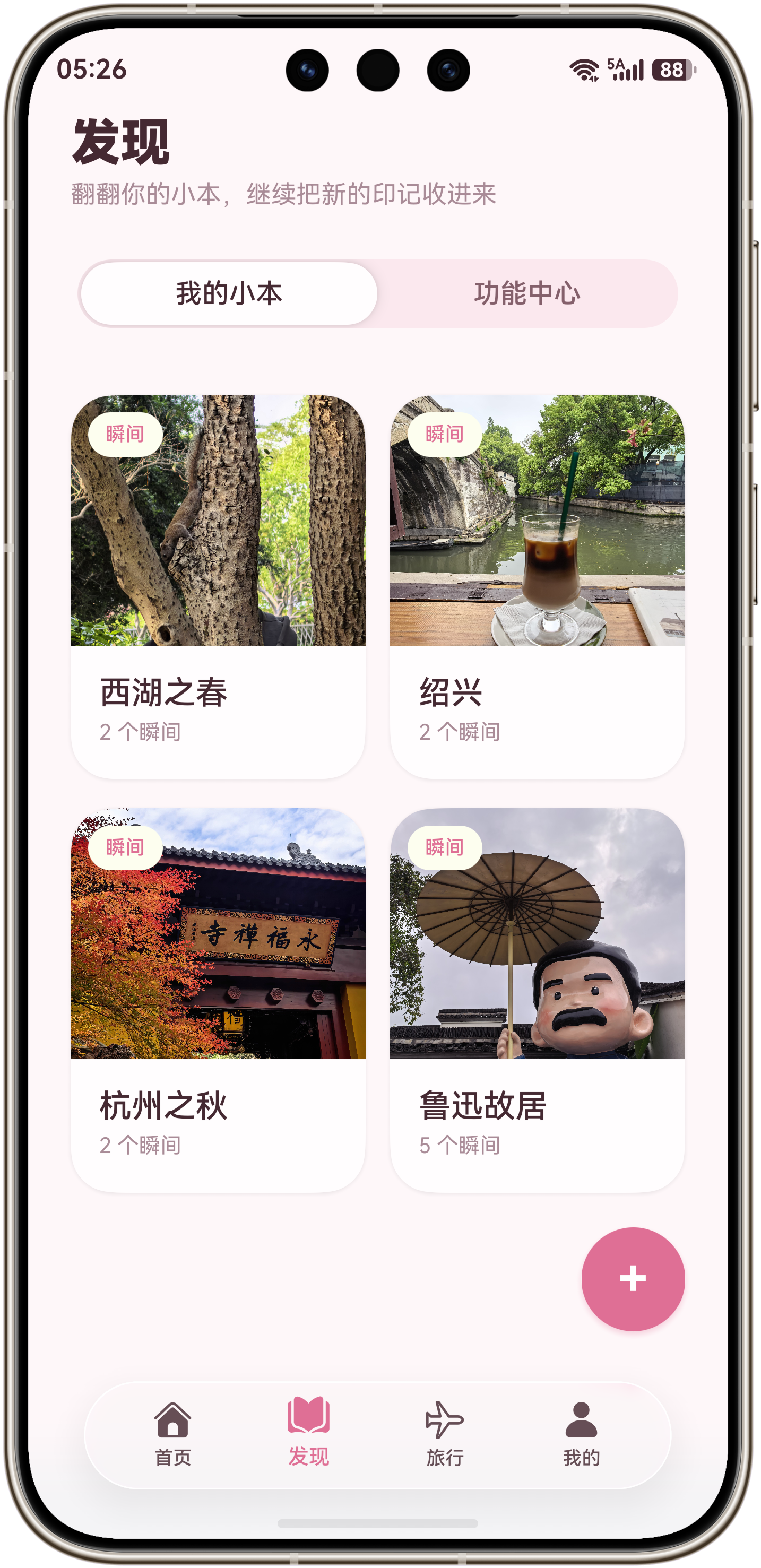
普通小本仍然保持轻量访问,不额外打扰用户。
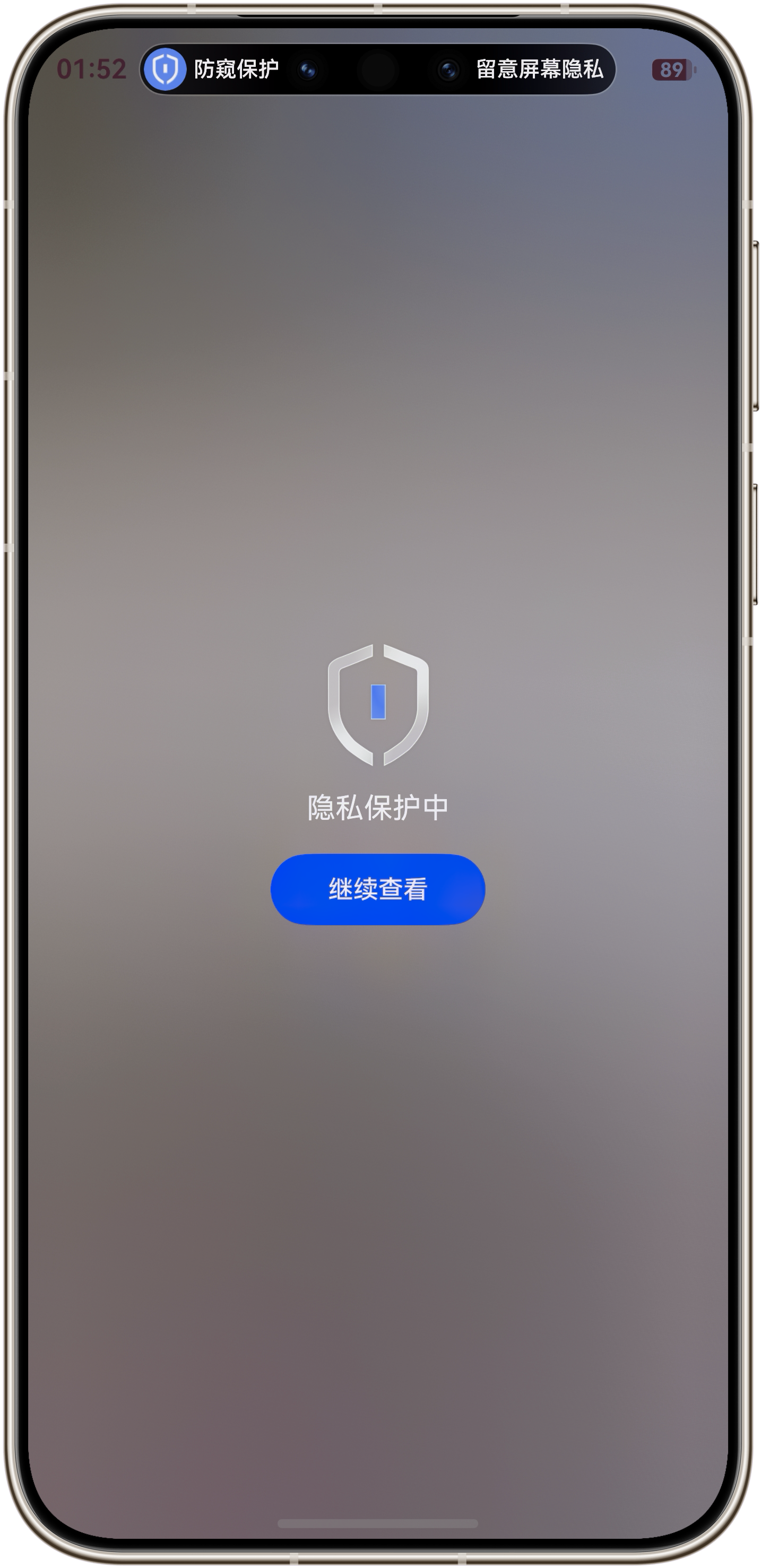
进入受保护小本后,如果这个小本开启了防窥保护,页面会开始订阅系统的窥视状态。
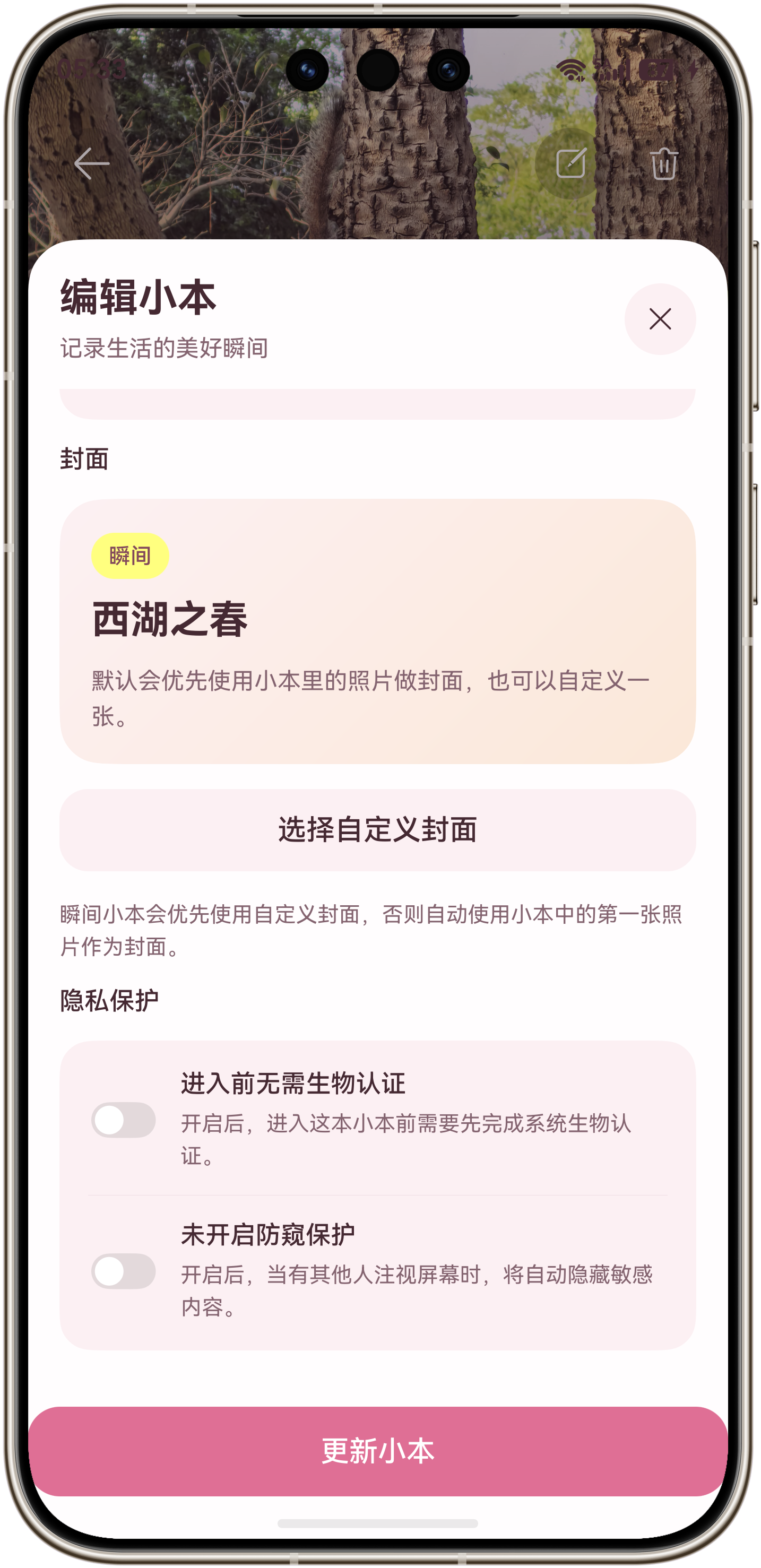
在编辑小本时,用户可以决定是否打开防窥保护。我会先检查系统防窥保护开关,如果当前应用还没开启,就拉起系统设置弹窗让用户确认。
业务规则如下:
否
是
否
是
PASS
HIDE
进入小本详情
当前小本是否开启防窥保护
不启动监听
检查系统防窥保护开关
当前应用开关是否开启
拉起系统设置弹窗
订阅 dlpAntiPeep 状态
状态是否为 HIDE
正常展示内容
拉起系统级蒙层遮盖窗口
离开页面
取消订阅并清理计时器
这里有一个关键边界:防窥保护不是替代本地身份验证。身份验证解决"谁能进入";防窥保护解决"进入以后旁边有没有人在看"。两个能力应该组合使用,而不是互相替代。
Device Security Kit 里的 DlpAntiPeep
防窥保护能力来自 Device Security Kit,代码里通过下面这个模块导入:
ts
import { dlpAntiPeep } from '@kit.DeviceSecurityKit';我这里用到的核心接口不多,但每个接口都有明确职责:isDlpAntiPeepSwitchOn() 用来检查当前应用是否打开防窥保护,requestAntiPeepOptions(context) 用来拉起系统设置弹窗,on('dlpAntiPeep') 用来订阅状态,getDlpAntiPeepInfo() 用来同步当前状态,setAntiPeepMaskLayer(windowId) 用来拉起系统级蒙层,off('dlpAntiPeep') 用来释放订阅。
DlpAntiPeep 的基本流程
接入防窥保护时,我把流程拆成四段。
第一段是权限和系统开关。应用需要声明并申请受限权限 ohos.permission.DLP_GET_HIDE_STATUS,并且当前应用要在系统防窥保护设置里打开开关。
第二段是订阅状态。调用 dlpAntiPeep.on('dlpAntiPeep', callback) 后,应用在前台可见时可以收到 PASS 或 HIDE。
第三段是状态处理。PASS 表示当前没有窥视,HIDE 表示有除机主以外的人在窥视屏幕。
第四段是保护动作。检测到 HIDE 后,通过 setAntiPeepMaskLayer(windowId) 拉起系统级蒙层。
对应到时序图是这样:
系统防窥能力 DlpAntiPeep JackAntiPeepProtectionKit 小本详情页 用户 系统防窥能力 DlpAntiPeep JackAntiPeepProtectionKit 小本详情页 用户 alt 开关未开启 alt 状态为 HIDE 进入开启防窥的小本 updateEnabled(true) isDlpAntiPeepSwitchOn() 返回当前应用开关状态 requestAntiPeepOptions(context) 拉起系统设置弹窗 用户设置结果 on('dlpAntiPeep') getDlpAntiPeepInfo() PASS 或 HIDE 状态变化回调 setAntiPeepMaskLayer(windowId) 系统级蒙层遮盖应用窗口 dispose() off('dlpAntiPeep')
权限配置
在 entry/src/main/module.json5 里声明权限:
json5
{
  "name": "ohos.permission.DLP_GET_HIDE_STATUS",
  "reason": "$string:permission_anti_peep_reason",
  "usedScene": {
    "abilities": [
      "EntryAbility"
    ],
    "when": "inuse"
  }
}这里要特别注意,DLP_GET_HIDE_STATUS 是受限权限,不是普通权限。发布前需要确认应用具备申请条件,并按官方文档完成申请。权限说明和隐私政策里也要说清楚为什么要获取窥视状态。我的场景是"只在用户主动开启防窥保护的小本详情页中,用于触发系统级蒙层保护隐私内容"。
为什么要封装
防窥保护的 API 看起来不多,但放进页面以后会很容易散。页面要处理系统开关、设置弹窗、状态订阅、状态快照、蒙层拉起、失败重试、页面显示恢复、页面退出释放。
这些都不是"小本详情页"的核心业务。小本详情页真正应该关心的是:当前小本是否开启防窥保护。
所以我把 DlpAntiPeep 相关能力收进了 JackAntiPeepProtectionKit。页面只做判断:
ts
private async updateAntiPeepingStatus(): Promise<void> {
  await this.getAntiPeepProtectionKit().updateEnabled(this.shouldEnableAntiPeepingForCurrentScene());
}
完整封装代码
下面是《时光旅记》当前使用的完整封装,文件路径是 entry/src/main/ets/kit/antipeep/JackAntiPeepProtectionKit.ets。
ts
import { Context } from '@kit.AbilityKit';
import { window } from '@kit.ArkUI';
import { BusinessError } from '@kit.BasicServicesKit';
import { dlpAntiPeep } from '@kit.DeviceSecurityKit';

export type JackAntiPeepStatusSource = 'callback' | 'snapshot' | 'poll';

export interface JackAntiPeepProtectionOptions {
  getContext: () => Context | undefined;
  onMessage?: (message: string) => void;
  pollIntervalMs?: number;
  maskRetryDelayMs?: number;
  maxMaskRetryCount?: number;
}

export class JackAntiPeepProtectionKit {
  private readonly getContext: () => Context | undefined;
  private readonly onMessage?: (message: string) => void;
  private readonly pollIntervalMs: number;
  private readonly maskRetryDelayMs: number;
  private readonly maxMaskRetryCount: number;
  private active: boolean = false;
  private activationPending: boolean = false;
  private hasShownMask: boolean = false;
  private maskRetryTimer: number = -1;
  private maskRetryCount: number = 0;
  private statusPollTimer: number = -1;
  private lastStatus: dlpAntiPeep.DlpAntiPeepStatus = dlpAntiPeep.DlpAntiPeepStatus.PASS;

  private onStatusChange = async (status: dlpAntiPeep.DlpAntiPeepStatus): Promise<void> => {
    await this.handleStatus(status, 'callback');
  }

  constructor(options: JackAntiPeepProtectionOptions) {
    this.getContext = options.getContext;
    this.onMessage = options.onMessage;
    this.pollIntervalMs = options.pollIntervalMs ? options.pollIntervalMs : 1500;
    this.maskRetryDelayMs = options.maskRetryDelayMs ? options.maskRetryDelayMs : 300;
    this.maxMaskRetryCount = options.maxMaskRetryCount ? options.maxMaskRetryCount : 3;
  }

  public isActive(): boolean {
    return this.active;
  }

  public async ensureSwitchEnabled(): Promise<boolean> {
    try {
      const isOpen = await dlpAntiPeep.isDlpAntiPeepSwitchOn();
      if (isOpen) {
        return true;
      }
      const hostContext: Context | undefined = this.getContext();
      if (hostContext === undefined) {
        return false;
      }
      const result: dlpAntiPeep.AntiPeepOptionsResult = await dlpAntiPeep.requestAntiPeepOptions(hostContext);
      if (result === dlpAntiPeep.AntiPeepOptionsResult.SUCCESS ||
          result === dlpAntiPeep.AntiPeepOptionsResult.ALREADY_ON) {
        return true;
      }
      this.emitMessage(JackAntiPeepProtectionKit.resolveEnableResultMessage(result));
    } catch (error) {
      const businessError: BusinessError = error as BusinessError;
      console.error(`Failed to ensure DlpAntiPeep switch. Code: ${businessError.code}, message: ${businessError.message}`);
      this.emitMessage(JackAntiPeepProtectionKit.resolveErrorMessage(businessError));
    }
    return false;
  }

  public async updateEnabled(shouldBeActive: boolean): Promise<void> {
    if (shouldBeActive && !this.active) {
      if (this.activationPending) {
        return;
      }
      this.activationPending = true;
      try {
        await this.activate();
      } finally {
        this.activationPending = false;
      }
      return;
    }
    if (!shouldBeActive && this.active) {
      this.dispose();
    }
  }

  public handlePageShow(): void {
    if (!this.active) {
      return;
    }
    this.hasShownMask = false;
    void this.syncCurrentStatus();
    this.scheduleStatusPolling();
  }

  public dispose(): void {
    this.activationPending = false;
    this.clearMaskRetry();
    this.clearStatusPolling();
    this.lastStatus = dlpAntiPeep.DlpAntiPeepStatus.PASS;
    this.hasShownMask = false;
    if (!this.active) {
      return;
    }
    try {
      dlpAntiPeep.off('dlpAntiPeep', this.onStatusChange);
      this.active = false;
    } catch (error) {
      const businessError: BusinessError = error as BusinessError;
      console.error(`Failed to off DlpAntiPeep. Code: ${businessError.code}, message: ${businessError.message}`);
    }
  }

  public static resolveEnableResultMessage(result: dlpAntiPeep.AntiPeepOptionsResult): string {
    if (result === dlpAntiPeep.AntiPeepOptionsResult.FAIL) {
      return '请在系统弹窗中为当前应用打开防窥保护后再试';
    }
    return '防窥保护暂时不可用,请稍后再试';
  }

  public static resolveErrorMessage(error: BusinessError): string {
    const errorCode: number = Number(error.code);
    if (errorCode === 201) {
      return '当前应用未获得防窥保护受限权限,暂时无法启用该功能';
    }
    if (errorCode === 801) {
      return '当前设备或系统版本暂不支持防窥保护';
    }
    if (errorCode === 1020600004) {
      return '请先在系统设置中录入人脸后再开启防窥保护';
    }
    return '防窥保护暂时不可用,请稍后再试';
  }

  private async activate(): Promise<boolean> {
    if (!(await this.ensureSwitchEnabled())) {
      return false;
    }
    try {
      dlpAntiPeep.on('dlpAntiPeep', this.onStatusChange);
      this.active = true;
      await this.syncCurrentStatus();
      this.scheduleStatusPolling();
      return true;
    } catch (error) {
      const businessError: BusinessError = error as BusinessError;
      console.error(`Failed to subscribe DlpAntiPeep. Code: ${businessError.code}, message: ${businessError.message}`);
      this.emitMessage(JackAntiPeepProtectionKit.resolveErrorMessage(businessError));
    }
    return false;
  }

  private async handleStatus(
    status: dlpAntiPeep.DlpAntiPeepStatus,
    _source: JackAntiPeepStatusSource
  ): Promise<void> {
    this.lastStatus = status;
    if (status === dlpAntiPeep.DlpAntiPeepStatus.PASS) {
      this.clearMaskRetry();
      this.hasShownMask = false;
      return;
    }
    if (status === dlpAntiPeep.DlpAntiPeepStatus.HIDE && !this.hasShownMask) {
      await this.setMaskLayer();
    }
  }

  private async syncCurrentStatus(source: JackAntiPeepStatusSource = 'snapshot'): Promise<void> {
    try {
      const status: dlpAntiPeep.DlpAntiPeepStatus = dlpAntiPeep.getDlpAntiPeepInfo();
      await this.handleStatus(status, source);
    } catch (error) {
      const businessError: BusinessError = error as BusinessError;
      console.error(`Failed to get DlpAntiPeep info. Code: ${businessError.code}, message: ${businessError.message}`);
    }
  }

  private async setMaskLayer(): Promise<void> {
    try {
      const context: Context | undefined = this.getContext();
      if (context === undefined) {
        return;
      }
      const windowClass = await window.getLastWindow(context);
      const windowId: number = windowClass.getWindowProperties().id;
      await dlpAntiPeep.setAntiPeepMaskLayer(windowId);
      this.clearMaskRetry();
      this.hasShownMask = true;
    } catch (error) {
      const businessError: BusinessError = error as BusinessError;
      console.error(`Failed to set AntiPeep MaskLayer. Code: ${businessError.code}, message: ${businessError.message}`);
      const errorCode: number = Number(businessError.code);
      if (errorCode === 1020600002 || errorCode === 1020600003 || errorCode === 1020600001) {
        this.scheduleMaskRetry();
      }
    }
  }

  private scheduleMaskRetry(): void {
    if (!this.active || this.hasShownMask || this.lastStatus !== dlpAntiPeep.DlpAntiPeepStatus.HIDE) {
      return;
    }
    if (this.maskRetryTimer >= 0 || this.maskRetryCount >= this.maxMaskRetryCount) {
      return;
    }
    this.maskRetryCount = this.maskRetryCount + 1;
    this.maskRetryTimer = setTimeout(() => {
      this.maskRetryTimer = -1;
      void this.setMaskLayer();
    }, this.maskRetryDelayMs);
  }

  private clearMaskRetry(): void {
    if (this.maskRetryTimer >= 0) {
      clearTimeout(this.maskRetryTimer);
      this.maskRetryTimer = -1;
    }
    this.maskRetryCount = 0;
  }

  private scheduleStatusPolling(): void {
    if (!this.active || this.statusPollTimer >= 0) {
      return;
    }
    this.statusPollTimer = setTimeout(async () => {
      this.statusPollTimer = -1;
      if (!this.active) {
        return;
      }
      await this.syncCurrentStatus('poll');
      this.scheduleStatusPolling();
    }, this.pollIntervalMs);
  }

  private clearStatusPolling(): void {
    if (this.statusPollTimer >= 0) {
      clearTimeout(this.statusPollTimer);
      this.statusPollTimer = -1;
    }
  }

  private emitMessage(message: string): void {
    if (this.onMessage === undefined || message.length === 0) {
      return;
    }
    this.onMessage(message);
  }
}
导出入口:
ts
export * from './JackAntiPeepProtectionKit';业务页面接入
页面里先持有一个懒加载的防窥组件实例。
ts
import { JackAntiPeepProtectionKit } from '../../kit/antipeep';

private antiPeepProtectionKit: JackAntiPeepProtectionKit | undefined = undefined;

private getAntiPeepProtectionKit(): JackAntiPeepProtectionKit {
  let kit: JackAntiPeepProtectionKit | undefined = this.antiPeepProtectionKit;
  if (kit === undefined) {
    kit = new JackAntiPeepProtectionKit({
      getContext: () => this.getHostContext(),
      onMessage: (message: string): void => {
        this.showToast(message);
      }
    });
    this.antiPeepProtectionKit = kit;
  }
  return kit;
}
然后把业务判断留在页面里:
ts
private shouldEnableAntiPeepingForCurrentScene(): boolean {
  if (!this.notebookDetailMode || this.currentNotebookId.length === 0) {
    return false;
  }
  const notebook = this.getNotebookById(this.currentNotebookId);
  return notebook !== undefined && notebook.isAntiPeeping;
}

private async updateAntiPeepingStatus(): Promise<void> {
  await this.getAntiPeepProtectionKit().updateEnabled(this.shouldEnableAntiPeepingForCurrentScene());
}

private onNotebookDetailStateChange(): void {
  void this.updateAntiPeepingStatus();
}
页面显示和退出时分别恢复、释放:
ts
onPageShow(): void {
  this.getAntiPeepProtectionKit().handlePageShow();
}

aboutToDisappear(): void {
  this.getAntiPeepProtectionKit().dispose();
}
用户在编辑小本时打开防窥保护,我会先确保系统开关可用:
ts
if (this.notebookAntiPeepingInput && !notebook.isAntiPeeping) {
  if (!(await this.ensureAntiPeepSwitchEnabled())) {
    this.isBusy = false;
    return;
  }
}
新建小本时同理:
ts
if (this.notebookAntiPeepingInput) {
  if (!(await this.ensureAntiPeepSwitchEnabled())) {
    this.isBusy = false;
    return;
  }
}
我这里做了两个兜底
第一个兜底是状态快照。订阅 on('dlpAntiPeep') 后,我会立刻调用一次 getDlpAntiPeepInfo()。这样进入页面时即使还没等到下一次回调,也能同步一次当前状态。
第二个兜底是短轮询。防窥能力依赖应用前台可见状态和系统回调,我在组件里保留了一个 1500ms 的状态同步轮询,只在 active 状态下运行,离开页面立即清理。
另外,setAntiPeepMaskLayer(windowId) 我做了最多 3 次短延迟重试。原因是页面刚切入时可能会遇到窗口还没有完全处于可保护状态的情况,直接失败会让保护动作丢失。重试只在 HIDE 状态且蒙层还没拉起时发生,不会一直循环。
几个发布前必须确认的点
防窥保护不是普通开放能力,不能只看代码跑不跑。
真机上要先确认"设置 > 隐私与安全 > 防窥保护"选项存在,并且设备已经开启人脸识别。系统使用机主相关判断能力,前置条件不满足时,回调可能不会按预期触发。
ohos.permission.DLP_GET_HIDE_STATUS 是受限权限,需要按要求申请。应用也要在权限说明或隐私政策里说清楚为什么要获取窥视状态。
最后,防窥保护要按场景启停。我的经验是不要全局常驻监听,至少在《时光旅记》里,只有用户进入开启防窥保护的小本详情时才启动,离开后马上释放。这样既节制,也更容易解释权限用途。
最后
这次封装完以后,《时光旅记》的页面代码只剩下业务判断:当前是不是受保护小本,当前小本有没有开启防窥保护。真正的系统能力接入、状态订阅、蒙层拉起、错误提示和资源释放都放进了 JackAntiPeepProtectionKit。
如果后面我要给私密时间轴、旅行详情里的敏感内容或者账号资料页加防窥保护,也不需要重新写一遍 DlpAntiPeep 逻辑,只要复用这个组件,然后换掉 shouldEnableAntiPeepingForCurrentScene() 的业务条件就行。