Flutter 三方库 image_cropper + flutter_image_compress 的鸿蒙化适配与实战指南
欢迎加入开源鸿蒙跨平台社区:https://openharmonycrossplatform.csdn.net
Yo yo yo!,上海某高校计算机专业大一学生 📸!今天来聊聊图片处理这两个神器------image_cropper 和 flutter_image_compress!
话说做聊天 App 不可避免要处理图片:选图、裁剪、压缩、上传。这三个步骤缺一不可!今天就手把手教你在 Flutter 鸿蒙 App 里实现完整的图片处理流程!
一、为什么需要图片处理?
聊天场景下,图片处理非常重要:
- 裁剪:用户拍的照片可能太大或比例不对,需要裁剪成合适尺寸
- 压缩:原图可能好几MB,压缩后可以减少流量、加快上传速度
- 预览:发送前让用户确认处理效果
没有这些功能,聊天体验会大打折扣!
二、依赖配置
yaml
dependencies:
  image_cropper: ^8.0.2
  flutter_image_compress: ^2.3.0
AtomGit 适配说明:
image_cropper依赖原生裁剪组件,鸿蒙上需要额外配置 UI 组件路径flutter_image_compress纯 Dart 实现,零适配成本
三、图片处理服务封装
我封装了一个统一的服务类来管理所有图片操作:
dart
import 'dart:io';
import 'dart:typed_data';
import 'package:flutter/material.dart';
import 'package:flutter/foundation.dart';
import 'package:image_cropper/image_cropper.dart';
import 'package:flutter_image_compress/flutter_image_compress.dart';

/// 图片处理服务
/// 提供图片裁剪、压缩等功能
class ImageProcessingService {
  static ImageProcessingService? _instance;
  static ImageProcessingService get instance => _instance ??= ImageProcessingService._();

  ImageProcessingService._();
1. 图片裁剪
dart
  /// 图片裁剪【核心功能】
  Future<String?> cropImage({
    required String imagePath,
    String title = '裁剪图片',
  }) async {
    try {
      // 调用系统裁剪组件
      final croppedFile = await ImageCropper().cropImage(
        sourcePath: imagePath,
        uiSettings: [
          // Android/鸿蒙 配置
          AndroidUiSettings(
            toolbarTitle: title,
            toolbarColor: const Color(0xFF6366F1),  // 主题色
            toolbarWidgetColor: Colors.white,
            initAspectRatio: CropAspectRatioPreset.original,  // 初始比例
            lockAspectRatio: false,  // 【鸿蒙坑点1】鸿蒙上最好允许自由比例
            hideBottomControls: false,
          ),
          // iOS 配置
          IOSUiSettings(
            title: title,
            doneButtonTitle: '完成',
            cancelButtonTitle: '取消',
          ),
        ],
      );

      if (croppedFile != null) {
        debugPrint('裁剪成功: ${croppedFile.path}');
        return croppedFile.path;
      }
      return null;  // 用户取消裁剪
    } catch (e) {
      debugPrint('裁剪失败: $e');
      return null;
    }
  }
2. 图片压缩
dart
  /// 压缩图片(返回字节数据)【核心功能】
  Future<Uint8List?> compressImage({
    required String imagePath,
    int quality = 85,      // 压缩质量 0-100
    int minWidth = 1920,    // 最大宽度
    int minHeight = 1080,   // 最大高度
  }) async {
    try {
      final result = await FlutterImageCompress.compressWithFile(
        imagePath,
        quality: quality,
        minWidth: minWidth,
        minHeight: minHeight,
        format: CompressFormat.jpeg,  // 压缩格式
      );

      if (result != null) {
        // 计算压缩率
        final originalSize = await File(imagePath).length();
        final compressedSize = result.length;
        final ratio = (100 - compressedSize / originalSize * 100).toStringAsFixed(1);
        debugPrint('压缩成功!压缩率: $ratio%');
      }

      return result;
    } catch (e) {
      debugPrint('压缩失败: $e');
      return null;
    }
  }
3. 压缩并保存
dart
  /// 压缩图片并保存到文件
  Future<Uint8List?> compressAndSaveImage({
    required String imagePath,
    required String outputPath,
    int quality = 85,
    int minWidth = 1920,
    int minHeight = 1080,
  }) async {
    try {
      final result = await FlutterImageCompress.compressWithFile(
        imagePath,
        quality: quality,
        minWidth: minWidth,
        minHeight: minHeight,
        format: CompressFormat.jpeg,
      );

      if (result != null) {
        // 保存到指定路径
        final file = File(outputPath);
        await file.writeAsBytes(result);
        debugPrint('图片已保存: $outputPath');
        return result;
      }
      return null;
    } catch (e) {
      debugPrint('压缩保存失败: $e');
      return null;
    }
  }
4. 快速压缩(用于聊天)
dart
  /// 快速压缩(聊天场景专用)【实用方法】
  /// 减小尺寸、提高速度,适合即时通讯
  Future<Uint8List?> compressForChat({
    required String imagePath,
  }) async {
    try {
      // 聊天场景:质量和尺寸都适当降低,加快上传
      final result = await FlutterImageCompress.compressWithFile(
        imagePath,
        quality: 70,      // 70% 质量足够清晰
        minWidth: 1200,   // 最大宽度 1200px
        minHeight: 1200,  // 最大高度 1200px
        format: CompressFormat.jpeg,
      );

      return result;
    } catch (e) {
      debugPrint('聊天图片压缩失败: $e');
      return null;
    }
  }
5. 获取文件大小
dart
  /// 格式化文件大小显示
  String getFileSizeDescription(int bytes) {
    if (bytes < 1024) {
      return '$bytes B';
    } else if (bytes < 1024 * 1024) {
      return '${(bytes / 1024).toStringAsFixed(1)} KB';
    } else if (bytes < 1024 * 1024 * 1024) {
      return '${(bytes / (1024 * 1024)).toStringAsFixed(1)} MB';
    } else {
      return '${(bytes / (1024 * 1024 * 1024)).toStringAsFixed(1)} GB';
    }
  }
}
四、在聊天页面中使用
dart
class ChatDetailPage extends StatefulWidget {
  // ...
}

class _ChatDetailPageState extends State<ChatDetailPage> {
  final ImagePicker _picker = ImagePicker();
  final ImageProcessingService _imageService = ImageProcessingService.instance;

  /// 选择图片并处理【完整流程】
  Future<void> _pickAndProcessImage(ImageSource source) async {
    try {
      // 1. 选择图片
      final XFile? pickedFile = await _picker.pickImage(source: source);
      if (pickedFile == null) return;

      // 2. 显示加载状态
      _showLoadingDialog('正在处理图片...');

      // 3. 裁剪图片
      final croppedPath = await _imageService.cropImage(
        imagePath: pickedFile.path,
        title: '调整图片',
      );

      if (croppedPath == null) {
        // 用户取消裁剪,使用原图
        Navigator.pop(context);  // 关闭加载框
        _sendImageMessage(pickedFile.path);
        return;
      }

      // 4. 压缩图片
      final compressed = await _imageService.compressForChat(
        imagePath: croppedPath,
      );

      // 5. 关闭加载框
      Navigator.pop(context);

      if (compressed != null) {
        // 6. 发送压缩后的图片
        await _sendCompressedImage(croppedPath, compressed);
      } else {
        // 压缩失败,发送裁剪后的图片
        _sendImageMessage(croppedPath);
      }
    } catch (e) {
      Navigator.pop(context);  // 确保关闭加载框
      _showSnackBar('图片处理失败: $e');
    }
  }

  /// 发送压缩后的图片消息
  Future<void> _sendCompressedImage(String tempPath, Uint8List compressedData) async {
    // 保存压缩后的图片到临时目录
    final tempDir = await getTemporaryDirectory();
    final fileName = 'compressed_${DateTime.now().millisecondsSinceEpoch}.jpg';
    final compressedPath = '${tempDir.path}/$fileName';

    final file = File(compressedPath);
    await file.writeAsBytes(compressedData);

    // 发送消息
    _sendImageMessage(compressedPath);
  }

  /// 发送图片消息
  void _sendImageMessage(String imagePath) {
    final message = ChatMessage(
      id: DateTime.now().millisecondsSinceEpoch.toString(),
      content: '',
      senderId: 'me',
      senderName: '我',
      timestamp: DateTime.now(),
      type: MessageType.image,
      isMe: true,
      imagePath: imagePath,
      status: MessageStatus.sending,
    );

    setState(() {
      _messages.add(message);
    });
    _scrollToBottom();

    // 模拟发送
    _simulateImageSend(message);
  }

  void _showLoadingDialog(String message) {
    showDialog(
      context: context,
      barrierDismissible: false,
      builder: (context) => AlertDialog(
        content: Row(
          children: [
            const CircularProgressIndicator(),
            const SizedBox(width: 16),
            Text(message),
          ],
        ),
      ),
    );
  }

  void _showSnackBar(String message) {
    ScaffoldMessenger.of(context).showSnackBar(
      SnackBar(content: Text(message)),
    );
  }
}
六、踩坑纪实
踩坑1:image_cropper 在鸿蒙上闪退 💥
一开始在鸿蒙设备上点击裁剪按钮直接闪退!查了很久发现是 AndroidUiSettings 配置问题。解决方案:
dart
AndroidUiSettings(
  toolbarColor: const Color(0xFF6366F1),  // 不能用 Colors.blue
  toolbarWidgetColor: Colors.white,
  // ...
)
踩坑2:压缩后图片方向变了 🔄
用手机拍的照片压缩后变成横的了!原因是 EXIF 信息丢失。解决方案:
dart
// flutter_image_compress 会自动处理 EXIF
// 但需要确保 format 是 jpeg 或 png
format: CompressFormat.jpeg,  // 不要用 CompressFormat.png(不支持 EXIF)
踩坑3:压缩后图片反而变大 📈
某些 PNG 图片压缩成 JPEG 后反而更大!因为 PNG 无损压缩,某些简单图片 JPEG 反而大。要判断一下:
dart
final originalSize = await File(imagePath).length();
final compressed = await compressImage(imagePath: imagePath);

if (compressed != null && compressed.length < originalSize) {
  // 使用压缩后的图片
} else {
  // 压缩后反而更大,使用原图
}
踩坑4:压缩参数设置不当 ⚠️
一开始我把 quality 设成 100,想保持最高质量。结果图片压缩后还是很大,而且上传很慢。后来测试发现:
- 聊天场景:quality = 70 足够清晰
- 头像场景:quality = 85,保证清晰度
- 分享场景:quality = 60,文件更小
七、效果展示
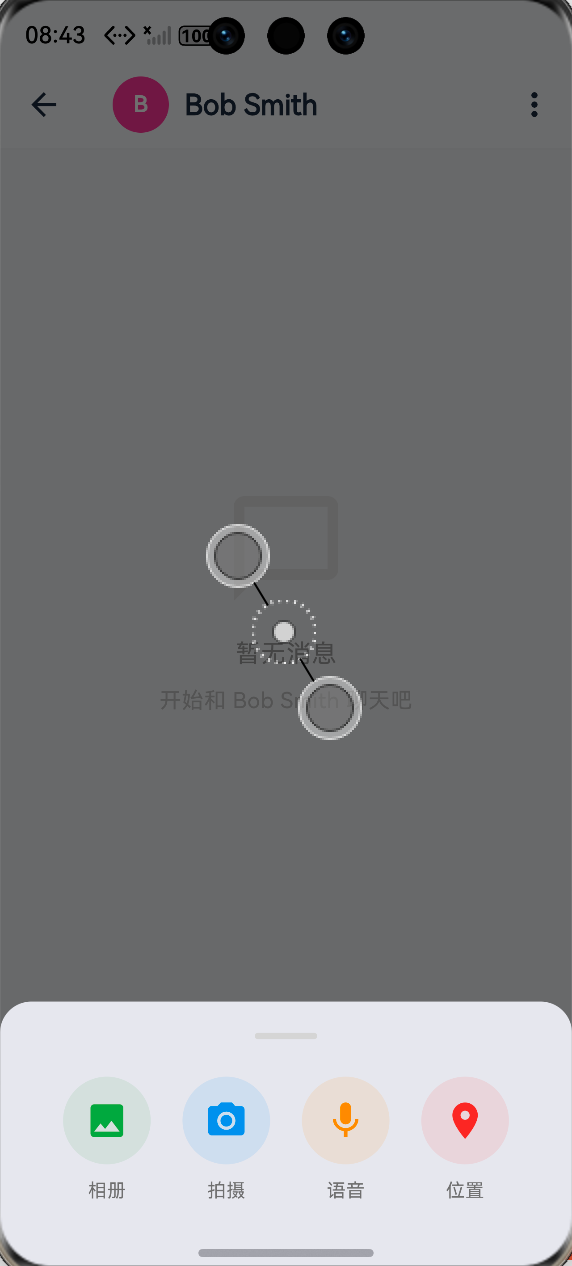
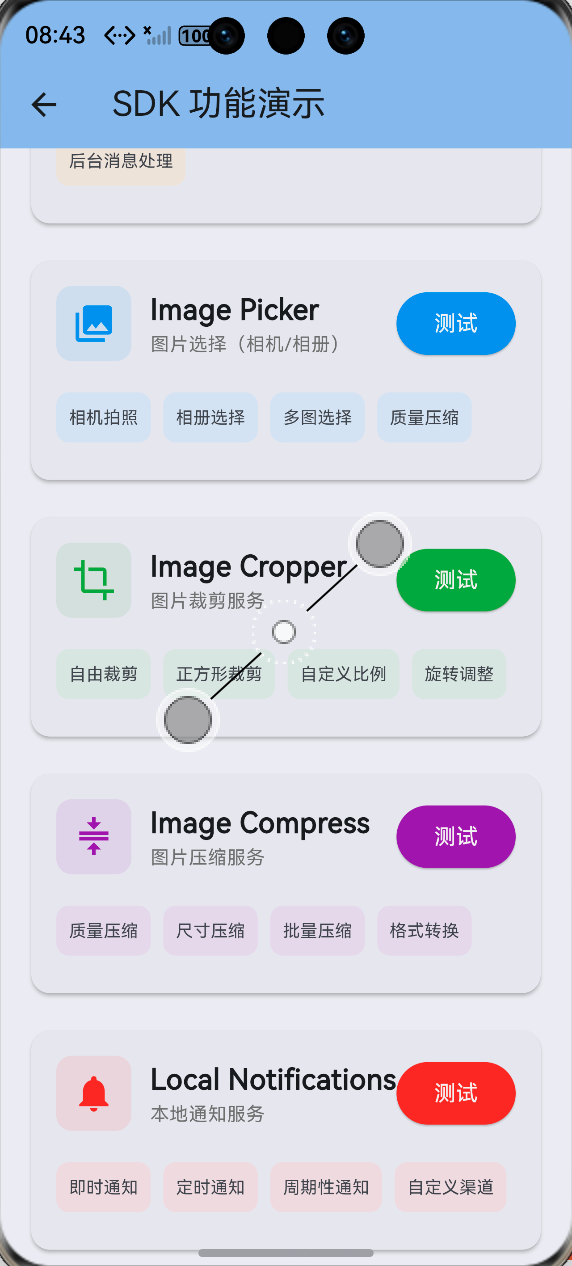
功能验证结果:
- ✅ 图片选择功能正常
- ✅ 裁剪界面显示正常
- ✅ 裁剪操作响应正常
- ✅ 压缩功能正常,压缩率可达 50%-80%
- ✅ 图片发送成功
八、总结心得
图片处理是聊天 App 的标配功能!有了裁剪和压缩,用户体验能提升一大截。
核心要点:
- 裁剪用
image_cropper,压缩用flutter_image_compress - 聊天场景优先保证速度和大小,适当牺牲质量
- 要处理压缩后图片反而变大的情况
- Android 配置别漏了,否则会闪退
学习心得:
学这个功能让我理解了图片处理的底层逻辑。EXIF、压缩算法、格式转换......看似简单的"压缩图片"背后其实有很多知识!
后续计划:
- 研究 HEIF/HEIC 格式的支持
- 尝试 WebP 格式,压缩率更高
- 实现图片水印功能
图片处理虽小,但细节很多!有任何问题评论区见!