UNIAPP/uniappx图片编辑器插件(fz-image-editor)是基于 UTS 原生插件开发的图片编辑器支持uniapp和uniappx安卓端,其功能支持裁剪、旋转、滤镜、文字、贴纸、涂鸦等丰富功能,提供完整原生编辑 UI 界面。效果如下:
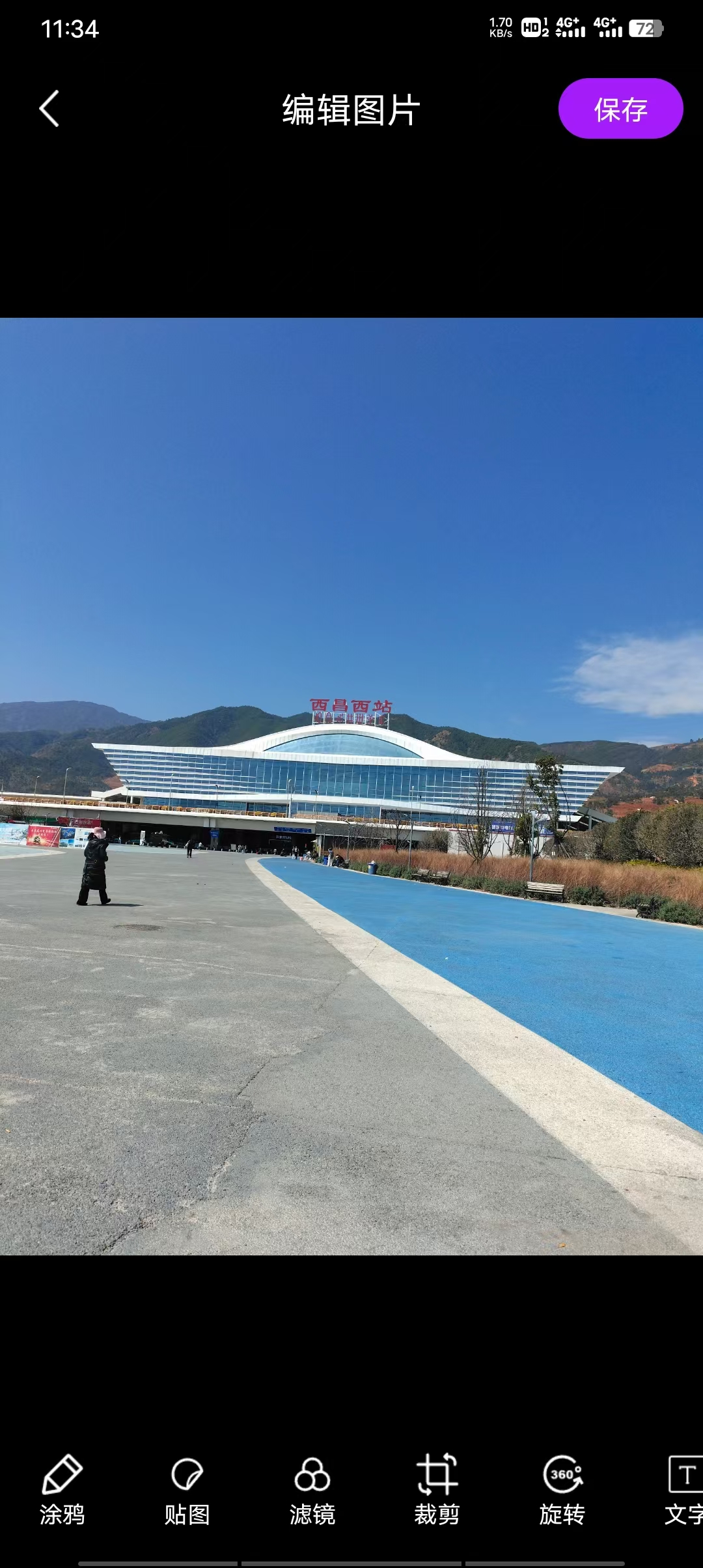
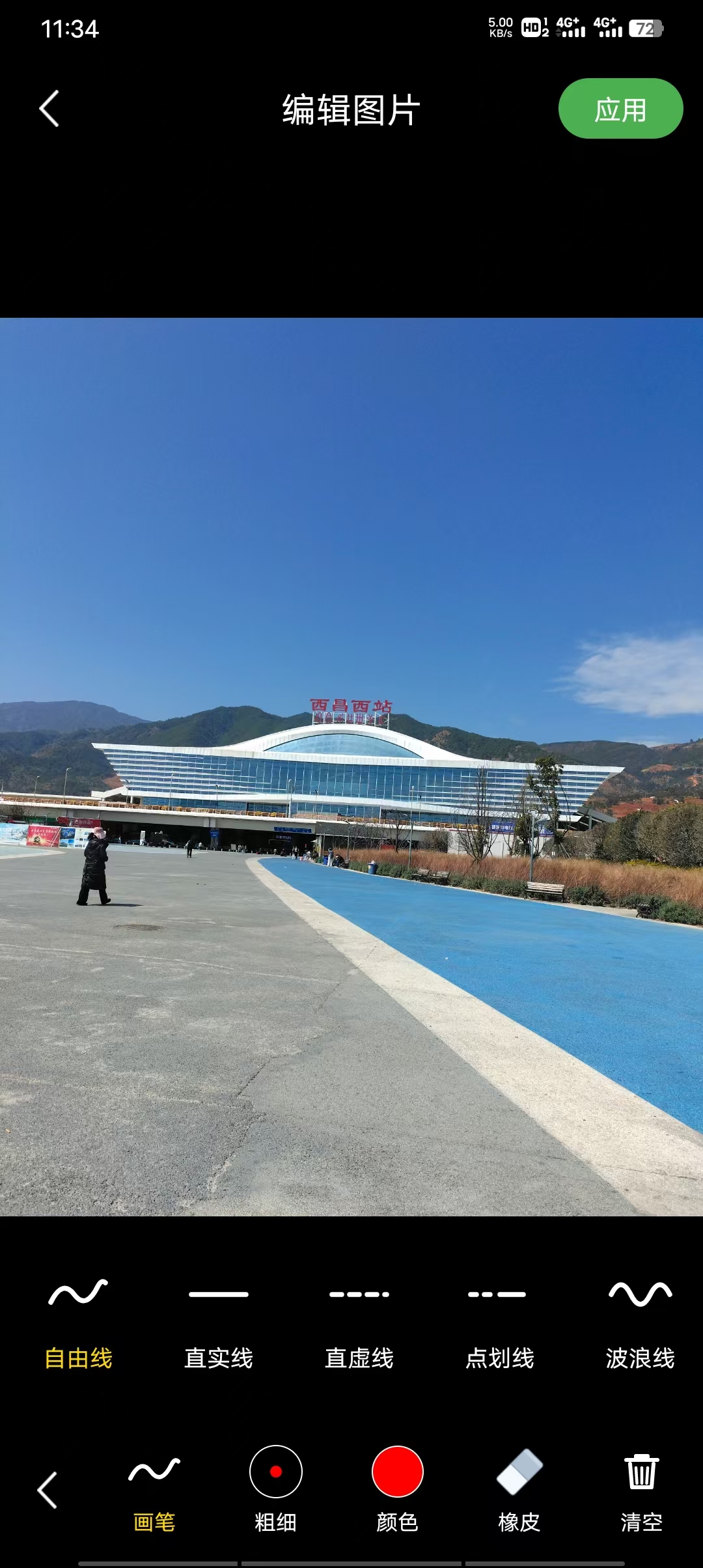
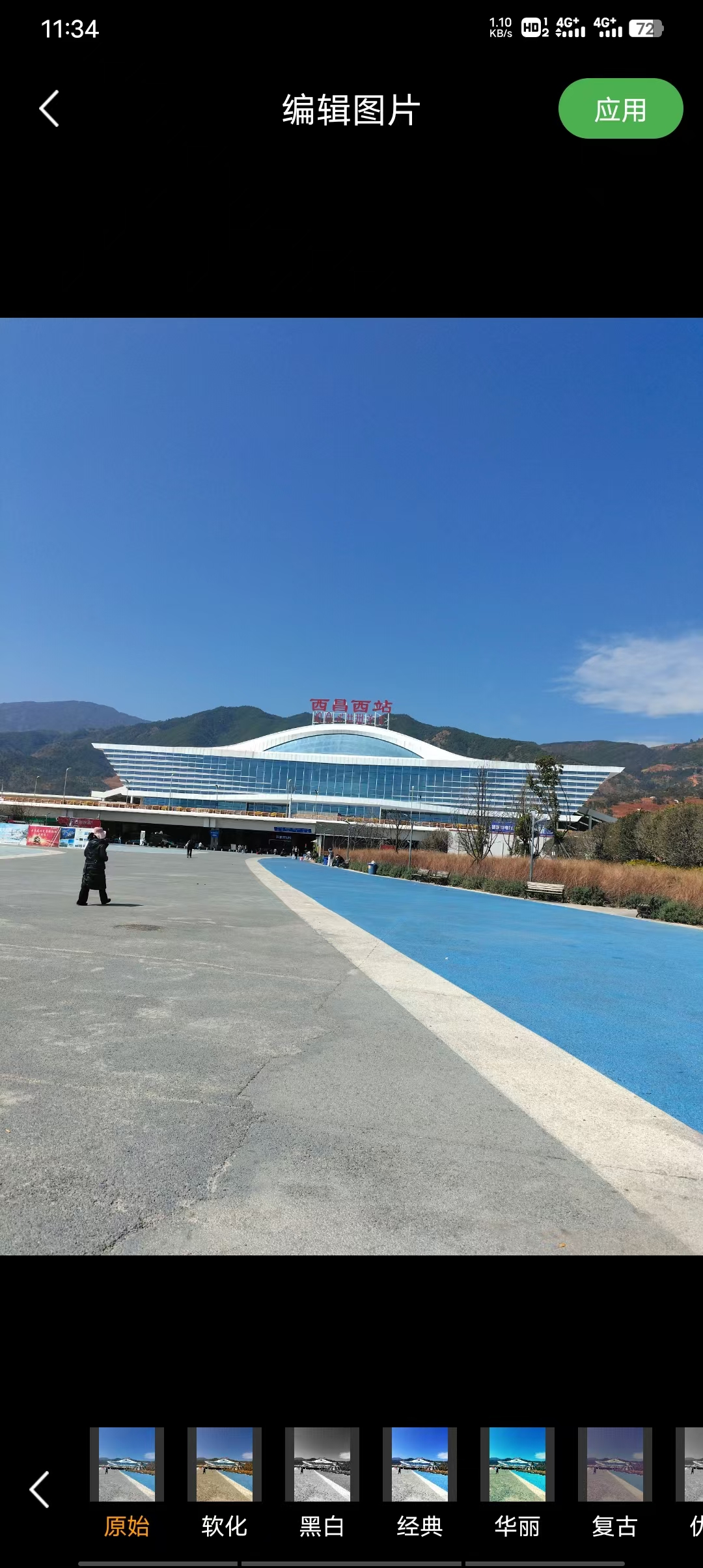
功能特性如下:
-
图片裁剪(自由/比例裁剪)
-
图片旋转与翻转
-
滤镜效果(多种风格)
-
文字添加
-
贴纸添加(内置多套贴纸素材)
-
手绘涂鸦
-
马赛克/模糊处理
-
亮度/对比度调节
-
一键撤销/重做
-
编辑完成后回调返回新图片路径
将 `fz-image-editor` 目录复制到项目的 `uni_modules` 目录下,目录结构如下:
Android 权限说明
插件已在 `AndroidManifest.xml` 中自动声明以下权限,无需手动配置:
| `WRITE_EXTERNAL_STORAGE` | 保存编辑后的图片
| `READ_MEDIA_IMAGES` | 读取图库图片(Android 11+)
| `READ_MEDIA_VIDEO` | 读取媒体文件(Android 11+)
使用方法示例:
首先UNIAPP插件下载图片编辑器:uniapp图片编辑器插件安装到UNIAPP或你UNIAPPX项目里:
html
import { ImageEditorUI, EditImageOptions, EditResult } from '@/uni_modules/fz-image-editor'

// 自定义输出路径(需确保目录存在)
const outputDir = uni.env.USER_DATA_PATH + '/my_edits/'
const outputPath = outputDir + 'result_' + Date.now() + '.jpg'

ImageEditorUI.openEditor(
  {
    imagePath: '/sdcard/DCIM/test.jpg',
    outputPath: outputPath
  },
  (result : EditResult) => {
    if (result.isEdited) {
      console.log('保存到自定义路径:', result.path)
    }
  }
)
uvue 示例代码如下:
html
<template>
  <!-- #ifdef APP -->
  <scroll-view style="flex: 1;">
  <!-- #endif -->
    <view class="container">
      <!-- 选择图片区域 -->
      <view v-if="imagePath == ''" class="upload-area" @click="chooseImage">
        <text class="upload-icon">+</text>
        <text class="upload-text">点击选择图片</text>
      </view>

      <!-- 图片预览区域 -->
      <view v-if="imagePath != ''" class="preview-area">
        <image class="preview-image" :src="imagePath" mode="aspectFit"></image>
      </view>

      <!-- 操作按钮 -->
      <view class="btn-group">
        <button v-if="imagePath != ''" class="btn-primary" @click="openEditor">
          开始编辑
        </button>
        <button v-if="resultPath != ''" class="btn-success" @click="saveToAlbum">
          保存到相册
        </button>
      </view>

      <!-- 编辑结果展示 -->
      <view v-if="resultPath != ''" class="result-area">
        <text class="result-label">编辑完成</text>
        <image class="result-image" :src="resultPath" mode="aspectFit"></image>
        <text class="result-path">保存路径:{{ resultPath }}</text>
      </view>
    </view>
  <!-- #ifdef APP -->
  </scroll-view>
  <!-- #endif -->
</template>

<script lang="uts">
  import { ImageEditorUI, EditImageOptions, EditResult } from '@/uni_modules/fz-image-editor'

  export default {
    data() {
      return {
        imagePath: '' as string,
        resultPath: '' as string
      }
    },
    methods: {
      // 选择本地图片
      chooseImage() {
        uni.chooseImage({
          count: 1,
          sourceType: ['album', 'camera'],
          success: (res) => {
            // tempFilePaths 返回的是 file:// 开头的路径
            // 需要去除 file:// 前缀,使用绝对路径
            let tempPath = res.tempFilePaths[0]
            if (tempPath.startsWith('file://')) {
              tempPath = tempPath.replace('file://', '')
            }
            this.imagePath = tempPath
            this.resultPath = ''
          },
          fail: (err) => {
            console.log('选择图片失败:', err)
          }
        })
      },

      // 打开图片编辑器
      openEditor() {
        if (this.imagePath == '') {
          uni.showToast({ title: '请先选择图片', icon: 'none' })
          return
        }

        const options : EditImageOptions = {
          imagePath: this.imagePath,
          // outputPath 可选,不传时自动生成到缓存目录
          // outputPath: uni.env.USER_DATA_PATH + '/edited_' + Date.now() + '.jpg'
        }

        ImageEditorUI.openEditor(options, (result : EditResult) => {
          if (result.isEdited) {
            console.log('编辑成功,路径:', result.path)
            this.resultPath = result.path
            this.imagePath = result.path
            uni.showToast({ title: '编辑成功', icon: 'success' })
          } else {
            console.log('用户取消编辑')
            uni.showToast({ title: '已取消编辑', icon: 'none' })
          }
        })
      },

      // 保存到相册
      saveToAlbum() {
        if (this.resultPath == '') return
        uni.saveImageToPhotosAlbum({
          filePath: this.resultPath,
          success: () => {
            uni.showToast({ title: '已保存到相册', icon: 'success' })
          },
          fail: (err) => {
            uni.showToast({ title: '保存失败:' + err.errMsg, icon: 'none' })
          }
        })
      }
    }
  }
</script>

<style>
  .container {
    display: flex;
    flex-direction: column;
    align-items: center;
    padding: 20px;
  }

  .upload-area {
    width: 200px;
    height: 200px;
    border: 2px dashed #cccccc;
    border-radius: 12px;
    display: flex;
    flex-direction: column;
    align-items: center;
    justify-content: center;
    margin-top: 40px;
  }

  .upload-icon {
    font-size: 48px;
    color: #999999;
    line-height: 1;
  }

  .upload-text {
    font-size: 14px;
    color: #999999;
    margin-top: 8px;
  }

  .preview-area {
    width: 100%;
    margin-top: 16px;
  }

  .preview-image {
    width: 100%;
    height: 300px;
    border-radius: 8px;
  }

  .btn-group {
    display: flex;
    flex-direction: row;
    margin-top: 20px;
    gap: 12px;
  }

  .btn-primary {
    background-color: #7B2FBE;
    color: #ffffff;
    border-radius: 24px;
    font-size: 16px;
    padding: 12px 32px;
    border: none;
  }

  .btn-success {
    background-color: #0e932e;
    color: #ffffff;
    border-radius: 24px;
    font-size: 16px;
    padding: 12px 32px;
    border: none;
  }

  .result-area {
    display: flex;
    flex-direction: column;
    align-items: center;
    margin-top: 24px;
    width: 100%;
  }

  .result-label {
    font-size: 16px;
    font-weight: bold;
    color: #0e932e;
  }

  .result-image {
    width: 100%;
    height: 300px;
    border-radius: 8px;
    margin-top: 8px;
  }

  .result-path {
    font-size: 12px;
    color: #666666;
    margin-top: 8px;
    word-break: break-all;
  }
</style>
vue示例代码如下:
html
<template>
  <!-- #ifdef APP -->
  <scroll-view style="flex: 1;">
  <!-- #endif -->
    <view class="page-wrap">

      <view v-if="imagePath == ''" class="picker-box" @click="pickImage">
        <text class="picker-plus">+</text>
        <text class="picker-hint">点击选择或拍摄图片</text>
      </view>

      <view v-if="imagePath != ''" class="img-box">
        <image class="img-preview" :src="imagePath" mode="aspectFit" />
        <text class="img-tip">点击下方按钮开始编辑</text>
      </view>

      <view class="action-row">
        <view class="btn btn-purple" @click="pickImage">
          <text class="btn-text">选择图片</text>
        </view>
        <view v-if="imagePath != ''" class="btn btn-blue" @click="startEdit">
          <text class="btn-text">编辑图片</text>
        </view>
      </view>

      <view v-if="resultPath != ''" class="result-card">
        <text class="result-title">编辑结果</text>
        <image class="result-img" :src="resultPath" mode="aspectFit" />
        <view class="result-actions">
          <view class="btn btn-green" @click="doSave">
            <text class="btn-text">保存相册</text>
          </view>
          <view class="btn btn-orange" @click="doShare">
            <text class="btn-text">分享图片</text>
          </view>
        </view>
      </view>

    </view>
  <!-- #ifdef APP -->
  </scroll-view>
  <!-- #endif -->
</template>

<script>
  import { ImageEditorUI } from '@/uni_modules/fz-image-editor'

  export default {
    data() {
      return {
        imagePath: '',
        resultPath: ''
      }
    },
    methods: {
      pickImage() {
        uni.chooseImage({
          count: 1,
          sourceType: ['album', 'camera'],
          success: (res) => {
            let p = res.tempFilePaths[0]
            // 去除 file:// 协议前缀,保留绝对路径
            if (p.startsWith('file://')) {
              p = p.replace('file://', '')
            }
            this.imagePath = p
            this.resultPath = ''
          }
        })
      },

      startEdit() {
        if (this.imagePath == '') {
          uni.showToast({ title: '请先选择图片', icon: 'none' })
          return
        }
        ImageEditorUI.openEditor(
          { imagePath: this.imagePath },
          (result) => {
            if (result.isEdited) {
              this.resultPath = result.path
              this.imagePath = result.path
              uni.showToast({ title: '编辑完成', icon: 'success' })
            } else {
              uni.showToast({ title: '已取消', icon: 'none' })
            }
          }
        )
      },

      doSave() {
        uni.saveImageToPhotosAlbum({
          filePath: this.resultPath,
          success: () => uni.showToast({ title: '保存成功', icon: 'success' }),
          fail: () => uni.showToast({ title: '保存失败', icon: 'error' })
        })
      },

      doShare() {
        uni.shareWithSystem({
          imageUrl: this.resultPath,
          type: 'image',
          success(res) { console.log('分享成功', res) },
          fail(err) { console.log('分享失败', err) }
        })
      }
    }
  }
</script>

<style>
  .page-wrap {
    display: flex;
    flex-direction: column;
    align-items: center;
    padding: 24px 16px;
  }

  .picker-box {
    width: 180px;
    height: 180px;
    border: 2px dashed #bbbbbb;
    border-radius: 16px;
    display: flex;
    flex-direction: column;
    align-items: center;
    justify-content: center;
    margin-top: 30px;
  }

  .picker-plus {
    font-size: 52px;
    color: #aaaaaa;
    line-height: 1;
  }

  .picker-hint {
    font-size: 13px;
    color: #aaaaaa;
    margin-top: 6px;
  }

  .img-box {
    width: 100%;
    display: flex;
    flex-direction: column;
    align-items: center;
    margin-top: 16px;
  }

  .img-preview {
    width: 100%;
    height: 260px;
    border-radius: 10px;
  }

  .img-tip {
    font-size: 13px;
    color: #888888;
    margin-top: 8px;
  }

  .action-row {
    display: flex;
    flex-direction: row;
    justify-content: center;
    margin-top: 20px;
    gap: 16px;
  }

  .btn {
    padding: 12px 28px;
    border-radius: 28px;
    display: flex;
    flex-direction: row;
    align-items: center;
    justify-content: center;
  }

  .btn-text {
    color: #ffffff;
    font-size: 15px;
  }

  .btn-purple {
    background-color: #7B2FBE;
  }

  .btn-blue {
    background-color: #1677ff;
  }

  .btn-green {
    background-color: #0e932e;
  }

  .btn-orange {
    background-color: #fa8c16;
  }

  .result-card {
    display: flex;
    flex-direction: column;
    align-items: center;
    margin-top: 28px;
    width: 100%;
    background-color: #f6fff8;
    border-radius: 12px;
    padding: 16px;
    border: 1px solid #d9f7be;
  }

  .result-title {
    font-size: 16px;
    font-weight: bold;
    color: #0e932e;
  }

  .result-img {
    width: 100%;
    height: 260px;
    border-radius: 8px;
    margin-top: 12px;
  }

  .result-actions {
    display: flex;
    flex-direction: row;
    justify-content: center;
    margin-top: 14px;
    gap: 16px;
  }
</style>