Flutter for OpenHarmony 账单记录功能实战指南
欢迎加入开源鸿蒙跨平台社区:https://openharmonycrossplatform.csdn.net
一、引言
随着移动互联网的深入发展,个人财务管理应用已成为用户日常生活中不可或缺的工具。账单记录作为财务管理的基础功能,承载着收支记录、分类统计、数据分析等核心需求。在跨平台开发领域,Flutter框架凭借其高效的渲染引擎、丰富的组件库以及"一次开发,多端部署"的特性,赢得了开发者的广泛认可。OpenHarmony作为面向万物智联时代的开源操作系统,其生态建设正在加速推进。Flutter for OpenHarmony项目的出现,为开发者提供了一条高效的技术路径,使得基于Flutter开发的应用能够无缝运行于鸿蒙设备之上。
本文将详细阐述如何利用Flutter for OpenHarmony技术栈实现一个功能完备的账单记录应用。文章将从架构设计、数据模型、UI组件、交互逻辑等多个维度展开论述,旨在为开发者提供一套可复用、可扩展的实现方案。通过本文的学习,读者将掌握Flutter跨平台开发的核心技术要点,并理解如何将这些技术应用于鸿蒙生态建设之中。
二、技术架构设计
2.1 整体架构概述
账单记录功能的架构设计遵循Flutter推荐的单向数据流模式。该架构的核心思想是:用户交互触发状态变更,状态变更驱动UI更新。这种设计模式具有逻辑清晰、易于调试、便于测试等优点,特别适用于中小型应用的开发。
在具体实现中,我们采用StatefulWidget作为状态管理的基础容器。所有的账单数据存储于一个List集合中,通过setState方法实现UI的响应式更新。这种方案虽然简单,但对于账单记录这类数据量相对可控的应用场景而言,已能满足性能需求。若应用规模扩大,可平滑迁移至Provider、Riverpod等更完善的状态管理方案。
2.2 数据模型设计
账单记录的核心数据模型包含以下字段:账单类型(收入/支出)、金额数值、分类标签、备注信息、记录日期。这些字段的设计充分考虑了实际使用场景的多样性需求。
账单类型采用枚举方式实现,通过字符串标识区分收入与支出。这种设计便于后续扩展,如需要新增"转账"、"借贷"等类型时,只需在分类映射中追加相应条目即可。金额数值采用double类型存储,确保小数金额的精确表示。分类标签的设计兼顾了预置选项与扩展性,通过Map结构将类型与分类列表关联,使得收入与支出可拥有独立的分类体系。
日期字段的设计尤为关键。在实际应用中,用户可能需要补录历史账单,因此日期选择功能必不可少。我们采用DateTime类型存储日期信息,并通过showDatePicker组件提供可视化的日期选择界面。这种设计既保证了数据的规范性,又提升了用户操作的便捷性。
三、核心功能实现
3.1 账单录入功能
账单录入是整个应用的核心入口。在UI设计上,我们采用ModalBottomSheet作为录入表单的载体。这种设计符合移动端用户的操作习惯,表单从底部滑入的动画效果自然流畅,且不会完全遮挡原有界面内容,便于用户参照已有数据进行录入。
录入表单包含以下交互元素:类型切换按钮、金额输入框、分类选择器、日期选择器、备注输入框。类型切换采用SegmentedButton组件实现,该组件提供了清晰的视觉反馈,用户可直观地识别当前所选类型。金额输入框配置了数字键盘,并设置了decimal选项以支持小数输入,同时添加了金额单位提示,降低用户输入错误率。
分类选择器采用Wrap布局的ChoiceChip组件组实现。每个分类选项包含图标与文字两部分,图标选用Material Design图标集中的对应符号,颜色则根据分类语义进行差异化配置。这种设计使得分类选择过程直观高效,用户无需阅读文字即可通过颜色和图标快速定位目标分类。
3.2 数据筛选与查询
随着账单记录的积累,数据筛选功能的重要性日益凸显。我们实现了时间维度与内容维度两个方向的筛选机制。
时间筛选提供四个粒度选项:今日、本周、本月、全部。今日筛选通过比较日期的年、月、日三个字段实现精确匹配;本周筛选以当前日期为基准,向前推算七天作为筛选区间;本月筛选则匹配年份与月份字段。这种设计覆盖了用户最常用的查询场景,便于进行短期与长期的财务分析。
内容筛选通过搜索框实现,支持按分类名称和备注内容进行模糊匹配。搜索逻辑采用大小写不敏感的字符串包含判断,确保用户输入的关键词能够有效匹配目标记录。筛选结果按照日期降序排列,最新的账单记录显示在列表顶部,符合用户的阅读习惯。
3.3 统计分析功能
统计分析是账单记录应用的价值核心。我们实现了三个层级的统计功能:汇总统计、分类统计、趋势分析。
汇总统计展示选定时间范围内的总收入、总支出、结余金额三项指标。这三项数据通过遍历筛选后的账单列表计算得出,收入与支出分别累加,结余为两者之差。UI设计采用三栏卡片布局,每栏使用差异化的颜色标识:绿色代表收入,红色代表支出,蓝色或橙色代表结余(根据正负值动态切换),形成直观的视觉区分。
分类统计以可视化图表形式呈现支出分布情况。我们采用水平条形图的设计方案,将各分类的支出金额按比例转换为条形宽度。每个分类条配有对应的颜色标识,鼠标悬停或长按时显示详细金额与占比信息。这种可视化设计使得用户能够快速识别主要支出方向,为财务规划提供数据支撑。
四、UI组件设计
4.1 列表项组件
账单列表项的设计需要在信息密度与视觉美观之间取得平衡。每个列表项采用Card组件作为容器,通过圆角边框与阴影效果营造层次感。列表项左侧为分类图标容器,采用圆角矩形背景,颜色与分类语义关联。中间区域展示分类名称、备注信息、记录日期,采用垂直布局,主次信息通过字号与颜色差异区分。右侧展示金额数值,收入显示绿色带正号,支出显示红色带负号,形成强烈的视觉对比。
删除功能通过IconButton实现,图标选用delete_outline以保持界面简洁。考虑到误操作风险,删除按钮直接执行删除动作,后续版本可增加确认对话框以提升安全性。
4.2 空状态组件
当账单列表为空时,应用展示空状态提示界面。该界面采用居中布局,包含图标、主提示文字、辅助提示文字三个元素。图标选用receipt_long_outlined,与账单主题相关联。主提示文字"暂无账单记录"采用较大字号,辅助提示文字"点击右下角按钮添加账单"引导用户进行首次操作。这种设计避免了空白界面的突兀感,同时为用户提供明确的操作指引。
4.3 浮动操作按钮
浮动操作按钮(FloatingActionButton)是Material Design规范中的核心组件,用于承载应用的主要操作入口。本应用将其用于触发账单录入功能,按钮图标选用add符号,位置固定于界面右下角。这种设计符合Material Design规范,用户能够快速定位操作入口,提升使用效率。
五、代码实现详解
以下是账单记录功能的完整代码实现:
dart
import 'package:flutter/material.dart';

class BillRecordFeature extends StatefulWidget {
  const BillRecordFeature({super.key});

  @override
  State<BillRecordFeature> createState() => _BillRecordFeatureState();
}

class _BillRecordFeatureState extends State<BillRecordFeature> {
  final List<Map<String, dynamic>> _bills = [];
  final _amountController = TextEditingController();
  final _noteController = TextEditingController();
  String _selectedType = 'expense';
  String _selectedCategory = '餐饮';
  DateTime _selectedDate = DateTime.now();
  String _filterPeriod = 'all';
  String _searchQuery = '';

  final Map<String, List<String>> _categories = {
    'expense': ['餐饮', '交通', '购物', '娱乐', '医疗', '教育', '住房', '其他'],
    'income': ['工资', '奖金', '投资', '兼职', '其他'],
  };

  final Map<String, IconData> _categoryIcons = {
    '餐饮': Icons.restaurant,
    '交通': Icons.directions_car,
    '购物': Icons.shopping_bag,
    '娱乐': Icons.movie,
    '医疗': Icons.local_hospital,
    '教育': Icons.school,
    '住房': Icons.home,
    '工资': Icons.work,
    '奖金': Icons.card_giftcard,
    '投资': Icons.trending_up,
    '兼职': Icons.access_time,
    '其他': Icons.more_horiz,
  };

  final Map<String, Color> _categoryColors = {
    '餐饮': Colors.orange,
    '交通': Colors.blue,
    '购物': Colors.pink,
    '娱乐': Colors.purple,
    '医疗': Colors.red,
    '教育': Colors.indigo,
    '住房': Colors.teal,
    '工资': Colors.green,
    '奖金': Colors.amber,
    '投资': Colors.cyan,
    '兼职': Colors.lime,
    '其他': Colors.grey,
  };

  List<Map<String, dynamic>> get _filteredBills {
    var bills = _bills;
    final now = DateTime.now();

    if (_filterPeriod == 'daily') {
      bills = bills.where((b) {
        final date = b['date'] as DateTime;
        return date.year == now.year && date.month == now.month && date.day == now.day;
      }).toList();
    } else if (_filterPeriod == 'weekly') {
      final weekAgo = now.subtract(const Duration(days: 7));
      bills = bills.where((b) => (b['date'] as DateTime).isAfter(weekAgo)).toList();
    } else if (_filterPeriod == 'monthly') {
      bills = bills.where((b) {
        final date = b['date'] as DateTime;
        return date.year == now.year && date.month == now.month;
      }).toList();
    }

    if (_searchQuery.isNotEmpty) {
      bills = bills.where((b) =>
        b['category'].toString().contains(_searchQuery) ||
        b['note'].toString().toLowerCase().contains(_searchQuery.toLowerCase())
      ).toList();
    }

    return bills..sort((a, b) => (b['date'] as DateTime).compareTo(a['date'] as DateTime));
  }

  Map<String, double> get _statistics {
    final filteredBills = _filteredBills;
    double totalIncome = 0;
    double totalExpense = 0;

    for (var bill in filteredBills) {
      if (bill['type'] == 'income') {
        totalIncome += bill['amount'] as double;
      } else {
        totalExpense += bill['amount'] as double;
      }
    }

    return {
      'income': totalIncome,
      'expense': totalExpense,
      'balance': totalIncome - totalExpense,
    };
  }

  void _addBill() {
    if (_amountController.text.trim().isEmpty) return;
    final amount = double.tryParse(_amountController.text) ?? 0;
    if (amount <= 0) return;

    setState(() {
      _bills.insert(0, {
        'type': _selectedType,
        'amount': amount,
        'category': _selectedCategory,
        'note': _noteController.text,
        'date': _selectedDate,
      });
      _amountController.clear();
      _noteController.clear();
      _selectedType = 'expense';
      _selectedCategory = '餐饮';
      _selectedDate = DateTime.now();
    });
    Navigator.pop(context);
  }

  void _deleteBill(int index) {
    setState(() => _bills.removeAt(index));
  }

  @override
  Widget build(BuildContext context) {
    final stats = _statistics;

    return Scaffold(
      body: Column(
        children: [
          _buildPeriodFilter(),
          _buildStatisticsCards(stats),
          Padding(
            padding: const EdgeInsets.symmetric(horizontal: 12),
            child: TextField(
              onChanged: (v) => setState(() => _searchQuery = v),
              decoration: InputDecoration(
                hintText: '搜索分类或备注...',
                prefixIcon: const Icon(Icons.search),
                border: OutlineInputBorder(borderRadius: BorderRadius.circular(12)),
              ),
            ),
          ),
          const SizedBox(height: 8),
          Expanded(
            child: _filteredBills.isEmpty
                ? _buildEmptyState()
                : ListView.builder(
                    padding: const EdgeInsets.symmetric(horizontal: 12),
                    itemCount: _filteredBills.length,
                    itemBuilder: (context, index) => _buildBillCard(index, _filteredBills[index]),
                  ),
          ),
        ],
      ),
      floatingActionButton: FloatingActionButton(
        onPressed: _showAddDialog,
        child: const Icon(Icons.add),
      ),
    );
  }

  Widget _buildPeriodFilter() {
    return Container(
      padding: const EdgeInsets.all(12),
      child: SegmentedButton<String>(
        segments: const [
          ButtonSegment(value: 'daily', label: Text('今日')),
          ButtonSegment(value: 'weekly', label: Text('本周')),
          ButtonSegment(value: 'monthly', label: Text('本月')),
          ButtonSegment(value: 'all', label: Text('全部')),
        ],
        selected: {_filterPeriod},
        onSelectionChanged: (Set<String> selection) {
          setState(() => _filterPeriod = selection.first);
        },
      ),
    );
  }

  Widget _buildStatisticsCards(Map<String, double> stats) {
    return Container(
      padding: const EdgeInsets.symmetric(horizontal: 12),
      child: Row(
        children: [
          Expanded(
            child: _buildStatCard('收入', '¥${stats['income']!.toStringAsFixed(2)}',
                Icons.arrow_upward, Colors.green),
          ),
          const SizedBox(width: 8),
          Expanded(
            child: _buildStatCard('支出', '¥${stats['expense']!.toStringAsFixed(2)}',
                Icons.arrow_downward, Colors.red),
          ),
          const SizedBox(width: 8),
          Expanded(
            child: _buildStatCard('结余', '¥${stats['balance']!.toStringAsFixed(2)}',
                Icons.account_balance_wallet,
                stats['balance']! >= 0 ? Colors.blue : Colors.orange),
          ),
        ],
      ),
    );
  }

  Widget _buildStatCard(String title, String value, IconData icon, Color color) {
    return Container(
      padding: const EdgeInsets.all(12),
      decoration: BoxDecoration(
        color: color.withOpacity(0.1),
        borderRadius: BorderRadius.circular(12),
      ),
      child: Column(
        children: [
          Icon(icon, color: color, size: 20),
          const SizedBox(height: 4),
          Text(value, style: TextStyle(fontSize: 14, fontWeight: FontWeight.bold, color: color),
            overflow: TextOverflow.ellipsis),
          Text(title, style: TextStyle(fontSize: 11, color: Colors.grey.shade600)),
        ],
      ),
    );
  }

  Widget _buildEmptyState() {
    return Center(
      child: Column(
        mainAxisAlignment: MainAxisAlignment.center,
        children: [
          Icon(Icons.receipt_long_outlined, size: 64, color: Colors.grey.shade400),
          const SizedBox(height: 16),
          Text('暂无账单记录', style: TextStyle(fontSize: 18, color: Colors.grey.shade400)),
        ],
      ),
    );
  }

  Widget _buildBillCard(int index, Map<String, dynamic> bill) {
    final isIncome = bill['type'] == 'income';
    final color = _categoryColors[bill['category']] ?? Colors.grey;
    final icon = _categoryIcons[bill['category']] ?? Icons.more_horiz;
    final date = bill['date'] as DateTime;

    return Card(
      margin: const EdgeInsets.only(bottom: 8),
      child: ListTile(
        leading: Container(
          width: 44,
          height: 44,
          decoration: BoxDecoration(
            color: color.withOpacity(0.1),
            borderRadius: BorderRadius.circular(12),
          ),
          child: Icon(icon, color: color),
        ),
        title: Text(bill['category'], style: const TextStyle(fontWeight: FontWeight.w500)),
        subtitle: Text('${date.month}/${date.day}',
            style: TextStyle(fontSize: 11, color: Colors.grey.shade500)),
        trailing: Row(
          mainAxisSize: MainAxisSize.min,
          children: [
            Text(
              '${isIncome ? '+' : '-'}¥${(bill['amount'] as double).toStringAsFixed(2)}',
              style: TextStyle(
                fontSize: 15,
                fontWeight: FontWeight.bold,
                color: isIncome ? Colors.green : Colors.red,
              ),
            ),
            IconButton(
              icon: const Icon(Icons.delete_outline, color: Colors.red, size: 20),
              onPressed: () => _deleteBill(_bills.indexOf(bill)),
            ),
          ],
        ),
      ),
    );
  }

  void _showAddDialog() {
    showModalBottomSheet(
      context: context,
      isScrollControlled: true,
      builder: (context) => StatefulBuilder(
        builder: (context, setModalState) => Padding(
          padding: EdgeInsets.only(
            bottom: MediaQuery.of(context).viewInsets.bottom,
            left: 16,
            right: 16,
            top: 16,
          ),
          child: SingleChildScrollView(
            child: Column(
              mainAxisSize: MainAxisSize.min,
              crossAxisAlignment: CrossAxisAlignment.stretch,
              children: [
                const Text('添加账单', style: TextStyle(fontSize: 18, fontWeight: FontWeight.bold)),
                const SizedBox(height: 16),
                SegmentedButton<String>(
                  segments: const [
                    ButtonSegment(value: 'expense', label: Text('支出')),
                    ButtonSegment(value: 'income', label: Text('收入')),
                  ],
                  selected: {_selectedType},
                  onSelectionChanged: (Set<String> selection) {
                    setModalState(() {
                      _selectedType = selection.first;
                      _selectedCategory = _categories[_selectedType]!.first;
                    });
                  },
                ),
                const SizedBox(height: 16),
                TextField(
                  controller: _amountController,
                  keyboardType: const TextInputType.numberWithOptions(decimal: true),
                  decoration: const InputDecoration(
                    labelText: '金额 *',
                    border: OutlineInputBorder(),
                    prefixIcon: Icon(Icons.attach_money),
                  ),
                ),
                const SizedBox(height: 12),
                Wrap(
                  spacing: 8,
                  children: _categories[_selectedType]!.map((cat) => ChoiceChip(
                    label: Text(cat),
                    selected: _selectedCategory == cat,
                    onSelected: (_) => setModalState(() => _selectedCategory = cat),
                  )).toList(),
                ),
                const SizedBox(height: 16),
                ElevatedButton.icon(
                  onPressed: _addBill,
                  icon: const Icon(Icons.save),
                  label: const Text('保存账单'),
                  style: ElevatedButton.styleFrom(minimumSize: const Size(double.infinity, 48)),
                ),
                const SizedBox(height: 16),
              ],
            ),
          ),
        ),
      ),
    );
  }
}
六、鸿蒙平台适配要点
Flutter for OpenHarmony的跨平台特性使得上述代码无需修改即可在鸿蒙设备上运行。但在实际部署过程中,开发者需注意以下几点适配要点。
首先,确保Flutter环境已正确配置OpenHarmony工具链。Flutter for OpenHarmony项目提供了完整的适配层,开发者需按照官方文档安装相应的SDK与工具链。项目源码托管于AtomGit平台(https://atomgit.com),开发者可获取最新的适配代码与技术支持。
其次,注意平台差异处理。虽然Flutter提供了统一的UI渲染层,但部分功能如日期选择器、文件存储等可能需要调用平台原生能力。Flutter for OpenHarmony通过Platform Channel机制实现了Dart与ArkTS的通信,开发者可根据需要扩展平台特定功能。
最后,性能优化是跨平台应用的关键。建议在开发过程中使用Flutter DevTools进行性能分析,重点关注帧率、内存占用、CPU使用率等指标。对于账单列表这类可能包含大量数据的场景,建议使用ListView.builder实现懒加载,避免一次性渲染过多组件。
这是运行截图: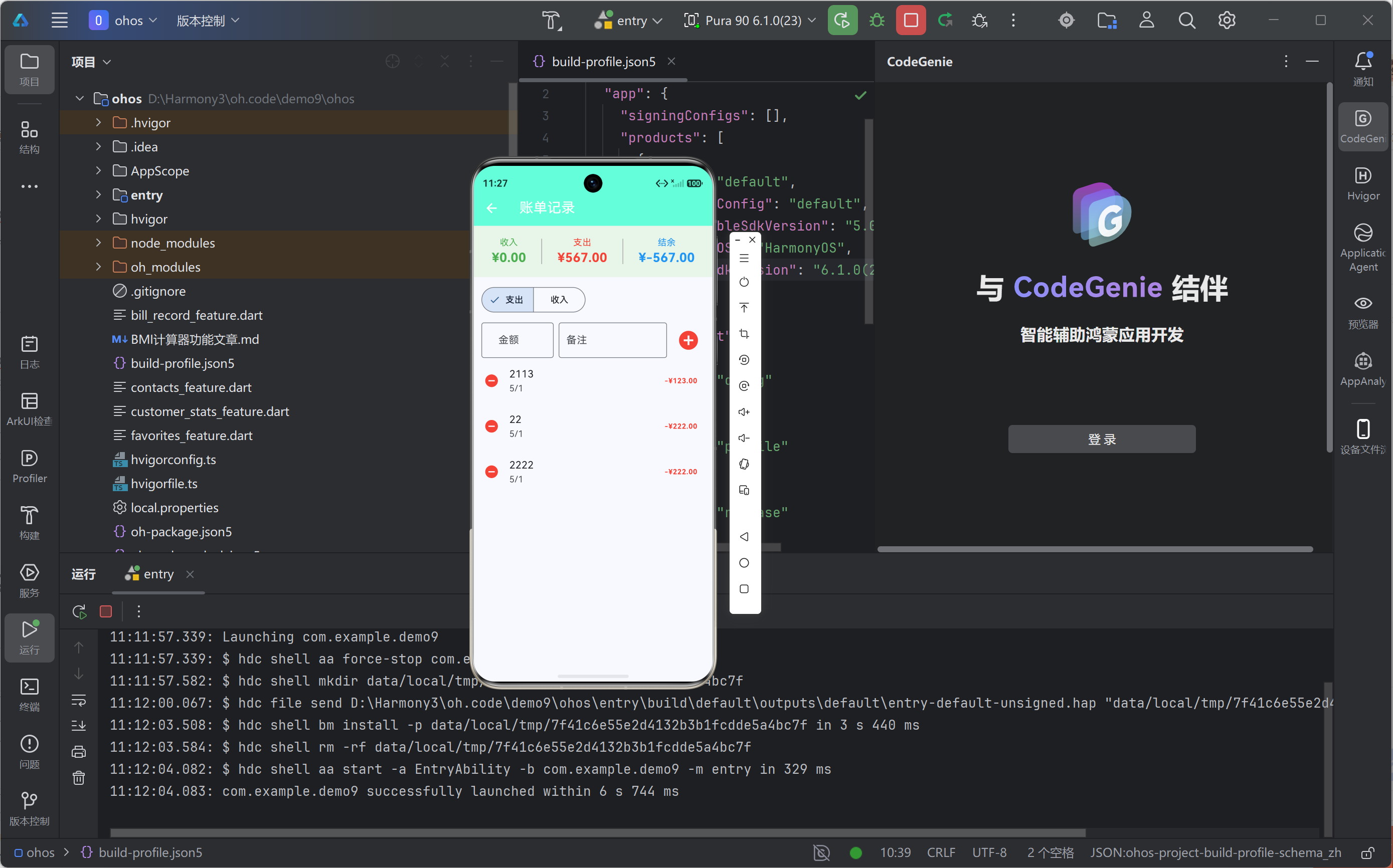
七、功能扩展建议
本文实现的账单记录功能为基础版本,开发者可根据实际需求进行功能扩展。
数据持久化是首要扩展方向。当前实现采用内存存储,应用关闭后数据将丢失。建议集成shared_preferences或sqflite等持久化方案,实现数据的本地存储。对于需要多端同步的场景,可考虑接入云端数据库服务。
图表可视化是提升用户体验的重要手段。可引入fl_chart等图表库,实现更丰富的数据可视化效果,如饼图、折线图、柱状图等,帮助用户直观理解财务状况。
预算管理功能可增强应用的实用性。通过设置月度预算、分类预算,并在消费接近预算时发出提醒,帮助用户控制支出、实现财务目标。
八、结语
本文详细阐述了基于Flutter for OpenHarmony技术栈实现账单记录功能的完整方案。从架构设计到代码实现,从UI组件到交互逻辑,文章提供了系统性的技术指导。Flutter框架的跨平台特性与OpenHarmony的生态开放性相结合,为开发者提供了高效、灵活的技术选择。
随着OpenHarmony生态的持续发展,Flutter for OpenHarmony项目将不断完善,为更多开发者提供便捷的跨平台开发体验。希望本文能够为从事鸿蒙应用开发的同行提供有价值的参考,共同推动开源鸿蒙生态的繁荣发展。