
🔥小叶-duck:个人主页
❄️个人专栏:《Data-Structure-Learning》《C++入门到进阶&自我学习过程记录》
《Linux操作系统从入门到实践》
《算法题讲解指南》--优选算法
《算法题讲解指南》--递归、搜索与回溯算法
《算法题讲解指南》--动态规划算法
✨未择之路,不须回头
已择之路,纵是荆棘遍野,亦作花海遨游
目录
[13、cat & tac 指令](#13、cat & tac 指令)
[15、more & less 指令(分页查看大文件)](#15、more & less 指令(分页查看大文件))
[15.1 more:只能前进不能后退](#15.1 more:只能前进不能后退)
[15.2 less:可进可退,更实用](#15.2 less:可进可退,更实用)
[16、head & tail指令(查看文件首尾内容)](#16、head & tail指令(查看文件首尾内容))
[16.1 head:查看首部](#16.1 head:查看首部)
[16.2 tail:查看尾部](#16.2 tail:查看尾部)
[16.3 数据流转:管道(|)的妙用](#16.3 数据流转:管道(|)的妙用)
[时间与日历:date & cal](#时间与日历:date & cal)
[22、top指令( 查看进程动态)](#22、top指令( 查看进程动态))
[文件压缩与解压:zip & unzip](#文件压缩与解压:zip & unzip)
Linux基本指令
文件内容操作:查看与编辑
13、cat & tac 指令
语法:cat/tac 选项 文件
功能:查看目标文件的内容,tac就是逆序查看(这里不作过多的讲解)
常用选项:
-b:对非空输出行编号,空行不做编号
-n:对输出的所有行编号
-s:不输出多行空行
实际案例:
bash
# 测试cat基本指令
[root@iZbp12ear9ufvimc78fddkZ test]# cat test.txt
hello world!
hello world!
hello world!
hello world!
hello world!


hello world!
hello world!
hello world!


hello world!
hello world!

# /cat-n 输出携带行号
[root@iZbp12ear9ufvimc78fddkZ test]# cat -n test.txt
     1	hello world!
     2	hello world!
     3	hello world!
     4	hello world!
     5	hello world!
     6
     7
     8
     9	hello world!
    10	hello world!
    11	hello world!
    12
    13
    14	hello world!
    15	hello world!

# 测试 -b 对非空输出行编号
[root@iZbp12ear9ufvimc78fddkZ test]# cat -b test.txt
     1	hello world!
     2	hello world!
     3	hello world!
     4	hello world!
     5	hello world!


     6	hello world!
     7	hello world!
     8	hello world!


     9	hello world!
    10	hello world!

# 测试 -s 不输出多行空行,多行空行压缩成一行
[root@iZbp12ear9ufvimc78fddkZ test]# cat -s test.txt
hello world!
hello world!
hello world!
hello world!
hello world!

hello world!
hello world!
hello world!

hello world!
hello world!

# 选项可以组合使用注意:查看小文件,小算法,小配置文件,很短的代码都可以用cat。但是查看大文件时,cat就不好用了,在后面会给大家其它的指令来查看大文件。
14、nano指令(轻量级文本编辑器)
语法 :nano 文件名
功能:支持基本的文本编辑功能(如复制、粘贴、查找替换、行号显示等),足够应对日常文本处理。
bash
[root@iZbp12ear9ufvimc78fddkZ test]# nano test.txt常用快捷键(核心操作):
- 保存文件:Ctrl + O(按下后按 Enter 确认保存)。
- 退出编辑器(重点):Ctrl + X(若文件未保存,会提示是否保存,按 Y 确认,N 放弃)后面记得按Enter。
- 查找文本:Ctrl + W(输入关键词后按 Enter 查找,按 Alt + W 继续查找下一个)。
- 复制当前行:Ctrl + K(可连续按多次复制多行,相当于 "剪切",但 nano 中复制和剪切共用此快捷键)。
- 粘贴内容:Ctrl + U(粘贴之前复制 / 剪切的内容)。
- 撤销操作:Ctrl + _(即先按 Ctrl,再按 Shift + -,部分系统可能需要 Alt + U)。
- 显示行号:Alt + C(切换行号显示状态)。
适用场景:
- 快速修改系统配置文件(如 /etc/ 目录下的配置)。
- 在服务器终端中编写简单的脚本(如 Shell 脚本)。
- 初学者入门命令行文本编辑,避免因 Vim 的复杂性而劝退。
15、more & less 指令(分页查看大文件)
15.1 more:只能前进不能后退
语法:more 选项 文件名
功能:more命令,功能类似cat(输出文件中的内容)
常用选项:
- -n 指定输出行数
- q 退出more
- Enter 向下搜(more不能向上搜)
实际案例:
bash
# 命令⾏输出多⾏⽂本
[root@iZbp12ear9ufvimc78fddkZ test]# cnt=0; while [ $cnt -le 1000 ]; do echo "hello world"; let cnt++; done > test.txt

# -n 指定输出行数
[root@iZbp12ear9ufvimc78fddkZ test]# more -10 test.txt
hello world
hello world
hello world
hello world
hello world
hello world
hello world
hello world
hello world
hello world
--More--(0%)
15.2 less:可进可退,更实用
语法:less 选项 文件名
功能:less 和 more 类似,但使用 less 可以随意浏览文件(上下控制),而 more 只能向下移动,不能向上移动,而且 less 在查看之前不会加载整个文件
选项:
- -i:忽略搜索时的大小写
- -N:显示没行的行号
- /:字符串:向下搜索"该字符串"
- ?:字符串:向上搜索"该字符串"
- n:重复前一个搜索(与 / 或 ? 有关)
- N:反向重复前一个搜索(与 / 或 ?有关)
- q:quit
补充:
- less 工具也是对问件或其它输出进行分页显示的⼯具,应该说是linux正统查看文件内容的工具,功能极其强大
- less 的用法比起 more 更加的有弹性,在 more 的时候,我们并没有办法向前⾯翻, 只能往后面看
- 但若使用了 less 时,就可以使用 pageup pagedown 等按键的功能来往前往后翻看文件,更容易用来查看一个文件的内容
- 除此之外,在 less 里头可以拥有更多的搜索功能,不止可以向下搜,也可以向上搜。
bash
# 命令⾏输出多⾏⽂本
[root@iZbp12ear9ufvimc78fddkZ test]# cnt=0; while [ $cnt -le 2000 ]; do echo "hello $cnt"; let cnt++; done > test.txt

# 测试搜索和 -N 等功能
[root@iZbp12ear9ufvimc78fddkZ test]# less -N test.txt
      1 hello 0
      2 hello 1
      3 hello 2
      4 hello 3
      5 hello 4
      6 hello 5
      7 hello 6
      8 hello 7
      9 hello 8
     10 hello 9
     11 hello 10
     12 hello 11
     13 hello 12
     14 hello 13
     15 hello 14
     16 hello 15
     17 hello 16
     18 hello 17
     19 hello 18
     20 hello 19
     21 hello 20
     22 hello 21
     23 hello 22
     24 hello 23
     25 hello 24
     26 hello 25
     27 hello 26

# 其它选项大家可以自己去测试一下
16、head & tail指令(查看文件首尾内容)
16.1 head:查看首部
head用来显示档案的开头至标准输出中
语法:head 参数 文件
功能:head用来显示档案的开头至标准输出中,默认head命令打印其相应文件的开头10行。
选项:
-n<行数>:显示的行数
实际案例:
bash
# 命令⾏输出多⾏⽂本
[root@iZbp12ear9ufvimc78fddkZ test]# cnt=0; while [ $cnt -le 2000 ]; do echo "hello $cnt"; let cnt++; done > test.txt

[root@iZbp12ear9ufvimc78fddkZ test]# head test.txt
hello 0
hello 1
hello 2
hello 3
hello 4
hello 5
hello 6
hello 7
hello 8
hello 9

[root@iZbp12ear9ufvimc78fddkZ test]# head -5 test.txt
hello 0
hello 1
hello 2
hello 3
hello 4
16.2 tail:查看尾部
tail 是 Linux 系统中用于查看文件末尾内容的命令,常用于实时监控日志文件或快速查看文件最后几行。与 less 不同,tail 默认只输出文件的结尾部分,而不是进入交互式界面 。
语法:tail 必要参数 文件
功能:用于显示指定文件末尾内容,不指定文件时,作为输入信息进行处理。常用查看日志文件
选项:
-f:循环读取
-n<行数>:显示行数
实际案例:
bash
# 基本功能演示:
[root@iZbp12ear9ufvimc78fddkZ test]# tail test.txt
hello 1991
hello 1992
hello 1993
hello 1994
hello 1995
hello 1996
hello 1997
hello 1998
hello 1999
hello 2000

[root@iZbp12ear9ufvimc78fddkZ test]# tail -5 test.txt
hello 1996
hello 1997
hello 1998
hello 1999
hello 2000
16.3 数据流转:管道(|)的妙用
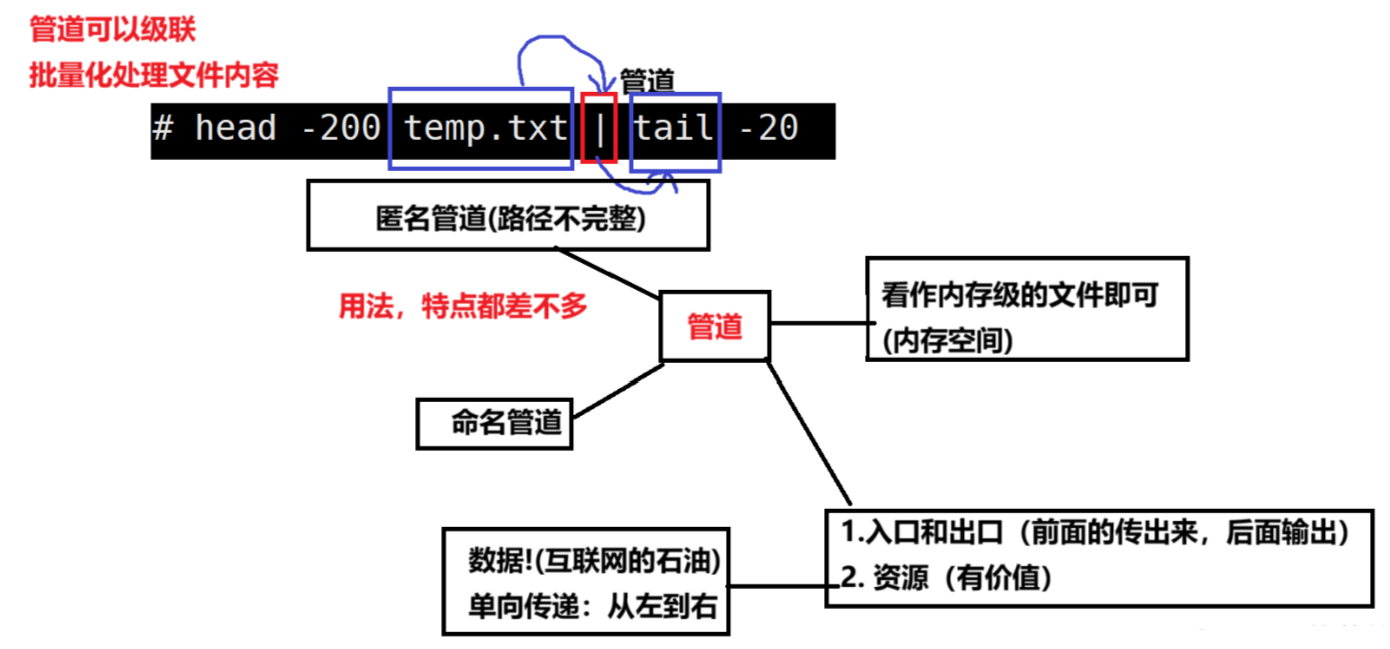
综合问题:如果显示文件的180,200行的内容。
bash
[root@iZbp12ear9ufvimc78fddkZ test]# head -200 test.txt | tail -20
hello 180
hello 181
hello 182
hello 183
hello 184
hello 185
hello 186
hello 187
hello 188
hello 189
hello 190
hello 191
hello 192
hello 193
hello 194
hello 195
hello 196
hello 197
hello 198
hello 199
时间与日历:date & cal
17、date指令(查看与设置系统时间)
date 是 Linux 系统中用于显示和设置系统日期与时间的命令。它支持丰富的格式化和计算功能,是日常管理和脚本编写中非常实用的工具。
指定格式显示时间:date +%Y:%m:%d
用法:date OPTION.··+FORMAT
- 在显示方面:使用者可以设定欲显示的格式,格式设定为一个加号后接数个标记,其中常用的标记列表如下
%H:小时(00...23)
%M:分钟(00...59)
%S:秒(00...61)
%X:相当于%H:%M:%S
%d :日 (01...31)
%m:月份(01...12)
%Y:完整年份(0000.9999)
%F:相当于%Y-%m-%d
- 在设定时间方面:
date-s //设置当前时间,只有root权限才能设置,其他只能查看。
date-s20080523**//设置成20080523,这样会把具体时间设置成空00:00:00**
date-s01:01:01 //设置具体时间,不会对日期做更改
date-s"01:01:012008-05-23" //这样可以设置全部时间
date -S:"01:01:0120080523" //这样可以设置全部时间
date-s"2008-05-23 01:01:01" //这样可以设置全部时间
date-s"20080523 01:01:01" //这样可以设置全部时间
- 时间戳:
(1)时间->时间戳:date +%s
(2)时间戳->时间:date-d@1508749502
(3)Unix 时间戳(英文为Unix epoch,Unix time,POSIX time或Unix timestamp)是从1970年1月1日(UTC/GMT的午夜)开始所经过的秒数,不考虑闰秒
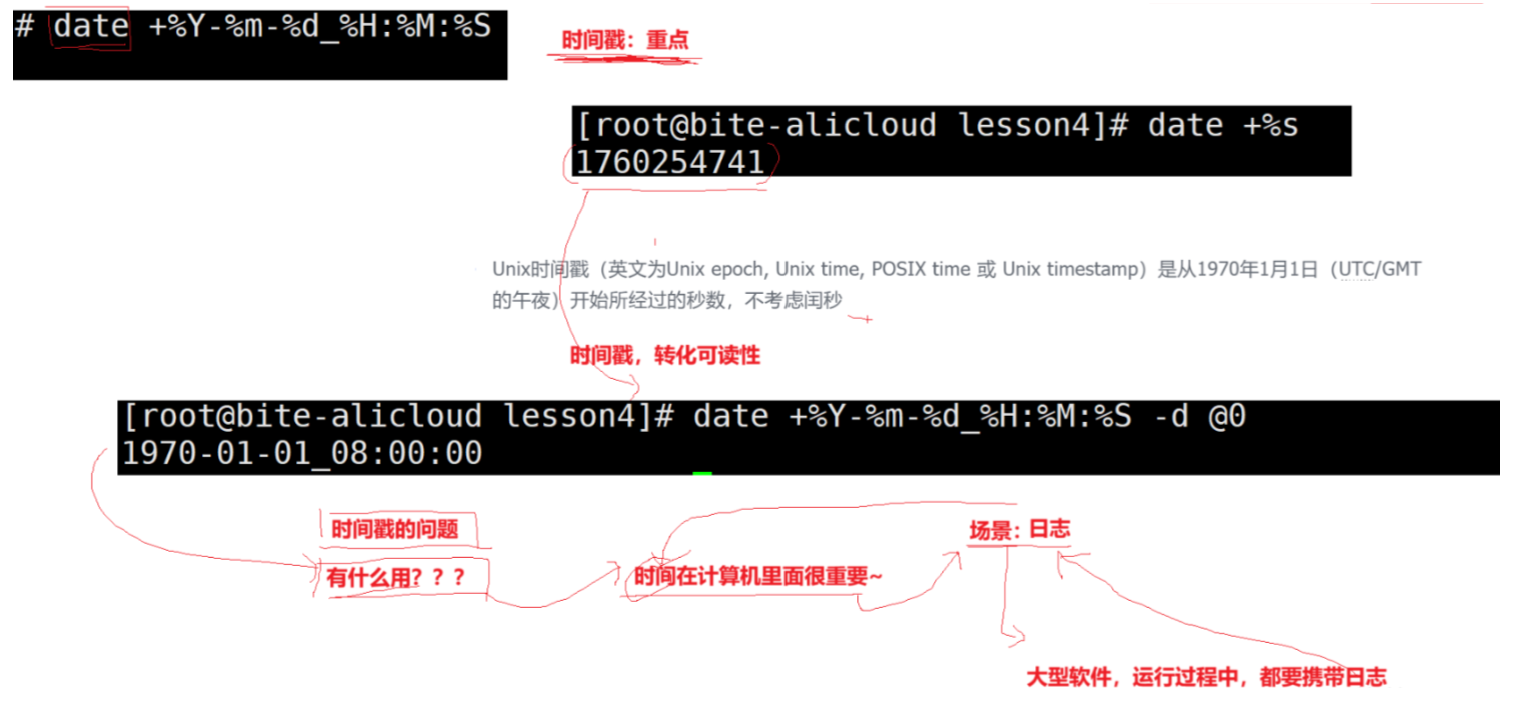
实际案例:
bash
# 显示常规时间
[root@iZbp12ear9ufvimc78fddkZ test]# date
Mon Oct 13 14:08:32 CST 2025
[root@iZbp12ear9ufvimc78fddkZ test]# date +%Y/%m/%d
2025/10/13
[root@iZbp12ear9ufvimc78fddkZ test]# date +%Y/%m/%d-%H:%M:%S
2025/10/13-14:09:30

#显示时间戳
[root@iZbp12ear9ufvimc78fddkZ test]# date +%s
1760335789

# 时间戳转成可视时间
[root@iZbp12ear9ufvimc78fddkZ test]# date +%Y/%m/%d-%H:%M:%S -d @0
1970/01/01-08:00:00
[root@iZbp12ear9ufvimc78fddkZ test]# date +%Y/%m/%d-%H:%M:%S -d @100000
1970/01/02-11:46:40
18、cal指令(查看公历日历)
cal命令可以用来显示公历(阳历)日历
命令格式:cal 参数 年份
功能:用于查看日历等时间信息,如只有一个参数,则表示年份(1-9999),如有两个参数,则表示月份和年份
常用选项:
- -3:显示系统前一个月,当前月,下一个月的月历
- -j:显示在当年中的第几天(一年日期按天算,从1月1号算起,默认显示当前月在一年中的天数)
- -y:显示当前年份的日历
实际案例:
bash
# 常规样例
[root@iZbp12ear9ufvimc78fddkZ test]# cal
    October 2025
Su Mo Tu We Th Fr Sa
          1  2  3  4
 5  6  7  8  9 10 11
12 13 14 15 16 17 18
19 20 21 22 23 24 25
26 27 28 29 30 31


[root@iZbp12ear9ufvimc78fddkZ test]# cal 1949
                               1949

       January               February                 March
Su Mo Tu We Th Fr Sa   Su Mo Tu We Th Fr Sa   Su Mo Tu We Th Fr Sa
                   1          1  2  3  4  5          1  2  3  4  5
 2  3  4  5  6  7  8    6  7  8  9 10 11 12    6  7  8  9 10 11 12
 9 10 11 12 13 14 15   13 14 15 16 17 18 19   13 14 15 16 17 18 19
16 17 18 19 20 21 22   20 21 22 23 24 25 26   20 21 22 23 24 25 26
23 24 25 26 27 28 29   27 28                  27 28 29 30 31
30 31
        April                   May                   June
Su Mo Tu We Th Fr Sa   Su Mo Tu We Th Fr Sa   Su Mo Tu We Th Fr Sa
                1  2    1  2  3  4  5  6  7             1  2  3  4
 3  4  5  6  7  8  9    8  9 10 11 12 13 14    5  6  7  8  9 10 11
10 11 12 13 14 15 16   15 16 17 18 19 20 21   12 13 14 15 16 17 18
17 18 19 20 21 22 23   22 23 24 25 26 27 28   19 20 21 22 23 24 25
24 25 26 27 28 29 30   29 30 31               26 27 28 29 30

        July                  August                September
Su Mo Tu We Th Fr Sa   Su Mo Tu We Th Fr Sa   Su Mo Tu We Th Fr Sa
                1  2       1  2  3  4  5  6                1  2  3
 3  4  5  6  7  8  9    7  8  9 10 11 12 13    4  5  6  7  8  9 10
10 11 12 13 14 15 16   14 15 16 17 18 19 20   11 12 13 14 15 16 17
17 18 19 20 21 22 23   21 22 23 24 25 26 27   18 19 20 21 22 23 24
24 25 26 27 28 29 30   28 29 30 31            25 26 27 28 29 30
31
       October               November               December
Su Mo Tu We Th Fr Sa   Su Mo Tu We Th Fr Sa   Su Mo Tu We Th Fr Sa
                   1          1  2  3  4  5                1  2  3
 2  3  4  5  6  7  8    6  7  8  9 10 11 12    4  5  6  7  8  9 10
 9 10 11 12 13 14 15   13 14 15 16 17 18 19   11 12 13 14 15 16 17
16 17 18 19 20 21 22   20 21 22 23 24 25 26   18 19 20 21 22 23 24
23 24 25 26 27 28 29   27 28 29 30            25 26 27 28 29 30 31
30 31

[root@iZbp12ear9ufvimc78fddkZ test]# cal -3
   September 2025         October 2025          November 2025
Su Mo Tu We Th Fr Sa  Su Mo Tu We Th Fr Sa  Su Mo Tu We Th Fr Sa
    1  2  3  4  5  6            1  2  3  4                     1
 7  8  9 10 11 12 13   5  6  7  8  9 10 11   2  3  4  5  6  7  8
14 15 16 17 18 19 20  12 13 14 15 16 17 18   9 10 11 12 13 14 15
21 22 23 24 25 26 27  19 20 21 22 23 24 25  16 17 18 19 20 21 22
28 29 30              26 27 28 29 30 31     23 24 25 26 27 28 29
                                            30
搜索工具:精准定位文件与内容
19、find指令(在目录树中搜索文件)
Linux下find命令在目录结构中搜索文件,并执行指定的操作
语法:find pathname -options
功能:用于在文件树中查找文件,并作出相应的处理(可能访问磁盘)
常用选项:
- -name:按照文件名查找文件
- 其它选项需要再查,这个命名其实比较复杂
实际案例:
bash
[root@iZbp12ear9ufvimc78fddkZ test]# tree .
.
├── A
│   ├── B
│   │   └── C
│   └── test.txt
└── test.txt

3 directories, 2 files
[root@iZbp12ear9ufvimc78fddkZ test]# find ~ -name test.txt
/root/test/test.txt
/root/test/A/test.txt
20、whereis指令(查找二进制文件)
语法:whereis 程序/文件
功能:用于找到程序的源、二进制文件或手册
实际案例:
bash
[root@iZbp12ear9ufvimc78fddkZ test]# whereis ls
ls: /usr/bin/ls /usr/share/man/man1p/ls.1p.gz /usr/share/man/man1/ls.1.gz
[root@iZbp12ear9ufvimc78fddkZ test]# whereis pwd
pwd: /usr/bin/pwd /usr/include/pwd.h /usr/share/man/man1p/pwd.1p.gz /usr/share/man/man1/pwd.1.gz
[root@iZbp12ear9ufvimc78fddkZ test]# whereis libc.so
libc: /usr/lib64/libc.so /usr/lib64/libc.a /usr/share/man/man7/libc.7.gz
21、grep指令(在文件中搜索指定字符串)
语法:grep 选项 搜寻字符串文件
功能:在文件中搜索字符串,将找到的行打印出来
常用选项:
-i:忽略大小写的不同,所以大小写视为相同
-n:顺便输出行号
-V:反向选择,亦即显示出没有 '搜寻字符串' 内容的那一行
实际案例:
bash
# 文件内容
[root@iZbp12ear9ufvimc78fddkZ test]# cat temp.txt
abcd
ABCD
hello
1234

# 基本查找
[root@iZbp12ear9ufvimc78fddkZ test]# grep "abcd" temp.txt
abcd

# 忽略大小写的不同,所以大小写视为相同
[root@iZbp12ear9ufvimc78fddkZ test]# grep -i "abcd" temp.txt
abcd
ABCD

# 顺便输出行号(其在源文件中的行号,这里刚好在第一和第二行)
[root@iZbp12ear9ufvimc78fddkZ test]# grep -n "abcd" temp.txt
1:abcd
[root@iZbp12ear9ufvimc78fddkZ test]# grep -ni "abcd" temp.txt
1:abcd
2:ABCD

#反向选择,亦即显示出没有 '搜寻字符串' 内容的那⼀⾏
[root@iZbp12ear9ufvimc78fddkZ test]# grep -v "abcd" temp.txt
ABCD
hello
1234
[root@iZbp12ear9ufvimc78fddkZ test]# grep -vn "abcd" temp.txt
2:ABCD
3:hello
4:1234
[root@iZbp12ear9ufvimc78fddkZ test]# grep -vni "abcd" temp.txt
3:hello
4:1234
22、top指令( 查看进程动态)
语法示例:top -d 1 -n 5
功能:用于实时监chang控进程和系统资源的核心命令,能动态显示 CPU、内存、进程等信息
常用选项:
- -d: 刷新的时间间隔
- -n: 刷新的次数
- q:退出
实际案例:
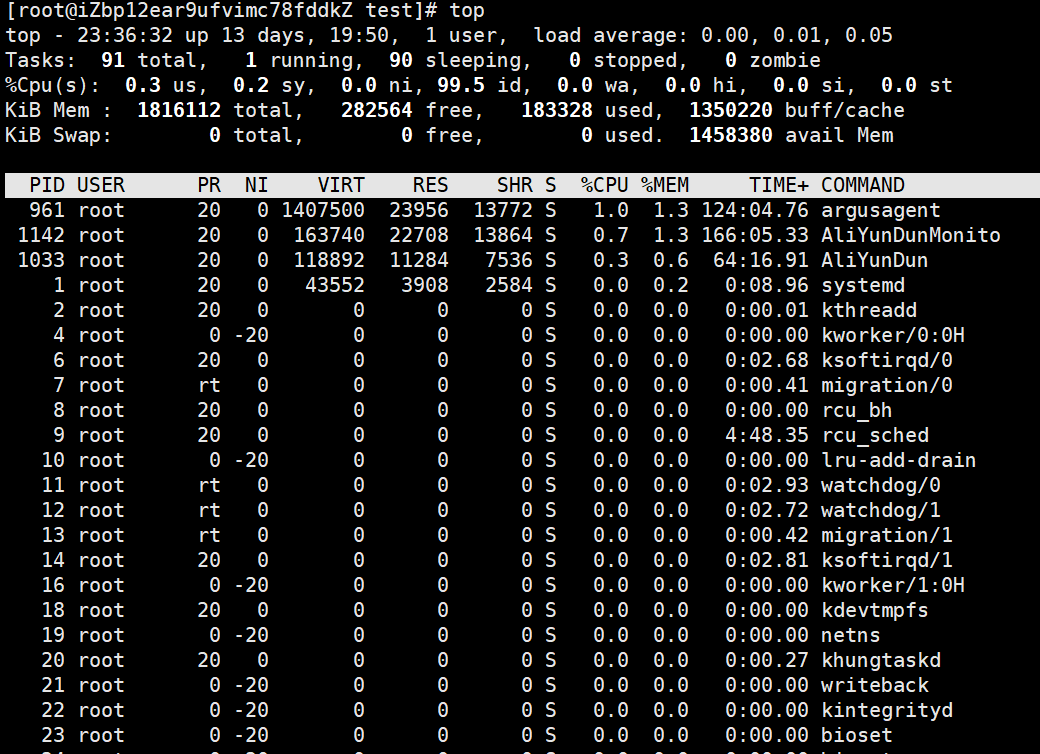
文件压缩与解压:zip & unzip
zip命令:
语法:zip压缩文件.zip目录或文件
功能:将目录或文件压缩成zip格式
unzip指令:
语法:unzip 压缩包名称 解压后文件名称
常用选项
-r:递归处理,将指定目录下的所有文件和子目录一并处理
bash
[root@iZbp12ear9ufvimc78fddkZ test]# zip test.zip test.txt
  adding: test.txt (deflated 78%)
[root@iZbp12ear9ufvimc78fddkZ test]# ll
total 36
drwxr-xr-x 3 root root  4096 May  4 20:33 A
-rw-r--r-- 1 root root 20901 May  6 23:12 test.txt
-rw-r--r-- 1 root root  4679 May  7 23:43 test.zip

# -d 加载到指定路径下,不加就是默认当前路径
[root@iZbp12ear9ufvimc78fddkZ test]# unzip test.zip test.txt -d ..
Archive:  test.zip
  inflating: ../test.txt
[root@iZbp12ear9ufvimc78fddkZ test]# ls ..
4.21  4.26  4.27  test  test.txt
关于 rzsz:压缩包怎么跨主机传输
这个工具用于windows机器和远端的Linux机器通过XShell传输文件,安装完毕之后可以通过拖拽的方式将文件上传过去
bash
yum/apt install -y lrzsz实际案例:
bash
# 从Linux传到windows上
[root@iZbp12ear9ufvimc78fddkZ test]# sz test.zip
会出现以下弹窗,剩下的就是选保存的位置了:
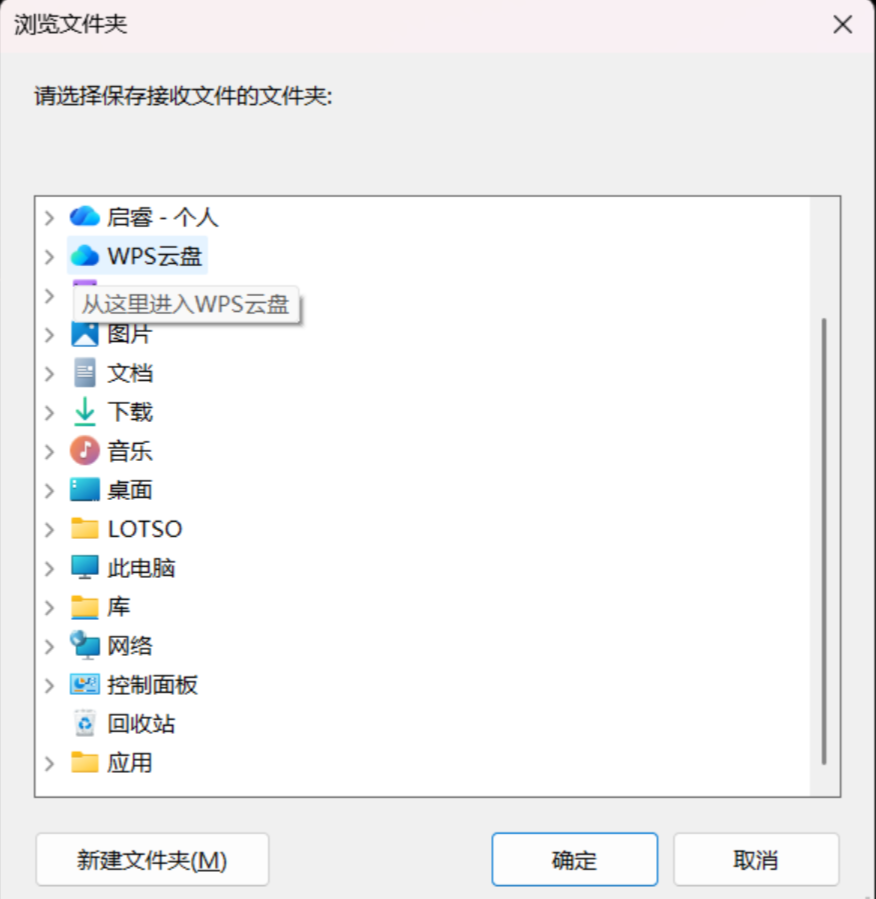
bash
# 从windows传到Linux上
[root@iZbp12ear9ufvimc78fddkZ test]# rz
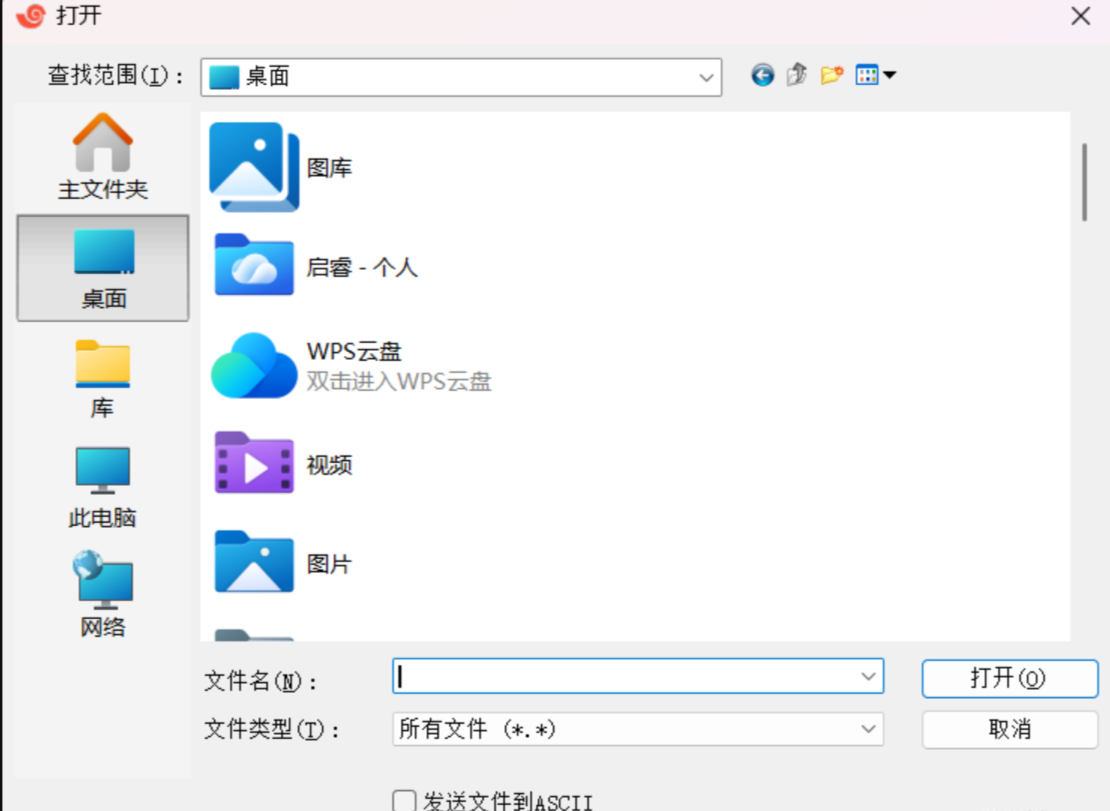
会出现以下弹窗,去找想要传的文件就行,其实也可以通过拖拽来实现:
结束语
Linux指令讲解的第三篇就结束了,后续我们还会对linux的更多命令进行讲解。**其实 Linux 基础指令的核心不是 "死记硬背",而是 "理解原理 + 多练"------ 刚开始可能会输错,但敲个 10 次、20 次,你就会发现:这些指令就像 "电脑的快捷键",熟了之后比图形界面还快!**希望对大家学习Linux能有所收获!