一. 简介
1)我在【Linux】专栏的基础开发工具(三)文章开篇对Git的历史发展,功能作用做过简单的介绍,可以参考。
2)Git是目前最主流的一个版本控制器,版本控制是对文件历史版本和发展过程的维护,我们可以随时回退到任意历史版本,因为它记录了工程的每一次改动和版本迭代,同时方便多人协作。
3)Git可以控制电脑上所有格式的文件,对开发者而言版本控制器最重要的就是管理源代码。
4)所有的版本控制器,包括Git只能跟踪文本文件的改动,比如在一个源代码文件中的第十含加了一个单词void;
而一些二进制文件,比如图片,视频,版本控制器虽然能管理却无法跟踪文件的变化,文件具体改了哪里是无从得知的,只能知道文件大小的变化。
二. 基本操作
1)Git安装
软件的安装与卸载是一个全局性的操作,需要管理员权限。
1. CentOS
① 检查是否安装了git:git
② 查看git版本号:git --version
③ 安装git:sudo yum install git -y
④ 卸载git:sudo yum remove git -y
2. Ubuntu
① 检查是否安装了git:git
② 查看git版本号:git --version
③ 安装git:sudo apt-get install git -y
④ 卸载git:sudo apt-get remove git -y
2)创建本地仓库
仓库是进行版本控制的一个文件目录,只有放在仓库中的文件才能被git追踪管理。执行命令必须在仓库中。
1. git init
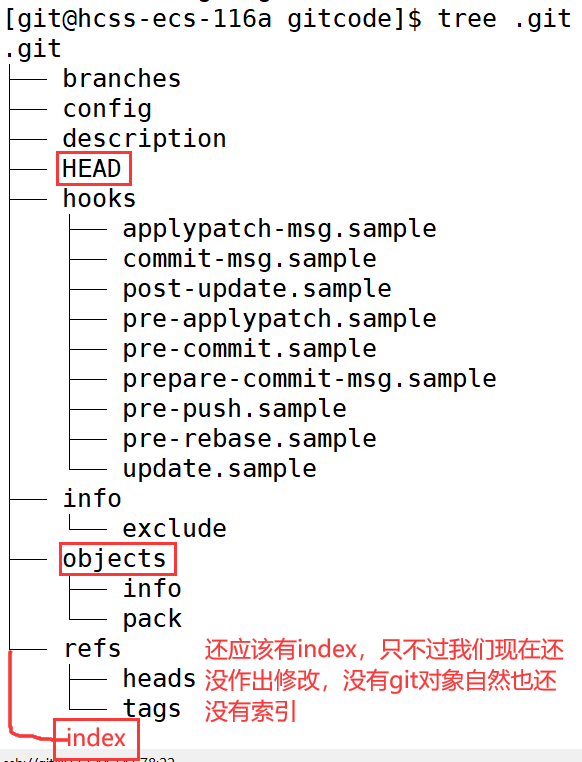
在**当前目录下(先创建一个目录作为你的仓库)**创建一个git本地仓库,此时多了.git文件,这个文件就是Git用来追踪管理仓库的,所以绝对不可以手动乱改,这也就是为什么默认将此文件设为隐藏文件,就是怕不知道的用户篡改。可以用tree命令大致看一下.git文件中有什么,之后我们一点点细看里面的内容。
bash
[git@hcss-ecs-116a ~]$ mkdir gitcode
[git@hcss-ecs-116a ~]$ cd gitcode
[git@hcss-ecs-116a gitcode]$ ll
total 0
[git@hcss-ecs-116a gitcode]$ git init
Initialized empty Git repository in /home/git/gitcode/.git/
[git@hcss-ecs-116a gitcode]$ ls -al
total 12
drwxrwxr-x 3 git git 4096 Feb 28 12:14 .
drwx------ 3 git git 4096 Feb 28 12:13 ..
drwxrwxr-x 7 git git 4096 Feb 28 12:14 .git
[git@hcss-ecs-116a gitcode]$ tree .git
.git
├── branches
├── config
├── description
├── HEAD
├── hooks
│   ├── applypatch-msg.sample
│   ├── commit-msg.sample
│   ├── post-update.sample
│   ├── pre-applypatch.sample
│   ├── pre-commit.sample
│   ├── prepare-commit-msg.sample
│   ├── pre-push.sample
│   ├── pre-rebase.sample
│   └── update.sample
├── info
│   └── exclude
├── objects
│   ├── info
│   └── pack
└── refs
    ├── heads
    └── tags

9 directories, 13 files
3)配置本地仓库git config
配置用户名(name)和e-mail(email)是非常重要的,不然之后使用git的一些命令会报错。
git config --global user.name "换成你要设置的用户名"
git config --global user.email "email@example.com换成你的邮箱"
-
git config:为仓库做配置。
-
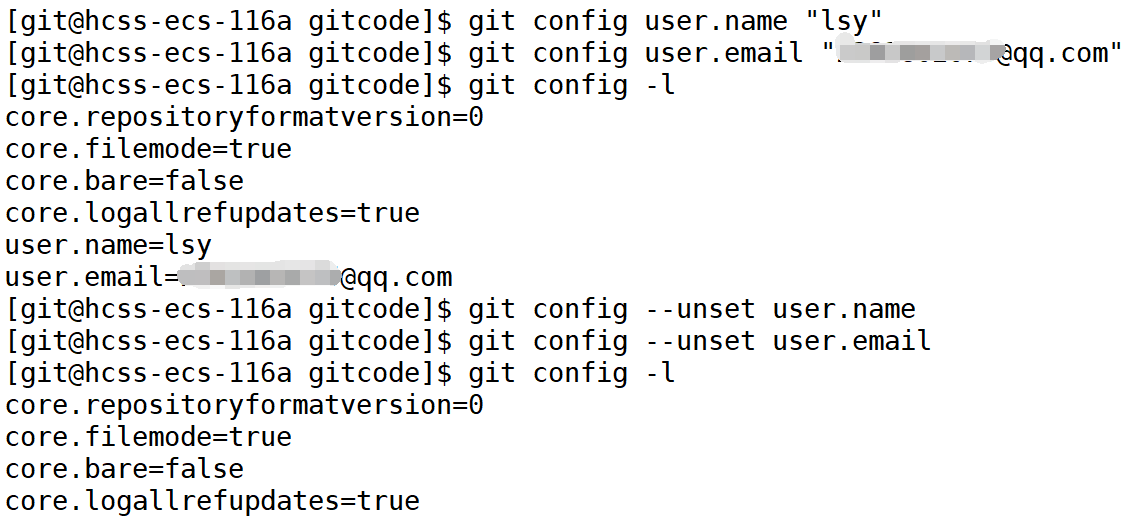
git config -l:列举当前本地仓库所有的配置项。除了我们自己配置的,仓库在创建时也会自带一些配置。
3. git config --unset:删除配置项
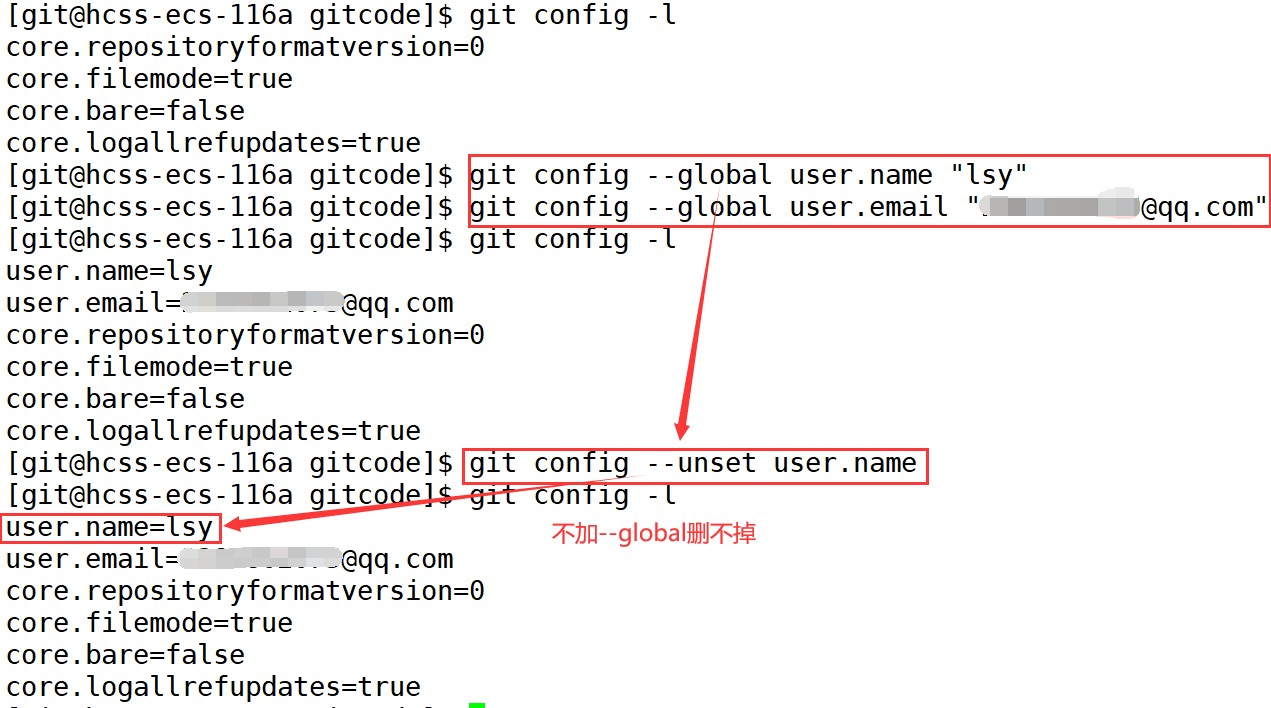
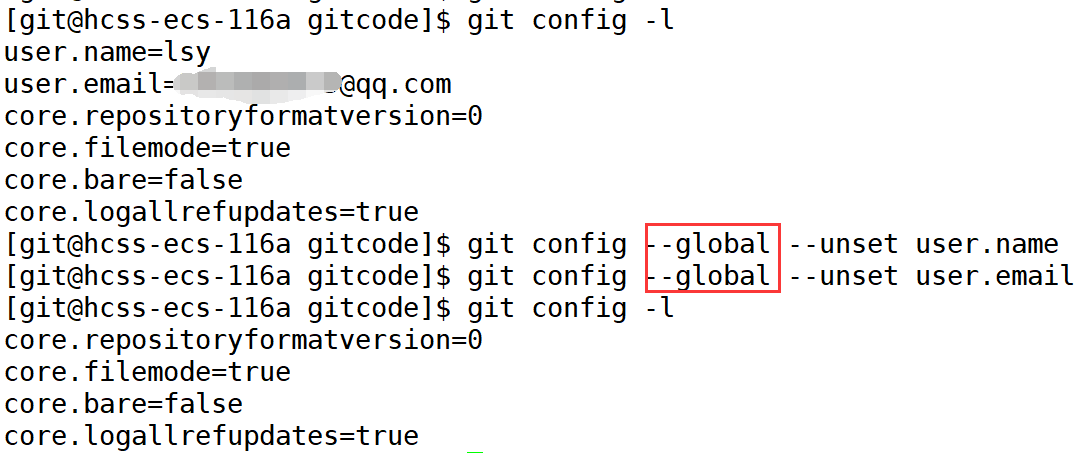
4. --global选项: 如果加上那么这台机器上所有的Git仓库都会使用这个配置,如果希望在不同的仓库中使用不同的name和email,那么就不要加这个选项。同时,如果想删除--global配置的项,也必须要加--global,单删是删不掉的。
4)认识工作区、暂存区、版本库
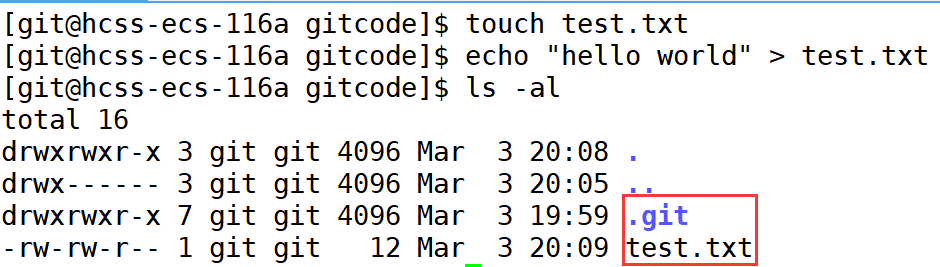
其实前面为了方便理解对于本地仓库的概念使用的不准确,gitcode这个目录并不是真正的仓库,而是工作区 ,这里面的文件还不能真正的被git管理起来。.git才是真正的版本库(仓库),所以绝对不可以随意手动修改.git的内容,否则这个仓库可能就被搞坏了。
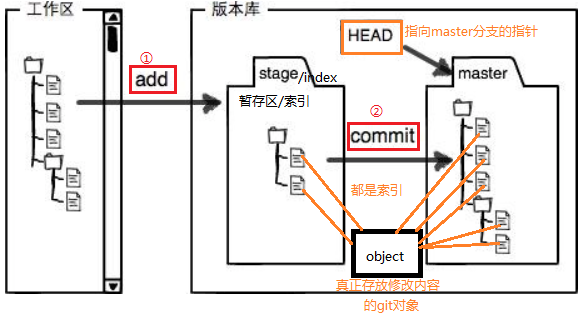
1. 版本控制是如何做到的?
① add阶段(工作区->暂存区):版本库中有一个对象库,存储git对象。修改的工作区内容会被写入对象库的一个新的git对象中,暂存区存的就是对象库中的一个个对象的索引,而非对象本身。
② commit阶段(暂存区->本地仓库):commit之后才算真正写入版本库。将暂存区中的数据写到master分支下,master分支下存的同样是git对象的索引。
5)添加文件 -- 1
1. git add命令
文件:工作区 -> 暂存区。
① 添加一个或多个文件到暂存区:git add 文件名1 文件名2 ...
② 添加指定目录及其子目录到暂存区:git add 目录名
③ 添加当前目录下所有改动文件到暂存区:git add .
2. git commit命令
文件:暂存区 -> 本地仓库。
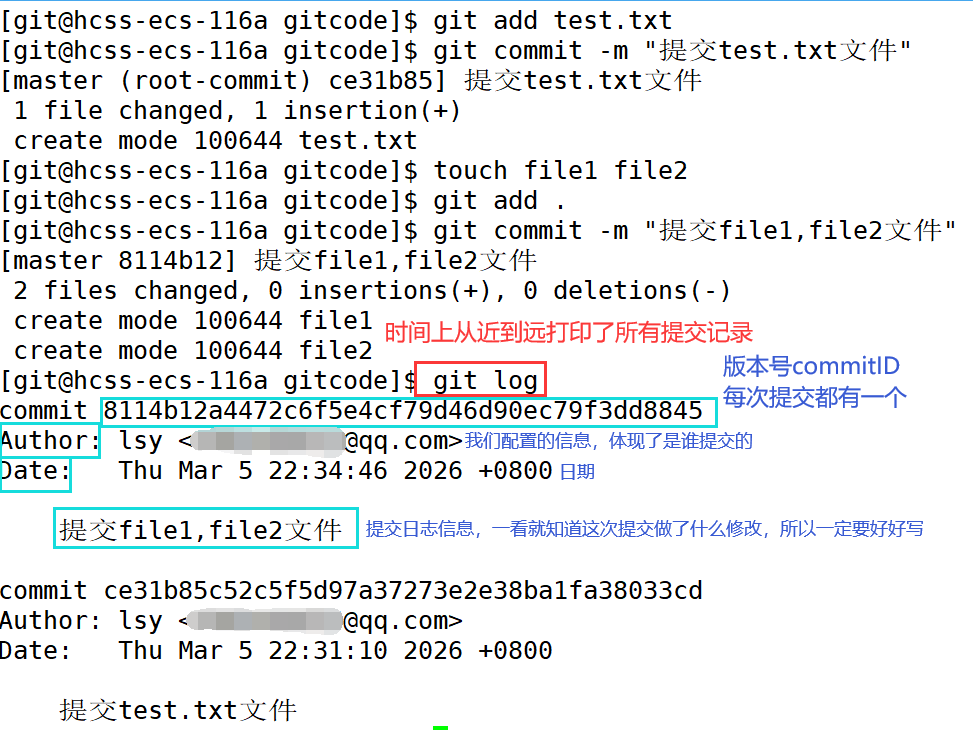
① 提交暂存区全部内容到本地仓库:git commit -m "提交日志"
② 提交暂存区的指定文件到仓库:git commit 文件名1 文件名2 ... -m "提交日志"
这个提交日志要好好写,是给人看的,记录本次提交细节。

3. git log命令
① 从近到远打印所有提交记录。
② 如果嫌git log打印的信息太多不够简洁好看,我们可以使用选项:--pretty=oneline

6)查看.git文件(git cat-file)
-
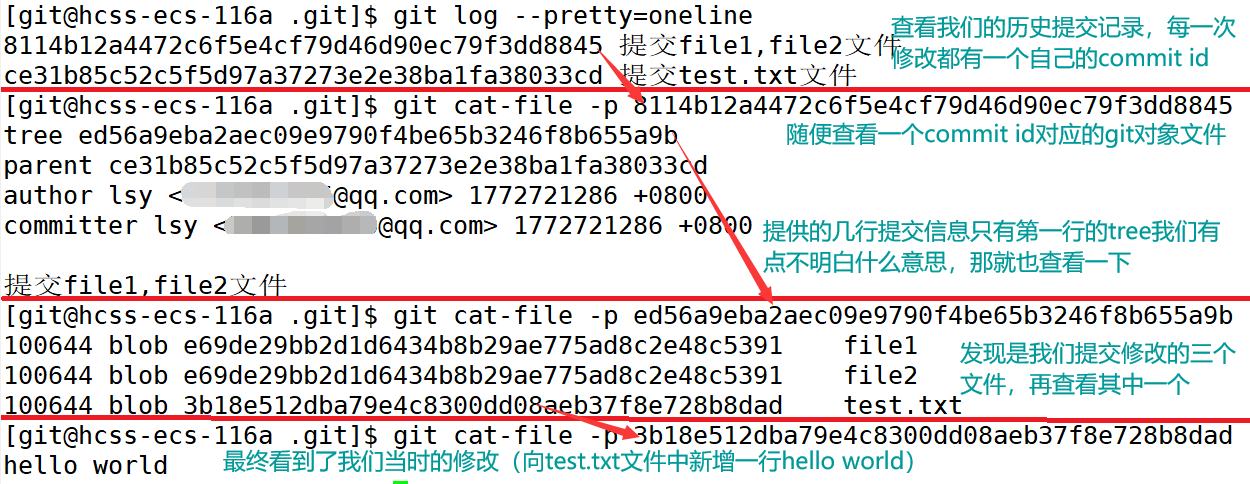
查找object里的文件时要把commit id分成两部分看,前两位是文件夹名称,后38位是文件名称。
-
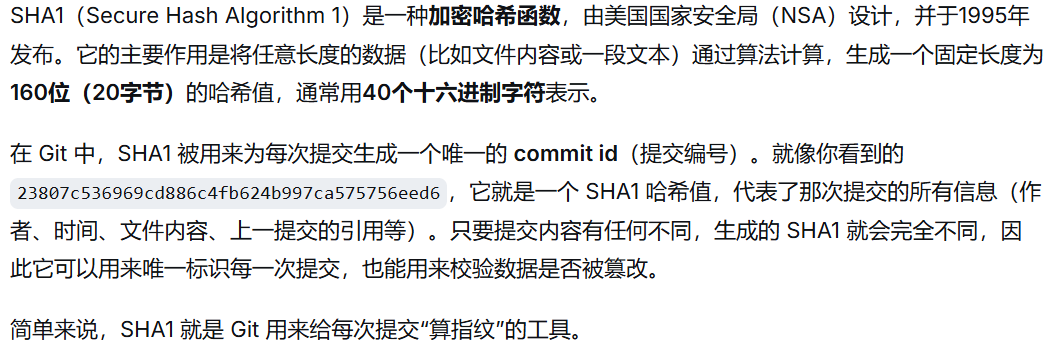
找到想查看的文件后通常不能直接看到里面的内容,因为这种文件是经过sha(安全哈希算法)加密过的。
科普(ai生成):
不过我们可以使用git cat-file 选项 commitID 命令来查看版本库对象的内容。经过层层查找,我们发现我们对文件的修改确实被git通过git对象记录下来了(-p :--pretty)
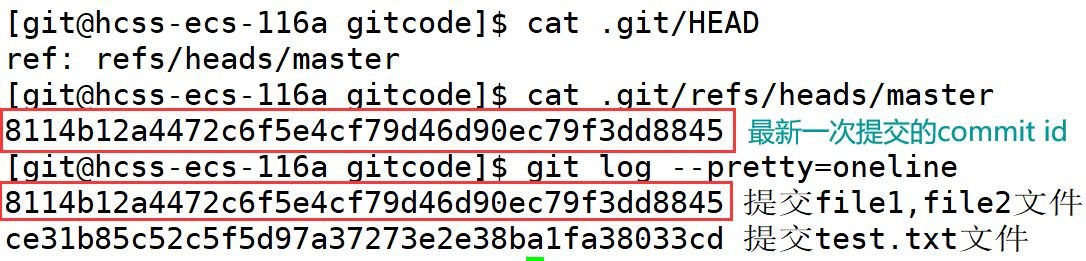
- 我们知道HEAD里面存放的是指向master分支的指针,那么如何验证master里面存的确实是git对象的索引呢?commit id就是一个对象的索引。想查看这个对象就用我们上面的git cat-file命令。
7)查看文件的修改
git status
git diff
**1. git跟踪并管理的是修改,而不是文件本身。**比如新增一行,删除一行,修改了一个符号,创建或删除了一个文件等都是修改。
- git status命令:用于查看在你上次提交之后,是否再次对某些文件进行了修改。
bash
[lsy@iZ0jld8spr4u6h6y784ikbZ git_code]$ vim readme
[lsy@iZ0jld8spr4u6h6y784ikbZ git_code]$ git status
# On branch master
#
# Initial commit
#
# Changes to be committed:
#   (use "git rm --cached <file>..." to unstage)
#
#	new file:   readme
#
# Changes not staged for commit:
#   (use "git add <file>..." to update what will be committed)
#   (use "git checkout -- <file>..." to discard changes in working directory)
#
#	modified:   readme
#
通过git status我们能够看出readme文件被修改了,但是并不能知道具体修改了什么内容,此时就可以用到git diff命令。
- git diff file: 用来显示暂存区和工作区文件的差异。
git diff HEAD -- file: 用来查看版本库和工作区文件的区别。
显示的格式是Unix通用的diff格式。-表示修改前,+表示修改后。
@@ -1,2 +1,5 @@:差异块。-1,2 :表示修改前的文件从第1行开始,共2行;+1,5:表示修改后的文件从第1行开始,共5行。
bash
[lsy@iZ0jld8spr4u6h6y784ikbZ git_code]$ git diff readme
diff --git a/readme b/readme
index e9fd08c..2a30d8f 100644
--- a/readme
+++ b/readme
@@ -1,2 +1,5 @@
 hello 1
 hello 2
+// ver1
+hello 3
+hello 4
8)版本回退
git reset
git reflog
-
git 能够管理历史版本,如果当前版本出现了很大的问题,我们想要回到历史某个版本重新开始就需要版本回退的功能了。
-
git reset 命令:用于回退版本,可以指定退回某一次提交的版本。这里回退的本质是 将版本库中的内容回退,工作区或暂存区是否回退由选项决定。
bash
git reset [--soft | --mixed | --hard] [HEAD]|-------------|-----|-----|-----|
| | 工作区 | 暂存区 | 版本库 |
| --soft | ✕ | ✕ | ✓ |
| --mixed(默认) | ✕ | ✓ | ✓ |
| --hard(慎用) | ✓ | ✓ | ✓ |
① --mixed是默认选项,使用时可不加这个选项。
② HEAD位置
- 直接写成commit id,表示退回指定的版本。
- HEAD表示当前版本,HEAD^表示上一个版本,HEAD^^表示上两个版本....以此类推
- HEAD~0表示当前版本,HEAD~1表示上一个版本,HEAD~2表示上两个版本....以此类推
- 演示
bash
[lsy@iZ0jld8spr4u6h6y784ikbZ git_code]$ vim readme
[lsy@iZ0jld8spr4u6h6y784ikbZ git_code]$ git add .
[lsy@iZ0jld8spr4u6h6y784ikbZ git_code]$ git commit -m "添加ver2"
[master (root-commit) 1ef37e7] 添加ver2
 1 file changed, 7 insertions(+)
 create mode 100644 readme
[lsy@iZ0jld8spr4u6h6y784ikbZ git_code]$ vim readme
[lsy@iZ0jld8spr4u6h6y784ikbZ git_code]$ git add .
[lsy@iZ0jld8spr4u6h6y784ikbZ git_code]$ git commit -m "添加ver3"
[master 4ce724c] 添加ver3
 1 file changed, 1 insertion(+)
[lsy@iZ0jld8spr4u6h6y784ikbZ git_code]$ cat readme
hello 1
hello 2
// ver1
hello 3
hello 4

hello ver2
hello ver3
bash
[lsy@iZ0jld8spr4u6h6y784ikbZ git_code]$ git log --pretty=oneline
4ce724c8afa32d2c03bbd118f2c9dbc034ea3e73 添加ver3
1ef37e7c39557e08100bff90fe3469d5d799df03 添加ver2
[lsy@iZ0jld8spr4u6h6y784ikbZ git_code]$ git reset --hard 1ef37e7c39557e08100bff90fe3469d5d799df03
HEAD is now at 1ef37e7 添加ver2
[lsy@iZ0jld8spr4u6h6y784ikbZ git_code]$ cat readme
hello 1
hello 2
// ver1
hello 3
hello 4

hello ver2
[lsy@iZ0jld8spr4u6h6y784ikbZ git_code]$ git log --pretty=oneline
1ef37e7c39557e08100bff90fe3469d5d799df03 添加ver2
4. 回退完后悔了怎么办?
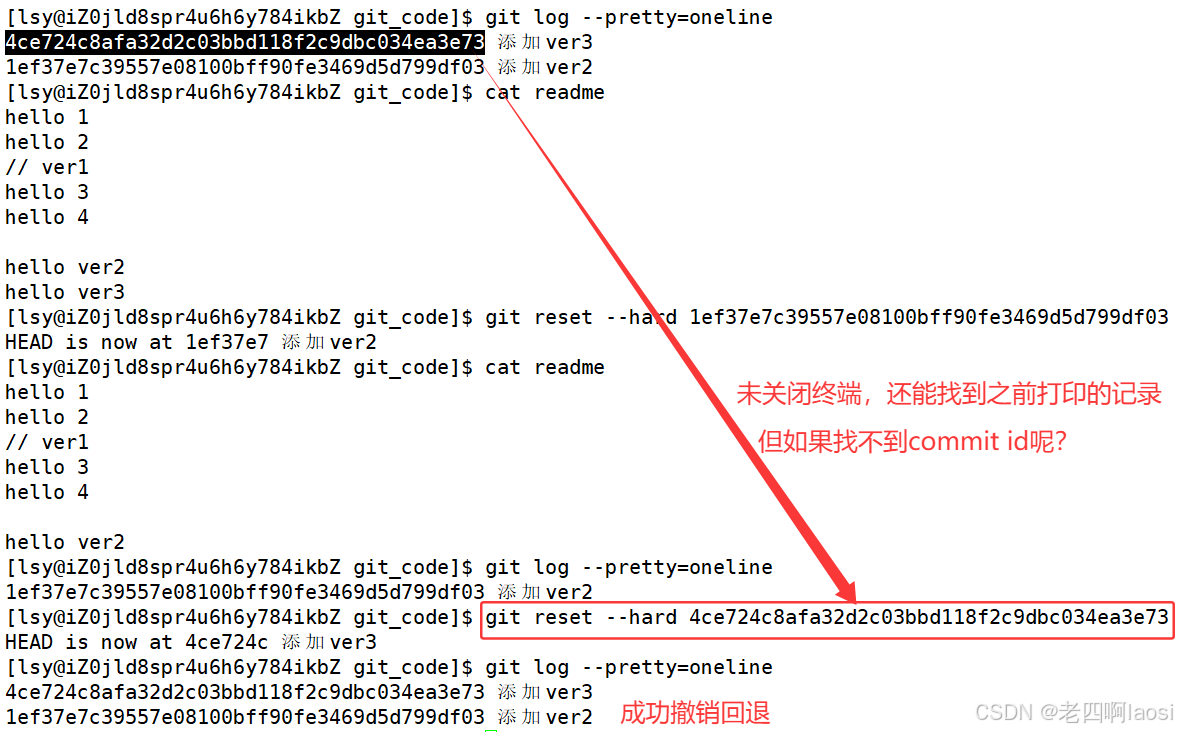
如果我们回退到ver2之后后悔了不想回退了,想再回到ver3怎么办?还是用git reset命令,但是必须有commit id来指定回退的版本。
如果回退的版本的commit id早都已经找不到了怎么办?git还提供了一个git reflog 命令,用来记录本地的每一次命令。这样就能找回所有操作记录。
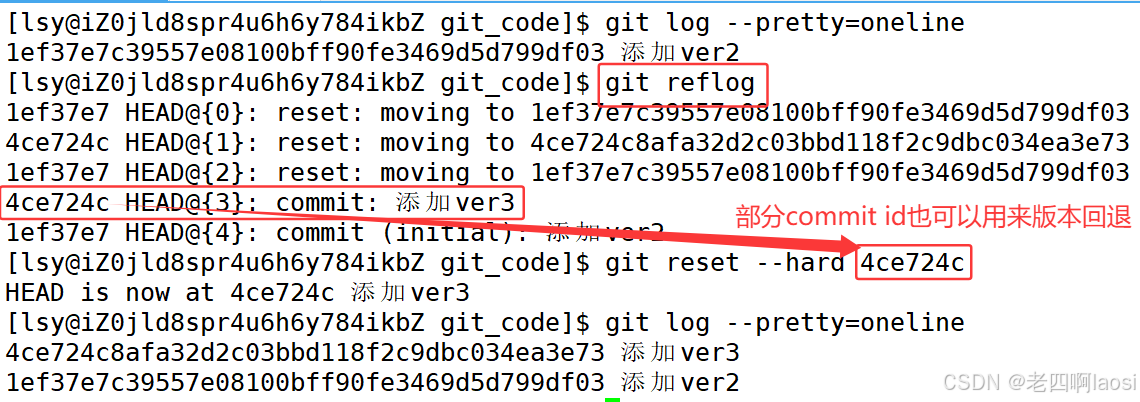
不过在实际开发过程中,由于时间太长操作太多,git reflog里面也翻不到了,那就真的退不回那个版本了。
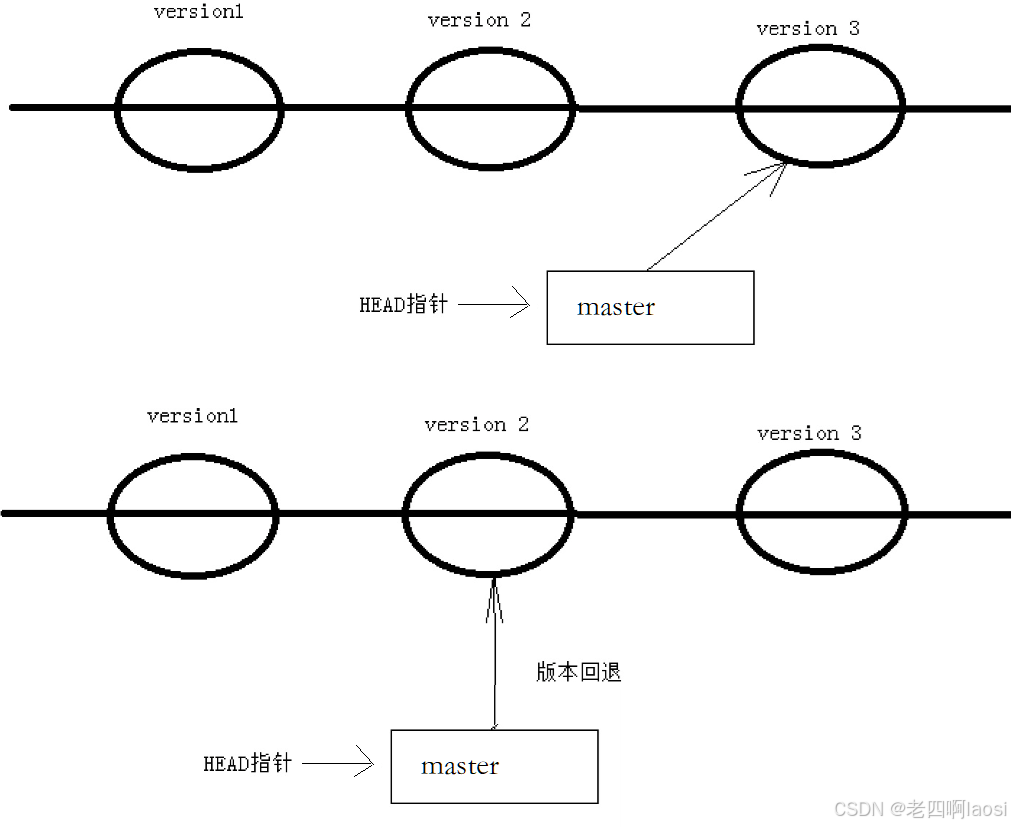
5. 版本回退的速度很快
Git的版本回退速度非常快,因为Git在内部有个指向当前分支(比如master)的HEAD指针,refs/heads/master文件里保存当前master分支的最新commit id。当我们在回退版本的时候,Git仅仅是给refs/heads/master中存储一个特定的version,可以简单理解成下图:
9)撤销修改
git checkout -- file (注意不要落下 -- )
1. 对于工作区还没有add的代码
如果我们在工作区做了一堆修改,但是觉得这次的修改很差,想撤销自上次提交后的所有修改,可以使用 git checkout -- file:让工作区的文件回到最近一次add或commit时的状态。
bash
[lsy@laosi_host git_code]$ vim readme
[lsy@laosi_host git_code]$ cat readme
hello 1
hello 2
// ver1
hello 3
hello 4

hello ver2
hello ver3

//新增内容很差,想要被撤销!
[lsy@laosi_host git_code]$ git checkout -- readme
[lsy@laosi_host git_code]$ cat readme
hello 1
hello 2
// ver1
hello 3
hello 4

hello ver2
hello ver3
2. 对于add后还没有commit的代码
通过版本回退部分我们知道,git reset 命令可以帮我们回退版本库中的内容,暂存区和工作区是否回退我们可以通过选项控制。
① 那么我们先通过 --mixed 选项,将暂存区和版本库内容回退到当前版本库的版本(此时就是情况一),再通过 **git checkout --**撤销工作区中的修改。
bash
[lsy@laosi_host git_code]$ cat readme
hello 1
hello 2
// ver1
hello 3
hello 4
hello ver2
hello ver3
// 不想要的修改
[lsy@laosi_host git_code]$ git add .
[lsy@laosi_host git_code]$ git status
# On branch master
# Changes to be committed:
#   (use "git reset HEAD <file>..." to unstage)
#
#	modified:   readme
#
bash
[lsy@laosi_host git_code]$ git reset HEAD readme
Unstaged changes after reset:
M	readme
[lsy@laosi_host git_code]$ git status
# On branch master
# Changes not staged for commit:
#   (use "git add <file>..." to update what will be committed)
#   (use "git checkout -- <file>..." to discard changes in working directory)
#
#	modified:   readme
#
no changes added to commit (use "git add" and/or "git commit -a")
[lsy@laosi_host git_code]$ git checkout -- readme
[lsy@laosi_host git_code]$ git status
# On branch master
nothing to commit, working directory clean
[lsy@laosi_host git_code]$ cat readme
hello 1
hello 2
// ver1
hello 3
hello 4

hello ver2
hello ver3
也可以通过 --hard选项一步到位,同时撤销工作区和暂存区中的内容到当前版本库版本。
bash
[lsy@laosi_host git_code]$ vim readme
[lsy@laosi_host git_code]$ cat readme
hello 1
hello 2
// ver1
hello 3
hello 4
hello ver2
hello ver3
// 又是不想要的修改
[lsy@laosi_host git_code]$ git add readme
[lsy@laosi_host git_code]$ git status
# On branch master
# Changes to be committed:
#   (use "git reset HEAD <file>..." to unstage)
#
#	modified:   readme
#
bash
[lsy@laosi_host git_code]$ git reset --hard HEAD readme
fatal: Cannot do hard reset with paths.
[lsy@laosi_host git_code]$ git reset --hard HEAD
HEAD is now at 4ce724c 添加ver3
[lsy@laosi_host git_code]$ git status
# On branch master
nothing to commit, working directory clean
[lsy@laosi_host git_code]$ cat readme
hello 1
hello 2
// ver1
hello 3
hello 4

hello ver2
hello ver3
3. 对于已经add并且commit的代码
这是只要还没有将本地的版本库推送到远程仓库,就还可以回退。
git reset --hard HEAD^:回退到上一个版本。
bash
[lsy@laosi_host git_code]$ vim readme
[lsy@laosi_host git_code]$ cat readme
hello 1
hello 2
// ver1
hello 3
hello 4
hello ver2
hello ver3
// 不想要的修改
bash
[lsy@laosi_host git_code]$ git add readme
[lsy@laosi_host git_code]$ git commit -m "撤销commit后的修改"
[master 424488e] 撤销commit后的修改
 1 file changed, 1 insertion(+), 1 deletion(-)
bash
[lsy@laosi_host git_code]$ git reset --hard HEAD^
HEAD is now at 4ce724c 添加ver3
[lsy@laosi_host git_code]$ cat readme
hello 1
hello 2
// ver1
hello 3
hello 4

hello ver2
hello ver3
10)删除文件
方法一:rm file -> git add file -> git commit -m "delete file"
方法二:git rm file -> git commit -m "delete file"
- rm 只能删除工作区中的文件。
但是只删除工作区的文件,工作区和暂存区以及版本库就不一致了,还要清除暂存区和版本库内容。
- git提供了一个将文件从工作区和暂存区中删除的命令:git rm。
bash
[lsy@laosi_host git_code]$ vim file1
[lsy@laosi_host git_code]$ git add file1
[lsy@laosi_host git_code]$ git commit -m "测试删除文件"
[master 1db0eca] 测试删除文件
 1 file changed, 1 insertion(+)
 create mode 100644 file1
[lsy@laosi_host git_code]$ git status
# On branch master
nothing to commit, working directory clean
bash
[lsy@laosi_host git_code]$ git rm file1
rm 'file1'
[lsy@laosi_host git_code]$ git status
# On branch master
# Changes to be committed:
#   (use "git reset HEAD <file>..." to unstage)
#
#	deleted:    file1
#
bash
[lsy@laosi_host git_code]$ git commit -m "删除文件"
[master 56c4049] 删除文件
 1 file changed, 1 deletion(-)
 delete mode 100644 file1
[lsy@laosi_host git_code]$ git status
# On branch master
nothing to commit, working directory clean
[lsy@laosi_host git_code]$ ls
readme
下篇开启分支...