前备工作
创建一个有关QWidget的项目
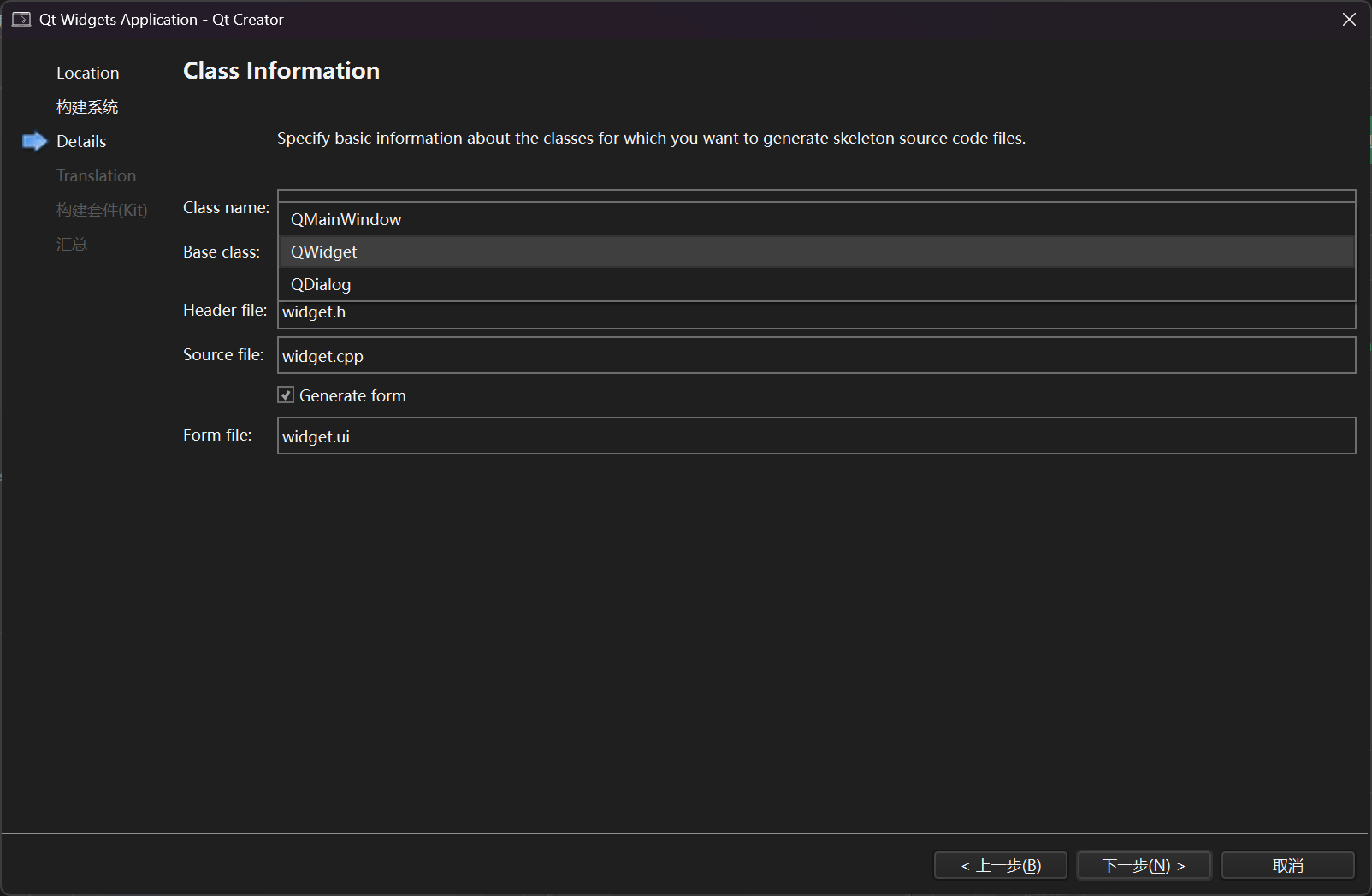
Qt Hello World 程序
QLabel显示文本
1.代码呈现文本
Widget.cpp
cpp
#include "widget.h"
#include "ui_widget.h"
#include<QLabel>  //别忘了包头文件
Widget::Widget(QWidget *parent)
    : QWidget(parent)
    , ui(new Ui::Widget)
{
    ui->setupUi(this);

    //注意:我们需要this作为对象树的父节点,所以代码写在Widget类里面
    QLabel* mylabel = new QLabel(this);
    mylabel->setText("Hello World");

}

Widget::~Widget()
{
    delete ui;
}
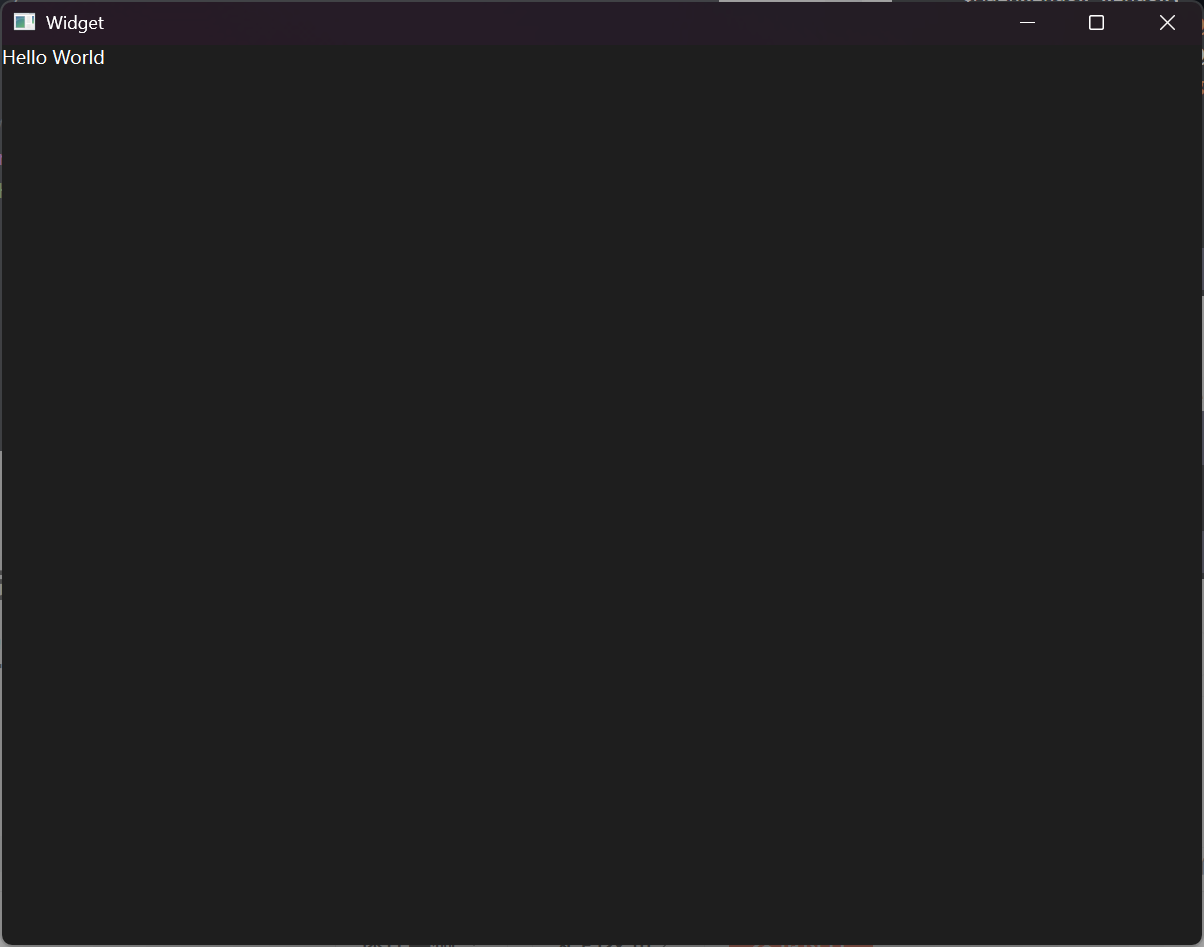
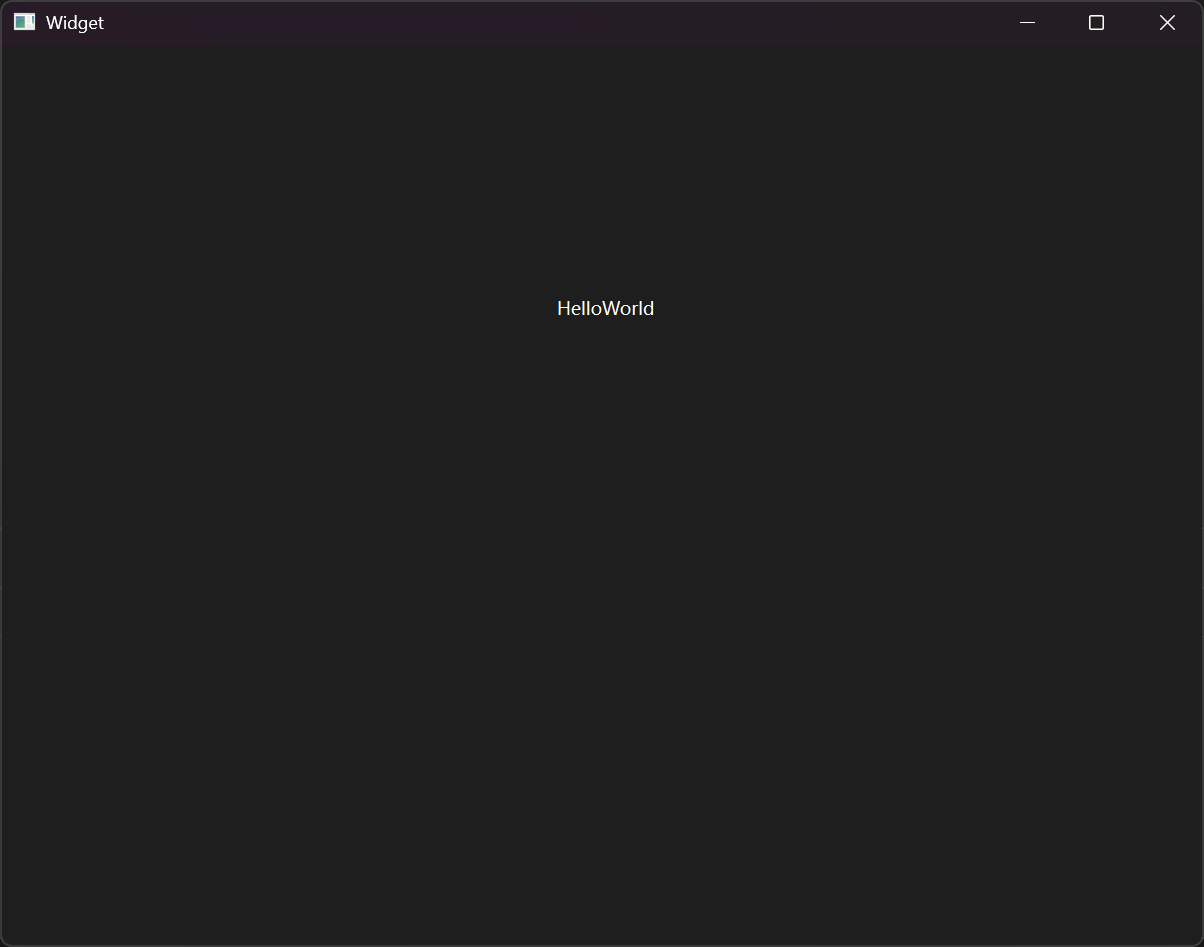
默认生成在左上角
widget.ui
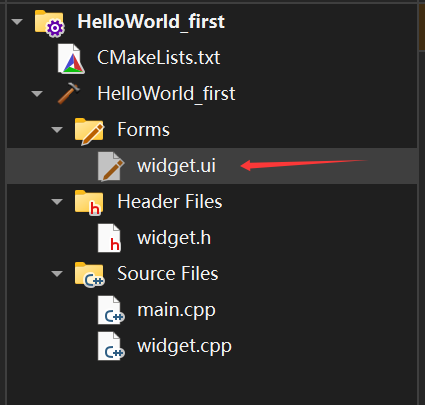
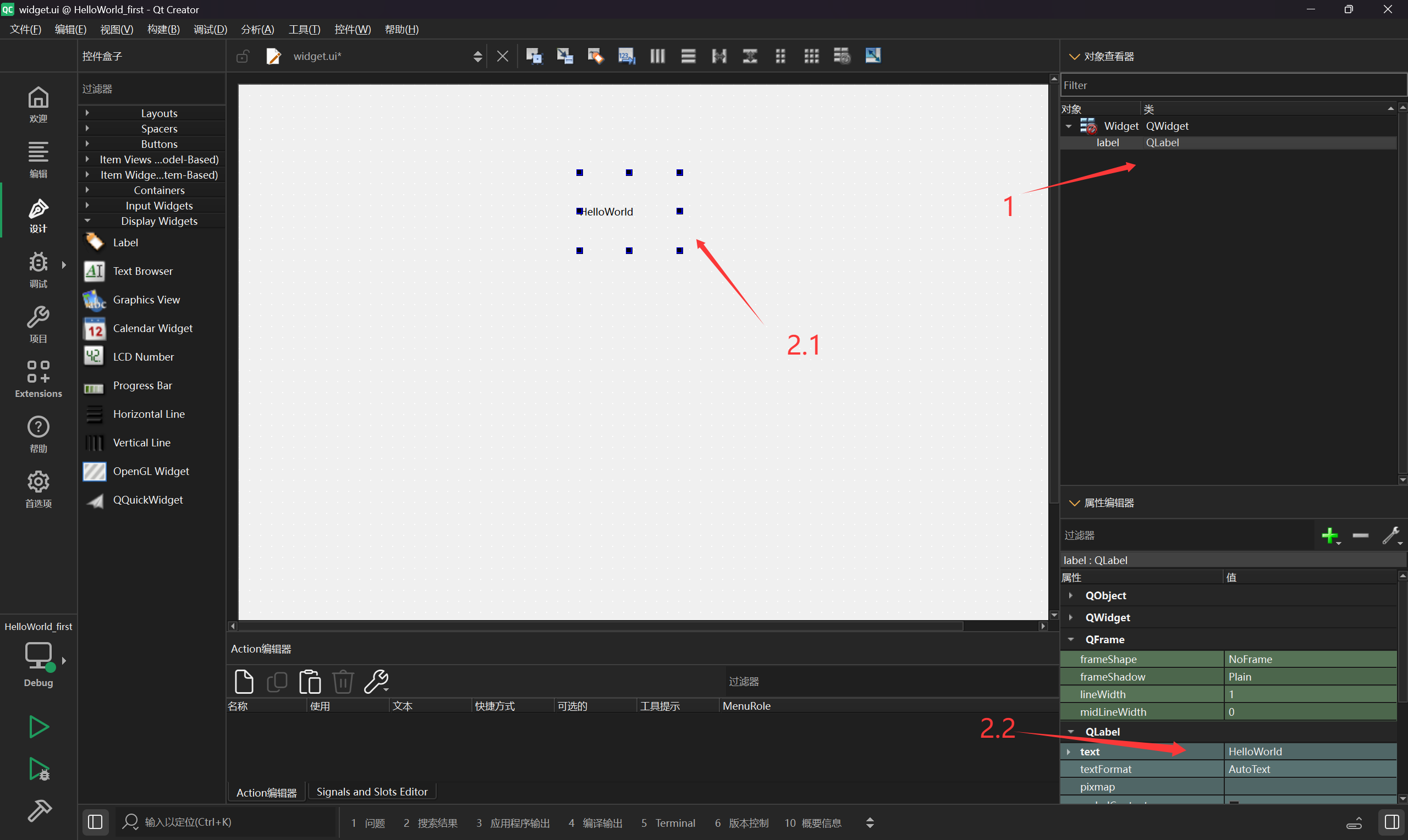
点击widget.ui会跳到如下窗口,我们找到 Label并拖动到右边空白区域。
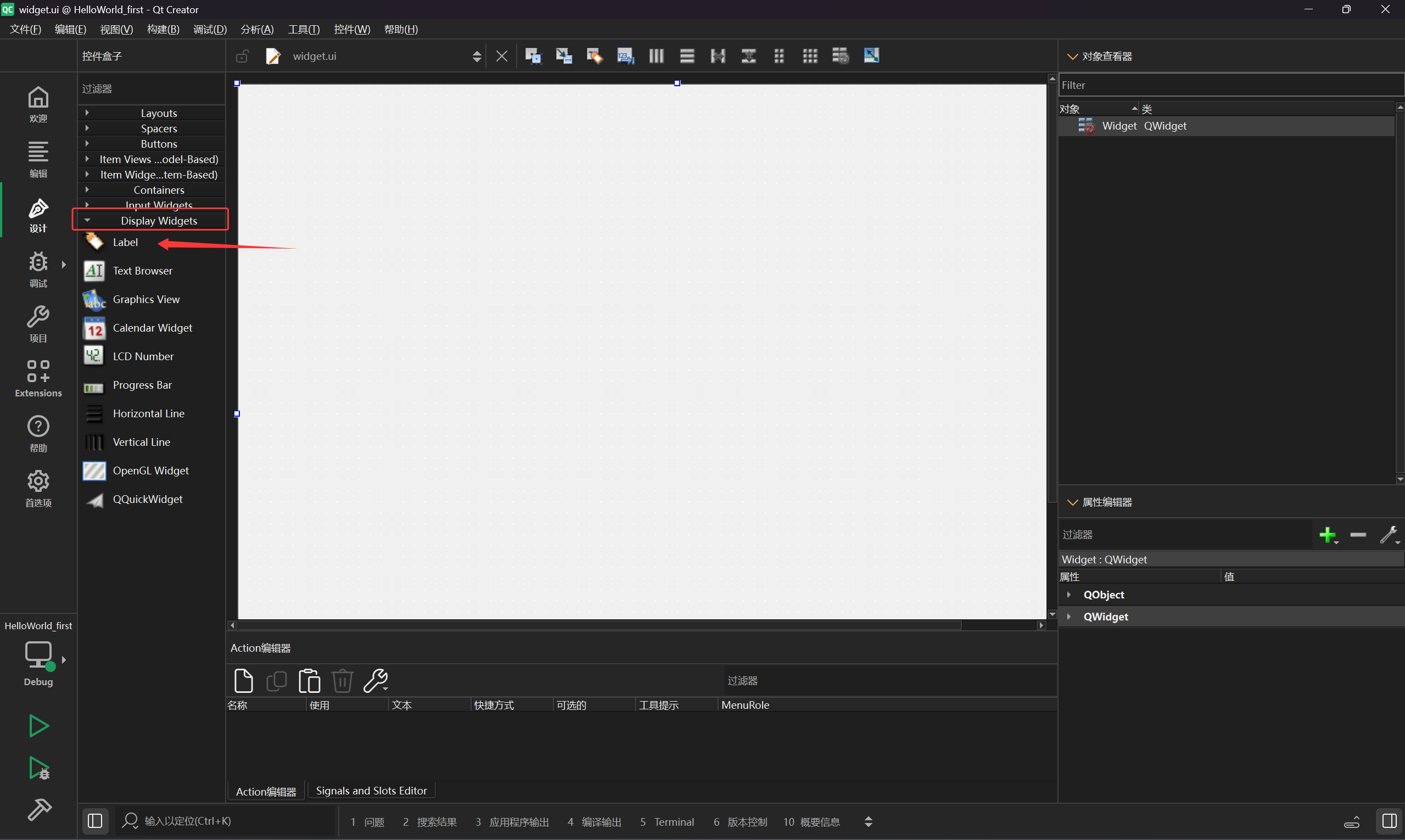
通过对象查找器定位到2.1 2.2
可以点击白色背景下2.1的HelloWorld修改也可以在2.2中text的右边栏修改
QpushButton显示按钮
代码类似
widget.cpp
cpp
#include "widget.h"
#include "ui_widget.h"

//#include<QLabel>
#include<QPushButton>

Widget::Widget(QWidget *parent)
    : QWidget(parent)
    , ui(new Ui::Widget)
{
    ui->setupUi(this);


    // QLabel* mylabel = new QLabel(this);
    // mylabel->setText("Hello World");

    QPushButton* mypushButton = new QPushButton(this);
    mypushButton->setText("Hello World!!!");


}

Widget::~Widget()
{
    delete ui;
}
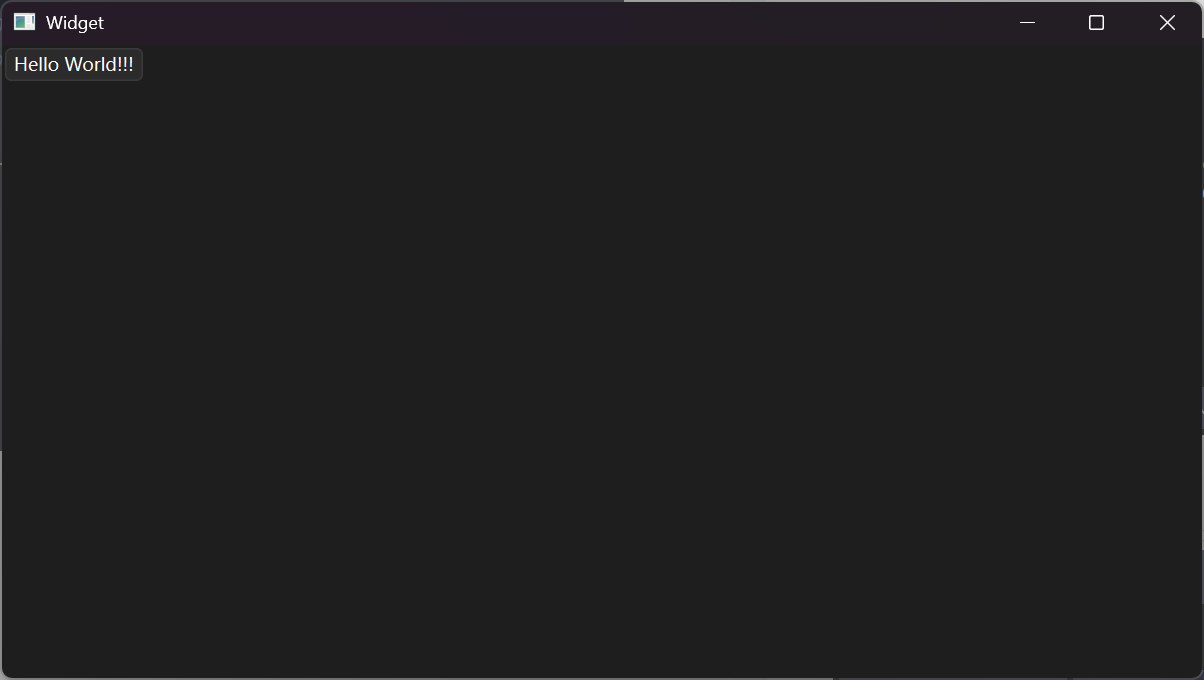
PushButton顾名思义就是设置一个按钮
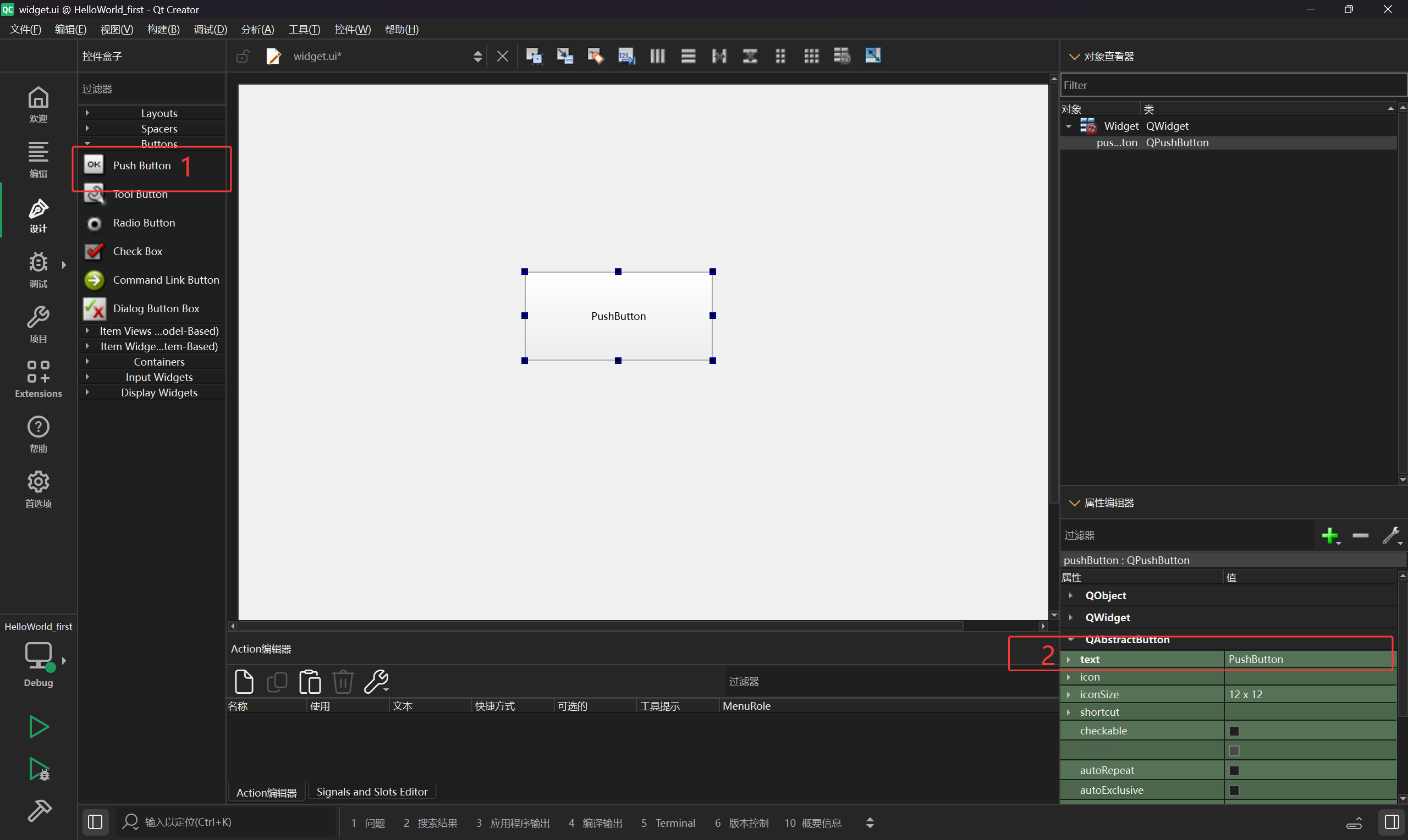
widget.ui
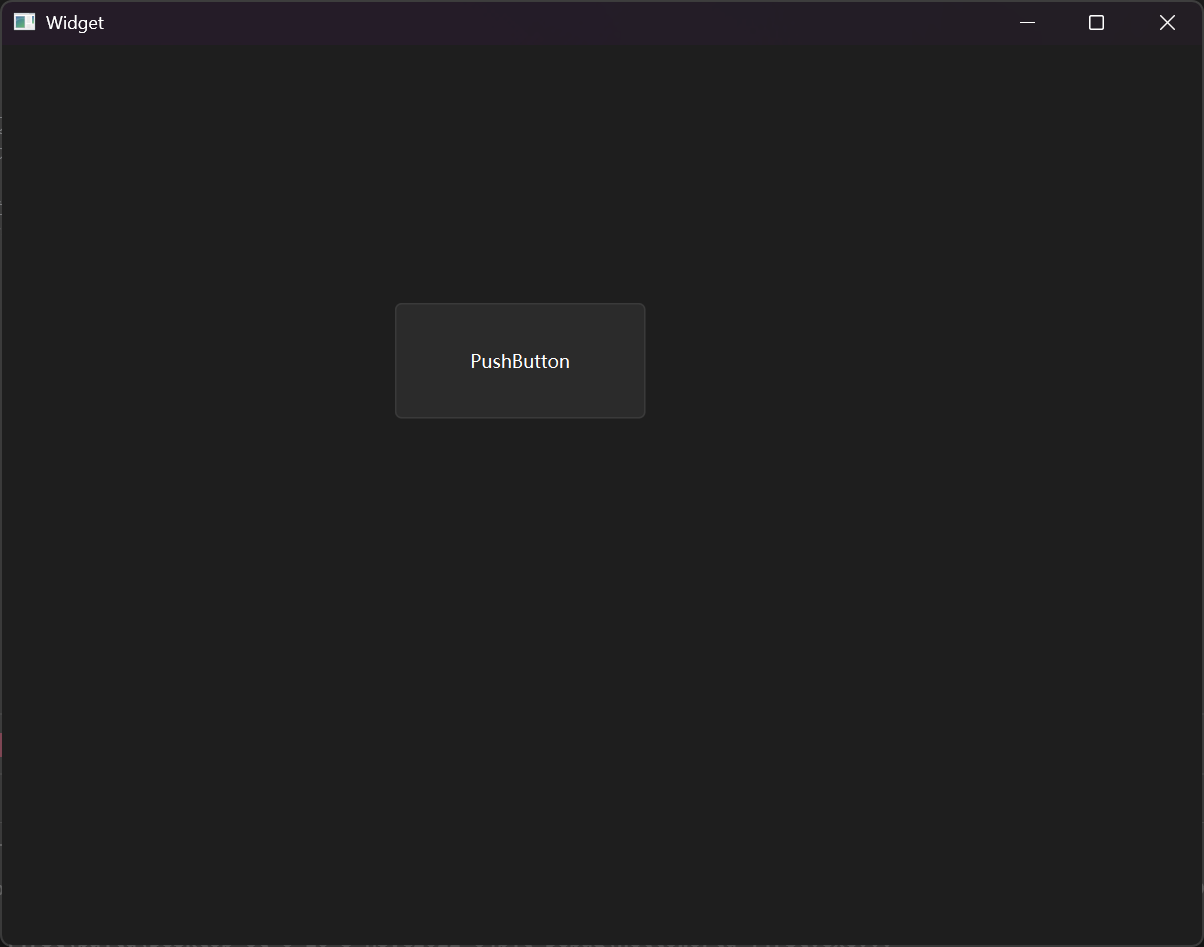
从1拖入ui面,在2中可以修改按钮名
这个命名和connect的使用有关。
connect控制按钮变换
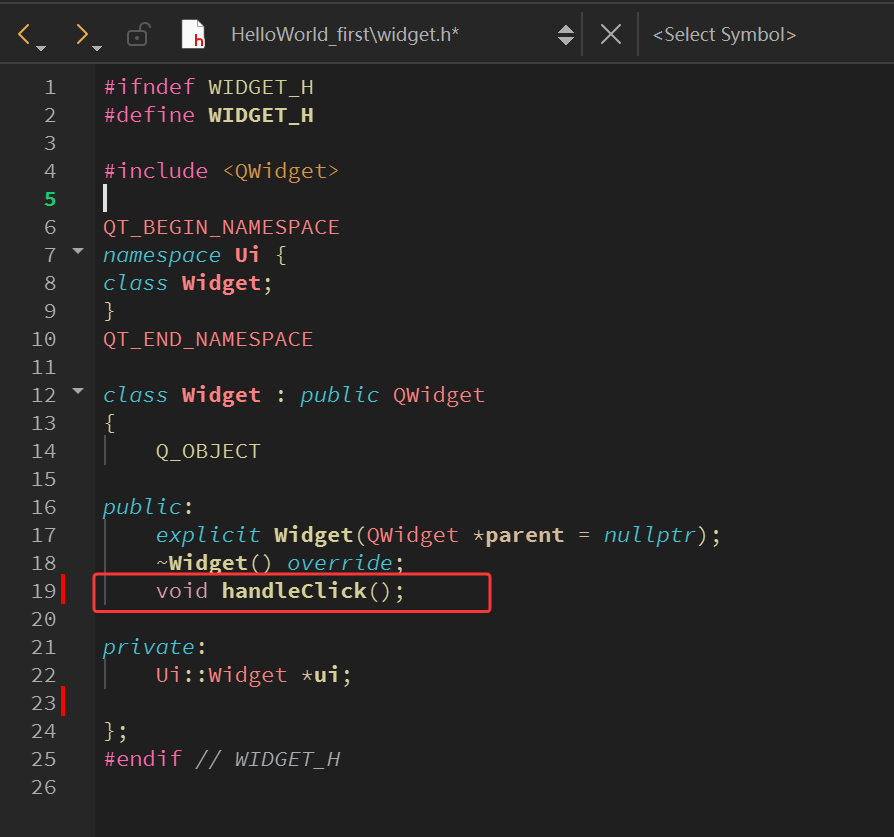
widget.h
只添加这一行声明
widget.cpp
cpp
#include "widget.h"
#include "ui_widget.h"
//#include<QLabel>
#include<QPushButton>
#include<QString>
#include<QObject>
Widget::Widget(QWidget *parent)
    : QWidget(parent)
    , ui(new Ui::Widget)
{
    ui->setupUi(this);


    // QLabel* mylabel = new QLabel(this);
    // mylabel->setText("Hello World");

    // QPushButton* mypushButton = new QPushButton(this);
    // mypushButton->setText("Hello World!!!");


    //ui界面创建按钮使用
    connect(ui->pushButton, &QPushButton::clicked, this, &Widget::handleClick);

    // 也可以代码生成按钮。
    // QPushButton* mypushButton = new QPushButton(this);
    // connect(mypushButton , &QPushButton::clicked, this, &Widget::handleClick);

}

//ui,pushButton等等是QWidget内的,Widget继承了QWidget,故可以直接使用。
void Widget::handleClick()
{
    if(ui->pushButton->text() == QString("hello world"))
    {
        ui->pushButton->setText("hello Qt");
    }
    else
    {
        ui->pushButton->setText("hello world");
    }
}


Widget::~Widget()
{
    delete ui;
}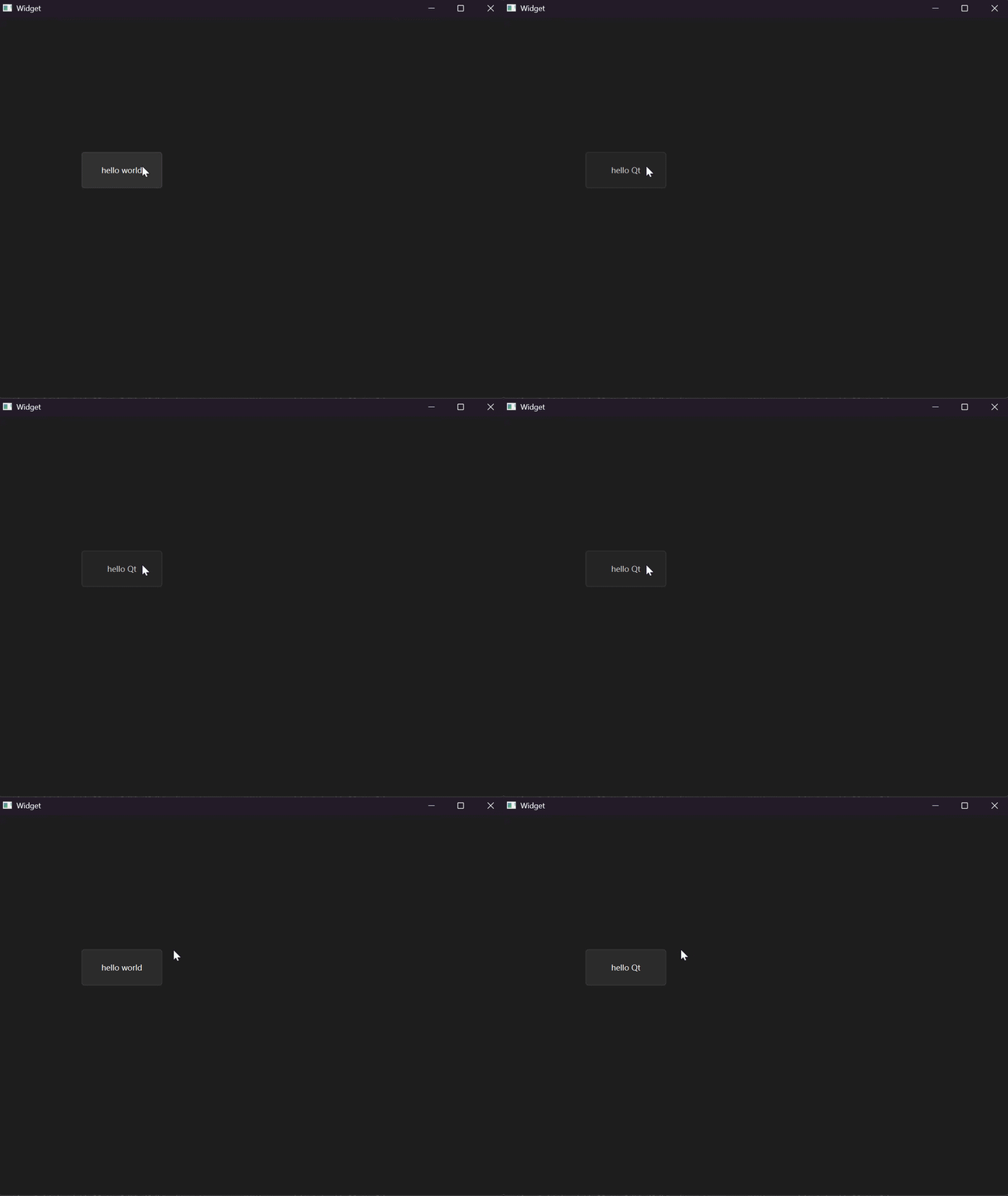
现在按钮可以点击变换了。