先看效果:
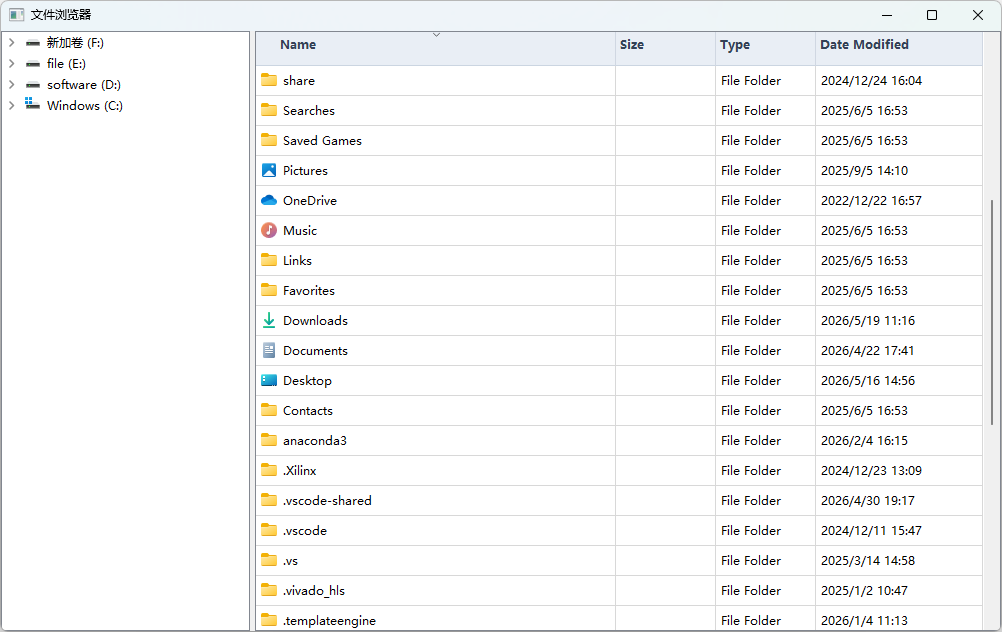
代码如下:
ExplorerWindow.h
cpp
#pragma once

#include <QMainWindow>
#include <QSplitter>
#include <QTreeView>
#include <QTableView>
#include <QFileSystemModel>

class ExplorerWindow : public QMainWindow
{
public:
    ExplorerWindow(QWidget *parent = nullptr);
    ~ExplorerWindow();

private:
    void initUi();
    void createTreeView();
    void createTableView();
    void buildConnection();

private:
    QSplitter           *m_splitter {nullptr};
    QTreeView           *m_treeView {nullptr};
    QTableView          *m_tableView {nullptr};
    QFileSystemModel    *m_model {nullptr};
};
ExplorerWindow.cpp
cpp
#include "ExplorerWindow.h"
#include <QHeaderView>
#include <QDir>

ExplorerWindow::ExplorerWindow(QWidget *parent) : QMainWindow(parent)
{
    initUi();
    buildConnection();
}

ExplorerWindow::~ExplorerWindow()
{
}

void ExplorerWindow::initUi()
{
    setWindowTitle(QStringLiteral("文件浏览器"));
    resize(1000, 600);

    m_splitter = new QSplitter(this);
    m_model = new QFileSystemModel(this);
    m_model->setRootPath(QString());

    createTreeView();
    createTableView();

    m_splitter->setStretchFactor(0, 1);
    m_splitter->setStretchFactor(1, 3);

    setCentralWidget(m_splitter);
}

void ExplorerWindow::createTreeView()
{
    m_treeView = new QTreeView(m_splitter);
    m_treeView->setModel(m_model);
    m_treeView->setRootIndex(m_model->index(QString()));

    m_treeView->setColumnWidth(0, 235);
    m_treeView->hideColumn(1);
    m_treeView->hideColumn(2);
    m_treeView->hideColumn(3);
    //m_treeView->header()->setStretchLastSection(true);
    m_treeView->setHeaderHidden(true);

    //     m_treeView->setStyleSheet(R"(
    // QTreeView {
    //     background-color: white;
    //     border: 1px solid #d0d0d0;
    //     selection-background-color: #3399ff;
    //     selection-color: white;
    // }
    // QTreeView::item {
    //     padding: 5px;
    // }
    // QTreeView::item:hover {
    //     background-color: #f0f7ff;
    // }
    // QTreeView::item:selected {
    //     background-color: #3399ff;
    //     color: white;
    // }
    // )");
}

void ExplorerWindow::createTableView()
{
    m_tableView = new QTableView(m_splitter);
    m_tableView->setModel(m_model);
    m_tableView->setRootIndex(m_model->index(QDir::homePath()));

    m_tableView->setSelectionBehavior(QAbstractItemView::SelectRows);
    m_tableView->setEditTriggers(QAbstractItemView::NoEditTriggers);
    m_tableView->setSortingEnabled(true);
    m_tableView->horizontalHeader()->setStretchLastSection(true);
    //m_tableView->verticalHeader()->setDefaultSectionSize(20);
    //m_tableView->verticalHeader()->setDefaultAlignment(Qt::AlignRight | Qt::AlignVCenter);
    m_tableView->verticalHeader()->hide();

    int cnt = m_tableView->horizontalHeader()->count();
    if (cnt > 0)
        m_tableView->setColumnWidth(0, 360);
    if (cnt > 1)
        m_tableView->setColumnWidth(1, 100);
    if (cnt > 2)
        m_tableView->setColumnWidth(2, 100);

    m_tableView->setStyleSheet(R"(
TableView {
    background: #f8fafc;
    alternate-background-color: #eef3f8;
    border: 1px solid #cfd8e3;
    border-radius: 6px;
    gridline-color: #d9e2ec;
    color: #1f2933;
    font-size: 14px;
    selection-background-color: #4a90e2;
    selection-color: white;
    outline: 0;
}
QTableView::item {
    padding: 2px 2px;
    border: none;
}
QTableView::item:hover {
    background: #e6f2ff;
}
QTableView::item:selected {
    background: #4a90e2;
    color: white;
}
QHeaderView::section {
    background: #e9eef5;
    color: #334155;
    padding: 4px;
    border: none;
    border-right: 1px solid #d0d7e2;
    border-bottom: 1px solid #cbd5e1;
    font-weight: 600;
})");
}

void ExplorerWindow::buildConnection()
{
    connect(m_treeView, &QTreeView::clicked, this, [this](const QModelIndex &index) {
        if (m_model->isDir(index)) {
            m_tableView->setRootIndex(index);
        }
    });
}
main.cpp
cpp
#include <QApplication>
#include "ExplorerWindow.h"

int main(int argc, char *argv[])
{
    QApplication app(argc, argv);

    ExplorerWindow window;
    window.show();

    return app.exec();
}