引言
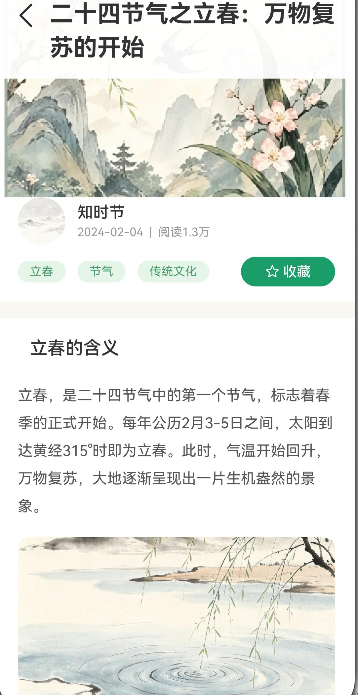
文章详情页是内容型应用的核心页面,负责展示完整的文章内容。在"节气通"应用中,文章详情页需要实现:
- 文章标题和封面展示
- 作者信息和发布时间
- 富文本内容展示
- 点赞和评论功能
- 相关文章推荐
通过本文,你将掌握如何在HarmonyOS中实现一个功能完善的文章详情页。
学习目标
完成本文后,你将能够:
- ✅ 实现文章内容展示
- ✅ 处理富文本内容
- ✅ 实现点赞功能
- ✅ 添加评论列表
- ✅ 推荐相关文章
需求分析
功能模块设计
| 模块 | 功能描述 | 技术要点 |
|---|---|---|
| 文章头部 | 封面图、标题、作者信息 | Stack布局、渐变遮罩 |
| 文章内容 | 富文本正文展示 | Text组件、段落样式 |
| 点赞功能 | 点赞按钮和数量 | 状态切换、动画效果 |
| 评论列表 | 展示用户评论 | List布局、自定义组件 |
| 评论输入 | 发表评论功能 | 输入框、按钮交互 |
| 相关推荐 | 推荐相似文章 | 横向滚动、卡片布局 |
核心实现
步骤1: 页面初始化与数据加载
完整代码
typescript
// pages/ArticleDetail.ets

import router from '@ohos.router';
import prompt from '@ohos.prompt';
import { articles } from '../mock/ArticleMockData';
import type { Article } from '../models/ArticleModel';
import type { Comment } from '../models/CommentModel';

@Entry
@Component
struct ArticleDetail {
  // 文章数据
  @State article: Article | null = null;
  @State isLoading: boolean = true;

  // 文章ID
  private articleId: string = '';

  // 点赞状态
  @State isLiked: boolean = false;
  @State likeCount: number = 0;

  // 评论数据
  @State comments: Comment[] = [];
  @State commentInput: string = '';

  /**
   * 页面加载时执行
   */
  aboutToAppear() {
    this.loadArticleData();
  }

  /**
   * 加载文章数据
   */
  loadArticleData(): void {
    try {
      // 获取路由参数
      const params = router.getParams() as Record<string, string>;
      this.articleId = params?.articleId || '';

      console.info('[ArticleDetail] 加载文章: ' + this.articleId);

      // 查找对应文章
      const article = articles.find((a: Article) => a.id === this.articleId);

      if (article) {
        this.article = article;
        this.likeCount = article.likeCount;
        this.isLiked = false;  // 默认未点赞
      } else {
        // 默认显示第一篇文章
        this.article = articles[0];
        this.likeCount = articles[0].likeCount;
      }

      // 加载评论数据
      this.loadComments();

      this.isLoading = false;
    } catch (error) {
      console.error('[ArticleDetail] 加载数据失败: ' + JSON.stringify(error));
      this.isLoading = false;
    }
  }

  /**
   * 加载评论数据
   */
  loadComments(): void {
    // Mock评论数据
    this.comments = [
      {
        id: '1',
        userId: '1',
        userName: '用户A',
        avatar: 'avatar1',
        content: '这篇文章写得太好了,学到很多知识!',
        time: '2小时前',
        likes: 12
      },
      {
        id: '2',
        userId: '2',
        userName: '用户B',
        avatar: 'avatar2',
        content: '感谢分享,期待更多精彩内容',
        time: '5小时前',
        likes: 8
      },
      {
        id: '3',
        userId: '3',
        userName: '用户C',
        avatar: 'avatar3',
        content: '节气文化博大精深,需要慢慢品味',
        time: '1天前',
        likes: 15
      }
    ];
  }

  /**
   * 构建UI
   */
  build() {
    if (this.isLoading) {
      // 加载中状态
      Column() {
        LoadingProgress()
          .width(40)
          .height(40)

        Text('加载中...')
          .fontSize(14)
          .fontColor('#999999')
          .margin({ top: 16 })
      }
      .width('100%')
      .height('100%')
      .justifyContent(FlexAlign.Center)
    } else if (!this.article) {
      // 数据为空状态
      Column() {
        Image($r('app.media.ic_empty'))
          .width(80)
          .height(80)
          .opacity(0.5)

        Text('暂无文章')
          .fontSize(14)
          .fontColor('#999999')
          .margin({ top: 16 })

        Button('返回')
          .width(120)
          .height(40)
          .backgroundColor('#4A9B6D')
          .fontColor('#FFFFFF')
          .borderRadius(20)
          .margin({ top: 24 })
          .onClick(() => {
            try {
              router.back();
            } catch (error) {
              console.error('返回失败: ' + JSON.stringify(error));
            }
          })
      }
      .width('100%')
      .height('100%')
      .justifyContent(FlexAlign.Center)
    } else {
      // 正常内容
      this.buildContent();
    }
  }

  /**
   * 构建内容区域
   */
  @Builder
  buildContent(): void {
    Scroll() {
      Column({ space: 0 }) {
        // 1. 文章头部
        this.buildHeader()

        // 2. 文章内容
        this.buildContentSection()

        // 3. 点赞和分享栏
        this.buildActionBar()

        // 4. 评论列表
        this.buildCommentsSection()

        // 5. 相关推荐
        this.buildRelatedArticles()
      }
    }
    .width('100%')
    .height('100%')
    .backgroundColor('#F8F7F2')
  }
}
代码解析
1. 数据加载流程
- 获取路由参数articleId
- 根据ID查找文章数据
- 加载评论数据(Mock)
- 处理加载状态和空状态
2. 状态管理
- isLiked: 点赞状态
- likeCount: 点赞数量
- comments: 评论列表
- commentInput: 评论输入内容
步骤2: 文章头部区域
typescript
/**
 * 构建文章头部
 */
@Builder
buildHeader(): void {
  Stack({ alignContent: Alignment.BottomStart }) {
    // 封面图
    Image('rawfile://articles/' + this.article!.coverImage)
      .width('100%')
      .height(220)
      .objectFit(ImageFit.Cover)

    // 渐变遮罩
    Row()
      .width('100%')
      .height(220)
      .linearGradient({
        angle: 180,
        colors: [
          ['#00000000', 0.3],
          ['#000000DD', 1]
        ]
      })

    // 返回按钮
    Row() {
      Image($r('app.media.ic_back'))
        .width(24)
        .height(24)
        .fillColor('#FFFFFF')
    }
    .width(44)
    .height(44)
    .backgroundColor('rgba(255, 255, 255, 0.2)')
    .borderRadius(22)
    .justifyContent(FlexAlign.Center)
    .position({ top: 56, left: 16 })
    .onClick(() => {
      try {
        router.back();
      } catch (error) {
        console.error('返回失败: ' + JSON.stringify(error));
      }
    })

    // 内容
    Column({ space: 8 }) {
      // 标题
      Text(this.article!.title)
        .fontSize(24)
        .fontWeight(FontWeight.Bold)
        .fontColor('#FFFFFF')
        .maxLines(2)
        .textOverflow({ overflow: TextOverflow.Ellipsis })

      // 作者信息
      Row({ space: 12 }) {
        // 作者头像
        Image($r('app.media.ic_default_avatar'))
          .width(32)
          .height(32)
          .borderRadius(16)

        Column({ space: 2 }) {
          Text(this.article!.author)
            .fontSize(14)
            .fontColor('#FFFFFF')

          Text('发布于 ' + this.article!.publishTime)
            .fontSize(12)
            .fontColor('#FFFFFF')
            .opacity(0.8)
        }

        // 阅读量
        Row({ space: 4 }) {
          Image($r('app.media.ic_eye'))
            .width(16)
            .height(16)
            .fillColor('#FFFFFF')
            .opacity(0.8)

          Text(this.article!.viewCount.toString())
            .fontSize(12)
            .fontColor('#FFFFFF')
            .opacity(0.8)
        }
      }
    }
    .padding({ left: 16, right: 16, bottom: 24 })
    .width('100%')
  }
  .width('100%')
}设计要点:
- 大图背景+渐变遮罩
- 返回按钮固定在左上角
- 标题、作者信息、阅读量分层展示
步骤3: 文章内容区域
typescript
/**
 * 构建文章内容区域
 */
@Builder
buildContentSection(): void {
  Column({ space: 16 }) {
    ForEach(this.article!.content, (paragraph: string, index: number) => {
      // 段落
      if (paragraph.startsWith('## ')) {
        // 二级标题
        Text(paragraph.substring(3))
          .fontSize(18)
          .fontWeight(FontWeight.Bold)
          .fontColor('#333333')
          .margin({ top: 8 })
      } else if (paragraph.startsWith('### ')) {
        // 三级标题
        Text(paragraph.substring(4))
          .fontSize(16)
          .fontWeight(FontWeight.Medium)
          .fontColor('#444444')
          .margin({ top: 4 })
      } else if (paragraph.startsWith('![')) {
        // 图片
        const match = paragraph.match(/!\[.*?\]\((.*?)\)/);
        if (match && match[1]) {
          Image('rawfile://articles/images/' + match[1])
            .width('100%')
            .height(200)
            .borderRadius(8)
            .objectFit(ImageFit.Cover)
        }
      } else if (paragraph.startsWith('- ')) {
        // 列表项
        Row({ space: 8 }) {
          Circle()
            .width(8)
            .height(8)
            .fillColor('#4A9B6D')

          Text(paragraph.substring(2))
            .fontSize(15)
            .fontColor('#555555')
            .lineHeight(24)
        }
      } else {
        // 普通段落
        Text(paragraph)
          .fontSize(15)
          .fontColor('#555555')
          .lineHeight(28)
          .textAlign(TextAlign.Start)
      }
    }, (_, index) => index.toString())
  }
  .padding(16)
  .width('100%')
  .backgroundColor('#FFFFFF')
}设计要点:
- 支持Markdown格式解析
- 标题、段落、列表、图片都能正确展示
- 使用ForEach渲染内容数组
步骤4: 点赞和分享栏
typescript
/**
 * 构建操作栏
 */
@Builder
buildActionBar(): void {
  Row({ space: 24 }) {
    // 点赞按钮
    Row({ space: 8 }) {
      Image(this.isLiked ? $r('app.media.ic_like_active') : $r('app.media.ic_like'))
        .width(24)
        .height(24)
        .fillColor(this.isLiked ? '#FF5252' : '#999999')
        .scale({ x: this.isLiked ? 1.2 : 1, y: this.isLiked ? 1.2 : 1 })
        .transition({ type: TransitionType.Scale, duration: 200 })

      Text(this.likeCount.toString())
        .fontSize(14)
        .fontColor(this.isLiked ? '#FF5252' : '#999999')
    }
    .flexGrow(1)
    .onClick(() => {
      this.toggleLike();
    })

    // 评论按钮
    Row({ space: 8 }) {
      Image($r('app.media.ic_comment'))
        .width(24)
        .height(24)
        .fillColor('#999999')

      Text(this.comments.length.toString())
        .fontSize(14)
        .fontColor('#999999')
    }
    .flexGrow(1)
    .onClick(() => {
      // 滚动到评论区
    })

    // 分享按钮
    Row({ space: 8 }) {
      Image($r('app.media.ic_share'))
        .width(24)
        .height(24)
        .fillColor('#999999')

      Text('分享')
        .fontSize(14)
        .fontColor('#999999')
    }
    .flexGrow(1)
    .onClick(() => {
      prompt.showToast({ message: '分享功能开发中' });
    })

    // 收藏按钮
    Row({ space: 8 }) {
      Image($r('app.media.ic_collect'))
        .width(24)
        .height(24)
        .fillColor('#999999')

      Text('收藏')
        .fontSize(14)
        .fontColor('#999999')
    }
    .flexGrow(1)
    .onClick(() => {
      prompt.showToast({ message: '收藏成功' });
    })
  }
  .width('100%')
  .height(60)
  .backgroundColor('#FFFFFF')
  .padding({ left: 16, right: 16 })
  .borderStyle({ bottom: { width: 1, color: '#EEEEEE' } })
}

/**
 * 切换点赞状态
 */
toggleLike(): void {
  if (this.isLiked) {
    this.likeCount--;
    this.isLiked = false;
  } else {
    this.likeCount++;
    this.isLiked = true;
  }
}设计要点:
- 四个操作按钮均匀分布
- 点赞按钮有缩放动画
- 点赞数量实时更新
步骤5: 评论列表
typescript
/**
 * 构建评论区域
 */
@Builder
buildCommentsSection(): void {
  Column({ space: 12 }) {
    // 标题
    Row({ space: 8 }) {
      Image($r('app.media.ic_comment'))
        .width(20)
        .height(20)
        .fillColor('#4A9B6D')

      Text('评论')
        .fontSize(18)
        .fontWeight(FontWeight.Bold)
        .fontColor('#333333')

      Text('(' + this.comments.length + ')')
        .fontSize(14)
        .fontColor('#999999')
    }

    // 评论列表
    Column({ space: 16 }) {
      ForEach(this.comments, (comment: Comment) => {
        this.buildCommentItem(comment)
      }, (comment: Comment) => comment.id)
    }

    // 评论输入框
    Row({ space: 12 }) {
      Image($r('app.media.ic_default_avatar'))
        .width(40)
        .height(40)
        .borderRadius(20)

      Stack() {
        TextInput({ placeholder: '写下你的评论...' })
          .width('100%')
          .height(40)
          .backgroundColor('#F5F5F5')
          .borderRadius(20)
          .padding({ left: 16, right: 80 })
          .onChange((value: string) => {
            this.commentInput = value;
          })

        Button('发送')
          .width(60)
          .height(32)
          .backgroundColor(this.commentInput.trim() ? '#4A9B6D' : '#DDDDDD')
          .fontColor('#FFFFFF')
          .fontSize(13)
          .borderRadius(16)
          .position({ right: 8, top: 4 })
          .onClick(() => {
            this.sendComment();
          })
      }
      .flexGrow(1)
    }
  }
  .width('100%')
  .backgroundColor('#FFFFFF')
  .padding(16)
  .margin({ top: 12 })
}

/**
 * 构建评论项
 */
@Builder
buildCommentItem(comment: Comment): void {
  Column({ space: 8 }) {
    // 用户信息
    Row({ space: 12 }) {
      Image($r('app.media.ic_default_avatar'))
        .width(40)
        .height(40)
        .borderRadius(20)

      Column({ space: 4 }) {
        Text(comment.userName)
          .fontSize(14)
          .fontWeight(FontWeight.Medium)
          .fontColor('#333333')

        Text(comment.time)
          .fontSize(12)
          .fontColor('#999999')
      }
    }

    // 评论内容
    Text(comment.content)
      .fontSize(14)
      .fontColor('#555555')
      .lineHeight(24)

    // 操作栏
    Row({ space: 24 }) {
      Row({ space: 4 }) {
        Image($r('app.media.ic_like'))
          .width(16)
          .height(16)
          .fillColor('#999999')

        Text(comment.likes.toString())
          .fontSize(12)
          .fontColor('#999999')
      }

      Text('回复')
        .fontSize(12)
        .fontColor('#999999')
    }
  }
  .width('100%')
  .padding(12)
  .backgroundColor('#FAFAFA')
  .borderRadius(8)
}

/**
 * 发送评论
 */
sendComment(): void {
  if (!this.commentInput.trim()) {
    prompt.showToast({ message: '请输入评论内容' });
    return;
  }

  // 添加新评论
  const newComment: Comment = {
    id: Date.now().toString(),
    userId: 'current_user',
    userName: '我',
    avatar: 'current',
    content: this.commentInput,
    time: '刚刚',
    likes: 0
  };

  this.comments.unshift(newComment);
  this.commentInput = '';

  prompt.showToast({ message: '评论成功' });
}设计要点:
- 评论列表使用Column布局
- 评论输入框固定在底部
- 发送按钮根据输入状态变灰/变亮
- 新评论插入到列表顶部
步骤6: 相关文章推荐
typescript
/**
 * 构建相关文章区域
 */
@Builder
buildRelatedArticles(): void {
  Column({ space: 12 }) {
    // 标题
    Row({ space: 8 }) {
      Image($r('app.media.ic_article'))
        .width(20)
        .height(20)
        .fillColor('#4A9B6D')

      Text('相关文章')
        .fontSize(18)
        .fontWeight(FontWeight.Bold)
        .fontColor('#333333')
    }

    // 横向滚动列表
    Scroll() {
      Row({ space: 12 }) {
        ForEach(articles.slice(0, 4), (article: Article) => {
          Column({ space: 8 }) {
            Image('rawfile://articles/' + article.coverImage)
              .width(140)
              .height(80)
              .borderRadius(8)
              .objectFit(ImageFit.Cover)

            Text(article.title)
              .fontSize(13)
              .fontColor('#333333')
              .maxLines(2)
              .textOverflow({ overflow: TextOverflow.Ellipsis })
              .width(140)
          }
          .width(140)
          .onClick(() => {
            try {
              router.pushUrl({
                url: 'pages/ArticleDetail',
                params: { articleId: article.id }
              });
            } catch (error) {
              console.error('路由跳转失败: ' + JSON.stringify(error));
            }
          })
        }, (article: Article) => article.id)
      }
      .padding({ left: 4, right: 4 })
    }
    .scrollable(ScrollDirection.Horizontal)
    .scrollBar(BarState.Off)
  }
  .width('100%')
  .backgroundColor('#FFFFFF')
  .padding(16)
  .margin({ top: 12 })
}设计要点:
- 横向滚动展示
- 固定宽度卡片
- 显示封面图和标题
常见问题与解决方案
问题1: 文章内容格式混乱
现象 :
Markdown格式无法正确解析。
解决方案:
typescript
// 使用条件判断处理不同格式
ForEach(content, (paragraph) => {
  if (paragraph.startsWith('## ')) {
    Text(paragraph.substring(3)).fontWeight(FontWeight.Bold)
  } else if (paragraph.startsWith('![')) {
    // 解析图片
  } else {
    Text(paragraph).lineHeight(28)
  }
})
问题2: 点赞状态不持久
现象 :
点赞后返回再进入,点赞状态丢失。
解决方案:
typescript
// 使用StorageService保存点赞状态
async toggleLike(): Promise<void> {
  if (this.isLiked) {
    await this.storageService.removeLike(this.articleId);
  } else {
    await this.storageService.addLike(this.articleId);
  }
  this.isLiked = !this.isLiked;
}
问题3: 评论输入框被遮挡
现象 :
评论输入框被键盘遮挡。
解决方案:
typescript
// 使用scrollTo方法滚动到输入框
TextInput()
  .onFocus(() => {
    setTimeout(() => {
      this.scroller.scrollTo(0, 1000);
    }, 300);
  })
本章小结
核心知识点
本文完成了文章详情页的实现:
1. 文章头部
- 大图背景+渐变遮罩
- 返回按钮固定定位
- 标题、作者、阅读量展示
2. 文章内容
- 支持Markdown格式解析
- 标题、段落、列表、图片都能正确展示
- 使用ForEach渲染
3. 操作栏
- 点赞、评论、分享、收藏功能
- 点赞状态切换动画
- 实时更新点赞数量
4. 评论功能
- 评论列表展示
- 评论输入框
- 发送评论功能
5. 相关推荐
- 横向滚动展示
- 点击跳转详情页
最佳实践总结
✅ 文章内容渲染
typescript
ForEach(content, (paragraph) => {
  if (paragraph.startsWith('## ')) {
    Text(paragraph.substring(3)).fontWeight(FontWeight.Bold)
  } else {
    Text(paragraph).lineHeight(28)
  }
})
✅ 点赞功能
typescript
toggleLike(): void {
  this.isLiked = !this.isLiked;
  this.likeCount += this.isLiked ? 1 : -1;
}
✅ 评论输入
typescript
Row() {
  Image(avatar).width(40).height(40).borderRadius(20)

  Stack() {
    TextInput({ placeholder: '写下你的评论...' })
    Button('发送').position({ right: 8 })
  }
}
下一步预告
文章详情页已经完成!在下一篇文章中,我们将学习:
- 知识百科页开发
- 搜索功能实现
- 分类浏览
- 标签筛选
相关链接
- 项目源码 : Atomgit仓库