引言
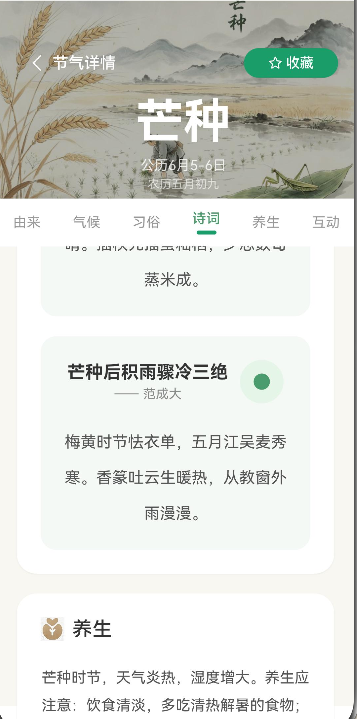
在上一篇文章中,我们完成了节气详情页的上半部分,包括顶部大图、基本信息、气候特点、物候现象和传统习俗。这篇文章将继续完成详情页的下半部分:
- 节气诗词展示
- 节气食谱推荐
- 养生建议
- 相关文章推荐
- 收藏和分享功能
通过本文,你将掌握更多高级UI组件的使用技巧,以及如何实现交互功能。
学习目标
完成本文后,你将能够:
- ✅ 实现诗词卡片的优雅展示
- ✅ 创建食谱列表展示
- ✅ 实现收藏功能
- ✅ 添加分享功能
- ✅ 处理页面交互状态
需求分析
功能模块设计
| 模块 | 功能描述 | 技术要点 |
|---|---|---|
| 诗词展示 | 展示与节气相关的古诗词 | 卡片布局、竖排文字 |
| 节气食谱 | 推荐应季美食 | 图片+文字、列表布局 |
| 养生建议 | 健康养生知识 | 图标+文字、分段展示 |
| 相关文章 | 推荐阅读 | 横向滚动、卡片布局 |
| 收藏分享 | 收藏和分享功能 | 状态切换、弹窗提示 |
核心实现
步骤1: 诗词展示区域
完整代码
typescript
/**
 * 构建诗词展示区域
 */
@Builder
buildPoetrySection(): void {
  Card() {
    Column({ space: 16 }) {
      // 标题
      Row({ space: 8 }) {
        Image($r('app.media.ic_poetry'))
          .width(20)
          .height(20)
          .fillColor('#4A9B6D')

        Text('节气诗词')
          .fontSize(18)
          .fontWeight(FontWeight.Bold)
          .fontColor('#333333')
      }

      // 诗词列表
      Column({ space: 16 }) {
        ForEach(this.holiday!.poetry || [], (poem: PoetryItem) => {
          this.buildPoetryCard(poem)
        }, (poem: PoetryItem) => poem.title)
      }
    }
    .padding(16)
  }
  .width('92%')
  .margin({ left: '4%', right: '4%' })
}

/**
 * 构建诗词卡片
 */
@Builder
buildPoetryCard(poem: PoetryItem): void {
  Column({ space: 12 }) {
    // 标题和作者
    Row({ space: 8 }) {
      Text(poem.title)
        .fontSize(16)
        .fontWeight(FontWeight.Bold)
        .fontColor('#333333')

      Text('·')
        .fontSize(14)
        .fontColor('#999999')

      Text(poem.author)
        .fontSize(14)
        .fontColor('#999999')
    }
    .width('100%')
    .justifyContent(FlexAlign.Center)

    // 诗句
    Column({ space: 8 }) {
      ForEach(poem.content, (line: string) => {
        Text(line)
          .fontSize(15)
          .fontColor('#555555')
          .fontStyle(FontStyle.Italic)
          .textAlign(TextAlign.Center)
          .letterSpacing(4)
      })
    }

    // 分隔线
    Divider()
      .width('80%')
      .color('#EEEEEE')
      .height(1)
  }
  .padding(16)
  .backgroundColor('#FAFAFA')
  .borderRadius(12)
}
设计要点
1. 诗词排版
- 使用居中对齐
- 增加字间距提升可读性
- 使用斜体风格营造诗意氛围
2. 卡片布局
- 浅灰色背景区分诗词区域
- 圆角边框增加美感
- 分隔线区分不同诗词
步骤2: 节气食谱区域
typescript
/**
 * 构建节气食谱区域
 */
@Builder
buildRecipesSection(): void {
  Card() {
    Column({ space: 16 }) {
      // 标题
      Row({ space: 8 }) {
        Image($r('app.media.ic_food'))
          .width(20)
          .height(20)
          .fillColor('#4A9B6D')

        Text('节气食谱')
          .fontSize(18)
          .fontWeight(FontWeight.Bold)
          .fontColor('#333333')
      }

      // 食谱列表
      Column({ space: 12 }) {
        ForEach(this.holiday!.recipes || [], (recipe: RecipeItem) => {
          this.buildRecipeCard(recipe)
        }, (recipe: RecipeItem) => recipe.name)
      }
    }
    .padding(16)
  }
  .width('92%')
  .margin({ left: '4%', right: '4%' })
}

/**
 * 构建食谱卡片
 */
@Builder
buildRecipeCard(recipe: RecipeItem): void {
  Row({ space: 12 }) {
    // 图片
    Image('rawfile://recipes/' + recipe.image)
      .width(100)
      .height(75)
      .borderRadius(8)
      .objectFit(ImageFit.Cover)

    // 内容
    Column({ space: 6 }) {
      // 名称和标签
      Row({ space: 8 }) {
        Text(recipe.name)
          .fontSize(15)
          .fontWeight(FontWeight.Medium)
          .fontColor('#333333')

        Text(recipe.type)
          .fontSize(11)
          .fontColor('#4A9B6D')
          .padding({ left: 6, right: 6, top: 2, bottom: 2 })
          .backgroundColor('#E8F5E9')
          .borderRadius(4)
      }

      // 简介
      Text(recipe.desc)
        .fontSize(13)
        .fontColor('#666666')
        .maxLines(2)
        .textOverflow({ overflow: TextOverflow.Ellipsis })

      // 食材标签
      Wrap({ spacing: 6 }) {
        ForEach(recipe.ingredients.slice(0, 3), (ingredient: string) => {
          Text(ingredient)
            .fontSize(11)
            .fontColor('#999999')
            .padding({ left: 4, right: 4, top: 2, bottom: 2 })
            .backgroundColor('#F0F0F0')
            .borderRadius(4)
        })
      }
    }
    .flexGrow(1)
  }
  .width('100%')
  .padding(12)
  .backgroundColor('#FAFAFA')
  .borderRadius(12)
  .onClick(() => {
    // 点击查看详情
    try {
      router.pushUrl({
        url: 'pages/RecipeDetail',
        params: { recipeId: recipe.id }
      });
    } catch (error) {
      console.error('路由跳转失败: ' + JSON.stringify(error));
    }
  })
}设计要点:
- 左图右文布局
- 食材标签使用Wrap自动换行
- 点击卡片跳转详情页
步骤3: 养生建议区域
typescript
/**
 * 构建养生建议区域
 */
@Builder
buildHealthSection(): void {
  Card() {
    Column({ space: 16 }) {
      // 标题
      Row({ space: 8 }) {
        Image($r('app.media.ic_health'))
          .width(20)
          .height(20)
          .fillColor('#4A9B6D')

        Text('养生建议')
          .fontSize(18)
          .fontWeight(FontWeight.Bold)
          .fontColor('#333333')
      }

      // 养生要点
      Column({ space: 12 }) {
        ForEach(this.healthTips, (tip: HealthTip) => {
          Row({ space: 12 }) {
            // 图标
            Stack({ alignContent: Alignment.Center }) {
              Circle()
                .width(40)
                .height(40)
                .fillColor(tip.color)

              Image(tip.icon)
                .width(20)
                .height(20)
                .fillColor('#FFFFFF')
            }

            // 内容
            Column({ space: 4 }) {
              Text(tip.title)
                .fontSize(14)
                .fontWeight(FontWeight.Medium)
                .fontColor('#333333')

              Text(tip.desc)
                .fontSize(13)
                .fontColor('#666666')
                .maxLines(2)
                .textOverflow({ overflow: TextOverflow.Ellipsis })
            }
            .flexGrow(1)
          }
          .width('100%')
        })
      }
    }
    .padding(16)
  }
  .width('92%')
  .margin({ left: '4%', right: '4%' })
}

// 养生建议数据
private healthTips: HealthTip[] = [
  {
    icon: $r('app.media.ic_diet'),
    title: '饮食调理',
    desc: '建议多食用清淡易消化的食物,如粥、汤羹等',
    color: '#4A9B6D'
  },
  {
    icon: $r('app.media.ic_exercise'),
    title: '运动养生',
    desc: '适当进行户外活动,如散步、太极拳等',
    color: '#F29F4A'
  },
  {
    icon: $r('app.media.ic_sleep'),
    title: '起居作息',
    desc: '保证充足睡眠,早睡早起,顺应自然规律',
    color: '#7AA7D9'
  },
  {
    icon: $r('app.media.ic_mind'),
    title: '情志调节',
    desc: '保持心情舒畅,避免情绪大起大落',
    color: '#F28FAE'
  }
];

interface HealthTip {
  icon: Resource;
  title: string;
  desc: string;
  color: string;
}设计要点:
- 使用彩色圆形图标
- 图标颜色与内容主题呼应
- 简洁的标题+描述结构
步骤4: 相关文章推荐
typescript
/**
 * 构建相关文章区域
 */
@Builder
buildRelatedArticles(): void {
  Card() {
    Column({ space: 12 }) {
      // 标题
      Row({ space: 8 }) {
        Image($r('app.media.ic_article'))
          .width(20)
          .height(20)
          .fillColor('#4A9B6D')

        Text('相关文章')
          .fontSize(18)
          .fontWeight(FontWeight.Bold)
          .fontColor('#333333')

        Blank()

        Text('查看更多')
          .fontSize(13)
          .fontColor('#4A9B6D')
          .onClick(() => {
            try {
              router.pushUrl({ url: 'pages/Encyclopedia' });
            } catch (error) {
              console.error('路由跳转失败: ' + JSON.stringify(error));
            }
          })
      }

      // 横向滚动列表
      Scroll() {
        Row({ space: 12 }) {
          ForEach(this.relatedArticles, (article: ArticleItem) => {
            this.buildRelatedArticleCard(article)
          }, (article: ArticleItem) => article.id)
        }
        .padding({ left: 4, right: 4 })
      }
      .scrollable(ScrollDirection.Horizontal)
      .scrollBar(BarState.Off)
    }
    .padding(16)
  }
  .width('92%')
  .margin({ left: '4%', right: '4%' })
}

/**
 * 构建相关文章卡片
 */
@Builder
buildRelatedArticleCard(article: ArticleItem): void {
  Column({ space: 8 }) {
    Image('rawfile://articles/' + article.coverImage)
      .width(140)
      .height(80)
      .borderRadius(8)
      .objectFit(ImageFit.Cover)

    Text(article.title)
      .fontSize(13)
      .fontColor('#333333')
      .maxLines(2)
      .textOverflow({ overflow: TextOverflow.Ellipsis })
      .width(140)
  }
  .width(140)
  .onClick(() => {
    try {
      router.pushUrl({
        url: 'pages/ArticleDetail',
        params: { articleId: article.id }
      });
    } catch (error) {
      console.error('路由跳转失败: ' + JSON.stringify(error));
    }
  })
}设计要点:
- 横向滚动展示
- 固定宽度保证布局整齐
- 点击查看详情
步骤5: 收藏和分享功能
typescript
/**
 * 构建底部操作栏
 */
@Builder
buildBottomBar(): void {
  Stack({ alignContent: Alignment.Bottom }) {
    // 底部背景
    Row()
      .width('100%')
      .height(80)
      .backgroundColor('#FFFFFF')
      .shadow({
        radius: 8,
        color: '#0D000000',
        offsetX: 0,
        offsetY: -4
      })
      .padding({ left: 16, right: 16 })

    // 操作按钮
    Row({ space: 16 }) {
      // 收藏按钮
      Column({ space: 4 }) {
        Image(this.isCollected ? $r('app.media.ic_collect_active') : $r('app.media.ic_collect'))
          .width(24)
          .height(24)
          .fillColor(this.isCollected ? '#FF5252' : '#999999')

        Text(this.isCollected ? '已收藏' : '收藏')
          .fontSize(11)
          .fontColor(this.isCollected ? '#FF5252' : '#999999')
      }
      .width('25%')
      .height('100%')
      .justifyContent(FlexAlign.Center)
      .onClick(() => {
        this.toggleCollection();
      })

      // 分享按钮
      Column({ space: 4 }) {
        Image($r('app.media.ic_share'))
          .width(24)
          .height(24)
          .fillColor('#999999')

        Text('分享')
          .fontSize(11)
          .fontColor('#999999')
      }
      .width('25%')
      .height('100%')
      .justifyContent(FlexAlign.Center)
      .onClick(() => {
        this.showShareMenu();
      })

      // 评论按钮
      Column({ space: 4 }) {
        Image($r('app.media.ic_comment'))
          .width(24)
          .height(24)
          .fillColor('#999999')

        Text('评论')
          .fontSize(11)
          .fontColor('#999999')
      }
      .width('25%')
      .height('100%')
      .justifyContent(FlexAlign.Center)
      .onClick(() => {
        try {
          router.pushUrl({ url: 'pages/Comment' });
        } catch (error) {
          console.error('路由跳转失败: ' + JSON.stringify(error));
        }
      })

      // 更多按钮
      Column({ space: 4 }) {
        Image($r('app.media.ic_more'))
          .width(24)
          .height(24)
          .fillColor('#999999')

        Text('更多')
          .fontSize(11)
          .fontColor('#999999')
      }
      .width('25%')
      .height('100%')
      .justifyContent(FlexAlign.Center)
      .onClick(() => {
        this.showMoreMenu();
      })
    }
    .width('100%')
    .height('100%')
  }
  .width('100%')
  .height(80)
  .position({ bottom: 0, left: 0 })
}

/**
 * 切换收藏状态
 */
async toggleCollection(): Promise<void> {
  try {
    if (this.isCollected) {
      await this.storageService.removeCollection(this.holidayId);
      this.isCollected = false;
      prompt.showToast({ message: '已取消收藏' });
    } else {
      await this.storageService.addCollection(this.holidayId);
      this.isCollected = true;
      prompt.showToast({ message: '收藏成功' });
    }
  } catch (error) {
    console.error('收藏操作失败: ' + JSON.stringify(error));
    prompt.showToast({ message: '操作失败' });
  }
}

/**
 * 显示分享菜单
 */
showShareMenu(): void {
  // 模拟分享功能
  prompt.showToast({ message: '分享功能开发中' });
}

/**
 * 显示更多菜单
 */
showMoreMenu(): void {
  // 模拟更多功能
  prompt.showToast({ message: '更多功能开发中' });
}设计要点:
- 固定定位在页面底部
- 四个功能按钮对称分布
- 收藏状态切换动画
- Toast提示操作结果
常见问题与解决方案
问题1: 收藏状态不同步
现象 :
收藏后返回首页,收藏状态没有更新。
原因:
- 收藏状态仅保存在本地
- 首页没有重新加载数据
解决方案:
typescript
// 使用AppStorage同步状态
@StorageLink('collections') collections: string[] = [];

// 检查是否收藏
isCollected(): boolean {
  return this.collections.includes(this.holidayId);
}
问题2: 分享功能无法实现
现象 :
HarmonyOS没有内置分享API。
解决方案:
typescript
// 使用系统能力
import share from '@ohos.share';

async shareArticle(): Promise<void> {
  try {
    await share.share({
      title: this.holiday!.name,
      content: this.holiday!.description,
      type: share.ShareType.TEXT
    });
  } catch (error) {
    console.error('分享失败: ' + JSON.stringify(error));
  }
}
问题3: 页面底部操作栏遮挡内容
现象 :
操作栏覆盖了部分内容。
解决方案:
typescript
Scroll() {
  Column({ space: 16 }) {
    // 内容
  }
  .padding({ bottom: 120 })  // 预留操作栏空间
}
本章小结
核心知识点
本文完成了详情页下半部分的实现:
1. 诗词展示
- 优雅的卡片布局
- 居中对齐的诗句排版
- 斜体风格营造氛围
2. 节气食谱
- 左图右文的列表布局
- 食材标签自动换行
- 点击跳转详情
3. 养生建议
- 图标+标题+描述结构
- 彩色圆形图标
- 分类展示不同养生要点
4. 相关文章
- 横向滚动展示
- 固定宽度卡片
- 点击跳转
5. 底部操作栏
- 固定定位在底部
- 收藏、分享、评论、更多功能
- Toast提示操作结果
最佳实践总结
✅ 诗词卡片
typescript
Column({ space: 12 }) {
  Text(title).fontSize(16).fontWeight(FontWeight.Bold)
  Text(author).fontSize(14).fontColor('#999')

  Column({ space: 8 }) {
    ForEach(content, (line) => {
      Text(line).fontStyle(FontStyle.Italic).letterSpacing(4)
    })
  }
}
✅ 底部操作栏
typescript
Stack({ alignContent: Alignment.Bottom }) {
  Row().height(80).backgroundColor('#FFFFFF')

  Row({ space: 16 }) {
    // 四个按钮
  }
}
.position({ bottom: 0, left: 0 })
下一步预告
详情页已经完成!在下一篇文章中,我们将学习:
- 文章详情页的实现
- 富文本展示
- 点赞和评论功能
- 相关文章推荐
相关链接
- 项目源码 : Atomgit仓库