RK Android OTA USB Upgrade Guide
- Author: Wu Sihan (Witheart)
- Last Updated: 20250310
Overview : This guide provides instructions on how to perform a USB OTA upgrade using update.zip.
For details on how to compile the update.zip package, please refer to the "RK Android OTA USB Upgrade Package Compilation Guide".
1. Upgrade Process
1.1 Place the update.zip File in the Required Location
The update.zip file can be placed in any of the following locations:
- Root directory of a USB flash drive
- Root directory of an SD card
/data/media/0/directory
1.2 Insert the USB Flash Drive or SD Card
- Insert the USB flash drive or SD card into the device and wait for about one minute.
- Important: Use a standard USB port. Avoid using an OTG USB port, as it may not be configured as a host in recovery mode, leading to a failed upgrade.
1.3 Automatic Upgrade Detection
-
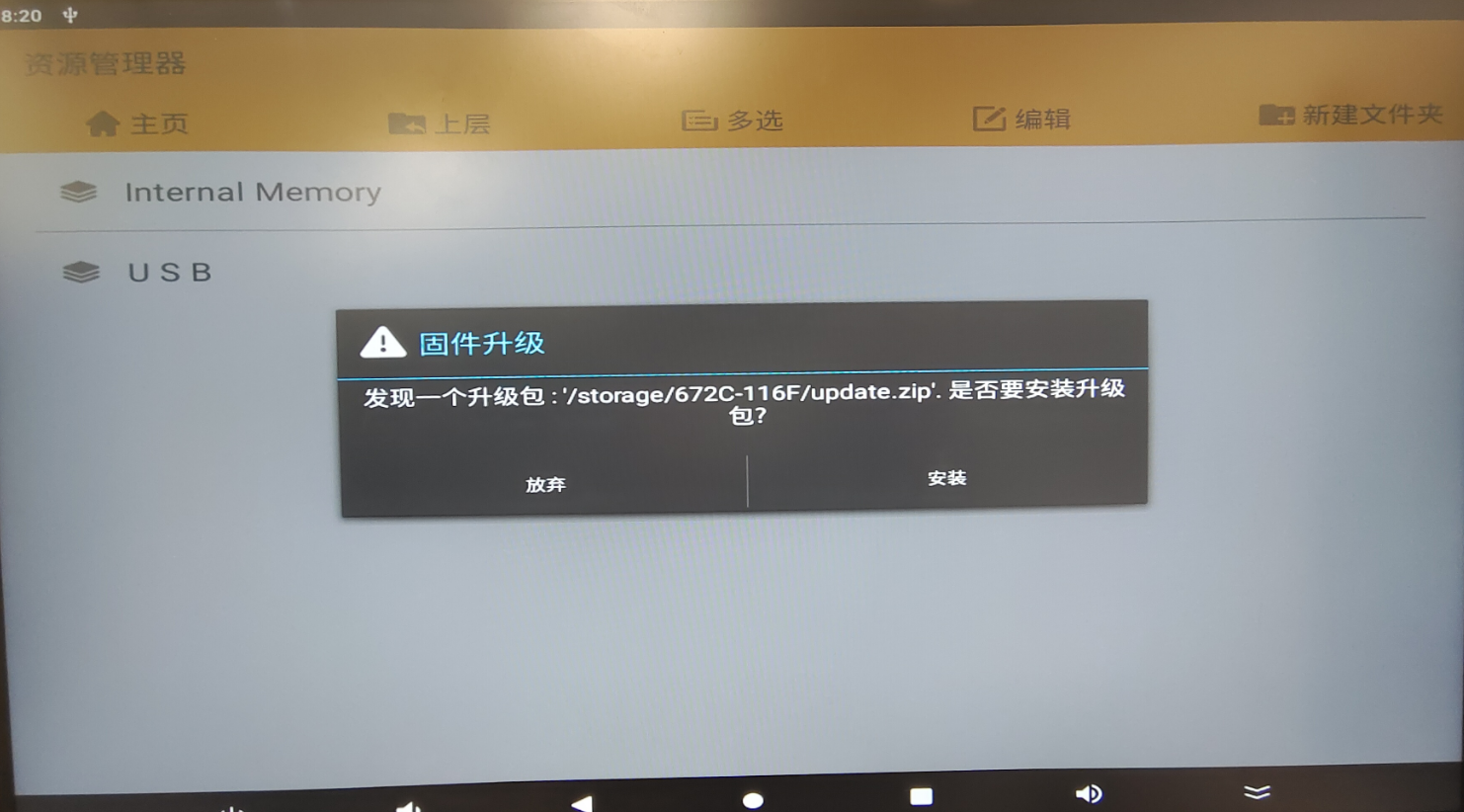
The system will automatically detect the upgrade package and display an upgrade prompt.
-
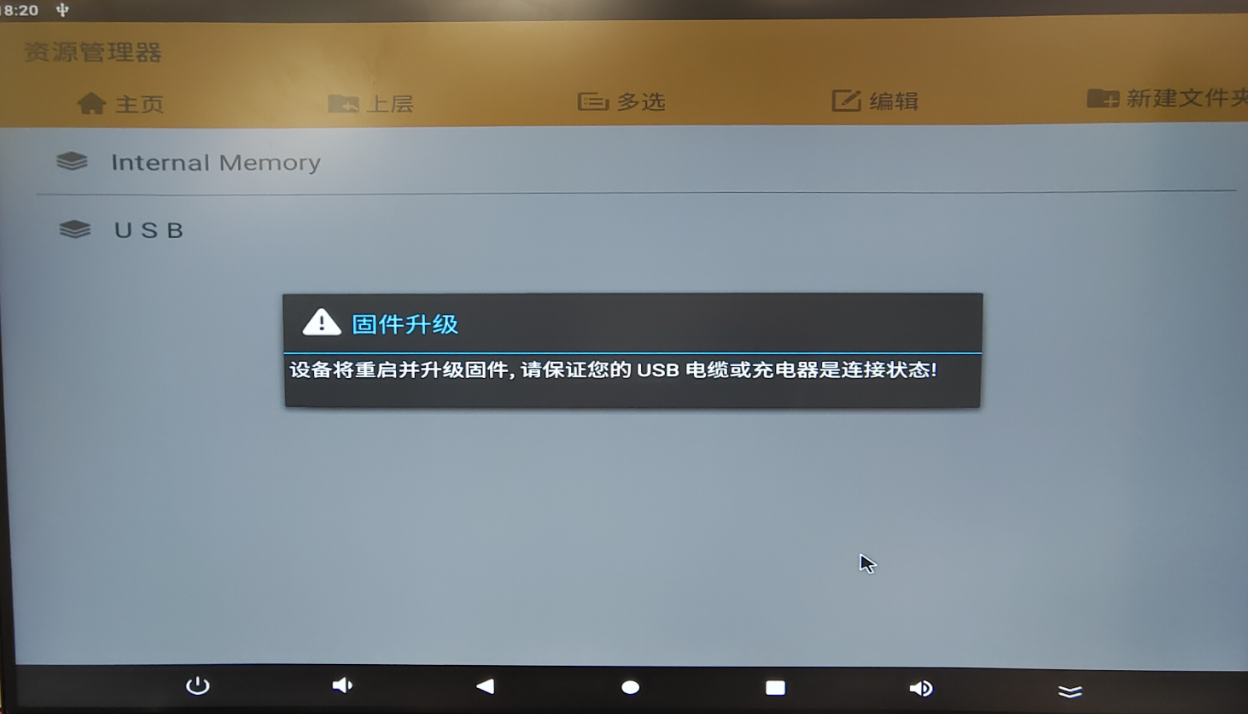
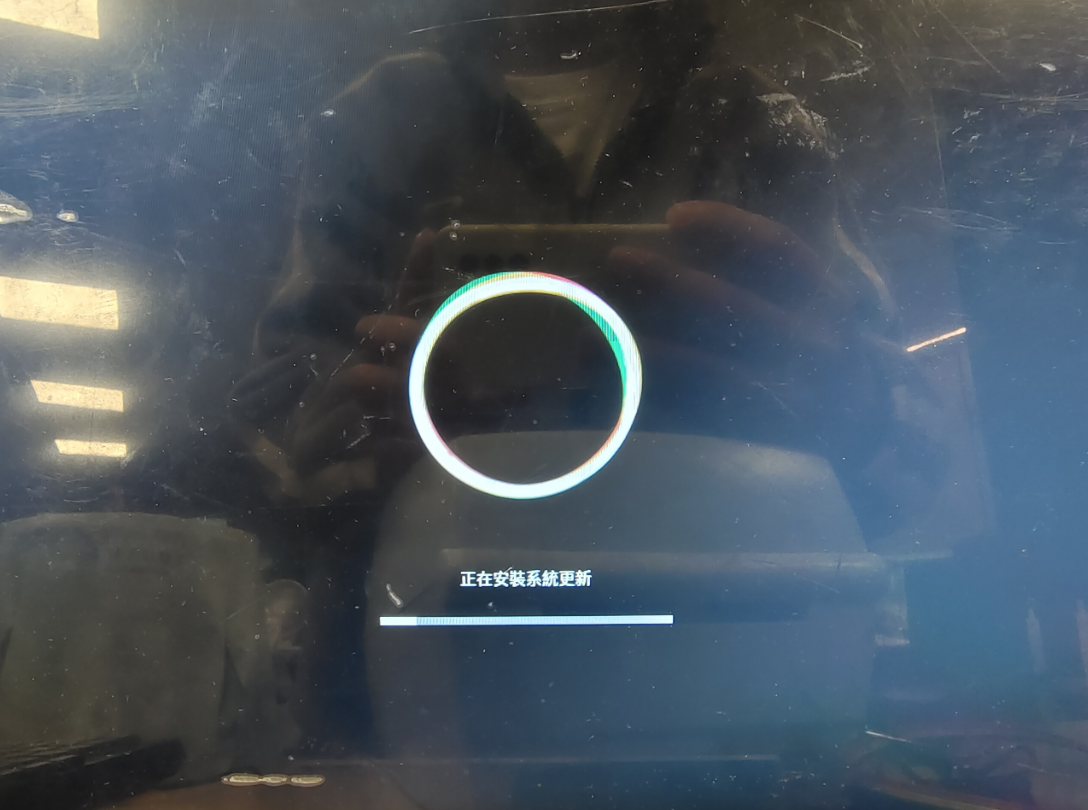
Click Install(安装) and wait patiently. Do not power off the device during the installation process. The system will reboot automatically once the installation is complete.
1.4 System Reboot
-
The device will restart during the upgrade process.

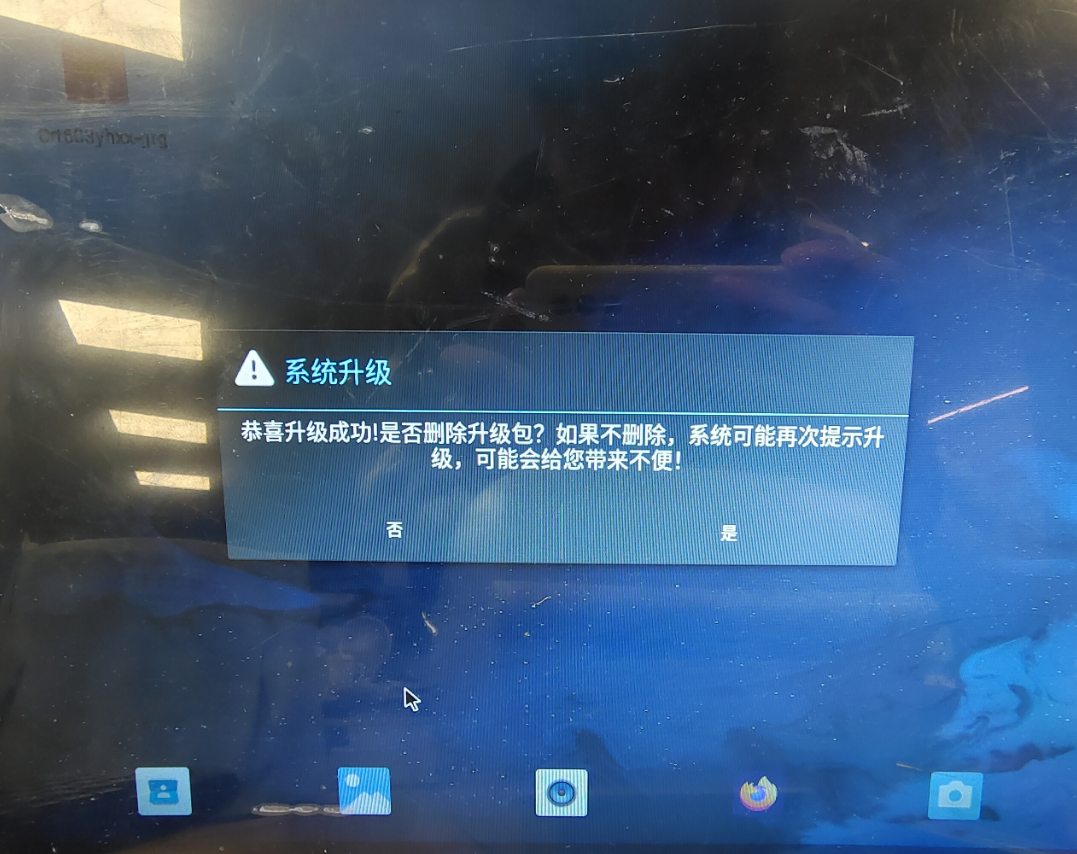
1.5 Upgrade Successful
-
Once the system reboots successfully, the upgrade is complete.