一、生成SHP文件
import geopandas as gpd
import numpy as np
import os
from shapely.geometry import Polygon  # <--- 添加这一行即可解决报错

def generate_cube_shp_optimized(output_dir="cube_shp_data_rgb", num_cubes=100):
    """
    生成带有独立RGB颜色字段的SHP文件,以完美兼容CesiumLab
    """
    # 1. 创建输出目录
    if not os.path.exists(output_dir):
        os.makedirs(output_dir)

    polygons, heights = [], []
    colors_r, colors_g, colors_b = [], [], []

    # 2. 循环生成随机立方体数据
    for _ in range(num_cubes):
        # 随机生成中心点坐标 (长沙附近区域)
        center_x = np.random.uniform(112.9, 113.0)
        center_y = np.random.uniform(28.1, 28.2)

        # 设置立方体底面的边长
        size = 0.0005
        half_size = size / 2

        # 创建闭合的矩形面
        polygon = gpd.pd.Series([Polygon([
            (center_x - half_size, center_y - half_size),
            (center_x + half_size, center_y - half_size),
            (center_x + half_size, center_y + half_size),
            (center_x - half_size, center_y + half_size),
            (center_x - half_size, center_y - half_size)
        ])])[0]
        polygons.append(polygon)

        # 赋予高度属性 (10 到 100 米)
        heights.append(np.random.randint(10, 100))

        # 生成独立的 RGB 颜色值 (0-255)
        colors_r.append(np.random.randint(0, 256))
        colors_g.append(np.random.randint(0, 256))
        colors_b.append(np.random.randint(0, 256))

    # 3. 构建 GeoDataFrame
    gdf = gpd.GeoDataFrame({
        'geometry': polygons,
        'height': heights,      # 高度字段
        'color_r': colors_r,    # 红色通道
        'color_g': colors_g,    # 绿色通道
        'color_b': colors_b     # 蓝色通道
    })

    # 4. 设置坐标系 (WGS84)
    gdf.set_crs(epsg=4326, inplace=True)

    # 5. 导出为 Shapefile
    output_path = os.path.join(output_dir, "cubes_rgb.shp")
    gdf.to_file(output_path, driver="ESRI Shapefile")

    print(f"成功生成 {num_cubes} 个带RGB颜色的立方体数据!")
    print(f"文件保存路径: {os.path.abspath(output_dir)}")

# 执行生成函数
if __name__ == "__main__":
    generate_cube_shp_optimized()
二、CesiumLab中处理
导入数据与模型切片
打开CesiumLab软件,在左侧菜单栏选择"数据处理"模块,点击"通用模型切片"(部分版本或场景下也称为"矢量楼块切片")。在输入文件选项中,点击"+SHP"导入准备好的矢量数据文件。
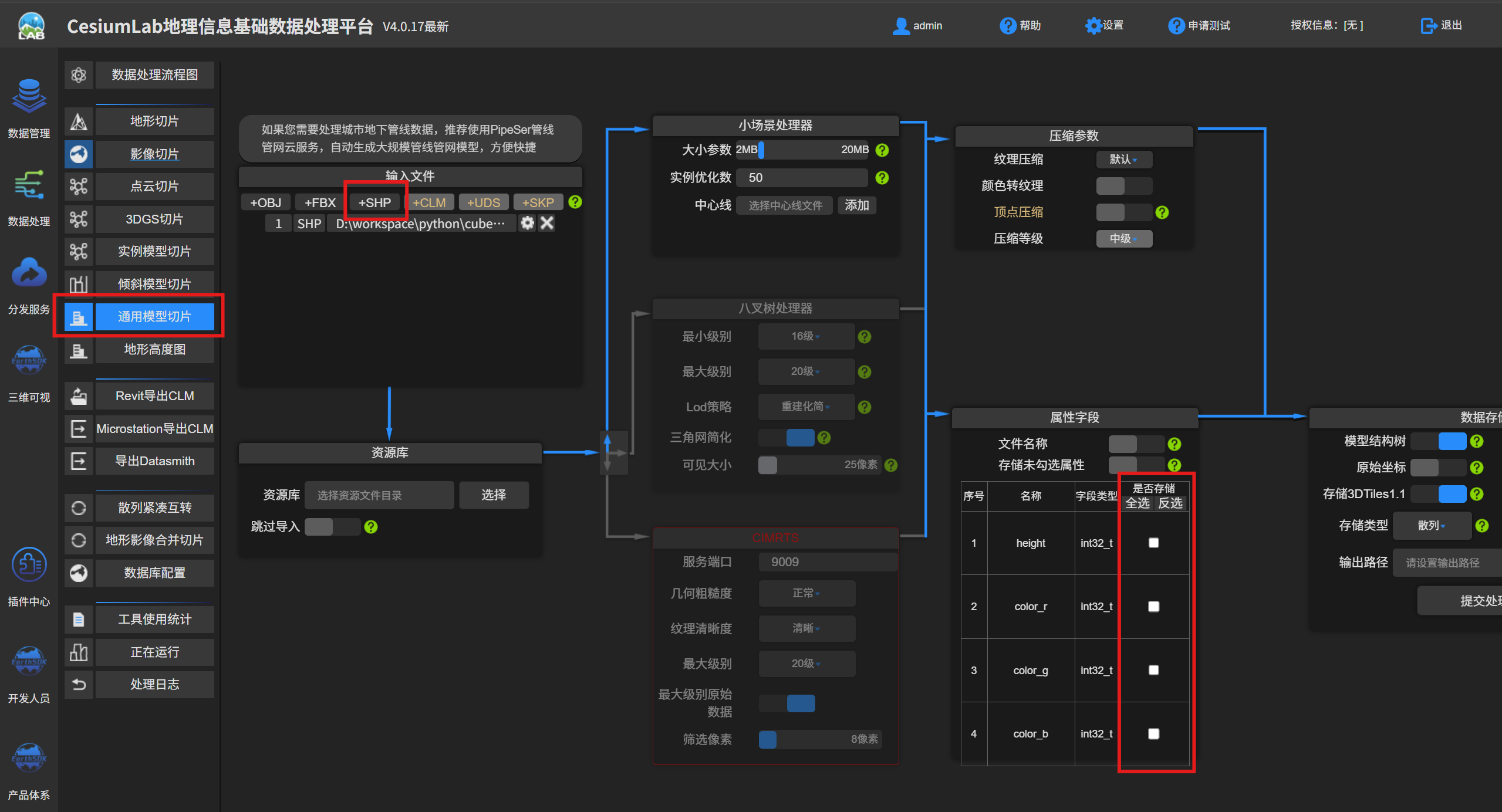
三、Cesium中加载3d-tiles并设置颜色
<!doctype html>
<html lang="zh-CN">
  <head>
    <meta charset="UTF-8" />
    <meta name="viewport" content="width=device-width, initial-scale=1.0" />
    <title>Cesium GeoJSON 线要素加载示例</title>
    <!-- 引入 Cesium 库(这里使用官方 CDN,你也可以替换为本地路径) -->
    <script src="https://unpkg.com/cesium@1.138.0/Build/Cesium/Cesium.js"></script>
    <link
      href="https://unpkg.com/cesium@1.138.0/Build/Cesium/Widgets/widgets.css"
      rel="stylesheet"
    />
    <style>
      html,
      body,
      #cesiumContainer {
        width: 100%;
        height: 100%;
        margin: 0;
        padding: 0;
        overflow: hidden;
      }

      .cesium-point-cloud {
        pointsize: 10px !important;
      }
    </style>
  </head>

  <body>
    <div id="cesiumContainer"></div>

    <script type="module">
      // 1. 初始化 Cesium 地图(替换 MFmap 为原生 Cesium 初始化)
      Cesium.Ion.defaultAccessToken =
        "defaultAccessToken"; // 替换为你的 Token,可从 Cesium 官网获取
      const viewer = new Cesium.Viewer("cesiumContainer", {
        // geocoder: false,
        // timeline: false,
        // animation: false,
        // baseLayerPicker: false,
        // fullscreenButton: false,
        // vrButton: false,
        // homeButton: false,
        // infoBox: false,
        // selectionIndicator: false,
        // navigationHelpButton: false,
        // sceneModePicker: false,
        // imageryProvider: false
      });

      // // 添加到地图
      // viewer.imageryLayers.addImageryProvider(gaodeImagery);

      // 定义异步加载函数
      async function loadLocalTileset() {
        try {
          // 拼接本地服务器URL
          // 注意:端口号需与你启动的服务器端口一致
          const url = "./3DTILES/cube/tileset.json";

          // 调用最新的 fromUrl 方法
          const tileset = await Cesium.Cesium3DTileset.fromUrl(url, {
            maximumScreenSpaceError: 0.5, // 强制最高精度
            skipLevelOfDetail: true, // 强制加载所有点
            dynamicScreenSpaceError: false, // 关闭自动隐藏
            cullRequestsWhileMoving: false, // 移动时不卸载
            cullWithChildrenBounds: false,
          });

          tileset.style = new Cesium.Cesium3DTileStyle({
            color: {
              conditions: [
                // 读取属性表中的 RGB 字段并应用颜色
                [
                  "true",
                  "rgba(${feature['color_r']}, ${feature['color_g']}, ${feature['color_b']}, 1.0)",
                ],
              ],
            },
          });

          // 添加到场景
          viewer.scene.primitives.add(tileset);

          // 调试:等待tileset加载完成后查看位置
          console.log("Tileset边界球中心:", tileset.boundingSphere.center);
          console.log("边界球半径:", tileset.boundingSphere.radius);

          // 尝试创建一个红色标记点来辅助定位
          const centerPoint = viewer.entities.add({
            position: tileset.boundingSphere.center,
            point: {
              color: Cesium.Color.RED,
              pixelSize: 10,
            },
          });

          // 尝试将相机移动到tileset位置
          viewer.camera.flyTo({
            destination: Cesium.Cartesian3.fromDegrees(
              116.403874,
              39.914885,
              300,
            ),
            orientation: {
              heading: 0,
              pitch: Cesium.Math.toRadians(-60),
              roll: 0,
            },
            duration: 1,
          });
        } catch (error) {
          console.error("加载失败:", error);
        }
      }

      loadLocalTileset();
    </script>
  </body>
</html>