个人作品集小程序 · 开发笔记
0. 前情提要
- 本篇记录一次个人微信小程序的开发过程(与 AI 协作完成)。调研后发现,小程序生态对 JavaScript 的支持比 TypeScript 更成熟;此前在 TS/TSX 上的积累不必作废------二者核心差异主要在类型校验 ,业务逻辑与写法大体相通。因此本次展示改用 JS 编写,以适配小程序的运行环境。
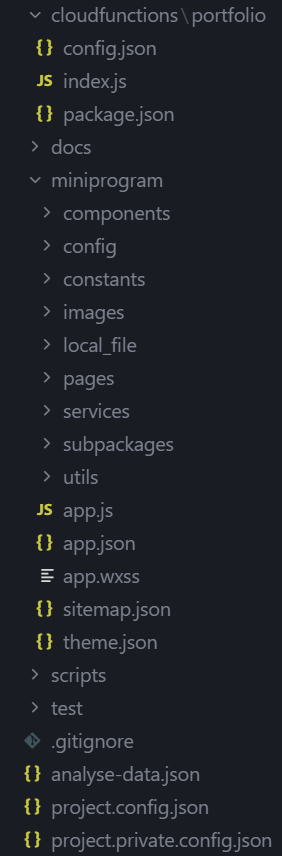
大致项目架构图,可以看出和后端分层项目很像:UI 只展示,services 管业务,云函数 + 云数据库当服务端 ,中间用本机wx.storage做缓存。
| 目录 | 作用 |
|---|---|
| config | 运行配置;env.local.js 填写云环境 ID,决定是否走云开发 |
| local_file | 种子数据(相当于建库脚本):首次云库为空时写入;日常线上数据以云数据库为准,发版不会自动覆盖已有云端内容 |
| constants | 全局常量与枚举的单一数据源(如作品分类 miniprogram / 文章 / 其他),改一处即可让 services、页面、组件跟随 |
| services | 数据访问层:UI 只调这里 。store 管本机缓存;cloudApi / cloudSync 负责拉取、防抖同步;profile / works / timeline / resume / messages 等领域模块封装读写;editMode 管编辑模式鉴权 |
| cloudfunctions/portfolio(仓库根目录) | 云函数:读写 site_data/main、校验编辑密码、留言可见性过滤(访客只见公开 + 自己的留言,编辑模式见全部) |
| utils | 与业务弱耦合的工具(日期、Markdown、选图、图片压缩/上传云存储等) |
| components | 可复用 UI(work-card、calendar、markdown,以及 Hub 里的 panel-home / panel-works / panel-timeline / panel-mine 等),页面负责拼装 |
| pages | 路由入口;主入口是 hub(底部滑动切换各 panel),详情、编辑、留言等走独立页 |
| images | 静态图片资源 |
| subpackages | 分包(如作品 Demo demo-shop),按需加载以控制主包体积 |
数据流简述:local_file →(云库为空时)云数据库 site_data/main ↔ 本机 wx.storage ↔ services/* → pages / components。编辑模式下的修改同步到云端,所有用户 onShow 时拉取最新内容。
0.1 推荐学习顺序
由「数据从哪来」到「界面怎么长出来」,便于和后端项目对照理解:
- constants --- 分类、枚举等不变约定
- services/store + cloudApi + cloudSync --- 缓存、拉取、同步(核心管道)
- cloudfunctions/portfolio --- 与上一步对照,看服务端权限与留言过滤
- services 领域模块 + editMode ---
profile/works/messages等业务 API - utils --- 被 services、组件共用的工具
- components --- 面板与卡片如何消费 services
- pages + app.js --- 路由、Hub、
onLaunch/onShow生命周期 - subpackages --- 分包与 Demo
1. Services 层
services 负责数据与业务逻辑 :UI 不直接碰 wx.storage 或云函数,统一经 store 与各领域模块读写。不同语言/框架的差异主要在调用方式,核心仍是「准备好变量与处理逻辑,展示层再调用」------和游戏开发里「数据与表现分离」是同一套思路。
1.1 appearance.js
SURFACES 存 light/dark 色板;其余函数通过 module.exports 导出。重要函数及调用位置:
- initAppearance(app) :
app.js的onLaunch,启动时初始化主题并监听系统深浅切换。 - applyPageTheme(page) :独立页
onLoad/onShow里调用(hub、messages、work-detail、timeline-detail、resume),给当前页写入themeStyle、colorScheme。 - refreshAppearance(app) :
panel-mine切换外观时调用,刷新全局 + 当前已打开的所有页面。 - fullVarsStyle() / getColorScheme() :各 Hub panel(
panel-home、panel-works、panel-timeline-*、panel-mine)刷新数据时setData;app.js写入globalData;markdown组件读getColorScheme()渲染代码块配色。 - cycleColorSchemePreference() 等偏好读写:仅
panel-mine「外观」切换按钮使用。
WXML 侧:根 view 绑 style="{``{themeStyle}}",配合 app.wxss 及各页 .wxss 里的 var(--bg) 等生效。
appearance.js 源码
javascript
/**
 * 浅色/深色外观:支持跟随系统、手动浅色、手动深色;与 profile.theme 强调色叠加
 */
const { getTheme, varsStyle: profileVarsStyle } = require('./theme.js');

const PREF_KEY = 'pf:colorSchemePref';

const SURFACES = {
  light: {
    bg: '#f5f6fa',
    card: '#ffffff',
    border: '#e2e8f0',
    shadow: '0 8rpx 24rpx rgba(15, 23, 42, 0.06)',
    shadowStrong: '0 16rpx 40rpx rgba(15, 23, 42, 0.1)',
    navBg: '#ffffff',
    navTxt: 'black',
    windowBg: '#f5f6fa',
    text1: '#0f172a',
    text2: '#475569',
    text3: '#94a3b8'
  },
  dark: {
    bg: '#0f172a',
    card: '#1e293b',
    border: '#334155',
    shadow: '0 8rpx 24rpx rgba(0, 0, 0, 0.35)',
    shadowStrong: '0 16rpx 40rpx rgba(0, 0, 0, 0.45)',
    navBg: '#1e293b',
    navTxt: 'white',
    windowBg: '#0f172a',
    text1: '#f1f5f9',
    text2: '#cbd5e1',
    text3: '#64748b'
  }
};

const PREF_OPTIONS = [
  { value: 'auto', label: '跟随系统' },
  { value: 'light', label: '浅色' },
  { value: 'dark', label: '深色' }
];

function getSystemColorScheme() {
  try {
    const info = wx.getSystemInfoSync();
    return info.theme === 'dark' ? 'dark' : 'light';
  } catch (e) {
    return 'light';
  }
}

function getColorSchemePreference() {
  try {
    const v = wx.getStorageSync(PREF_KEY);
    if (v === 'light' || v === 'dark' || v === 'auto') return v;
  } catch (e) { /* ignore */ }
  return 'auto';
}

function saveColorSchemePreference(pref) {
  const v = pref === 'light' || pref === 'dark' ? pref : 'auto';
  try {
    wx.setStorageSync(PREF_KEY, v);
  } catch (e) { /* ignore */ }
  return v;
}

function cycleColorSchemePreference() {
  const cur = getColorSchemePreference();
  const idx = PREF_OPTIONS.findIndex((o) => o.value === cur);
  const next = PREF_OPTIONS[(idx + 1) % PREF_OPTIONS.length];
  saveColorSchemePreference(next.value);
  return next;
}

function getColorSchemePreferenceLabel(pref) {
  const p = pref || getColorSchemePreference();
  const hit = PREF_OPTIONS.find((o) => o.value === p);
  return hit ? hit.label : '跟随系统';
}

function getColorScheme() {
  const pref = getColorSchemePreference();
  if (pref === 'light' || pref === 'dark') return pref;
  return getSystemColorScheme();
}

function getSurface(scheme) {
  return SURFACES[scheme === 'dark' ? 'dark' : 'light'];
}

function surfaceVarsStyle(scheme) {
  const s = getSurface(scheme);
  return [
    `--bg:${s.bg}`,
    `--card:${s.card}`,
    `--border:${s.border}`,
    `--shadow:${s.shadow}`,
    `--shadow-strong:${s.shadowStrong}`,
    `--text-1:${s.text1}`,
    `--text-2:${s.text2}`,
    `--text-3:${s.text3}`
  ].join(';');
}

function fullVarsStyle(scheme) {
  const sch = scheme || getColorScheme();
  const surface = getSurface(sch);
  const theme = getTheme();
  const profileVars = profileVarsStyle({
    text1: surface.text1,
    text2: surface.text2,
    text3: surface.text3,
    primary: theme.primary
  });
  return surfaceVarsStyle(sch) + ';' + profileVars;
}

function applyPageTheme(pageInstance) {
  if (!pageInstance || typeof pageInstance.setData !== 'function') return;
  const pref = getColorSchemePreference();
  const scheme = getColorScheme();
  pageInstance.setData({
    colorScheme: scheme,
    colorSchemePref: pref,
    colorSchemeLabel: getColorSchemePreferenceLabel(pref),
    themeStyle: fullVarsStyle(scheme)
  });
}

function applyWindowBackground(scheme) {
  try {
    const s = getSurface(scheme);
    if (typeof wx.setBackgroundColor === 'function') {
      wx.setBackgroundColor({
        backgroundColor: s.windowBg,
        backgroundColorTop: s.windowBg,
        backgroundColorBottom: s.windowBg
      });
    }
  } catch (e) { /* ignore */ }
}

function refreshAppearance(app) {
  const scheme = getColorScheme();
  const pref = getColorSchemePreference();
  const style = fullVarsStyle(scheme);
  if (app && app.globalData) {
    app.globalData.colorScheme = scheme;
    app.globalData.colorSchemePref = pref;
    app.globalData.themeStyle = style;
  }
  applyWindowBackground(scheme);
  try {
    const s = getSurface(scheme);
    wx.setNavigationBarColor({
      frontColor: scheme === 'dark' ? '#ffffff' : '#000000',
      backgroundColor: s.navBg,
      animation: { duration: 200, timingFunc: 'easeIn' }
    });
  } catch (e) { /* ignore */ }

  const pages = getCurrentPages();
  pages.forEach((page) => {
    if (page && typeof page.setData === 'function') {
      const patch = {
        colorScheme: scheme,
        themeStyle: style
      };
      if (
        page.data &&
        ('colorSchemePref' in page.data ||
          'colorSchemeLabel' in page.data ||
          page.route === 'pages/hub/index')
      ) {
        patch.colorSchemePref = pref;
        patch.colorSchemeLabel = getColorSchemePreferenceLabel(pref);
      }
      page.setData(patch);
    }
    if (typeof page._refreshActivePanel === 'function') {
      page._refreshActivePanel();
    }
  });
}

function initAppearance(app) {
  applyWindowBackground(getColorScheme());
  refreshAppearance(app);
  if (wx.onThemeChange) {
    wx.onThemeChange(() => {
      if (getColorSchemePreference() === 'auto') {
        refreshAppearance(app);
      }
    });
  }
}

module.exports = {
  PREF_KEY,
  PREF_OPTIONS,
  SURFACES,
  getSystemColorScheme,
  getColorSchemePreference,
  saveColorSchemePreference,
  cycleColorSchemePreference,
  getColorSchemePreferenceLabel,
  getColorScheme,
  getSurface,
  surfaceVarsStyle,
  fullVarsStyle,
  applyPageTheme,
  applyWindowBackground,
  refreshAppearance,
  initAppearance
};
1.2 cloudApi.js 与 cloudSync.js
二者分工:cloudApi = 传输层 (怎么连云、怎么调云函数);cloudSync = 同步层 (站点数据在云端和本机之间怎么拉/推)。UI 和领域 service 一般不直接碰它们,而是通过 store.js 统一读写;留言、编辑模式等少数场景会直接调 cloudApi。
整体数据流
config/env.js(cloudEnvId)
        ↓
cloudApi.isCloudEnabled()  ──否──→  纯 wx.storage 本地模式
        ↓ 是
cloudApi.call(action)  →  云函数 portfolio  →  云数据库 site_data/main
        ↑↓
cloudSync.pullFromCloud / pushToCloud  ↔  wx.storage(pf:profile、pf:works...)
        ↑
store.get / store.set  ←  profile.js、works.js、pages...
未配置 cloudEnvId 时,两个文件里的函数都会 early return,小程序完全走本地,不影响开发调试。
cloudApi.js --- 云函数调用封装
固定调用云函数 portfolio (仓库根 cloudfunctions/portfolio),通过 action 字段区分业务。
| 函数 | 作用 | 被谁调用 |
|---|---|---|
| isCloudEnabled() | 读 config/env.js 是否填了云环境 ID |
store、app.js、editMode、messages、cloudSync、panel-mine、utils/image --- 几乎所有云相关分支的开关 |
| initCloud() | wx.cloud.init,只执行一次 |
store.initStore、cloudSync.uploadImage |
| call(action, data) | wx.cloud.callFunction,统一处理 result.ok === false |
见下方 action 表 |
| getEditToken / setEditToken | 读写本机 pf:editToken(编辑模式登录后云端签发) |
editMode.tryEnter 写入;exitEditMode 清空 |
| authPayload(extra) | 把 editToken 自动拼进请求体 |
store 拉取、cloudSync.pushToCloud;messages 的 list/patch;需编辑权限的操作 |
call 用到的 action(与云函数一一对应):
| action | 谁发起 | 用途 |
|---|---|---|
getSite |
cloudSync.pullFromCloud | 拉全站数据到本地;访客侧留言会被服务端过滤 |
saveSite |
cloudSync.pushToCloud | 把本地快照写回云端(编辑模式需 token) |
initSite |
cloudSync.initCloudSite | 云库为空时写入种子数据 |
verifyEdit |
editMode.tryEnter | 校验编辑密码,返回 token |
getVisitorId |
messages.initVisitorId | 用 OPENID 标识访客 |
listMessages / addMessage / patchMessage |
messages.js | 留言独立走云函数,不经 cloudSync 的 saveSite |
留言刻意不走 schedulePush:store.set 写非 MESSAGES 键时才防抖上传,避免用不完整的本地留言列表覆盖云端。
cloudSync.js --- 云数据库 ↔ 本地 storage
负责把 profile / resume / works / timeline / config(及可选的 messages)在云端文档 site_data/main 与 wx.storage 之间同步。
| 函数 | 作用 | 被谁调用 |
|---|---|---|
| pullFromCloud(extra) | 调 getSite,_applySiteToLocal 写入各 pf:* 键;并发时 _pulling 防重入 |
store.initStore(启动拉取)、store.refreshFromCloud(app.onShow 等刷新) |
| pushToCloud(options) | 从本地拼快照,saveSite 上传;includeMessages: true 时带上留言 |
store.reseed、panel-mine 导入 JSON 后强制同步 |
| schedulePush() | 600ms 防抖后调 pushToCloud | store.set --- 编辑模式下每次改 profile/works 等自动延迟上传 |
| initCloudSite(seedSite) | 云库为空时 initSite |
store.initStore(pull 返回 empty)、store.reseed |
| uploadImage(localPath) | wx.cloud.uploadFile 上传云存储,返回 fileID |
utils/image.js 选图/压缩后上传封面等 |
| buildSiteSnapshot | 从 storage 组装上传用的 site 对象 | 内部被 pushToCloud 使用;也可单独用于备份逻辑 |
内部 _applySiteToLocal :把云端 site 对象拆写进 pf:profile、pf:works 等键,并记录 pf:cloud:meta.updatedAt。
在其他模块里怎么串起来
store.js(核心编排)
initStore():种子版本检查 →pullFromCloud→ 若云端空则initCloudSite(种子)set(key, value):写 storage 后,非留言键且已开云 →schedulePush()refreshFromCloud():前台onShow时拉最新;编辑模式下authPayload才能拉到隐藏留言
editMode.js
- 开云:
cloudApi.call('verifyEdit')→setEditToken→refreshFromCloud - 关云:本地比对
config.editPassword
messages.js
- 直接
cloudApi.call,不经过 cloudSync(留言读写与站点 bulk sync 分离) app.onLaunch开云时initVisitorId()
app.js
initStore().finally(...)之后,若开云则initVisitorId()onShow→refreshFromCloud()→ 刷新 Hub panel
panel-mine
- 导入备份 JSON 成功后 →
pushToCloud({ includeMessages: true })推到云端
utils/image.js
- 开云时压缩图走
cloudSync.uploadImage,否则用本地临时路径
和后端分层项目的对照
| 本项目的层 | 类似后端概念 |
|---|---|
| cloudApi.js | HTTP 客户端 / RPC stub(只负责发请求、带 token) |
| cloudSync.js | 同步服务(pull/push、防抖、快照) |
| store.js | Repository + 缓存(UI 唯一数据入口) |
| cloudfunctions/portfolio | Controller + Service + DB(权限、留言过滤在服务端) |
UI 层(pages、components、profile.js 等)只需 store.get/set 或领域 service(messages、works),不必关心云函数名和 storage 键名------这就是把 cloudApi / cloudSync 单独拆出来的原因。
cloudApi.js 源码
javascript
/**
 * 云函数调用封装。
 */
const { cloudEnvId } = require('../config/env.js');

const FN = 'portfolio';
const EDIT_TOKEN_KEY = 'pf:editToken';

let _inited = false;

function isCloudEnabled() {
  return !!(cloudEnvId && String(cloudEnvId).trim());
}

function initCloud() {
  if (!isCloudEnabled() || _inited) return;
  wx.cloud.init({ env: cloudEnvId, traceUser: true });
  _inited = true;
}

function call(action, data) {
  initCloud();
  return new Promise((resolve, reject) => {
    wx.cloud
      .callFunction({
        name: FN,
        data: Object.assign({ action }, data || {})
      })
      .then((res) => {
        const result = (res && res.result) || {};
        if (result.ok === false) {
          reject(new Error(result.error || '云函数失败'));
          return;
        }
        resolve(result);
      })
      .catch(reject);
  });
}

function getEditToken() {
  try {
    return wx.getStorageSync(EDIT_TOKEN_KEY) || '';
  } catch (e) {
    return '';
  }
}

function setEditToken(token) {
  try {
    if (token) wx.setStorageSync(EDIT_TOKEN_KEY, token);
    else wx.removeStorageSync(EDIT_TOKEN_KEY);
  } catch (e) {}
}

function authPayload(extra) {
  return Object.assign({ editToken: getEditToken() }, extra || {});
}

module.exports = {
  isCloudEnabled,
  initCloud,
  call,
  getEditToken,
  setEditToken,
  authPayload,
  EDIT_TOKEN_KEY
};
cloudSync.js 源码
javascript
/**
 * 云数据库 ↔ 本地 wx.storage 同步。
 */
const cloudApi = require('./cloudApi.js');

const KEYS = {
  PROFILE: 'pf:profile',
  RESUME: 'pf:resume',
  WORKS: 'pf:works',
  TIMELINE: 'pf:timeline',
  MESSAGES: 'pf:messages',
  CONFIG: 'pf:config'
};

const CLOUD_META_KEY = 'pf:cloud:meta';
const PUSH_DEBOUNCE_MS = 600;

let _pushTimer = null;
let _pulling = false;

function _localGet(key, fallback) {
  try {
    const v = wx.getStorageSync(key);
    return v === '' || v === undefined || v === null ? fallback : v;
  } catch (e) {
    return fallback;
  }
}

function _localSet(key, value) {
  try {
    wx.setStorageSync(key, value);
  } catch (e) {}
}

function _applySiteToLocal(site) {
  if (!site) return;
  if (site.profile !== undefined) _localSet(KEYS.PROFILE, site.profile);
  if (site.resume !== undefined) _localSet(KEYS.RESUME, site.resume);
  if (site.works !== undefined) _localSet(KEYS.WORKS, site.works);
  if (site.timeline !== undefined) _localSet(KEYS.TIMELINE, site.timeline);
  if (site.messages !== undefined) _localSet(KEYS.MESSAGES, site.messages);
  if (site.config !== undefined) _localSet(KEYS.CONFIG, site.config);
  if (site.updatedAt) {
    _localSet(CLOUD_META_KEY, { updatedAt: site.updatedAt });
  }
}

function buildSiteSnapshot(options) {
  const snapshot = {
    profile: _localGet(KEYS.PROFILE, {}),
    resume: _localGet(KEYS.RESUME, ''),
    works: _localGet(KEYS.WORKS, []),
    timeline: _localGet(KEYS.TIMELINE, []),
    config: _localGet(KEYS.CONFIG, {}),
    updatedAt: Date.now()
  };
  if (options && options.includeMessages) {
    snapshot.messages = _localGet(KEYS.MESSAGES, []);
  }
  return snapshot;
}

function pullFromCloud(extra) {
  if (!cloudApi.isCloudEnabled()) return Promise.resolve({ ok: false, local: true });
  if (_pulling) return Promise.resolve({ ok: true, skipped: true });
  _pulling = true;
  const payload = Object.assign({}, extra || {});
  return cloudApi
    .call('getSite', payload)
    .then((res) => {
      if (res.empty) return { ok: true, empty: true };
      _applySiteToLocal(res.site);
      return { ok: true, updatedAt: res.site && res.site.updatedAt };
    })
    .finally(() => {
      _pulling = false;
    });
}

function pushToCloud(options) {
  if (!cloudApi.isCloudEnabled()) return Promise.resolve();
  const patch = buildSiteSnapshot(options);
  return cloudApi.call('saveSite', cloudApi.authPayload({ patch }));
}

function schedulePush() {
  if (!cloudApi.isCloudEnabled()) return;
  clearTimeout(_pushTimer);
  _pushTimer = setTimeout(() => {
    pushToCloud().catch((err) => {
      console.warn('[cloudSync] push failed', err);
    });
  }, PUSH_DEBOUNCE_MS);
}

function initCloudSite(seedSite) {
  if (!cloudApi.isCloudEnabled()) return Promise.resolve();
  return cloudApi.call('initSite', { site: seedSite }).catch((err) => {
    console.warn('[cloudSync] init failed', err);
  });
}

function uploadImage(localPath, cloudPath) {
  if (!cloudApi.isCloudEnabled()) {
    return Promise.resolve(localPath);
  }
  cloudApi.initCloud();
  const path = cloudPath || `images/${Date.now()}_${Math.random().toString(36).slice(2, 8)}.jpg`;
  return new Promise((resolve, reject) => {
    wx.cloud.uploadFile({
      cloudPath: path,
      filePath: localPath,
      success: (res) => resolve(res.fileID),
      fail: reject
    });
  });
}

module.exports = {
  pullFromCloud,
  pushToCloud,
  schedulePush,
  initCloudSite,
  uploadImage,
  buildSiteSnapshot,
  _applySiteToLocal
};
2. Components 层
与 Services 管「数据与逻辑」相对,components 负责可复用的 UI 展示 :从 Hub 四大 Tab 面板,到作品卡片、月历、Markdown 等通用块,都在这里封装。页面(pages)只做路由与拼装------例如 hub 横向滑动切换四个 panel-*,各 panel 再调用 services 取数并组合子组件。UI 不直接读写存储,统一经 services 层。
2.1 组件总览
miniprogram/components/ 下每个子目录是一个独立自定义组件(标准四件套 index.js / .wxml / .wxss / .json):
components/
├── panel-home/              # Hub · 首页
├── panel-works/             # Hub · 作品
├── panel-timeline/          # Hub · 时间线(双视图容器)
├── panel-timeline-cal/      # 时间线 · 日历视图
├── panel-timeline-strip/    # 时间线 · 竖条视图
├── panel-mine/              # Hub · 我的
├── work-card/               # 作品卡片
├── section-header/          # 区块标题栏
├── empty-state/             # 空状态占位
├── calendar/                # 月历
├── timeline-vertical/       # 竖版时间轴列表
├── markdown/                # Markdown 渲染
└── elastic-scroll/ # 弹性纵向滚动| 目录 | 功能 |
|---|---|
| panel-home | Hub 首页:头像与简介、精选作品、近期动态汇总;可跳转其他 Tab 或详情页 |
| panel-works | Hub 作品页:按分类 Tab 筛选列表,编辑模式下可增删改、置顶、换封面 |
| panel-timeline | Hub 时间线页外壳:在「日历 / 竖条」两子视图间滑动切换,处理 Tab 滑块与 Hub 横滑手势协调 |
| panel-timeline-cal | 时间线日历子视图:嵌入 calendar 选日,展示当日事件与备忘,编辑模式可删事件、写日备注 |
| panel-timeline-strip | 时间线竖条子视图:横向条带概览 + timeline-vertical 完整列表 |
| panel-mine | Hub 我的页:个人资料编辑、主题/外观切换、编辑模式入口、数据导入导出 |
| work-card | 通用作品卡片:封面、标题、分类标签;被 panel-home / panel-works 复用 |
| section-header | 区块标题栏:标题 + 副标题 + 可选右侧操作按钮 |
| empty-state | 列表为空时的占位提示(标题 + 描述) |
| calendar | 可纵向连续滚动的月历,按 eventMap 给有事件的日期着色 |
| timeline-vertical | 按时间倒序渲染事件竖轴,标注起止日期与标签色 |
| markdown | 将 Markdown 字符串转为 HTML 展示,代码块配色跟随深浅主题 |
| elastic-scroll | 纵向滚动容器:iOS 原生回弹,Android 补充边界橡皮筋效果;Hub 各 panel 与多个详情页的外层包裹 |
拼装关系:pages/hub 挂载四个 panel-*;panel-timeline 再嵌套 panel-timeline-cal / panel-timeline-strip;后者分别使用 calendar、timeline-vertical 等通用组件。
2.2 calendar/index.js
可纵向连续滚动的月历:一次预生成约 36 个月(MONTH_SPAN)的周历行,周与周无缝衔接;滚动时自动识别当前可见月份并同步顶部年月选择器。父组件传入 eventMap(日期 → 事件数组)后,有记录的格子会按事件标签着色;点击日期或「今天」按钮向外抛出 select 事件。
依赖的工具方法 (组件本身不直接调 services):
| 来源 | 方法 | 用途 |
|---|---|---|
utils/date.js |
getContinuousWeeks |
从起始年月生成连续周历网格(含农历 lunarLabel) |
addMonths |
上/下月切换、计算滚动窗口起点 | |
formatDate |
日期 key、today 标记 |
|
utils/color.js |
colorForTag / withAlpha |
按事件 tag 取色并生成格子背景 tint |
对外接口:
- properties :
year、month(当前月)、selected(高亮日期)、eventMap(着色数据源) - events :
monthchange(滚动/切换导致月份变化)、select(用户点选某日或「今天」)
被谁使用 :panel-timeline-cal(Hub 时间线 Tab → 日历子视图)。父组件负责业务:services/timeline.js 的 eventMapForMonth 生成 eventMap,enrichEventsForDate 填充选中日的事件列表;calendar 只负责展示与交互,选日后由 panel-timeline-cal 的 onSelectDate / onMonthChange 更新下方当日列表。
calendar/index.js 源码
javascript
/**
 * 月历组件:纵向连续滚动浏览多个月份(周历无缝衔接)
 */
const { getContinuousWeeks, addMonths, formatDate } = require('../../utils/date.js');
const { colorForTag, withAlpha } = require('../../utils/color.js');

const MONTH_SPAN = 36;
const MONTH_OFFSET = 24;

function buildYearList(center) {
  const years = [];
  for (let y = center - 20; y <= center + 20; y++) years.push(String(y));
  return years;
}

const MONTH_LABELS = ['1月', '2月', '3月', '4月', '5月', '6月', '7月', '8月', '9月', '10月', '11月', '12月'];

function monthPrefix(year, month) {
  const m = month < 10 ? '0' + month : String(month);
  return year + '-' + m;
}

function enrichWeeks(rows, eventMap, activeYear, activeMonth) {
  const activePrefix = monthPrefix(activeYear, activeMonth) + '-';
  return rows.map((row) => ({
    ...row,
    week: row.week.map((cell) => {
      if (!cell.inRange) {
        return Object.assign({}, cell, { hasEvents: false, tint: '', dimmed: false });
      }
      const inActiveMonth = cell.key && cell.key.indexOf(activePrefix) === 0;
      const events = (eventMap && eventMap[cell.key]) || [];
      const hasEvents = events.length > 0;
      const tint = hasEvents
        ? withAlpha(colorForTag(events[0].tag || events[0].type || events[0].title || ''), 0.14)
        : '';
      return Object.assign({}, cell, { hasEvents, tint, dimmed: !inActiveMonth });
    })
  }));
}

Component({
  properties: {
    year: { type: Number, value: 0 },
    month: { type: Number, value: 0 },
    selected: { type: String, value: '' },
    eventMap: { type: Object, value: {} }
  },
  data: {
    displayYear: 0,
    displayMonth: 0,
    weekRows: [],
    today: '',
    weekdayLabels: ['日', '一', '二', '三', '四', '五', '六'],
    yearList: [],
    pickerRange: [[], MONTH_LABELS],
    pickerValue: [0, 0],
    scrollIntoView: '',
    scrollAnimated: false
  },
  lifetimes: {
    attached() {
      if (!this.data.year || !this.data.month) {
        const now = new Date();
        this.setData({
          year: now.getFullYear(),
          month: now.getMonth() + 1
        });
      }
      const { year, month } = this.data;
      this.setData({
        today: formatDate(new Date()),
        displayYear: year,
        displayMonth: month
      });
      this._initPicker();
      this._rebuildWeeks(true);
    }
  },
  observers: {
    eventMap() {
      this._applyDisplayMonth(this.data.displayYear, this.data.displayMonth, { silent: true });
    }
  },
  methods: {
    _initPicker() {
      const y = this.data.year || new Date().getFullYear();
      const yearList = buildYearList(y);
      this.setData({
        yearList,
        pickerRange: [yearList, MONTH_LABELS]
      });
      this._syncPickerValue();
    },
    _ensureYearInList(year) {
      const { yearList } = this.data;
      if (!yearList.length) return;
      const min = Number(yearList[0]);
      const max = Number(yearList[yearList.length - 1]);
      if (year >= min && year <= max) {
        this._syncPickerValue();
        return;
      }
      const newList = buildYearList(year);
      this.setData({
        yearList: newList,
        pickerRange: [newList, MONTH_LABELS]
      });
      this._syncPickerValue();
    },
    _syncPickerValue() {
      const year = this.data.displayYear || this.data.year;
      const month = this.data.displayMonth || this.data.month;
      const { yearList } = this.data;
      const yi = yearList.indexOf(String(year));
      this.setData({
        pickerValue: [yi >= 0 ? yi : 20, Math.max(0, month - 1)]
      });
    },
    _monthKey(year, month) {
      return year + '-' + month;
    },
    _rangeStartYm() {
      const { year, month } = this.data;
      return addMonths(year, month, -MONTH_OFFSET);
    },
    _rebuildWeeks(scrollToCurrent) {
      const { year, month, eventMap, displayYear, displayMonth } = this.data;
      if (!year || !month) return;
      const start = this._rangeStartYm();
      this._baseWeekRows = getContinuousWeeks(start.year, start.month, MONTH_SPAN);
      const dy = displayYear || year;
      const dm = displayMonth || month;
      this.setData({
        weekRows: enrichWeeks(this._baseWeekRows, eventMap, dy, dm)
      }, () => {
        if (scrollToCurrent) this._scrollToMonth(year, month, false);
      });
    },

    _applyDisplayMonth(year, month, options) {
      const opts = options || {};
      const dy = this.data.displayYear;
      const dm = this.data.displayMonth;
      if (dy === year && dm === month && !opts.force) return;
      if (!this._baseWeekRows || !this._baseWeekRows.length) return;

      const patch = {
        displayYear: year,
        displayMonth: month,
        weekRows: enrichWeeks(this._baseWeekRows || [], this.data.eventMap, year, month)
      };
      this.setData(patch, () => {
        if (!opts.silent) this._syncPickerValue();
      });
    },

    _commitMonth(year, month, options) {
      const opts = options || {};
      const changed = year !== this.data.year || month !== this.data.month;
      this._ensureYearInList(year);

      const finish = () => {
        this._applyDisplayMonth(year, month, { force: true });
        this.setData({ year, month }, () => {
          this._syncPickerValue();
          if (opts.scroll) this._scrollToMonth(year, month, opts.animate !== false);
          if (changed) this.triggerEvent('monthchange', { year, month });
        });
      };

      if (!this._hasMonthAnchor(year, month)) {
        this.setData({ year, month }, () => {
          this._rebuildWeeks(false);
          finish();
        });
        return;
      }
      finish();
    },

    _hasMonthAnchor(year, month) {
      const key = this._monthKey(year, month);
      return (this._baseWeekRows || []).some(
        (r) => r.isMonthStart && r.anchorYear === year && r.anchorMonth === month
      );
    },
    _scrollToMonth(year, month, animate) {
      const key = this._monthKey(year, month);
      this._skipMonthObserver = true;
      this.setData({
        scrollAnimated: !!animate,
        scrollIntoView: 'month-' + key
      }, () => {
        setTimeout(() => {
          this.setData({ scrollIntoView: '', scrollAnimated: false });
          this._skipMonthObserver = false;
        }, animate ? 320 : 80);
      });
    },
    onScroll() {
      if (this._skipMonthObserver) return;
      if (this._scrollTimer) clearTimeout(this._scrollTimer);
      this._scrollTimer = setTimeout(() => {
        this._detectVisibleMonth();
      }, 32);
    },
    _monthDetectMidY(scrollRect) {
      try {
        const win = wx.getWindowInfo();
        if (win && win.windowHeight) {
          // 以屏幕上方约 1/4 处为锚线,对应日历展示区而非整页中线
          return win.windowHeight * 0.15;
        }
      } catch (e) { /* ignore */ }
      return scrollRect.top + scrollRect.height * 0.25;
    },
    _detectVisibleMonth() {
      const q = this.createSelectorQuery();
      q.select('.cal-scroll').boundingClientRect();
      q.selectAll('.cal-month-anchor').boundingClientRect();
      q.exec((res) => {
        const scrollRect = res && res[0];
        const anchors = res && res[1];
        if (!scrollRect || !anchors || !anchors.length) return;
        const mid = this._monthDetectMidY(scrollRect);
        let best = anchors[0];
        let bestDist = Infinity;
        anchors.forEach((a) => {
          const center = a.top + a.height / 2;
          const dist = Math.abs(center - mid);
          if (dist < bestDist) {
            bestDist = dist;
            best = a;
          }
        });
        const y = best.dataset && best.dataset.year;
        const m = best.dataset && best.dataset.month;
        if (!y || !m) return;
        const year = Number(y);
        const month = Number(m);
        this._onScrollMonth(year, month);
      });
    },
    _onScrollMonth(year, month) {
      if (this._skipMonthObserver) return;
      const displayChanged =
        year !== this.data.displayYear || month !== this.data.displayMonth;
      if (displayChanged) {
        this._applyDisplayMonth(year, month);
      }
      const committedChanged = year !== this.data.year || month !== this.data.month;
      if (committedChanged) {
        this._ensureYearInList(year);
        this.setData({ year, month }, () => {
          this._syncPickerValue();
          this.triggerEvent('monthchange', { year, month });
        });
      }
    },
    onPrev() {
      const { year, month } = addMonths(this.data.displayYear, this.data.displayMonth, -1);
      this._commitMonth(year, month, { scroll: true, animate: true });
    },
    onNext() {
      const { year, month } = addMonths(this.data.displayYear, this.data.displayMonth, 1);
      this._commitMonth(year, month, { scroll: true, animate: true });
    },
    onPickerChange(e) {
      const val = e.detail.value;
      const year = Number(this.data.yearList[val[0]]);
      const month = val[1] + 1;
      this._commitMonth(year, month, { scroll: true, animate: true });
    },
    onToday() {
      const now = new Date();
      const year = now.getFullYear();
      const month = now.getMonth() + 1;
      const date = formatDate(now);
      this._commitMonth(year, month, { scroll: true, animate: true });
      this.triggerEvent('select', { date });
    },
    onSelect(e) {
      const date = e.currentTarget.dataset.date;
      if (!date) return;
      this.triggerEvent('select', { date });
    }
  }
});
3. Pages 层
pages 是小程序的路由入口层 :在 app.json 注册路径,负责生命周期(onLoad / onShow)、导航栏标题、主题初始化,以及挂载 components。业务逻辑仍交给 services,页面只做「何时打开、带什么参数、拼哪些组件」。
主体验集中在 hub :底部 Tab + 横向滑动切换四个 panel-*。其余 home / works / timeline / mine 是兼容旧路径的跳转桩 ,onLoad 里调 hubNav.switchTo 重定向到 Hub 对应 Tab。详情、编辑、留言等走独立页,用 navigateTo 打开。
3.1 页面总览
miniprogram/pages/ 按功能分子目录;多数目录含 index.* 四件套,部分还有二级页面(如 editor、manage):
pages/
├── hub/                     # 主入口 · 四 Tab Hub
├── home/                    # 跳转桩 → Hub 首页
├── works/
│   ├── index.*              # 跳转桩 → Hub 作品 Tab
│   └── manage.*             # 作品管理(编辑模式)
├── timeline/
│   ├── index.*              # 跳转桩 → Hub 时间线 Tab
│   └── editor.*             # 时间轴事件编辑(编辑模式)
├── mine/                    # 跳转桩 → Hub 我的 Tab
├── work-detail/             # 作品详情
├── timeline-detail/         # 时间轴事件详情
├── messages/                # 留言板
└── resume/
    ├── index.*              # 简历展示
└── editor.* # 简历 Markdown 编辑(编辑模式)| 目录 / 页面 | 功能 |
|---|---|
| hub | 小程序主入口(app.json 第一项):横向滑动 + 底部 Tab,挂载 panel-home / works / timeline / mine;处理 Hub 手势、onShow 时刷新当前 panel |
| home | 旧路径兼容:onLoad 调 switchTo(SLIDE.HOME),redirectTo 到 Hub 首页 |
| works/index | 旧路径兼容:跳 Hub 作品 Tab,可选 worksAll 展开全部分类 |
| works/manage | 编辑模式专用:列出全部作品(含隐藏),编辑标题/简介/详情/外链、隐藏或恢复 |
| timeline/index | 旧路径兼容:跳 Hub 时间线 Tab,query mode=strip 可指定竖条视图 |
| timeline/editor | 编辑模式专用:新建/编辑时间轴事件(日期区间、类型、简略/文章模式、封面与图集) |
| mine | 旧路径兼容:跳 Hub 我的 Tab |
| work-detail | 单篇作品详情:Markdown 正文、外链、Demo 分包跳转;编辑模式可进管理 |
| timeline-detail | 单条时间轴事件详情:简略/文章/跨天多日内容;编辑模式可改每日备注 |
| messages | 独立留言板:访客发留言、看公开内容;编辑模式可回复、设公开/私密、隐藏/恢复 |
| resume/index | 简历 Markdown 只读展示,支持复制全文;编辑模式可进 editor |
| resume/editor | 编辑模式专用:Markdown 编辑与草稿恢复,保存经 services/resume.js 同步 |
路由关系:hub 为常驻主屏;panel-* 内 navigateTo 打开详情/编辑/留言等独立页;home / works / timeline / mine 仅作深链或分享路径的入口,最终都回到 Hub。
3.2 Hub 主屏(pages/hub/index.js)
hub/index.js(约 288 行)把首页、作品、时间、我的四个 Tab 合成一个 Page 。WXML 里四块 panel-* 横排在 .hub-pages 上,由 trackX + transform: translate3d 驱动整页平移;底部 hub-tabbar 与 tabActive 双向同步。业务数据与展示仍在各 panel-* 组件里,Hub 只管切屏、手势、刷新、跨 Tab 状态下发。
以作品 Tab 为主线,可以把这份 Page 代码读成几条链路。
页面数据与 WXML 挂载
data 里声明当前屏索引、横移位移、底部 Tab 配置;作品屏对应 SLIDE.WORKS(值为 1)和 key: 'works':
javascript
const { SLIDE, TIMELINE_TAB, SLIDE_TITLES, tabIndexFromSlide } = require('../../services/hubNav.js');

Page({
  data: {
    current: SLIDE.HOME,
    tabActive: 'home',
    trackX: 0,
    trackTransition: 'transform 0.22s cubic-bezier(0.33, 1, 0.68, 1)',
    tabs: [
      { key: 'home', text: '首页', icon: '/images/icons/home.png', iconActive: '/images/icons/home-active.png' },
      { key: 'works', text: '作品', icon: '/images/icons/goods.png', iconActive: '/images/icons/goods-active.png' },
      // timeline、mine 略
    ]
  },
  // ...
});
WXML 中作品屏固定挂载 #panelWorks,只有 current === 1 时 active 为真:
xml
<panel-works id="panelWorks" active="{{current === 1}}"></panel-works>底部 Tab 点击 → 切到作品屏
用户点底部「作品」时,onTabTap 把 key 映射为 SLIDE.WORKS,并附带 worksAll: true------表示进入作品 Tab 时要展开「全部分类」:
javascript
onTabTap(e) {
  const key = e.currentTarget.dataset.key;
  const tabMap = {
    home: SLIDE.HOME,
    works: SLIDE.WORKS,
    timeline: SLIDE.TIMELINE,
    mine: SLIDE.MINE
  };
  const slide = tabMap[key];
  if (slide == null) return;
  const opts = { fromTab: true, force: slide === this.data.current };
  if (key === 'works') opts.worksAll = true;
  if (key === 'timeline') opts.timelineTab = TIMELINE_TAB.CALENDAR;
  this._applySlide(slide, opts);
},
_applySlide 是切屏总入口:校验 slide 范围 → 若已在目标屏且未 force 则只下发 pending 标志 → 否则 _animateToSlide 更新 trackX / current / tabActive。
切屏完成后:刷新 panel + 同步导航栏
动画结束或瞬间切屏后,_afterSlideChange 改标题并触发刷新:
javascript
_afterSlideChange(slide, options) {
  wx.setNavigationBarTitle({ title: SLIDE_TITLES[slide] || '个人作品集' });
  this._refreshActivePanel();
  this._applyPendingFlags(slide, options);
},

_refreshActivePanel() {
  const map = {
    [SLIDE.MINE]: '#panelMine',
    [SLIDE.TIMELINE]: '#panelTimeline',
    [SLIDE.WORKS]: '#panelWorks',
    [SLIDE.HOME]: '#panelHome'
  };
  const sel = map[this.data.current];
  if (!sel) return;
  const panel = this.selectComponent(sel);
  if (panel && typeof panel.refresh === 'function') panel.refresh();
},切到作品屏时,selectComponent('#panelWorks') 拿到组件实例并调用其 refresh() 重新拉数据;Hub 本身不读作品列表。
跨入口状态:worksAll 的下发
作品 Tab 的「展开全部分类」可能来自两处:底部 Tab 点击(上节 opts.worksAll),或旧路径跳转桩 works/index.js:
javascript
// pages/works/index.js(跳转桩,仅 6 行)
const { switchTo, SLIDE } = require('../../services/hubNav.js');
Page({
  onLoad() {
    switchTo(SLIDE.WORKS, { worksAll: true });
  }
});
hubNav.switchTo 把 worksAll 写入 globalData._hubWorksAll;Hub 在 _applyPendingFlags 里消费并清掉该标志,再调 #panelWorks 的方法:
javascript
_applyPendingFlags(slide, options) {
  const g = getApp().globalData || {};
  if (g._hubWorksAll) {
    g._hubWorksAll = false;
    const works = this.selectComponent('#panelWorks');
    if (works && works.forceCategoryAll) works.forceCategoryAll();
  }
  // 时间线子 Tab(_hubTimelineTab)同理,略
},
这样 Hub 不必在 onLoad 里解析 worksAll 参数------跳转桩、Tab 点击、外部 switchTo 都走同一套 pending 机制。
生命周期与外部切屏 API
onShow 每次回到 Hub 都会应用主题并刷新当前屏;onLoad 解析 URL 里的 index 决定初始 slide;setSlide 暴露给 hubNav.switchTo,Hub 已在栈里时可被直接调用而无需 reLaunch:
javascript
onLoad(query) {
  const g = getApp().globalData || (getApp().globalData = {});
  let slide = query.index != null ? Number(query.index) : SLIDE.HOME;
  if (!Number.isFinite(slide)) slide = SLIDE.HOME;
  slide = Math.max(SLIDE.HOME, Math.min(SLIDE.MINE, slide));
  this._applySlide(slide, { fromTab: false, animate: false });
},

onShow() {
  applyPageTheme(this);
  this._refreshActivePanel();
  this._applyPendingFlags();
},

setSlide(slideIndex, options) {
  this._applySlide(slideIndex, Object.assign({ fromTab: false }, options || {}));
},
横滑切 Tab(Hub 层手势)
除点击 Tab 外,Hub 还在 .hub-track 上绑定了 onTrackTouchStart/Move/End:量宽 _measureTrack、算位移 _slideToX、滑动超过 1/9 屏宽吸附 _settleFromX、快速 flick 切页。当前在 SLIDE.TIMELINE 屏时整段横滑直接 return,避免与时间线内部的日历/竖条横滑冲突。
职责对照
| 职责 | 作品 Tab 相关代码 |
|---|---|
| 四屏横移 | trackX、_slideToX(1) → 作品屏位移 -1 * pageWidth |
| Tab 点击 | onTabTap 中 key === 'works' → opts.worksAll = true |
| 刷新数据 | _refreshActivePanel → #panelWorks.refresh() |
| 跨入口标志 | _applyPendingFlags → forceCategoryAll() |
| 旧路径兼容 | works/index.js → switchTo → setSlide / reLaunch |
整条链路
以外部打开作品页为例:
/pages/works/index  或  底部 Tab「作品」
        ↓
switchTo(SLIDE.WORKS) / onTabTap(works)
        ↓
hub._applySlide → _animateToSlide → trackX 平移到作品屏
        ↓
_afterSlideChange → 标题「作品」+ panelWorks.refresh()
        ↓
_applyPendingFlags → forceCategoryAll()(若有 worksAll)
        ↓
panel-works 渲染列表(Hub 不再参与)
业务展示与数据读写在 panel-works 和 services;hub/index.js 只管「怎么切到作品屏、何时刷新、如何把 worksAll 交给子组件」。
4. 下一步
了解了大致的项目结构,做出了一个完整的小程序后,我将结合真实场景需求来查缺补漏。与此同时,由Go语言编织的游戏世界将逐步登上舞台。