引言
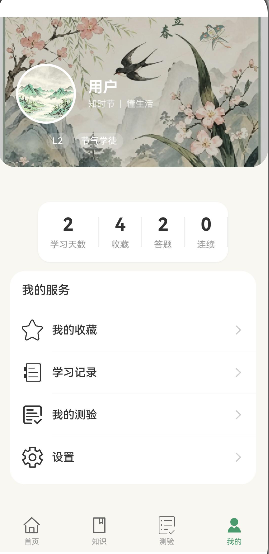
个人中心页是"节气通"应用的重要页面,为用户提供个人信息管理和功能入口。本文将实现:
- 用户信息展示
- 学习统计
- 功能入口
- 设置功能
通过本文,你将掌握如何构建一个完整的个人中心页面。
学习目标
完成本文后,你将能够:
- ✅ 实现用户信息展示
- ✅ 创建学习统计
- ✅ 添加功能入口
- ✅ 实现设置功能
需求分析
功能模块设计
| 模块 | 功能描述 | 技术要点 |
|---|---|---|
| 用户信息 | 头像、昵称、等级 | Circle组件、渐变效果 |
| 学习统计 | 学习天数、阅读文章数、测验次数 | 卡片布局、数字展示 |
| 功能入口 | 收藏、历史、分享、反馈 | 网格布局、图标+文字 |
| 设置 | 通知、主题、隐私 | 列表布局、开关组件 |
设计思路
方案对比
| 方案 | 优点 | 缺点 | 适用场景 |
|---|---|---|---|
| 单一页面 | 结构简单,易于维护 | 内容过多时滚动距离长 | 功能较少的应用 |
| 分段卡片 | 视觉层次分明 | 代码量稍多 | 推荐 |
| 标签页切换 | 内容分块清晰 | 增加学习成本 | 功能非常丰富的应用 |
关键决策
决策1: 使用卡片式布局
- 原因:卡片式布局视觉层次分明,用户体验好
- 优势:每个功能模块独立,便于扩展和维护
决策2: 用户头像使用首字母
- 原因:无需图片资源,加载更快
- 优势:统一的视觉风格,易于实现
决策3: 经验值进度条
- 原因:可视化展示升级进度,增加用户成就感
- 优势:激励用户继续学习
核心实现
步骤1: 页面结构设计
完整代码
typescript
// pages/Profile.ets

import router from '@ohos.router';
import prompt from '@ohos.prompt';

@Entry
@Component
struct Profile {
  // 用户信息
  @State userInfo: UserInfo = {
    nickname: '节气达人',
    avatar: '',
    level: 8,
    exp: 2350,
    nextLevelExp: 3000
  };

  // 学习统计
  @State statistics: Statistics = {
    days: 15,
    articles: 42,
    quizzes: 8,
    score: 2850
  };

  // 设置状态
  @State settings: Settings = {
    notifications: true,
    darkMode: false,
    autoPlay: true,
    dataSaver: false
  };

  /**
   * 构建UI
   */
  build() {
    Scroll() {
      Column({ space: 0 }) {
        // 1. 顶部背景
        this.buildHeaderBackground()

        // 2. 用户信息
        this.buildUserInfo()

        // 3. 学习统计
        this.buildStatistics()

        // 4. 功能入口
        this.buildFunctionList()

        // 5. 设置列表
        this.buildSettings()

        // 6. 关于
        this.buildAbout()
      }
    }
    .width('100%')
    .height('100%')
    .backgroundColor('#F8F7F2')
  }
}

interface UserInfo {
  nickname: string;
  avatar: string;
  level: number;
  exp: number;
  nextLevelExp: number;
}

interface Statistics {
  days: number;
  articles: number;
  quizzes: number;
  score: number;
}

interface Settings {
  notifications: boolean;
  darkMode: boolean;
  autoPlay: boolean;
  dataSaver: boolean;
}
代码解析
1. 状态管理
- userInfo: 用户信息(昵称、等级、经验值)
- statistics: 学习统计数据
- settings: 设置选项状态
2. 页面结构
- 顶部渐变背景
- 用户信息卡片
- 学习统计区域
- 功能入口网格
- 设置列表
- 关于信息
步骤2: 用户信息区域
typescript
/**
 * 构建顶部背景
 */
@Builder
buildHeaderBackground(): void {
  Stack({ alignContent: Alignment.TopStart }) {
    // 渐变背景
    Row()
      .width('100%')
      .height(200)
      .linearGradient({
        angle: 180,
        colors: [
          ['#4A9B6D', 0.3],
          ['#4A9B6D', 0.1],
          ['#F8F7F2', 1]
        ]
      })

    // 装饰元素
    Image($r('app.media.ic_decor'))
      .width(100)
      .height(100)
      .opacity(0.1)
      .position({ right: -20, top: -20 })
  }
  .width('100%')
}

/**
 * 构建用户信息
 */
@Builder
buildUserInfo(): void {
  Card() {
    Column({ space: 12 }) {
      // 用户头像和昵称
      Row({ space: 12 }) {
        // 头像
        Stack({ alignContent: Alignment.Center }) {
          Circle()
            .width(80)
            .height(80)
            .fillColor('#4A9B6D')

          Text(this.userInfo.nickname.charAt(0))
            .fontSize(32)
            .fontWeight(FontWeight.Bold)
            .fontColor('#FFFFFF')
        }

        // 信息
        Column({ space: 4 }) {
          Text(this.userInfo.nickname)
            .fontSize(18)
            .fontWeight(FontWeight.Bold)
            .fontColor('#333333')

          Row({ space: 8 }) {
            Text('Lv.' + this.userInfo.level)
              .fontSize(14)
              .fontColor('#FFB300')
              .padding({ left: 6, right: 6, top: 2, bottom: 2 })
              .backgroundColor('#FFF8E1')
              .borderRadius(4)

            Text('编辑资料')
              .fontSize(13)
              .fontColor('#4A9B6D')
          }
        }
        .flexGrow(1)

        // 设置图标
        Image($r('app.media.ic_settings'))
          .width(24)
          .height(24)
          .fillColor('#999999')
          .onClick(() => {
            try {
              router.pushUrl({ url: 'pages/Settings' });
            } catch (error) {
              console.error('路由跳转失败: ' + JSON.stringify(error));
            }
          })
      }

      // 经验值进度条
      Column({ space: 4 }) {
        Row({ space: 8 }) {
          Text('经验值')
            .fontSize(12)
            .fontColor('#999999')

          Text(this.userInfo.exp + ' / ' + this.userInfo.nextLevelExp)
            .fontSize(12)
            .fontColor('#4A9B6D')
        }

        Progress({
          value: this.userInfo.exp,
          total: this.userInfo.nextLevelExp,
          type: ProgressType.Linear
        })
          .width('100%')
          .height(6)
          .color('#4A9B6D')
          .backgroundColor('#EEEEEE')
      }
    }
    .padding(16)
  }
  .width('92%')
  .margin({ top: -60, left: '4%', right: '4%' })
}设计要点:
- 渐变背景
- 用户头像使用首字母
- 等级标签
- 经验值进度条
步骤3: 学习统计
typescript
/**
 * 构建学习统计
 */
@Builder
buildStatistics(): void {
  Card() {
    Column({ space: 16 }) {
      // 标题
      Row({ space: 8 }) {
        Image($r('app.media.ic_trending'))
          .width(20)
          .height(20)
          .fillColor('#4A9B6D')

        Text('学习统计')
          .fontSize(18)
          .fontWeight(FontWeight.Bold)
          .fontColor('#333333')
      }

      // 统计数据
      Grid() {
        GridItem() {
          this.buildStatItem('学习天数', this.statistics.days.toString(), $r('app.media.ic_calendar'))
        }

        GridItem() {
          this.buildStatItem('阅读文章', this.statistics.articles.toString(), $r('app.media.ic_book'))
        }

        GridItem() {
          this.buildStatItem('参与测验', this.statistics.quizzes.toString(), $r('app.media.ic_test'))
        }

        GridItem() {
          this.buildStatItem('累计积分', this.statistics.score.toString(), $r('app.media.ic_score'))
        }
      }
      .columnsTemplate('1fr 1fr 1fr 1fr')
      .rowsGap(12)
    }
    .padding(16)
  }
  .width('92%')
  .margin({ left: '4%', right: '4%', top: 16 })
}

/**
 * 构建统计项
 */
@Builder
buildStatItem(title: string, value: string, icon: Resource): void {
  Column({ space: 8 }) {
    Image(icon)
      .width(24)
      .height(24)
      .fillColor('#4A9B6D')

    Text(value)
      .fontSize(20)
      .fontWeight(FontWeight.Bold)
      .fontColor('#333333')

    Text(title)
      .fontSize(12)
      .fontColor('#999999')
  }
  .width('100%')
  .alignItems(HorizontalAlign.Center)
}设计要点:
- 四列网格布局
- 图标+数字+标题结构
- 统一的视觉风格
步骤4: 功能入口
typescript
/**
 * 构建功能入口列表
 */
@Builder
buildFunctionList(): void {
  Card() {
    Grid() {
      GridItem() {
        this.buildFunctionItem($r('app.media.ic_collect'), '我的收藏', 12)
      }
      .onClick(() => {
        try {
          router.pushUrl({ url: 'pages/Collections' });
        } catch (error) {
          console.error('路由跳转失败: ' + JSON.stringify(error));
        }
      })

      GridItem() {
        this.buildFunctionItem($r('app.media.ic_history'), '浏览历史', 28)
      }
      .onClick(() => {
        prompt.showToast({ message: '浏览历史功能开发中' });
      })

      GridItem() {
        this.buildFunctionItem($r('app.media.ic_share'), '分享应用', 0)
      }
      .onClick(() => {
        prompt.showToast({ message: '分享功能开发中' });
      })

      GridItem() {
        this.buildFunctionItem($r('app.media.ic_feedback'), '意见反馈', 0)
      }
      .onClick(() => {
        try {
          router.pushUrl({ url: 'pages/Feedback' });
        } catch (error) {
          console.error('路由跳转失败: ' + JSON.stringify(error));
        }
      })
    }
    .columnsTemplate('1fr 1fr 1fr 1fr')
    .rowsGap(16)
    .padding(16)
  }
  .width('92%')
  .margin({ left: '4%', right: '4%', top: 16 })
}

/**
 * 构建功能项
 */
@Builder
buildFunctionItem(icon: Resource, title: string, badge: number): void {
  Column({ space: 8 }) {
    Stack({ alignContent: Alignment.TopEnd }) {
      Image(icon)
        .width(32)
        .height(32)
        .fillColor('#4A9B6D')

      if (badge > 0) {
        Text(badge > 99 ? '99+' : badge.toString())
          .fontSize(10)
          .fontColor('#FFFFFF')
          .backgroundColor('#FF5252')
          .borderRadius(10)
          .padding({ left: 4, right: 4, top: 1, bottom: 1 })
      }
    }

    Text(title)
      .fontSize(12)
      .fontColor('#666666')
  }
  .width('100%')
  .alignItems(HorizontalAlign.Center)
}设计要点:
- 四列网格布局
- 支持未读数徽章
- 点击跳转或提示
步骤5: 设置列表
typescript
/**
 * 构建设置列表
 */
@Builder
buildSettings(): void {
  Card() {
    Column({ space: 0 }) {
      // 标题
      Row({ space: 8 }) {
        Image($r('app.media.ic_settings'))
          .width(20)
          .height(20)
          .fillColor('#4A9B6D')

        Text('设置')
          .fontSize(18)
          .fontWeight(FontWeight.Bold)
          .fontColor('#333333')
      }
      .width('100%')
      .padding({ top: 16, left: 16, right: 16, bottom: 12 })

      // 设置项
      [
        { icon: $r('app.media.ic_bell'), title: '消息通知', setting: 'notifications' },
        { icon: $r('app.media.ic_moon'), title: '深色模式', setting: 'darkMode' },
        { icon: $r('app.media.ic_play'), title: '自动播放', setting: 'autoPlay' },
        { icon: $r('app.media.ic_data'), title: '数据省流量', setting: 'dataSaver' }
      ].forEach((item) => {
        Row({ space: 12 }) {
          Image(item.icon)
            .width(20)
            .height(20)
            .fillColor('#999999')

          Text(item.title)
            .fontSize(15)
            .fontColor('#333333')
            .flexGrow(1)

          Switch({
            selected: this.settings[item.setting as keyof Settings],
            type: SwitchType.Circle
          })
            .selectedColor('#4A9B6D')
            .switchPointColor('#FFFFFF')
            .onChange((isOn: boolean) => {
              this.settings[item.setting as keyof Settings] = isOn;
              this.onSettingChange(item.setting, isOn);
            })
        }
        .width('100%')
        .height(52)
        .padding({ left: 16, right: 16 })

        if (item.setting !== 'dataSaver') {
          Divider()
            .width('100%')
            .color('#EEEEEE')
            .height(1)
        }
      })
    }
  }
  .width('92%')
  .margin({ left: '4%', right: '4%', top: 16 })
}

/**
 * 设置改变处理
 */
onSettingChange(setting: string, value: boolean): void {
  switch (setting) {
    case 'notifications':
      prompt.showToast({ message: value ? '已开启通知' : '已关闭通知' });
      break;
    case 'darkMode':
      prompt.showToast({ message: value ? '已开启深色模式' : '已关闭深色模式' });
      break;
    case 'autoPlay':
      prompt.showToast({ message: value ? '已开启自动播放' : '已关闭自动播放' });
      break;
    case 'dataSaver':
      prompt.showToast({ message: value ? '已开启省流量模式' : '已关闭省流量模式' });
      break;
  }
}设计要点:
- 列表布局
- Switch组件切换状态
- Toast提示操作结果
步骤6: 关于信息
typescript
/**
 * 构建关于区域
 */
@Builder
buildAbout(): void {
  Card() {
    Column({ space: 0 }) {
      // 版本信息
      Row({ space: 12 }) {
        Image($r('app.media.ic_info'))
          .width(20)
          .height(20)
          .fillColor('#999999')

        Text('关于我们')
          .fontSize(15)
          .fontColor('#333333')
          .flexGrow(1)

        Text('v1.0.0')
          .fontSize(13)
          .fontColor('#999999')

        Image($r('app.media.ic_arrow_right'))
          .width(16)
          .height(16)
          .fillColor('#CCCCCC')
      }
      .width('100%')
      .height(52)
      .padding({ left: 16, right: 16 })
      .onClick(() => {
        try {
          router.pushUrl({ url: 'pages/About' });
        } catch (error) {
          console.error('路由跳转失败: ' + JSON.stringify(error));
        }
      })

      Divider()
        .width('100%')
        .color('#EEEEEE')
        .height(1)

      // 隐私政策
      Row({ space: 12 }) {
        Image($r('app.media.ic_shield'))
          .width(20)
          .height(20)
          .fillColor('#999999')

        Text('隐私政策')
          .fontSize(15)
          .fontColor('#333333')
          .flexGrow(1)

        Image($r('app.media.ic_arrow_right'))
          .width(16)
          .height(16)
          .fillColor('#CCCCCC')
      }
      .width('100%')
      .height(52)
      .padding({ left: 16, right: 16 })
      .onClick(() => {
        prompt.showToast({ message: '隐私政策页面开发中' });
      })

      Divider()
        .width('100%')
        .color('#EEEEEE')
        .height(1)

      // 用户协议
      Row({ space: 12 }) {
        Image($r('app.media.ic_file'))
          .width(20)
          .height(20)
          .fillColor('#999999')

        Text('用户协议')
          .fontSize(15)
          .fontColor('#333333')
          .flexGrow(1)

        Image($r('app.media.ic_arrow_right'))
          .width(16)
          .height(16)
          .fillColor('#CCCCCC')
      }
      .width('100%')
      .height(52)
      .padding({ left: 16, right: 16 })
      .onClick(() => {
        prompt.showToast({ message: '用户协议页面开发中' });
      })
    }
  }
  .width('92%')
  .margin({ left: '4%', right: '4%', top: 16, bottom: 100 })
}设计要点:
- 列表布局
- 关于我们、隐私政策、用户协议
- 点击跳转或提示
常见问题与解决方案
问题1: 顶部背景与卡片重叠
现象 :
用户信息卡片与顶部渐变背景重叠,视觉效果不佳。
原因:
- 卡片使用margin负值定位
- 渐变背景高度不足
解决方案:
typescript
// ✅ 正确:调整背景高度和卡片位置
buildHeaderBackground(): void {
  Stack({ alignContent: Alignment.TopStart }) {
    Row()
      .width('100%')
      .height(220)  // 增加背景高度
      .linearGradient({
        angle: 180,
        colors: [
          ['#4A9B6D', 0.3],
          ['#4A9B6D', 0.1],
          ['#F8F7F2', 1]
        ]
      })
  }
}

buildUserInfo(): void {
  Card() {
    // ...
  }
  .width('92%')
  .margin({ top: -80, left: '4%', right: '4%' })  // 调整margin
}
问题2: 经验值进度条不显示
现象 :
Progress组件没有显示进度条。
原因:
- Progress组件需要指定type为ProgressType.Linear
- 父容器高度不够
解决方案:
typescript
// ✅ 正确配置
Progress({
  value: this.userInfo.exp,
  total: this.userInfo.nextLevelExp,
  type: ProgressType.Linear
})
  .width('100%')
  .height(6)
  .color('#4A9B6D')
  .backgroundColor('#EEEEEE')
问题3: Grid布局列数不正确
现象 :
功能入口网格显示不是四列。
原因:
- columnsTemplate配置错误
- 缺少width约束
解决方案:
typescript
// ✅ 正确配置
Grid() {
  GridItem() { /* ... */ }
  GridItem() { /* ... */ }
  GridItem() { /* ... */ }
  GridItem() { /* ... */ }
}
.columnsTemplate('1fr 1fr 1fr 1fr')  // 四列
.width('100%')  // 确保宽度
问题4: Switch组件状态不响应
现象 :
点击Switch开关,状态没有变化。
原因:
- 没有正确绑定状态变量
- onChange回调没有更新状态
解决方案:
typescript
// ✅ 正确绑定
Switch({
  selected: this.settings.notifications,
  type: SwitchType.Circle
})
  .selectedColor('#4A9B6D')
  .switchPointColor('#FFFFFF')
  .onChange((isOn: boolean) => {
    this.settings.notifications = isOn;  // 更新状态
  })
问题5: 路由跳转失败
现象 :
点击设置图标无法跳转到设置页。
常见原因:
- 页面路径错误
- 页面未在main_pages.json中注册
- 缺少try-catch异常处理
解决方案:
typescript
// ✅ 正确的路由跳转
Image($r('app.media.ic_settings'))
  .onClick(() => {
    try {
      router.pushUrl({ url: 'pages/Settings' });
    } catch (error) {
      console.error('路由跳转失败: ' + JSON.stringify(error));
      prompt.showToast({ message: '跳转失败,请重试' });
    }
  })
本章小结
核心知识点
本文完成了个人中心页的实现:
1. 用户信息
- 渐变背景
- 用户头像(首字母)
- 等级和经验值
2. 学习统计
- 四列网格布局
- 图标+数字+标题
3. 功能入口
- 四列网格布局
- 未读数徽章
- 点击事件
4. 设置功能
- 列表布局
- Switch组件
- Toast提示
5. 关于信息
- 版本信息
- 隐私政策
- 用户协议
下一步预告
个人中心页已经完成!在下一篇文章中,我们将学习:
- 设置页开发
- 详细设置选项
- 数据管理
- 账号安全
相关链接
- 项目源码 : Atomgit仓库