👆 零基础学 ArkUI 手势(专题五):从点击到多指触控,一网打尽 6 种手势
博主说: 一个好 App 和伟大 App 的差距,往往就在「交互细节」上------点击有波纹反馈、滑动跟手指走、缩放丝般顺滑、长按弹出快捷菜单......这些交互的核心就是 手势系统。ArkUI 的手势系统非常完整,支持从最简单的单击到复杂的多指旋转、从手势并行到互斥冲突处理。今天这篇专题将带你逐一攻克全部 6 种手势,并附带避坑指南、性能优化和综合实战。
📱 为什么要学手势?
| 为什么手势重要 | 实际例子 |
|---|---|
| ✅ 提升操作效率 | 左滑删除比长按→删除快 3 倍 |
| ✅ 增强沉浸感 | 双指缩放图片,自然得像在摸一张真实照片 |
| ✅ 节省屏幕空间 | 长按弹出菜单,不用额外放一排按钮 |
| ✅ 差异化体验 | 摇一摇找客服、画圈截图------你的 App 更有记忆点 |
根据 Nielsen Norman Group 的研究,手势驱动的交互比按钮点击快 20%~60%,而且用户满意度更高。
⚙️ 运行环境要求
| 项目 | 版本要求 |
|---|---|
| DevEco Studio | 5.0.3.800 及以上 |
| HarmonyOS SDK | API 12(HarmonyOS 5.0.0)及以上 |
| 应用模型 | Stage 模型 |
| 开发语言 | ArkTS |
| 真机要求 | 多指手势(Pinch/Rotation)必须真机,模拟器不支持双指触控 |
环境配置截图示意
图1:新建 Empty Ability 项目,选择 API 12 --- 浏览器打开查看完整环境配置截图
🛠️ 6 种手势逐一实战
ArkUI 的手势系统围绕一个核心 API 设计:
typescript
.gesture(
  SomeGesture({ 参数 })
    .onAction((event) => { /* 触发 */ })
    .onActionUpdate((event) => { /* 进行中 */ })
    .onActionEnd((event) => { /* 结束 */ })
    .onActionCancel(() => { /* 中断 */ })
)
手势生命周期: Start → Update(N次) → End / Cancel
🎯 手势 1:TapGesture --- 点击(最常用但最容易被忽视的细节)
作用: 手指按下→抬起,检测一次「点击」动作。
typescript
// ─── 基础用法 ───
Column()
  .width(200).height(100)
  .backgroundColor('#007AFF')
  .borderRadius(12)
  .gesture(
    TapGesture({ count: 1 })  // count=1 单击,count=2 双击
      .onAction((event: GestureEvent) => {
        console.log(`点击位置: (${event.fingerInfo[0]?.x}, ${event.fingerInfo[0]?.y})`);
        console.log(`手指数量: ${event.fingerInfo.length}`);
      })
  )
进阶:双击检测:
typescript
@State tapCount: number = 0;
@State lastTapTime: number = 0;

Column()
  .width(200).height(100).backgroundColor('#007AFF').borderRadius(12)
  .gesture(
    TapGesture({ count: 2 })  // 检测双击
      .onAction(() => {
        AlertDialog.show({ message: '✅ 双击事件触发!' });
      })
  )
// 替代方案:不用 count=2,直接用时间判断
.gesture(
  TapGesture({ count: 1 })
    .onAction(() => {
      const now = Date.now();
      if (now - this.lastTapTime < 300) {
        AlertDialog.show({ message: '✅ 连续点击(双击)' });
      }
      this.lastTapTime = now;
    })
)
💡 点击位置有什么用? 可用于实现「点赞波纹效果」------在点击位置播放一个扩散圆环动画。
🎯 手势 2:LongPressGesture --- 长按触发菜单
作用: 手指按住超过指定时长(默认 500ms)触发,适合快捷菜单、拖拽开始、批量选择。
typescript
// ─── 基础用法 ───
@Entry
@Component
struct LongPressDemo {
  @State progress: number = 0;       // 长按进度 0~100
  @State isLongPressed: boolean = false;
  private timerId: number = -1;

  build() {
    Column() {
      Column() {
        // 长按进度环
        Circle()
          .width(80).height(80)
          .fill('transparent')
          .stroke('#E0E0E0').strokeWidth(6)

        Circle()
          .width(80).height(80)
          .fill('transparent')
          .stroke('#34C759').strokeWidth(6)
          .strokeDashArray([this.progress * 2.5, 250])
          .rotate({ angle: -90 })

        Text(this.isLongPressed ? '✅ 已触发' : '长按我')
          .fontSize(16)
          .fontColor(this.isLongPressed ? '#34C759' : '#333')
          .position({ x: 0, y: 0 })
          .width(80).height(80)
          .textAlign(TextAlign.Center)
          .lineHeight(80)
      }
      .width(80).height(80)
      .gesture(
        LongPressGesture({ duration: 800 }) // 800ms 长按
          .onAction((event: GestureEvent) => {
            this.isLongPressed = true;
            // 震动反馈
            vibrator.startVibration({
              type: 'time',
              duration: 30
            }, (err) => {});
            AlertDialog.show({
              title: '快捷菜单',
              message: '复制 / 粘贴 / 删除',
              confirm: { value: '关闭' }
            });
          })
          .onActionEnd(() => {
            // 手指抬起
          })
          .onActionCancel(() => {
            this.isLongPressed = false;
            this.progress = 0;
          })
      )

      Text('长按 0.8 秒触发快捷菜单')
        .fontSize(13).fontColor('#999').margin({ top: 12 })

      Text('⚠️ 触发时会震动反馈')
        .fontSize(12).fontColor('#FF9500').margin({ top: 4 })
    }
    .width('100%').height(250).justifyContent(FlexAlign.Center)
  }
}
💡 应用场景: 微信聊天列表长按弹出菜单、桌面 App 长按图标弹出快捷操作、图片长按保存。
🎯 手势 3:PanGesture --- 拖拽(应用最广的手势)
作用: 单指或多指在屏幕上滑动,实时获取偏移量。这是 应用最广 的手势。
typescript
@Entry
@Component
struct PanDemo {
  // 拖拽位置
  @State dragX: number = 0;
  @State dragY: number = 0;

  // 拖拽历史(用于惯性滑动)
  private velocityX: number = 0;
  private velocityY: number = 0;

  build() {
    Column() {
      // ─── 可拖拽的方块 ───
      Column() {
        Text('⇆ 拖拽我')
          .fontSize(16).fontWeight(FontWeight.Bold).fontColor('#fff')
      }
      .width(100).height(100)
      .backgroundColor('#FF9500')
      .borderRadius(16)
      .shadow({ radius: 12, color: '#40000000', offsetY: 6 })
      .offset({ x: this.dragX, y: this.dragY })
      .gesture(
        PanGesture({
          direction: PanDirection.All,     // 所有方向
          distance: 10,                     // 移动 10px 才识别为拖拽
          fingers: 1                        // 单指拖拽
        })
          .onActionStart((event: GestureEvent) => {
            // 拖拽开始:加大阴影
            // 实际项目中可以在这里改变状态
          })
          .onActionUpdate((event: GestureEvent) => {
            // 实时更新位置
            this.dragX = event.offsetX;
            this.dragY = event.offsetY;
            // 获取当前速度(用于惯性滑动)
            this.velocityX = event.velocityX;
            this.velocityY = event.velocityY;
          })
          .onActionEnd(() => {
            // 松手后弹簧回弹
            animateTo({
              duration: 500,
              curve: Curve.SpringMotion,
              delay: 0
            }, () => {
              this.dragX = 0;
              this.dragY = 0;
            });
          })
      )

      Text(`当前位置: (${this.dragX.toFixed(0)}, ${this.dragY.toFixed(0)})`)
        .fontSize(14).fontColor('#888').margin({ top: 16 })

      Text('拖拽方块 → 松手弹簧回弹')
        .fontSize(13).fontColor('#999').margin({ top: 4 })

      // ─── PanDirection 方向说明 ───
      Text('PanDirection 可选值:')
        .fontSize(14).fontWeight(FontWeight.Bold).margin({ top: 24 })

      Column() {
        ForEach([
          ['All', '所有方向'],
          ['Horizontal', '仅水平'],
          ['Vertical', '仅垂直'],
          ['Left', '仅向左'],
          ['Right', '仅向右'],
          ['Up', '仅向上'],
          ['Down', '仅向下'],
        ], (item: string[]) => {
          Row() {
            Text(`PanDirection.${item[0]}`)
              .fontSize(13).fontColor('#007AFF').fontFamily('Courier New')
            Text(`--- ${item[1]}`)
              .fontSize(13).fontColor('#666').margin({ left: 8 })
          }.padding({ top: 2, bottom: 2 })
        })
      }
      .margin({ top: 8 })
    }
    .width('100%').height(450).padding(16)
  }
}
💡 PanGesture 核心参数解析:
参数 类型 默认值 说明 fingersnumber 1 最少手指数 directionPanDirection All 滑动方向 distancenumber 5 最小滑动距离(px),小于此值视为点击
🎯 手势 4:PinchGesture --- 双指缩放
作用: 双指捏合/张开,常用于图片缩放、地图缩放、字体大小调整。
typescript
@Entry
@Component
struct PinchDemo {
  @State scale: number = 1;
  @State savedScale: number = 1;

  build() {
    Column() {
      Text('双指缩放图片').fontSize(18).fontWeight(FontWeight.Bold)

      // ─── 可缩放的图片 ───
      Column() {
        Text('🖼️').fontSize(80)
      }
      .width(200 * this.scale).height(200 * this.scale)
      .backgroundColor('#F0F4FF')
      .borderRadius(16)
      .gesture(
        PinchGesture({ fingers: 2 })
          .onActionStart(() => {
            // 记住缩放前的值
            this.savedScale = this.scale;
          })
          .onActionUpdate((event: GestureEvent) => {
            // event.scale 是相对于起始状态的缩放比例
            // 当前缩放 = 保存的缩放 × 本次缩放因子
            this.scale = Math.max(0.3, Math.min(3.0,
              this.savedScale * event.scale
            ));
          })
          .onActionEnd(() => {
            // 如果缩放到边缘,回弹
            if (this.scale < 0.5) {
              animateTo({ duration: 200 }, () => { this.scale = 0.5; });
            } else if (this.scale > 2.5) {
              animateTo({ duration: 200 }, () => { this.scale = 2.5; });
            }
          })
      )

      Text(`当前缩放: ${(this.scale * 100).toFixed(0)}%`)
        .fontSize(16).fontColor('#007AFF').fontWeight(FontWeight.Bold)
        .margin({ top: 16 })

      Slider({ value: this.scale * 100, min: 30, max: 300, step: 1 })
        .width('80%').margin({ top: 8 })
        .onChange((val: number) => { this.scale = val / 100; })

      Text('用双指捏合缩放,或拖动滑块')
        .fontSize(13).fontColor('#999').margin({ top: 8 })

      Divider().margin(16)

      // ─── 极限值约束 ───
      Text('🔐 缩放范围约束:')
        .fontSize(14).fontWeight(FontWeight.Bold)
      Text('最小值 0.3x (30%) --- 防止缩太小找不到')
        .fontSize(13).fontColor('#555').margin({ top: 4 })
      Text('最大值 3.0x (300%) --- 防止放大到模糊')
        .fontSize(13).fontColor('#555')
    }
    .width('100%').padding(16)
  }
}
⚠️ 重要提示:
PinchGesture必须真机测试!模拟器不支持双指操作。event.scale的值从 1.0 开始,捏合时 < 1,张开时 > 1。
🎯 手势 5:RotationGesture --- 双指旋转
作用: 双指旋转,用于图片旋转、地图方向调整、表盘校准。
typescript
@Entry
@Component
struct RotationDemo {
  @State angle: number = 0;
  @State savedAngle: number = 0;

  build() {
    Column() {
      Text('双指旋转').fontSize(18).fontWeight(FontWeight.Bold)

      Column() {
        Text('🔄').fontSize(80)
      }
      .width(180).height(180)
      .backgroundColor('#FFF0E0')
      .borderRadius(16)
      .rotate({ angle: this.angle })
      .gesture(
        RotationGesture({ fingers: 2, angle: 10 })  // 10° 以上才触发
          .onActionStart(() => {
            this.savedAngle = this.angle;
          })
          .onActionUpdate((event: GestureEvent) => {
            // event.angle 是本次旋转的增量角度
            this.angle = this.savedAngle + event.angle;
          })
          .onActionEnd(() => {
            // 动画回正到最近的 90° 增量
            const nearest90 = Math.round(this.angle / 90) * 90;
            animateTo({ duration: 300, curve: Curve.FastOutSlowIn }, () => {
              this.angle = nearest90;
            });
          })
      )

      Text(`当前角度: ${Math.round(this.angle)}°`)
        .fontSize(16).fontColor('#FF9500').fontWeight(FontWeight.Bold)
        .margin({ top: 16 })

      Row() {
        Button('↺ 重置')
          .backgroundColor('#F0F0F0').fontColor('#333')
          .onClick(() => {
            animateTo({ duration: 300 }, () => { this.angle = 0; });
          })

        Button('+90°')
          .backgroundColor('#F0F0F0').fontColor('#333').margin({ left: 8 })
          .onClick(() => {
            animateTo({ duration: 300 }, () => { this.angle += 90; });
          })
      }
      .margin({ top: 12 })

      Text('双指旋转 → 松手吸附到最近 90° 位置')
        .fontSize(13).fontColor('#999').margin({ top: 8 })
    }
    .width('100%').height(400).padding(16).justifyContent(FlexAlign.Center)
  }
}
🎯 手势 6:SwipeGesture --- 快速滑动
作用: 检测手指的快速滑动(Fling),常用于「左滑删除」「右滑返回」。
typescript
@Entry
@Component
struct SwipeDemo {
  @State items: string[] = [
    '📝 明天10点开会',
    '🛒 买牛奶和面包',
    '📞 回电话给张总',
    '✈️ 订下周三机票',
    '🎂 郭哥生日准备礼物'
  ];

  @State deletedItems: string[] = [];

  build() {
    Column() {
      Text('左滑删除 --- SwipeGesture 实战')
        .fontSize(18).fontWeight(FontWeight.Bold).margin({ bottom: 8 })

      Text('向左快速滑动条目可删除')
        .fontSize(13).fontColor('#999').margin({ bottom: 12 })

      List({ space: 8 }) {
        ForEach(this.items, (item: string, idx: number) => {
          ListItem() {
            Row() {
              Text(item).fontSize(15).layoutWeight(1)
              Text('← 左滑').fontSize(12).fontColor('#ccc')
            }
            .padding(16)
            .width('100%')
            .backgroundColor('#FFF')
            .borderRadius(10)
            .shadow({ radius: 2, color: '#10000000', offsetY: 1 })
          }
          .gesture(
            // 注意:SwipeGesture 的方向是从开始到结束的方向
            // SwipeDirection.Left = 手指从右向左滑动
            SwipeGesture({ direction: SwipeDirection.Left, speed: 100 })
              .onAction((event: GestureEvent) => {
                // 动画删除
                animateTo({ duration: 300 }, () => {
                  const deleted = this.items.splice(idx as number, 1);
                  this.deletedItems.push(deleted[0]);
                });
                // 震动反馈
                vibrator.startVibration({
                  type: 'time',
                  duration: 20
                }, (err) => {});
              })
          )
        }, (item: string) => item)
      }
      .layoutWeight(1)
      .width('100%')

      if (this.deletedItems.length > 0) {
        Divider().margin({ top: 8, bottom: 8 })
        Text('🗑️ 已删除:').fontSize(14).fontWeight(FontWeight.Bold)
        ForEach(this.deletedItems, (item: string) => {
          Text(item).fontSize(13).fontColor('#999').margin({ top: 4 })
        })
        Button('↺ 恢复所有')
          .fontSize(14).backgroundColor('#E5E5EA').fontColor('#333')
          .margin({ top: 8 })
          .onClick(() => {
            this.items = [...this.items, ...this.deletedItems];
            this.deletedItems = [];
          })
      }
    }
    .width('100%').height('100%').padding(16).backgroundColor('#F5F5F5')
  }
}
🎯 综合实战:手势解锁九宫格
将 TapGesture + PanGesture 结合,做一个完整的九宫格手势密码锁。
typescript
@Entry
@Component
struct GestureLock {
  // 3×3 网格数据
  @State points: boolean[][] = Array.from(
    { length: 3 }, () => Array(3).fill(false)
  );
  @State selected: number[] = [];    // 选中的点序号
  @State result: string = '';
  @State resultColor: string = '#333';

  // 预设密码:第 0,4,8 个点(对角线)
  private password: number[] = [0, 4, 8];
  // 用于记录手指触摸位置
  private touchX: number = 0;
  private touchY: number = 0;

  // 获取点的中心坐标
  getPointCenter(index: number): { x: number; y: number } {
    const row = Math.floor(index / 3);
    const col = index % 3;
    return {
      x: 70 + col * 100,  // 间距 100px,起始偏移 70
      y: 70 + row * 100
    };
  }

  // 判断手指是否在某个点范围内
  hitTest(x: number, y: number): number {
    for (let i = 0; i < 9; i++) {
      const center = this.getPointCenter(i);
      const dx = x - center.x;
      const dy = y - center.y;
      if (dx * dx + dy * dy < 40 * 40) {  // 40px 半径
        return i;
      }
    }
    return -1;
  }

  // 重置所有状态
  resetAll() {
    this.selected = [];
    this.points = Array.from({ length: 3 }, () => Array(3).fill(false));
    this.result = '';
  }

  // 验证密码
  verify() {
    const correct = JSON.stringify(this.selected) === JSON.stringify(this.password);
    this.result = correct ? '✅ 解锁成功!' : '❌ 密码错误,请重试';
    this.resultColor = correct ? '#34C759' : '#FF3B30';

    if (correct) {
      // 成功:延迟后重置
      setTimeout(() => { this.resetAll(); }, 1500);
    } else {
      // 失败:显示错误动画后重置
      setTimeout(() => { this.resetAll(); }, 1000);
    }
  }

  @Builder
  renderPoint(index: number) {
    const row = Math.floor(index / 3);
    const col = index % 3;
    const isSelected = this.points[row][col];

    Circle()
      .width(56).height(56)
      .fill(isSelected ? '#007AFF' : '#E8E8ED')
      .fillOpacity(isSelected ? 1.0 : 0.7)
      .stroke(isSelected ? '#007AFF' : '#ccc')
      .strokeWidth(isSelected ? 3 : 1)
  }

  build() {
    Column() {
      Text('🔐 手势解锁')
        .fontSize(26).fontWeight(FontWeight.Bold).margin({ bottom: 8 })

      Text('请绘制解锁图案')
        .fontSize(15).fontColor('#888').margin({ bottom: 32 })

      // ─── 九宫格区域 ───
      Grid() {
        ForEach([0, 1, 2], (row: number) => {
          ForEach([0, 1, 2], (col: number) => {
            GridItem() {
              this.renderPoint(row * 3 + col)
            }
          })
        })
      }
      .columnsTemplate('1fr 1fr 1fr')
      .rowsTemplate('1fr 1fr 1fr')
      .width(280).height(280)
      .gesture(
        PanGesture({ distance: 5 })
          .onActionUpdate((event: GestureEvent) => {
            // 检测当前触摸位置落在哪个点上
            const idx = this.hitTest(event.fingerInfo[0]?.x || 0,
                                      event.fingerInfo[0]?.y || 0);
            if (idx >= 0 && !this.selected.includes(idx)) {
              const row = Math.floor(idx / 3);
              const col = idx % 3;
              this.points[row][col] = true;
              this.selected.push(idx);
              // 震动反馈
              vibrator.startVibration({
                type: 'time',
                duration: 15
              }, (err) => {});
            }
          })
          .onActionEnd(() => {
            if (this.selected.length > 0) {
              this.verify();
            }
          })
      )

      Text(this.result)
        .fontSize(20).fontWeight(FontWeight.Bold)
        .fontColor(this.resultColor)
        .margin({ top: 24 })

      Text(`已选择 ${this.selected.length} 个点`)
        .fontSize(14).fontColor('#999').margin({ top: 8 })

      if (this.selected.length > 0) {
        Button('↺ 重新绘制')
          .fontSize(14).backgroundColor('#F0F0F0').fontColor('#333')
          .margin({ top: 8 })
          .onClick(() => { this.resetAll(); })
      }

      Divider().margin(24)

      // ─── 密码设置提示 ───
      Text('💡 当前预设密码:对角线(左上→中→右下)')
        .fontSize(13).fontColor('#999').textAlign(TextAlign.Center)
      Text('在实际项目中,密码可让用户自由设置并持久化存储')
        .fontSize(12).fontColor('#bbb').textAlign(TextAlign.Center)
        .margin({ top: 4 })
    }
    .width('100%').height('100%').padding(20)
  }
}
📊 GestureEvent 事件对象解析
每个手势回调都会收到 GestureEvent 对象,包含丰富的触控信息:
| 属性 | 类型 | 说明 | 适用手势 |
|---|---|---|---|
fingerInfo |
FingerInfo\[\] | 每根手指的位置、ID | 全部 |
offsetX |
number | 手势在 X 轴的偏移量 | PanGesture |
offsetY |
number | 手势在 Y 轴的偏移量 | PanGesture |
velocityX |
number | X 轴速度 (px/s) | PanGesture, SwipeGesture |
velocityY |
number | Y 轴速度 (px/s) | PanGesture, SwipeGesture |
scale |
number | 缩放比例(1.0 为基准) | PinchGesture |
angle |
number | 旋转角度(度) | RotationGesture |
timestamp |
number | 事件时间戳 (ms) | 全部 |
🎯 手势冲突处理(关键难点)
当多个手势作用在同一组件时,必须明确「谁优先」。ArkUI 提供 GestureGroup 控制手势关系:
并行模式(Parallel)
typescript
// 同时识别 Tap 和 Pan
// 场景:一个按钮同时支持「点击跳转」和「拖拽移动」
GestureGroup(GestureMode.Parallel,
  TapGesture({ count: 1 }),
  PanGesture({ distance: 10 })
)

// ⚠️ 注意:并行模式下 Tap 和 Pan 都可能触发
// 如果点击伴随轻微移动,可能 Pan 先触发,Tap 被吞掉
互斥模式(Exclusive)
typescript
// 只识别其中一个手势
// 场景:左滑删除 vs 上下滑动列表
GestureGroup(GestureMode.Exclusive,
  SwipeGesture({ direction: SwipeDirection.Left }),
  PanGesture({ direction: PanDirection.Vertical })  // 垂直滑动
)
// 左滑触发删除手势,垂直滑动触发滚动 → 互不干扰
顺序模式(Sequence)
typescript
// 先长按才能拖拽
// 场景:微信聊天列表「长按 → 开始拖拽排序」
GestureGroup(GestureMode.Sequence,
  LongPressGesture({ duration: 500 }),
  PanGesture({ distance: 10 })
)
// 只有长按成功后,拖拽手势才开始识别
优先级手势(priorityGesture)
typescript
// 子组件的 priorityGesture 优先于父组件的普通 gesture
Column() {
  // 子组件:可拖拽
  Column()
    .width(60).height(60).backgroundColor('#FF9500').borderRadius(12)
    .priorityGesture(       // ← 优先级手势,优先于父组件
      PanGesture({ distance: 5 })
        .onActionUpdate((e) => { /* 拖拽逻辑 */ })
    )
}
.gesture(
  PanGesture()  // 父组件的 PanGesture
    .onActionUpdate((e) => { /* 父容器的滑动逻辑 */ })
)
// 拖拽方块时,子组件的 priorityGesture 优先响应
// 拖拽空白区域时,父组件的 gesture 响应
⚠️ 避坑指南(必看)
| 坑 | 现象 | 原因 | 正确做法 |
|---|---|---|---|
| TapGesture 不触发 | 点击没反应 | 和 PanGesture 在同级且 Pan 先抢占了 | 用 GestureMode.Exclusive 或 distance 参数 > 5 |
| PanGesture 需要拖很远才触发 | 拖动手感"黏" | distance 默认 10px,设太大 |
改为 distance: 3 提升灵敏度 |
| PinchGesture 在模拟器无效 | 没反应 | 模拟器不支持多指 | 必须真机调试 |
| 手势穿透到父组件 | 拖动子组件时父容器也在动 | 子组件没用 priorityGesture |
用 priorityGesture 替代 gesture |
| SwipeGesture 和列表滑动冲突 | 左滑删除触发时列表也在滚动 | 方向没限制 | 设 SwipeDirection.Left + GestureMode.Exclusive |
| onActionEnd/onActionCancel 不执行 | 状态没复位 | 手势中断时没有清理 | 两个回调都绑定,onActionCancel 中也要重置状态 |
| 长按手势误触 | 用户只是想点击却触发了长按 | duration 设太短 |
至少 500ms,推荐 800ms |
| 旋转后缩放比例错误 | 图片既旋转又缩放时乱了 | event.scale 是相对值不是绝对值 | 记住手势开始时的值 = savedValue * eventDelta |
| 多次绑定的手势后绑定者覆盖前者 | 只有一个手势生效 | 同一个 .gesture() 多次调用会覆盖 |
用 GestureGroup 组合 |
🔥 最佳实践(10 条)
- 震动反馈加分 :手势触发时配合
@ohos.vibrator.startVibration()增加触感,提升 App 品质感 - 视觉反馈先行:手势开始立即改变组件外观(放大/变色/阴影),让用户感知「系统已收到指令」
- 弹簧曲线收尾 :手势结束后用
Curve.SpringMotion做回弹动画,比硬停止自然 10 倍 - **distance 设 510px**:太小容易误触、太大手感黏腻,510 是黄金区间
- 真机调试多指手势:Pinch/Rotation 必须真机,模拟器不支持
- 保存起始值 :Pinch/Rotation 回调中
event.scale和event.angle是增量,必须 + 起始值 - 手势互斥保平安 :同一个组件上绑多个手势时务必用
GestureGroup明确关系 - onActionCancel 也要清理状态:手势可能被来电/通知中断,中断后要重置 UI
- 灵敏度可配置 :把
distance/duration提取成常量,方便后续调优 - 下沉手势到子组件 :子组件需要手势时用
priorityGesture,避免被父组件吞掉
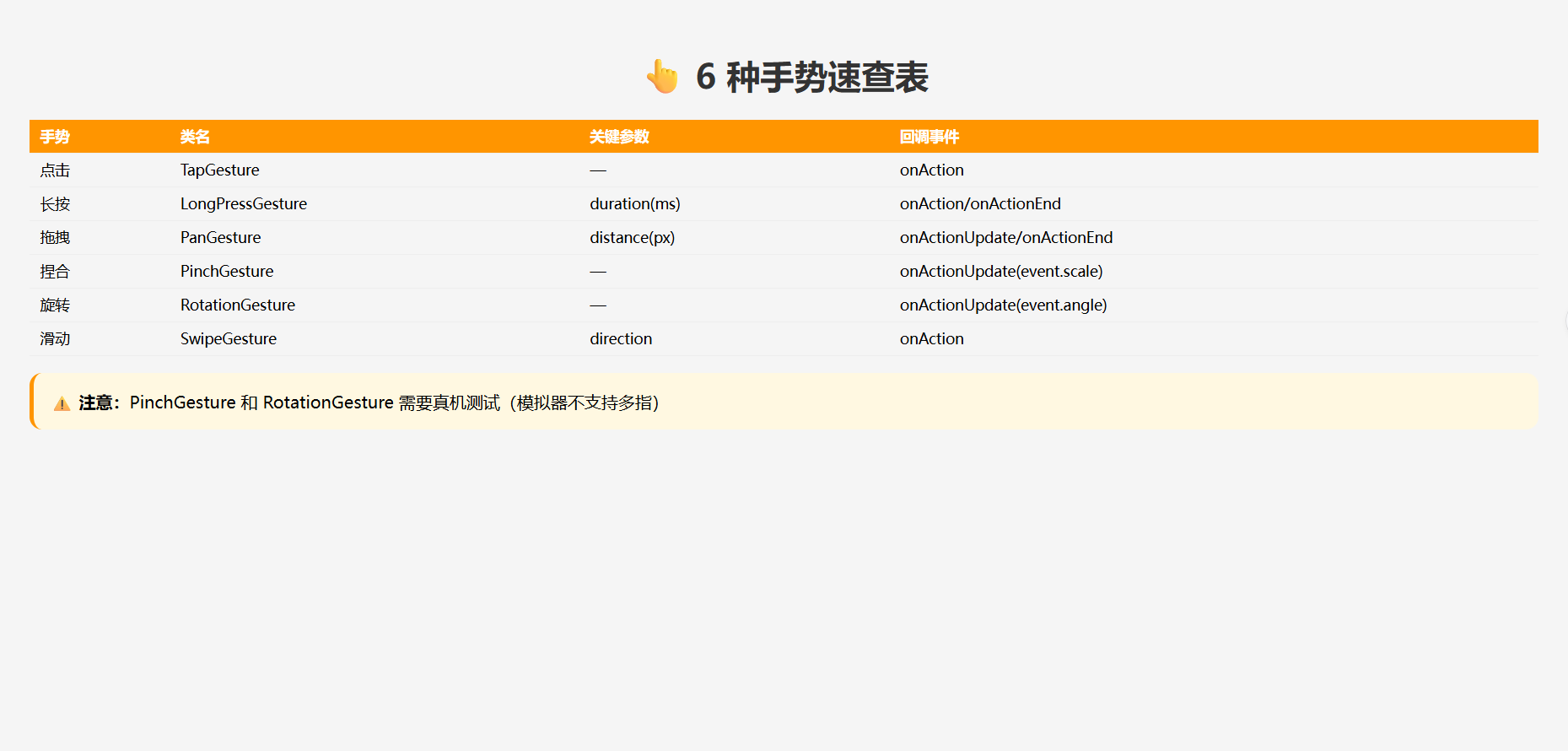
📚 手势 API 速查表
typescript
// ─── 全部手势构造函数参数一览 ───

TapGesture({ count?: number })              // count: 点击次数 1|2
LongPressGesture({ duration?: number })     // duration: 长按时长(ms)
PanGesture({ fingers?: number, direction?: PanDirection, distance?: number })
PinchGesture({ fingers?: number })          // fingers: 最少手指数
RotationGesture({ fingers?: number, angle?: number })  // angle: 最小触发角度
SwipeGesture({ direction?: SwipeDirection, speed?: number })  // speed: 最小速度
🚀 扩展挑战
学有余力的同学可以挑战以下进阶场景:
- 拖拽排序列表:LongPress + Pan Gesture 实现类微信「长按拖动排序」
- 画板 App:PanGesture 记录轨迹 + Canvas 绘制,实现手指画画
- 三指截图:检测 3 指同时 Pan 触发截图(类似 MIUI)
- 手势自定义 :通过原始触控事件
onTouch实现自定义手势识别(画圈、画 L) - AR 交互:手势 + 传感器融合,实现 AR 场景中的物体拖拽缩放
- 多指快捷键:4 指上滑 = 返回桌面、3 指左滑 = 截屏
官方文档: HarmonyOS 应用开发文档
- 开发者社区: 华为开发者论坛
- 欢迎加入开源鸿蒙跨平台社区: https://openharmonycrossplatform.csdn.net/