<template>
	<view class="upload-page">
		<view class="upload-page__body">
			<view class="flex-white-plr26 ptb10 bdb_f5">
				<text class="form-label">产品二维码:</text>
				<text class="form-value">{{ productInfo.SnCode }}</text>
			</view>
			<view class="flex-white-plr26 ptb10 bdb_f5">
				<text class="form-label">工单编号:</text>
				<text class="form-value">{{ productInfo.WorkOrderCode }}</text>
			</view>
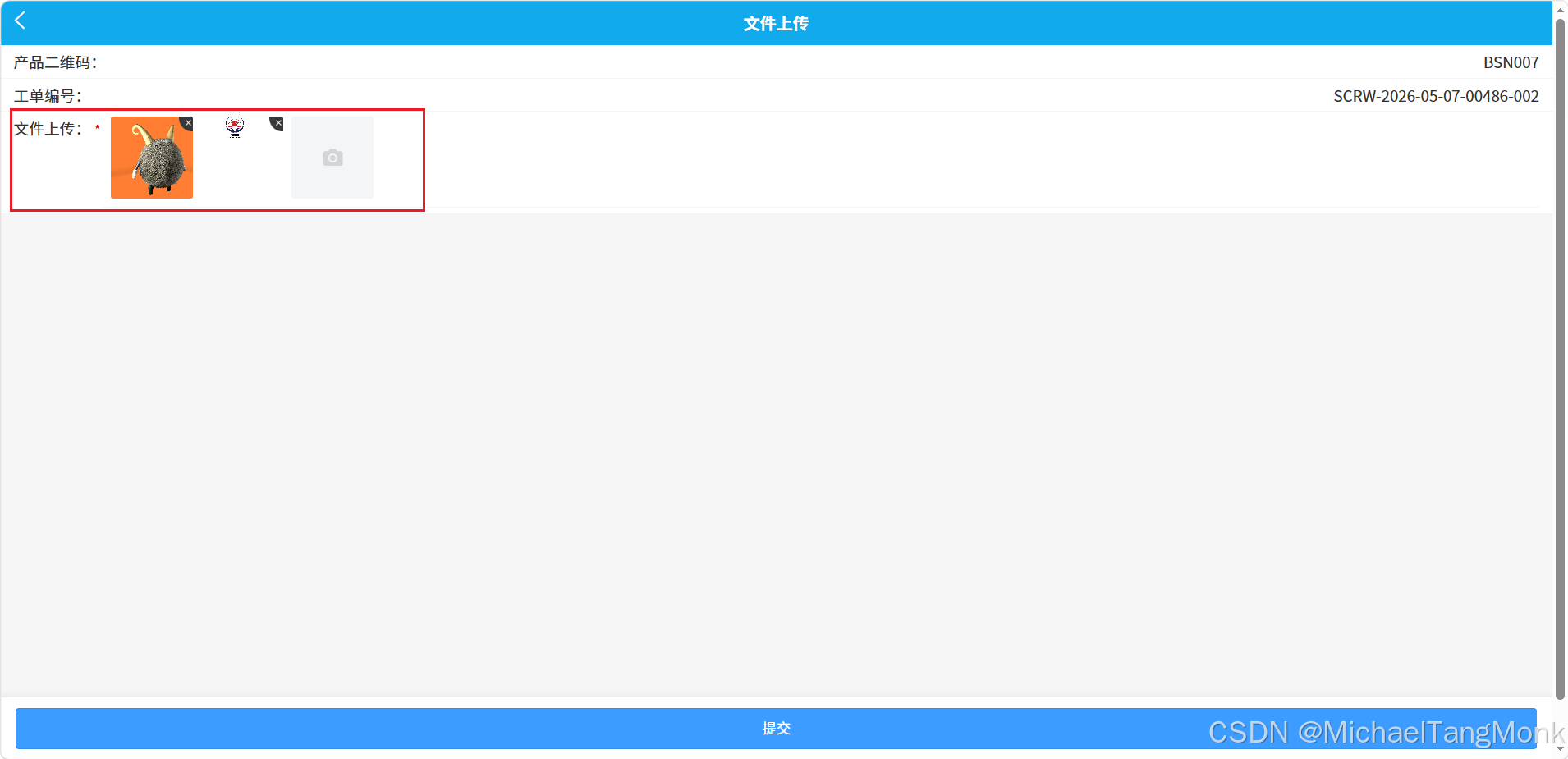
			<view class="flex-white-plr26 ptb10 bdb_f5 upload-row">
				<text class="form-label">文件上传:</text>
				<view class="upload-content">
					<mes-form ref="uploadForm" :labelWidth="0" :loadKey="false" :formFields="uploadFields"
						:formOptions="uploadFormOptions" :padding="0"></mes-form>
				</view>
			</view>

			<!-- <view v-for="(item, index) in fileRecordList" :key="item.UploadTime + '_' + index" class="record-card">
				<view class="record-card-row">
					<text class="colorGray">文件名称:</text>
					<text class="record-card-value">{{ item.FileName }}</text>
				</view>
				<view class="record-card-row">
					<text class="colorGray">上传人:</text>
					<text class="record-card-value">{{ item.UploadUser }}</text>
				</view>
				<view class="record-card-row">
					<text class="colorGray">上传时间:</text>
					<text class="record-card-value">{{ item.UploadTime }}</text>
				</view>
			</view> -->
		</view>

		<view class="form-btns form-btns--fixed">
			<u-button class="submit-btn" type="primary" @click="submit">提交</u-button>
		</view>
	</view>
</template>

<script>
	import MesForm from '@/components/imes-form/imes-form'
	import {
		getNowDate
	} from '@/static/utils/date.js'

	export default {
		components: {
			'mes-form': MesForm
		},
		data() {
			return {
				productInfo: {
					SnCode: '',
					WorkOrderCode: '',
					ProductCode: '',
					ProductName: '',
					StationCode: ''
				},
				uploadFields: {
					FileList: []
				},
				uploadFormOptions: [{
					field: 'FileList',
					title: '',
					type: 'img',
					required: true,
					readonly: false,
					colSize: 12,
					multiple: true, // mes-from启用多文件上传
					maxCount: 9, // 最多上传9个文件
					url: 'api/SnAbnormalAndFileList/Upload'
				}],
				fileRecordList: []
			}
		},
		onLoad(options) {
			this.productInfo = {
				SnCode: options.snCode || '',
				WorkOrderCode: options.workOrderCode || '',
				ProductCode: options.productCode || '',
				ProductName: options.productName || '',
				StationCode: options.stationCode || ''
			}
			this.loadFileList()
		},
		methods: {
			getUploadUser() {
				const userInfo = JSON.parse(window.localStorage.getItem("user_info"));
				return userInfo.data.userTrueName || userInfo.data.userName || 'Admin'
			},
			loadFileList() {
				if (!this.productInfo.SnCode) {
					return
				}
				let wheres = {
					name: "SNCode",
					value: this.productInfo.SnCode,
					displayType: "like",
				}
				let condition = []
				condition.push(wheres)
				let data = {
					page: 1,
					rows: 30,
					order: "desc",
					wheres: JSON.stringify(condition)
				}
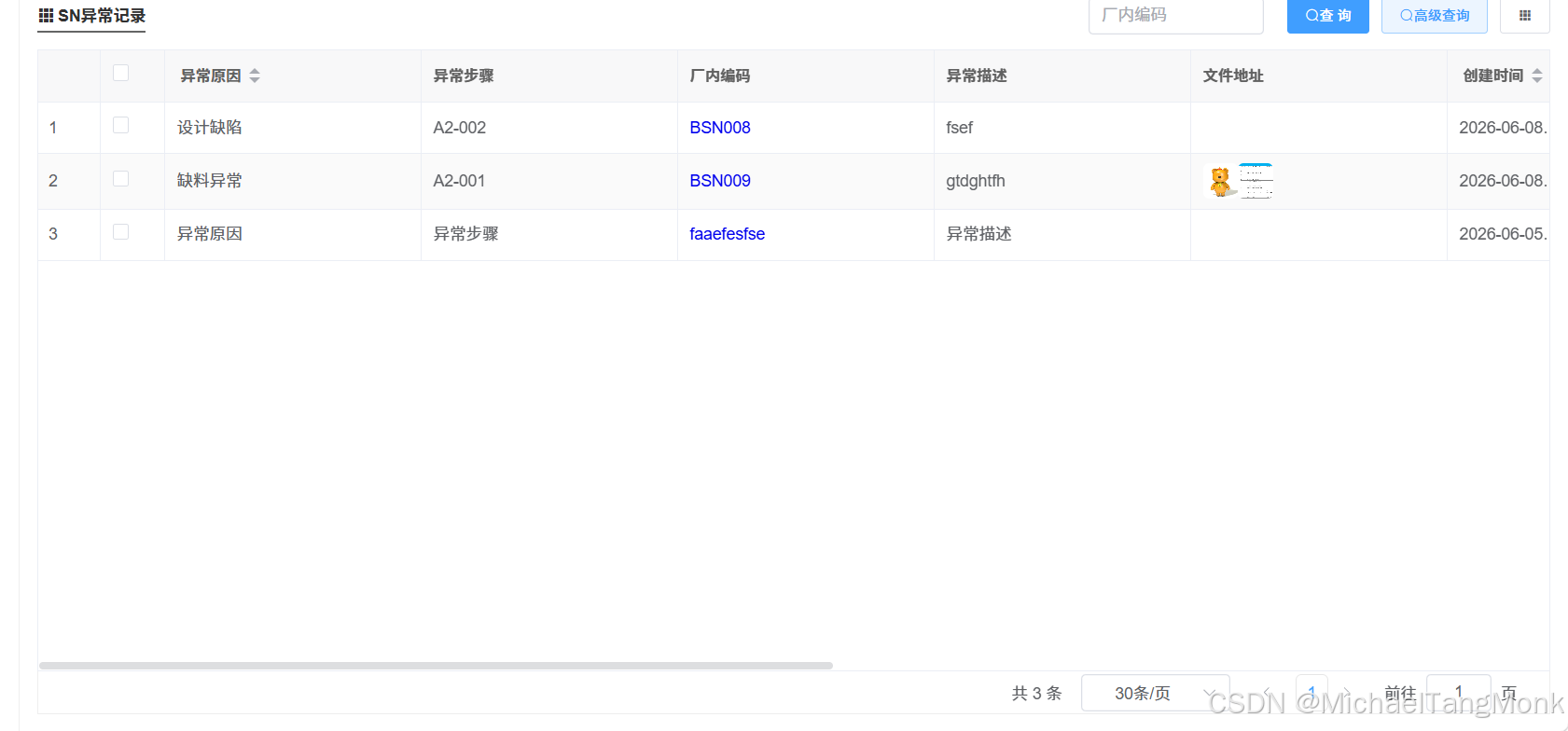
				const url = 'api/SnAbnormalAndFileList/GetPageData'
				this.http.post(url, data, true).then(result => {
					if (result.status == 0 && Array.isArray(result.rows)) {
						this.fileRecordList = result.rows
					} else {
						uni.showToast({
							title: `${this.productInfo.SnCode}无异常或文件记录`,
							icon: 'none',
							duration: 2000
						})
					}
				}).catch((error) => {
					uni.showToast({
						title: `${error?.message || error?.Message || '网络请求失败!'}`,
						icon: 'none',
						duration: 2000
					})
				})
			},
			getUploadFiles() {
				return (this.uploadFields.FileList || []).filter(item => item && item.url)
			},
			getCurrentTime() {
				const now = new Date();
				return `${now.getFullYear()}-${(now.getMonth() + 1)
			        .toString()
			        .padStart(2, "0")}-${now.getDate().toString().padStart(2, "0")} ${now
			        .getHours()
			        .toString()
			        .padStart(2, "0")}:${now.getMinutes().toString().padStart(2, "0")}:${now
			        .getSeconds()
			        .toString()
			        .padStart(2, "0")}`;
			},
			submit() {
				// 1. 获取要上传的文件列表
				const files = this.getUploadFiles()
				if (!files.length) {
					uni.showToast({
						title: '请上传文件',
						icon: 'none',
						duration: 2000
					})
					return
				}

				// 2. 获取上传人和上传时间
				const uploadUser = this.getUploadUser()
				const uploadTime = this.getCurrentTime()

				// 3. 构造请求参数(适配后端 SnAbnormalAndFileList 表)
				const param = {
					SNCode: this.productInfo.SnCode, // 厂内编码
					woCode: this.productInfo.WorkOrderCode, // 工单
					productNo: this.productInfo.ProductCode, // 产品编码
					fileUrl: files.map(item => item.url).join(','), // 多个文件用逗号连接,便于后端分隔转数组
					Creater: uploadUser, // 创建人
					CreateDate: uploadTime, // 创建时间
					stationCode: this.productInfo.StationCode, //站点
				}

				// 4. 调用后端接口保存(适配你的表)
				const url = 'api/SnAbnormalAndFileList/saveFile'
				this.http.post(url, param, true).then(result => {
					if (result.status) {
					    // 第一个用其他提示方式
					    uni.showLoading({
					        title: '处理中...',
					        mask: true
					    })

					    setTimeout(() => {
					        uni.hideLoading()
					        uni.showToast({
					            title: result.Message || result.message || '上传成功',
					            icon: 'success',
					            duration: 2000
					        })
							//刷新列表
					        this.loadFileList()
							//清空上传组件
					        this.uploadFields.FileList = []
					    }, 500)
					} else {
						uni.showToast({
							title: result.Message || result.message || '上传失败',
							icon: 'none',
							duration: 2000
						})
					}
				}).catch((error) => {
					uni.showToast({
						title: error?.message || error?.Message || '网络请求失败',
						icon: 'none',
						duration: 2000
					})
				})
			}
		}
	}
</script>

<style lang="less" scoped>
	.upload-page {
		min-height: 100vh;
		background-color: #f6f6f6;
	}

	.upload-page__body {
		padding-bottom: calc(140rpx + constant(safe-area-inset-bottom));
		padding-bottom: calc(140rpx + env(safe-area-inset-bottom));
	}

	.form-label {
		flex-shrink: 0;
		color: #333;
	}

	.form-value {
		flex: 1;
		margin-left: 20rpx;
		text-align: right;
		color: #333;
		word-break: break-all;
	}

	.upload-row {
		align-items: flex-start;
	}

	.upload-content {
		flex: 1;
		margin-left: 20rpx;
	}

	.record-card {
		margin: 24rpx 26rpx 0;
		padding: 26rpx 30rpx;
		background-color: #fff;
		border-radius: 16rpx;
		box-shadow: 0 2rpx 12rpx rgba(0, 0, 0, 0.08);
	}

	.record-card-row {
		display: flex;
		align-items: center;
		justify-content: space-between;
		margin-top: 16rpx;
		font-size: 28rpx;
		line-height: 1.5;
	}

	.record-card-row:first-child {
		margin-top: 0;
	}

	.record-card-value {
		flex: 1;
		margin-left: 20rpx;
		text-align: right;
		color: #333;
		word-break: break-all;
	}

	.form-btns {
		text-align: center;
	}

	.form-btns--fixed {
		position: fixed;
		left: 0;
		right: 0;
		bottom: 0;
		z-index: 99;
		padding: 20rpx 30rpx;
		padding-bottom: calc(20rpx + constant(safe-area-inset-bottom));
		padding-bottom: calc(20rpx + env(safe-area-inset-bottom));
		background-color: #fff;
		box-shadow: 0 -2rpx 12rpx rgba(0, 0, 0, 0.08);
	}

	.submit-btn {
		width: 100%;
	}
</style>