网页中鼠标移动,元素或背景图片轻微移动特效
这种效果通常称为 Mouse Parallax(鼠标视差跟随),常用于 Banner、产品展示页、高端企业官网。
方案1:背景图片轻微移动(推荐)
HTML:
<div class="banner">
    <img src="banner.jpg" alt="">
</div>
CSS:
.banner{
    width:100%;
    height:600px;
    overflow:hidden;
    position:relative;
}

.banner img{
    width:110%;
    height:110%;
    object-fit:cover;
    position:absolute;
    left:50%;
    top:50%;
    transform:translate(-50%,-50%);
    transition:transform .15s ease-out;
}
JS:
const banner = document.querySelector('.banner');
const img = banner.querySelector('img');

banner.addEventListener('mousemove', function(e){

    const x = (e.clientX / window.innerWidth - 0.5) * 20;
    const y = (e.clientY / window.innerHeight - 0.5) * 20;

    img.style.transform =
        `translate(calc(-50% + ${x}px), calc(-50% + ${y}px))`;

});
效果:
- 鼠标向右 → 图片轻微向右
- 鼠标向左 → 图片轻微向左
- 最大移动约 20px
- 非常适合 Banner
方案2:元素跟随鼠标
HTML:
<div class="banner">
    <div class="floating"></div>
</div>
CSS:
.banner{
    height:600px;
    position:relative;
}

.floating{
    width:300px;
    height:300px;
    background:#0a84ff;
    border-radius:20px;

    position:absolute;
    left:50%;
    top:50%;

    transform:translate(-50%,-50%);
    transition:transform .2s ease-out;
}
JS:
const floating = document.querySelector('.floating');

document.addEventListener('mousemove', function(e){

    const x = (e.clientX - window.innerWidth/2) / 40;
    const y = (e.clientY - window.innerHeight/2) / 40;

    floating.style.transform =
        `translate(calc(-50% + ${x}px), calc(-50% + ${y}px))`;

});
方案3:多层视差(高级官网常用)
HTML:
<div class="banner">
    <img class="layer layer1" src="bg.png">
    <img class="layer layer2" src="machine.png">
    <img class="layer layer3" src="bottle.png">
</div>
JS:
const layers = document.querySelectorAll('.layer');

document.addEventListener('mousemove', e => {

    let x = e.clientX / window.innerWidth - 0.5;
    let y = e.clientY / window.innerHeight - 0.5;

    layers.forEach((layer,index)=>{

        let speed = (index + 1) * 10;

        layer.style.transform =
            `translate(${x * speed}px, ${y * speed}px)`;

    });

});
效果:
- 背景层移动最慢
- 产品层移动中等
- 前景装饰层移动最快
类似:
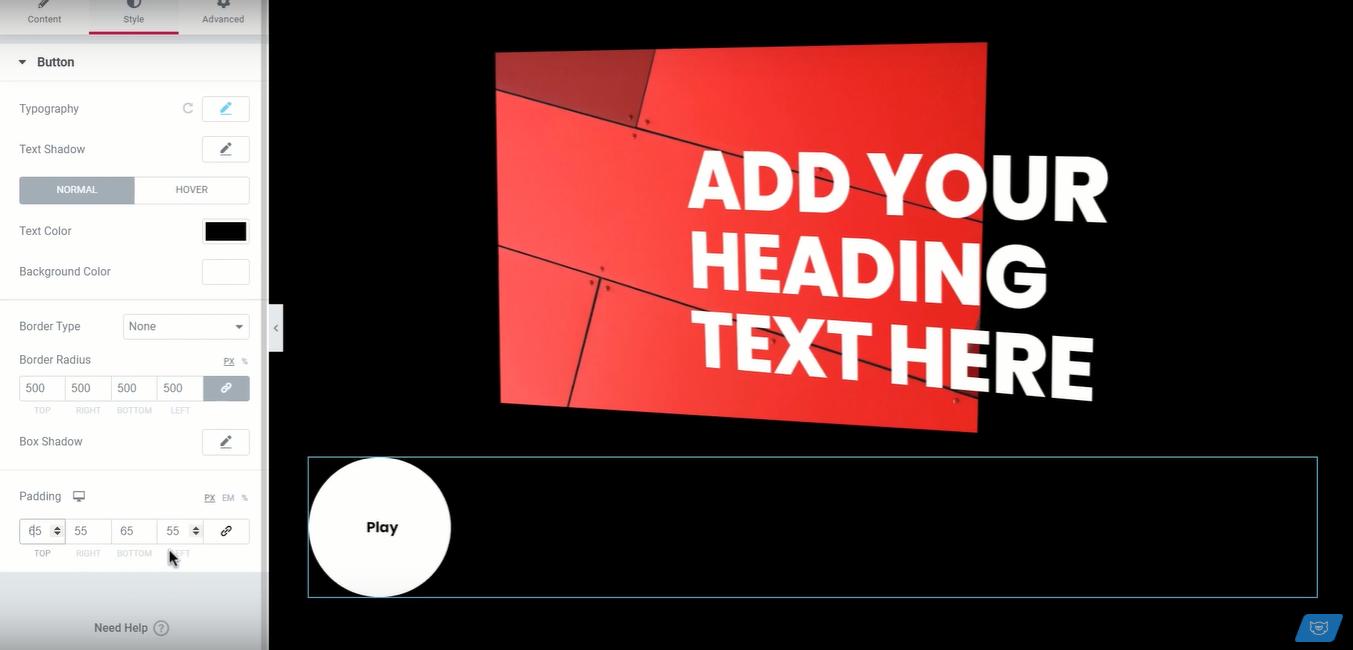
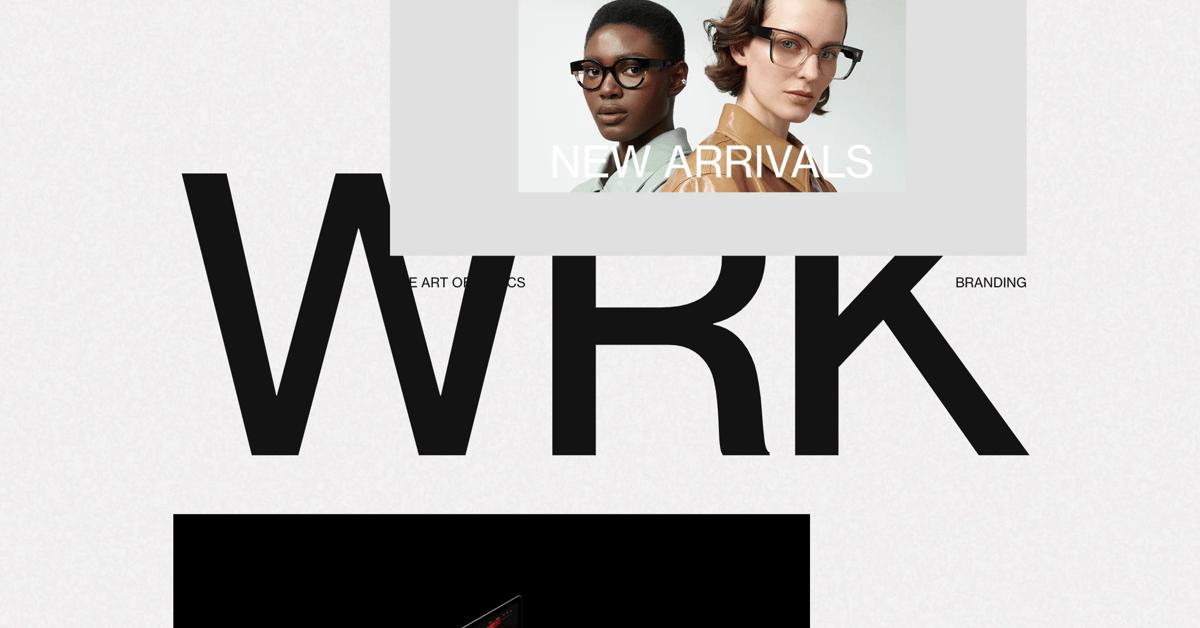
4
方案4:性能最佳(推荐用于企业官网)
使用 requestAnimationFrame,动画更丝滑:
const banner = document.querySelector('.banner');

let mouseX = 0;
let mouseY = 0;

let currentX = 0;
let currentY = 0;

banner.addEventListener('mousemove', e => {

    mouseX = (e.clientX - window.innerWidth/2) * 0.02;
    mouseY = (e.clientY - window.innerHeight/2) * 0.02;

});

function animate(){

    currentX += (mouseX - currentX) * 0.08;
    currentY += (mouseY - currentY) * 0.08;

    banner.style.transform =
        `translate(${currentX}px, ${currentY}px)`;

    requestAnimationFrame(animate);

}

animate();
优点:
- 不会频繁触发重排
- CPU占用低
- 比
mousemove + transition更流畅
形成轻微 3D 视差效果,既高级又不会影响性能。