【鸿蒙原生应用开发实战】第四篇:详情页与收藏交互 --- 动态数据切换与用户交互设计
前言
详情页是内容型App中最关键的页面,它承载着对内容的深度展示和用户交互。在"宇宙探索"App中,DetailPage 不仅要展示8个天体的详细数据,还要处理收藏交互、路由传参、动态数据切换等复杂逻辑。
本篇你将学到:
- 路由参数接收与动态数据加载
- 信息网格布局设计
- 收藏按钮的状态切换
- 趣味知识模块展示
- 从详情页返回的数据一致性
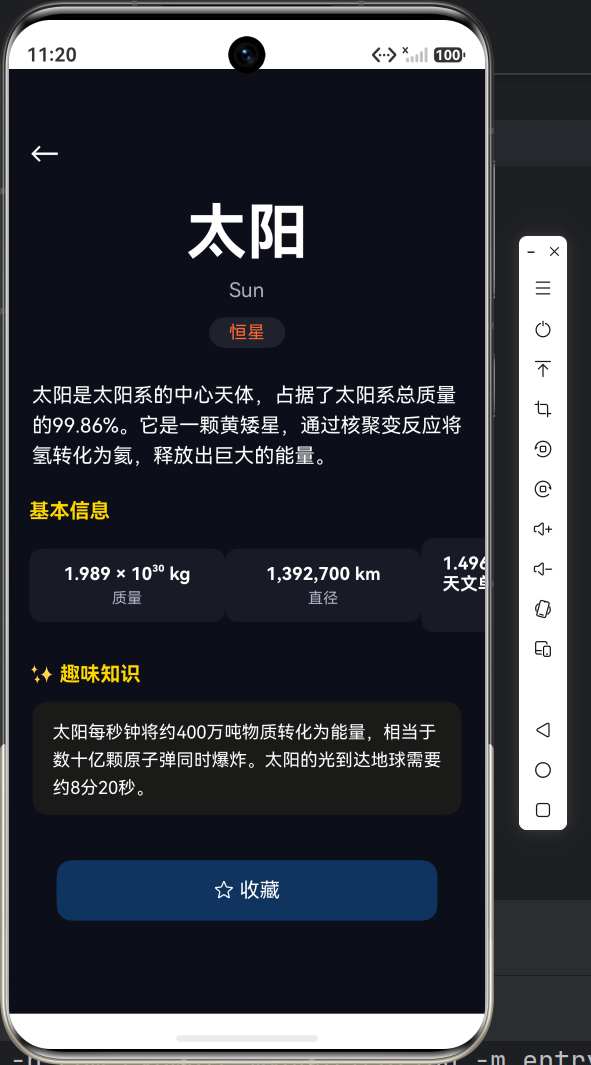
一、页面功能总览
DetailPage 包含以下内容模块:
| 模块 | 内容 | 实现方式 |
|---|---|---|
| 顶部返回 | ← 返回按钮 | router.back() |
| 天体名称区 | 中文名 + 英文名 + 类型标签 | 垂直居中布局 |
| 描述区 | 天体详细文字描述 | 多行文本 |
| 基本信息 | 质量/直径/距离/温度 | 2×2 网格卡片 |
| 趣味知识 | 一个冷知识 | 特殊底色区块 |
| 收藏按钮 | 收藏/取消收藏 | @State 状态切换 |
二、完整代码实现
2.1 InfoItem 组件
typescript
import router from '@ohos.router';
import { CelestialData, CELESTIAL_LIST, FavoriteManager } from '../model/CelestialData';

@Component
struct InfoItem {
  label: string = '';
  value: string = '';

  build() {
    Column() {
      Text(this.value)
        .fontSize($r('app.float.app_small_size'))
        .fontColor($r('app.color.app_color_white'))
        .fontWeight(FontWeight.Bold);
      Text(this.label)
        .fontSize($r('app.float.app_caption_size'))
        .fontColor($r('app.color.app_color_text_secondary'))
        .margin({ top: 4 });
    }
    .width('45%')
    .padding(12)
    .backgroundColor('rgba(255, 255, 255, 0.05)')
    .borderRadius(10)
    .alignItems(HorizontalAlign.Center);
  }
}设计解读:
width('45%')--- 两个 Item 并排布局,留出10%间隔- 半透明白色背景
rgba(255,255,255,0.05)--- 卡片感但不抢眼 - 值大标题、标签小字 --- 对比强化阅读层次
2.2 接口定义
typescript
interface InfoPair {
  label: string;
  value: string;
}
这个接口在文件末尾定义(不在 @Component 内),用于 infoItems 数组的类型声明。
2.3 详情页主组件
typescript
@Entry
@Component
struct DetailPage {
  @State data: CelestialData = {
    id: 0, name: '', englishName: '', type: '', description: '',
    mass: '', diameter: '', distance: '', temperature: '', fact: '',
    color: '#FFFFFF', isFavorite: false
  };
  @State isFav: boolean = false;
  @State infoItems: InfoPair[] = [];

  aboutToAppear(): void {
    // 1. 从路由参数获取天体ID
    const params = router.getParams() as Record<string, Object>;
    if (params && params['id'] !== undefined) {
      const id = Number(params['id']);
      // 2. 遍历数据源找到对应天体
      for (let i = 0; i < CELESTIAL_LIST.length; i++) {
        if (CELESTIAL_LIST[i].id === id) {
          this.data = CELESTIAL_LIST[i];
          break;
        }
      }
    }
    // 3. 检查收藏状态
    this.isFav = FavoriteManager.isFavorite(this.data.id);
    // 4. 组装信息条目
    this.infoItems = [
      { label: '质量', value: this.data.mass },
      { label: '直径', value: this.data.diameter },
      { label: '距地距离', value: this.data.distance },
      { label: '温度', value: this.data.temperature }
    ];
  }

  toggleFav(): void {
    this.isFav = FavoriteManager.toggle(this.data.id);
    this.data.isFavorite = this.isFav;
  }

  build() {
    Column() {
      Scroll() {
        Column() {
          // ===== 顶部返回 =====
          Row() {
            Text('←')
              .fontSize(24)
              .fontColor($r('app.color.app_color_white'))
              .onClick(() => { router.back(); });
          }
          .width('100%')
          .padding({ left: 16, top: 12 });

          // ===== 天体名称区域 =====
          Column() {
            Text(this.data.name)
              .fontSize(48)
              .fontColor($r('app.color.app_color_white'))
              .fontWeight(FontWeight.Bold);
            Text(this.data.englishName)
              .fontSize($r('app.float.app_body_size'))
              .fontColor($r('app.color.app_color_text_secondary'))
              .margin({ top: 8 });
            Text(this.data.type)
              .fontSize($r('app.float.app_small_size'))
              .fontColor(this.data.color)
              .padding({ left: 16, right: 16, top: 4, bottom: 4 })
              .backgroundColor('rgba(255, 255, 255, 0.08)')
              .borderRadius(20)
              .margin({ top: 12 });
          }
          .width('100%')
          .padding({ top: 20, bottom: 24 })
          .alignItems(HorizontalAlign.Center);

          // ===== 描述 =====
          Text(this.data.description)
            .fontSize($r('app.float.app_body_size'))
            .fontColor($r('app.color.app_color_white'))
            .lineHeight(24)
            .padding({ left: 16, right: 16 });

          // ===== 基本信息(2×2网格) =====
          Text('基本信息')
            .fontSize($r('app.float.app_body_size'))
            .fontColor($r('app.color.app_color_accent'))
            .fontWeight(FontWeight.Bold)
            .width('100%')
            .padding({ left: 16, top: 24, bottom: 12 });

          Row() {
            ForEach(this.infoItems, (item: InfoPair) => {
              InfoItem({ label: item.label, value: item.value })
            }, (item: InfoPair) => item.label)
          }
          .width('100%')
          .padding({ left: 16, right: 16 })
          .justifyContent(FlexAlign.SpaceBetween);

          // ===== 趣味知识 =====
          Text('✨ 趣味知识')
            .fontSize($r('app.float.app_body_size'))
            .fontColor($r('app.color.app_color_accent'))
            .fontWeight(FontWeight.Bold)
            .width('100%')
            .padding({ left: 16, top: 24, bottom: 12 });

          Text(this.data.fact)
            .fontSize($r('app.float.app_small_size'))
            .fontColor($r('app.color.app_color_white'))
            .lineHeight(22)
            .padding({ left: 16, right: 16, top: 12, bottom: 12 })
            .backgroundColor('rgba(255, 215, 0, 0.06)')
            .borderRadius(12)
            .margin({ left: 16, right: 16, bottom: 24 });

          // ===== 收藏按钮 =====
          Button() {
            Text(this.isFav ? '★ 已收藏' : '☆ 收藏')
              .fontSize($r('app.float.app_body_size'))
              .fontColor($r('app.color.app_color_white'));
          }
          .width('80%')
          .height(48)
          .backgroundColor(this.isFav ? '#FF6B6B' : '#0F3460')
          .borderRadius($r('app.float.app_button_radius'))
          .margin({ top: 12, bottom: 32 })
          .onClick(() => { this.toggleFav(); });
        }
        .width('100%');
      }
      .layoutWeight(1);
    }
    .width('100%').height('100%')
    .backgroundColor($r('app.color.app_color_background'));
  }
}
三、关键技术点解析
3.1 路由参数接收与动态数据加载
这是详情页最核心的机制------根据不同的路由参数展示不同天体的数据。
参数传递(发送端):
typescript
// 从首页热门卡片跳转
router.pushUrl({
  url: 'pages/DetailPage',
  params: { id: this.item.id }
});

// 从首页每日天文区跳转(固定展示地球)
router.pushUrl({
  url: 'pages/DetailPage',
  params: { id: 4 }
});

// 从收藏列表跳转
router.pushUrl({
  url: 'pages/DetailPage',
  params: { id: item.id }
});参数接收与数据匹配(接收端):
typescript
aboutToAppear(): void {
  const params = router.getParams() as Record<string, Object>;
  if (params && params['id'] !== undefined) {
    const id = Number(params['id']);
    // 线性查找匹配的天体
    for (let i = 0; i < CELESTIAL_LIST.length; i++) {
      if (CELESTIAL_LIST[i].id === id) {
        this.data = CELESTIAL_LIST[i];
        break;
      }
    }
  }
  // 初始化收藏状态
  this.isFav = FavoriteManager.isFavorite(this.data.id);
  // 组装信息条目
  this.infoItems = [
    { label: '质量', value: this.data.mass },
    { label: '直径', value: this.data.diameter },
    { label: '距地距离', value: this.data.distance },
    { label: '温度', value: this.data.temperature }
  ];
}数据流链路:
用户点击卡片
  → router.pushUrl({ params: { id: N } })
  → DetailPage.aboutToAppear()
  → 读取 params.id
  → CELESTIAL_LIST 中查找 id === N
  → this.data = 匹配到的天体数据
  → UI 自动刷新展示该天体
3.2 @State 状态管理的双重绑定
在这个页面中有三个 @State 变量:
typescript
@State data: CelestialData;       // 当前展示的天体数据
@State isFav: boolean;            // 收藏状态的开关
@State infoItems: InfoPair[];     // 信息条目列表
每个变量的变化都会触发对应 UI 的重新渲染:
| @State 变量 | 变更时机 | 影响UI |
|---|---|---|
data |
aboutToAppear() 从路由参数加载 |
名称、描述、基本信息、趣味知识全部刷新 |
isFav |
toggleFav() 用户点击收藏 |
按钮文字(★已收藏/☆收藏)和颜色 |
infoItems |
aboutToAppear() 初始化时组装 |
四个 InfoItem 卡片 |
3.3 收藏按钮的状态切换
typescript
toggleFav(): void {
  this.isFav = FavoriteManager.toggle(this.data.id);
  this.data.isFavorite = this.isFav;
}
这短短两行做了三件事:
- 调用
FavoriteManager.toggle(id)--- 修改数据层,添加或移除收藏 this.isFav = 返回值---@State变量变化,触发UI刷新收藏按钮- 同步到
this.data.isFavorite--- 保持数据对象一致性,防止页面间数据不同步
按钮视觉反馈:
| 状态 | 文字 | 背景色 | 含义 |
|---|---|---|---|
| 未收藏 | ☆ 收藏 |
#0F3460(深蓝) |
点击即可收藏 |
| 已收藏 | ★ 已收藏 |
#FF6B6B(红色) |
点击取消收藏 |
3.4 类型标签的专属色
天体类型标签使用了该天体的专属颜色:
typescript
Text(this.data.type)
  .fontColor(this.data.color)
这意味着:
- 太阳(恒星)→
#FF6B35橙色标签 - 地球(行星)→
#4B7B8A蓝绿色标签 - 银河系(星系)→
#6B8EC4蓝色标签 - 猎户座大星云(星云)→
#FF69B4粉色标签
每个标签还加上了胶囊背景:
typescript
.backgroundColor('rgba(255, 255, 255, 0.08)')
.borderRadius(20)半透明背景让标签看起来更"立体",borderRadius(20) 制造胶囊圆角效果。
3.5 趣味知识模块
typescript
Text(this.data.fact)
  .fontSize($r('app.float.app_small_size'))
  .fontColor($r('app.color.app_color_white'))
  .lineHeight(22)
  .backgroundColor('rgba(255, 215, 0, 0.06)')  // 极淡金色背景
  .borderRadius(12)
趣味知识模块用三个细节区别于普通内容:
- 淡金色背景
rgba(255, 215, 0, 0.06)--- 暗示"知识亮点" - ✨ 前缀 --- 段落标题前的emoji,增加趣味性
- 适中行高
lineHeight(22)--- 确保长文本可读性
四、信息网格布局详解
4.1 2×2 网格的实现
typescript
Row() {
  ForEach(this.infoItems, (item: InfoPair) => {
    InfoItem({ label: item.label, value: item.value })
  }, (item: InfoPair) => item.label)
}
.width('100%')
.padding({ left: 16, right: 16 })
.justifyContent(FlexAlign.SpaceBetween);
infoItems 数组有4项,ForEach 会渲染4个 InfoItem。
- 每个
InfoItem宽度45%→ 一行放2个 → 两行正好4个 SpaceBetween自动在元素之间分配空间
4.2 InfoItem 组件的细节
typescript
Column() {
  Text(this.value)     // 值(大号、白色、加粗)
  Text(this.label)     // 标签(小号、灰色)
}
.width('45%')
.backgroundColor('rgba(255, 255, 255, 0.05)')  // 半透明白色底
.borderRadius(10)
.alignItems(HorizontalAlign.Center);这个组件体现了视觉层次的设计原则:
- 值比标签大两号(
small_size: 14fpvscaption_size: 12fp) - 值是白色,标签是灰色,主次分明
- 值加粗,标签不加粗
- 半透明背景营造卡片感
五、页面间数据一致性
5.1 从详情页返回后列表页刷新收藏状态
这是一个常见的跨页面数据同步问题。用户在详情页收藏/取消收藏后,返回列表页时需要看到最新的收藏状态。
实现方案:
在 FavPage 和 CelestialPage 中使用 onPageShow 生命周期钩子:
typescript
// FavPage.ets --- 收藏列表页
onPageShow(): void {
  this.loadFavorites();  // 每次显示都重新加载收藏数据
}

// CelestialPage.ets --- 天体列表页
onPageShow(): void {
  this.applyFilter();  // 重新应用筛选,刷新收藏状态
}流程:
DetailPage 中收藏/取消收藏
  → router.back()
  → 返回到 FavPage / CelestialPage
  → onPageShow() 被触发
  → 重新从 FavoriteManager 读取最新数据
  → @State 更新 → UI 刷新
5.2 router.back() 的正确使用
typescript
// 详情页的返回按钮
Text('←')
  .onClick(() => {
    router.back();  // 返回上一页
  });
router.back() 不需要传参,框架会自动返回到跳转到当前页的上一页。
路由栈示意图:
Index → CelestialPage → DetailPage
                          ↓ back()
                        CelestialPage  ← onPageShow() 触发刷新

收藏列表页:
FavPage → DetailPage
            ↓ back()
          FavPage  ← onPageShow() 触发刷新
六、完整页面展示效果
以"地球"为例,DetailPage 的展示效果:
┌──────────────────────────────┐
│ ←                            │
│                              │
│          地 球                 │
│          Earth               │
│        ┌──────┐              │
│        │ 行星  │              │
│        └──────┘              │
│                              │
│ 地球是太阳系中唯一已知存在    │
│ 生命的行星,拥有液态水和      │
│ 适宜的大气层...              │
│                              │
│ 基本信息                     │
│ ┌──────────┐ ┌──────────┐   │
│ │ 5.972×10²⁴│ │ 12,742km │   │
│ │   质量    │ │   直径   │   │
│ └──────────┘ └──────────┘   │
│ ┌──────────┐ ┌──────────┐   │
│ │1.496亿km │ │  平均15°C │   │
│ │ 距地距离 │ │   温度   │   │
│ └──────────┘ └──────────┘   │
│                              │
│ ✨ 趣味知识                  │
│ ┌──────────────────────────┐ │
│ │ 地球是太阳系中密度最大    │ │
│ │ 的行星。约71%的表面被水   │ │
│ │ 覆盖,被称为"蓝色星球"。  │ │
│ └──────────────────────────┘ │
│                              │
│     ┌────────────────┐       │
│     │  ☆ 收藏        │       │
│     └────────────────┘       │
└──────────────────────────────┘
七、本篇总结
本片完成了 DetailPage 详情页的完整开发,核心收获:
- ✅ 动态数据加载 --- 通过路由参数
id动态切换展示不同天体的详细数据 - ✅ 信息网格布局 --- 2×2 网格展示质量/直径/距离/温度四维信息
- ✅ 收藏交互 --- 按钮状态切换的完整实现,数据层+UI层联动
- ✅ 趣味知识模块 --- 特殊视觉样式的知识点展示区块
- ✅ 页面间数据一致性 ---
router.back()+onPageShow()确保返回时列表页刷新 - ✅ InfoItem 组件复用 --- 可复用的信息卡片组件设计
下篇预告 :最后一篇我们将完成 FavPage(收藏列表页)和 ProfilePage(个人中心页),包含收藏管理、空状态设计、旅行统计、功能菜单等完整功能。
本篇涉及的文件:
entry/src/main/ets/pages/DetailPage.ets--- 详情页主组件entry/src/main/ets/model/CelestialData.ets--- 数据源与收藏管理