【鸿蒙原生应用开发实战】第一篇:项目搭建与首页开发 --- 从零构建"宇宙探索"App
前言
鸿蒙原生应用生态正在高速发展,ArkTS + Stage 模型已经成为鸿蒙应用开发的主流技术栈。本系列文章将以一个完整的"宇宙探索"App为案例,带你从零到一掌握鸿蒙原生应用的开发全流程。每篇文章都有完整的可运行代码和详细解析,学完即可上手实战。
这个App的核心功能包括:
- 🌠 首页:分类入口 + 热门横向滚动 + 精选推荐列表
- 🔭 天体列表:5个分类标签筛选
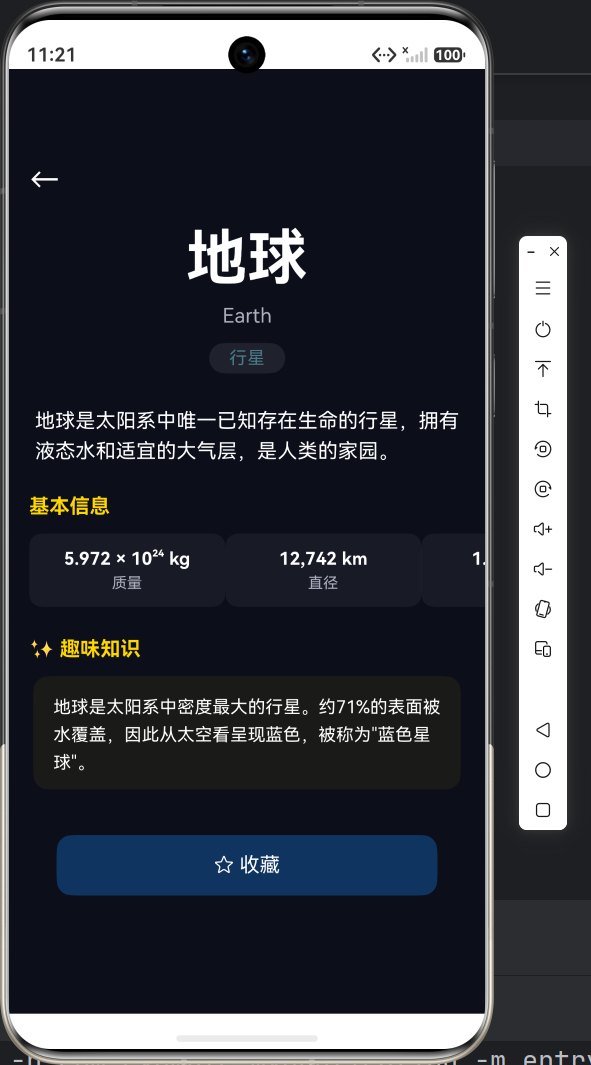
- 🌍 详情页:8大天体动态切换展示
- ⭐ 收藏管理:收藏/取消收藏 + 空状态
- 👤 个人中心:旅行统计 + 功能菜单
本系列基于 API 23(HarmonyOS 6.1.0) ,使用 Stage 模型 + ArkTS 语言 开发。
一、项目创建与基础配置
1.1 在DevEco Studio中创建项目
打开 DevEco Studio,点击 "Create Project",选择 Empty Ability 模板:
- Project Name:MyApplication
- Bundle Name:com.example.myapplication
- Compatible SDK:23(6.1.0)
- Target SDK:24(6.1.1)
- Device Type:Phone
- Language:ArkTS
1.2 Stage 模型的项目结构
创建完成后,项目目录结构如下:
MyApplication/
├── AppScope/                  ← 全局应用级配置
│   ├── app.json5              ← 应用ID、版本号、图标
│   └── resources/base/element/string.json  ← 全局字符串
├── entry/                     ← 应用模块
│   ├── src/main/
│   │   ├── ets/
│   │   │   ├── entryability/  ← Ability生命周期
│   │   │   └── pages/         ← 页面组件
│   │   ├── module.json5       ← 模块配置
│   │   └── resources/         ← 资源文件
│   └── build-profile.json5    ← 模块构建配置
├── build-profile.json5        ← 应用级构建配置
└── oh-package.json5           ← 包管理配置
1.3 关键配置文件解析
AppScope/app.json5 --- 全局应用配置
json5
{
  "app": {
    "bundleName": "com.example.myapplication",
    "vendor": "example",
    "versionCode": 1000000,
    "versionName": "1.0.0",
    "icon": "$media:layered_image",
    "label": "$string:app_name"
  }
}
AppScope/resources/base/element/string.json --- 应用名
json
{
  "string": [
    {
      "name": "app_name",
      "value": "宇宙探索"
    }
  ]
}
⚠️ 重要 :
app_name只需在AppScope中定义一次,不可 在entry模块的 string.json 中重复定义,否则编译会报资源冲突。
build-profile.json5 --- 应用级构建配置
json5
{
  "app": {
    "products": [
      {
        "name": "default",
        "signingConfig": "default",
        "targetSdkVersion": "6.1.1(24)",
        "compatibleSdkVersion": "6.1.0(23)",
        "runtimeOS": "HarmonyOS",
        "buildOption": {
          "strictMode": {
            "caseSensitiveCheck": true,
            "useNormalizedOHMUrl": true
          }
        }
      }
    ]
  }
}
这里的关键点是 compatibleSdkVersion: 23 和 targetSdkVersion: 24,这是我们后续编码需要对齐的API版本。如果你的项目跑在API 23上,router 必须从 @ohos.router 导入,而不是 @kit.AbilityKit。
二、资源文件配置
在正式开始写页面之前,我们先配置好颜色、字号尺寸和字符串资源。
2.1 颜色定义 --- color.json
json
{
  "color": [
    { "name": "start_window_background", "value": "#0B0E1A" },
    { "name": "app_color_primary",    "value": "#1A1A2E" },
    { "name": "app_color_secondary",  "value": "#16213E" },
    { "name": "app_color_accent",     "value": "#FFD700" },
    { "name": "app_color_card",       "value": "#0F3460" },
    { "name": "app_color_white",      "value": "#FFFFFF" },
    { "name": "app_color_text_secondary", "value": "#B0B0C0" },
    { "name": "app_color_background", "value": "#0B0E1A" },
    { "name": "app_color_tab_inactive","value": "#555555" },
    { "name": "app_color_favorite",   "value": "#FF6B6B" },
    { "name": "app_color_unfavorite", "value": "#666666" }
  ]
}
配色思路是深色太空主题:
#0B0E1A--- 深邃太空背景#0F3460--- 卡片底色,深蓝稳重#FFD700--- 金色点缀,代表星光#B0B0C0--- 次级文字,柔和不刺眼
2.2 字号定义 --- float.json
json
{
  "float": [
    { "name": "app_title_size",   "value": "32fp" },
    { "name": "app_subtitle_size","value": "20fp" },
    { "name": "app_body_size",    "value": "16fp" },
    { "name": "app_small_size",   "value": "14fp" },
    { "name": "app_caption_size", "value": "12fp" },
    { "name": "app_card_radius",  "value": "16vp" },
    { "name": "app_button_radius","value": "12vp" },
    { "name": "app_margin_small", "value": "8vp" },
    { "name": "app_margin_medium","value": "16vp" },
    { "name": "app_margin_large", "value": "24vp" }
  ]
}
2.3 字符串定义 --- string.json
json
{
  "string": [
    { "name": "module_desc",   "value": "探索宇宙奥秘" },
    { "name": "EntryAbility_desc", "value": "宇宙探索应用" },
    { "name": "EntryAbility_label","value": "宇宙探索" },
    { "name": "title_home",        "value": "探索宇宙" },
    { "name": "title_categories",  "value": "分类探索" },
    { "name": "title_hot",         "value": "热门天体" },
    { "name": "title_recommend",   "value": "精选推荐" },
    { "name": "title_favorites",   "value": "我的收藏" },
    { "name": "title_profile",     "value": "个人中心" }
  ]
}
资源引用约定 :在 ArkTS 代码中通过
$r('app.color.xxx')、$r('app.float.xxx')、$r('app.string.xxx')引用资源,这样适配多语言或主题时会自动切换。
三、页面路由注册
Stage 模型的路由通过 main_pages.json 集中管理,所有页面必须在此注册:
json
{
  "src": [
    "pages/Index",
    "pages/CelestialPage",
    "pages/DetailPage",
    "pages/FavPage",
    "pages/ProfilePage"
  ]
}
然后在 module.json5 中声明页面引用:
json5
{
  "module": {
    "pages": "$profile:main_pages",
    "abilities": [
      {
        "name": "EntryAbility",
        "srcEntry": "./ets/entryability/EntryAbility.ets",
        "startWindowIcon": "$media:startIcon",
        "startWindowBackground": "$color:start_window_background",
        "exported": true,
        "skills": [
          {
            "entities": ["entity.system.home"],
            "actions": ["ohos.want.action.home"]
          }
        ]
      }
    ]
  }
}
四、EntryAbility --- 应用入口
EntryAbility 是应用的启动入口,负责生命周期管理和首页加载。
typescript
// entry/src/main/ets/entryability/EntryAbility.ets
import { AbilityConstant, ConfigurationConstant, UIAbility, Want } from '@kit.AbilityKit';
import { hilog } from '@kit.PerformanceAnalysisKit';
import { window } from '@kit.ArkUI';

const DOMAIN = 0x0000;

export default class EntryAbility extends UIAbility {
  onCreate(want: Want, launchParam: AbilityConstant.LaunchParam): void {
    // 设置颜色模式
    try {
      this.context.getApplicationContext()
        .setColorMode(ConfigurationConstant.ColorMode.COLOR_MODE_NOT_SET);
    } catch (err) {
      hilog.error(DOMAIN, 'testTag',
        'Failed to set colorMode. Cause: %{public}s', JSON.stringify(err));
    }
    hilog.info(DOMAIN, 'testTag', '%{public}s', 'Ability onCreate');
  }

  onWindowStageCreate(windowStage: window.WindowStage): void {
    // 加载首页
    windowStage.loadContent('pages/Index', (err) => {
      if (err.code) {
        hilog.error(DOMAIN, 'testTag',
          'Failed to load the content. Cause: %{public}s', JSON.stringify(err));
        return;
      }
      hilog.info(DOMAIN, 'testTag', 'Succeeded in loading the content.');
    });
  }
}
知识点 :
setColorMode设置颜色模式,COLOR_MODE_NOT_SET表示跟随系统。当系统切换深色/浅色模式时,应用会自动加载对应的dark/color.json。
五、首页 Index 开发 --- 三个核心模块
首页是我们的门面,包含三大内容模块:
- 分类探索 --- 5个分类卡片入口
- 热门天体 --- 横向可滚动列表
- 精选推荐 --- 纵向卡片列表
5.1 定义接口与导入
typescript
import router from '@ohos.router';
import { CelestialData, CELESTIAL_LIST, FavoriteManager } from '../model/CelestialData';

interface CategoryItem {
  name: string;
  type: string;
  icon: string;
}
⚠️ API 23 注意事项 :
router必须从@ohos.router导入,不要用@kit.AbilityKit。这是很多新手踩的坑。
5.2 分类卡片组件 --- CategoryCard
typescript
@Component
struct CategoryCard {
  category: CategoryItem = { name: '', type: '', icon: '✦' };

  build() {
    Column() {
      Text(this.category.icon)
        .fontSize(32)
        .fontColor($r('app.color.app_color_accent'));
      Text(this.category.name)
        .fontSize($r('app.float.app_small_size'))
        .fontColor($r('app.color.app_color_white'))
        .margin({ top: 6 });
    }
    .width('30%')
    .aspectRatio(1.2)
    .backgroundColor($r('app.color.app_color_card'))
    .borderRadius($r('app.float.app_card_radius'))
    .justifyContent(FlexAlign.Center)
    .alignItems(HorizontalAlign.Center)
    .onClick(() => {
      router.pushUrl({
        url: 'pages/CelestialPage',
        params: { filterType: this.category.type }
      });
    });
  }
}设计亮点:
aspectRatio(1.2)保持卡片宽高比,适配不同屏幕width('30%')三卡片等宽排列- 点击后携带
filterType参数跳转到天体列表页,实现分类筛选
5.3 热门天体卡片 --- HotCard(横向滚动)
typescript
@Component
struct HotCard {
  item: CelestialData = {
    id: 0, name: '', englishName: '', type: '', description: '',
    mass: '', diameter: '', distance: '', temperature: '', fact: '',
    color: '#FFFFFF', isFavorite: false
  };

  build() {
    Column() {
      Row() {
        Text(this.item.name)
          .fontSize($r('app.float.app_body_size'))
          .fontColor($r('app.color.app_color_white'))
          .fontWeight(FontWeight.Bold);
        Text(this.item.englishName)
          .fontSize($r('app.float.app_caption_size'))
          .fontColor($r('app.color.app_color_text_secondary'))
          .margin({ left: 8 });
      }
      .width('100%')
      .padding({ left: 12, top: 12 });

      Text(this.item.type)
        .fontSize($r('app.float.app_caption_size'))
        .fontColor(this.item.color)        // 使用天体专属颜色
        .margin({ left: 12, top: 4 });

      Text(this.item.description.length > 30 ?
        this.item.description.substring(0, 30) + '...' :
        this.item.description)
        .fontSize($r('app.float.app_caption_size'))
        .fontColor($r('app.color.app_color_text_secondary'))
        .maxLines(2)
        .lineHeight(18)
        .padding({ left: 12, right: 12, top: 8 });
    }
    .width(180)
    .height(140)
    .backgroundColor($r('app.color.app_color_card'))
    .borderRadius($r('app.float.app_card_radius'))
    .margin({ right: 12 })
    .onClick(() => {
      router.pushUrl({
        url: 'pages/DetailPage',
        params: { id: this.item.id }
      });
    });
  }
}
5.4 精选推荐卡片 --- RecommendCard
typescript
@Component
struct RecommendCard {
  item: CelestialData = {
    id: 0, name: '', englishName: '', type: '', description: '',
    mass: '', diameter: '', distance: '', temperature: '', fact: '',
    color: '#FFFFFF', isFavorite: false
  };

  build() {
    Row() {
      // 首字母图标 --- 用天体颜色做背景
      Row() {
        Text(this.item.name[0])
          .fontSize(24)
          .fontColor($r('app.color.app_color_white'))
          .fontWeight(FontWeight.Bold);
      }
      .width(60).height(60)
      .backgroundColor(this.item.color)
      .borderRadius(12)
      .justifyContent(FlexAlign.Center)
      .alignItems(VerticalAlign.Center);

      Column() {
        Text(this.item.name)
          .fontSize($r('app.float.app_body_size'))
          .fontColor($r('app.color.app_color_white'))
          .fontWeight(FontWeight.Bold);
        Text(this.item.englishName + ' · ' + this.item.type)
          .fontSize($r('app.float.app_caption_size'))
          .fontColor($r('app.color.app_color_text_secondary'))
          .margin({ top: 2 });
        Text(this.item.description.length > 40 ?
          this.item.description.substring(0, 40) + '...' :
          this.item.description)
          .maxLines(1)
          .margin({ top: 4 });
      }
      .alignItems(HorizontalAlign.Start)
      .margin({ left: 12 })
      .layoutWeight(1);
    }
    .width('100%')
    .padding(12)
    .backgroundColor($r('app.color.app_color_card'))
    .borderRadius($r('app.float.app_card_radius'))
    .margin({ bottom: 12 })
    .onClick(() => {
      router.pushUrl({
        url: 'pages/DetailPage',
        params: { id: this.item.id }
      });
    });
  }
}
5.5 组装首页 Index
typescript
@Entry
@Component
struct Index {
  @State categories: CategoryItem[] = [
    { name: '行星', type: '行星', icon: '🪐' },
    { name: '恒星', type: '恒星', icon: '☀️' },
    { name: '星系', type: '星系', icon: '🌀' },
    { name: '星云', type: '星云', icon: '🌌' },
    { name: '天文现象', type: '天文现象', icon: '🔭' }
  ];

  @State hotList: CelestialData[] = CELESTIAL_LIST.slice(0, 5);
  @State recommendList: CelestialData[] = CELESTIAL_LIST.slice(5, 10);

  build() {
    Column() {
      // 顶部标题
      Column() {
        Text($r('app.string.title_home'))
          .fontSize($r('app.float.app_title_size'))
          .fontColor($r('app.color.app_color_accent'))
          .fontWeight(FontWeight.Bold);
        Text('探索星辰大海')
          .fontSize($r('app.float.app_small_size'))
          .fontColor($r('app.color.app_color_text_secondary'))
          .margin({ top: 4 });
      }
      .width('100%')
      .padding({ top: 20, bottom: 16 })
      .alignItems(HorizontalAlign.Center);

      Scroll() {
        Column() {
          // ===== 每日天文图片区 =====
          Column() {
            Text('🌠 每日天文')
              .fontSize($r('app.float.app_subtitle_size'))
              .fontColor($r('app.color.app_color_white'))
              .fontWeight(FontWeight.Bold);
            Text('探索宇宙的壮丽与神秘')
              .fontSize($r('app.float.app_caption_size'))
              .fontColor($r('app.color.app_color_text_secondary'))
              .margin({ top: 4 });
          }
          .width('100%').height(160)
          .backgroundColor('#0F3460')
          .borderRadius($r('app.float.app_card_radius'))
          .justifyContent(FlexAlign.Center)
          .alignItems(HorizontalAlign.Center)
          .margin({ bottom: $r('app.float.app_margin_large') })
          .onClick(() => {
            router.pushUrl({ url: 'pages/DetailPage', params: { id: 4 } });
          });

          // ===== 分类探索 =====
          Text($r('app.string.title_categories'))
            .fontSize($r('app.float.app_body_size'))
            .fontColor($r('app.color.app_color_white'))
            .fontWeight(FontWeight.Bold)
            .width('100%')
            .margin({ bottom: $r('app.float.app_margin_medium') });

          Row() {
            ForEach(this.categories, (item: CategoryItem) => {
              CategoryCard({ category: item })
            })
          }
          .width('100%')
          .justifyContent(FlexAlign.SpaceBetween)
          .margin({ bottom: $r('app.float.app_margin_large') });

          // ===== 热门天体(横向滚动) =====
          Text($r('app.string.title_hot'))
            .fontSize($r('app.float.app_body_size'))
            .fontColor($r('app.color.app_color_white'))
            .fontWeight(FontWeight.Bold)
            .width('100%')
            .margin({ bottom: $r('app.float.app_margin_medium') });

          Scroll() {
            Row() {
              ForEach(this.hotList, (item: CelestialData) => {
                HotCard({ item: item })
              })
            }
          }
          .scrollable(ScrollDirection.Horizontal)
          .scrollBar(BarState.Off)
          .width('100%').height(156)
          .margin({ bottom: $r('app.float.app_margin_large') });

          // ===== 精选推荐 =====
          Text($r('app.string.title_recommend'))
            .fontSize($r('app.float.app_body_size'))
            .fontColor($r('app.color.app_color_white'))
            .fontWeight(FontWeight.Bold)
            .width('100%')
            .margin({ bottom: $r('app.float.app_margin_medium') });

          ForEach(this.recommendList, (item: CelestialData) => {
            RecommendCard({ item: item })
          })
        }
        .width('100%')
        .padding({ left: 16, right: 16 });
      }
      .layoutWeight(1);
    }
    .width('100%').height('100%')
    .backgroundColor($r('app.color.app_color_background'));
  }
}
5.6 要点解析
| 知识点 | 说明 |
|---|---|
@Entry + @Component |
页面入口组件的标准装饰器组合 |
@State |
声明式状态管理,数据变化自动触发UI刷新 |
ForEach |
列表渲染,第一个参数是数据源,第二个参数是渲染函数 |
Scroll + ScrollDirection.Horizontal |
实现横向滚动列表 |
layoutWeight(1) |
弹性布局权重,让Scroll占满剩余空间 |
$r('app.color.xxx') |
资源引用语法,系统自动适配主题 |
六、运行与调试
在 DevEco Studio 中:
- 连接真机或启动模拟器
- 点击顶部 Run 按钮(▶️)
- 编译并安装到设备
常见问题排查:
- 如果编译报错
router找不到 → 检查是否从@ohos.router导入- 如果资源冲突 → 检查
app_name是否在 entry 中重复定义了- 如果页面白屏 → 检查
main_pages.json中是否注册了该页面
七、本篇总结
到这里我们完成了:
- ✅ 鸿蒙原生项目的基础搭建
- ✅ Stage 模型的核心配置
- ✅ 资源文件体系(颜色/字号/字符串)
- ✅ 页面路由注册机制
- ✅ 首页三大模块的完整开发
- ✅ 组件化设计思维(CategoryCard/HotCard/RecommendCard)
下篇预告 :我们将深入数据模型层,设计 CelestialData 接口和 FavoriteManager 收藏管理器,同时详细讲解 ArkTS 的 @State 状态管理和数据驱动UI的完整流程。
项目基础信息:
- 开发环境:DevEco Studio + HarmonyOS 6.1.0 (API 23)
- 框架:Stage 模型 + ArkTS
- 配色主题:深色太空风
- 数据:10个天体(太阳系行星 + 银河系 + 星云 + 黑洞)