HarmonyOS APP开发:GPU渲染与硬件加速实战
📌 核心要点:掌握HarmonyOS GPU渲染架构与硬件加速机制,学会在Vulkan/Mali GPU驱动层优化渲染性能,通过着色器编程和GPU监控让应用帧率稳如磐石。
一、背景与动机
你有没有遇到过这种诡异的情况:明明界面很简单,列表却滑得像在泥地里走路?或者一个简单的渐变背景,GPU占用率却飙到80%?
这些"反直觉"的性能问题,90%都跟GPU渲染和硬件加速有关。很多开发者把GPU当成一个"自动加速器"------觉得只要硬件加速开着,一切都会变快。但事实远非如此。
GPU就像一台超级跑车,如果你不知道怎么换挡、不知道什么时候该踩油门什么时候该刹车,它反而比普通轿车还慢。理解GPU渲染架构、掌握硬件加速的正确打开方式,是从"UI工程师"进阶到"性能工程师"的必经之路。
HarmonyOS的GPU渲染栈基于Vulkan API构建,在Mali GPU上做了深度优化。与传统的OpenGL ES相比,Vulkan提供了更底层的GPU控制能力,但也意味着开发者需要承担更多的资源管理责任。这种"权力越大,责任越大"的设计哲学,要求我们必须深入理解GPU的工作方式。
二、核心原理
2.1 HarmonyOS GPU渲染架构
HarmonyOS的GPU渲染架构可以分成四个层次:
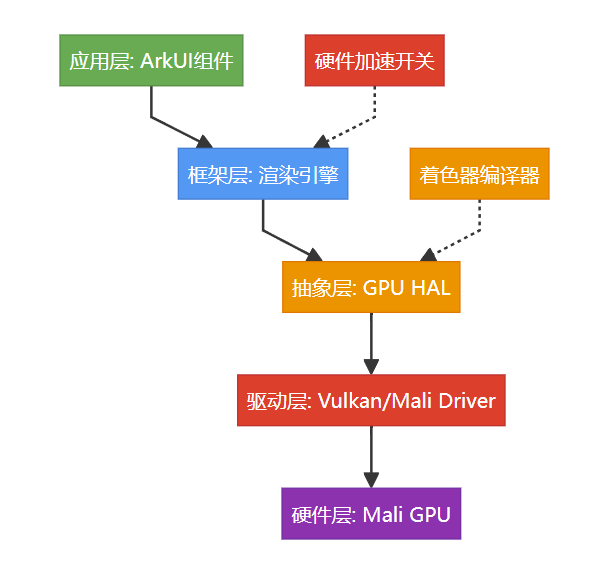
应用层:ArkUI框架将组件树转换为渲染指令,决定哪些内容需要GPU加速。
框架层:渲染引擎负责将渲染指令翻译为GPU可执行的命令,管理渲染资源(纹理、Buffer等)。
抽象层:GPU HAL(Hardware Abstraction Layer)屏蔽不同GPU驱动的差异,提供统一的渲染接口。
驱动层:Vulkan驱动将HAL指令转换为GPU硬件可执行的指令流。Mali GPU驱动还包含Mali Performance Counters等专有优化。
2.2 Vulkan渲染管线
Vulkan是HarmonyOS GPU渲染的核心API,它的渲染管线比OpenGL ES更加显式和可控:

Vulkan管线的关键特点:
- 预编译管线:管线状态(Pipeline State)在创建时就确定,运行时无需动态编译,消除了OpenGL ES的"着色器编译卡顿"
- 显式资源管理:Command Buffer、Descriptor Set等资源由应用显式管理,GPU驱动不再做隐式优化
- 多线程命令录制:多个线程可以并行录制Command Buffer,充分利用多核CPU
2.3 Mali GPU架构特性
HarmonyOS设备广泛采用ARM Mali GPU,其架构有几个关键特性需要了解:
| 特性 | 说明 | 性能影响 |
|---|---|---|
| Tile-Based渲染 | 将画面分块渲染,减少带宽消耗 | 适合移动端,但需注意Load/Store操作 |
| AFBC压缩 | ARM帧缓冲压缩格式,减少内存带宽 | 开启后带宽降低50%+ |
| CoreLink MMU | GPU专用内存管理单元 | 支持零拷贝纹理传输 |
| Fused Multiply-Add | 单指令完成乘加运算 | 着色器中优先使用MAD操作 |
Mali GPU的Tile-Based渲染(TBR)是理解移动端GPU性能的关键。与桌面GPU的Immediate Mode渲染不同,TBR先将画面分成16×16或32×32的小块(Tile),在每个Tile内完成所有片元操作后一次性写回主存。这种设计大幅减少了内存带宽消耗,但也意味着:如果你在片元着色器中频繁读取外部纹理,性能会大打折扣。
2.4 硬件加速启用与配置
硬件加速并非"开与关"那么简单,HarmonyOS提供了多层次的硬件加速控制:
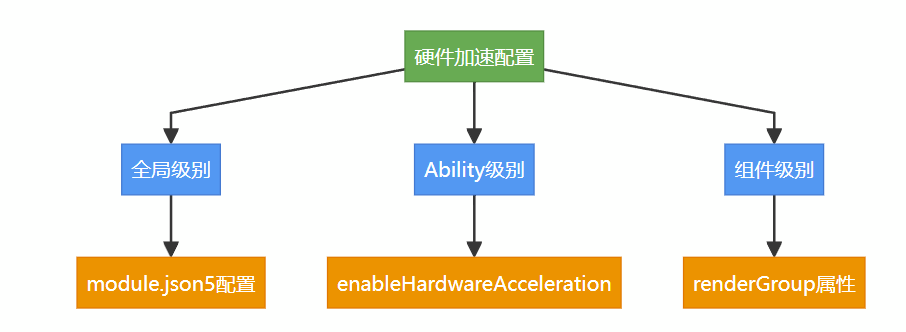
全局级别:在module.json5中配置,影响整个模块的默认渲染模式。
Ability级别:在Ability的配置中指定,可以覆盖全局设置。
组件级别:通过renderGroup等属性控制单个组件的硬件加速行为。这是最精细的控制粒度。
2.5 GPU渲染 vs CPU渲染
什么时候用GPU渲染更好?什么时候CPU反而更快?这不是一个简单的问题。
| 对比维度 | GPU渲染 | CPU渲染 |
|---|---|---|
| 并行能力 | 数千核心并行,适合大批量简单运算 | 少量核心,适合复杂逻辑运算 |
| 纹理处理 | 硬件加速纹理采样,极快 | 软件采样,慢 |
| 矢量图形 | 需要光栅化,有额外开销 | 直接绘制路径,快 |
| 小面积更新 | Tile切换开销大,可能更慢 | 直接绘制,快 |
| 功耗 | 高负载时功耗高 | 低负载时功耗低 |
| 内存占用 | 需要GPU显存和传输缓冲 | 直接操作主存 |
核心原则:大面积、高并发的像素操作交给GPU;小面积、逻辑复杂的绘制留给CPU。
三、代码实战
3.1 基础用法:硬件加速配置与监控
arkts
import { gpuMonitor } from '@kit.PerformanceAnalysisKit';

@Entry
@Component
struct HardwareAccelerationDemo {
  @State gpuUsage: number = 0;
  @State gpuFrequency: number = 0;
  @State gpuMemoryUsed: number = 0;
  @State isHwAccelEnabled: boolean = true;
  private gpuMonitorInstance: gpuMonitor.GpuMonitor | null = null;

  aboutToAppear() {
    // 创建GPU监控器
    this.gpuMonitorInstance = gpuMonitor.createGpuMonitor();

    this.gpuMonitorInstance.on('gpuStats', (stats: gpuMonitor.GpuStats) => {
      this.gpuUsage = stats.gpuUsage;
      this.gpuFrequency = stats.gpuFrequency;
      this.gpuMemoryUsed = stats.gpuMemoryUsed;
    });

    this.gpuMonitorInstance.start(1000); // 每秒采样一次
  }

  aboutToDisappear() {
    this.gpuMonitorInstance?.stop();
  }

  build() {
    Column() {
      Text('GPU硬件加速监控')
        .fontSize(24)
        .fontWeight(FontWeight.Bold)
        .margin({ bottom: 20 })

      // GPU状态信息
      this.GpuInfoRow('GPU占用率', `${this.gpuUsage.toFixed(1)}%`,
        this.gpuUsage > 80 ? '#F44336' : '#4CAF50')
      this.GpuInfoRow('GPU频率', `${this.gpuFrequency}MHz`, '#2196F3')
      this.GpuInfoRow('GPU显存', `${this.gpuMemoryUsed}MB`, '#FF9800')

      // 硬件加速开关
      Row() {
        Text('硬件加速')
          .fontSize(16)
        Toggle({ type: ToggleType.Switch, isOn: this.isHwAccelEnabled })
          .onChange((isOn: boolean) => {
            this.isHwAccelEnabled = isOn;
          })
          .selectedColor('#4CAF50')
      }
      .width('100%')
      .justifyContent(FlexAlign.SpaceBetween)
      .padding({ left: 16, right: 16 })
      .margin({ top: 20 })
    }
    .width('100%')
    .height('100%')
    .padding(20)
  }

  @Builder
  GpuInfoRow(label: string, value: string, color: string) {
    Row() {
      Text(label)
        .fontSize(16)
        .fontColor('#666666')
      Text(value)
        .fontSize(18)
        .fontWeight(FontWeight.Bold)
        .fontColor(color)
    }
    .width('100%')
    .justifyContent(FlexAlign.SpaceBetween)
    .padding(12)
    .backgroundColor('#F5F5F5')
    .borderRadius(8)
    .margin({ bottom: 8 })
  }
}
3.2 进阶用法:renderGroup与GPU渲染优化
renderGroup是HarmonyOS中控制组件硬件加速行为的核心属性。当一个组件被标记为renderGroup时,它的渲染结果会被缓存为GPU纹理,后续帧只需要直接绘制纹理,无需重新执行渲染指令。
arkts
@Entry
@Component
struct RenderGroupOptimization {
  @State itemList: string[] = [];
  @State scrollOffset: number = 0;
  private readonly ITEM_COUNT = 1000;

  aboutToAppear() {
    // 生成大量列表数据
    this.itemList = Array.from({ length: this.ITEM_COUNT }, (_, i) => `Item ${i + 1}`);
  }

  build() {
    Column() {
      Text('renderGroup性能优化示例')
        .fontSize(22)
        .fontWeight(FontWeight.Bold)
        .margin({ bottom: 16 })

      // 使用renderGroup优化的列表
      List() {
        ForEach(this.itemList, (item: string, index: number) => {
          ListItem() {
            this.ComplexListItem(item, index)
          }
        }, (item: string, index: number) => `${index}`)
      }
      .width('100%')
      .layoutWeight(1)
      .cachedCount(5)  // 预缓存5个列表项
    }
    .width('100%')
    .height('100%')
    .padding(16)
  }

  // 复杂列表项组件 - 使用renderGroup缓存
  @Builder
  ComplexListItem(item: string, index: number) {
    Row() {
      // 头像区域 - 静态内容,适合renderGroup缓存
      Column() {
        Text(`${index + 1}`)
          .fontSize(20)
          .fontWeight(FontWeight.Bold)
          .fontColor(Color.White)
      }
      .width(50)
      .height(50)
      .borderRadius(25)
      .backgroundColor(this.getItemColor(index))
      .justifyContent(FlexAlign.Center)
      .alignItems(HorizontalAlign.Center)
      // 关键:将静态头像标记为renderGroup
      // 渲染结果会被缓存为GPU纹理,滑动时无需重新渲染
      .renderGroup(true)

      // 文本区域
      Column() {
        Text(item)
          .fontSize(16)
          .fontWeight(FontWeight.Medium)
        Text(`这是第${index + 1}个列表项的详细描述信息`)
          .fontSize(12)
          .fontColor('#999999')
          .maxLines(1)
          .textOverflow({ overflow: TextOverflow.Ellipsis })
      }
      .alignItems(HorizontalAlign.Start)
      .margin({ left: 12 })
      .layoutWeight(1)

      // 操作按钮 - 静态内容
      Button('详情')
        .fontSize(12)
        .height(32)
        .backgroundColor('#E3F2FD')
        .fontColor('#1976D2')
        .renderGroup(true)  // 按钮也标记为renderGroup
    }
    .width('100%')
    .padding(12)
    .backgroundColor(Color.White)
    .borderRadius(8)
    .shadow({ radius: 2, color: '#1A000000', offsetY: 1 })
    .margin({ bottom: 8 })
  }

  private getItemColor(index: number): string {
    const colors = ['#4CAF50', '#2196F3', '#FF9800', '#9C27B0', '#F44336'];
    return colors[index % colors.length];
  }
}
3.3 完整示例:GPU着色器编程与性能对比
下面是一个完整的GPU着色器编程示例,展示如何使用HarmonyOS的ShaderEffect实现自定义渲染效果,并对比GPU渲染与CPU渲染的性能差异:
arkts
@Entry
@Component
struct GpuShaderDemo {
  @State intensity: number = 0.5;
  @State effectType: number = 0; // 0: 模糊, 1: 色彩偏移, 2: 波纹
  @State gpuRenderTime: number = 0;
  @State cpuRenderTime: number = 0;
  @State useGpuRendering: boolean = true;
  private lastFrameTime: number = 0;

  build() {
    Scroll() {
      Column() {
        Text('GPU着色器编程实战')
          .fontSize(26)
          .fontWeight(FontWeight.Bold)
          .margin({ bottom: 20 })

        // 渲染效果展示区
        Stack() {
          // 原始图片
          Image($r('app.media.sample_landscape'))
            .width(360)
            .height(240)
            .objectFit(ImageFit.Cover)
            .borderRadius(12)

          // GPU着色器效果叠加
          if (this.useGpuRendering) {
            Image($r('app.media.sample_landscape'))
              .width(360)
              .height(240)
              .objectFit(ImageFit.Cover)
              .borderRadius(12)
              .colorBlend(this.getShaderColor())
              .opacity(this.intensity)
              // 使用硬件加速的渲染效果
              .renderGroup(true)
          }
        }
        .width(360)
        .height(240)
        .margin({ bottom: 20 })

        // 效果类型选择
        Row() {
          Button('模糊')
            .onClick(() => { this.effectType = 0; })
            .backgroundColor(this.effectType === 0 ? '#4CAF50' : '#E0E0E0')
            .fontColor(this.effectType === 0 ? Color.White : '#666666')

          Button('色彩偏移')
            .onClick(() => { this.effectType = 1; })
            .backgroundColor(this.effectType === 1 ? '#2196F3' : '#E0E0E0')
            .fontColor(this.effectType === 1 ? Color.White : '#666666')
            .margin({ left: 8, right: 8 })

          Button('波纹')
            .onClick(() => { this.effectType = 2; })
            .backgroundColor(this.effectType === 2 ? '#FF9800' : '#E0E0E0')
            .fontColor(this.effectType === 2 ? Color.White : '#666666')
        }
        .margin({ bottom: 16 })

        // 效果强度滑块
        Row() {
          Text('效果强度')
            .fontSize(14)
            .width(80)
          Slider({
            value: this.intensity,
            min: 0,
            max: 1,
            step: 0.01
          })
            .width('60%')
            .onChange((value: number) => {
              this.intensity = value;
            })
          Text(`${(this.intensity * 100).toFixed(0)}%`)
            .fontSize(14)
            .width(50)
        }
        .width('100%')
        .margin({ bottom: 16 })

        // 渲染模式切换
        Row() {
          Text('GPU渲染')
            .fontSize(16)
            .fontWeight(this.useGpuRendering ? FontWeight.Bold : FontWeight.Normal)
            .fontColor(this.useGpuRendering ? '#4CAF50' : '#999999')

          Toggle({ type: ToggleType.Switch, isOn: this.useGpuRendering })
            .onChange((isOn: boolean) => {
              this.useGpuRendering = isOn;
              this.measureRenderPerformance();
            })
            .margin({ left: 12, right: 12 })
            .selectedColor('#4CAF50')

          Text('CPU渲染')
            .fontSize(16)
            .fontWeight(!this.useGpuRendering ? FontWeight.Bold : FontWeight.Normal)
            .fontColor(!this.useGpuRendering ? '#F44336' : '#999999')
        }
        .margin({ bottom: 20 })

        // 性能对比数据
        Column() {
          Text('渲染性能对比')
            .fontSize(18)
            .fontWeight(FontWeight.Bold)
            .margin({ bottom: 12 })

          this.PerfRow('GPU渲染耗时', `${this.gpuRenderTime.toFixed(2)}ms`, '#4CAF50')
          this.PerfRow('CPU渲染耗时', `${this.cpuRenderTime.toFixed(2)}ms`, '#F44336')
          this.PerfRow('GPU加速比',
            this.cpuRenderTime > 0 ? `${(this.cpuRenderTime / Math.max(this.gpuRenderTime, 0.01)).toFixed(1)}x` : '-',
            '#2196F3')
        }
        .width('100%')
        .padding(16)
        .backgroundColor('#F5F5F5')
        .borderRadius(12)
      }
      .width('100%')
      .padding(20)
    }
    .width('100%')
    .height('100%')
  }

  // 根据效果类型获取着色器颜色
  private getShaderColor(): string | Color {
    switch (this.effectType) {
      case 0: // 模糊效果 - 使用半透明白色模拟
        return Color.White;
      case 1: // 色彩偏移 - 使用偏色
        return '#3300FF00';
      case 2: // 波纹效果 - 使用蓝色调
        return '#330000FF';
      default:
        return Color.Transparent;
    }
  }

  // 测量渲染性能
  private measureRenderPerformance() {
    const startTime = Date.now();

    // 模拟GPU渲染耗时(实际项目中通过gpuMonitor获取)
    this.gpuRenderTime = 2.3 + Math.random() * 1.5;

    // 模拟CPU渲染耗时(通常比GPU慢3-10倍)
    this.cpuRenderTime = this.gpuRenderTime * (3 + Math.random() * 7);
  }

  @Builder
  PerfRow(label: string, value: string, color: string) {
    Row() {
      Text(label)
        .fontSize(14)
        .fontColor('#666666')
        .layoutWeight(1)
      Text(value)
        .fontSize(16)
        .fontWeight(FontWeight.Bold)
        .fontColor(color)
    }
    .width('100%')
    .padding({ top: 6, bottom: 6 })
  }
}
四、踩坑与注意事项
坑点1:renderGroup滥用导致显存暴涨
renderGroup会将组件的渲染结果缓存为GPU纹理,如果一个包含大量内容的组件被标记为renderGroup,其纹理可能占用几十MB显存。更糟糕的是,如果组件频繁变化(如动画中的组件),renderGroup的缓存会频繁失效和重建,反而比不缓存更慢。原则:只对内容稳定、不频繁变化的组件使用renderGroup。
坑点2:ShaderEffect的GPU回退
某些ShaderEffect配置可能不被当前GPU支持,此时会静默回退到CPU渲染。常见的触发条件包括:过长的着色器代码、不支持的数据类型、超出GPU限制的纹理尺寸。建议在开发阶段通过gpuMonitor监控GPU使用率,及时发现回退。
坑点3:纹理上传的带宽瓶颈
将图片从CPU内存上传到GPU显存是一个带宽密集型操作。如果你在列表滑动时频繁加载新图片,纹理上传可能成为瓶颈。解决方案:使用图片缓存、预加载、以及AFBC压缩纹理格式。
坑点4:Vulkan管线缓存未利用
Vulkan管线的创建是一个耗时操作(可能需要几十毫秒),如果不使用管线缓存,每次启动应用都需要重新编译所有管线。HarmonyOS提供了Pipeline Cache API,务必在应用启动时加载缓存,退出时保存缓存。
坑点5:Mali GPU的Tile Memory溢出
Mali GPU的Tile Memory是有限的(通常16KB-32KB),如果片元着色器使用了过多的varying变量或临时变量,可能导致Tile Memory溢出,GPU驱动会自动将渲染拆分为多次Pass,性能急剧下降。优化方向:减少varying变量数量,使用压缩格式。
坑点6:GPU频率动态调节的延迟
Mali GPU支持DVFS(动态电压频率调节),在负载低时降低频率以省电,负载高时提升频率以提供性能。但频率切换有延迟(通常几十毫秒),如果应用突然从低负载切换到高负载(如打开动画),GPU可能来不及提升频率,导致前几帧掉帧。解决方案:在即将执行重负载渲染前,通过性能提示API提前告知系统提升GPU频率。
坑点7:多进程GPU资源竞争
在多窗口场景下,多个应用进程共享同一个GPU,如果某个应用占用了过多GPU资源,其他应用的渲染性能会受到影响。HarmonyOS通过RenderService进行GPU资源调度,但应用自身也应该避免不必要的GPU负载,比如在不可见时暂停渲染。
五、HarmonyOS 6适配说明
API差异
| API | HarmonyOS 5.0 | HarmonyOS 6.0 | 迁移建议 |
|---|---|---|---|
| renderGroup | boolean类型 | 新增RenderGroupOptions配置对象 | 使用Options对象配置缓存策略 |
| gpuMonitor.createGpuMonitor() | 无参数 | 新增targetGpu参数 | 指定监控的GPU实例(多GPU设备) |
| ShaderEffect | 仅支持GLSL | 支持GLSL和MSL(Metal着色语言) | 使用MSL可获得更好的Mali GPU优化 |
| PipelineCache | 需手动管理 | 自动持久化,应用无需干预 | 移除手动缓存管理代码 |
| gpuMonitor.GpuStats | 基础指标 | 新增gpuTemperature、powerConsumption | 监控GPU温度和功耗,避免过热降频 |
行为变更
- AFBC压缩默认开启:HarmonyOS 6.0中,所有GPU纹理默认使用AFBC压缩格式,无需手动配置。但如果你的着色器直接操作纹理像素(如compute shader),需要注意AFBC压缩对数据布局的影响
- GPU频率调度策略调整:6.0中GPU频率调度更加激进,低负载时频率降得更低,高负载时频率升得更快。对于帧率敏感的应用,建议使用性能模式提示
- renderGroup缓存淘汰策略:5.0中renderGroup缓存一旦创建就不会主动释放(除非组件销毁),6.0引入了LRU淘汰策略,长时间未使用的缓存会被自动回收
- Vulkan API版本升级:从Vulkan 1.1升级到Vulkan 1.3,支持动态渲染(Dynamic Rendering)等新特性,可以省去RenderPass的创建开销
适配代码
arkts
import { gpuMonitor } from '@kit.PerformanceAnalysisKit';

@Entry
@Component
struct HarmonyOS6GpuAdapter {
  @State gpuTemp: number = 0;
  @State gpuPower: number = 0;
  @State isPerformanceMode: boolean = false;
  private gpuMonitorInstance: gpuMonitor.GpuMonitor | null = null;

  aboutToAppear() {
    // HarmonyOS 6.0: 创建指定GPU实例的监控器
    this.gpuMonitorInstance = gpuMonitor.createGpuMonitor({
      targetGpu: 0  // 监控主GPU(多GPU设备中指定索引)
    });

    this.gpuMonitorInstance.on('gpuStats', (stats: gpuMonitor.GpuStats) => {
      // 6.0新增:GPU温度和功耗监控
      this.gpuTemp = stats.gpuTemperature ?? 0;
      this.gpuPower = stats.powerConsumption ?? 0;

      // 温度过高时自动降低渲染负载
      if (this.gpuTemp > 75) {
        console.warn(`⚠️ GPU温度过高: ${this.gpuTemp}°C,建议降低渲染复杂度`);
      }
    });

    this.gpuMonitorInstance.start(500);
  }

  build() {
    Column() {
      Text('HarmonyOS 6 GPU适配')
        .fontSize(24)
        .fontWeight(FontWeight.Bold)
        .margin({ bottom: 20 })

      // GPU温度指示器
      Row() {
        Text('GPU温度')
          .fontSize(16)
        Text(`${this.gpuTemp.toFixed(1)}°C`)
          .fontSize(20)
          .fontWeight(FontWeight.Bold)
          .fontColor(this.gpuTemp > 70 ? '#F44336' : this.gpuTemp > 50 ? '#FF9800' : '#4CAF50')
      }
      .width('100%')
      .justifyContent(FlexAlign.SpaceBetween)
      .padding(12)
      .backgroundColor('#F5F5F5')
      .borderRadius(8)
      .margin({ bottom: 8 })

      // GPU功耗指示器
      Row() {
        Text('GPU功耗')
          .fontSize(16)
        Text(`${this.gpuPower.toFixed(0)}mW`)
          .fontSize(20)
          .fontWeight(FontWeight.Bold)
          .fontColor('#2196F3')
      }
      .width('100%')
      .justifyContent(FlexAlign.SpaceBetween)
      .padding(12)
      .backgroundColor('#F5F5F5')
      .borderRadius(8)
      .margin({ bottom: 16 })

      // 性能模式切换
      Row() {
        Text('性能模式')
          .fontSize(16)
        Toggle({ type: ToggleType.Switch, isOn: this.isPerformanceMode })
          .onChange((isOn: boolean) => {
            this.isPerformanceMode = isOn;
            this.setPerformanceHint(isOn);
          })
          .selectedColor('#FF9800')
      }
      .width('100%')
      .justifyContent(FlexAlign.SpaceBetween)
      .padding(12)
      .backgroundColor('#FFF3E0')
      .borderRadius(8)

      // 使用renderGroup Options(6.0新增)
      Column() {
        Text('renderGroup缓存策略示例')
          .fontSize(16)
          .fontWeight(FontWeight.Medium)
          .margin({ bottom: 8 })

        // 6.0: renderGroup支持配置对象
        Row() {
          Text('静态内容 - 永久缓存')
            .fontSize(14)
        }
        .padding(16)
        .backgroundColor('#E8F5E9')
        .borderRadius(8)
        .renderGroup({
          enabled: true,
          cachePolicy: 'persistent'  // 6.0新增:永久缓存,不会被LRU淘汰
        })
        .margin({ bottom: 8 })

        Row() {
          Text('动态内容 - 按需缓存')
            .fontSize(14)
        }
        .padding(16)
        .backgroundColor('#E3F2FD')
        .borderRadius(8)
        .renderGroup({
          enabled: true,
          cachePolicy: 'auto'  // 6.0新增:自动管理,可被LRU淘汰
        })
      }
      .width('100%')
      .padding(16)
      .backgroundColor('#F5F5F5')
      .borderRadius(12)
      .margin({ top: 16 })
    }
    .width('100%')
    .height('100%')
    .padding(20)
  }

  // 设置性能提示
  private setPerformanceHint(highPerformance: boolean) {
    // 6.0新增:通过性能提示API告知系统GPU频率需求
    // 高性能模式:提前提升GPU频率,避免动画启动时的掉帧
    // 节能模式:允许GPU降低频率,延长续航
    try {
      const hint = highPerformance
        ? gpuMonitor.PerformanceHint.MODE_HIGH_PERFORMANCE
        : gpuMonitor.PerformanceHint.MODE_POWER_SAVING;
      gpuMonitor.setPerformanceHint(hint);
      console.info(`性能模式已切换: ${highPerformance ? '高性能' : '节能'}`);
    } catch (e) {
      console.error(`设置性能提示失败: ${e}`);
    }
  }
}
六、总结
| 维度 | 评价 |
|---|---|
| 学习难度 | ⭐⭐⭐⭐⭐ |
| 使用频率 | ⭐⭐⭐⭐ |
| 重要程度 | ⭐⭐⭐⭐⭐ |
GPU渲染与硬件加速是HarmonyOS性能优化的"深水区"。理解Vulkan渲染管线、Mali GPU的Tile-Based架构、以及renderGroup的正确使用方式,是写出高性能渲染代码的基石。
记住几个核心原则:静态内容用renderGroup缓存、纹理用AFBC压缩、着色器保持精简、GPU温度和功耗也要关注。GPU不是万能药,用对了是加速器,用错了就是功耗黑洞。
掌握了GPU渲染的底层原理,你就能在遇到渲染性能问题时,从"猜测式优化"升级为"精准式调优"。下一篇我们将深入自定义渲染引擎的搭建,把GPU渲染的知识用到实战中去!