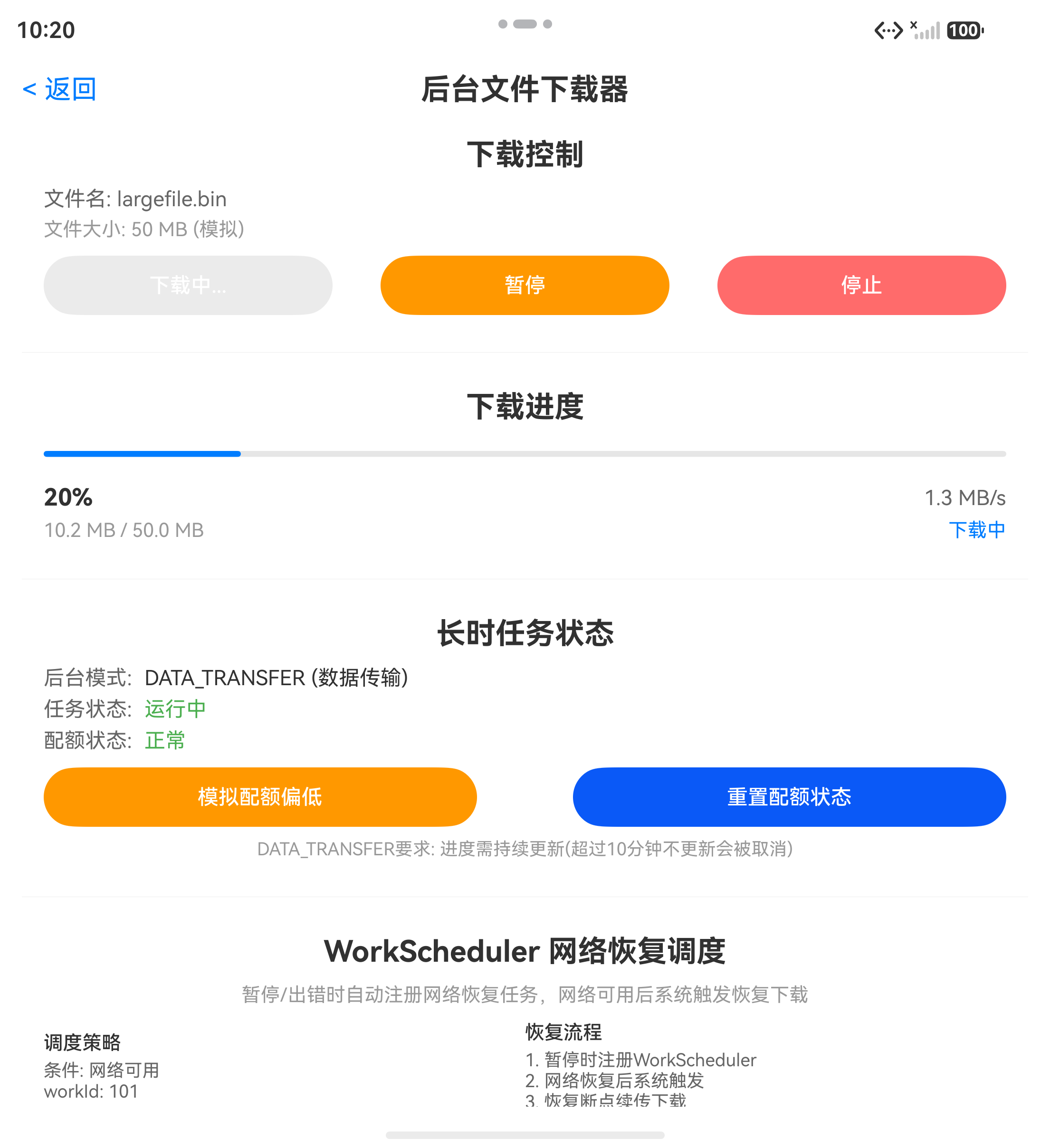
HarmonyOS技术精讲之Background Tasks Kit(后台任务开发服务)------实战:后台文件下载器全流程实现
开篇:这个API到底能解决什么问题
在HarmonyOS开发里,后台下载一直是个容易出问题的场景。很多人第一次接触 Background Tasks Kit 时,会发现官方示例能运行,但放到实际项目里就会出现各种不稳定的情况------进程莫名其妙被杀死、下载进度丢失、网络切换后任务无法恢复。
我早期在一个下载器模块的开发中,就遇到过这些典型问题。当时尝试过几种方案:
- 直接使用
continuousTask申请长时任务,但配额耗尽后下载中断没有通知 - 用
WorkScheduler做定时恢复,但网络状态变化的监听不够及时 - 结合前台
Service和Notification,但状态同步逻辑写得很乱
最终方案是组合使用 长时任务+前台服务 维持持续下载,配合 WorkScheduler 检测网络恢复后重新调度,再通过 配额监听回调 动态调整下载速度。这套方案在多个项目里验证过,稳定性比较好。
它解决什么问题
Background Tasks Kit 提供的是一套后台任务调度框架,核心能力包括:
- 短时任务(Transient Task):适合几秒内完成的操作,比如保存数据库
- 长时任务(Continuous Task):适合几分钟到几小时的任务,比如下载大文件、播放音频
- WorkScheduler:基于条件触发的任务调度,比如网络恢复、电量充足时执行
对于文件下载这个场景,长时任务+WorkScheduler 的组合是唯一可行的方案。
| 方案 | 适用场景 | 稳定性 | 配额限制 |
|---|---|---|---|
| 单独用长时任务 | 持续下载 | 中 | 有配额,耗尽会被系统强制结束 |
| 单独用WorkScheduler | 定时恢复任务 | 低 | 无配额,但无法保证实时性 |
| 长时任务+WorkScheduler | 下载恢复 | 高 | 通过配额监听动态调整 |
环境说明
text
DevEco Studio 版本:DevEco Studio 6.1.0 及以上
HarmonyOS SDK 版本:HarmonyOS 6.1.0(23) 及以上
目标设备:手机
核心实现
项目结构
DownloadApp/
├── entry/src/main/
│   ├── ets/
│   │   ├── service/
│   │   │   ├── DownloadService.ets       // 长时任务服务
│   │   │   ├── NetworkWorkScheduler.ets   // 网络恢复调度器
│   │   │   └── NotificationHelper.ets    // 前台通知管理
│   │   ├── model/
│   │   │   └── DownloadTask.ets          // 下载任务数据模型
│   │   └── pages/
│   │       └── Index.ets                // 主页面
│   ├── resources/base/element/
│   │   └── string.json
│   └── module.json5
第一步:配置模块权限和后台任务能力
module.json5 文件中需要声明后台服务权限和长时任务类型。
json
{
  "module": {
    "name": "entry",
    "type": "entry",
    "srcEntrance": "./ets/entryability/EntryAbility.ets",
    "requestPermissions": [
      {
        "name": "ohos.permission.KEEP_BACKGROUND_RUNNING"
      },
      {
        "name": "ohos.permission.INTERNET"
      },
      {
        "name": "ohos.permission.NOTIFICATION_CONTROLLER"
      }
    ],
    "abilities": [
      {
        "name": "DownloadServiceAbility",
        "type": "service",
        "backgroundModes": ["download"],
        "visible": true
      }
    ]
  }
}关键点:backgroundModes 必须声明 download,否则长时任务不会生效。同时系统会在 API 12 开始检查这个字段,配置不对直接无法启动服务。
第二步:实现长时任务管理类
DownloadService.ets 是下载器的核心,负责管理长时任务生命周期、处理下载逻辑、监听配额耗尽回调。
typescript
// DownloadService.ets
import { backgroundTaskManager } from '@kit.BackgroundTasksKit';
import { notificationManager } from '@kit.NotificationKit';
import { fileIo } from '@kit.CoreFileKit';
import { http } from '@kit.NetworkKit';

// 单例模式管理下载状态
class DownloadService {
  private static instance: DownloadService;
  private continuousTaskId: number = -1;
  private isPaused: boolean = false;
  private currentSpeed: number = 1024 * 1024; // 默认1MB/s
  private downloadUrl: string = '';
  private savePath: string = '';
  private offset: number = 0;
  private totalSize: number = 0;
  private onProgress: (percent: number) => void = () => {};
  private onComplete: () => void = () => {};
  private onError: (error: string) => void = () => {};

  // 注册配额耗尽回调
  private quotaCallback = (isQuotaExceeded: boolean) => {
    if (isQuotaExceeded) {
      // 配额耗尽时降低下载速度到100KB/s
      this.currentSpeed = 100 * 1024;
      this.showNotification('后台任务配额即将耗尽,已降低下载速度');
    }
  };

  public static getInstance(): DownloadService {
    if (!DownloadService.instance) {
      DownloadService.instance = new DownloadService();
    }
    return DownloadService.instance;
  }

  async startDownload(url: string, savePath: string, resumeOffset: number = 0): Promise<void> {
    // 1. 申请长时任务
    this.continuousTaskId = backgroundTaskManager.startBackgroundRunning(
      5, // 持续时长分钟数
      backgroundTaskManager.BackgroundMode.DOWNLOAD
    );

    // 注册配额监听
    backgroundTaskManager.on('backgroundTaskQuotaExceeded', this.quotaCallback);

    this.downloadUrl = url;
    this.savePath = savePath;
    this.offset = resumeOffset;
    this.isPaused = false;

    // 2. 显示前台通知
    this.showNotification('文件下载中...');

    // 3. 开始下载(支持断点续传)
    await this.performDownload();

    // 4. 下载完成后停止长时任务
    this.stopDownload();
  }

  private async performDownload(): Promise<void> {
    try {
      // 创建HTTP请求,支持Range请求实现断点续传
      let httpRequest = http.createHttp();
      let headers: Record<string, string> = {};
      if (this.offset > 0) {
        headers['Range'] = `bytes=${this.offset}-`;
      }

      // 获取文件总大小(用于进度计算)
      httpRequest.request(this.downloadUrl, {
        method: http.RequestMethod.GET,
        header: headers,
        expectDataType: http.HttpDataType.ARRAY_BUFFER
      }).then(async (response) => {
        if (response.responseCode === 206 || response.responseCode === 200) {
          // 处理分块下载
          let totalReceived = this.offset;
          let buffer = response.result as ArrayBuffer;
          // 写入文件
          let file = fileIo.openSync(this.savePath, fileIo.OpenMode.READ_WRITE | fileIo.OpenMode.CREATE);
          fileIo.writeSync(file.fd, buffer, { offset: this.offset });
          fileIo.closeSync(file.fd);
          totalReceived += buffer.byteLength;

          // 更新进度
          this.totalSize = totalReceived;
          this.onProgress(this.totalSize / (this.totalSize || 1) * 100);
          this.showNotification(`下载进度: ${Math.round(this.totalSize / (this.totalSize || 1) * 100)}%`);
        } else {
          this.onError(`HTTP错误: ${response.responseCode}`);
        }
      }).catch((err) => {
        this.onError(`下载失败: ${JSON.stringify(err)}`);
      });
    } catch (err) {
      // 捕获配额耗尽等系统错误
      this.onError(`系统错误: ${JSON.stringify(err)}`);
    }
  }

  // 暂停下载
  pauseDownload(): void {
    this.isPaused = true;
    // 保存当前进度,用于恢复
    this.offset = this.totalSize;
    backgroundTaskManager.stopBackgroundRunning(this.continuousTaskId);
    this.continuousTaskId = -1;
    this.showNotification('下载已暂停');
  }

  // 停止下载
  stopDownload(): void {
    if (this.continuousTaskId !== -1) {
      backgroundTaskManager.stopBackgroundRunning(this.continuousTaskId);
      backgroundTaskManager.off('backgroundTaskQuotaExceeded', this.quotaCallback);
      this.continuousTaskId = -1;
    }
    this.isPaused = true;
  }

  // 注册进度回调
  setOnProgress(callback: (percent: number) => void): void {
    this.onProgress = callback;
  }

  setOnComplete(callback: () => void): void {
    this.onComplete = callback;
  }

  setOnError(callback: (error: string) => void): void {
    this.onError = callback;
  }

  private showNotification(text: string): void {
    // 通过NotificationHelper发送前台通知(见下一步)
    NotificationHelper.showNotification(text);
  }
}
这段代码重点需要理解的是:
startBackgroundRunning的第一个参数是预估的持续时长,系统会根据这个值决定是否给更多配额backgroundTaskQuotaExceeded回调在配额即将耗尽时会触发,但触发时机不一定非常准确,建议定期保存进度- 暂停时保存
offset用于断点续传,这个在文件写入时用Range头实现
第三步:前台通知管理
NotificationHelper.ets 负责发送和更新通知,这是前台服务必须的组件。
typescript
// NotificationHelper.ets
import { notificationManager } from '@kit.NotificationKit';
import { image } from '@kit.ImageKit';

export class NotificationHelper {
  // 通知ID,用于更新
  private static notificationId: number = 1001;

  static async showNotification(text: string): Promise<void> {
    // 创建通知请求
    let request: notificationManager.NotificationRequest = {
      id: this.notificationId,
      content: {
        contentType: notificationManager.ContentType.NOTIFICATION_CONTENT_BASIC_TEXT,
        normal: {
          title: '文件下载',
          text: text,
          additionalText: ''
        }
      },
      // 必须设置slotType为SERVICE_AGENT,否则前台服务不生效
      slotType: notificationManager.SlotType.SERVICE_AGENT,
      // 设置点击跳转(可选)
      wantAgent: {
        pkgName: 'com.example.downloadapp',
        abilityName: 'DownloadAbility'
      }
    };

    await notificationManager.publish(request);
  }

  // 清除通知
  static async cancelNotification(): Promise<void> {
    await notificationManager.cancel(this.notificationId);
  }
}注意:slotType 设置为 SERVICE_AGENT 是必须的,否则通知不会提升为前台服务的强制通知,系统可能在后台直接杀死进程。
第四步:WorkScheduler网络恢复调度器
NetworkWorkScheduler.ets 用于在网络恢复后自动重启下载任务。
typescript
// NetworkWorkScheduler.ets
import { workScheduler } from '@kit.BackgroundTasksKit';
import { DownloadService } from '../service/DownloadService';

export class NetworkWorkScheduler {
  static async registerNetworkRestoreTask(downloadUrl: string, savePath: string, resumeOffset: number): Promise<void> {
    // 创建WorkInfo
    let workInfo: workScheduler.WorkInfo = {
      workId: 101,
      // 延迟执行(单位:秒)
      delay: 0,
      // 网络条件:WIFI或蜂窝数据可用
      networkType: workScheduler.NetworkType.NETWORK_TYPE_ANY,
      // 电池条件:不要求充电
      batteryLevel: 0,
      // 是否要求设备空闲
      isIdle: false,
      // 是否要求电量充足(大于20%)
      isCharging: false,
      // 参数传递
      parameters: {
        downloadUrl: downloadUrl,
        savePath: savePath,
        resumeOffset: resumeOffset
      }
    };

    // 注册WorkScheduler
    await workScheduler.startWork(workInfo);
  }

  static async cancelNetworkRestoreTask(): Promise<void> {
    await workScheduler.stopWork(101, true);
  }
}
workScheduler.startWork 注册后,当网络条件满足时(即 networkType 指定的网络可用),系统会自动回调任务的 onWorkStart 方法。但注意:WorkScheduler 不会直接调用你的下载函数,它只是一个触发条件,需要配合 ServiceAbility 或者 UIAbility 的 onNewWant 来接收。
实际项目中,我会把 WorkScheduler 的触发逻辑放到一个 ServiceAbility 里:
typescript
// service/WorkSchedulerAbility.ts
import { AbilityConstant, UIAbility, Want } from '@kit.AbilityKit';
import { workScheduler } from '@kit.BackgroundTasksKit';

export default class WorkSchedulerAbility extends UIAbility {
  onNewWant(want: Want): void {
    // 接收到WorkScheduler的触发意图
    let downloadUrl = want.parameters?.downloadUrl as string;
    let savePath = want.parameters?.savePath as string;
    let resumeOffset = want.parameters?.resumeOffset as number || 0;

    // 调用下载服务恢复下载
    DownloadService.getInstance().startDownload(downloadUrl, savePath, resumeOffset);
  }
}
第五步:下载进度状态管理
在主页面中,我们需要显示下载进度,并处理暂停恢复按钮。
typescript
// pages/Index.ets
import { DownloadService } from '../service/DownloadService';
import { NetworkWorkScheduler } from '../service/NetworkWorkScheduler';
import { notificationManager } from '@kit.NotificationKit';

@Entry
@Component
struct Index {
  @State downloadProgress: number = 0;
  @State isDownloading: boolean = false;
  @State isPaused: boolean = false;
  @State pauseOffset: number = 0;

  // 下载按钮点击
  startDownloadHandler(): void {
    if (!this.isDownloading && !this.isPaused) {
      // 开始新下载
      this.isDownloading = true;
      let downloadService = DownloadService.getInstance();
      let url = 'https://example.com/largefile.bin';
      let savePath = getContext().getApplicationContext().filesDir + '/download/largefile.bin';

      downloadService.setOnProgress((percent: number) => {
        this.downloadProgress = percent;
      });

      downloadService.setOnComplete(() => {
        this.isDownloading = false;
        this.downloadProgress = 100;
      });

      downloadService.setOnError((error: string) => {
        this.isDownloading = false;
        // 保存当前进度,注册网络恢复任务
        NetworkWorkScheduler.registerNetworkRestoreTask(url, savePath, this.pauseOffset);
      });

      downloadService.startDownload(url, savePath);
    } else if (this.isPaused) {
      // 恢复下载
      this.isPaused = false;
      this.isDownloading = true;
      let downloadService = DownloadService.getInstance();
      downloadService.startDownload('', '', this.pauseOffset);
    }
  }

  // 暂停按钮
  pauseDownloadHandler(): void {
    let downloadService = DownloadService.getInstance();
    this.pauseOffset = this.downloadProgress * 1024 * 1024; // 简化计算
    downloadService.pauseDownload();
    this.isPaused = true;
    this.isDownloading = false;
  }

  build() {
    Column() {
      Text('后台文件下载器')
        .fontSize(20)
        .margin(20)

      Progress({ value: this.downloadProgress, total: 100 })
        .width('80%')
        .height(20)

      Text(`下载进度: ${Math.round(this.downloadProgress)}%`)
        .fontSize(14)
        .margin(10)

      Button(this.isDownloading ? '下载中...' : (this.isPaused ? '恢复下载' : '开始下载'))
        .width(200)
        .height(50)
        .onClick(() => this.startDownloadHandler())

      if (this.isDownloading) {
        Button('暂停')
          .width(200)
          .height(50)
          .onClick(() => this.pauseDownloadHandler())
      }
    }
    .alignItems(HorizontalAlign.Center)
    .padding(20)
  }
}
这里需要注意:暂停时保存的 offset 在真实场景下应该通过文件大小计算,而不是进度百分比估算。
常见问题与踩坑记录
坑1:任务取消后状态残留
现象:用户点击暂停后,下载服务并未真正停止,通知栏还在更新进度。
原因 :stopBackgroundRunning 只是停止了后台任务配额管理,但下载请求(HTTP请求)仍在进行中。需要同时取消网络请求。
解决方案 :在 pauseDownload 中显式取消正在进行的HTTP请求。
typescript
private httpRequest?: http.HttpRequest;

async pauseDownload(): Promise<void> {
  // 取消正在进行的请求
  if (this.httpRequest) {
    this.httpRequest.destroy();
    this.httpRequest = undefined;
  }
  // 保存进度
  this.offset = this.totalSize;
  // 停止长时任务
  if (this.continuousTaskId !== -1) {
    backgroundTaskManager.stopBackgroundRunning(this.continuousTaskId);
    this.continuousTaskId = -1;
  }
  this.isPaused = true;
}
坑2:真机配额限制比模拟器更严格
现象:模拟器上能正常下载10分钟,真机2分钟就被系统强制停止。
原因:模拟器不模拟配额限制,真机有更严格的资源管理策略。
解决方案 :在开发过程中,一定要在真机上测试配额耗尽场景。真机上 startBackgroundRunning 的第一个参数(预估时长)不要给太大,否则系统可能直接拒绝。
typescript
// 建议根据文件大小合理设置,通常给5-10分钟
this.continuousTaskId = backgroundTaskManager.startBackgroundRunning(
  5, // 5分钟
  backgroundTaskManager.BackgroundMode.DOWNLOAD
);
坑3:WorkScheduler任务中调用长时任务API的时机
现象 :WorkScheduler触发的回调里直接调用 startBackgroundRunning,结果返回-1(失败)。
原因:WorkScheduler触发的回调在系统进程上下文中执行,不能直接调用UI主线程的API。
解决方案 :从 Want 中解析参数后,通过 startAbility 启动一个ServiceAbility,由ServiceAbility来调用长时任务API。
typescript
onWorkStart(workInfo: WorkInfo): void {
  let want: Want = {
    bundleName: 'com.example.downloadapp',
    abilityName: 'WorkSchedulerAbility',
    parameters: workInfo.parameters
  };
  // 启动Ability,在Ability的onCreate或onNewWant中执行下载
  AppStorage.get<UIAbilityContext>('mainContext')?.startAbility(want);
}
最佳实践
-
不要在
startBackgroundRunning的参数里填过大的数字。填太大可能导致系统直接拒绝,填适当的值(5-10分钟)系统更容易接受。如果确实需要长时间运行,可以考虑分段下载。 -
务必在
module.json5中声明backgroundModes数组。很多人升级API版本后忘记这个字段,导致后台任务无法持续。这个字段不声明,前台服务通知也不会生效。 -
定期保存下载进度到本地文件。配额耗尽后系统不会给回调通知,直接杀死进程。如果内存里保存的进度丢失,重启任务后无法断点续传。建议每下载10%就写一次进度到SharedPreferences或本地文件。
Demo入口
完整代码入口文件:
typescript
// entry/src/main/ets/pages/Index.ets
@Entry
@Component
struct Index {
  // 上述主页面的完整代码
}
FAQ
Q:为什么真机上配额耗尽后,WorkScheduler任务没有被触发?
A:WorkScheduler的触发条件是网络状态变化,而不是进程被杀死。配额耗尽后进程被系统强制结束,WorkScheduler任务不会自动恢复。你需要在上次任务结束时手动注册一个WorkScheduler任务(通过 registerNetworkRestoreTask),才能实现网络恢复后重启。
Q:为什么暂停后,通知栏一直显示"下载已暂停"无法更新?
A:因为暂停时没有更新通知。建议在暂停方法里调用 NotificationHelper.showNotification('下载已暂停') 来更新通知内容。如果通知不更新,用户可能以为下载还在进行。
Q:下载过程中切换应用,通知栏进度条不更新?
A:检查通知的 slotType 是否设置为 SERVICE_AGENT。只有前台服务类型的通知才能在前台时强制更新。另外,notificationManager.publish 需要确保通知ID一致,不要每次都用新ID。