刷文章看到一句特别好的话,想存下来。复制,切到备忘录,粘贴,再切回来把链接也复制一遍......来回折腾好几下,有时候切回来页面还找不着了。
我后来干脆自己写了个小插件:网页里划词,旁边蹦个按钮,点一下就存好了。今天就把整个过程拆给你,顺便说说 Chrome 插件到底是个啥。
原文地址
Chrome 插件是什么?
你平时用的 AdBlock、翻译插件、密码管理器,本质上都是 Chrome 扩展(Extension)。
可以这么理解:
yaml
Chrome  = 手机系统
插件    = 第三方 App
网页    = 某个 App 里的界面
网页里的 JS 只能在当前页面里折腾------改 DOM、发请求,都受同源策略管着。插件不一样,Chrome 单独给它开了一扇后门:可以跨网站注入脚本、读写存储、监听标签页切换,甚至拦截网络请求。
说白了,就是给浏览器本身加功能,不是给某个网站加功能。
和普通网页 JS 比,强在哪?
| 特点 | 网页 JS | Chrome 插件 |
|---|---|---|
| 能跑几个网站 | 就当前这个 | 匹配到的都能跑 |
| 关页面还在不在 | 没了 | Background 可以常驻 |
| 有没有独立界面 | 只能改页面 | 有自己的 Popup 小窗口 |
| 数据存哪 | localStorage,跟网站绑死 | chrome.storage,插件自己管 |
做「划词收藏」这种跨网站的小工具,用插件比油猴脚本正规,也比纯书签靠谱------数据跟着插件走,不跟某个域名走。
四大组件,先认个脸
一个 Chrome 插件通常由四块拼起来。不用全用上,但得知道各自干啥:
yaml
manifest.json   → 身份证。名字、版本、权限、入口,全在这
Background      → 后台。监听浏览器事件,插件关着面板也在跑
Content Script  → 页面特工。注入到网页里,能摸 DOM
Popup           → 小面板。点工具栏图标弹出来的那个窗口
它们之间靠消息传递配合,大致是这样:
yaml
用户点 Popup 里的按钮
    ↓
Popup 告诉 Background(或者直接找 Content Script)
    ↓
Content Script 在页面上动手基础版先用三块:manifest + Content Script + Popup。Background 先不急------等加右键收藏的时候再让它上场。
我们要做什么?
一句话:选中文字 → 点收藏 → 打开图标看列表。
具体长啥样:
yaml
1. 任意网页划词,旁边蹦一个蓝色「收藏」按钮
2. 点一下,文字、来源标题、链接、时间全存进去
3. 点工具栏图标,弹个小面板,列出所有收藏
4. 能点链接跳回原文,也能删
平时看文章,划一句话旁边冒个按钮;点工具栏图标,面板弹出来,里面是之前存的列表。不花哨,但够用。
下面开始写代码。这个插件我放在 chrome-plugins 目录下------打算做一个插件集合,这是第一个,后面还会加。你跟着建个子文件夹 quote-saver 就行。
第一步:建文件夹
yaml
chrome-plugins/
└── quote-saver/
    ├── manifest.json
    ├── background.js      # 后面加右键收藏时再建
    ├── content.js
    ├── popup.html
    ├── popup.js
    └── icons/
        └── icon128.png   # 可选,128×128 的 png
icon128.png 找张 128×128 的图放进去就行,没有也不影响功能,manifest 里不写 icon 字段照样跑,工具栏就是个默认的拼图块图标。background.js 是后面加右键收藏时才建的,一开始不用建。
第二步:manifest.json
每个插件都必须有这个文件,Chrome 靠它知道你是谁、要啥权限。
json
{
  "manifest_version": 3,
  "name": "划词收藏",
  "version": "1.0.0",
  "description": "选中网页文字,一键收藏",
  "permissions": ["storage"],
  "action": {
    "default_popup": "popup.html",
    "default_title": "我的收藏",
    "default_icon": {
      "128": "icons/icon128.png"
    }
  },
  "icons": {
    "128": "icons/icon128.png"
  },
  "content_scripts": [
    {
      "matches": ["<all_urls>"],
      "js": ["content.js"],
      "run_at": "document_idle"
    }
  ]
}
几个字段记一下:
manifest_version: 3------ 现在新建插件都得用 MV3,旧版 MV2 不让上了permissions: ["storage"]------ 只申请存数据的权限,别贪多,装插件的人会在意这个action.default_popup------ 点图标弹出popup.htmlaction.default_icon/icons------ 工具栏和扩展管理页的图标,不写就用默认的灰色拼图块content_scripts------ 告诉 Chrome 在哪些页面注入content.js。matches里的<all_urls>就是字面意思:所有网页都注入。document_idle是等 DOM 解析完了再跑,不抢页面加载的活儿
第三步:content.js ------ 划词和收藏按钮
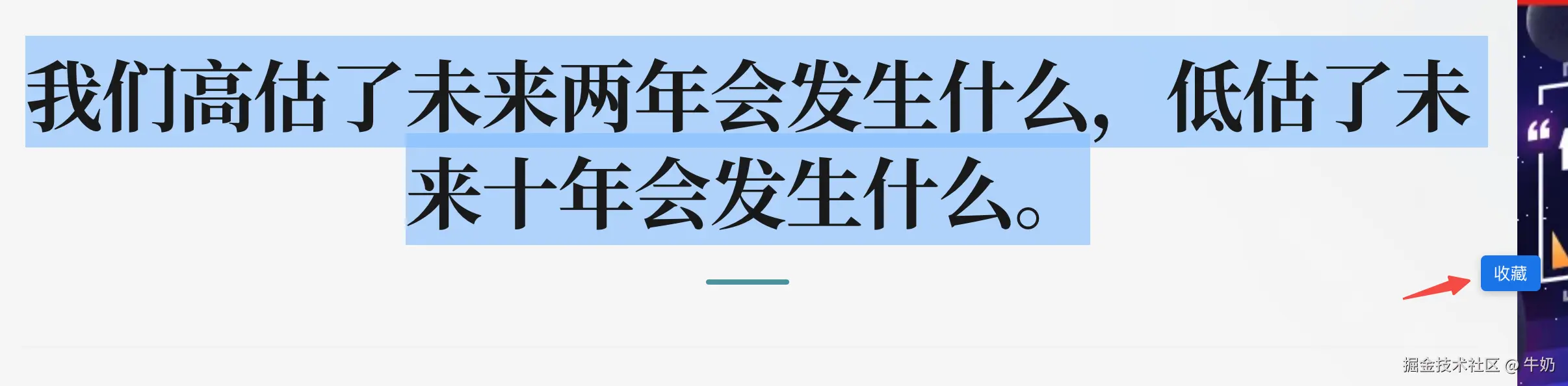
Content Script 跑在网页里面,能操作 DOM,但跟页面自己的 JS 变量是隔开的------你在 content.js 里定义的变量,页面 JS 访问不到,反过来也一样。正好,我们挂个悬浮按钮,不会跟网站自己的代码搅在一起。
js
let saveBtn = null;

document.addEventListener('mouseup', () => {
  const text = window.getSelection().toString().trim();

  if (text.length < 2) {
    removeBtn();
    return;
  }

  showBtn(text);
});

function showBtn(text) {
  removeBtn();

  const range = window.getSelection().getRangeAt(0);
  const rect = range.getBoundingClientRect();

  // 防止按钮跑到屏幕外面
  const btnLeft = Math.min(rect.right + 8, window.innerWidth - 80);
  const btnTop = Math.min(rect.bottom + 8, window.innerHeight - 40);

  saveBtn = document.createElement('button');
  saveBtn.textContent = '收藏';
  saveBtn.style.cssText = `
    position: fixed;
    left: ${btnLeft}px;
    top: ${btnTop}px;
    z-index: 2147483647;
    padding: 4px 10px;
    font-size: 13px;
    border: none;
    border-radius: 4px;
    background: #1a73e8;
    color: #fff;
    cursor: pointer;
    box-shadow: 0 2px 6px rgba(0,0,0,.2);
  `;

  // 不加这行的话,点按钮会先把选中取消掉
  saveBtn.addEventListener('mousedown', (e) => e.preventDefault());

  saveBtn.addEventListener('click', async () => {
    await saveQuote(text);
    removeBtn();
    showToast('已收藏');
  });

  document.body.appendChild(saveBtn);
}

function removeBtn() {
  if (saveBtn) {
    saveBtn.remove();
    saveBtn = null;
  }
}

async function saveQuote(text) {
  const { quotes = [] } = await chrome.storage.local.get('quotes');

  quotes.unshift({
    id: Date.now(),
    text,
    title: document.title,
    url: location.href,
    time: new Date().toLocaleString()
  });

  await chrome.storage.local.set({ quotes: quotes.slice(0, 100) });
}

function showToast(msg) {
  const toast = document.createElement('div');
  toast.textContent = msg;
  toast.style.cssText = `
    position: fixed; top: 20px; right: 20px; z-index: 2147483647;
    background: #333; color: #fff; padding: 8px 16px;
    border-radius: 4px; font-size: 14px;
  `;
  document.body.appendChild(toast);
  setTimeout(() => toast.remove(), 1500);
}

// 页面滚动了,按钮位置会飘,干脆去掉
document.addEventListener('scroll', removeBtn, true);
监听 mouseup 看有没有选中文字,有的话在选区旁边画个按钮。点一下,文字、标题、链接、时间一起塞进 chrome.storage.local。最多存 100 条------应该够用,真不够再改。
第四步:popup.html ------ 收藏列表
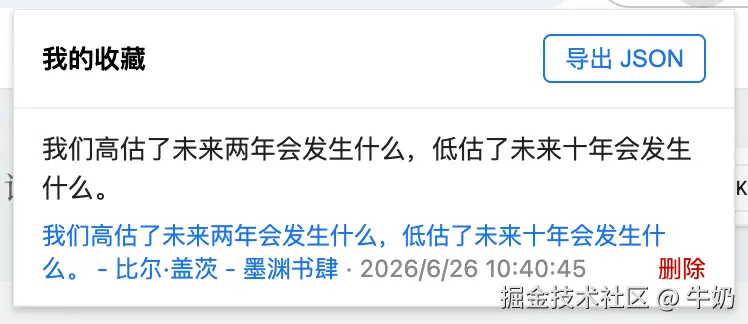
点工具栏图标弹出来的小窗口,就是个普通 HTML 页面,样式随便写。
html
<!DOCTYPE html>
<html lang="zh-CN">
<head>
  <meta charset="UTF-8">
  <style>
    * { box-sizing: border-box; margin: 0; padding: 0; }
    body { width: 360px; max-height: 480px; font-family: system-ui, sans-serif; font-size: 13px; }
    header { padding: 12px 14px; border-bottom: 1px solid #eee; font-weight: 600; }
    #list { overflow-y: auto; max-height: 420px; }
    .item { padding: 10px 14px; border-bottom: 1px solid #f0f0f0; }
    .item:hover { background: #fafafa; }
    .text { color: #222; line-height: 1.5; margin-bottom: 6px;
            display: -webkit-box; -webkit-line-clamp: 3; -webkit-box-orient: vertical; overflow: hidden; }
    .meta { color: #888; font-size: 12px; }
    .meta a { color: #1a73e8; text-decoration: none; }
    .del { float: right; color: #c00; cursor: pointer; border: none; background: none; font-size: 12px; }
    .empty { padding: 40px; text-align: center; color: #999; }
  </style>
</head>
<body>
  <header>我的收藏</header>
  <div id="list"></div>
  <script src="popup.js"></script>
</body>
</html>
第五步:popup.js ------ 读列表、删条目
js
const listEl = document.getElementById('list');
async function render() {
const { quotes = [] } = await chrome.storage.local.get('quotes');
if (quotes.length === 0) {
listEl.innerHTML = '<div class="empty">还没有收藏<br>去网页里划词试试</div>';
return;
}
listEl.innerHTML = quotes.map(q => `
<div class="item" data-id="${q.id}">
<div class="text">${escapeHtml(q.text)}</div>
<div class="meta">
<a href="${q.url.startsWith('http') ? q.url : '#'}" target="_blank">${escapeHtml(q.title)}</a>
· ${q.time}
<button class="del" data-id="${q.id}">删除</button>
</div>
</div>
`).join('');
}
function escapeHtml(str) {
const map = { '&': '&', '<': '<', '>': '>', '"': '"', "'": ''' };
return String(str).replace(/[&<>"']/g, c => map[c]);
}
listEl.addEventListener('click', async (e) => {
if (!e.target.classList.contains('del')) return;
const id = Number(e.target.dataset.id);
const { quotes = [] } = await chrome.storage.local.get('quotes');
await chrome.storage.local.set({ quotes: quotes.filter(q => q.id !== id) });
render();
});
render();Content Script 往里写,Popup 往外读,用的是同一个 chrome.storage.local,key 都是 'quotes'。两边对上就行。
对了,这里用的是 local,数据只存在当前电脑上。想换电脑也能看到收藏的话,把 local 改成 sync 就行------但 sync 只有 100KB 配额,收藏多了容易爆,文本量大的话还是 local 稳。
第六步:装进 Chrome
代码写完了,不用发布,本地就能跑:
- 地址栏输入
chrome://extensions/,回车(Edge 用edge://extensions/,Brave 用brave://extensions/,都一样) - 右上角「开发者模式」打开
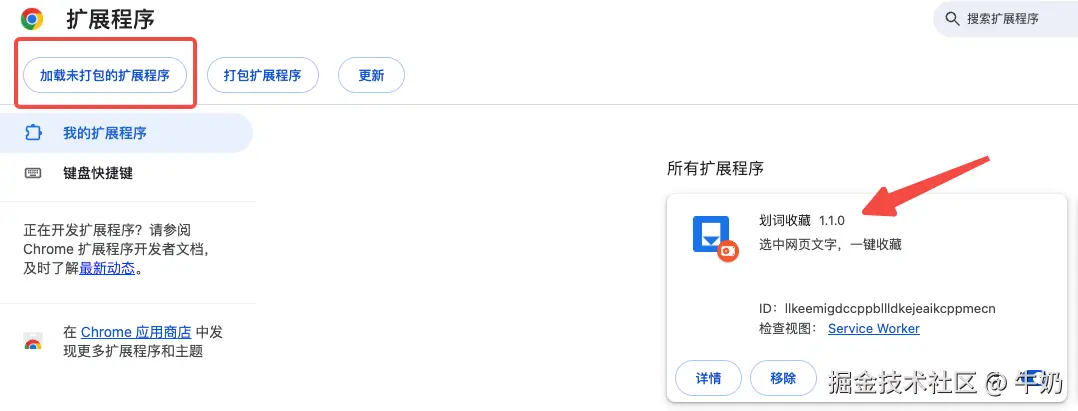
- 「加载未打包的扩展程序」→ 选
chrome-plugins/quote-saver文件夹 - 工具栏出现图标,搞定
找篇文章试试:划词 → 点「收藏」 → 再点图标看列表。删一条看看列表会不会更新。都正常的话,第一个插件就算做完了。
调试时我踩过的坑
改代码之后记得两处刷新:扩展管理页点刷新按钮,已经打开的网页也要 F5。Content Script 是页面加载时注入的,不刷新网页它不会变。
yaml
看 Popup 的 log    → 右键图标,「检查弹出内容」
看 Content Script  → 普通网页 F12,Sources 里找 content.js
有个报错特别常见:
text
Extension context invalidated扩展刚 reload 过,老页面里的 Content Script 已经废了,刷新网页就好。我第一次看到还以为是代码写错了,折腾半天。
还有 storage 写了但 Popup 看不到------八成是 key 名没对上,或者 Popup 打开时没调 render()。
顺手再加两个功能
基础版跑通了,但用着用着有两个事不太得劲:一是有些网站自己的 JS 会吞掉 mouseup 事件,划词按钮压根弹不出来;二是想换浏览器,收藏的数据没地方导出。
干脆补上。
加个右键收藏
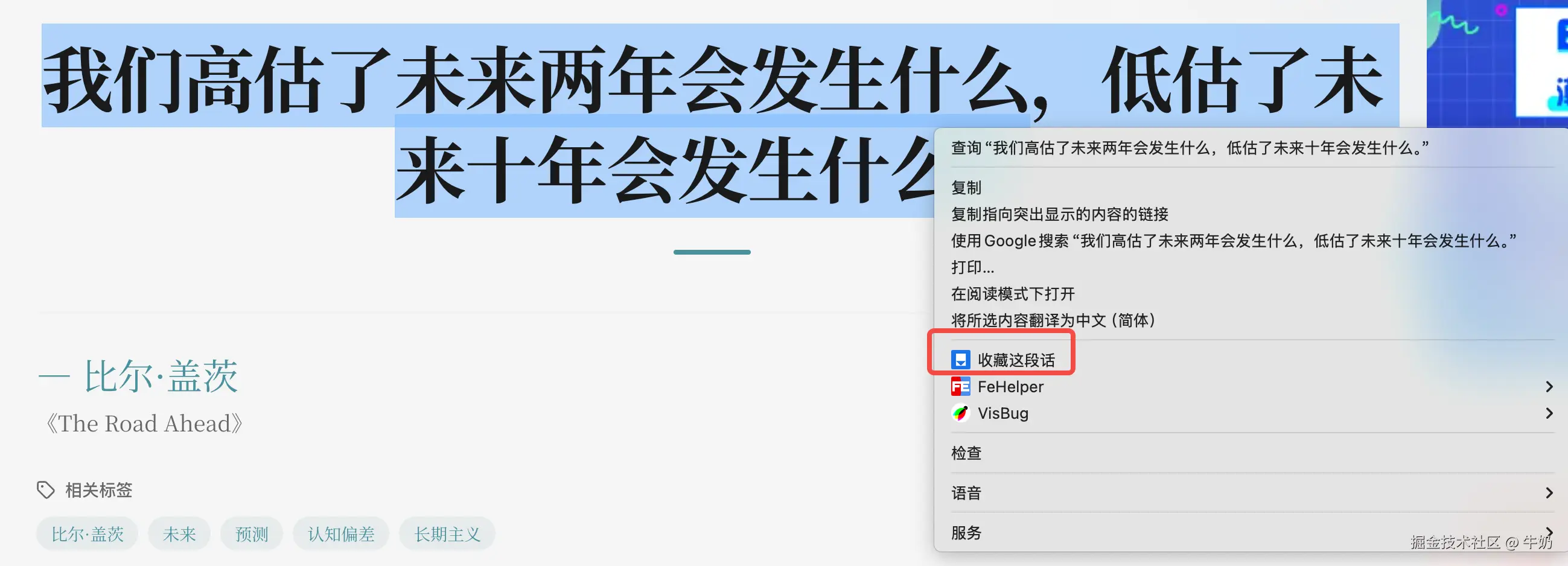
前面说 Background 先不急,现在它上场了。右键菜单这事儿必须 Background 来注册,Content Script 干不了。
manifest 加两行:
json
{
  "permissions": ["storage", "contextMenus"],
  "background": {
    "service_worker": "background.js"
  }
}
contextMenus 是右键菜单的权限,background.service_worker 告诉 Chrome 后台跑哪个文件。MV3 里 Background 叫 Service Worker------名字跟网页里的 Service Worker 撞了,但不是一回事,别搞混。
完整 manifest 现在长这样:
json
{
  "manifest_version": 3,
  "name": "划词收藏",
  "version": "1.1.0",
  "description": "选中网页文字,一键收藏",
  "permissions": ["storage", "contextMenus"],
  "action": {
    "default_popup": "popup.html",
    "default_title": "我的收藏",
    "default_icon": {
      "128": "icons/icon128.png"
    }
  },
  "icons": {
    "128": "icons/icon128.png"
  },
  "background": {
    "service_worker": "background.js"
  },
  "content_scripts": [
    {
      "matches": ["<all_urls>"],
      "js": ["content.js"],
      "run_at": "document_idle"
    }
  ]
}
新建 background.js:
js
// 安装时创建右键菜单
chrome.runtime.onInstalled.addListener(() => {
  chrome.contextMenus.create({
    id: 'save-quote',
    title: '收藏这段话',
    contexts: ['selection']
  });
});

// 右键菜单点击
chrome.contextMenus.onClicked.addListener(async (info, tab) => {
  if (info.menuItemId !== 'save-quote') return;

  const text = info.selectionText.trim();
  if (!text) return;

  const { quotes = [] } = await chrome.storage.local.get('quotes');

  quotes.unshift({
    id: Date.now(),
    text,
    title: tab.title,
    url: tab.url,
    time: new Date().toLocaleString()
  });

  await chrome.storage.local.set({ quotes: quotes.slice(0, 100) });

  // 告诉当前页面的 content script 弹个提示
  // 有些页面(chrome:// 开头的、PDF 查看器)没注入 content script,sendMessage 的 Promise 会 reject
  // 不能用 try-catch 抓------Promise 是异步的,try-catch 只抓同步错误。得用 .catch() 兜底
  chrome.tabs.sendMessage(tab.id, { action: 'saved' }).catch(() => {
    // 存是存进去了,只是没法弹提示,不影响
  });
});逻辑很直白:插件装的时候注册一个右键菜单,只在选中文字时出现。点了之后,info.selectionText 是选中的文字,tab.title 和 tab.url 是当前页面的标题和链接------Background 直接就能拿到,不用 Content Script 去取。
最后一句 chrome.tabs.sendMessage 是给当前页面的 Content Script 发消息,让它弹个「已收藏」。但有些页面(chrome:// 开头的、PDF 查看器)没注入 Content Script,消息发过去没人收。MV3 里 sendMessage 返回的是 Promise,没人收就会 reject------但 Promise 的 rejection 是异步的,try-catch 抓不到,得用 .catch() 兜底。数据已经存进去了,只是没法弹提示而已,不影响。
Content Script 那边加几行就行,content.js 末尾补上:
js
// 右键收藏后,background 会发消息过来,弹个提示
chrome.runtime.onMessage.addListener((msg) => {
  if (msg.action === 'saved') {
    showToast('已收藏');
  }
});
这就是前面说的「消息传递」------Background 干完活,发个消息让 Content Script 在页面上弹提示。showToast 之前写好了,直接复用。
reload 插件,选中文字右键看看------「收藏这段话」出来了。点一下,右上角弹「已收藏」,跟划词按钮一样的效果。
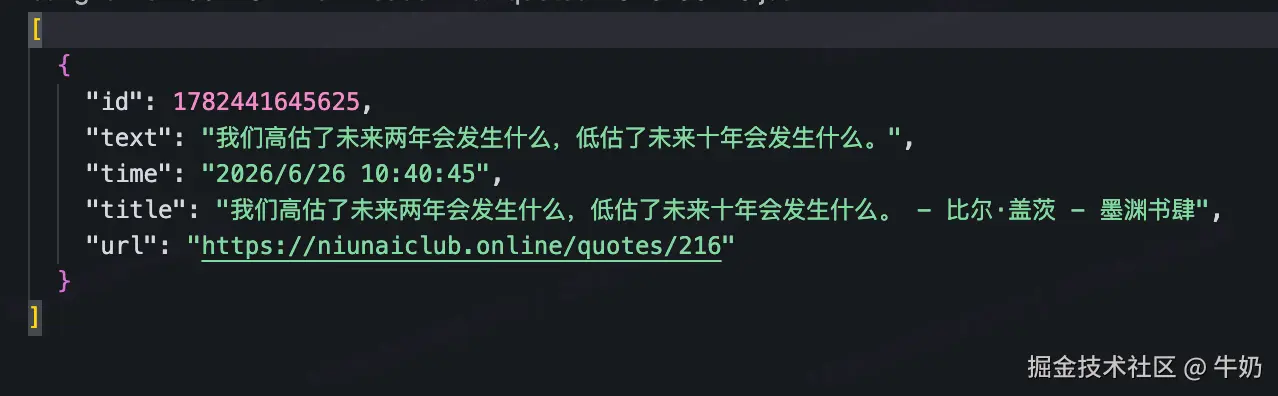
导出 JSON
这个不用动 manifest,只改 popup。面板头部加个「导出 JSON」按钮,点一下下载所有收藏。
popup.html 的 header 改一下,加个按钮:
html
<header>
  <span>我的收藏</span>
  <button id="export">导出 JSON</button>
</header>
CSS 补几行,让按钮靠右:
css
header { display: flex; justify-content: space-between; align-items: center; }
#export { font-size: 12px; font-weight: 400; color: #1a73e8;
          border: 1px solid #1a73e8; border-radius: 4px; padding: 3px 10px;
          cursor: pointer; background: none; }
#export:hover { background: #f0f6ff; }
popup.js 加导出逻辑:
js
document.getElementById('export').addEventListener('click', async () => {
  const { quotes = [] } = await chrome.storage.local.get('quotes');
  if (quotes.length === 0) return;

  const blob = new Blob([JSON.stringify(quotes, null, 2)], { type: 'application/json' });
  const url = URL.createObjectURL(blob);
  const a = document.createElement('a');
  a.href = url;
  a.download = `quotes-${new Date().toISOString().slice(0, 10)}.json`;
  a.click();
  URL.revokeObjectURL(url);
});
老套路:读 storage,JSON.stringify 成字符串,塞进 Blob,用 <a download> 触发下载。文件名带当天日期,导出多次也不会覆盖。
回头看一眼四大组件
现在功能齐了,再回头看四大组件,每个都派上用场了:
| 组件 | 对应文件 | 干了啥 |
|---|---|---|
| manifest | manifest.json | 声明权限、注册 Content Script、Popup 和 Background |
| Content Script | content.js | 划词画按钮、存数据、接收右键消息弹提示 |
| Popup | popup.html + popup.js | 展示列表、删除、导出 JSON |
| Background | background.js | 注册右键菜单、右键收藏存数据 |
两条数据路径:
yaml
划词收藏:划词 → content.js 写入 storage → 点图标 → popup.js 读 storage 渲染
右键收藏:右键 → background.js 写入 storage → 发消息 → content.js 弹提示
想发到 Chrome 商店的话
本地加载只能自己用,想让别人也装,就得发到 Chrome Web Store。流程不复杂,但有几个坑。
先打包。 不用压缩成 zip,Chrome 扩展管理页有现成的:
yaml
chrome://extensions/ → 「打包扩展程序」
程序包目录     → 选你的 quote-saver 文件夹
私钥文件       → 第一次留空,Chrome 会自动生成 .pem
点一下,同目录下会生成 quote-saver.crx(插件包)和 quote-saver.pem(私钥)。.pem 千万收好------以后更新插件要用同一个私钥签名,丢了就只能新建一个扩展 ID,等于换了一个新插件。
然后上架。 去 Chrome Web Store Developer Dashboard,登录 Google 账号:
- 交 5 美元 一次性注册费(信用卡或 Google Pay,国内卡不一定能过)
- 「添加新内容」→ 上传 zip 包(注意:商店要的是 zip,不是 crx------把
quote-saver文件夹直接压缩成 zip 就行) - 填商店信息:截图、描述、分类、隐私政策
- 提交审核
审核快的话一两天,慢的话一两周。常见被打回的原因:permissions 申请太多(比如你只用 storage 却申请了 tabs)、描述太敷衍、截图不是实际界面。
有一说一,如果你只是自己用或者分享给几个朋友,完全没必要上架。把 quote-saver 文件夹打个 zip 发给别人,对方解压后「加载已解压的扩展程序」就完事了------少花 5 美元,还不用等审核。
写在最后
一个 manifest.json 告诉 Chrome 你是谁,一个 content.js 钻进网页干活,一个 popup 做界面给人看,一个 background.js 在后台接右键菜单的活。四块齐了,一个不算简陋的插件就出来了。
代码都在 chrome-plugins/quote-saver 里,直接复制就能跑。改改样式、加个搜索功能,就是自己的工具了------这种「自己造个小东西用」的感觉,说实话还挺上瘾的。