animejs使用 · Animejs Basic · ▶ 在线运行案例
- 案例合集: 三维可视化功能案例(threehub.cn)
- 开源仓库github地址: https://github.com/z2586300277/three-cesium-examples
- 400个案例代码: 网盘链接
你将学到什么
- OrbitControls 相机轨道交互
requestAnimationFrame渲染循环与resize自适应
效果说明
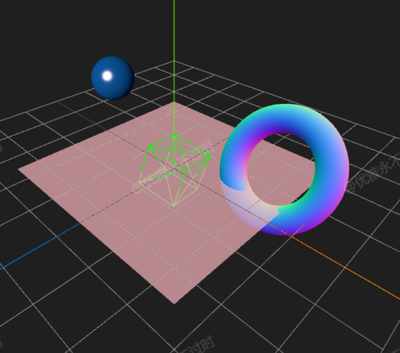
本案例演示 animejs使用 效果:基于 WebGL 实现「animejs使用」可视化效果,附完整可运行源码;核心用到 OrbitControls。建议先打开文首在线案例查看动态画面,再对照下方源码逐步理解。
核心概念
- OrbitControls 轨道旋转缩放;开
enableDamping时每帧需controls.update()。
实现步骤
- 搭建 Scene / Camera / Renderer 与 OrbitControls
- rAF 循环中 update 并 render
代码要点
  import * as THREE from 'three'

  import { OrbitControls } from 'three/examples/jsm/controls/OrbitControls.js'
  import { animate } from 'animejs'


  const box = document.getElementById('box')


  const scene = new THREE.Scene()


  const camera = new THREE.PerspectiveCamera(75, box.clientWidth / box.clientHeight, 0.1, 100000)


  camera.position.set(50, 50, 50)


  const renderer = new THREE.WebGLRenderer({ antialias: true, alpha: true, logarithmicDepthBuffer: true })


  renderer.setSize(box.clientWidth, box.clientHeight)


  box.appendChild(renderer.domElement)


  new OrbitControls(camera, renderer.domElement)


  scene.add(new THREE.AxesHelper(100), new THREE.GridHelper(100, 10))


  loop()


  function loop() {


  requestAnimationFrame(loop)


  renderer.render(scene, camera)


  }


  window.onresize = () => {


  renderer.setSize(box.clientWidth, box.clientHeight)


  camera.aspect = box.clientWidth / box.clientHeight


  camera.updateProjectionMatrix()


  }


  /制作animate/
  const geometry = new THREE.BoxGeometry(10, 10, 10)
  const material = new THREE.MeshBasicMaterial({ color: 0x00ff00, wireframe: true })
  const cube = new THREE.Mesh(geometry, material)
  scene.add(cube)
  animate(cube.rotation, {
      x: Math.PI,
      y: Math.PI,
      z: Math.PI,
      duration: 2000,
      loop: true
  })


  /添加球体/
  const sphereGeometry = new THREE.SphereGeometry(5, 32, 32)
  const sphereMaterial = new THREE.MeshPhongMaterial({
      color: 0x1E90FF,
      shininess: 100,
      specular: 0xffffff
  })
  const sphere = new THREE.Mesh(sphereGeometry, sphereMaterial)
  sphere.position.set(-20, 10, 0)
  scene.add(sphere)


  // 添加光源使球体材质效果更好
  const light = new THREE.DirectionalLight(0xffffff, 1.0)
  light.position.set(10, 20, 30)
  scene.add(light)
  scene.add(new THREE.AmbientLight(0x404040))


  // 球体位置动画
  animate(sphere.position, {
      y: [10, 20, 10],
      easing: 'easeInOutQuad',
      duration: 3000,
      loop: true
  })


  /添加环形/
  const torusGeometry = new THREE.TorusGeometry(7, 2, 16, 100)
  const torusMaterial = new THREE.MeshNormalMaterial()
  const torus = new THREE.Mesh(torusGeometry, torusMaterial)
  torus.position.set(20, 5, -10)
  scene.add(torus)


  // 环形缩放和旋转动画
  animate(torus.scale, {
      x: [1, 1.5, 1],
      y: [1, 1.5, 1],
      z: [1, 1.5, 1],
      duration: 2500,
      loop: true
  })
  animate(torus.rotation, {
      x: Math.PI * 2,
      z: Math.PI * 2,
      duration: 5000,
      loop: true
  })


  /添加平面/
  const planeGeometry = new THREE.PlaneGeometry(50, 50)
  const planeMaterial = new THREE.MeshBasicMaterial({
      color: 0xFF6347,
      side: THREE.DoubleSide,
      transparent: true,
      opacity: 0.7
  })
  const plane = new THREE.Mesh(planeGeometry, planeMaterial)
  plane.rotation.x = Math.PI / 2
  scene.add(plane)


  `animate(plane.material.color, {
      r: [1, 0, 1],
      g: [0.5, 0, 0.5],
      b: [0.5, 1, 0.5],
      duration: 4000,
      loop: true
  })
`完整源码:GitHub
小结
- 本文提供 animejs使用 完整 Three.js 源码与在线 Demo,建议先运行案例再改 uniform/参数做二次实验
- 更多 Three.js 实战案例见 three-cesium-examples 合集 与 GitHub 开源仓库