鸿蒙应用开发实战【54】--- 应用详情页AppDetailPage开发(下)
本文是「号码助手全栈开发系列」第 54 篇,持续更新中...
前言
上篇完成了 AppDetailPage 的参数获取与数据加载。本篇聚焦编辑交互与保存------包括绑定卡号切换、分类选择、状态分段控件、备注编辑、保存修改、二次确认删除。
本篇涵盖:FormRow @Builder 复用、状态分段控件(Segmented)、ActionMenu 选择卡号/分类、保存逻辑、deleteById 删除、AlertDialog 二次确认。
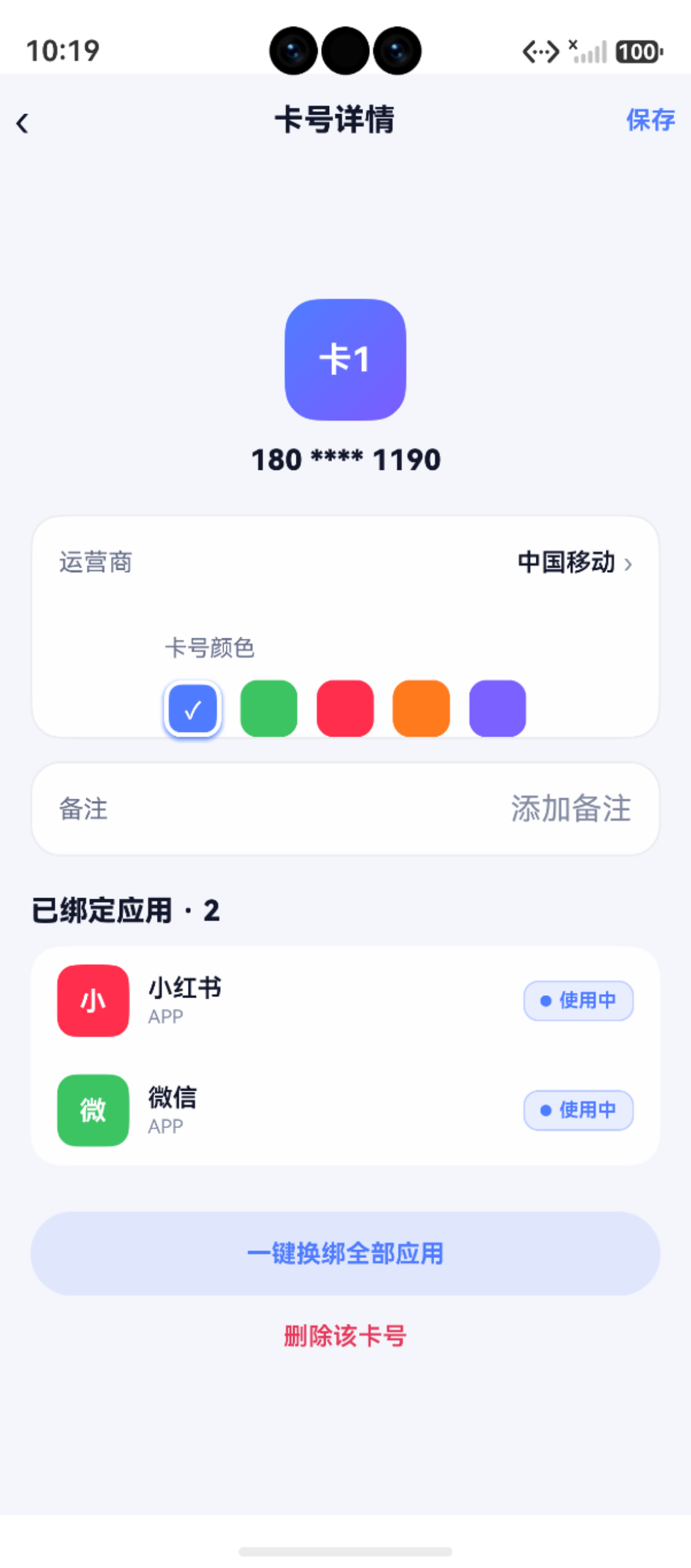
一、页面布局
┌──────────────────────┐
│  ‹     应用详情     保存 │
├──────────────────────┤
│                      │
│      ┌────┐          │
│      │ W  │ 微信      │  ← 大 Avatar
│      └────┘          │
│                      │
│  ┌──────────────────┐│
│  │ 绑定卡号  卡1·138›││  ← 可编辑
│  │──────────────────││
│  │ 分类       APP  ›││
│  └──────────────────┘│
│                      │
│  当前状态              │
│  [使用中][待换绑][待注销]│ ← 分段控件
│                      │
│  ┌──────────────────┐│
│  │ [备注文字]        ││
│  │──────────────────││
│  │ 创建时间 2026-01-15││
│  │ 更新时间 2026-03-20││
│  └──────────────────┘│
│                      │
│  [    保存修改      ]│
│                      │
│    删除该应用          │
└──────────────────────┘
二、FormRow 通用 Builder
2.1 组件定义
typescript
@Builder
private FormRow(label: string, value: string, onTap: () => void) {
  Row() {
    Text(label).fontSize(AppFonts.SIZE_BODY).fontColor(AppColors.TEXT)
    Blank()
    Text(value).fontSize(AppFonts.SIZE_BODY).fontWeight(AppFonts.WEIGHT_MEDIUM)
      .fontColor(AppColors.TEXT_2)
    Text('›').fontSize(Size.font14).fontColor(AppColors.TEXT_3).margin({ left: 4 })
  }
  .width('100%').height(Size.s44)
  .onClick(() => onTap())
}
2.2 使用
typescript
this.FormRow(
  '绑定卡号',
  `${this.cards[this.selectedCardIndex]?.label ?? ''} · ${this.formatPhone(...)}`,
  () => this.pickCard()
)
this.FormRow('分类', CATEGORIES[this.selectedCategoryIndex], () => this.pickCategory())
三、ActionMenu 选择器
3.1 选择卡号
typescript
private async pickCard(): Promise<void> {
  if (this.cards.length === 0) return
  const buttons = this.cards.map(c => ({
    text: `${c.label} · ${c.phone_number}`,
    color: AppColors.TEXT
  }))
  const result = await promptAction.showActionMenu({
    title: '选择绑定卡号',
    buttons: buttons as [MenuBtn, MenuBtn?, MenuBtn?, MenuBtn?, MenuBtn?, MenuBtn?]
  })
  this.selectedCardIndex = result.index
}
3.2 选择分类
typescript
private async pickCategory(): Promise<void> {
  const buttons = CATEGORIES.map(c => ({ text: c, color: AppColors.TEXT }))
  const result = await promptAction.showActionMenu({
    title: '选择分类',
    buttons: buttons as [MenuBtn, MenuBtn?, MenuBtn?, MenuBtn?, MenuBtn?, MenuBtn?]
  })
  this.selectedCategoryIndex = result.index
}
四、状态分段控件
4.1 UI 实现
typescript
Column() {
  Text('当前状态')
    .fontSize(AppFonts.SIZE_SUB).fontColor(AppColors.TEXT_2)
    .alignSelf(ItemAlign.Start).margin({ bottom: 8 })

  Row() {
    ForEach(STATUS_OPTIONS, (s: string, index: number) => {
      Text(s)
        .fontSize(AppFonts.SIZE_SUB).fontWeight(AppFonts.WEIGHT_MEDIUM)
        .fontColor(this.selectedStatusIndex === index ? '#FFFFFF' : AppColors.TEXT_2)
        .backgroundColor(this.selectedStatusIndex === index ? AppColors.PRIMARY : Color.Transparent)
        .layoutWeight(1).textAlign(TextAlign.Center)
        .padding({ top: 8, bottom: 8 }).borderRadius(Size.s10)
        .onClick(() => this.selectedStatusIndex = index)
    })
  }
  .width('100%')
  .backgroundColor(AppColors.MUTED_BG)
  .borderRadius(Size.s12)
  .padding(Size.s3)
}
4.2 状态枚举
typescript
const STATUS_OPTIONS: BindingStatus[] = ['使用中', '待换绑', '待注销', '已停用']4 个状态横向均分,容器使用 MUTED_BG 灰色背景,选中项使用 PRIMARY 蓝色填充。
五、时间信息
typescript
Row() {
  Text('创建时间').fontSize(AppFonts.SIZE_BODY).fontColor(AppColors.TEXT)
  Blank()
  Text(formatDate(this.binding.created_at)).fontSize(AppFonts.SIZE_BODY).fontColor(AppColors.TEXT_2)
}
Row() {
  Text('更新时间').fontSize(AppFonts.SIZE_BODY).fontColor(AppColors.TEXT)
  Blank()
  Text(formatDate(this.binding.updated_at)).fontSize(AppFonts.SIZE_BODY).fontColor(AppColors.TEXT_2)
}
六、保存修改
typescript
private async onSave(): Promise<void> {
  if (!this.binding || this.saving) return
  this.saving = true
  try {
    const now = Date.now()
    const card = this.cards[this.selectedCardIndex]
    await AppBindingDao.update({
      id: this.binding.id,
      app_name: this.binding.app_name,
      icon_key: this.binding.icon_key,
      category: CATEGORIES[this.selectedCategoryIndex],
      card_id: card?.id ?? this.binding.card_id,
      status: STATUS_OPTIONS[this.selectedStatusIndex],
      remark: this.remark.trim(),
      source: this.binding.source,
      created_at: this.binding.created_at,
      updated_at: now
    })
    promptAction.showToast({ message: '已保存' })
  } catch (e) {
    promptAction.showToast({ message: '保存失败,请重试' })
  } finally {
    this.saving = false
  }
}
注意 card_id 的兜底:card?.id ?? this.binding.card_id,防止 cards 数组为空时出错。
七、删除应用
7.1 二次确认
typescript
private onDeleteTap(): void {
  this.getUIContext().showAlertDialog({
    title: '删除该应用',
    message: '删除后无法恢复,确定要删除该应用绑定吗?',
    buttons: [
      { value: '取消', action: () => {} },
      { value: '确定删除', action: () => this.doDelete() }
    ]
  })
}
7.2 执行删除
typescript
private async doDelete(): Promise<void> {
  if (!this.binding || this.binding.id === undefined) return
  try {
    await AppBindingDao.deleteById(this.binding.id)
    promptAction.showToast({ message: '已删除' })
    this.getUIContext().getRouter().back()
  } catch (e) {
    promptAction.showToast({ message: '删除失败,请重试' })
  }
}
删除后自动 back() 返回上一页,首页的 onPageShow 会自动刷新。
| 操作 | 交互组件 | 数据方法 | 反馈方式 |
|---|---|---|---|
| 切换绑定卡号 | ActionMenu | selectedCardIndex 更新 | 选择后自动关闭 |
| 切换分类 | ActionMenu | selectedCategoryIndex 更新 | 选择后自动关闭 |
| 切换状态 | 分段控件 | selectedStatusIndex 更新 | 即时切换 |
| 编辑备注 | TextArea | remark 绑定 | onChange 即时更新 |
| 保存修改 | Button | AppBindingDao.update | Toast「已保存」 |
| 删除应用 | Button + AlertDialog | AppBindingDao.deleteById | Toast + router.back() |
八、完整操作流程
AppDetailPage
    │
    ├── 加载数据(loadData)
    │
    ├── 编辑绑定卡号 → ActionMenu
    ├── 编辑分类 → ActionMenu
    ├── 切换状态 → 分段控件 onClick
    ├── 编辑备注 → TextArea
    │
    ├── 保存修改
    │   ├── onSave → AppBindingDao.update
    │   └── Toast "已保存"
    │
    └── 删除应用
        ├── AlertDialog 确认
        └── AppBindingDao.deleteById → Toast → back
小结
| 要点 | 说明 |
|---|---|
| FormRow | 可复用 Builder:label + value + right arrow |
| ActionMenu 选择 | pickCard / pickCategory 原生弹窗 |
| 状态分段控件 | MUTED_BG 容器 + Primary 选中 |
| 保存逻辑 | update 全部字段 + updated_at 时间戳 |
| 删除 | AlertDialog 二次确认 + deleteById + back |
| 数据刷新 | 子页面返回后首页 onPageShow 自动刷新 |
下一篇文章,我们开发搜索页 SearchPage------实时搜索、历史记录、无结果快速添加。
如果这篇文章对你有帮助,欢迎点赞👍、收藏⭐、关注🔔,你的支持是我持续创作的动力!
相关资源:
- openHarmony 跨平台社区:https://openharmonycrossplatform.csdn.net
- HarmonyOS 官方文档:https://developer.huawei.com/consumer/cn/doc/
- HarmonyOS ArkUI组件参考:https://developer.huawei.com/consumer/cn/doc/harmonyos-references/arkui-ts
- HarmonyOS router API:https://developer.huawei.com/consumer/cn/doc/harmonyos-references/router