项目演示
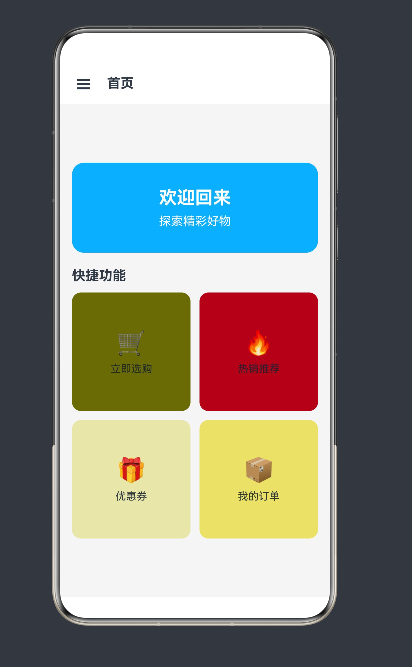
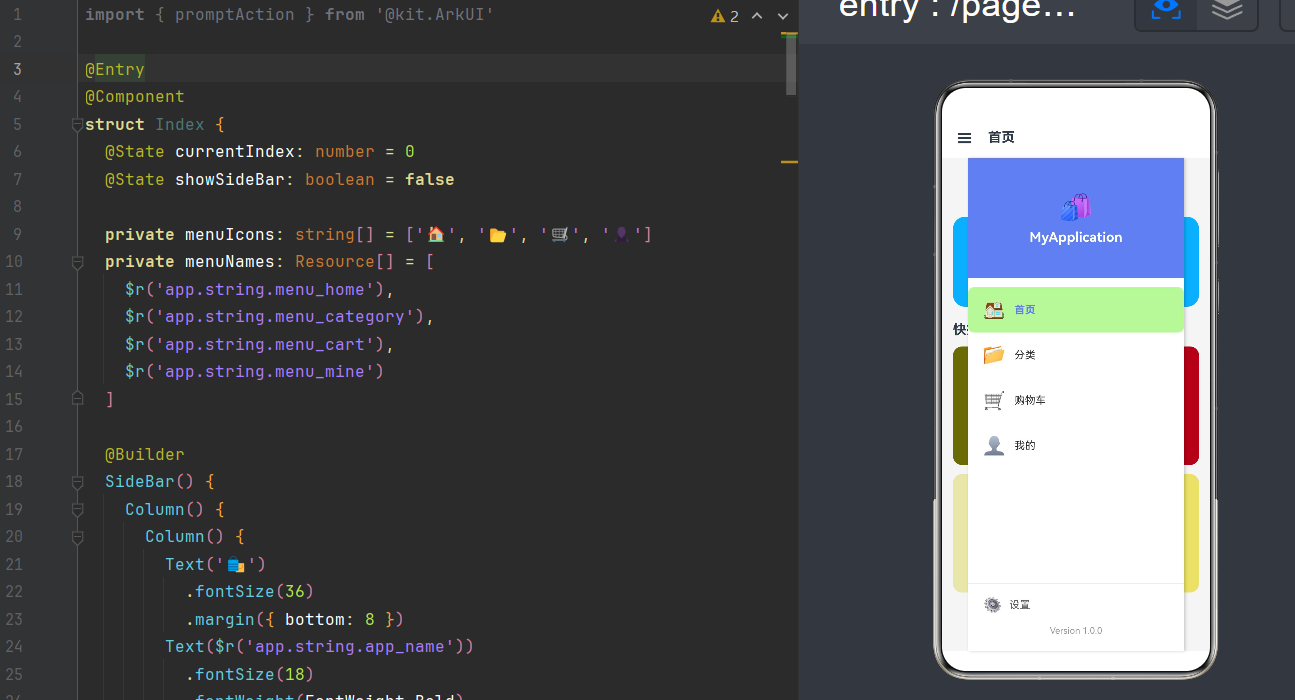
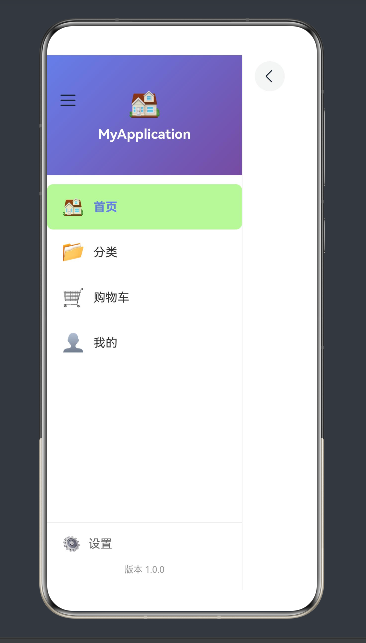
前言:为什么侧边导航在 HarmonyOS 应用中如此重要
在移动应用设计中,导航结构决定了用户体验的核心走向。从 iOS 的 UITabBar + UINavigationController,到 Android 的 BottomNavigationView + Navigation,再到 HarmonyOS NEXT 全场景智慧生态的 SideBar + Navigation,每一种导航方案都承载着各自平台的设计哲学。
HarmonyOS NEXT 作为面向多端的新一代操作系统,不仅延续了经典的导航模式,更通过 SideBarContainer 和 Navigation 的组合,为开发者提供了一套灵活、高效且跨端一致的侧边导航解决方案。
本文将深入剖析这一方案的核心原理,系统讲解 24 个关键 API 的使用技巧,并结合实战代码,帮助你从零构建一个完整的侧边导航应用。无论你是 HarmonyOS 新手还是经验丰富的开发者,都能从中获得有价值的参考。
第一章:核心架构解析
1.1 三大支柱组件
SideBar + Navigation 布局由三个核心组件协同工作:
| 组件 | 职责定位 | 类比理解 |
|---|---|---|
| SideBarContainer | 侧边栏容器,管理侧边栏的显示状态、位置、尺寸 | 抽屉式侧边栏管理器 |
| Navigation | 导航容器,负责主内容区的页面栈管理 | 页面路由容器 |
| NavPathStack | 导航路径栈,记录页面跳转历史 | 后进先出的栈结构 |
1.2 布局层级关系图
┌─────────────────────────────────────────────────────┐
│                   SideBarContainer                   │
│  ┌───────────────┬─────────────────────────────────┐ │
│  │               │          Navigation              │ │
│  │               │  ┌─────────────────────────────┐ │ │
│  │   SideBar     │  │  NavDestination             │ │ │
│  │   (侧边栏)    │  │  ┌───────────────────────┐  │ │ │
│  │               │  │  │  页面内容              │  │ │ │
│  │  - 用户头像   │  │  │  (HomePage/...)        │  │ │ │
│  │  - 导航菜单   │  │  │                       │  │ │ │
│  │  - 设置入口   │  │  └───────────────────────┘  │ │ │
│  │               │  └─────────────────────────────┘ │ │
│  └───────────────┴─────────────────────────────────┘ │
└─────────────────────────────────────────────────────┘
1.3 数据流向详解
用户点击侧边栏菜单项
        │
        ▼
navPathStack.pushPathByName('detail', param)
        │
        ▼
Navigation 检测到 NavPathStack 变化
        │
        ▼
触发 navDestination('detail', param) 回调
        │
        ▼
根据 'detail' 名称构建对应的 NavDestination
        │
        ▼
NavDestination 内部渲染具体页面组件
1.4 与传统方案的对比
| 特性 | TabBar 导航 | 抽屉式导航 | SideBar + Navigation |
|---|---|---|---|
| 适用场景 | 2-5 个主要功能 | 功能较多、层级复杂 | 平板/大屏、内容密集 |
| 屏幕利用 | 底部固定占用 | 隐藏式抽屉 | 常驻或按需显示 |
| 交互方式 | 点击切换 | 手势/按钮唤起 | 点击、滑动、状态控制 |
| 跨端适配 | 手机优先 | 手机优先 | 手机/平板/PC 自适应 |
第二章:24 个关键 API 完全手册
第一部分:SideBarContainer 系列(6 个)
API 1:SideBarContainer() ------ 侧边栏容器
基本语法:
typescript
SideBarContainer() {
  // 第一个子组件:侧边栏内容
  SideBarContent()
  // 第二个子组件:主内容区
  MainContent()
}
核心职责: SideBarContainer 是整个侧边导航布局的根容器,它管理着侧边栏和主内容区的布局关系。组件内部必须包含且仅能包含两个子组件,第一个为侧边栏,第二个为主内容区。
使用示例:
typescript
@Builder
SideBarBuilder() {
  // 侧边栏内容
  Column() {
    Text('侧边栏')
  }
}

@Builder
MainBuilder() {
  // 主内容区
  Column() {
    Text('主内容')
  }
}

build() {
  SideBarContainer() {
    this.SideBarBuilder()
    this.MainBuilder()
  }
}
注意事项:
- 侧边栏和主内容区的顺序固定,不可调换
- 容器会自动处理侧边栏的显示/隐藏动画
- 嵌套使用时需注意层级关系
API 2:.sideBarPosition() ------ 设置侧边栏位置
基本语法:
typescript
.sideBarPosition(position: SideBarPosition)枚举值说明:
| 枚举值 | 说明 | 适用场景 |
|---|---|---|
SideBarPosition.Start |
左侧显示(默认) | 大多数应用场景 |
SideBarPosition.End |
右侧显示 | 特殊布局、RTL 语言 |
使用示例:
typescript
SideBarContainer() {
  // ...
}
.sideBarPosition(SideBarPosition.Start)  // 左侧
// .sideBarPosition(SideBarPosition.End)  // 右侧
动态切换:
typescript
@State position: SideBarPosition = SideBarPosition.Start

SideBarContainer() {
  // ...
}
.sideBarPosition(this.position)

// 点击按钮切换位置
Button('切换位置')
  .onClick(() => {
    if (this.position === SideBarPosition.Start) {
      this.position = SideBarPosition.End
    } else {
      this.position = SideBarPosition.Start
    }
  })
API 3:.sideBarWidth() ------ 配置侧边栏宽度
基本语法:
typescript
.sideBarWidth(width: number | string)参数类型:
- 数值类型: 以 vp 为单位的固定宽度
- 字符串类型: 百分比或带单位的字符串(如 '30%'、'260vp')
使用示例:
typescript
// 固定宽度
.sideBarWidth(260)

// 百分比宽度
.sideBarWidth('30%')

// 响应式宽度(根据屏幕自适应)
.sideBarWidth('40%')  // 小屏幕 40%
最佳实践:
- 手机端建议 240-280vp
- 平板端建议 300-400vp
- 可配合
.sideBarMinWidth()和.sideBarMaxWidth()使用
API 4:.showSideBar() ------ 控制侧边栏显隐
基本语法:
typescript
.showSideBar(isShow: boolean)核心作用: 这是实现侧边栏开关的核心 API,通常配合状态变量和用户交互事件使用。
基础用法:
typescript
@State isShow: boolean = false  // 默认隐藏

SideBarContainer() {
  // ...
}
.showSideBar(this.isShow)

// 点击切换
Text('☰')
  .onClick(() => {
    this.isShow = !this.isShow
  })
进阶技巧:
typescript
// 动画过渡
@State isShow: boolean = false

// 在按钮上添加动画效果
Text('☰')
  .rotate({ angle: this.isShow ? 90 : 0 })
  .transition(TransitionEffect.OPACITY)
  .onClick(() => {
    animateTo({ duration: 300 }, () => {
      this.isShow = !this.isShow
    })
  })
与手势结合:
typescript
SideBarContainer() {
  // ...
}
.showSideBar(this.isShow)
.gesture(
  PanGesture()
    .onActionUpdate((event: GestureEvent) => {
      // 右滑显示,左滑隐藏
      if (event.offsetX > 50) {
        this.isShow = true
      } else if (event.offsetX < -50) {
        this.isShow = false
      }
    })
)
API 5:.sideBarMinWidth() 和 .sideBarMaxWidth() ------ 宽度约束
基本语法:
typescript
.sideBarMinWidth(minWidth: number | string)
.sideBarMaxWidth(maxWidth: number | string)
使用场景: 当侧边栏宽度需要动态调整时,设置最小/最大宽度约束可以避免极端情况。
使用示例:
typescript
@State dynamicWidth: number = 280

SideBarContainer() {
  // ...
}
.sideBarWidth(this.dynamicWidth)
.sideBarMinWidth(200)   // 最小 200vp
.sideBarMaxWidth(360)   // 最大 360vp
实际应用:
typescript
// 根据内容动态调整宽度
@State itemCount: number = 4
@State dynamicWidth: number = 280

Column() {
  Slider({ value: this.itemCount, min: 2, max: 8 })
    .onChange((value: number) => {
      this.itemCount = Math.floor(value)
      // 根据菜单项数量调整侧边栏宽度
      this.dynamicWidth = 200 + this.itemCount * 20
    })
}
API 6:.sideBarAutoHide() ------ 自动隐藏控制
基本语法:
typescript
.sideBarAutoHide(autoHide: boolean)默认值: true
功能说明: 当用户在主内容区滑动或点击时,是否自动隐藏侧边栏。
使用示例:
typescript
SideBarContainer() {
  // ...
}
.showSideBar(this.isShow)
.sideBarAutoHide(true)   // 允许自动隐藏
不同场景的设置建议:
| 场景 | 设置 | 理由 |
|---|---|---|
| 手机竖屏 | true |
节省屏幕空间 |
| 平板横屏 | false |
充分利用大屏 |
| PC 应用 | false |
常驻侧边栏 |
第二部分:Navigation 系列(6 个)
API 7:Navigation() ------ 导航容器
基本语法:
typescript
Navigation(navPathStack: NavPathStack) {
  // 初始页面内容(可选)
}
参数说明: Navigation 必须接收一个 NavPathStack 实例,用于管理页面跳转历史。
创建 NavPathStack:
typescript
@State navPathStack: NavPathStack = new NavPathStack()完整示例:
typescript
@Entry
@Component
struct Index {
  @State navPathStack: NavPathStack = new NavPathStack()

  build() {
    Navigation(this.navPathStack) {
      // 初始页面(可选)
      Text('首页')
    }
    .title('我的应用')
  }
}
与 SideBarContainer 结合:
typescript
@Entry
@Component
struct Index {
  @State navPathStack: NavPathStack = new NavPathStack()

  build() {
    SideBarContainer() {
      SideBar() {
        // 侧边栏
      }
      Navigation(this.navPathStack) {
        // 主内容区
      }
    }
  }
}
API 8:.navDestination() ------ 路由目标构建器
基本语法:
typescript
.navDestination(builder: (name: string, param: Object) => void)参数说明: builder 回调接收两个参数:
name:路由名称,与pushPathByName的 name 对应param:路由参数对象
核心作用: 这是 Navigation 实现页面路由的关键 API,通过回调函数根据不同的路由名称构建对应的 NavDestination。
基础使用:
typescript
Navigation(this.navPathStack)
  .navDestination((name: string, param: Object) => {
    NavDestination() {
      if (name === 'home') {
        HomePage()
      } else if (name === 'detail') {
        DetailPage()
      }
    }
  })
推荐写法(使用 @Builder 分离):
typescript
// 定义 @Builder
@Builder
PageRouter(name: string, param: Object) {
  NavDestination() {
    if (name === 'home') {
      HomePage()
    } else if (name === 'detail') {
      DetailPage()
    } else if (name === 'profile') {
      ProfilePage()
    } else {
      Text('未知页面')
    }
  }
}

// 使用
Navigation(this.navPathStack)
  .navDestination((name: string, param: Object) => {
    this.PageRouter(name, param)
  })
注意事项:
- ArkTS 不支持匿名类型,所有页面组件需预定义
- 复杂路由建议使用枚举或常量管理路由名称
- 参数传递需注意类型安全
API 9:.title() ------ 配置导航标题
基本语法:
typescript
.title(title: string | Resource | CustomBuilder)三种配置方式:
方式一:字符串标题
typescript
Navigation(this.navPathStack)
  .title('我的应用')
方式二:资源引用标题
typescript
Navigation(this.navPathStack)
  .title($r('app.string.app_title'))
方式三:自定义标题栏
typescript
@Builder
CustomTitle() {
  Row() {
    Text('返回')
      .fontSize(16)
      .fontColor('#007DFF')
      .onClick(() => {
        this.navPathStack.pop()
      })
    Text('详情页')
      .fontSize(18)
      .fontWeight(FontWeight.Bold)
      .layoutWeight(1)
    Text('更多')
      .fontSize(16)
      .fontColor('#666666')
  }
  .width('100%')
  .height(56)
  .padding({ left: 16, right: 16 })
}

Navigation(this.navPathStack)
  .title(this.CustomTitle)
动态标题:
typescript
@State currentTitle: string = '首页'

Navigation(this.navPathStack)
  .title(this.currentTitle)
  .navDestination((name: string, param: Object) => {
    // 根据路由名称更新标题
    if (name === 'home') {
      this.currentTitle = '首页'
    } else if (name === 'detail') {
      this.currentTitle = '详情页'
    }
  })
API 10:.titleMode() ------ 标题显示模式
基本语法:
typescript
.titleMode(mode: NavigationTitleMode)枚举值说明:
| 模式 | 说明 | 效果 |
|---|---|---|
NavigationTitleMode.Mini |
小标题模式 | 固定在顶部,紧凑显示 |
NavigationTitleMode.Full |
大标题模式 | 可滚动收起,首次显示较大 |
NavigationTitleMode.Auto |
自动模式(默认) | 根据内容自动选择 |
使用示例:
typescript
// 小标题模式
Navigation(this.navPathStack)
  .title('首页')
  .titleMode(NavigationTitleMode.Mini)

// 大标题模式(适合内容丰富的页面)
Navigation(this.navPathStack)
  .title('探索发现')
  .titleMode(NavigationTitleMode.Full)
效果对比:
Mini 模式:固定高度 56vp,标题始终可见
┌─────────────────────┐
│  ← 探索发现    📧 ⚙️ │ 56vp
├─────────────────────┤
│                     │
│     页面内容         │
│                     │
└─────────────────────┘

Full 模式:初始高度 128vp,滚动收起至 56vp
┌─────────────────────┐ ← 初始 128vp
│                     │
│  探索发现           │
│  发现精彩内容        │
│                     │
├─────────────────────┤ ← 滚动后收起至 56vp
│  ← 探索发现    📧 ⚙️ │
├─────────────────────┤
│     页面内容         │
└─────────────────────┘
API 11:.hideTitleBar() ------ 隐藏标题栏
基本语法:
typescript
.hideTitleBar(isHide: boolean)使用场景:
- 需要完全自定义顶部区域
- 沉浸式全屏页面
- 使用系统状态栏
使用示例:
typescript
@State hideTitle: boolean = false

Navigation(this.navPathStack)
  .title('首页')
  .hideTitleBar(this.hideTitle)

// 详情页隐藏标题栏,使用自定义导航
NavDestination() {
  DetailContent()
  CustomNavigationBar()
}
隐藏后自定义导航栏:
typescript
@Builder
CustomNavBar() {
  Row() {
    Text('← 返回')
      .fontSize(16)
      .fontColor(Color.White)
      .onClick(() => {
        this.navPathStack.pop()
      })
    Text('商品详情')
      .fontSize(18)
      .fontWeight(FontWeight.Bold)
      .fontColor(Color.White)
      .layoutWeight(1)
    Text('分享')
      .fontSize(16)
      .fontColor(Color.White)
  }
  .width('100%')
  .height(56)
  .padding({ left: 16, right: 16 })
  .backgroundColor('#333333')
}
API 12:.hideToolBar() ------ 隐藏工具栏
基本语法:
typescript
.hideToolBar(isHide: boolean)功能说明: Navigation 默认可能提供底部工具栏,可通过此 API 控制显隐。
使用示例:
typescript
Navigation(this.navPathStack)
  .title('设置')
  .hideToolBar(true)  // 隐藏底部工具栏
常见场景:
- 设置页面:不需要工具栏
- 表单页面:避免遮挡输入
- 全屏浏览:沉浸式体验
第三部分:NavPathStack 系列(6 个)
API 13:new NavPathStack() ------ 创建导航栈
基本语法:
typescript
let navPathStack: NavPathStack = new NavPathStack()状态声明: 在 ArkTS 中,通常需要使用 @State 装饰器来确保状态变化能正确触发 UI 更新。
正确写法:
typescript
@State navPathStack: NavPathStack = new NavPathStack()完整示例:
typescript
@Entry
@Component
struct Index {
  @State navPathStack: NavPathStack = new NavPathStack()

  aboutToAppear() {
    // 初始化:推入首页
    this.navPathStack.pushPathByName('home', null, true)
  }

  build() {
    Navigation(this.navPathStack)
      // ...
  }
}
注意事项:
- NavPathStack 是引用类型,不要重新赋值
- 所有操作通过方法调用进行(push、pop、clear)
- 生命周期方法中初始化路由
API 14:.pushPathByName() ------ 推入新页面
基本语法:
typescript
pushPathByName(name: string, param: Object, clearStack: boolean): void参数详解:
| 参数 | 类型 | 说明 |
|---|---|---|
| name | string | 路由名称,需与 navDestination 对应 |
| param | Object | 传递给目标页面的参数 |
| clearStack | boolean | 是否清空栈后再推入 |
三种典型用法:
用法一:首次加载(清空栈)
typescript
aboutToAppear() {
  // 应用启动,清空所有历史,推入首页
  this.navPathStack.pushPathByName('home', null, true)
}
用法二:页面跳转(保留历史)
typescript
// 点击商品进入详情页
ItemClick(item: Product) {
  this.navPathStack.pushPathByName('detail', { id: item.id }, false)
}
用法三:嵌套跳转
typescript
// 详情页 → 评价页 → 评价详情页
GoToReview() {
  this.navPathStack.pushPathByName('review', { productId: 123 }, false)
}
GoToReviewDetail() {
  this.navPathStack.pushPathByName('reviewDetail', { reviewId: 456 }, false)
}
参数传递最佳实践:
typescript
// 定义参数类(推荐)
class DetailParam {
  productId: number
  fromPage: string
  constructor(id: number, from: string) {
    this.productId = id
    this.fromPage = from
  }
}

// 传递参数
let param: DetailParam = new DetailParam(123, 'home')
this.navPathStack.pushPathByName('detail', param, false)

// 接收参数
.navDestination((name: string, param: Object) => {
  if (name === 'detail') {
    let detailParam: DetailParam = param as DetailParam
    DetailPage({ id: detailParam.productId })
  }
})
API 15:.pop() ------ 返回上一页
基本语法:
typescript
pop(): void功能说明: 从导航栈中弹出顶部页面,返回上一级。
基础用法:
typescript
// 在自定义返回按钮中
Text('← 返回')
  .onClick(() => {
    if (this.navPathStack.size() > 1) {
      this.navPathStack.pop()
    }
  })
进阶:双击返回键退出应用
typescript
@State lastBackTime: number = 0

.onBackPress(() => {
  if (this.navPathStack.size() > 1) {
    this.navPathStack.pop()
    return true
  }

  let currentTime: number = Date.now()
  if (currentTime - this.lastBackTime < 2000) {
    return false  // 退出应用
  } else {
    this.lastBackTime = currentTime
    promptAction.showToast({ message: '再按一次退出' })
    return true  // 拦截返回
  }
})
pop 与 clear 的区别:
pop():    返回上一页,栈中还有历史记录
clear():  清空所有页面,回到初始状态(相当于重启)

pushPathByName(name, param, true):
           清空栈后推入新页面(推荐初始化用)
API 16:.clear() ------ 清空导航栈
基本语法:
typescript
clear(): void使用场景:
- 退出登录,返回登录页
- 完成支付,回到首页
- 流程结束,重置状态
使用示例:
typescript
// 退出登录
Logout() {
  // 清除用户数据
  PreferencesUtil.clear()
  // 清空导航栈
  this.navPathStack.clear()
  // 推入登录页
  this.navPathStack.pushPathByName('login', null, true)
}
clear + push 组合:
typescript
// 完成订单流程后返回首页
CompleteOrder() {
  // 1. 清空购物车
  ShoppingCart.clear()
  // 2. 清空导航栈
  this.navPathStack.clear()
  // 3. 回到首页
  this.navPathStack.pushPathByName('home', null, true)
}
API 17:.size() ------ 获取栈大小
基本语法:
typescript
size(): number功能说明: 返回当前导航栈中的页面数量。
实用场景:
场景一:控制返回按钮显示
typescript
Column() {
  if (this.navPathStack.size() > 1) {
    Text('← 返回')
      .onClick(() => {
        this.navPathStack.pop()
      })
  }
  // 页面内容...
}
场景二:调试导航状态
typescript
Button('查看栈状态')
  .onClick(() => {
    let size: number = this.navPathStack.size()
    promptAction.showToast({ message: '当前栈大小: ' + size })
  })
场景三:埋点统计
typescript
.onPageShow(() => {
  let depth: number = this.navPathStack.size()
  HiLog.info(LABEL, '页面深度: %{public}d', depth)
})
API 18:.get() ------ 获取栈中元素
基本语法:
typescript
get(index: number): NavPathInfo参数说明: index 从 0 开始,0 表示栈底(第一个页面),size()-1 表示栈顶(当前页面)。
NavPathInfo 结构:
typescript
interface NavPathInfo {
  name: string      // 路由名称
  param: Object     // 路由参数
  index: number     // 在栈中的位置
}
使用示例:
typescript
// 获取当前页面信息
let topIndex: number = this.navPathStack.size() - 1
let currentPage: NavPathInfo = this.navPathStack.get(topIndex)
console.log('当前页面:', currentPage.name)

// 获取历史记录
for (let i: number = 0; i < this.navPathStack.size(); i++) {
  let page: NavPathInfo = this.navPathStack.get(i)
  console.log('历史页面 ' + i + ':', page.name)
}
实用场景:恢复页面状态
typescript
onPageShow() {
  let topIndex: number = this.navPathStack.size() - 1
  let currentPage: NavPathInfo = this.navPathStack.get(topIndex)

  // 从参数恢复状态
  if (currentPage.param) {
    let param = currentPage.param as DetailParam
    this.restoreState(param)
  }
}
第四部分:NavDestination 系列(6 个)
API 19:NavDestination() ------ 导航目标组件
基本语法:
typescript
NavDestination() {
  // 页面内容
}
核心作用: NavDestination 是 Navigation 内部单个页面的容器,每个通过 pushPathByName 推入的页面都是一个 NavDestination。
使用示例:
typescript
.navDestination((name: string, param: Object) => {
  NavDestination() {
    Column() {
      Text('页面内容')
    }
  }
})
与自定义组件结合:
typescript
@Component
struct HomePage {
  build() {
    Column() {
      Text('首页')
    }
  }
}

// 在 navDestination 中使用
.navDestination((name: string, param: Object) => {
  NavDestination() {
    HomePage()
  }
})
NavDestination vs 普通组件:
| 特性 | NavDestination | 普通组件 |
|---|---|---|
| 生命周期 | 有(onReady/onShow/onHide) | 有(aboutToAppear/aboutToDisappear) |
| 导航控制 | 可调用 pop() 返回 | 不可 |
| 标题设置 | 可覆盖 Navigation 标题 | 不可 |
| 参数接收 | 从 param 获取 | 从构造函数获取 |
API 20:NavDestination.title() ------ 覆盖导航标题
基本语法:
typescript
NavDestination() {
  // ...
}
.title(title: string | Resource | CustomBuilder)
功能说明: NavDestination 的 title 会覆盖 Navigation 的全局标题,实现每个页面独立的标题配置。
使用示例:
typescript
.navDestination((name: string, param: Object) => {
  if (name === 'home') {
    NavDestination() {
      HomePage()
    }
    .title('首页')
  } else if (name === 'detail') {
    NavDestination() {
      DetailPage()
    }
    .title('商品详情')  // 覆盖为页面专属标题
  }
})
动态标题:
typescript
.navDestination((name: string, param: Object) => {
  let dynamicTitle: string = this.getTitleByName(name)

  NavDestination() {
    // 页面内容
  }
  .title(dynamicTitle)
})
自定义标题栏(NavDestination 专属):
typescript
@Builder
DetailTitle() {
  Row() {
    Text('← 返回')
      .fontSize(16)
      .fontColor('#007DFF')
      .onClick(() => {
        this.navPathStack.pop()
      })
    Text('商品详情')
      .fontSize(18)
      .fontWeight(FontWeight.Bold)
      .layoutWeight(1)
    Text('分享')
      .fontSize(16)
      .fontColor('#666666')
  }
  .width('100%')
  .height(56)
  .padding({ left: 16, right: 16 })
  .backgroundColor(Color.White)
}

.navDestination((name: string, param: Object) => {
  NavDestination() {
    DetailPage()
  }
  .title(this.DetailTitle)
})
API 21:.onReady() ------ 页面初始化回调
基本语法:
typescript
.onReady(callback: () => void)触发时机: NavDestination 创建完成时触发,仅执行一次。
使用场景:
- 页面数据首次加载
- 初始化状态
- 注册监听器
使用示例:
typescript
.navDestination((name: string, param: Object) => {
  NavDestination() {
    ProductDetailPage()
  }
  .onReady(() => {
    console.log('详情页已准备好')
    this.loadProductData(param)
  })
})
onReady vs aboutToAppear:
onReady:           NavDestination 生命周期,每次新页面创建时执行
aboutToAppear:     组件生命周期,每次组件实例创建时执行

区别:
- NavDestination 可能复用组件实例(性能优化)
- aboutToAppear 一定会执行,onReady 可能不会

建议:数据加载放 aboutToAppear,导航相关放 onReady
API 22:.onShow() ------ 页面显示回调
基本语法:
typescript
.onShow(callback: () => void)触发时机: NavDestination 每次显示时触发(包括首次显示和从后台恢复)。
使用场景:
- 刷新页面数据
- 恢复动画/播放
- 更新 UI 状态
使用示例:
typescript
.navDestination((name: string, param: Object) => {
  NavDestination() {
    CartPage()
  }
  .onShow(() => {
    // 每次显示购物车时刷新数据
    this.refreshCartData()
  })
})
onShow vs onReady:
onReady:   仅首次创建时触发(一次)
onShow:    每次显示时触发(多次)

典型组合:
onReady:   初始化、注册监听
onShow:    刷新数据、恢复状态
onHide:    暂停动画、保存状态
API 23:.onHide() ------ 页面隐藏回调
基本语法:
typescript
.onHide(callback: () => void)触发时机: NavDestination 被其他页面覆盖时触发。
使用场景:
- 暂停视频/音频播放
- 保存草稿/临时数据
- 取消订阅/定时器
使用示例:
typescript
.navDestination((name: string, param: Object) => {
  NavDestination() {
    VideoPlayerPage()
  }
  .onShow(() => {
    this.videoController.play()
  })
  .onHide(() => {
    // 页面隐藏时暂停播放,节省资源
    this.videoController.pause()
  })
})
三生命周期完整示例:
typescript
.navDestination((name: string, param: Object) => {
  NavDestination() {
    EditorPage()
  }
  .onReady(() => {
    // 准备编辑器
    this.editor.init()
  })
  .onShow(() => {
    // 恢复编辑状态
    this.editor.resume()
  })
  .onHide(() => {
    // 保存草稿并暂停
    this.editor.saveDraft()
    this.editor.pause()
  })
})
API 24:NavDestination.pop() ------ 从目标页返回
基本语法:
typescript
NavDestination() {
  // ...
}
.pop()
功能说明: NavDestination 内置的返回方法,效果等同于 navPathStack.pop()。
使用示例:
typescript
.navDestination((name: string, param: Object) => {
  NavDestination() {
    Column() {
      Button('返回')
        .onClick(() => {
          // 方式一:调用 NavDestination.pop()
          // 方式二:调用 navPathStack.pop()
          this.navPathStack.pop()
        })
    }
  }
})
两种返回方式对比:
typescript
// 方式一:navPathStack.pop()(推荐)
this.navPathStack.pop()

// 方式二:NavDestination 组件的 .pop() 方法
// 需要在 NavDestination 内部调用,灵活性稍差
第三章:完整实战项目
3.1 项目架构设计
EntryAbility/
└── pages/
    └── Index.ets              # 主入口(SideBar + Navigation)
        │
        ├── SideBar            # 侧边栏(@Builder)
        │   ├── 用户信息区
        │   ├── 导航菜单列表
        │   └── 底部入口
        │
        └── Navigation         # 主内容区
            ├── HomePage       # 首页
            ├── CategoryPage  # 分类页
            ├── CartPage      # 购物车页
            └── ProfilePage    # 个人中心
3.2 路由名称管理
typescript
// 使用类管理路由名称,避免硬编码
class RouteName {
  static readonly HOME: string = 'home'
  static readonly CATEGORY: string = 'category'
  static readonly CART: string = 'cart'
  static readonly PROFILE: string = 'profile'
  static readonly DETAIL: string = 'detail'
}
3.3 参数传递类
typescript
// 详情页参数
class DetailParam {
  productId: number
  productName: string
  fromPage: string

  constructor(id: number, name: string, from: string) {
    this.productId = id
    this.productName = name
    this.fromPage = from
  }
}
3.4 完整主页面实现
typescript
import { promptAction } from '@kit.ArkUI'

class RouteName {
  static readonly HOME: string = 'home'
  static readonly CATEGORY: string = 'category'
  static readonly CART: string = 'cart'
  static readonly PROFILE: string = 'profile'
  static readonly DETAIL: string = 'detail'
}

class MenuItem {
  icon: string
  title: Resource
  route: string

  constructor(icon: string, title: Resource, route: string) {
    this.icon = icon
    this.title = title
    this.route = route
  }
}

@Entry
@Component
struct Index {
  @State navPathStack: NavPathStack = new NavPathStack()
  @State showSideBar: boolean = false
  @State currentRoute: string = RouteName.HOME

  private menuItems: MenuItem[] = [
    new MenuItem('🏠', $r('app.string.home'), RouteName.HOME),
    new MenuItem('📂', $r('app.string.category'), RouteName.CATEGORY),
    new MenuItem('🛒', $r('app.string.cart'), RouteName.CART),
    new MenuItem('👤', $r('app.string.profile'), RouteName.PROFILE)
  ]

  aboutToAppear() {
    this.navPathStack.pushPathByName(RouteName.HOME, null, true)
  }

  @Builder
  SideBarBuilder() {
    Column() {
      // 用户信息区
      Column() {
        Text('🛍️')
          .fontSize(40)
          .margin({ bottom: 12 })
        Text($r('app.string.app_name'))
          .fontSize(18)
          .fontWeight(FontWeight.Bold)
          .fontColor(Color.White)
      }
      .width('100%')
      .height(180)
      .justifyContent(FlexAlign.Center)
      .backgroundColor('#667EEA')

      // 菜单列表
      Column() {
        ForEach(this.menuItems, (item: MenuItem) => {
          Row() {
            Text(item.icon)
              .fontSize(24)
              .margin({ right: 12 })
            Text(item.title)
              .fontSize(15)
              .fontColor(this.currentRoute === item.route ? '#667EEA' : '#333333')
              .fontWeight(this.currentRoute === item.route ? FontWeight.Bold : FontWeight.Normal)
          }
          .width('100%')
          .padding({ left: 20, right: 20, top: 16, bottom: 16 })
          .borderRadius(8)
          .backgroundColor(this.currentRoute === item.route ? '#667EEA20' : Color.Transparent)
          .onClick(() => {
            if (this.currentRoute !== item.route) {
              this.navPathStack.pushPathByName(item.route, null, false)
              this.currentRoute = item.route
            }
            this.showSideBar = false
          })
        }, (item: MenuItem) => item.route)
      }
      .width('100%')
      .layoutWeight(1)
      .padding({ top: 8 })

      // 底部入口
      Column() {
        Row() {
          Text('⚙️').fontSize(20).margin({ right: 10 })
          Text('设置').fontSize(14).fontColor('#666666')
        }
        .width('100%')
        .padding({ left: 20, top: 16, bottom: 16 })

        Text('Version 1.0.0')
          .fontSize(12)
          .fontColor('#999999')
          .width('100%')
          .textAlign(TextAlign.Center)
          .margin({ bottom: 20 })
      }
      .width('100%')
      .border({ width: { top: 1 }, color: '#EEEEEE' })
    }
    .width('100%')
    .height('100%')
    .backgroundColor(Color.White)
  }

  @Builder
  PageRouter(name: string, param: Object) {
    NavDestination() {
      Column() {
        if (name === RouteName.HOME) {
          this.HomePageBuilder()
        } else if (name === RouteName.CATEGORY) {
          this.CategoryPageBuilder()
        } else if (name === RouteName.CART) {
          this.CartPageBuilder()
        } else if (name === RouteName.PROFILE) {
          this.ProfilePageBuilder()
        }
      }
      .width('100%')
      .height('100%')
    }
  }

  @Builder
  HomePageBuilder() {
    Scroll() {
      Column() {
        Column() {
          Text('欢迎回来')
            .fontSize(24)
            .fontWeight(FontWeight.Bold)
            .fontColor(Color.White)
            .margin({ bottom: 8 })
          Text('发现精彩内容')
            .fontSize(16)
            .fontColor(Color.White)
            .opacity(0.9)
        }
        .width('100%')
        .height(140)
        .justifyContent(FlexAlign.Center)
        .backgroundColor('#4FACFE')
        .borderRadius(16)
        .margin({ bottom: 24 })

        Text('快捷功能')
          .fontSize(18)
          .fontWeight(FontWeight.Bold)
          .width('100%')
          .margin({ bottom: 16 })

        Grid() {
          GridItem() {
            Column() {
              Text('🛒').fontSize(32)
              Text('立即选购').fontSize(14).margin({ top: 8 })
            }
            .width('100%')
            .aspectRatio(1)
            .justifyContent(FlexAlign.Center)
            .backgroundColor('#FF6B6B20')
            .borderRadius(12)
          }
          GridItem() {
            Column() {
              Text('🔥').fontSize(32)
              Text('热销推荐').fontSize(14).margin({ top: 8 })
            }
            .width('100%')
            .aspectRatio(1)
            .justifyContent(FlexAlign.Center)
            .backgroundColor('#FFA50220')
            .borderRadius(12)
          }
        }
        .columnsTemplate('1fr 1fr')
        .rowsGap(12)
        .columnsGap(12)
        .width('100%')
      }
      .width('100%')
      .padding(16)
    }
    .width('100%')
    .height('100%')
    .backgroundColor('#F5F5F5')
  }

  @Builder
  CategoryPageBuilder() {
    Column() {
      Text('📂')
        .fontSize(64)
        .margin({ bottom: 16 })
      Text('分类页面')
        .fontSize(24)
        .fontWeight(FontWeight.Bold)
      Text('功能开发中...')
        .fontSize(14)
        .fontColor('#999999')
        .margin({ top: 8 })
    }
    .width('100%')
    .height('100%')
    .justifyContent(FlexAlign.Center)
    .alignItems(HorizontalAlign.Center)
    .backgroundColor('#F5F5F5')
  }

  @Builder
  CartPageBuilder() {
    Column() {
      Text('🛒')
        .fontSize(64)
        .margin({ bottom: 16 })
      Text('购物车')
        .fontSize(24)
        .fontWeight(FontWeight.Bold)
      Text('功能开发中...')
        .fontSize(14)
        .fontColor('#999999')
        .margin({ top: 8 })
    }
    .width('100%')
    .height('100%')
    .justifyContent(FlexAlign.Center)
    .alignItems(HorizontalAlign.Center)
    .backgroundColor('#F5F5F5')
  }

  @Builder
  ProfilePageBuilder() {
    Column() {
      Text('👤')
        .fontSize(64)
        .margin({ bottom: 16 })
      Text('个人中心')
        .fontSize(24)
        .fontWeight(FontWeight.Bold)
      Text('功能开发中...')
        .fontSize(14)
        .fontColor('#999999')
        .margin({ top: 8 })
    }
    .width('100%')
    .height('100%')
    .justifyContent(FlexAlign.Center)
    .alignItems(HorizontalAlign.Center)
    .backgroundColor('#F5F5F5')
  }

  build() {
    SideBarContainer() {
      this.SideBarBuilder()
      Navigation(this.navPathStack)
        .title($r('app.string.app_name'))
        .navDestination((name: string, param: Object) => {
          this.PageRouter(name, param)
        })
    }
    .sideBarPosition(SideBarPosition.Start)
    .sideBarWidth(280)
    .showSideBar(this.showSideBar)
    .width('100%')
    .height('100%')
  }
}
3.5 避坑指南
坑一:ArkTS 不支持匿名对象类型
错误代码:
typescript
// ❌ 不可用
@State menuItems: { icon: string, title: string }[] = [...]
正确写法:
typescript
// ✅ 定义显式类
class MenuItem {
  icon: string
  title: string
  constructor(icon: string, title: string) {
    this.icon = icon
    this.title = title
  }
}

@State menuItems: MenuItem[] = [
  new MenuItem('🏠', '首页'),
  new MenuItem('📂', '分类')
]
坑二:条件语句位置错误
错误代码:
typescript
// ❌ 不可用:if 在 UI 组件内部
Column() {
  if (condition) {
    Text('是')
  }
}
.onClick(() => {})
正确写法:
typescript
// ✅ 可用:if 在 @Builder 中
@Builder
ContentBuilder() {
  if (condition) {
    Text('是')
  } else {
    Text('否')
  }
}

Column() {
  this.ContentBuilder()
}
.onClick(() => {})
坑三:状态更新不生效
错误代码:
typescript
// ❌ 错误:数组引用没变
@State items: string[] = ['a', 'b']

UpdateItem() {
  this.items[0] = 'c'  // 修改元素,但数组引用不变
}
正确写法:
typescript
// ✅ 正确:创建新数组引用
@State items: string[] = ['a', 'b']

UpdateItem() {
  this.items = ['c', 'b']  // 新数组触发更新
  // 或
  this.items = [...this.items]  // 展开创建新引用
}
第四章:性能优化与最佳实践
4.1 减少不必要的组件重建
typescript
// ❌ 避免在 build() 中创建新对象
build() {
  let data: string[] = this.processData()  // 每次重建
  Column() {
    ForEach(data, (item: string) => {...})
  }
}

// ✅ 使用 @Computed 或缓存
@Computed
get processedData(): string[] {
  return this.processData()
}

build() {
  Column() {
    ForEach(this.processedData, (item: string) => {...})
  }
}
4.2 使用 renderGroup 减少绘制
typescript
// 对于复杂的子组件树
Column() {
  // 复杂内容...
}
.renderGroup(true)  // 合并绘制,减少 GPU 负担
4.3 合理使用条件渲染
typescript
// 避免同时渲染多个页面
Column() {
  if (currentTab === 'home') {
    HomePage()  // 只渲染当前页
  } else if (currentTab === 'category') {
    CategoryPage()
  }
}

// 而不是
Column() {
  HomePage().visibility(currentTab === 'home' ? Visibility.Visible : Visibility.Hidden)
  CategoryPage().visibility(currentTab === 'category' ? Visibility.Visible : Visibility.Hidden)
  // Hidden 只是隐藏,组件仍在渲染
}
4.4 避免在动画中修改布局属性
typescript
// ❌ 不要动画修改 width/height/padding/margin
animateTo({ duration: 300 }, () => {
  this.width = this.expanded ? '300' : '100'  // 会触发重新布局
})

// ✅ 使用 opacity/scale/translate
animateTo({ duration: 300 }, () => {
  this.opacity = this.show ? 1 : 0  // 只改变透明度,不重新布局
})
第五章:常见问题 FAQ
Q1: 侧边栏点击空白区域不关闭怎么办?
解决方案:
typescript
SideBarContainer() {
  this.SideBarBuilder()
  Column() {
    // 主内容
  }
  .onClick(() => {
    // 点击主内容区关闭侧边栏
    if (this.showSideBar) {
      this.showSideBar = false
    }
  })
}
.showSideBar(this.showSideBar)
Q2: 如何实现页面切换动画?
方案一:使用 animateTo
typescript
SwitchPage(route: string) {
  animateTo({ duration: 200 }, () => {
    this.navPathStack.pushPathByName(route, null, false)
  })
}
方案二:NavDestination 自定义过渡
typescript
NavDestination() {
  PageContent()
}
.transition(TransitionEffect.OPACITY.animation({ duration: 200 }))
Q3: 侧边栏能否支持手势滑动?
可以,使用 PanGesture:
typescript
@State translateX: number = 0
@State isShow: boolean = false

SideBarContainer() {
  Column() {
    // 侧边栏
  }
  .translate({ x: this.isShow ? 0 : -280 + this.translateX })

  Column() {
    // 主内容
  }
  .gesture(
    PanGesture()
      .onActionUpdate((event: GestureEvent) => {
        this.translateX = event.offsetX
      })
      .onActionEnd(() => {
        if (this.translateX > 100) {
          this.isShow = true
        }
        this.translateX = 0
      })
  )
}
Q4: NavPathStack 如何持久化?
使用 Preferences:
typescript
// 保存状态
SaveState() {
  let topPage: NavPathInfo = this.navPathStack.get(this.navPathStack.size() - 1)
  preferences.put('lastPage', topPage.name)
  preferences.put('stackSize', this.navPathStack.size())
  preferences.flush()
}

// 恢复状态
RestoreState() {
  let lastPage: string = preferences.get('lastPage', 'home')
  this.navPathStack.pushPathByName(lastPage, null, true)
}
结语:持续探索,不断进步
HarmonyOS NEXT 的 SideBar + Navigation 布局方案为我们提供了强大的导航管理能力。通过本文对 24 个核心 API 的系统讲解,以及完整的实战代码和避坑指南,相信你已经能够熟练地在项目中应用这一布局模式。
技术之路永无止境,建议你:
- 动手实践:将示例代码运行起来,观察实际效果
- 深入源码:研究 HarmonyOS 的实现原理
- 关注更新:HarmonyOS 持续迭代,API 也在进化
- 分享交流:加入开发者社区,与同行讨论
期待看到你基于这一方案打造出精彩的 HarmonyOS 应用!