项目演示
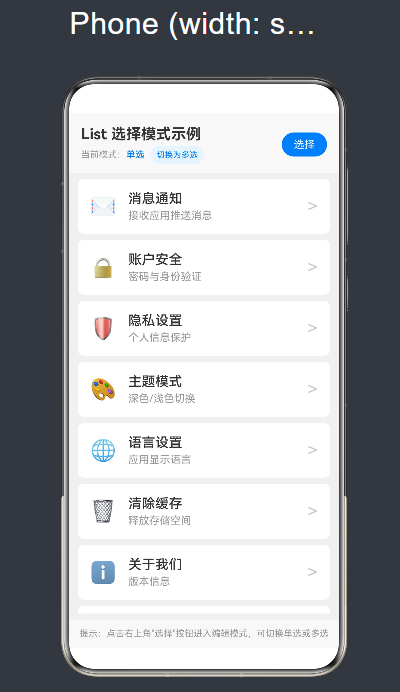
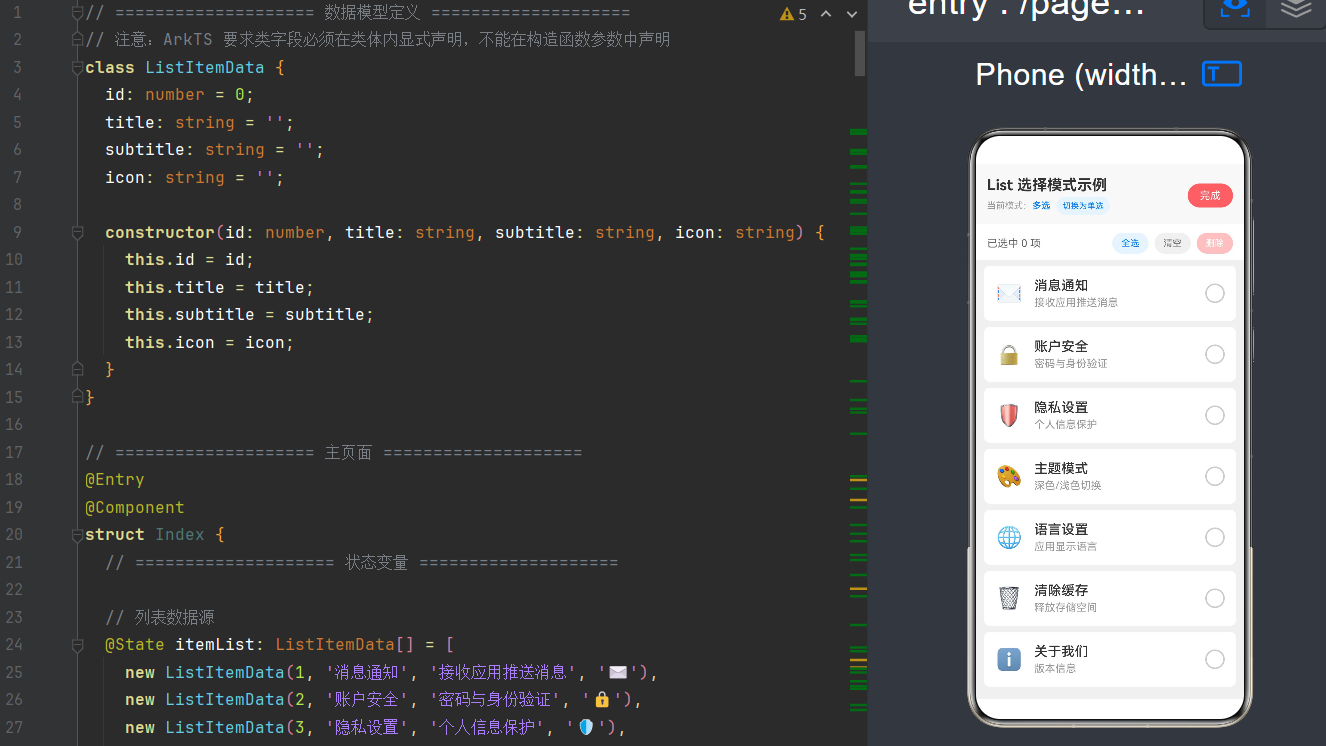
目录
- 第一章:引言与背景
- [第二章:核心 API 深度解析](#第二章:核心 API 深度解析)
- 第三章:数据模型设计
- 第四章:单选模式完整实现
- 第五章:多选模式完整实现
- 第六章:综合实战案例
- 第七章:进阶技巧与性能优化
- 第八章:最佳实践与避坑指南
- 第九章:总结与展望
第一章:引言与背景
1.1 List 组件在移动开发中的地位
在移动应用开发中,列表(List)是最基础也最重要的 UI 组件之一。从通讯录到聊天记录,从购物车到设置页面,几乎每一个应用都离不开列表来展示结构化数据。
HarmonyOS NEXT 的 ArkUI 框架为 List 组件提供了强大的原生支持,不仅实现了流畅的滚动性能,还内置了丰富的交互模式,其中最常用也最实用的便是 单选 和 多选 两种选择模式。
1.2 单选与多选的应用场景
单选模式场景
单选模式适用于用户需要从一组选项中选择唯一答案的场景:
- 设置页面:选择主题(浅色/深色/跟随系统)、选择语言、选择默认支付方式
- 表单填写:选择性别、选择出生日期、选择配送方式
- 功能配置:选择定位精度、选择数据同步频率、选择消息提醒方式
- 方案确认:选择配送地址、选择优惠券、选择支付渠道
多选模式场景
多选模式适用于用户需要同时选择多个选项的场景:
- 批量操作:删除多条消息、移动多个文件、分享多张图片
- 筛选过滤:多选标签筛选内容、多选条件组合搜索
- 权限管理:批量授予权限、批量移除成员
- 内容收藏:收藏多个项目、添加多个目标
1.3 为什么选择原生方案
在 HarmonyOS NEXT 开发中,我们有多种方式实现选择功能:
| 方案 | 优点 | 缺点 |
|---|---|---|
| 原生 List API | 性能最优、体验一致、代码简洁 | 需要学习特定 API |
| 自定义组件 | 灵活性高 | 开发量大、维护成本高 |
| 第三方库 | 开箱即用 | 依赖问题、版本适配 |
推荐选择原生方案的原因:
- 性能保障:原生组件经过深度优化,滚动流畅、响应迅速
- 体验一致:与系统应用行为统一,用户无需额外学习
- 开发效率:声明式 API 简洁明了,代码量少
- 长期维护:官方持续更新,兼容性有保障
1.4 开发环境准备
开始之前,请确保开发环境满足以下要求:
| 项目 | 版本要求 |
|---|---|
| 操作系统 | Windows 10/11 或 macOS 12+ |
| DevEco Studio | 5.0.0 Release 及以上 |
| HarmonyOS SDK | API 24 (HarmonyOS NEXT) |
| Node.js | 18.0.0 及以上 |
| JDK | 17 及以上 |
创建新项目时,推荐选择 Empty Ability 模板,这样可以获得最精简的项目结构。
第二章:核心 API 深度解析
2.1 API 概览
HarmonyOS NEXT (API 24) 中,List 选择功能主要涉及以下几个核心 API:
| API | 所属组件 | 功能说明 | API 版本 |
|---|---|---|---|
.editMode(boolean) |
List | 进入/退出编辑模式 | API 9 (已废弃但仍可用) |
.multiSelectable(boolean) |
List | 开启多选模式 | API 8+ |
.selectable(boolean) |
ListItem | 设置该项是否可选中 | API 7+ |
.selected(boolean) |
ListItem | 设置该项是否被选中 | API 7+ |
.onSelect(callback) |
ListItem | 监听选中状态变化 | API 7+ |
.selectedState(state) |
ListItem | 设置选中态样式 | API 7+ |
2.2 List 组件属性详解
.editMode(boolean) - 编辑模式开关
这是控制列表是否进入编辑状态的总开关。当设置为 true 时,列表项会显示选择控件(如复选框、单选按钮),用户可以进行选择操作。
typescript
// 进入编辑模式
List() {
  // ...
}
.editMode(true)

// 退出编辑模式
List() {
  // ...
}
.editMode(false)注意事项:
.editMode()在 API 24 中已标记为@deprecated,但官方仍保持兼容- 新推荐方式是使用
.multiSelectable(true)+ 自定义选择控件 - 如果项目需要长期维护,建议逐步迁移到新方案
.multiSelectable(boolean) - 多选模式
开启多选模式后,用户可以同时选中多个列表项:
typescript
// 开启多选模式
List() {
  // ...
}
.multiSelectable(true)
与 .editMode(true) 的区别:
.editMode(true)是传统方式,会自动显示选择控件.multiSelectable(true)更灵活,可以配合自定义 UI 使用
2.3 ListItem 组件属性详解
.selectable(boolean) - 是否可选中
设置单个列表项是否允许被选中:
typescript
ListItem() {
  // 内容
}
.selectable(true)   // 可选中
// .selectable(false) // 不可选中
使用场景 :列表中某些项(如分组标题、功能按钮)不需要被选中时,设置为 false。
.selected(boolean) - 选中状态
这是一个 受控属性,用于绑定列表项的选中状态:
typescript
@State selectedId: number = 1

ListItem() {
  // 内容
}
.selected(this.selectedId === item.id)
当 .selected() 的参数值从 false 变为 true 时,该项会显示为选中状态;反之则显示为未选中状态。
.onSelect(callback) - 选中回调
监听列表项选中状态的变化:
typescript
ListItem() {
  // 内容
}
.onSelect((isSelected: boolean) => {
  if (isSelected) {
    console.log('列表项被选中')
  } else {
    console.log('列表项被取消选中')
  }
})回调参数说明:
isSelected: boolean- 选中状态,true表示被选中,false表示取消选中
.selectedState(state) - 选中态样式
自定义选中状态下的视觉效果:
typescript
ListItem() {
  // 内容
}
.selectedState({
  selected: {
    backgroundColor: '#E8F4FF',
    borderColor: '#007DFF'
  },
  unselected: {
    backgroundColor: '#FFFFFF',
    borderColor: '#CCCCCC'
  }
})
2.4 核心属性组合使用
单选模式组合
typescript
List() {
  ForEach(this.itemList, (item: ItemData) => {
    ListItem() {
      this.ItemContent(item)
    }
    .selectable(true)
    .selected(this.selectedId === item.id)
    .onSelect((isSelected: boolean) => {
      if (isSelected) {
        this.selectedId = item.id
      }
    })
  }, (item: ItemData) => item.id.toString())
}
.editMode(this.isEditMode)
多选模式组合
typescript
List() {
  ForEach(this.itemList, (item: ItemData) => {
    ListItem() {
      this.ItemContent(item)
    }
    .selectable(true)
    .selected(this.selectedIds.indexOf(item.id) !== -1)
    .onSelect((isSelected: boolean) => {
      if (isSelected) {
        this.selectedIds.push(item.id)
      } else {
        const index = this.selectedIds.indexOf(item.id)
        if (index !== -1) {
          this.selectedIds.splice(index, 1)
        }
      }
    })
  }, (item: ItemData) => item.id.toString())
}
.editMode(this.isEditMode)
2.5 受控 vs 非受控模式
非受控模式
使用组件内部状态管理选中:
typescript
ListItem() {
  // 内容
}
.selectable(true)
.selected(true)  // 始终选中
缺点:无法在外部控制选中状态,实用性有限。
受控模式(推荐)
通过状态变量控制选中:
typescript
@State selectedId: number = 1

ListItem() {
  // 内容
}
.selectable(true)
.selected(this.selectedId === item.id)
.onSelect((isSelected: boolean) => {
  this.selectedId = isSelected ? item.id : 0
})
优点:
- 外部可以随时修改选中状态
- 支持全选、清空等操作
- 状态持久化方便
第三章:数据模型设计
3.1 ArkTS 类定义规范
ArkTS 对类定义有严格要求,必须遵循以下规则:
规则 1:所有字段必须在类体内声明,不能在构造函数参数中声明
typescript
// ❌ 错误写法
class ItemData {
  constructor(public id: number, public name: string) {}
}

// ✅ 正确写法
class ItemData {
  id: number = 0
  name: string = ''

  constructor(id: number, name: string) {
    this.id = id
    this.name = name
  }
}
规则 2:字段必须有初始值
typescript
// ❌ 错误写法
class ItemData {
  id: number  // 缺少初始值
  name: string  // 缺少初始值
}

// ✅ 正确写法
class ItemData {
  id: number = 0
  name: string = ''
}
规则 3:推荐使用明确的类型标注
typescript
// ❌ 不推荐
let data = new ItemData(1, 'test')

// ✅ 推荐
let data: ItemData = new ItemData(1, 'test')
3.2 基础数据模型
单列表项模型
typescript
class ListItemData {
  id: number = 0
  title: string = ''
  subtitle: string = ''
  icon: string = ''
  isEnabled: boolean = true

  constructor(
    id: number,
    title: string,
    subtitle: string,
    icon: string,
    isEnabled: boolean = true
  ) {
    this.id = id
    this.title = title
    this.subtitle = subtitle
    this.icon = icon
    this.isEnabled = isEnabled
  }
}
带分类的数据模型
typescript
class CategoryItem {
  categoryId: string = ''
  categoryName: string = ''
  items: ListItemData[] = []

  constructor(categoryId: string, categoryName: string, items: ListItemData[]) {
    this.categoryId = categoryId
    this.categoryName = categoryName
    this.items = items
  }
}
3.3 初始化示例数据
typescript
@State itemList: ListItemData[] = [
  new ListItemData(1, '消息通知', '接收应用推送消息', '✉️'),
  new ListItemData(2, '账户安全', '密码与身份验证', '🔒'),
  new ListItemData(3, '隐私设置', '个人信息保护', '🛡️'),
  new ListItemData(4, '主题模式', '深色/浅色切换', '🎨'),
  new ListItemData(5, '语言设置', '应用显示语言', '🌐'),
  new ListItemData(6, '清除缓存', '释放存储空间', '🗑️'),
  new ListItemData(7, '关于我们', '版本信息', 'ℹ️'),
  new ListItemData(8, '帮助中心', '常见问题解答', '❓'),
]
3.4 状态管理变量设计
单选模式状态
typescript
// 编辑模式开关
@State isEditMode: boolean = false
// 当前选中项 ID,0 表示未选中
@State selectedId: number = 0
多选模式状态
typescript
// 编辑模式开关
@State isEditMode: boolean = false
// 选中项 ID 列表(使用 Array 而非 Set,符合 ArkTS 规范)
@State selectedIds: number[] = []
3.5 选择逻辑辅助方法
typescript
// 单选:检查某项是否被选中
private isItemSelected(id: number): boolean {
  return this.selectedId === id
}

// 多选:检查某项是否被选中
private isItemSelected(id: number): boolean {
  return this.selectedIds.indexOf(id) !== -1
}

// 获取选中数量
private getSelectedCount(): number {
  return this.selectedIds.length
}

// 清空所有选中
private clearAllSelections(): void {
  this.selectedId = 0
  this.selectedIds = []
}

// 全选(多选模式)
private selectAll(): void {
  this.selectedIds = []
  for (let i = 0; i < this.itemList.length; i++) {
    if (this.itemList[i].isEnabled) {
      this.selectedIds.push(this.itemList[i].id)
    }
  }
}
第四章:单选模式完整实现
4.1 单选模式特点
单选模式的核心特点是 互斥性:同时只能有一个列表项被选中。当用户选中新项时,之前的选中项会自动取消。
4.2 基础版实现
步骤 1:定义数据模型和状态
typescript
class ListItemData {
  id: number = 0
  title: string = ''
  description: string = ''

  constructor(id: number, title: string, description: string) {
    this.id = id
    this.title = title
    this.description = description
  }
}

@Entry
@Component
struct SingleSelectDemo {
  // 数据源
  @State itemList: ListItemData[] = [
    new ListItemData(1, '选项一', '这是第一个选项'),
    new ListItemData(2, '选项二', '这是第二个选项'),
    new ListItemData(3, '选项三', '这是第三个选项'),
    new ListItemData(4, '选项四', '这是第四个选项'),
  ]

  // 编辑模式
  @State isEditMode: boolean = false
  // 当前选中项 ID
  @State selectedId: number = 0
}
步骤 2:实现 UI 构建器
typescript
@Builder
private ItemBuilder(item: ListItemData) {
  Row() {
    Column() {
      Text(item.title)
        .fontSize(16)
        .fontWeight(FontWeight.Medium)
        .fontColor(this.selectedId === item.id ? '#007DFF' : '#333333')

      Text(item.description)
        .fontSize(14)
        .fontColor('#999999')
        .margin({ top: 4 })
    }
    .alignItems(HorizontalAlign.Start)
    .layoutWeight(1)

    // 选中指示器(圆形单选按钮样式)
    Circle()
      .width(20)
      .height(20)
      .fill(this.selectedId === item.id ? '#007DFF' : 'transparent')
      .strokeWidth(2)
      .stroke(this.selectedId === item.id ? '#007DFF' : '#CCCCCC')
  }
  .width('100%')
  .padding(16)
  .backgroundColor(this.selectedId === item.id ? '#F0F7FF' : '#FFFFFF')
  .borderRadius(8)
}
步骤 3:构建主布局
typescript
build() {
  Column() {
    // 标题栏
    Row() {
      Text('单选模式示例')
        .fontSize(20)
        .fontWeight(FontWeight.Bold)
        .layoutWeight(1)

      Button({ type: ButtonType.Normal }) {
        Text(this.isEditMode ? '完成' : '选择')
      }
      .onClick(() => {
        this.isEditMode = !this.isEditMode
        if (!this.isEditMode) {
          this.selectedId = 0
        }
      })
    }
    .width('100%')
    .padding(16)
    .backgroundColor('#F8F8F8')

    // 已选中提示
    if (this.isEditMode && this.selectedId > 0) {
      Text('已选中:' + this.itemList.find(item => item.id === this.selectedId)?.title)
        .fontSize(14)
        .fontColor('#007DFF')
        .padding({ left: 16, right: 16, top: 8, bottom: 8 })
    }

    // 列表
    List({ space: 8 }) {
      ForEach(this.itemList, (item: ListItemData) => {
        ListItem() {
          this.ItemBuilder(item)
        }
        .selectable(true)
        .selected(this.selectedId === item.id)
        .onSelect((isSelected: boolean) => {
          if (this.isEditMode && isSelected) {
            this.selectedId = item.id
          }
        })
      }, (item: ListItemData) => item.id.toString())
    }
    .width('100%')
    .layoutWeight(1)
    .padding(12)
    .editMode(this.isEditMode)
  }
  .width('100%')
  .height('100%')
  .backgroundColor('#F0F0F0')
}
4.3 完整版实现(带交互反馈)
完整代码
typescript
// ListItemData 类定义
class ListItemData {
  id: number = 0
  title: string = ''
  description: string = ''
  icon: string = ''
  price: string = ''
  isRecommended: boolean = false

  constructor(
    id: number,
    title: string,
    description: string,
    icon: string,
    price: string = '',
    isRecommended: boolean = false
  ) {
    this.id = id
    this.title = title
    this.description = description
    this.icon = icon
    this.price = price
    this.isRecommended = isRecommended
  }
}

@Entry
@Component
struct SingleSelectCompleteDemo {
  // 数据源 - 支付方式选择
  @State paymentList: ListItemData[] = [
    new ListItemData(1, '微信支付', '推荐使用', '💚', '免费', true),
    new ListItemData(2, '支付宝', '安全便捷', '💙', '免费'),
    new ListItemData(3, '银行卡', '支持主流银行', '💳', '免费'),
    new ListItemData(4, '话费支付', '小额便捷', '📱', '收取手续费'),
  ]

  // 编辑模式
  @State isEditMode: boolean = false
  // 选中的支付方式 ID
  @State selectedPaymentId: number = 1
  // 确认对话框显示状态
  @State showConfirmDialog: boolean = false

  // 切换编辑模式
  private toggleEditMode(): void {
    this.isEditMode = !this.isEditMode
  }

  // 确认选择
  private confirmSelection(): void {
    this.showConfirmDialog = true
  }

  // 获取选中项
  private getSelectedItem(): ListItemData | null {
    for (let i = 0; i < this.paymentList.length; i++) {
      if (this.paymentList[i].id === this.selectedPaymentId) {
        return this.paymentList[i]
      }
    }
    return null
  }

  @Builder
  private PaymentItemBuilder(item: ListItemData) {
    Row() {
      // 图标
      Text(item.icon)
        .fontSize(32)
        .margin({ right: 12 })

      // 中间信息
      Column() {
        Row() {
          Text(item.title)
            .fontSize(16)
            .fontWeight(FontWeight.Medium)
            .fontColor(this.selectedPaymentId === item.id ? '#007DFF' : '#333333')

          if (item.isRecommended) {
            Text('推荐')
              .fontSize(11)
              .fontColor('#FF6B00')
              .backgroundColor('#FFF3E0')
              .padding({ left: 6, right: 6, top: 2, bottom: 2 })
              .margin({ left: 8 })
              .borderRadius(4)
          }
        }

        Text(item.description)
          .fontSize(13)
          .fontColor('#999999')
          .margin({ top: 4 })

        Text(item.price)
          .fontSize(12)
          .fontColor('#07C160')
          .margin({ top: 2 })
      }
      .alignItems(HorizontalAlign.Start)
      .layoutWeight(1)

      // 单选指示器
      Row() {
        if (this.selectedPaymentId === item.id) {
          Circle()
            .width(22)
            .height(22)
            .fill('#007DFF')

          Circle()
            .width(10)
            .height(10)
            .fill(Color.White)
        } else {
          Circle()
            .width(22)
            .height(22)
            .fill('transparent')
            .strokeWidth(2)
            .stroke('#CCCCCC')
        }
      }
      .width(24)
      .height(24)
      .justifyContent(FlexAlign.Center)
      .alignItems(VerticalAlign.Center)
    }
    .width('100%')
    .padding(16)
    .backgroundColor(this.selectedPaymentId === item.id ? '#F0F7FF' : '#FFFFFF')
    .borderRadius(12)
    .border({
      width: this.selectedPaymentId === item.id ? 2 : 1,
      color: this.selectedPaymentId === item.id ? '#007DFF' : '#EEEEEE'
    })
  }

  build() {
    Column() {
      // 顶部标题栏
      Row() {
        Text('选择支付方式')
          .fontSize(22)
          .fontWeight(FontWeight.Bold)
          .layoutWeight(1)
      }
      .width('100%')
      .padding({ left: 20, right: 20, top: 24, bottom: 16 })
      .backgroundColor(Color.White)

      // 当前选择提示
      Row() {
        Text('已选择:')
          .fontSize(14)
          .fontColor('#666666')

        Text(this.getSelectedItem()?.title ?? '未选择')
          .fontSize(14)
          .fontColor('#007DFF')
          .fontWeight(FontWeight.Medium)
      }
      .width('100%')
      .padding({ left: 20, right: 20, top: 8, bottom: 12 })

      // 列表区域
      List({ space: 12 }) {
        ForEach(this.paymentList, (item: ListItemData) => {
          ListItem() {
            this.PaymentItemBuilder(item)
          }
          .selectable(true)
          .selected(this.selectedPaymentId === item.id)
          .onSelect((isSelected: boolean) => {
            if (isSelected) {
              this.selectedPaymentId = item.id
            }
          })
        }, (item: ListItemData) => item.id.toString())
      }
      .width('100%')
      .layoutWeight(1)
      .padding({ left: 20, right: 20 })

      // 底部确认按钮
      Button() {
        Text('确认支付方式')
          .fontSize(16)
          .fontWeight(FontWeight.Medium)
      }
      .width('90%')
      .height(48)
      .backgroundColor('#007DFF')
      .fontColor(Color.White)
      .borderRadius(24)
      .margin({ bottom: 24 })
      .onClick(() => {
        this.confirmSelection()
      })
    }
    .width('100%')
    .height('100%')
    .backgroundColor('#F5F5F5')
    .bindSheet({
      show: this.showConfirmDialog,
      builder: this.ConfirmSheet,
      height: 300
    })
  }

  @Builder
  private ConfirmSheet() {
    Column() {
      Text('确认选择')
        .fontSize(18)
        .fontWeight(FontWeight.Bold)
        .margin({ bottom: 16 })

      Text('您选择的支付方式是:')
        .fontSize(14)
        .fontColor('#666666')
        .margin({ bottom: 8 })

      Text(this.getSelectedItem()?.title ?? '')
        .fontSize(20)
        .fontColor('#007DFF')
        .fontWeight(FontWeight.Bold)
        .margin({ bottom: 24 })

      Row() {
        Button() {
          Text('取消')
        }
        .layoutWeight(1)
        .height(44)
        .backgroundColor('#F0F0F0')
        .fontColor('#666666')
        .borderRadius(22)
        .margin({ right: 12 })
        .onClick(() => {
          this.showConfirmDialog = false
        })

        Button() {
          Text('确认')
        }
        .layoutWeight(1)
        .height(44)
        .backgroundColor('#007DFF')
        .fontColor(Color.White)
        .borderRadius(22)
        .onClick(() => {
          this.showConfirmDialog = false
        })
      }
      .width('100%')
    }
    .width('100%')
    .padding(24)
    .backgroundColor(Color.White)
  }
}
4.4 关键实现要点
1. 选中状态更新
单选模式下,选中状态通过单个 @State 变量管理:
typescript
.onSelect((isSelected: boolean) => {
  if (isSelected) {
    this.selectedId = item.id  // 直接赋值即可,之前的选中自动取消
  }
})
2. UI 反馈
选中状态需要在多个地方体现:
- 选中指示器(圆形、勾选框等)
- 背景色变化
- 文字颜色变化
- 边框高亮
3. 确认流程
重要选择操作建议增加确认步骤:
- 显示选中项信息
- 提供确认/取消按钮
- 防止误操作
第五章:多选模式完整实现
5.1 多选模式特点
多选模式的核心特点是 可叠加性:用户可以同时选中多个列表项,实现批量操作。
5.2 基础版实现
typescript
@Entry
@Component
struct MultiSelectBasicDemo {
  @State itemList: ListItemData[] = [
    new ListItemData(1, '文件 1', '1.2 MB'),
    new ListItemData(2, '文件 2', '3.5 MB'),
    new ListItemData(3, '文件 3', '856 KB'),
    new ListItemData(4, '文件 4', '2.1 MB'),
    new ListItemData(5, '文件 5', '4.8 MB'),
  ]

  @State isEditMode: boolean = false
  @State selectedIds: number[] = []

  // 检查是否选中
  private isSelected(id: number): boolean {
    return this.selectedIds.indexOf(id) !== -1
  }

  // 处理选中
  private handleSelect(id: number, isSelected: boolean): void {
    if (isSelected) {
      if (this.selectedIds.indexOf(id) === -1) {
        this.selectedIds.push(id)
      }
    } else {
      const index = this.selectedIds.indexOf(id)
      if (index !== -1) {
        this.selectedIds.splice(index, 1)
      }
    }
  }

  // 全选
  private selectAll(): void {
    this.selectedIds = []
    for (let i = 0; i < this.itemList.length; i++) {
      this.selectedIds.push(this.itemList[i].id)
    }
  }

  // 删除选中
  private deleteSelected(): void {
    const newList: ListItemData[] = []
    for (let i = 0; i < this.itemList.length; i++) {
      if (!this.isSelected(this.itemList[i].id)) {
        newList.push(this.itemList[i])
      }
    }
    this.itemList = newList
    this.selectedIds = []
  }

  build() {
    Column() {
      // 标题栏
      Row() {
        Text('文件管理')
          .fontSize(20)
          .fontWeight(FontWeight.Bold)
          .layoutWeight(1)

        Button({ type: ButtonType.Normal }) {
          Text(this.isEditMode ? '完成' : '管理')
        }
        .onClick(() => {
          this.isEditMode = !this.isEditMode
          if (!this.isEditMode) {
            this.selectedIds = []
          }
        })
      }
      .width('100%')
      .padding(16)
      .backgroundColor('#F8F8F8')

      // 操作栏
      if (this.isEditMode) {
        Row() {
          Text('已选 ' + this.selectedIds.length + ' 项')
            .fontSize(14)
            .fontColor('#666666')

          Blank()

          Button() {
            Text('全选')
          }
          .fontSize(12)
          .backgroundColor('#E8F4FF')
          .fontColor('#007DFF')
          .margin({ right: 8 })
          .onClick(() => {
            this.selectAll()
          })

          Button() {
            Text('删除')
          }
          .fontSize(12)
          .backgroundColor('#FF6B6B')
          .fontColor(Color.White)
          .enabled(this.selectedIds.length > 0)
          .onClick(() => {
            this.deleteSelected()
          })
        }
        .width('100%')
        .padding({ left: 16, right: 16, top: 12, bottom: 12 })
        .backgroundColor(Color.White)
      }

      // 列表
      List({ space: 1 }) {
        ForEach(this.itemList, (item: ListItemData) => {
          ListItem() {
            Row() {
              if (this.isEditMode) {
                // 多选复选框
                Row() {
                  if (this.isSelected(item.id)) {
                    Icon('check', 20)
                      .fillColor(Color.White)
                  }
                }
                .width(22)
                .height(22)
                .backgroundColor(this.isSelected(item.id) ? '#007DFF' : '#FFFFFF')
                .border({
                  width: 2,
                  color: this.isSelected(item.id) ? '#007DFF' : '#CCCCCC'
                })
                .borderRadius(4)
                .margin({ right: 12 })
                .justifyContent(FlexAlign.Center)
                .alignItems(VerticalAlign.Center)
              }

              Column() {
                Text(item.title)
                  .fontSize(16)
                  .fontWeight(FontWeight.Medium)
                  .fontColor(this.isSelected(item.id) ? '#007DFF' : '#333333')

                Text(item.description)
                  .fontSize(13)
                  .fontColor('#999999')
                  .margin({ top: 2 })
              }
              .alignItems(HorizontalAlign.Start)
              .layoutWeight(1)
            }
            .width('100%')
            .padding(16)
            .backgroundColor(this.isSelected(item.id) ? '#F0F7FF' : '#FFFFFF')
          }
          .selectable(true)
          .selected(this.isSelected(item.id))
          .onSelect((isSelected: boolean) => {
            if (this.isEditMode) {
              this.handleSelect(item.id, isSelected)
            }
          })
        }, (item: ListItemData) => item.id.toString())
      }
      .width('100%')
      .layoutWeight(1)
      .editMode(this.isEditMode)
    }
    .width('100%')
    .height('100%')
    .backgroundColor('#F5F5F5')
  }
}
5.3 完整版实现(带拖拽排序和更多操作)
完整代码结构
typescript
// 消息列表数据模型
class MessageItem {
id: number = 0
senderName: string = ''
avatar: string = ''
content: string = ''
time: string = ''
isRead: boolean = false
isPinned: boolean = false
constructor(
id: number,
senderName: string,
avatar: string,
content: string,
time: string,
isRead: boolean = false,
isPinned: boolean = false
) {
this.id = id
this.senderName = senderName
this.avatar = avatar
this.content = content
this.time = time
this.isRead = isRead
this.isPinned = isPinned
}
}
@Entry
@Component
struct MessageListDemo {
@State messageList: MessageItem[] = [
new MessageItem(1, '张三', '👨', '你好,最近怎么样?', '10:30', false, true),
new MessageItem(2, '李四', '👩', '明天有空一起吃饭吗?', '09:45', false),
new MessageItem(3, '王五', '🧑', '项目进度汇报,请查收', '昨天', true),
new MessageItem(4, '赵六', '👨💼', '会议改到下午三点', '昨天', true),
new MessageItem(5, '系统通知', '📢', '您的订单已发货', '2天前', true),
new MessageItem(6, '陈七', '👴', '周末去钓鱼吗?', '3天前', true),
]
@State isEditMode: boolean = false
@State selectedIds: number[] = []
@State showActionSheet: boolean = false
private isSelected(id: number): boolean {
return this.selectedIds.indexOf(id) !== -1
}
private toggleSelect(id: number): void {
const index = this.selectedIds.indexOf(id)
if (index !== -1) {
this.selectedIds.splice(index, 1)
} else {
this.selectedIds.push(id)
}
}
private selectAll(): void {
this.selectedIds = []
for (let i = 0; i < this.messageList.length; i++) {
this.selectedIds.push(this.messageList[i].id)
}
}
private clearSelection(): void {
this.selectedIds = []
}
private deleteMessages(): void {
const newList: MessageItem[] = []
for (let i = 0; i < this.messageList.length; i++) {
if (!this.isSelected(this.messageList[i].id)) {
newList.push(this.messageList[i])
}
}
this.messageList = newList
this.selectedIds = []
if (this.messageList.length === 0) {
this.isEditMode = false
}
}
private markAsRead(): void {
for (let i = 0; i < this.messageList.length; i++) {
if (this.isSelected(this.messageList[i].id)) {
this.messageList[i].isRead = true
}
}
this.selectedIds = []
}
private pinMessages(): void {
for (let i = 0; i < this.messageList.length; i++) {
if (this.isSelected(this.messageList[i].id)) {
this.messageList[i].isPinned = true
}
}
this.selectedIds = []
}
@Builder
private MessageItemBuilder(item: MessageItem) {
Row() {
if (this.isEditMode) {
// 多选复选框
Row() {
if (this.isSelected(item.id)) {
Icon('checkmark', 16)
.fillColor(Color.White)
}
}
.width(22)
.height(22)
.backgroundColor(this.isSelected(item.id) ? '#007DFF' : '#FFFFFF')
.border({
width: 2,
color: this.isSelected(item.id) ? '#007DFF' : '#CCCCCC'
})
.borderRadius(6)
.margin({ right: 12 })
.justifyContent(FlexAlign.Center)
.alignItems(VerticalAlign.Center)
}
// 头像
Text(item.avatar)
.fontSize(40)
.margin({ right: 12 })
// 消息内容
Column() {
Row() {
Text(item.senderName)
.fontSize(16)
.fontWeight(item.isRead ? FontWeight.Normal : FontWeight.Bold)
.fontColor('#333333')
.layoutWeight(1)
Text(item.time)
.fontSize(12)
.fontColor('#999999')
}
.width('100%')
Row() {
Text(item.content)
.fontSize(14)
.fontColor(item.isRead ? '#999999' : '#666666')
.maxLines(1)
.textOverflow({ overflow: TextOverflow.Ellipsis })
.layoutWeight(1)
if (!item.isRead) {
Circle()
.width(8)
.height(8)
.fill('#FF4D4F')
.margin({ left: 8 })
}
}
.width('100%')
.margin({ top: 4 })
}
.alignItems(HorizontalAlign.Start)
.layoutWeight(1)
if (item.isPinned) {
Text('📌')
.fontSize(16)
.margin({ left: 8 })
}
}
.width('100%')
.padding(12)
.backgroundColor(this.isSelected(item.id) ? '#F0F7FF' : '#FFFFFF')
.borderRadius(8)
}
build() {
Column() {
// 顶部标题栏
Row() {
Text('消息')
.fontSize(24)
.fontWeight(FontWeight.Bold)
.layoutWeight(1)
if (this.isEditMode) {
Button() {
Text('取消')
}
.fontSize(14)
.backgroundColor(Color.Transparent)
.fontColor('#007DFF')
.onClick(() => {
this.isEditMode = false
this.selectedIds = []
})
} else {
Button() {
Text('编辑')
}
.fontSize(14)
.backgroundColor(Color.Transparent)
.fontColor('#007DFF')
.onClick(() => {
this.isEditMode = true
})
}
}
.width('100%')
.padding({ left: 20, right: 20, top: 24, bottom: 16 })
.backgroundColor(Color.White)
// 编辑模式下的操作栏
if (this.isEditMode) {
Row() {
Text('已选 ' + this.selectedIds.length + ' 项')
.fontSize(14)
.fontColor('#666666')
Blank()
Button() {
Text('全选')
}
.fontSize(12)
.backgroundColor(Color.Transparent)
.fontColor('#007DFF')
.margin({ right: 12 })
.onClick(() => {
if (this.selectedIds.length === this.messageList.length) {
this.clearSelection()
} else {
this.selectAll()
}
})
Button() {
Text('清空')
}
.fontSize(12)
.backgroundColor(Color.Transparent)
.fontColor('#999999')
.onClick(() => {
this.clearSelection()
})
}
.width('100%')
.padding({ left: 20, right: 20, top: 8, bottom: 8 })
.backgroundColor(Color.White)
}
// 消息列表
List({ space: 2 }) {
ForEach(this.messageList, (item: MessageItem) => {
ListItem() {
this.MessageItemBuilder(item)
}
.selectable(true)
.selected(this.isSelected(item.id))
.onSelect((isSelected: boolean) => {
if (this.isEditMode) {
this.toggleSelect(item.id)
}
})
}, (item: MessageItem) => item.id.toString())
}
.width('100%')
.layoutWeight(1)
.padding({ left: 12, right: 12 })
.editMode(this.isEditMode)
// 底部批量操作栏
if (this.isEditMode && this.selectedIds.length > 0) {
Row() {
// 标为已读
Button() {
Column() {
Text('✓')
.fontSize(20)
Text('已读')
.fontSize(11)
.margin({ top: 4 })
}
}
.layoutWeight(1)
.height(56)
.backgroundColor(Color.Transparent)
.onClick(() => {
this.markAsRead()
})
// 置顶
Button() {
Column() {
Text('📌')
.fontSize(20)
Text('置顶')
.fontSize(11)
.margin({ top: 4 })
}
}
.layoutWeight(1)
.height(56)
.backgroundColor(Color.Transparent)
.onClick(() => {
this.pinMessages()
})
// 删除
Button() {
Column() {
Text('🗑️')
.fontSize(20)
Text('删除')
.fontSize(11)
.margin({ top: 4 })
}
}
.layoutWeight(1)
.height(56)
.backgroundColor(Color.Transparent)
.onClick(() => {
this.deleteMessages()
})
}
.width('100%')
.backgroundColor(Color.White)
.border({ width: 1, color: '#EEEEEE' })
}
}
.width('100%')
.height('100%')
.backgroundColor('#F5F5F5')
}
}5.4 多选模式核心逻辑
添加选中项
typescript
if (this.selectedIds.indexOf(id) === -1) {
  this.selectedIds.push(id)
}
移除选中项
typescript
const index = this.selectedIds.indexOf(id)
if (index !== -1) {
  this.selectedIds.splice(index, 1)
}
判断是否全选
typescript
const isAllSelected: boolean = this.selectedIds.length === this.itemList.length全选/取消全选
typescript
if (this.selectedIds.length === this.itemList.length) {
  // 已全选,执行取消全选
  this.selectedIds = []
} else {
  // 未全选,执行全选
  this.selectAll()
}
第六章:综合实战案例
6.1 案例概述
本案例将实现一个完整的 文件管理器 应用,综合运用单选和多选两种模式:
- 单选模式:选择文件、进入文件夹、打开文件
- 多选模式:批量删除、移动、复制、分享
6.2 完整代码实现
由于篇幅限制,这里提供核心代码结构和关键实现点:
步骤 1:定义数据模型
typescript
class FileItem {
  id: number = 0
  name: string = ''
  type: string = ''  // 'folder', 'image', 'document', 'video', 'audio', 'other'
  size: string = ''
  modifiedDate: string = ''
  isFolder: boolean = false
  parentId: number = 0  // 父文件夹 ID,0 表示根目录

  constructor(
    id: number,
    name: string,
    type: string,
    size: string,
    modifiedDate: string,
    isFolder: boolean,
    parentId: number = 0
  ) {
    this.id = id
    this.name = name
    this.type = type
    this.size = size
    this.modifiedDate = modifiedDate
    this.isFolder = isFolder
    this.parentId = parentId
  }
}
步骤 2:文件类型图标映射
typescript
function getFileIcon(type: string, isFolder: boolean): string {
  if (isFolder) {
    return '📁'
  }
  switch (type) {
    case 'image': return '🖼️'
    case 'document': return '📄'
    case 'video': return '🎬'
    case 'audio': return '🎵'
    case 'archive': return '📦'
    default: return '📎'
  }
}
步骤 3:核心状态管理
typescript
@Entry
@Component
struct FileManager {
  // 文件列表(扁平化存储,通过 parentId 构建层级)
  @State allFiles: FileItem[] = []
  // 当前目录下的文件
  @State currentFiles: FileItem[] = []
  // 当前路径
  @State currentPath: string = '/我的文件'
  @State currentFolderId: number = 0

  // 模式控制
  @State isEditMode: boolean = false
  @State selectedIds: number[] = []

  // 视图模式
  @State viewMode: 'list' | 'grid' = 'list'
  @State sortBy: 'name' | 'date' | 'size' = 'name'
}
步骤 4:文件过滤与排序
typescript
// 获取当前目录下的文件
private getCurrentFiles(): void {
  const filtered: FileItem[] = []
  for (let i = 0; i < this.allFiles.length; i++) {
    if (this.allFiles[i].parentId === this.currentFolderId) {
      filtered.push(this.allFiles[i])
    }
  }
  this.currentFiles = this.sortFiles(filtered)
}

// 排序文件
private sortFiles(files: FileItem[]): FileItem[] {
  const sorted = files.slice()

  // 文件夹始终排在前面
  sorted.sort((a: FileItem, b: FileItem) => {
    if (a.isFolder !== b.isFolder) {
      return a.isFolder ? -1 : 1
    }
    return 0
  })

  // 按选定的排序方式排序
  sorted.sort((a: FileItem, b: FileItem) => {
    switch (this.sortBy) {
      case 'name':
        return a.name.localeCompare(b.name)
      case 'date':
        return new Date(b.modifiedDate).getTime() - new Date(a.modifiedDate).getTime()
      case 'size':
        return this.parseSize(b.size) - this.parseSize(a.size)
      default:
        return 0
    }
  })

  return sorted
}

// 解析文件大小为字节数
private parseSize(size: string): number {
  const parts = size.split(' ')
  if (parts.length !== 2) return 0

  const value = parseFloat(parts[0])
  const unit = parts[1].toUpperCase()

  switch (unit) {
    case 'B': return value
    case 'KB': return value * 1024
    case 'MB': return value * 1024 * 1024
    case 'GB': return value * 1024 * 1024 * 1024
    default: return value
  }
}
步骤 5:文件操作方法
typescript
// 进入文件夹(单选模式)
private openFolder(file: FileItem): void {
  if (file.isFolder && !this.isEditMode) {
    this.currentPath += '/' + file.name
    this.currentFolderId = file.id
    this.getCurrentFiles()
  }
}

// 返回上级目录
private goBack(): void {
  if (this.currentFolderId === 0) return

  // 找到父文件夹
  for (let i = 0; i < this.allFiles.length; i++) {
    if (this.allFiles[i].id === this.currentFolderId) {
      const parentId = this.allFiles[i].parentId

      // 更新路径
      const pathParts = this.currentPath.split('/')
      pathParts.pop()
      this.currentPath = pathParts.join('/') || '/我的文件'

      this.currentFolderId = parentId
      this.getCurrentFiles()
      return
    }
  }
}

// 批量删除(多选模式)
private deleteFiles(): void {
  const newAllFiles: FileItem[] = []
  const idsToDelete: number[] = []

  // 收集要删除的 ID(包括子文件)
  for (let i = 0; i < this.selectedIds.length; i++) {
    idsToDelete.push(this.selectedIds[i])
    this.collectChildIds(this.selectedIds[i], idsToDelete)
  }

  // 过滤
  for (let i = 0; i < this.allFiles.length; i++) {
    if (idsToDelete.indexOf(this.allFiles[i].id) === -1) {
      newAllFiles.push(this.allFiles[i])
    }
  }

  this.allFiles = newAllFiles
  this.selectedIds = []
  this.isEditMode = false
  this.getCurrentFiles()
}

// 递归收集子文件 ID
private collectChildIds(folderId: number, result: number[]): void {
  for (let i = 0; i < this.allFiles.length; i++) {
    if (this.allFiles[i].parentId === folderId) {
      result.push(this.allFiles[i].id)
      if (this.allFiles[i].isFolder) {
        this.collectChildIds(this.allFiles[i].id, result)
      }
    }
  }
}
6.3 UI 布局实现
typescript
@Builder
private FileItemBuilder(file: FileItem) {
  Row() {
    // 多选模式下的复选框
    if (this.isEditMode) {
      Row() {
        if (this.selectedIds.indexOf(file.id) !== -1) {
          Icon('checkmark', 16)
            .fillColor(Color.White)
        }
      }
      .width(22)
      .height(22)
      .backgroundColor(
        this.selectedIds.indexOf(file.id) !== -1 ? '#007DFF' : '#FFFFFF'
      )
      .border({
        width: 2,
        color: this.selectedIds.indexOf(file.id) !== -1 ? '#007DFF' : '#CCCCCC'
      })
      .borderRadius(4)
      .margin({ right: 12 })
    }

    // 文件图标
    Text(getFileIcon(file.type, file.isFolder))
      .fontSize(36)
      .margin({ right: 12 })

    // 文件信息
    Column() {
      Text(file.name)
        .fontSize(15)
        .fontWeight(FontWeight.Medium)
        .fontColor('#333333')
        .maxLines(1)
        .textOverflow({ overflow: TextOverflow.Ellipsis })

      Row() {
        Text(file.isFolder ? '文件夹' : file.size)
          .fontSize(12)
          .fontColor('#999999')
          .layoutWeight(1)

        Text(file.modifiedDate)
          .fontSize(12)
          .fontColor('#CCCCCC')
      }
      .width('100%')
      .margin({ top: 4 })
    }
    .alignItems(HorizontalAlign.Start)
    .layoutWeight(1)

    // 文件夹箭头
    if (file.isFolder && !this.isEditMode) {
      Icon('chevron-right', 20)
        .fillColor('#CCCCCC')
    }
  }
  .width('100%')
  .padding(12)
  .backgroundColor(
    this.selectedIds.indexOf(file.id) !== -1 ? '#F0F7FF' : '#FFFFFF'
  )
  .borderRadius(8)
}

build() {
  Column() {
    // 顶部导航栏
    Row() {
      if (this.currentFolderId !== 0 && !this.isEditMode) {
        Button() {
          Icon('arrow-left', 20)
        }
        .backgroundColor(Color.Transparent)
        .onClick(() => {
          this.goBack()
        })
      } else {
        Blank()
      }

      Column() {
        Text(this.currentPath)
          .fontSize(16)
          .fontWeight(FontWeight.Medium)
          .maxLines(1)
          .textOverflow({ overflow: TextOverflow.Ellipsis })

        Text(this.currentFiles.length + ' 项')
          .fontSize(12)
          .fontColor('#999999')
      }
      .alignItems(HorizontalAlign.Start)
      .layoutWeight(1)
      .margin({ left: 12 })

      if (this.isEditMode) {
        Button() {
          Text('取消')
        }
        .fontSize(14)
        .backgroundColor(Color.Transparent)
        .fontColor('#007DFF')
        .onClick(() => {
          this.isEditMode = false
          this.selectedIds = []
        })
      } else {
        Button() {
          Text('选择')
        }
        .fontSize(14)
        .backgroundColor(Color.Transparent)
        .fontColor('#007DFF')
        .onClick(() => {
          this.isEditMode = true
        })
      }
    }
    .width('100%')
    .padding({ left: 12, right: 12, top: 16, bottom: 12 })
    .backgroundColor(Color.White)

    // 文件列表
    List({ space: 8 }) {
      ForEach(this.currentFiles, (file: FileItem) => {
        ListItem() {
          this.FileItemBuilder(file)
        }
        .selectable(true)
        .selected(this.selectedIds.indexOf(file.id) !== -1)
        .onSelect((isSelected: boolean) => {
          if (this.isEditMode) {
            if (isSelected) {
              this.selectedIds.push(file.id)
            } else {
              const index = this.selectedIds.indexOf(file.id)
              if (index !== -1) {
                this.selectedIds.splice(index, 1)
              }
            }
          } else if (isSelected && file.isFolder) {
            this.openFolder(file)
          }
        })
      }, (file: FileItem) => file.id.toString())
    }
    .width('100%')
    .layoutWeight(1)
    .padding(12)
    .editMode(this.isEditMode)

    // 底部操作栏(多选模式)
    if (this.isEditMode && this.selectedIds.length > 0) {
      Row() {
        Button() {
          Text('移动')
        }
        .layoutWeight(1)
        .height(44)
        .backgroundColor('#F5F5F5')
        .fontColor('#666666')
        .borderRadius(8)
        .margin({ right: 8 })

        Button() {
          Text('复制')
        }
        .layoutWeight(1)
        .height(44)
        .backgroundColor('#F5F5F5')
        .fontColor('#666666')
        .borderRadius(8)
        .margin({ right: 8 })

        Button() {
          Text('分享')
        }
        .layoutWeight(1)
        .height(44)
        .backgroundColor('#F5F5F5')
        .fontColor('#666666')
        .borderRadius(8)
        .margin({ right: 8 })

        Button() {
          Text('删除')
        }
        .layoutWeight(1)
        .height(44)
        .backgroundColor('#FF4D4F')
        .fontColor(Color.White)
        .borderRadius(8)
        .onClick(() => {
          this.deleteFiles()
        })
      }
      .width('100%')
      .padding(12)
      .backgroundColor(Color.White)
      .border({ width: 1, color: '#EEEEEE' })
    }
  }
  .width('100%')
  .height('100%')
  .backgroundColor('#F5F5F5')
}
第七章:进阶技巧与性能优化
7.1 使用 LazyForEach 优化性能
当列表数据量较大(超过 50 项)时,推荐使用 LazyForEach 替代 ForEach:
typescript
// 1. 创建数据源类
class FileDataSource implements IDataSource {
  private dataList: FileItem[] = []
  private listener: DataChangeListener | null = null

  constructor(dataList: FileItem[]) {
    this.dataList = dataList
  }

  totalCount(): number {
    return this.dataList.length
  }

  getData(index: number): FileItem {
    return this.dataList[index]
  }

  registerDataChangeListener(listener: DataChangeListener): void {
    this.listener = listener
  }

  unregisterDataChangeListener(listener: DataChangeListener): void {
    this.listener = null
  }

  addData(index: number, data: FileItem): void {
    this.dataList.splice(index, 0, data)
    this.listener?.onDataReloaded()
  }

  removeData(index: number): void {
    this.dataList.splice(index, 1)
    this.listener?.onDataReloaded()
  }

  reloadData(dataList: FileItem[]): void {
    this.dataList = dataList
    this.listener?.onDataReloaded()
  }
}

// 2. 在组件中使用
@Component
struct LazyListDemo {
  private dataSource: FileDataSource = new FileDataSource([])

  aboutToAppear() {
    // 初始化数据
    const initialData: FileItem[] = []
    for (let i = 0; i < 1000; i++) {
      initialData.push(new FileItem(i, '文件 ' + i, 'document', '1.2 MB', '2024-01-01', false))
    }
    this.dataSource.reloadData(initialData)
  }

  build() {
    List() {
      LazyForEach(this.dataSource, (item: FileItem) => {
        ListItem() {
          Text(item.name)
            .fontSize(16)
        }
      }, (item: FileItem) => item.id.toString())
    }
    .width('100%')
    .height('100%')
  }
}
7.2 长列表缓存优化
typescript
List() {
  // ...
}
.cachedCount(5)  // 预加载前后 5 项
7.3 防抖处理
避免频繁触发选中回调导致性能问题:
typescript
private debounceTimer: number = 0

private handleSelectWithDebounce(id: number, isSelected: boolean): void {
  clearTimeout(this.debounceTimer)
  this.debounceTimer = setTimeout(() => {
    this.handleSelect(id, isSelected)
  }, 100) as unknown as number
}
7.4 虚拟滚动
对于超大数据集(10,000+ 项),使用虚拟滚动技术:
typescript
List() {
  LazyForEach(this.virtualDataSource, (item) => {
    // 仅渲染可见项
  }, (item) => item.id.toString())
}
.virtualScroll(true)  // 开启虚拟滚动
7.5 动画效果
选中动画
typescript
ListItem() {
  // ...
}
.onSelect((isSelected: boolean) => {
  // 使用 animateTo 添加过渡动画
  animateTo({ duration: 200 }, () => {
    this.handleSelect(id, isSelected)
  })
})
列表更新动画
typescript
List() {
  // ...
}
.chainAnimation(true)  // 链式动画
7.6 数据持久化
使用 Preferences 保存选择状态
typescript
import preferences from '@ohos.data.preferences'

private async saveSelection(): Promise<void> {
  try {
    const context = getContext(this)
    const prefs = await preferences.getPreferences(context, 'list_prefs')
    await prefs.put('selectedIds', this.selectedIds)
    await prefs.put('selectedId', this.selectedId)
    await prefs.flush()
  } catch (e) {
    console.error('保存失败:', e)
  }
}

private async loadSelection(): Promise<void> {
  try {
    const context = getContext(this)
    const prefs = await preferences.getPreferences(context, 'list_prefs')
    this.selectedIds = await prefs.get('selectedIds', []) as number[]
    this.selectedId = await prefs.get('selectedId', 0) as number
  } catch (e) {
    console.error('加载失败:', e)
  }
}
第八章:最佳实践与避坑指南
8.1 架构设计建议
1. 数据与 UI 分离
typescript
// ✅ 推荐:数据模型独立,UI 只负责展示
class UserData {
  id: number
  name: string
  email: string
}

// ❌ 不推荐:在数据模型中混合 UI 状态
class UserData {
  id: number
  name: string
  email: string
  isSelected: boolean  // UI 状态不应在数据模型中
}
2. 状态集中管理
typescript
// ✅ 推荐:集中管理所有状态
@State listState: {
  isEditMode: boolean
  selectedId: number
  selectedIds: number[]
  sortBy: string
} = { ... }

// ❌ 不推荐:分散定义多个状态
@State isEditMode: boolean = false
@State selectedId: number = 0
@State selectedIds: number[] = []
@State sortBy: string = 'name'
3. 业务逻辑提取
typescript
// ✅ 推荐:使用 Service 类封装业务逻辑
class ListService {
  static selectItem(
    currentSelected: number[],
    id: number,
    isSelected: boolean
  ): number[] {
    const newList = currentSelected.slice()
    if (isSelected && newList.indexOf(id) === -1) {
      newList.push(id)
    } else if (!isSelected) {
      const index = newList.indexOf(id)
      if (index !== -1) {
        newList.splice(index, 1)
      }
    }
    return newList
  }
}
8.2 常见错误与解决方案
错误 1:选中状态不更新
问题 :调用 .onSelect() 后 UI 没有响应。
原因 :ListItem 的 .selected() 属性是受控的,需要在回调中手动更新状态。
解决方案:
typescript
// ❌ 错误:只设置了 selected 属性
ListItem() {
  // ...
}
.selected(this.isSelected)
// 缺少 onSelect 回调来更新状态

// ✅ 正确:同时设置 selected 和 onSelect
ListItem() {
  // ...
}
.selected(this.isSelected)
.onSelect((isSelected: boolean) => {
  this.isSelected = isSelected  // 必须更新状态
})
错误 2:多选状态混乱
问题:选中多个项后,部分项状态不正确。
原因 :在异步操作中直接修改 @State 数组。
解决方案:
typescript
// ❌ 错误:直接 push 到 @State 数组
@State selectedIds: number[] = []

this.selectedIds.push(id)  // 直接修改可能导致状态不一致

// ✅ 正确:创建新数组后重新赋值
const newIds = this.selectedIds.slice()  // 复制数组
if (newIds.indexOf(id) === -1) {
  newIds.push(id)
}
this.selectedIds = newIds  // 重新赋值触发状态更新
错误 3:UI 无响应
问题:修改了状态变量,但界面没有更新。
原因 :使用 if-else 条件时,状态更新被跳过。
解决方案:
typescript
// ❌ 错误:条件不满足时不更新
if (this.isEditMode) {
  this.selectedIds.push(id)
}

// ✅ 正确:确保所有路径都能触发更新
const newIds = this.selectedIds.slice()
if (this.isEditMode) {
  if (newIds.indexOf(id) === -1) {
    newIds.push(id)
  }
}
this.selectedIds = newIds
8.3 性能优化建议
1. 避免不必要的重渲染
typescript
// ❌ 不推荐:每次渲染都创建新对象
@Builder
private ItemBuilder(item: ItemData) {
  Text(item.name)
    .fontSize(16)
    .fontColor({ red: 255, green: 0, blue: 0 })  // 每次创建新对象
}

// ✅ 推荐:提取常量
const SELECTED_COLOR: string = '#007DFF'
const NORMAL_COLOR: string = '#333333'

@Builder
private ItemBuilder(item: ItemData) {
  Text(item.name)
    .fontSize(16)
    .fontColor(this.isSelected(item.id) ? SELECTED_COLOR : NORMAL_COLOR)
}
2. 使用 key 优化列表
typescript
// ✅ 正确:提供稳定且唯一的 key
ForEach(this.itemList, (item: ItemData) => {
  ListItem() {
    // ...
  }
}, (item: ItemData) => item.id.toString())  // 使用数据的唯一标识

// ❌ 错误:使用索引作为 key
ForEach(this.itemList, (item: ItemData, index: number) => {
  ListItem() {
    // ...
  }
}, (item: ItemData, index: number) => index.toString())  // 列表变动时 key 会变
3. 避免在渲染方法中执行重计算
typescript
// ❌ 不推荐:每次渲染都计算
@Builder
private ItemBuilder(item: ItemData) {
  const formattedSize = this.formatFileSize(item.size)  // 重计算
  Text(formattedSize)
}

// ✅ 推荐:预计算或缓存结果
@State formattedSizes: Map<number, string> = new Map()

aboutToAppear() {
  // 预先计算所有格式化后的值
  for (let item of this.itemList) {
    this.formattedSizes.set(item.id, this.formatFileSize(item.size))
  }
}

@Builder
private ItemBuilder(item: ItemData) {
  const formattedSize = this.formattedSizes.get(item.id) ?? ''
  Text(formattedSize)
}
8.4 无障碍设计
1. 添加语义化标签
typescript
// ✅ 添加 accessibilityLabel 帮助残障用户
ListItem() {
  // ...
}
.accessibilityLabel(item.name + ',' + item.description)
.accessibilityRole('button')
2. 确保足够的点击区域
typescript
// ✅ 确保最小点击区域为 48x48
ListItem() {
  Row() {
    // 内容
  }
  .width('100%')
  .height(56)  // 至少 48
}
3. 支持键盘导航
typescript
// 在支持键盘的设备上(如平板),确保焦点顺序正确
List() {
  ForEach(this.items, (item: ItemData, index: number) => {
    ListItem() {
      // ...
    }
    .tabIndex(index + 1)  // 设置焦点顺序
  }, (item: ItemData) => item.id.toString())
}
8.5 深色模式适配
1. 使用主题色资源
typescript
// ✅ 使用 $r 引用主题色
Text(item.name)
  .fontColor($r('app.color.text_primary'))  // 自动适配深浅色模式

// ❌ 不要硬编码颜色
Text(item.name)
  .fontColor('#333333')  // 在深色模式下可能看不清
2. 提供明暗两套样式
typescript
// 在 resources/base/element/color.json 中定义
{
  "name": "selected_background",
  "value": "#E8F4FF"
}

// 在 resources/dark/element/color.json 中定义
{
  "name": "selected_background",
  "value": "#1A3A5C"
}

// 使用
.backgroundColor($r('app.color.selected_background'))
第九章:总结与展望
9.1 核心要点回顾
本文详细介绍了 HarmonyOS NEXT (API 24) 中 List 组件的单选与多选功能,主要内容包括:
-
核心 API 掌握
.editMode()- 控制编辑模式.selected()- 受控选中状态.onSelect()- 选中事件回调.selectable()- 是否允许选中
-
两种选择模式
- 单选模式:适用于唯一选择场景,如支付方式、语言设置
- 多选模式:适用于批量操作场景,如删除、移动、分享
-
状态管理技巧
- 使用
@State管理选中状态 - 单选用单个 ID,多选用 ID 数组
- 善用辅助方法简化逻辑
- 使用
-
性能优化策略
- 大数据量使用
LazyForEach - 避免不必要的重渲染
- 提供稳定的 key 值
- 大数据量使用
-
用户体验设计
- 清晰的视觉反馈
- 直观的操作流程
- 深色模式适配
9.2 进阶学习路径
1. 学习更多 List 特性
- 分组列表 :使用
ListItemGroup实现分区 - 粘性标题 :使用
.sticky()固定表头 - 侧滑操作 :使用
.swipeAction()实现滑动删除 - 拖拽排序 :使用
.onMove()实现重排
2. 状态管理进阶
- @Observed / @ObjectLink:复杂对象状态管理
- 状态提升:将状态提升到父组件
- 全局状态:使用 AppStorage 或 LocalStorage
3. 动画与手势
- 属性动画:选中状态过渡效果
- 手势识别:长按进入编辑模式
- 转场动画:列表增删动画
9.3 实际应用场景
场景 1:设置页面
typescript
// 单选示例:主题设置
@State theme: string = 'light'

Row() {
  Text('主题模式')
    .fontSize(16)
  Blank()
  Text(this.theme === 'light' ? '浅色' : '深色')
    .fontColor('#007DFF')
  Icon('chevron-right', 20)
}
.onClick(() => {
  // 打开选择弹窗
})
场景 2:邮件客户端
typescript
// 多选示例:批量操作
@State selectedEmailIds: number[] = []

// 长按进入编辑模式
ListItem() {
  // 邮件内容
}
.gesture(
  LongPressGesture()
    .onAction(() => {
      this.isEditMode = true
      this.selectedEmailIds.push(email.id)
    })
)
场景 3:购物车
typescript
// 混合示例:单选规格 + 多选删除
// 规格选择(单选)
@State selectedSpecId: number = 1

// 商品管理(多选)
@State selectedProductIds: number[] = []
9.4 未来发展方向
随着 HarmonyOS 的不断发展,List 组件也在持续进化:
-
更好的跨设备体验
- 手机/平板/桌面自适应
- 折叠屏适配
- 多窗口支持
-
更强的性能
- 更高效的渲染引擎
- 更智能的内存管理
- 更好的启动速度
-
更丰富的交互
- 3D Touch 支持
- 笔势输入优化
- 语音操作集成
-
更智能的 UI
- AI 辅助布局
- 智能滚动
- 自动分类
9.5 学习资源推荐
官方资源
社区资源
- HarmonyOS 开发者论坛
- 掘金/HarmonyOS 专区
- CSDN/HarmonyOS 分类
- GitHub/HarmonyOS 项目
实践建议
- 动手实践:本文所有代码都可以直接运行调试
- 修改尝试:修改颜色、样式、逻辑等参数观察效果
- 功能扩展:在现有基础上添加新功能
- 性能测试:使用 DevEco Studio 的性能分析工具
附录:完整 API 参考
List 组件属性
| 属性 | 类型 | 默认值 | 说明 |
|---|---|---|---|
.editMode(editing) |
boolean | false | 是否进入编辑模式 |
.multiSelectable(multiSelect) |
boolean | false | 是否开启多选 |
.divider(options) |
DividerOptions | - | 分隔线样式 |
.scrollBar(barState) |
BarState | Auto | 滚动条状态 |
.scrollBarColor(color) |
ResourceColor | - | 滚动条颜色 |
.scrollBarWidth(width) |
Length | - | 滚动条宽度 |
.cachedCount(count) |
number | 1 | 预缓存数量 |
.lanes(lanes) |
number | 1 | 显示列数 |
.alignListItem(align) |
ListItemAlign | Center | 列表项对齐方式 |
ListItem 组件属性
| 属性 | 类型 | 默认值 | 说明 |
|---|---|---|---|
.selectable(selectable) |
boolean | false | 是否可选中 |
.selected(selected) |
boolean | false | 是否被选中 |
.selectedState(state) |
SelectedState | - | 选中态样式 |
.onSelect(callback) |
(isSelected: boolean) => void | - | 选中回调 |
.swipeAction(options) |
SwipeActionOptions | - | 侧滑操作 |
.editable(editable) |
boolean | false | 是否可编辑 |
.editMode(mode) |
EditMode | None | 编辑模式 |
事件回调
| 事件 | 参数 | 说明 |
|---|---|---|
.onScroll(callback) |
(scrollOffset: number, scrollState: ScrollState) => void | 滚动事件 |
.onReachStart(callback) |
() => void | 滚动到顶部 |
.onReachEnd(callback) |
() => void | 滚动到底部 |
.onScrollIndex(callback) |
(start: number, end: number) => void | 可见项索引变化 |
.onSelect(callback) |
(isSelected: boolean) => void | 选中状态变化 |
结语
感谢您阅读完本文!List 的单选与多选功能看似简单,但背后涉及的知识体系非常丰富。希望本文能够帮助您更好地理解和掌握 HarmonyOS NEXT 的列表组件。
在实际开发中,请根据具体需求灵活运用这些知识,不断实践和探索。祝您开发顺利,创造出优秀的 HarmonyOS 应用!